Free • No signup Fix Photos for print materials · Free

Fix photos for print materials

Low-resolution web photos look terrible when printed. Fix them for business cards, brochures, and banners in 30 seconds.

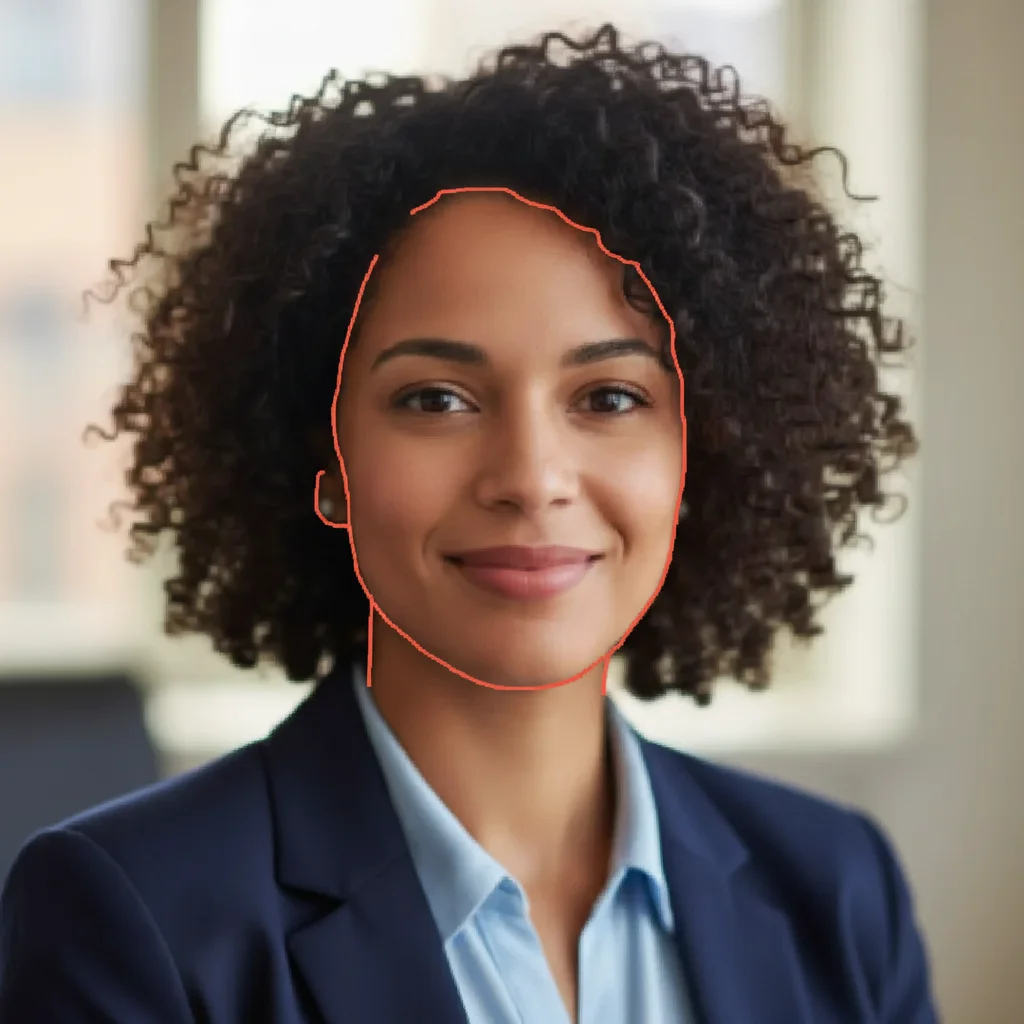
Low-resolution headshot with visible pixelation and blur
Before
High-resolution enhanced headshot ready for business card printing
After

Fix Photos for Print Materials (Business

Drop your photo here

or click to browse

Release to upload

Free • No signup

Advertisement
Popular use cases:
  • Photos for print materials
  • Business card photos
  • Brochure photography
  • Banner printing photos
  • Print-ready images
  • CMYK color correction
  • High-resolution print photos

Cost
Free No signup required
Time
Instant results in 15-30 seconds
Works on
Any device - browser, phone, tablet, desktop
Powered by
AI-powered photo editing
Scenario Prompt Time
Enhance resolution enhance resolution and sharpness for print 30s
Fix CMYK colors adjust colors for CMYK print, reduce saturation 20s
Business card quality sharpen for small format print like business cards 25s
Large format banner enhance for large format banner print 30s

How it works

  1. Upload your photo for print

    Drop the photo you plan to use for business cards, brochures, banners, or other print materials. Web photos, phone shots, anything that needs print-quality enhancement.

    Expect: Resolution enhancement: 25-35 seconds. Color correction for print: 20-30 seconds.
  2. Describe the print requirements

    Type 'enhance resolution and quality for large format print' or 'fix colors for CMYK printing on brochures.' Be specific about the print type. The AI understands print context—'business card quality' or 'banner-size resolution' or 'fix RGB to CMYK shift.'

    Tip: Mention the final print size: 'business card' (small, needs crisp details) or 'banner' (large, viewed from distance).

    Copy one of these to get started:

    Low resolution web photo for print enhance resolution and sharpness for high-quality print output
    Colors will look different when printed adjust colors for CMYK print, reduce over-saturation, make colors print-friendly
    Business card headshot looks blurry sharpen for small format print like business cards, enhance facial details and clarity
    Banner photo needs to scale up enhance for large format banner print, improve quality for viewing at distance
    3 more prompts
    Brochure photo looks washed out enhance contrast and color depth for professional brochure print quality
    Product photo for catalog printing optimize for catalog print, enhance product details and accurate color reproduction
    Photo has compression artifacts remove JPEG compression artifacts, smooth blocks, enhance for clean print
  3. Review for print quality

    Zoom in to check sharpness and detail. Verify colors will translate well to print (not over-saturated). Ensure resolution is sufficient for your print size. Print quality is unforgiving—what looks OK on screen can look bad printed.

  4. Refine if needed

    If specific areas need sharpening or color adjustment, tap markers and regenerate. Download at highest quality for your printer.

    Tip: Always get a test print before ordering bulk quantities—screens and printers show colors differently.
Advertisement
Try it free

Fix Photos for Print Materials (Business

Drop your photo here

or click to browse

Release to upload

Free • No signup

"Used a web headshot for 500 business cards. Printer said it would look pixelated. Enhanced it in 20 seconds—printed perfectly crisp. Saved a reshoot." @SmallBizOwner

See it in action

Low-resolution headshot with visible pixelation and blur
Before
->
High-resolution enhanced headshot ready for business card printing
After

Business card headshot from LinkedIn

Used LinkedIn profile photo for business cards. Printer warned it would look pixelated at card size. Enhanced resolution and sharpness—printed crisp and professional.
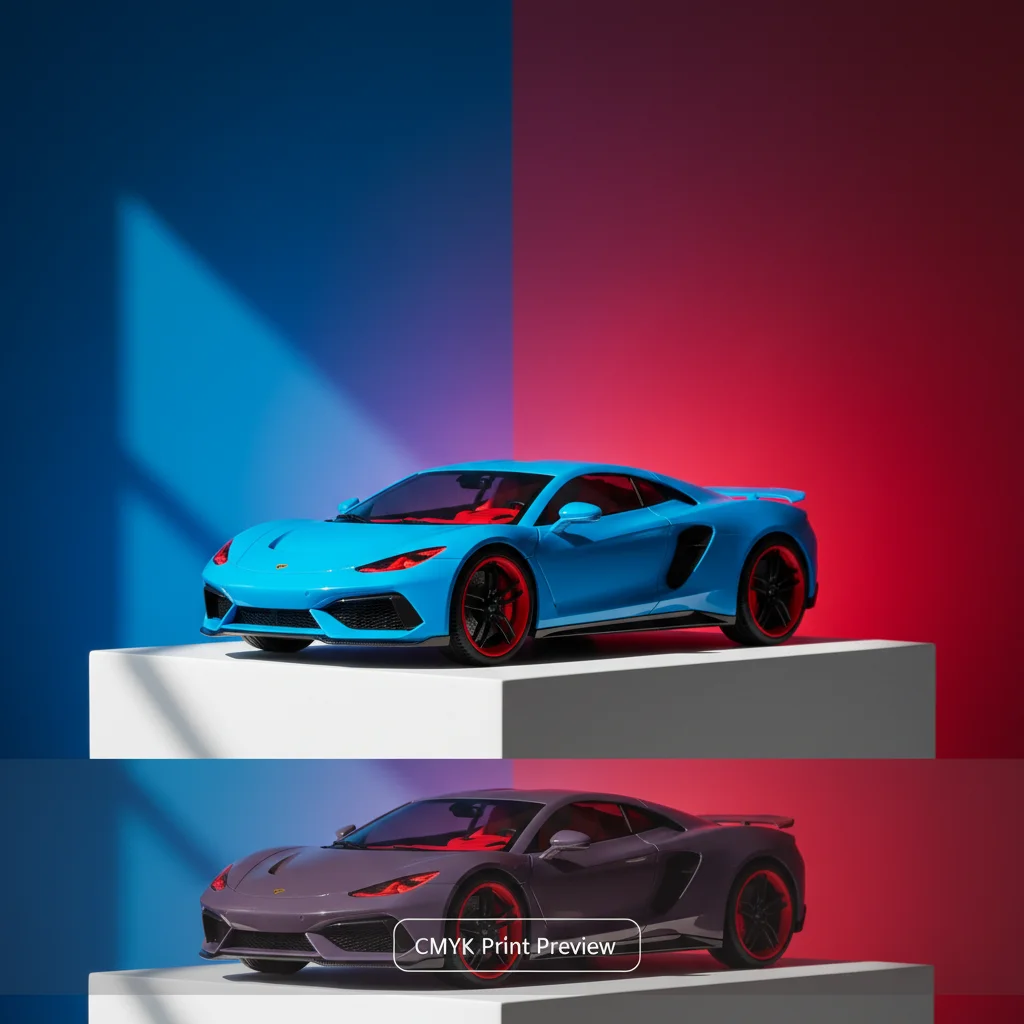
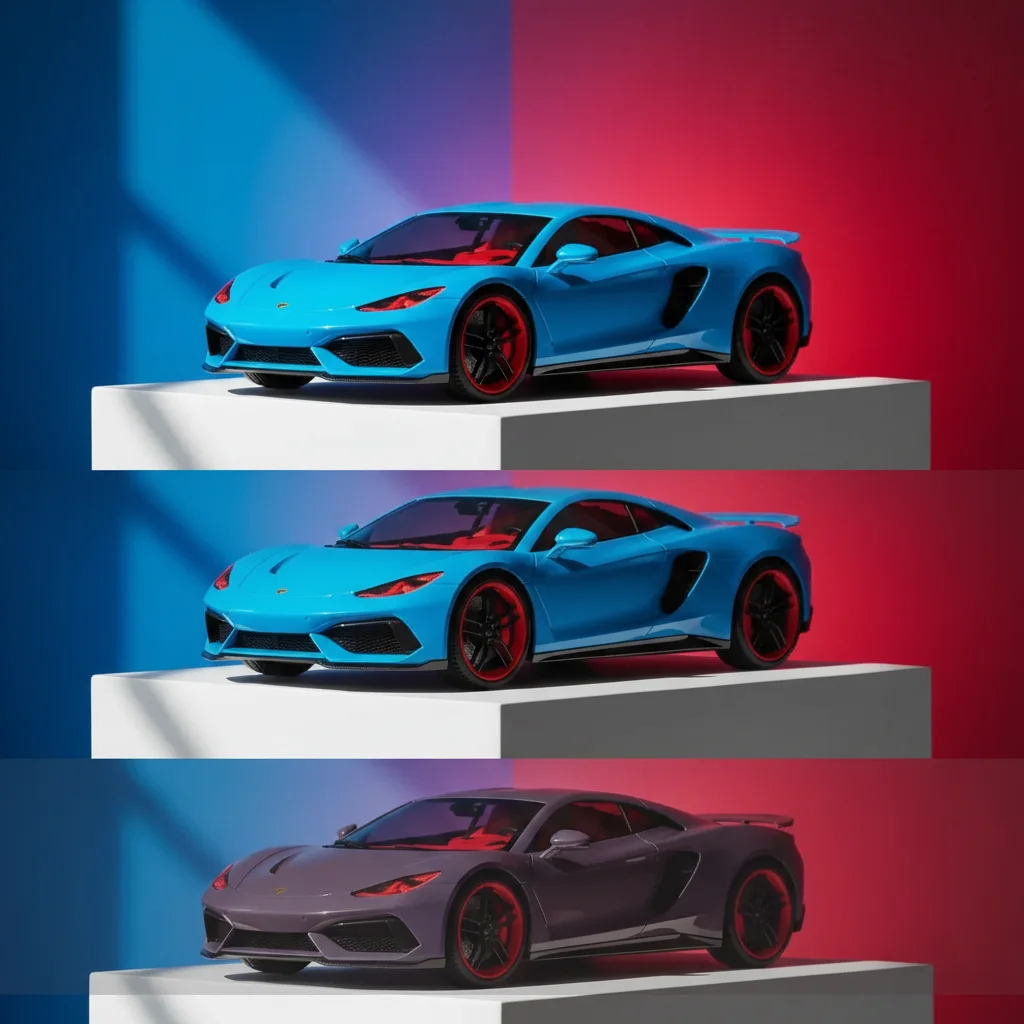
Prompt: enhance resolution and sharpness for high-quality print output
Product photo with over-saturated RGB colors
Before
->
CMYK-adjusted product photo with print-friendly colors
After

Product photo with over-saturated colors

Product looked vibrant on screen but printer said colors would look dull and different when printed. Adjusted for CMYK—printed exactly as expected.

Prompt: adjust colors for CMYK print, reduce over-saturation, make colors print-friendly

If something looks off

Enhanced photo still looks pixelated when printed

Why: The original resolution was too low to scale up to your print size without visible quality loss.

Try: Start with highest resolution photo available, or reduce final print size to match resolution limits

Tip: AI can improve quality but can't create detail that wasn't in the original—use highest-res source.

Colors look different on paper than on screen

Why: Monitors use RGB light, printers use CMYK inks—they have different color ranges (gamut).

Try: adjust colors conservatively for CMYK print, avoid bright neon colors that can't be printed

Tip: Get a test print before bulk orders—some colors (bright blues, neons) always shift in print.

Photo looks over-sharpened or artificial

Why: Heavy sharpening on already-decent photos can create halos and unnatural edges.

Try: enhance moderately for print, keep natural texture and avoid over-sharpening

Tip: Print viewing distance matters—business cards need more sharpness than banners viewed from 10 feet.

File size too large for printer's upload system

Why: Print-quality images are large files, but some printers have upload limits.

Try: Save as high-quality JPEG (90-95%) instead of maximum quality to reduce file size while keeping print quality

Tip: Ask your printer for their recommended file format and size—most want JPEG or TIFF at 300 DPI.

AI changed the wrong part of the photo

Why: Descriptions like 'enhance for print' can be ambiguous when photos have multiple subjects.

Try: Tap a marker on the specific area to enhance, then: enhance only this area for print sharpness

Tip: For photos with both people and backgrounds, specify: 'enhance faces' or 'sharpen product only.'

Quick answers

Do I need to mark areas before describing what to enhance?

No! Just describe what you need: 'enhance resolution for print' or 'fix colors for CMYK.' The AI understands print context. Only use markers if you need to specify a particular area when the photo has multiple subjects.

What resolution do I need for printing?

Standard rule: 300 DPI (dots per inch) for close viewing (business cards, brochures, flyers). Large format (posters, banners) can be 150-200 DPI since they're viewed from distance. Business cards are tiny so they need high resolution. Banners are huge but viewed far away so lower resolution works. Your printer can advise on specific requirements.

Why do colors look different when printed?

Screens use RGB (red, green, blue light) which has a wider color range. Printers use CMYK (cyan, magenta, yellow, black inks) with a smaller range. Bright blues, neons, and vivid colors shift the most. AI color adjustment compensates for this, but some colors (electric blue, neon pink) simply can't be printed as bright as they appear on screen. Always get a test print for color-critical projects.

Can AI really make a low-res photo print-quality?

AI can significantly improve quality but has limits. It works best when the original is somewhat decent (just web-sized). It can't create detail from nothing—a tiny thumbnail won't become poster-quality. Best results: start with the highest resolution photo you have, even if it's not print-quality yet. The AI enhances what's there.

Should I tell my printer I enhanced the photo with AI?

Not necessary. Printers only care about final file specs (resolution, color space, format). Whether you enhanced with AI, Photoshop, or took a new photo doesn't matter to them. Do mention if you adjusted colors—they may recommend a test print to verify CMYK conversion looks right.

Is EditThisPic's AI photos for print materials fixer really free?

Yes — you get 1 free edit per week, no account needed. For unlimited edits, plans start at $3.99/month.

Can I fix photos for print materials on my phone?

Yes. EditThisPic works in any mobile browser — iPhone, Android, tablet. No app download needed.

What photo formats does the AI photos for print materials fixer support?

JPG, PNG, WebP, and HEIC. Upload any common photo format and EditThisPic handles the rest.

Ready to fix your photos for print?

Free to try. No signup required.

Try it free