Free โ€ข No signup Enhance Prom and formal event photos ยท Free

AI Prom Photo Editor
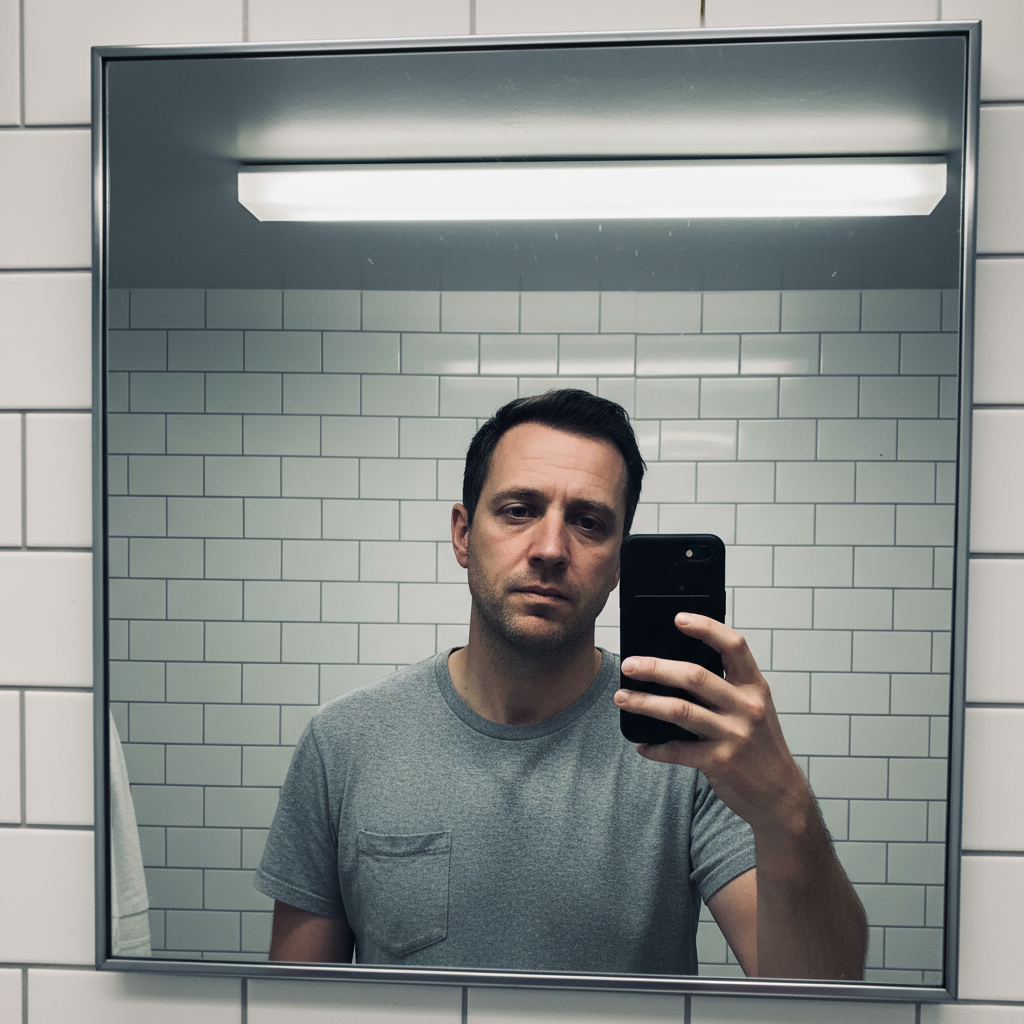
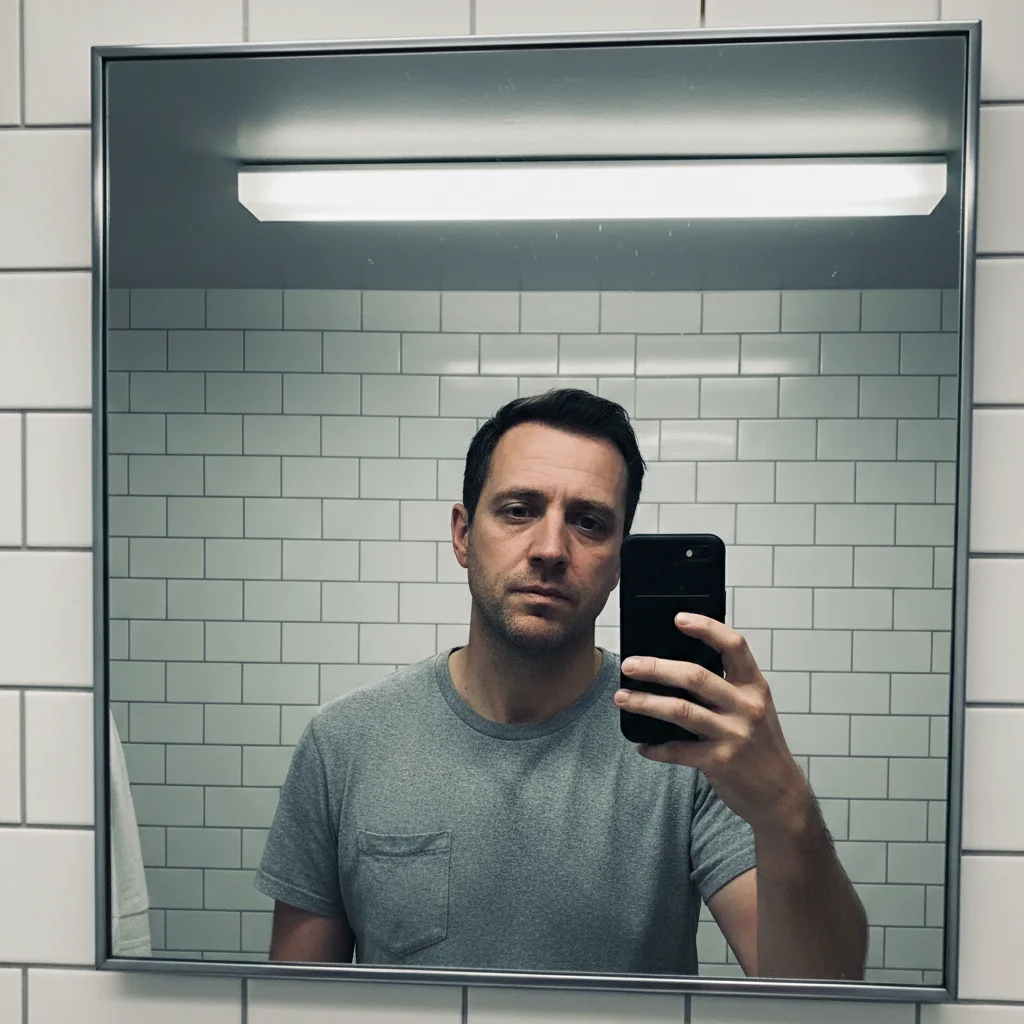
Before
Before
โ†’
After
After

Free AI Prom Photo Editor

Drop your photo here

or click to browse

Release to upload

Free โ€ข No signup

Advertisement
Popular use cases:
  • prom photo editor
  • edit prom pictures
  • fix prom photo lighting
  • enhance formal event photos
  • prom picture editor free
  • improve prom photos
  • prom photo retouching
  • formal dress photo editor
  • prom photo enhancement

Cost
Free No signup required
Time
Instant results in 15-30 seconds
Works on
Any device - browser, phone, tablet, desktop
Powered by
AI-powered photo editing
Scenario Prompt Time
15-30s
15-30s
15-30s
15-30s
15-30s
15-30s

How it works

  1. Upload Your Prom Photo

    Drag and drop your prom or formal event photo. Works with phone camera shots, professional photos, or group pictures. All formats supported: JPG, PNG, HEIC, WebP.

    Expect: Upload completes in 2-5 seconds.
  2. Choose What to Enhance

    Select enhancements: fix dark lighting, smooth skin, enhance dress/suit colors, remove photobombers, or describe custom edits. You can apply multiple enhancements at once.

    Tip: Start with lighting fixes first. Dark venue lighting is the most common prom photo issue. Once lighting looks good, move to other enhancements.

    Copy one of these to get started:

    Dark venue correction Fix dark lighting and brighten the photo
    Flash photo fixes Remove red-eye and improve skin tones
    Formal wear enhancement Enhance dress colors to be more vibrant
    Cleanup group shots Remove photobombers in the background
    8 more prompts
    Focus on subjects Make the background less distracting and blur it slightly
    Venue lighting correction Fix harsh overhead lighting and add warm tones
    Menswear enhancement Enhance formal suit to look sharper and more professional
    Portrait retouching Smooth skin and reduce shine from makeup
    Mood transformation Add romantic warm lighting like golden hour
    Pose correction Fix awkward poses by adjusting positioning slightly
    Flash fix Remove shadows from flash and even out lighting
    Dress detail enhancement Make formal gown details and embellishments more visible
  3. Review Your Enhanced Photo

    AI processes your prom photo with selected enhancements. Use before/after slider to compare. Adjust or add more enhancements if needed.

    Expect: Most prom edits complete in 30-45 seconds.
  4. Download and Share

    Save your enhanced prom photo in full resolution. No watermark. Perfect for social media, printing, or keeping as memories. Share with friends instantly.

Try it free โ†“

Free AI Prom Photo Editor

Drop your photo here

or click to browse

Release to upload

Free โ€ข No signup

See it in action

Before
Before
->
After
After

Prompt:
Before
Before
->
After
After

Prompt:
Before
Before
->
After
After

Prompt:
Advertisement

If something looks off

AI changed the wrong area or something I didn't want changed

Why: The AI couldn't determine exactly which area you meant from description alone.

Try: Tap a marker on the specific area you want to change, then regenerate with the same prompt

Tip: Markers tell the AI 'I mean THIS one specifically.' Use them when description alone is ambiguous.

Fixed lighting looks too artificial or overly bright

Why: Aggressive lighting correction on very dark photos can create unnatural results.

Try: Try a more subtle prompt: 'slightly brighten and improve lighting' instead of 'fix dark lighting'. Or brighten in stages.

Tip: For very dark prom photos, do lighting fixes in 2-3 steps rather than one extreme correction.

Skin smoothing made faces look plastic or fake

Why: Over-smoothing removes natural skin texture along with blemishes.

Try: Use 'gently smooth skin while keeping natural texture' or 'reduce shine but keep pores visible'.

Tip: Less is more with skin smoothing. Slight reduction of shine looks more natural than heavy smoothing.

Dress or suit color changed too much

Why: Color enhancement can shift hues if the prompt isn't specific about preserving the original color.

Try: Be specific: 'enhance the red dress to be more saturated red, not orange' or 'make the navy suit darker blue'.

Tip: Name the exact color you want to preserve. AI needs specific color references to avoid unwanted shifts.

Background removal left weird edges around people

Why: Complex formal wear like dresses with flowing fabric or fancy updos are hard for AI to detect edges.

Try: Instead of full background removal, try 'blur the background' which is more forgiving with edge detection.

Tip: For prom photos with elaborate formal wear, background blur often looks better than complete removal.

Group photo edits look inconsistent across people

Why: AI processes faces individually, which can create lighting or tone mismatches in groups.

Try: Add 'keep consistent lighting and tones across all people' to your prompt to help AI balance the group.

Tip: For group photos, focus on overall improvements (lighting, background) rather than individual face retouching.

Quick answers

Can I fix really dark prom photos taken in dim venues?

Yes! Dark venue lighting is one of the most common prom photo issues we fix. The AI can brighten very dark photos while recovering details and color. Results depend on how dark the original is - if faces are somewhat visible, the AI can recover a lot. Completely black areas have limits.

Will editing work on both couple and group prom photos?

Absolutely. The AI handles both individual couples and large groups. For groups, focus on overall improvements (lighting, background cleanup) rather than individual face edits. For couples, you can do more detailed retouching like skin smoothing and outfit enhancement.

Can I remove people from the background without removing my date?

Yes. Mark the specific people you want removed or describe their location: 'remove the person on the left in the blue dress'. The AI will remove only marked individuals while preserving everyone else.

Will this work on photos from phone cameras?

Yes! Most prom photos are taken on phones and work perfectly. The AI handles phone camera characteristics like noise, compression, and varying quality. Professional photos work too, but phone photos are the most common use case.

Can I enhance the dress/suit details that are hard to see?

Yes, but with limits. If details are visible but dim, AI can enhance them. If details are completely lost to darkness or blur, AI can't fully reconstruct them. Best results come from photos where details exist but need enhancement.

Is it better to edit right after prom or can I edit old prom photos?

Either works fine! Many users edit photos from past proms to create better versions for memories or yearbooks. The AI works the same on new or old prom photos. Older photos might have more quality issues to fix, but that's what the tool is for.

Perfect Your Prom Photos Now

Free to try. No signup required.

Try it free โ†’