Free • No signup Open Editor

Add Smile to Photo

Transform serious expressions into natural, genuine smiles with AI in seconds.

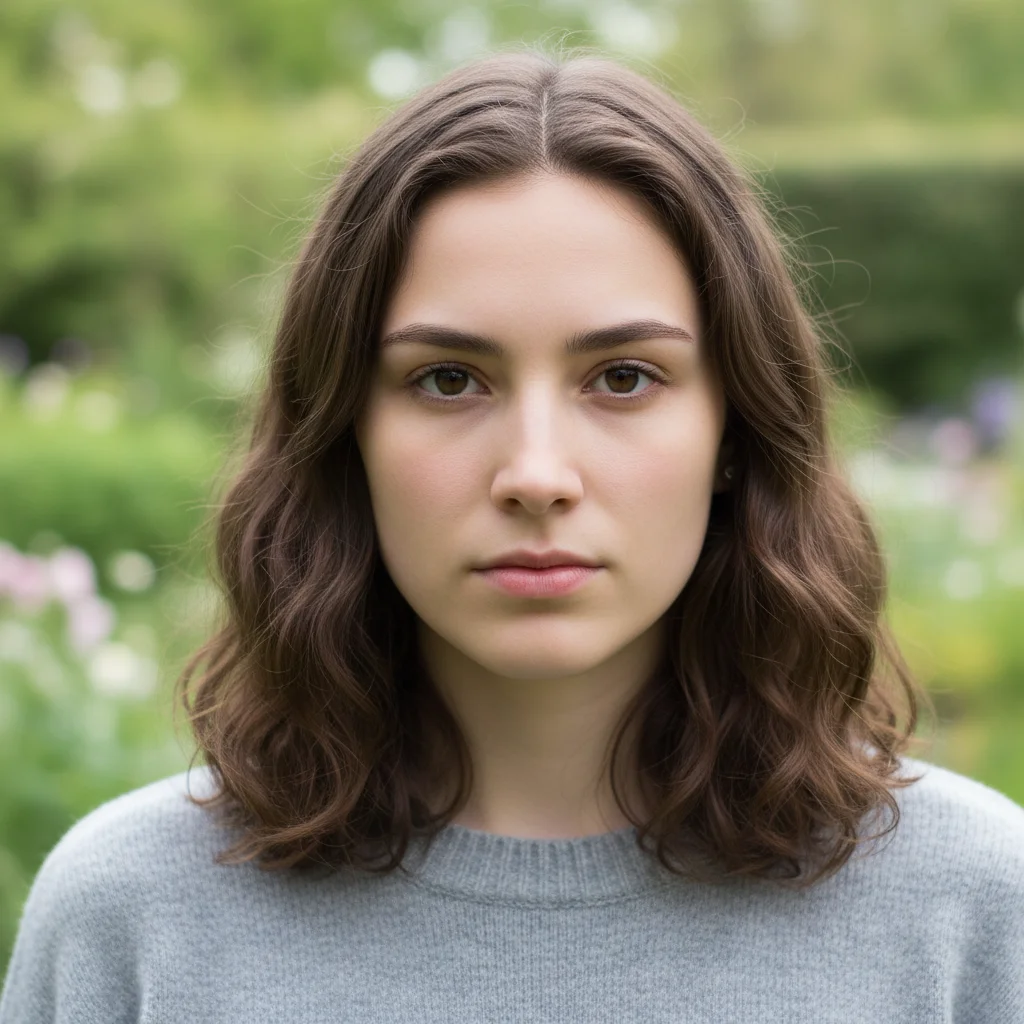
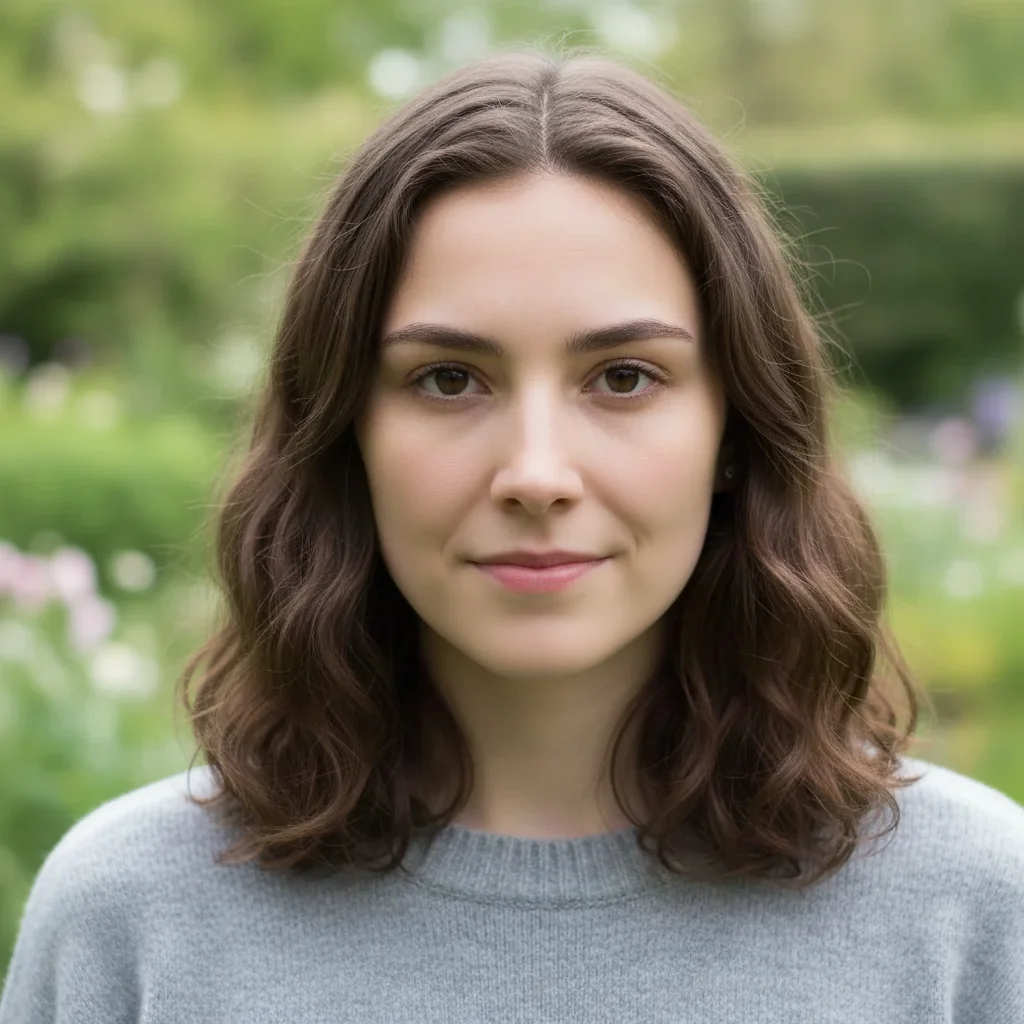
Type 'add a natural warm smile showing teeth' and EditThisPic's AI adjusts the expression naturally in 15-30 seconds. Perfect for fixing photos where someone blinked, looked serious, or caught an awkward moment. The AI adjusts lips, cheeks, and eyes together for authentic-looking smiles. No selection required. Free to try, no account needed.

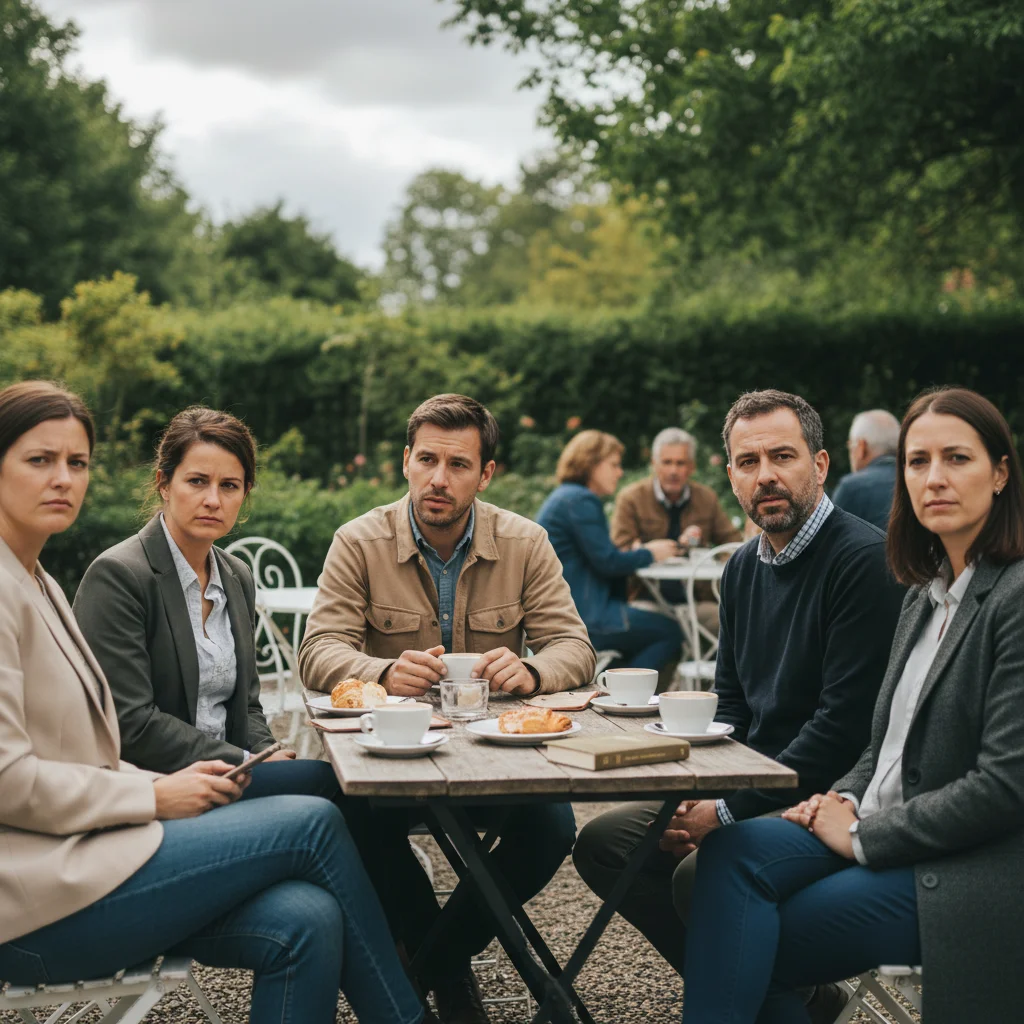
Woman with neutral serious expression
Before
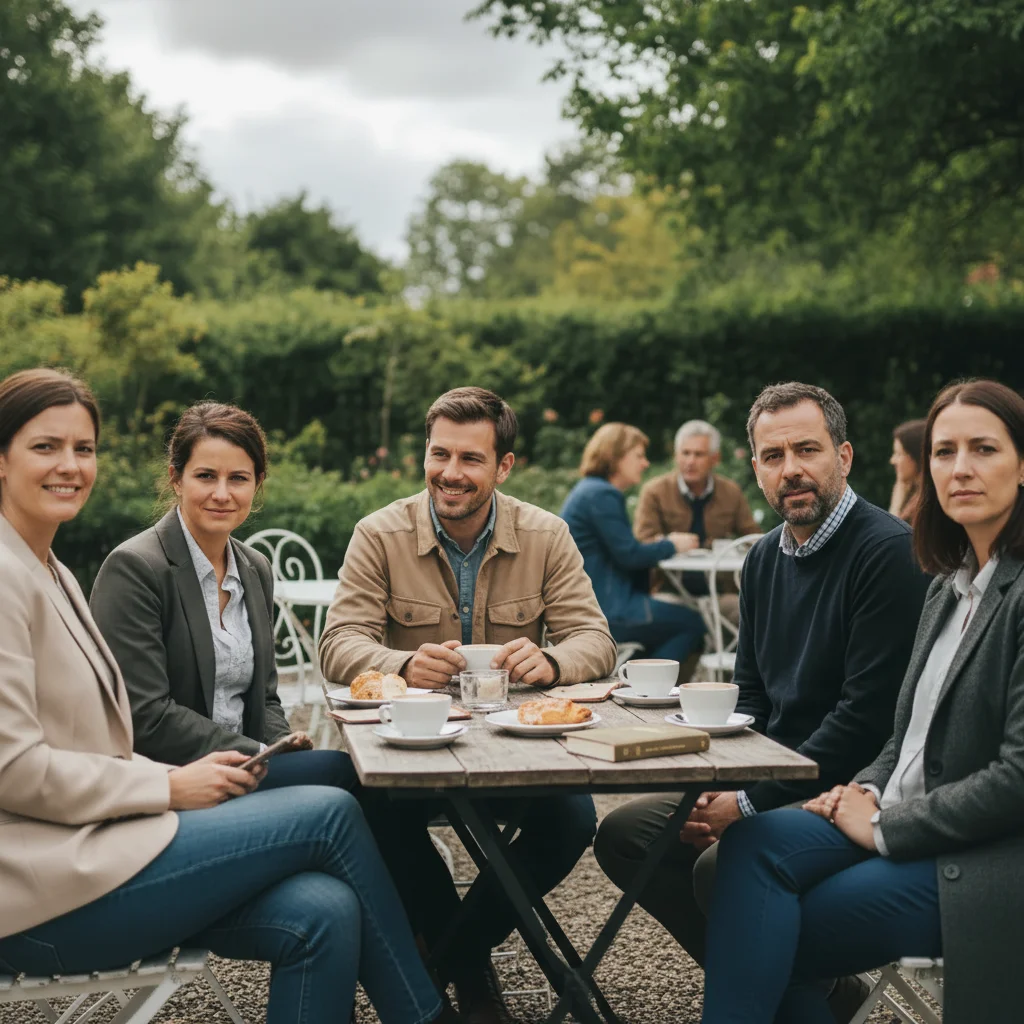
Same woman with warm natural smile
After

How it works

1

Upload your photo

Drop your portrait into EditThisPic. Front-facing photos with clear visibility of the mouth and eyes work best. The AI needs to see the full face to adjust expressions naturally. JPG, PNG, WebP up to 7MB.

⏱ Simple smile additions: 15-25 seconds. Natural-looking results: may need 2-3 refinements for perfect expression.
2

Describe the smile you want

Type your instruction: 'add a natural happy smile showing teeth' or 'add a soft gentle smile with closed lips.' Specify the type of smile - big and joyful, subtle and warm, or professional and confident. The AI adjusts the entire face naturally, including the eyes, for authentic expressions.

💡 Natural smiles involve the eyes too. Add 'with smiling eyes' or 'genuine expression' for realistic results

Copy one of these to get started:

Natural happy smile add a warm natural smile with teeth showing, genuine happy expression with smiling eyes
Subtle professional smile add a subtle confident smile with closed lips, professional and approachable expression
Big joyful grin add a big genuine smile with a wide grin showing teeth, joyful expression with laughing eyes
Soft gentle smile add a soft gentle smile with slightly upturned lips, warm and friendly expression
3 more prompts
Child's playful smile add a playful happy smile with teeth showing, childlike joy and bright eyes
Fix forced smile replace the forced smile with a more natural relaxed smile, genuine expression
Senior portrait smile add a warm graceful smile appropriate for an older adult, dignified and pleasant expression
3

Generate and review

Check that the smile looks natural and not forced. Look at the eyes - real smiles create crow's feet. Verify the expression matches the person's face structure and doesn't distort their features.

4

Refine intensity if needed

If the smile looks too big or too subtle, adjust with follow-up prompts: 'make the smile slightly more subtle' or 'increase the smile to show more teeth.' Fine-tuning gets the exact expression you want.

💡 If teeth look unnatural, try 'with natural-looking teeth' or adjust to a closed-lip smile.
Try it free
"My daughter refused to smile in our family photo. Added a natural smile and now the picture is framed on our wall. You cannot tell it was edited." @MomOf3_Photography

See it in action

Woman with neutral serious expression
Before
Same woman with warm natural smile
After

Serious expression to natural smile

A professional headshot with a neutral expression transformed with a warm, approachable smile.

Prompt: add a warm natural smile with teeth showing, genuine happy expression with smiling eyes
Businessman with stern expressionless face
Before
Same businessman with subtle confident smile
After

Subtle smile for LinkedIn

A corporate headshot enhanced with a subtle professional smile that conveys confidence.

Prompt: add a subtle confident smile with closed lips, professional and approachable expression
Child with grumpy pouty expression
Before
Same child with playful happy smile
After

Child's candid smile added

A child who refused to smile in the family photo now has a natural, happy expression.

Prompt: add a playful happy smile with teeth showing, natural childlike joy and bright eyes

If something looks off

Smile looks fake or forced

Why: The AI adjusted only the mouth without changing the eyes and cheeks, creating an unnatural expression.

Try: add a genuine natural smile with smiling eyes and raised cheeks, full facial expression change

💡 Real smiles engage the whole face. Always mention 'smiling eyes' or 'genuine expression'

Teeth look strange or unnatural

Why: The AI-generated teeth don't match the person's natural teeth or look too perfect.

Try: add a natural smile with realistic natural-looking teeth, or use closed-lip smile

💡 Closed-lip smiles avoid teeth generation entirely and often look more natural

Face shape appears distorted

Why: The smile transformation stretched or compressed facial features unnaturally.

Try: add a subtle natural smile that preserves the face shape and proportions

💡 Start with subtle smiles and increase intensity gradually rather than jumping to big grins

AI changed the wrong area or something I didn't want changed

Why: The AI could not determine exactly which area you meant from description alone. This happens with ambiguous requests.

Try: Tap a marker on the specific area you want to change, then regenerate with the same prompt

💡 Markers tell the AI 'I mean THIS one specifically.' Use them when description alone is ambiguous.

Expression doesn't match the photo context

Why: The smile type is inappropriate for the setting or photo mood.

Try: add a [subtle/warm/professional] smile appropriate for [context - formal/casual/family]

💡 Match smile intensity to the photo context - subtle for professional, bigger for casual

Quick answers

Do I need to mark the face before adding a smile?

No! Just describe the smile you want: 'add a warm natural smile' or 'add a subtle smile with closed lips.' The AI automatically detects the face and adjusts the expression. Use markers only if you need to adjust a specific person in a group photo.

Will the smile look natural and not creepy?

When you include 'genuine' or 'natural' and mention 'smiling eyes' in your prompt, the AI adjusts the entire face - not just the mouth. Real smiles involve crow's feet at the eyes and raised cheeks. Subtle smiles tend to look more natural than exaggerated grins.

Can I add a smile to someone who looks angry or sad?

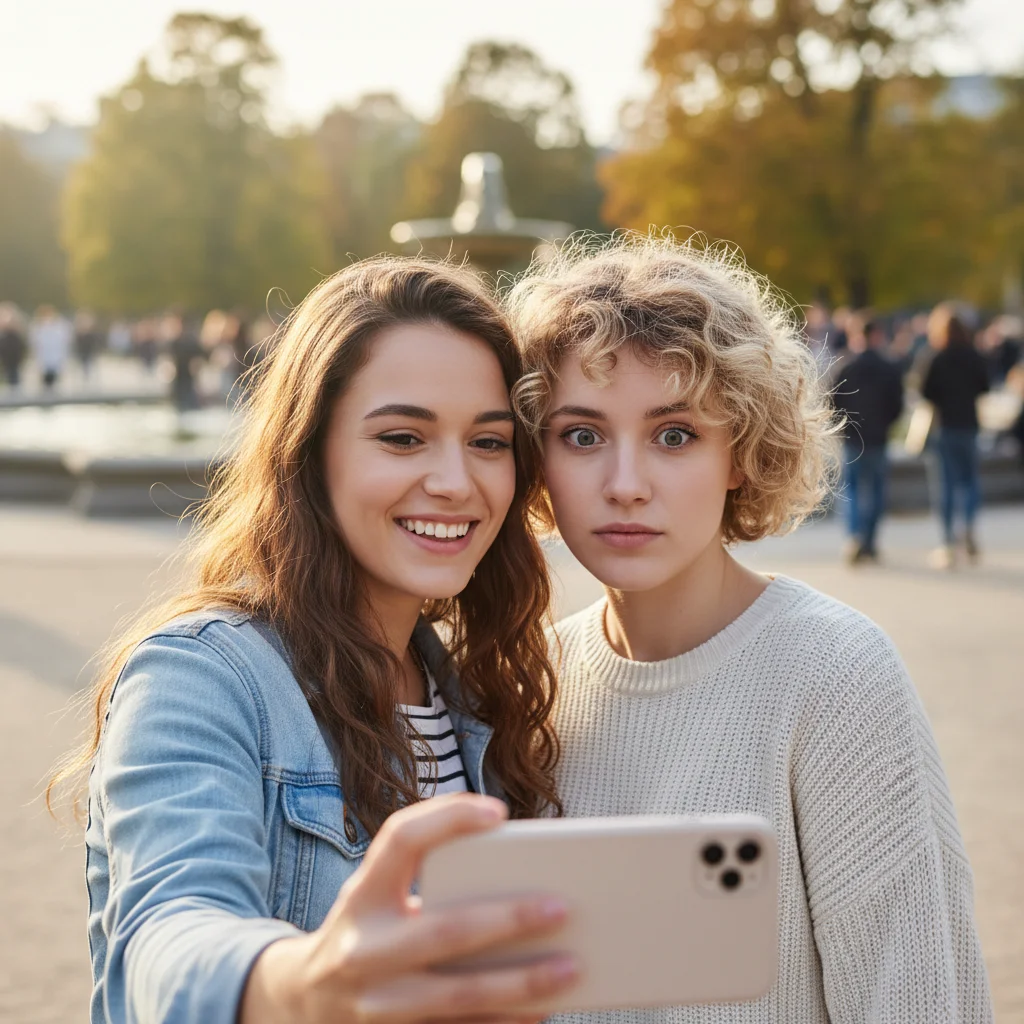
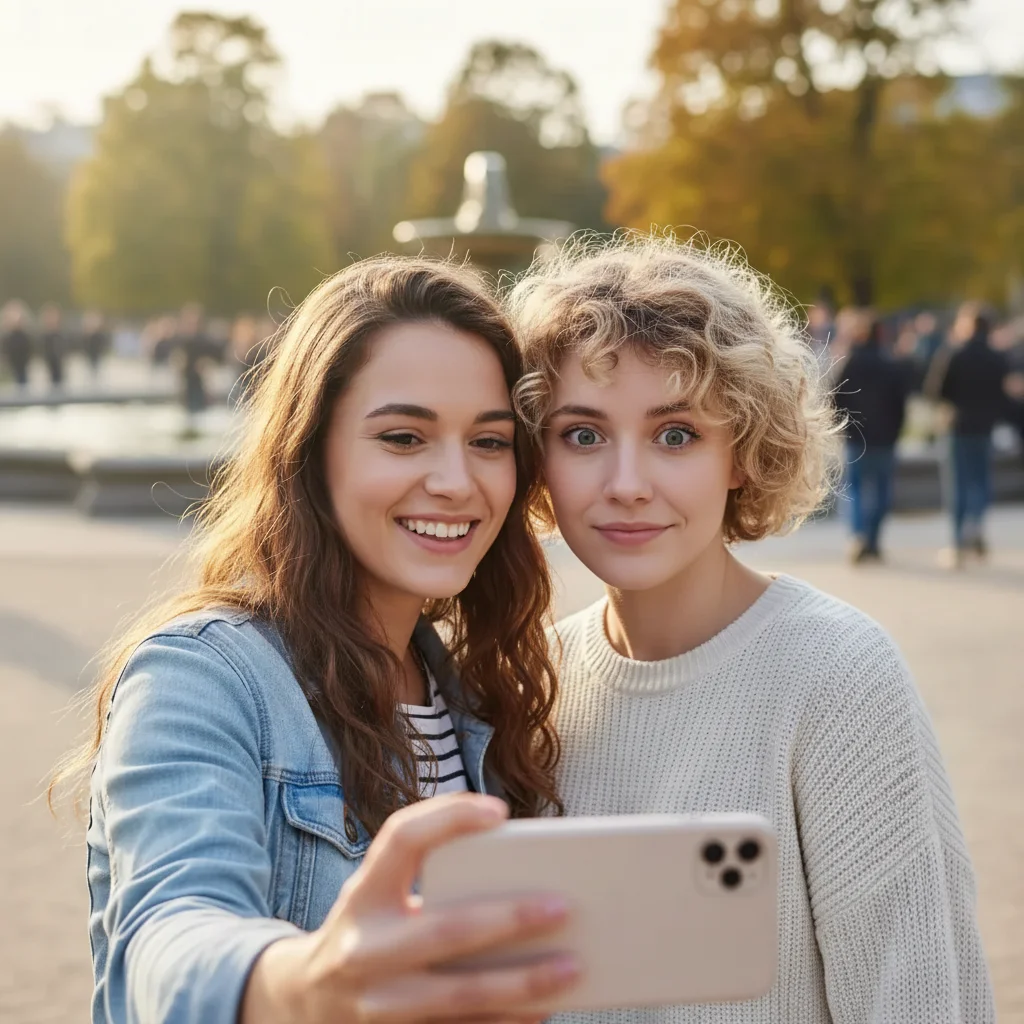
Yes, but extreme expression changes may need multiple refinements. Start with a subtle smile and increase gradually. Very dramatic expression changes (angry to beaming) are harder to make look natural than neutral to smiling.

Does this work on group photos?

Yes. The AI can add smiles to multiple people. For control over specific individuals, tap a marker on the person you want to adjust. You can also process each person separately with different smile types.

Can I adjust the intensity of the smile?

Absolutely. Use terms like 'subtle,' 'gentle,' 'warm,' 'big,' or 'wide' to control intensity. If the first result is too much or too little, follow up with 'make the smile more subtle' or 'increase the smile slightly.'

Ready to add a smile to your photos?

Free to try. No signup required.

Try it free