Free • No signup Add Aurora borealis · Free

AI Aurora Effect - Add Northern Lights to Photos

Just describe the aurora you want and AI adds it to your night sky.
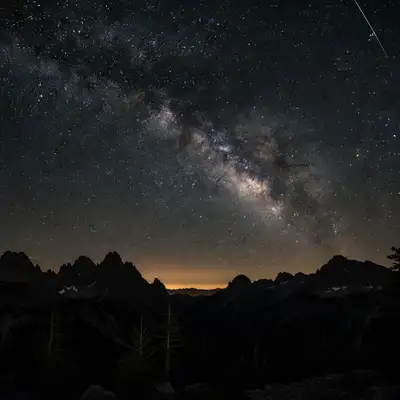
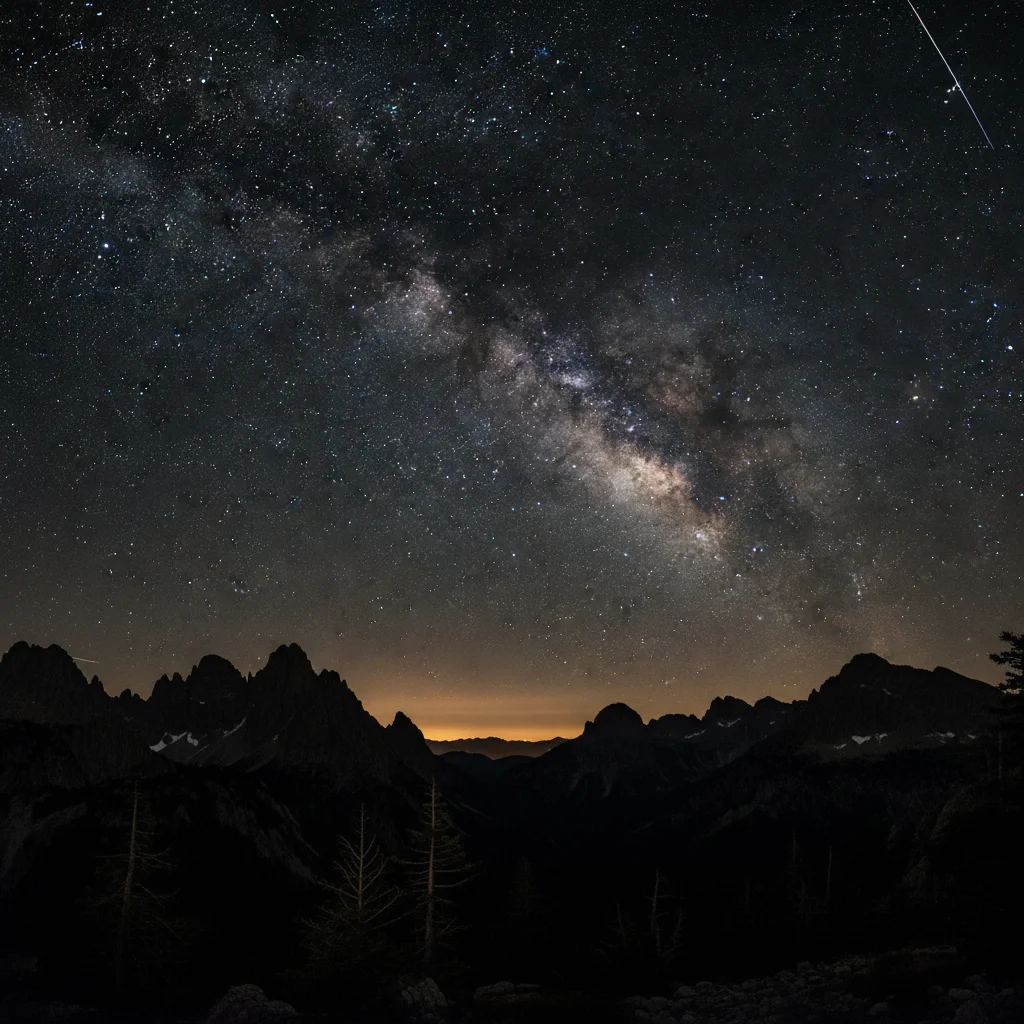
Dark night sky over mountains without aurora
Before
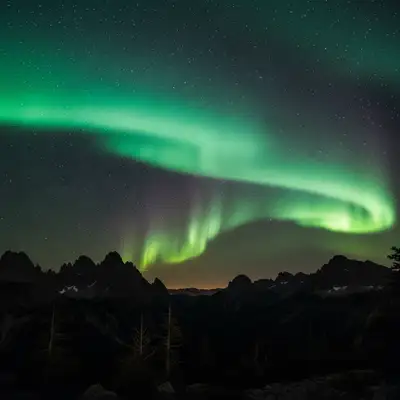
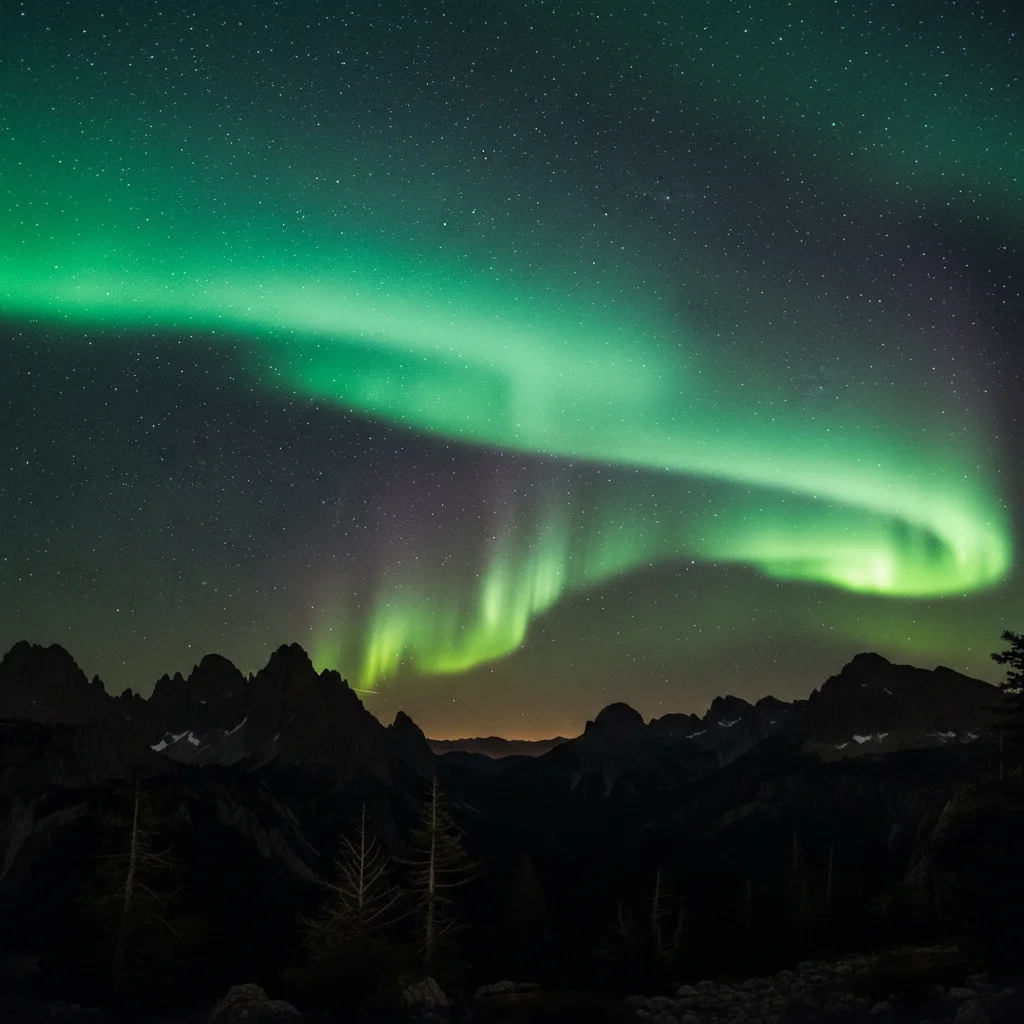
Same mountain scene with bright green aurora borealis dancing across sky
After

Add Aurora Borealis to Photos

Drop your photo here

or click to browse

Release to upload

Free • No signup

Advertisement
Popular use cases:
  • travel photography
  • landscape photographers
  • Iceland photos
  • Norway travel
  • Alaska photography
  • adventure bloggers
  • social media content
  • tourism marketing
  • nature photography
  • night sky photos

Cost
Free No signup required
Time
Instant results in 15-30 seconds
Works on
Any device - browser, phone, tablet, desktop
Powered by
AI-powered photo editing
Scenario Prompt Time
Classic green aurora add bright green aurora borealis dancing across the top of the sky in flowing curtain patterns 20s
Multi-color gradient add vivid aurora borealis with bright green at the base fading to purple and pink at the top, sweeping from left to right across the sky 30s
Subtle horizon glow add subtle green aurora borealis as a soft glow along the horizon, barely visible but magical 15s
Dramatic vertical rays add dramatic aurora borealis with bright green vertical rays shooting upward from the horizon, with purple accents at the edges 25s

How it works

  1. Upload your night sky photo

    Drop your nighttime landscape, cityscape, or outdoor scene into EditThisPic. JPG, PNG, WebP up to 7MB. Best results with photos that have clear dark sky and visible horizon or landscape elements.

    Expect: Simple aurora additions: 15-30 seconds. Complex multi-color effects with specific positioning: may need 2-3 refinements for perfect placement.
  2. Describe the aurora you want

    Type your instruction: 'add green aurora borealis across the top of the sky with purple edges' or 'add dramatic northern lights in bright green sweeping from left to right.' Be specific about colors (green, purple, pink, blue), position (across top, sweeping from left, dancing vertically), and intensity (subtle, bright, vivid). No marking needed—the AI understands where sky is.

    Tip: Include movement words like 'sweeping,' 'dancing,' 'curtains,' or 'rays' to create more dynamic aurora patterns. Specify color gradients like 'green fading to purple at edges' for realistic effects.

    Copy one of these to get started:

    Classic green northern lights add bright green aurora borealis dancing across the top of the sky in flowing curtain patterns
    Multi-color aurora display add vivid aurora borealis with bright green at the base fading to purple and pink at the top, sweeping from left to right across the sky
    Subtle aurora glow add subtle green aurora borealis as a soft glow along the horizon, barely visible but magical
    Dramatic vertical rays add dramatic aurora borealis with bright green vertical rays shooting upward from the horizon, with purple accents at the edges
    4 more prompts
    Pink and purple aurora add rare pink and purple aurora borealis dancing across the entire upper half of the sky in waves
    Aurora with starry background add bright green aurora borealis swirling across the sky, visible behind the existing stars and blending naturally
    Corona aurora directly overhead add corona aurora effect directly overhead with rays converging at the center point, in green and purple colors
    Aurora reflected in water add green and purple aurora borealis across the sky and reflected in the water below, creating mirror effect
  3. Generate and review

    Click Generate and the AI adds aurora borealis to your sky. Check the color intensity, position, and how it blends with your existing lighting. Zoom in to verify the aurora looks natural against stars and landscape.

  4. Refine with markers if needed

    If the aurora appears in the wrong part of the sky or you want it positioned differently, tap markers on the specific sky area where you want the effect concentrated, then regenerate. This is optional—most aurora additions work without markers.

    Tip: Markers are for precision placement when the AI puts aurora in the wrong sky section. Try without them first—descriptions like 'across the top third of sky' usually work perfectly.
Try it free

Add Aurora Borealis to Photos

Drop your photo here

or click to browse

Release to upload

Free • No signup

"I can't believe how realistic the aurora looks. Just typed what I wanted and boom, stunning northern lights in my Iceland photo." @travelphotog

See it in action

Dark night sky over mountains without aurora
Before
->
Same mountain scene with bright green aurora borealis dancing across sky
After

Classic Green Aurora Over Mountain Landscape

Added dramatic green northern lights dancing across the sky above a mountain silhouette. Single prompt created realistic curtain patterns.

Prompt: add bright green aurora borealis dancing across the top of the sky in flowing curtain patterns
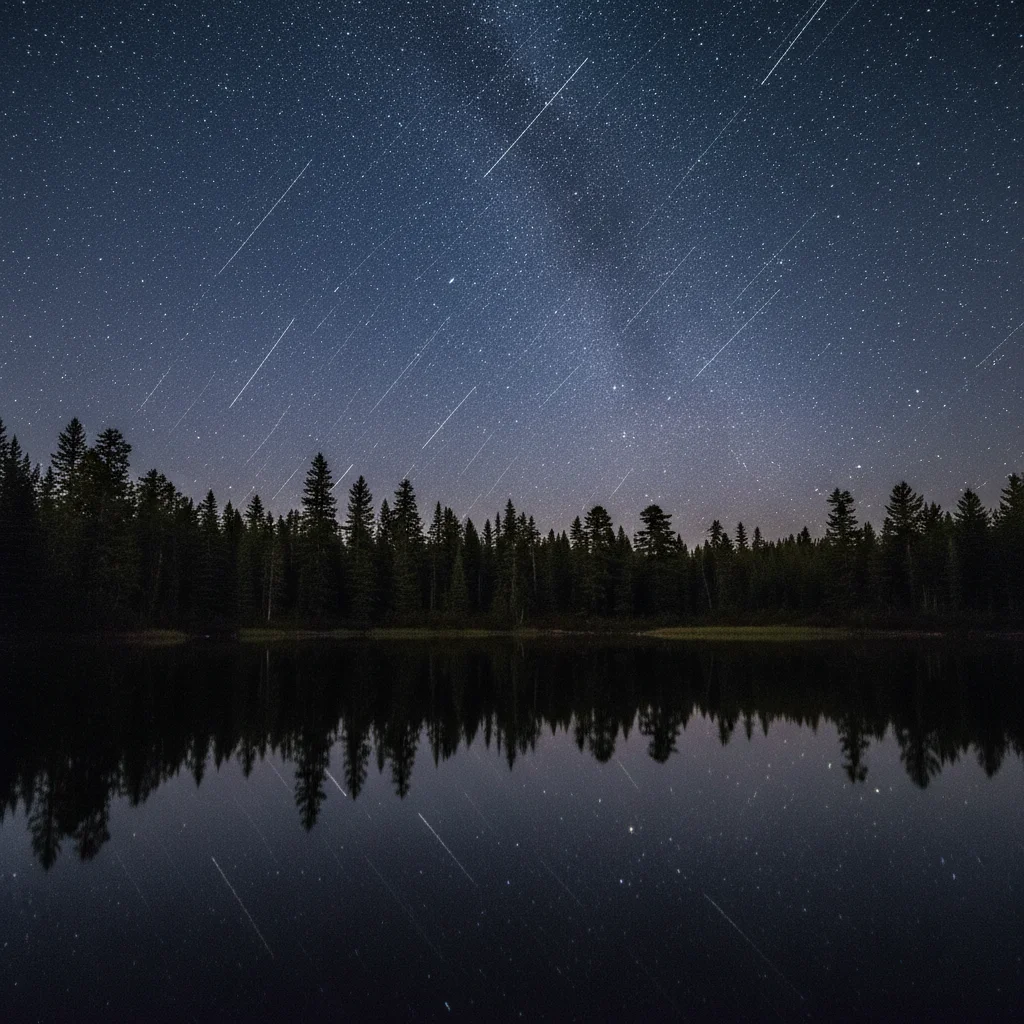
Lake at night with calm water and starry sky, no aurora
Before
->
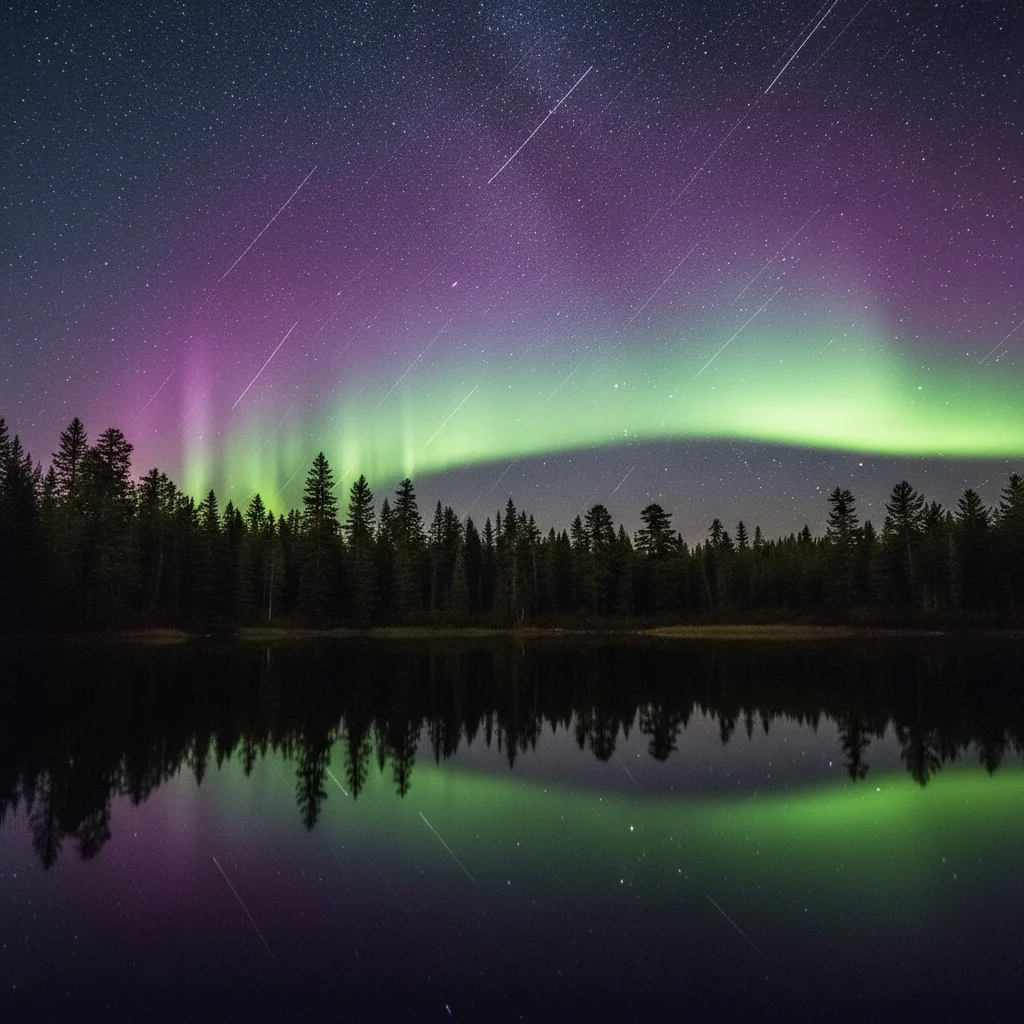
Same lake with multi-color aurora borealis reflected in water
After

Multi-Color Aurora at Lakeside

Added vivid green-to-purple gradient aurora that sweeps across the sky and reflects in calm lake water. Natural color transition created stunning effect.

Prompt: add vivid aurora borealis with bright green at the base fading to purple and pink at the top, sweeping from left to right across the sky
Cabin at night under dark starry sky without aurora
Before
->
Same cabin with dramatic green aurora rays shooting upward behind it
After

Vertical Aurora Rays Over Cabin

Added dramatic vertical aurora rays shooting upward from the horizon behind a cozy cabin. Perfect for travel and adventure photography.

Prompt: add dramatic aurora borealis with bright green vertical rays shooting upward from the horizon, with purple accents at the edges
Advertisement

If something looks off

AI added aurora in the wrong part of the sky

Why: Without markers, the AI might place aurora across the entire sky or in a different section than you envisioned.

Try: Tap markers on the specific sky region where you want the aurora (e.g., upper third only), then regenerate with same prompt

Tip: Use directional descriptions like 'across the top third of sky' or 'along the horizon only' to control placement without markers.

Aurora looks too bright or artificial

Why: The AI interpreted 'bright' or 'vivid' too literally, creating oversaturated unnatural glow.

Try: Use 'subtle aurora borealis with soft green glow' or 'natural-looking northern lights, not overly bright' to reduce intensity

Tip: Real aurora has variation—try adding 'with darker patches and natural intensity variation' for realism.

Aurora colors don't blend naturally

Why: Abrupt color transitions happen when you request multiple colors without describing the gradient.

Try: Specify the blend: 'green at base gradually fading to purple at top edges' or 'green transitioning smoothly into pink'

Tip: Real aurora has soft color transitions. Always use words like 'fading,' 'transitioning,' or 'blending' between colors.

Aurora covers stars or landscape details

Why: The AI layered the aurora as an opaque overlay instead of a translucent sky effect.

Try: Add 'translucent aurora borealis allowing stars to show through' or 'aurora visible behind the stars, not covering them'

Tip: Aurora should never completely hide stars. If it does, the effect is too opaque—regenerate with 'translucent' in the prompt.

Aurora doesn't reflect in water when there's a lake

Why: The AI focused only on the sky portion and didn't extend the effect to water reflections.

Try: Explicitly request: 'add aurora across sky AND reflected in the water below, creating mirror effect'

Tip: Aurora reflections in water are key for stunning compositions. Always mention both sky and water in your prompt.

Aurora pattern looks static or uniform

Why: The prompt lacked movement descriptors, so the AI created a flat, unchanging glow.

Try: Add dynamic words: 'dancing curtains,' 'sweeping waves,' 'flowing ribbons,' or 'pulsating rays'

Tip: Real aurora is never static. Use movement verbs to create the flowing, dynamic patterns characteristic of northern lights.

Wrong aurora colors appeared

Why: If you didn't specify colors, the AI defaults to green. If you specified colors but got different ones, the prompt may have been ambiguous.

Try: Be explicit: 'aurora borealis in ONLY green and purple colors, no other colors' or 'strictly pink and green aurora'

Tip: Green is most common, but pink, purple, and blue also occur naturally. Specify exact colors to avoid surprises.

Quick answers

Do I need to mark the sky before describing the aurora?

No! Just describe what you want: 'add green aurora borealis dancing across the top of the sky.' The AI understands where the sky is in your photo. Only use markers when you need precision—like limiting the aurora to a specific sky section, or if it appeared in the wrong area on your first attempt.

How do I make the aurora look realistic and not fake?

Use natural descriptors: 'subtle,' 'soft glow,' 'translucent,' and 'natural intensity.' Specify color gradients like 'green fading to purple' rather than abrupt color blocks. Include movement words like 'dancing,' 'flowing,' or 'sweeping' to create the dynamic patterns of real aurora. Avoid words like 'extremely bright' or 'neon' which produce artificial-looking results.

What colors can I use for aurora borealis?

Green is most common and realistic. Purple, pink, and blue also occur naturally and create stunning effects. Red aurora is rare but possible in extreme solar activity. You can combine colors in gradients: 'green at base fading to purple at edges' for the most realistic multi-color displays. Avoid unnatural colors like orange or yellow.

Can I add aurora to photos taken during daytime?

Aurora only appears in dark night skies. If your photo is taken during daylight or twilight, you'd need to first convert the sky to nighttime darkness, then add aurora. For best results, start with a genuine night sky photo where aurora would naturally occur.

What's the best way to add aurora reflected in water?

Explicitly mention both sky and water: 'add green aurora borealis dancing across the sky and reflected in the water below, creating mirror effect.' This ensures the AI adds the aurora in both locations with proper reflection symmetry. Without mentioning water, the AI may only add aurora to the sky.

Is there a free aurora effect tool that works without Photoshop?

Yes. EditThisPic adds realistic aurora borealis to your photos with AI—free, no login required, no software to download. Just upload your night sky photo, describe the aurora effect you want, and the AI generates it in 15-30 seconds. No Photoshop skills or layer masking needed.

Ready to add aurora borealis to your photos?

Free to try. No signup required.

Try it free