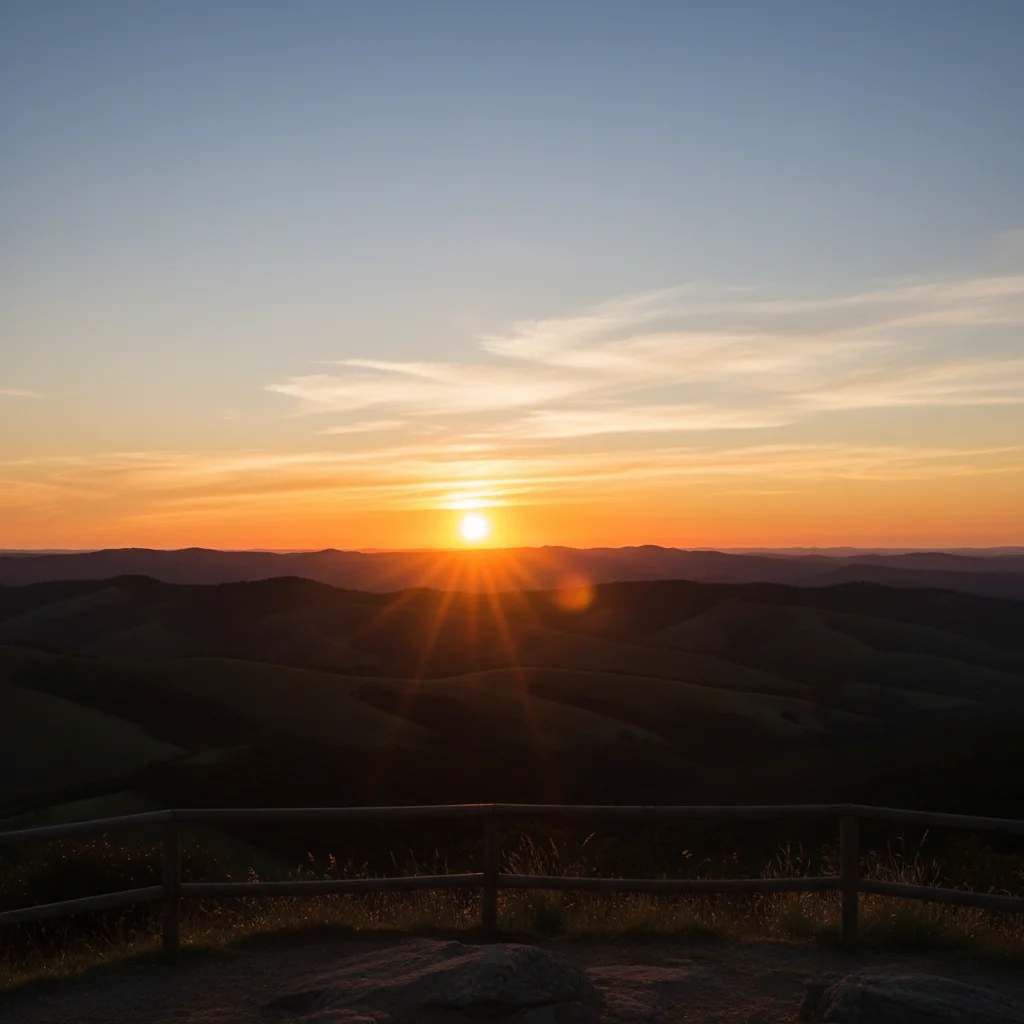
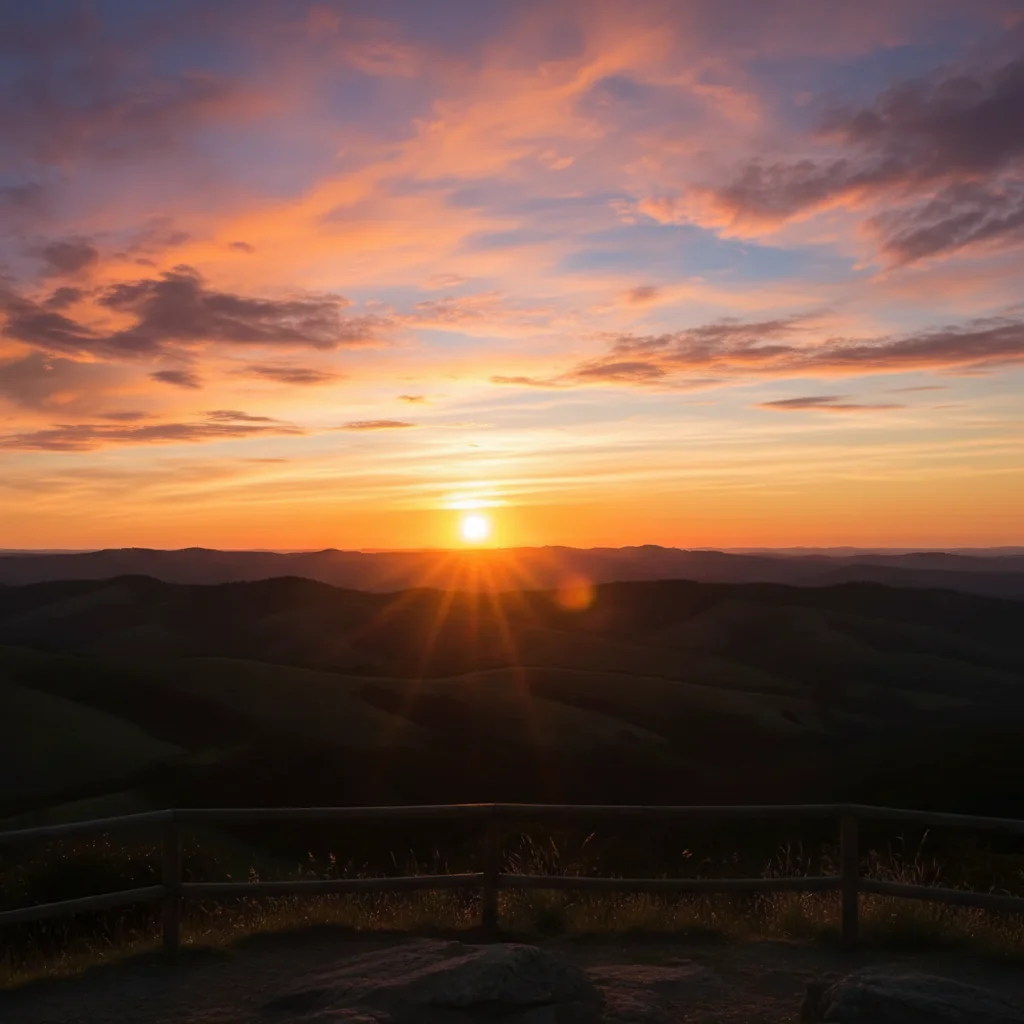
Do I need to select the sky before adding clouds?
No! Just describe the clouds you want: 'add dramatic storm clouds to the sky' or 'add scattered white cumulus clouds.' The AI identifies sky area automatically.
How do I make clouds look realistic and not obviously added?
Include context in your description: mention time of day ('sunset clouds', 'afternoon cumulus'), lighting mood ('matching golden hour'), and perspective ('receding toward horizon'). Also specify cloud type (cumulus, stratus, cirrus) and density ('scattered', 'dense'). Natural clouds coordinate with your scene's existing lighting and follow perspective lines.
What is the best free AI tool to add clouds to photos?
EditThisPic's AI Cloud Generator adds realistic cloud formations by analyzing your sky area, perspective, and lighting. Just describe the cloud type and mood you want—no masking or sky selection needed. Creates natural-looking results in 15-30 seconds. Free to try with no signup or watermark.
Can I add different types of clouds like storm clouds or sunset clouds?
Yes! Specify the type and mood: 'dramatic dark storm clouds with light breaking through' for weather drama, 'fluffy white cumulus clouds' for peaceful skies, 'wispy orange and pink sunset clouds' for golden hour, or 'overcast gray stratus clouds' for even lighting. The AI adjusts cloud shape, color, and density to match.
Will adding clouds change the lighting in my photo?
The AI primarily modifies the sky area. Minor lighting adjustments may occur naturally at sky boundaries. For major changes (like adding dark storm clouds to a sunny scene), you may want to do a second edit to adjust ground lighting: 'reduce brightness and add soft shadows to match overcast sky.' This creates full realism when dramatically changing sky mood.
Why do my clouds look too white or too dark compared to the rest of the photo?
The default may not match your lighting. Add color guidance: 'with warm tones' for sunset, 'with cool gray-blue' for overcast, 'bright white against deep blue' for midday. Mentioning lighting context helps AI coordinate cloud tones with your scene. You can also specify 'matching existing lighting' in your prompt.
Is EditThisPic's AI clouds adder really free?
Yes — you get 1 free edit per week, no account needed. Plans start at $4.99/month for 15 edits.
Can I add clouds on my phone?
Yes. EditThisPic works in any mobile browser — iPhone, Android, tablet. No app download needed.
How much does EditThisPic cost?
You get 1 free edit per week — no account needed. After that, credit packs start at $1.99 for 3 edits. Monthly plans start at $4.99/mo for 20 edits with unused credits rolling over. All edits are full resolution with no watermark.