Free • No signup Apply Drip art · Free

AI Drip Art Maker

Describe the melting effect you want and AI creates realistic paint drips.
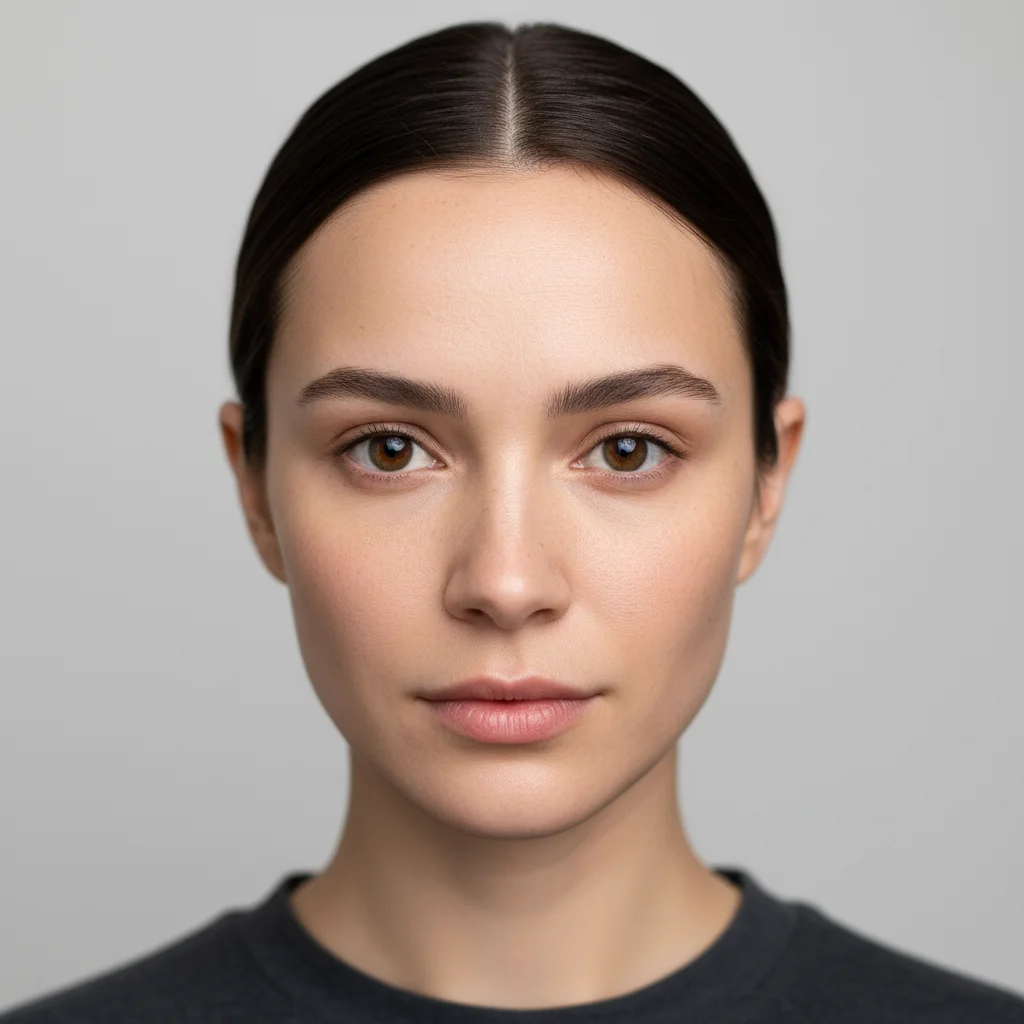
Portrait before applying rainbow drip art
Before
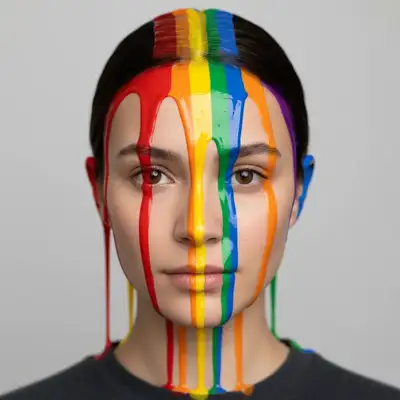
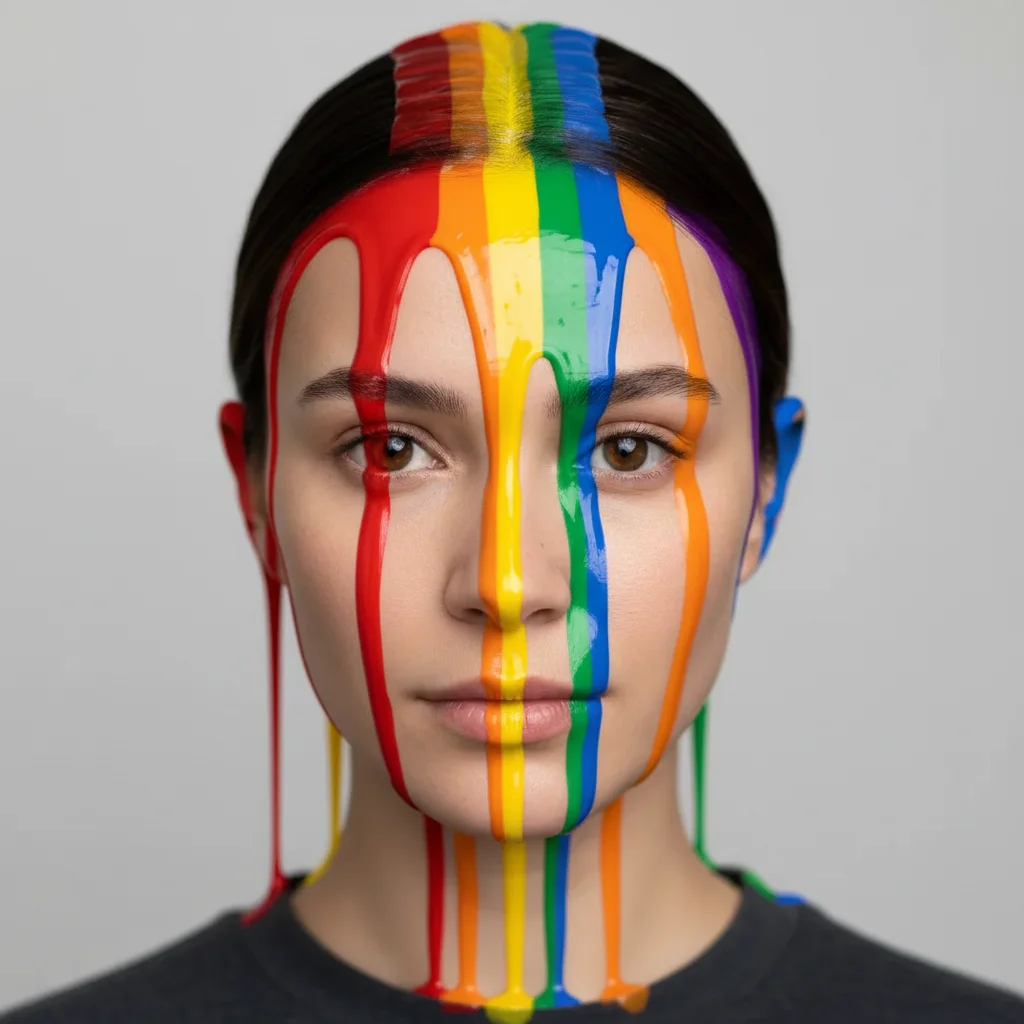
Portrait with rainbow paint drips flowing down from top
After

Apply Drip Art Effect to Photos

Drop your photo here

or click to browse

Release to upload

Free • No signup

Advertisement
Popular use cases:
  • urban art
  • street art style
  • music album covers
  • artistic portraits
  • fashion photography
  • poster design
  • creative social media
  • grunge aesthetic

Cost
Free No signup required
Time
Instant results in 15-30 seconds
Works on
Any device - browser, phone, tablet, desktop
Powered by
AI-powered photo editing
Scenario Prompt Time
Rainbow drips apply rainbow-colored paint drips melting down from the top, thick glossy paint texture 25s
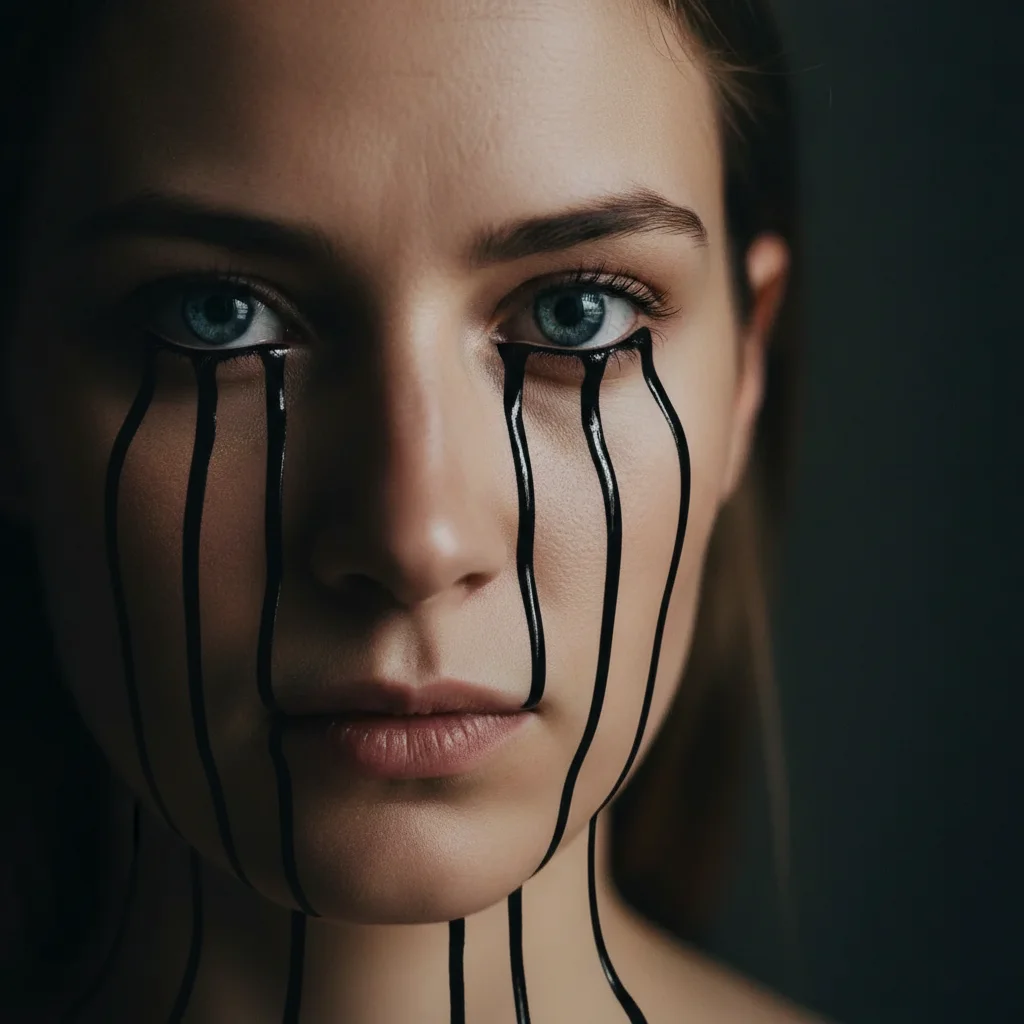
Black ink eye drips add thick black ink drips starting from both eyes and flowing down the face 25s
Gold metallic drips apply luxurious gold metallic paint dripping down from the top, thick glossy drips 20s
Neon drips create bright neon pink and blue paint drips melting from subject downward, glowing paint 25s
Pastel soft drips apply soft pastel-colored paint drips in pink, lavender, and mint green flowing from the top 20s
Watercolor drips create transparent watercolor paint drips in blue and purple flowing downward 25s

How it works

  1. Upload your photo

    Drop your image into EditThisPic. JPG, PNG, WebP up to 7MB. Drip effects work best on photos with clear subjects or strong text/logos. High-contrast images with defined edges produce the most striking dripping paint effects.

    Expect: Simple single-color drips: 20-25 seconds. Multi-color drips with complex flow patterns: may need 30-40 seconds and 2 refinements for ideal drip placement.
  2. Describe the drip effect

    Type your instruction: 'apply colorful paint drips melting down from the subject' or 'add black ink dripping effect starting from the eyes, flowing downward with realistic gravity.' Be specific about colors, starting point (top, bottom, sides, or specific feature like eyes/mouth), drip density (few thick drips vs many thin ones), and flow direction. The AI understands 'melting,' 'dripping,' 'flowing,' and 'oozing.' No marking needed for most drip effects.

    Tip: Specify drip density and thickness: 'several thick paint drips' vs 'many thin running streaks' for different artistic styles.

    Copy one of these to get started:

    Rainbow paint drips from top apply rainbow-colored paint drips melting down from the top of the image, thick glossy paint texture with each color flowing at slightly different speeds
    Black ink dripping from eyes add thick black ink drips starting from both eyes and flowing down the face, with natural gravity and slightly uneven flow patterns
    Gold paint melting effect apply luxurious gold metallic paint dripping down from the top, thick glossy drips with reflective sheen and natural gravity flow
    Neon paint drips on dark background create bright neon pink and blue paint drips melting from the subject downward against dark background, glowing paint with electric colors
    3 more prompts
    Pastel drips with soft blend apply soft pastel-colored paint drips in pink, lavender, and mint green flowing from the top, with gentle blending where colors meet
    Blood drip effect add realistic dark red blood drips starting from the top and running down, with varying thickness and natural coagulation texture
    Watercolor drips with transparency create transparent watercolor paint drips in blue and purple flowing downward, showing layered transparency where drips overlap
  3. Generate and review flow

    Click Generate and watch paint drips appear. Check that drips follow natural gravity (flowing downward unless you specified otherwise), colors blend realistically at edges, and drip starting points make visual sense. Zoom in to verify paint texture looks authentic.

  4. Refine drip placement if needed

    If drips don't start from the right place or you want more control, tap markers at desired drip origins and regenerate. This is optional—most drip effects work from description alone. Use markers when you want drips from specific small areas like eyes, fingertips, or text edges.

    Tip: Drips follow gravity by default. For artistic 'defying gravity' effects, specify: 'paint drips flowing upward' or 'drips spreading sideways.'
Try it free

Apply Drip Art Effect to Photos

Drop your photo here

or click to browse

Release to upload

Free • No signup

"This drip effect tool is insane. I described rainbow drips and it nailed the melting paint look with perfect gravity flow. Beats hours in Photoshop." @urbanartist

See it in action

Portrait before applying rainbow drip art
Before
->
Portrait with rainbow paint drips flowing down from top
After

Rainbow paint portrait

Portrait transformed with rainbow paint drips melting from the top. Each color flows at different speeds, creating a dynamic multi-colored effect with glossy paint texture.

Prompt: apply rainbow-colored paint drips melting down from the top of the image, thick glossy paint texture with each color flowing at slightly different speeds
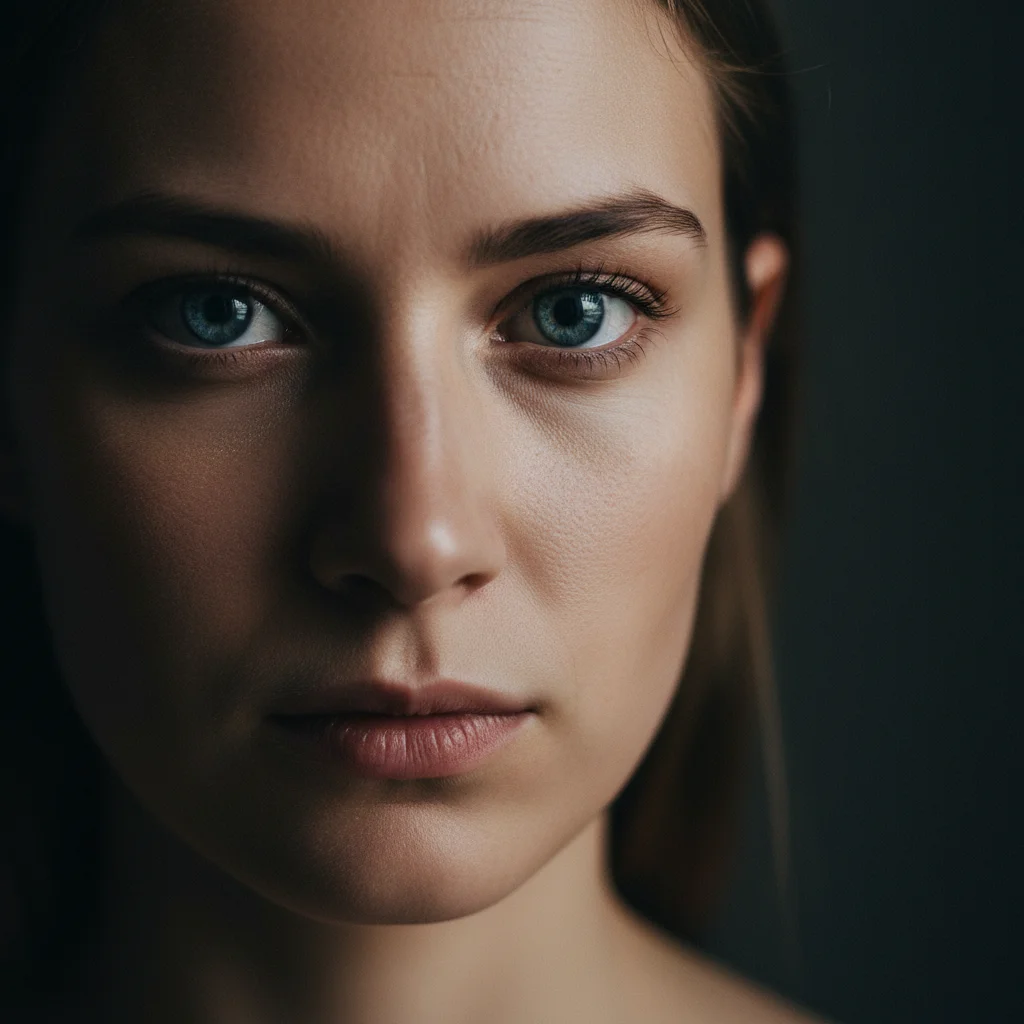
Portrait before adding black ink drips from eyes
Before
->
Surreal portrait with black ink dripping from eyes
After

Black ink eye drips

Surreal portrait with thick black ink dripping from both eyes down the face. Uneven flow creates emotional, artistic impact with realistic gravity and texture.

Prompt: add thick black ink drips starting from both eyes and flowing down the face, with natural gravity and slightly uneven flow patterns
Product photo before gold drip effect
Before
->
Product photo with luxurious gold paint drips
After

Gold metallic drips

Luxurious gold metallic paint dripping down from the top edge. Glossy reflective drips with natural flow create an elegant, high-end artistic effect.

Prompt: apply luxurious gold metallic paint dripping down from the top, thick glossy drips with reflective sheen and natural gravity flow
Advertisement

If something looks off

Drips don't look like they're flowing naturally with gravity

Why: The AI may have created static drip shapes instead of fluid motion following physics.

Try: Add physics keywords: 'with natural gravity flow' or 'flowing downward pulled by gravity with realistic physics.' Also mention 'thicker at top, thinner at bottom' for natural drip taper

Tip: Real drips start thick and get thinner. Specify 'wide at origin, tapering to thin streams' for realism.

Colors are muddy where drips blend together

Why: Multiple paint colors mixing realistically creates brown/grey muddy tones where they meet.

Try: For clean colors, request 'keep each color separate without mixing' or 'distinct color drips that don't blend together.' Or embrace it: 'natural color mixing where drips overlap'

Tip: Real paint mixes when wet. For vibrant colors, use fewer colors (2-3 max) or keep drips separated.

Drips start from random places instead of where I wanted

Why: Without specific instructions, the AI chooses drip origins based on image composition.

Try: Be explicit about starting points: 'drips starting from the top edge of the frame' or 'originating from the subject's forehead.' Or place markers at exact drip origin points

Tip: For drips from specific features (eyes, mouth), either describe precisely or use markers for accuracy.

Paint texture looks flat, not glossy or wet

Why: The AI didn't add highlights, reflections, or depth cues that make paint look dimensional and wet.

Try: Add texture keywords: 'thick glossy paint texture,' 'wet paint with highlights and reflections,' or 'dimensional paint with visible brush strokes.' For matte paint, specify 'flat matte finish'

Tip: Glossy paint shows highlights and reflections. Matte paint is flat. Oil paint is thick. Watercolor is transparent. Pick the right paint type.

Too many or too few drips

Why: Drip density wasn't specified, so the AI used default moderate coverage.

Try: Control density: 'several thick drips spaced apart' for minimal, 'many thin running streaks covering most of the image' for heavy coverage, or 'just three or four prominent drips' for specific count

Tip: Fewer thick drips = bold graphic style. Many thin drips = melting/disintegration effect.

Drips don't match the artistic style I wanted

Why: Different paint types (oil, watercolor, acrylic, ink) have different visual characteristics.

Try: Specify paint type: 'thick oil paint texture,' 'transparent watercolor,' 'glossy acrylic paint,' or 'runny ink.' Each has distinct thickness, transparency, and texture

Tip: Oil paint: thick, textured. Acrylic: glossy, smooth. Watercolor: transparent, soft edges. Ink: thin, runny.

Quick answers

Do I need to mark where drips should start?

No! For most drip effects, just describe the starting area: 'paint drips from the top' or 'drips starting from the subject's face.' The AI understands general positions. Only use markers when you want drips from very specific small features like just the eyes, fingertips, or exact text edges.

How do I make drip art look like real melting paint?

Real paint drips follow gravity, start thick and taper thin, and show paint texture. Include in your prompt: 'with natural gravity flow, thick at top tapering to thin streams, glossy paint texture with highlights.' Also specify paint type: oil paint is thick and textured, watercolor is transparent, acrylic is smooth and glossy.

Can drips flow in directions other than downward?

Yes! By default drips flow downward with gravity, but you can specify: 'paint drips flowing upward' for surreal anti-gravity effects, 'drips spreading sideways' for horizontal flow, or 'drips in all directions like an explosion' for radial patterns. Specify the direction explicitly in your prompt.

What's the best type of photo for drip art effects?

High-contrast photos with clear subjects work best: portraits with defined facial features, text/logos with sharp edges, objects with clear outlines. Simple backgrounds help drips stand out. Busy or low-contrast photos can make drips blend in and lose impact.

How do I create drips with multiple colors that don't turn muddy?

Keep colors separated by requesting 'each color separate without mixing' or use analogous colors (neighbors on color wheel like blue/purple/pink) that blend nicely. For vibrant results, limit to 2-3 colors. Or embrace natural mixing: 'rainbow drips with natural color blending where they meet' for realistic paint behavior.

Can I control how thick or thin the drips are?

Yes! Describe drip thickness: 'thick heavy paint drips' for bold chunky streams, 'thin running streaks' for delicate lines, or mix them: 'a few thick drips with many thin streaks.' Also control density: 'several spaced-apart drips' vs 'many overlapping drips covering the image.'

Ready to create drip art?

Free to try. No signup required.

Try it free