Free • No signup Enhance Engagement photos · Free

Enhance Engagement Photos with AI

Make your ring sparkle, fix lighting, and perfect every detail for your big announcement
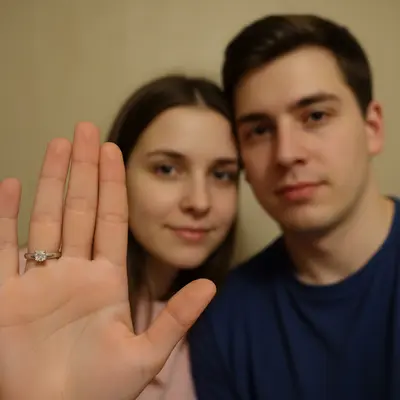
Engagement selfie with dull ring and flat lighting
Before
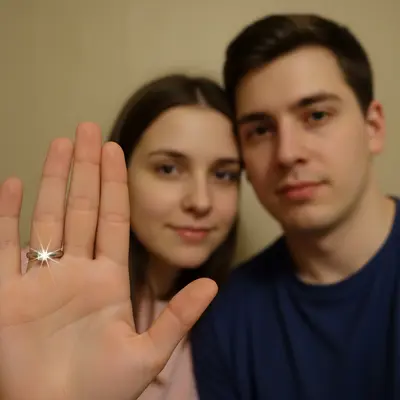
Same photo with sparkling ring and improved facial lighting
After

Enhance Engagement Photos in Photo

Drop your photo here

or click to browse

Release to upload

Free • No signup


Cost
Free No signup required
Time
Instant results in 15-30 seconds
Works on
Any device - browser, phone, tablet, desktop
Powered by
AI-powered photo editing

How it works

  1. Upload your engagement photo

    Choose the photo you want to enhance—proposal selfies, posed portraits, ring close-ups, or celebration shots all work perfectly. Both professional photos and casual phone captures can be dramatically improved.

    Expect: Simple enhancements like adding ring sparkle: 3-5 seconds. Complex changes like fixing outdoor lighting and removing multiple distractions: 10-15 seconds and may benefit from refinement.
  2. Describe what you want enhanced

    THIS IS THE KEY STEP. Simply type what you'd like improved: 'make the engagement ring sparkle more and brighten our faces' or 'enhance the sunset colors and remove the parking lot in the background.' Be specific about what matters for your announcement—the AI understands conversational instructions.

    Tip: Combine multiple enhancements in one instruction: 'Add sparkle to the ring, brighten our smiles, and blur the messy background.' The AI handles complex requests beautifully.

    Copy one of these to get started:

    Make the ring the star Make the engagement ring sparkle with bright highlights and enhance the diamond clarity
    Fix selfie lighting Brighten our faces, even out skin tones, and add warmth to the overall lighting
    Enhance outdoor proposal shots Boost the sunset colors, enhance the natural scenery, and make our faces glow
    Clean up the background Remove the cars, trash cans, and random people in the background
    6 more prompts
    Restaurant proposal enhancement Brighten the dim restaurant lighting, make the ring sparkle, and blur the background tables
    Enhance emotions and expressions Brighten our smiles, add warmth to our eyes, and enhance the happy tears on my cheeks
    Beach proposal rescue Fix the overcast gray sky to look sunny, remove the strangers walking by, and enhance the ocean colors
    Ring close-up perfection Enhance the diamond sparkle, smooth the skin texture on my hand, and add depth to the ring details
    Fix surprise proposal photo Remove the shocked unflattering expression and replace with a natural happy smile
    Complete announcement polish Make the ring ultra sparkly, brighten and even our skin tones, enhance the background scenery, and add overall warmth
  3. Review the enhanced result

    Check that the ring looks stunning, faces are well-lit and natural, colors are vibrant but not oversaturated, and any distractions are gone. Zoom in on the ring and your expressions to ensure everything looks perfect for sharing.

  4. Refine with markers if needed

    OPTIONAL. If the AI enhanced the wrong jewelry piece or you want to precisely target a specific area, tap a marker on that exact spot. This is rarely necessary but helpful when you have multiple rings or jewelry visible.

    Tip: Markers are for precision when description leaves ambiguity—like 'enhance THIS ring, not my other hand's jewelry.'
Try it free

Enhance Engagement Photos in Photo

Drop your photo here

or click to browse

Release to upload

Free • No signup

"The ring barely showed in our selfie but this made it the star of the photo. Perfect for our Instagram announcement!" @JessAndAlex

See it in action

Engagement selfie with dull ring and flat lighting
Before
->
Same photo with sparkling ring and improved facial lighting
After

Ring sparkle transformation

The ring was barely visible in the original selfie. One instruction made the diamond sparkle and enhanced the overall lighting.

Prompt: Make the engagement ring sparkle with bright highlights and brighten our faces
Park proposal with cars and strangers in background
Before
->
Clean proposal photo with distractions removed
After

Outdoor proposal with background cleanup

Beautiful park proposal, but cars and random strangers ruined the background. Removed distractions and enhanced the natural scenery.

Prompt: Remove the cars and people in the background and enhance the green grass and trees
Dark restaurant proposal photo with invisible ring
Before
->
Brightened photo with visible sparkling ring and warm atmosphere
After

Restaurant proposal lighting rescue

Dim restaurant lighting made the photo too dark and the ring invisible. Enhanced lighting and made the ring sparkle without losing the intimate atmosphere.

Prompt: Brighten the dim lighting, make the ring sparkle, and add warmth to our faces

If something looks off

The ring sparkle looks too fake or cartoonish

Why: Generic 'make it sparkle' instructions without moderation can lead to over-the-top results.

Try: Use 'add natural sparkle highlights to the ring' or 'subtly enhance the diamond brilliance'

Tip: Words like 'natural,' 'subtle,' or 'realistic' help the AI create believable ring enhancements that don't look artificial.

Face brightening made skin look washed out or too smooth

Why: Without guidance, aggressive brightening can remove natural skin texture and tones.

Try: Try 'gently brighten faces while preserving natural skin texture and tones'

Tip: You want to enhance natural beauty, not create a plastic look. Use 'gently' and 'naturally' to maintain authenticity.

The AI enhanced the wrong ring or jewelry piece

Why: If you're wearing multiple rings or jewelry, description alone may not specify which one.

Try: Tap a marker directly on the engagement ring, then regenerate with 'enhance THIS ring's sparkle'

Tip: Markers tell the AI 'I mean THIS specific ring' when you have multiple pieces of jewelry visible.

Background changes affected the people in the photo

Why: Vague instructions like 'enhance the background' can inadvertently alter the subjects.

Try: Be specific: 'enhance the sunset colors in the sky only' or 'improve the trees and grass, keep us unchanged'

Tip: Specify 'background only' or list exactly which background elements to enhance to protect the subjects.

Removed background elements left visible artifacts or blur

Why: Complex backgrounds with depth and detail can be challenging to reconstruct perfectly.

Try: Add 'blend seamlessly with natural background fill' or try 'clean removal with smooth background'

Tip: If artifacts persist, try regenerating—AI results vary, and a second attempt often produces better blending.

Overall colors look oversaturated or artificial

Why: Instructions like 'enhance colors' without limits can push saturation too far.

Try: Use 'naturally boost colors' or 'subtly enhance vibrancy without oversaturation'

Tip: Engagement photos should look timeless and shareable. 'Subtle' and 'natural' prevent the over-processed Instagram filter look.

Quick answers

Do I need to mark the ring before describing what I want?

No! Just describe what you want enhanced. Only use markers when the AI needs help identifying which specific ring or jewelry piece you mean if you're wearing multiple items.

How do I enhance engagement photos for free?

Upload your engagement photo and describe the changes you want—make the ring sparkle, improve lighting, remove distractions. EditThisPic processes one free edit per week with no signup required.

Can I make the ring more visible if it's barely showing in the photo?

Yes! Describe what you want: 'make the engagement ring much more visible and add bright sparkle highlights.' The AI can dramatically enhance ring visibility and add natural-looking brilliance.

Will this work on selfies taken with poor lighting?

Absolutely. Selfie lighting is notoriously bad. Instructions like 'brighten our faces and add warmth' or 'fix the harsh overhead lighting' work great for selfie rescue.

Can I remove background distractions from spontaneous proposal photos?

Yes! Proposals often happen in imperfect locations. Just describe what to remove: 'remove the trash can, parked cars, and strangers in the background.' The AI fills in naturally.

How do I avoid making the photo look over-edited for social media?

Use words like 'naturally,' 'subtly,' or 'gently' in your instructions. Instead of 'make everything brighter,' try 'naturally enhance lighting and colors.' This keeps the authentic feel while improving quality.

Can I enhance both the ring and our faces in one instruction?

Absolutely! Combine requests: 'Make the ring sparkle, brighten our faces, and enhance the background scenery.' The AI handles multiple enhancements in a single instruction.

Will there be a watermark on my enhanced photos?

No. Your enhanced engagement photos download without any watermarks. They're perfect for sharing on social media, sending to family, or printing.

Ready to make your engagement photos shine?

Free to try. No signup required. No watermark.

Try it free