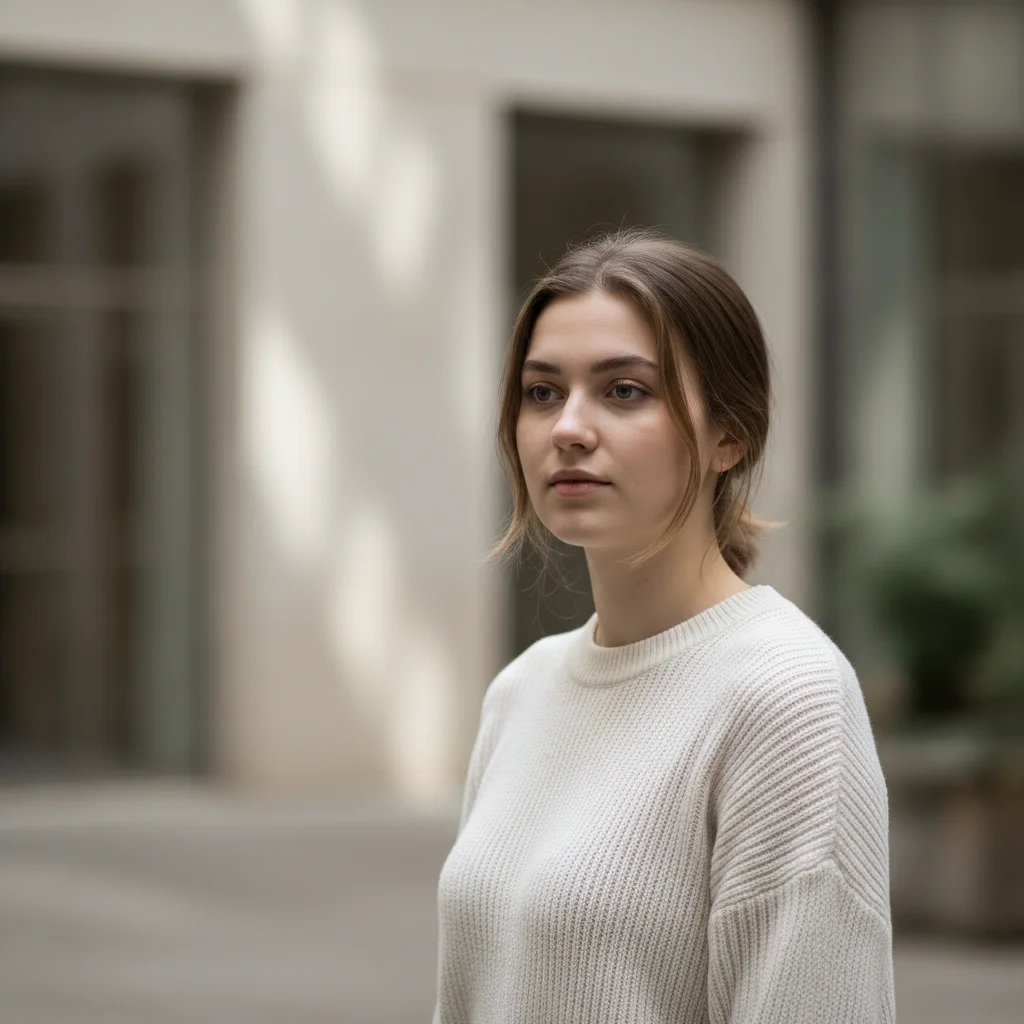
Do I need to mark where the light leak should appear before describing?
No! Just describe what you want: 'add warm orange light leak from top left corner' or 'add pink glow across bottom.' The AI understands these directional descriptions. Only use markers when you need precision—like fine-tuning exact position or intensity after your first attempt.
How do I create authentic-looking film light leaks that don't look fake?
Use descriptive language about warmth, softness, and natural fade. Say 'add warm orange light leak with soft edges and natural fade' instead of just 'add orange.' Include words like 'subtle,' 'hazy,' 'glow,' and 'vintage film' to guide the AI toward realistic film camera effects instead of harsh digital overlays.
What's the best free tool for adding light leaks to photos?
EditThisPic's AI Light Leak Adder creates realistic film-style light leaks without Photoshop or manual overlay placement. Unlike pre-made overlay packs that never quite fit your photo, our AI generates custom light leaks that blend naturally with your image's lighting and colors.
Can I add multiple light leaks to the same photo?
Yes! Generate your first light leak, then use the result as your starting image and add another one. For example, add a warm orange leak from the top, then add a subtle pink glow on the bottom edge in a second pass.
Is EditThisPic's AI light leak adder really free?
Yes — you get 1 free edit per week, no account needed. Plans start at $4.99/month for 15 edits.
Can I add light leak on my phone?
Yes. EditThisPic works in any mobile browser — iPhone, Android, tablet. No app download needed.
What photo formats does the AI light leak adder support?
JPG, PNG, WebP, and HEIC. Upload any common photo format and EditThisPic handles the rest.
How long does it take to add light leak?
Usually 15-30 seconds. Upload your photo, describe what you want, and the AI delivers the result.
How much does EditThisPic cost?
You get 1 free edit per week — no account needed. After that, credit packs start at $1.99 for 3 edits. Monthly plans start at $4.99/mo for 15 edits with unused credits rolling over. All edits are full resolution with no watermark.