Free • No signup Apply Natural no-makeup makeup · Free

AI Natural No-Makeup Makeup Look

Upload a portrait and AI applies this makeup look. Preview styles before trying them in real life.

Original photo before natural no-makeup makeup editing — wedding guest photo touch-up
Before
Result after AI natural no-makeup makeup editing — wedding guest photo touch-up
After

AI Natural No-Makeup Makeup Look Free Online | EditThisPi...

Drop your photo here

or click to browse

Release to upload

Free • No signup

Popular use cases:
  • apply natural no-makeup makeup
  • AI natural no-makeup makeup editor
  • photo natural no-makeup makeup tool
  • free natural no-makeup makeup editing

Cost
Free No signup required
Time
Instant results in 15-30 seconds
Works on
Any device - browser, phone, tablet, desktop
Powered by
AI-powered photo editing

How it works

  1. Upload your photo

    Upload a clear, front-facing portrait. Good lighting on the face and visible facial features give the AI the best foundation for natural no-makeup makeup editing. JPG, PNG, WebP up to 7MB.

    Expect: Most edits complete in 20-45 seconds. Complex changes may need 1-2 refinements.
  2. Describe your edit

    Type what you want: 'apply natural no-makeup makeup.' Be specific about details for best results. The AI understands natural language — no technical skills needed.

    Tip: Specify intensity — 'subtle smokey eye for daytime' vs 'dramatic smokey eye for evening event.'

    Copy one of these to get started:

    Deciding on a new look before committing apply natural no-makeup makeup with a natural, realistic result — I want to see exactly how this would look in real life before I commit to the change
    Reference photo for a stylist or professional apply natural no-makeup makeup with precise, salon-quality detail — I need this as a reference photo to show my stylist exactly what I want
    Dating profile or social media glow-up apply natural no-makeup makeup with a flattering, polished look — enhance just enough to look my best without looking obviously edited or filtered
    Side-by-side comparison of two different options apply natural no-makeup makeup in a dramatic, bold version. I want to compare this against a more subtle version to decide which suits me better
    2 more prompts
    Special event or wedding preparation apply natural no-makeup makeup with an elegant, event-ready finish — think formal occasion. Make it look refined and camera-ready for photos
    Age-related or confidence-boosting touch-up apply natural no-makeup makeup — keep it looking completely natural and age-appropriate. I want a subtle improvement, not a transformation
  3. Review the result

    Zoom in on facial details — check that skin tones look natural, edges blend seamlessly, and no artifacts appear around the hairline, jawline, or eyes. Use the before/after slider to compare.

  4. Refine if needed

    If specific facial features need adjustment — asymmetric eyes, unnatural skin smoothing, or hairline artifacts — tap markers on those spots and describe the fix. Fine-tune until the result looks like a natural photo.

    Tip: Markers are optional. Try without them first — the AI usually gets it right.
Try it free

AI Natural No-Makeup Makeup Look Free Online | EditThisPi...

Drop your photo here

or click to browse

Release to upload

Free • No signup

"My sister didn't believe natural no-makeup makeup was AI-generated. The color blending and how it interacted with my skin tone looked totally natural." @DIYDave_Builds

See it in action

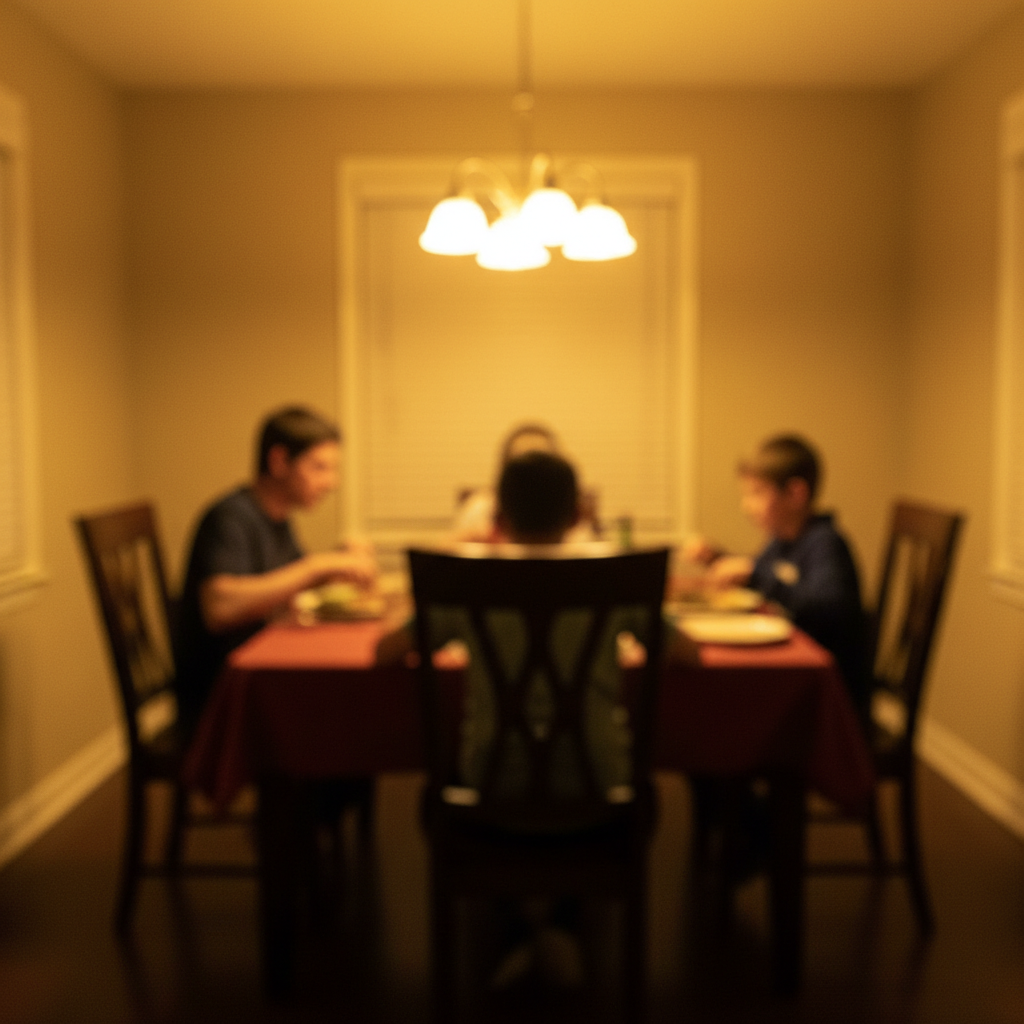
Original photo before natural no-makeup makeup editing — wedding guest photo touch-up
Before
->
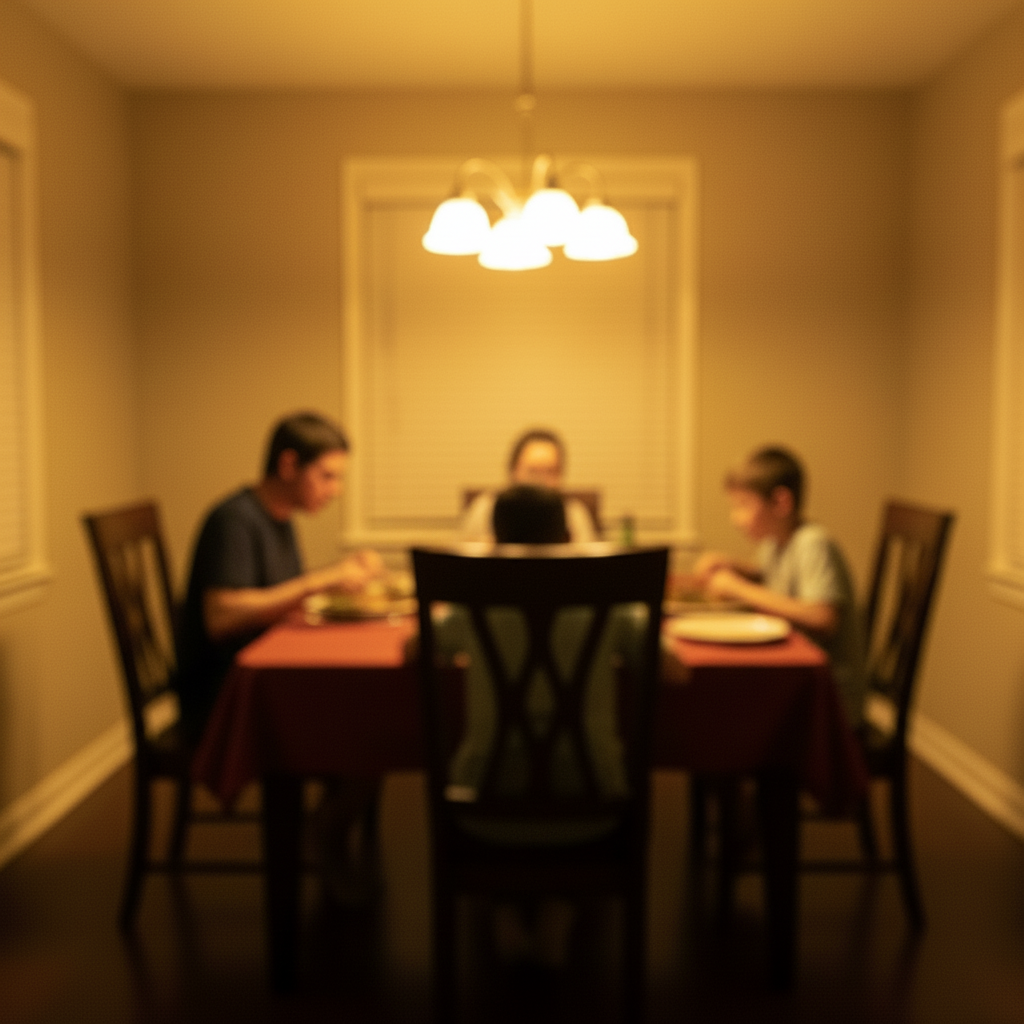
Result after AI natural no-makeup makeup editing — wedding guest photo touch-up
After

Wedding Guest Photo Touch-Up

Great group shot from a friend's reception, but needed some enhancement. The AI handled natural no-makeup makeup seamlessly across varying skin tones in the candlelit setting.

Prompt: apply natural no-makeup makeup — make it look natural and professional
Original photo before natural no-makeup makeup editing — graduation day photo enhancement
Before
->
Result after AI natural no-makeup makeup editing — graduation day photo enhancement
After

Graduation Day Photo Enhancement

A headshot photo that needed professional-level quality. The AI delivered clean, natural results that looked like they were done by a skilled editor.

Prompt: apply natural no-makeup makeup with attention to detail, matching lighting and perspective

Detailed Guides by Scenario

📷

Design Visualization

Preview natural no-makeup makeup changes on your actual photo before committing — make confident design decisions backed by visuals.

Common Scenarios

  • Simulating natural no-makeup makeup on a room, outfit, or space to evaluate the look
  • Creating client-ready mockups that visualize natural no-makeup makeup in their specific context
  • Comparing multiple natural no-makeup makeup options side by side using the same source photo

Best Practices

  • Upload a clear, well-lit photo from the angle you'd naturally view the subject
  • Be specific about the natural no-makeup makeup — color, material, size, and placement all matter
  • Generate 2-3 variations to have meaningful options to compare
📷

Professional Proposals

Win client approval with realistic natural no-makeup makeup previews that show exactly what the finished result will look like.

Common Scenarios

  • Building a presentation deck with natural no-makeup makeup visualizations for a client pitch
  • Showing stakeholders natural no-makeup makeup options before ordering materials or starting work
  • Creating before-and-after comparisons of natural no-makeup makeup for a project proposal

Best Practices

  • Use the client's own photos for the most persuasive previews
  • Label each option clearly (Option A, B, C) for easy discussion
  • Note that natural no-makeup makeup previews are approximations — set expectations about final results
📷

Personal Decision-Making

Try before you buy — preview natural no-makeup makeup on your own photos to make smarter purchasing and lifestyle decisions.

Common Scenarios

  • Previewing natural no-makeup makeup before making an expensive purchase
  • Testing how natural no-makeup makeup looks in your actual space or on your actual person
  • Sharing natural no-makeup makeup previews with family or friends to get opinions before deciding

Best Practices

  • Upload a photo of the actual space/item/person — generic stock images won't help you decide
  • Try the most different options first (bold vs. subtle) to narrow down your natural no-makeup makeup preference
  • Save each preview so you can flip between them when comparing

If something looks off

AI changed the wrong area

Why: The AI couldn't determine exactly which area you meant from the description alone.

Try: Tap a marker on the specific area you want to edit, then regenerate with the same prompt

Tip: Markers tell the AI exactly where to focus. Use them when description alone is ambiguous.

Result looks unnatural

Why: The AI may need more specific guidance about the look you want.

Try: Add 'natural lighting and sharp details that match the rest of the photo' to your prompt

Tip: Adding 'natural' and 'realistic' to your prompt helps the AI prioritize believability.

Lighting doesn't match

Why: The edited area has different lighting than the original scene.

Try: Add: 'match the lighting direction and color temperature of the original photo'

Tip: If light comes from one side in the original, mention it: 'with light from the left side.'

Edges look rough or artificial

Why: Transitions between edited and unedited areas need refinement.

Try: Tap markers on the rough edges and regenerate: 'refine these edges for a seamless blend'

Tip: Edge refinement is the most common adjustment — markers on problem areas make it quick.

Quick answers

Can I undo the edit if I don't like the result?

Yes, you always keep your original photo. If the result isn't right, you can adjust your prompt and regenerate, or simply download your untouched original.

Does the AI apply natural no-makeup makeup work on mobile?

Yes, EditThisPic works fully in your mobile browser — no app download needed. It also has an iOS app available on the App Store.

How do I get better results when I apply natural no-makeup makeup?

Be specific in your prompt. Instead of vague descriptions, mention exact colors, materials, styles, or positions. Use markers to point the AI at the exact area you want changed.

Is my photo kept private when I apply natural no-makeup makeup?

Yes. Your photo is processed in real-time by the AI and is not stored on our servers after editing. No account is required to use the tool, and we don't collect or share your images. Your original file stays on your device.

How does EditThisPic compare to Photoshop for applying natural no-makeup makeup?

EditThisPic uses AI that understands natural language, so you describe the edit you want instead of using complex tools. It works instantly in your browser with no software to install or learn. For applying natural no-makeup makeup, you simply type what you want and the AI handles the rest in 20-45 seconds.

Will the applyed result look realistic and natural?

Yes. The AI matches lighting, skin tone, and perspective to make additions look like they were in the original photo. It understands how light interacts with the added element for realistic shadows and highlights.

Can I apply natural no-makeup makeup on my phone?

Yes. EditThisPic works in any mobile browser — iPhone, Android, or tablet. The full editor loads on mobile with touch-optimized controls. No app download needed, though an iOS app is also available. Upload from your camera roll and edit on the go.

Will the makeup look natural or obviously edited?

The AI applies makeup that follows your facial contours, skin tone, and lighting conditions. Results look like professionally applied makeup rather than a digital overlay.

Can I apply natural no-makeup makeup for multiple photos at once?

Currently, EditThisPic processes one photo at a time for the best AI results. Upload each photo individually and use the same prompt — the process takes about 20-45 seconds per image. For large batches, a paid plan gives you unlimited edits without waiting.

What makes a good photo for applying natural no-makeup makeup?

Well-lit photos with clear subjects produce the best results. Avoid heavily compressed or very small images. Front-facing angles typically work better than extreme side angles. The AI can work with most photos, but higher quality input means higher quality output.

What types of photos work best with this tool?

JPG, PNG, and WebP photos up to 7MB work best. The AI handles photos from any camera or phone. High-resolution images with good lighting produce the best results. Extremely dark, heavily compressed, or very small images may produce less precise edits.

Can I also adjust the lighting and colors in the same edit?

Yes! You can combine multiple edits in one prompt. For example, ask to apply natural no-makeup makeup and adjust the lighting and colors at the same time. The AI understands complex multi-step instructions. For very different changes, separate prompts may give better control over each edit.

Ready to apply your photos?

Free to try. No signup required.

Try it free