Free • No signup Restore Old photo · Free

AI Old Photo Restorer

← Browse all enhance tools

Last updated

Bring faded family photos back to life — describe the damage and let our AI enhance what's visible.
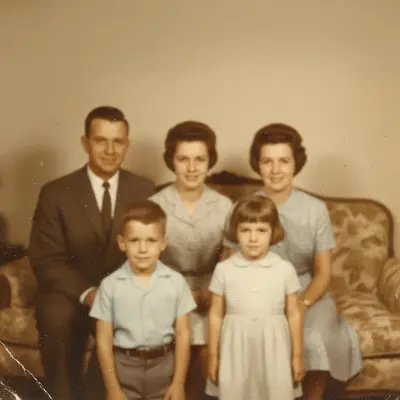
Yellowed 1960s family portrait with diagonal scratch across upper half Same portrait with yellowing corrected, scratch removed, contrast improved

Upload photo to restore old photo

"remove the scratch running diagonally from the top-left to the center of the image, blend the repaired area to match surrounding detail"

Release to upload

1 free edit·then from $4.99

How it works

  1. Scan or photograph your old photo at high resolution

    Use a flatbed scanner at 600 DPI or higher for the best results — smartphone photos of prints work too, but avoid shooting at an angle or in harsh direct light that creates glare. JPG, PNG, or WebP up to 7MB. The more visible detail in the original file, the better the AI can work with it.

    Expect: Good scans: 30–60 seconds per restoration pass. Phone photos with glare may need 2–3 passes to correct reflections.
  2. Describe the damage you want corrected

    Be specific about what you see: 'fix the yellow fading, remove the horizontal scratch across the middle, improve overall sharpness.' The AI responds to descriptions of visible damage — tell it what you see, not what you hope to find. Our AI enhances visible detail and corrects known damage patterns; it cannot recover information that was never captured.

    Tip: Describe damage by location and type: 'diagonal scratch from top-left to center', 'heavy brown staining on the bottom-right corner', 'overall loss of contrast and sharpness.' Specificity produces better-targeted corrections.

    Copy one of these to get started:

    General fading and yellowing restore this old photo: fix the yellowing and fading, improve contrast and color balance, enhance visible sharpness across the whole image
    Scratch removal remove the scratch running diagonally from the top-left to the center of the image, blend the repaired area to match surrounding detail
    Water damage stains fix the brown water stain in the bottom-right corner, restore the color and tone to match the rest of the photo
    Torn edge repair repair the torn right edge of this photo, reconstruct the missing area to match the background and any partial subjects visible
    3 more prompts
    Full restoration pass do a full restoration: remove all visible scratches and dust spots, fix yellowing and fading, sharpen faces and fine detail, correct the overall color balance
    Brightness and contrast only improve the brightness and contrast of this old photo, make it look cleaner and crisper without changing the original colors
    Black and white photo restoration restore this black and white photo: remove scratches and dust spots, improve tonal range from deep blacks to bright whites, sharpen faces and fine detail
  3. Review the result at 100% zoom

    Open the result at full size to check faces, fine text, and background details. The AI improves contrast and reduces yellowing globally — check that no important areas were over-sharpened or that skin tones look natural rather than over-processed.

See it in action

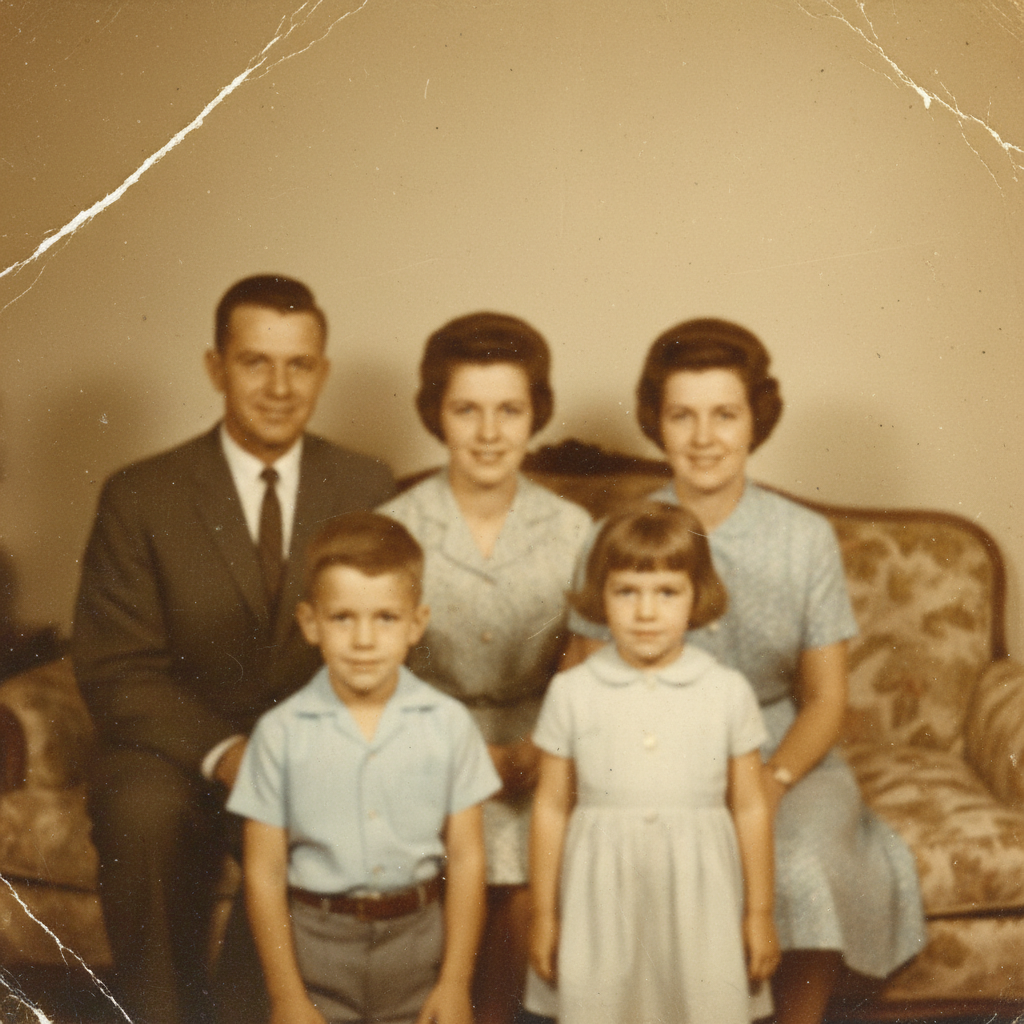
Yellowed 1960s family portrait with diagonal scratch across upper half
Before
->
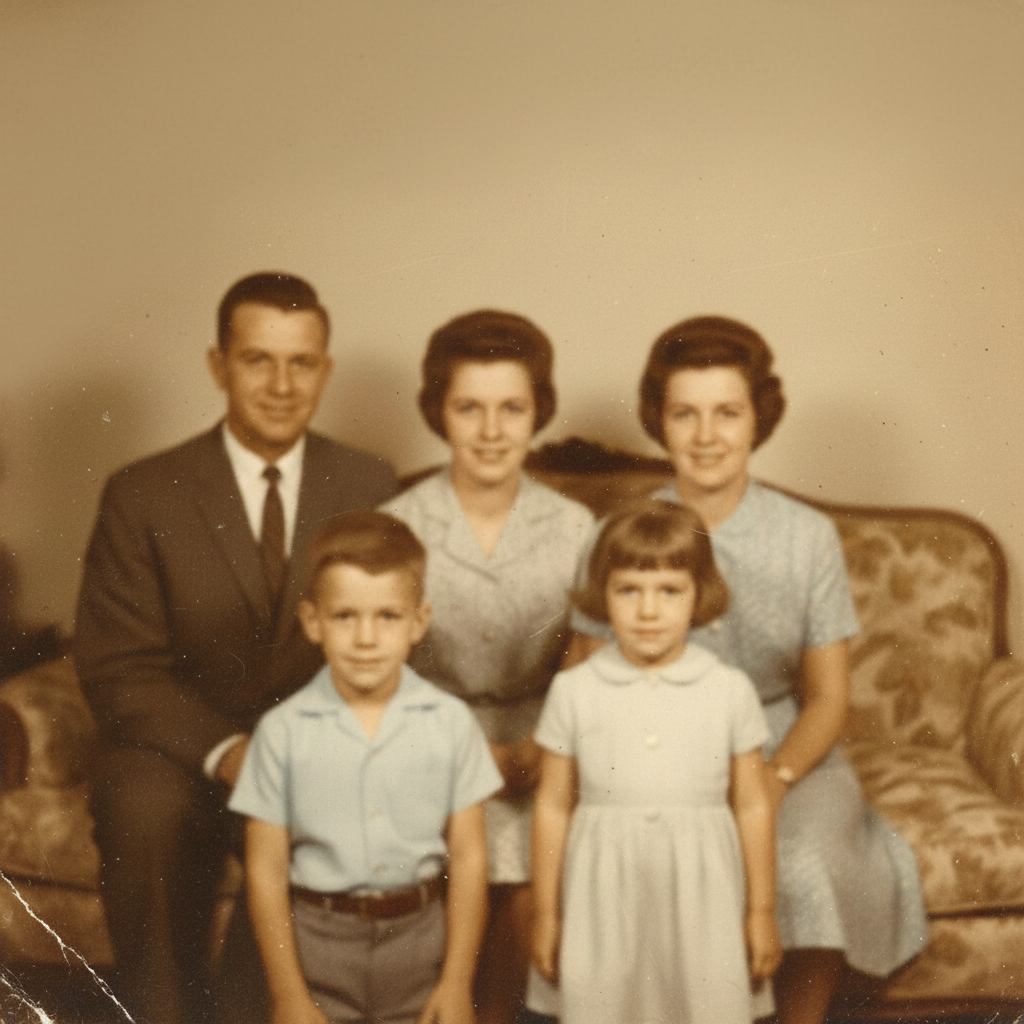
Same portrait with yellowing corrected, scratch removed, contrast improved
After

1960s family portrait — yellowing and scratch

A scanned 1960s family portrait with heavy amber yellowing, a diagonal scratch across the upper half, and slight softness throughout.

Prompt: restore this old photo: fix the yellowing, remove the diagonal scratch in the upper half, improve overall sharpness and contrast
1940s black and white portrait with dust spots and brown stain
Before
->
Restored portrait with spots removed, stain corrected, contrast improved
After

1940s black and white portrait — dust spots and fading

A wartime-era black and white portrait with numerous white dust spots, faded mid-tones, and a brown stain in the bottom-left corner.

Prompt: restore this black and white photo: remove dust spots, fix the brown stain in the bottom-left corner, improve contrast from deep blacks to bright whites
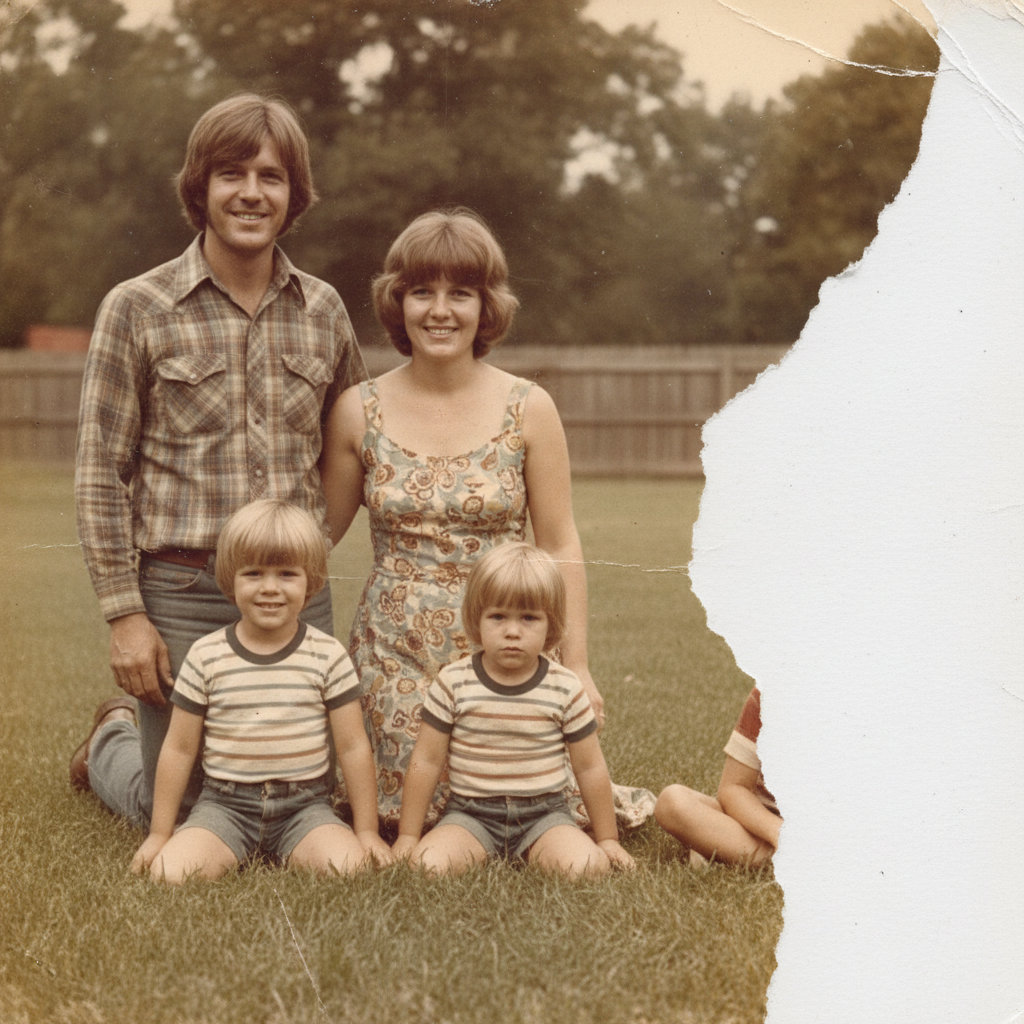
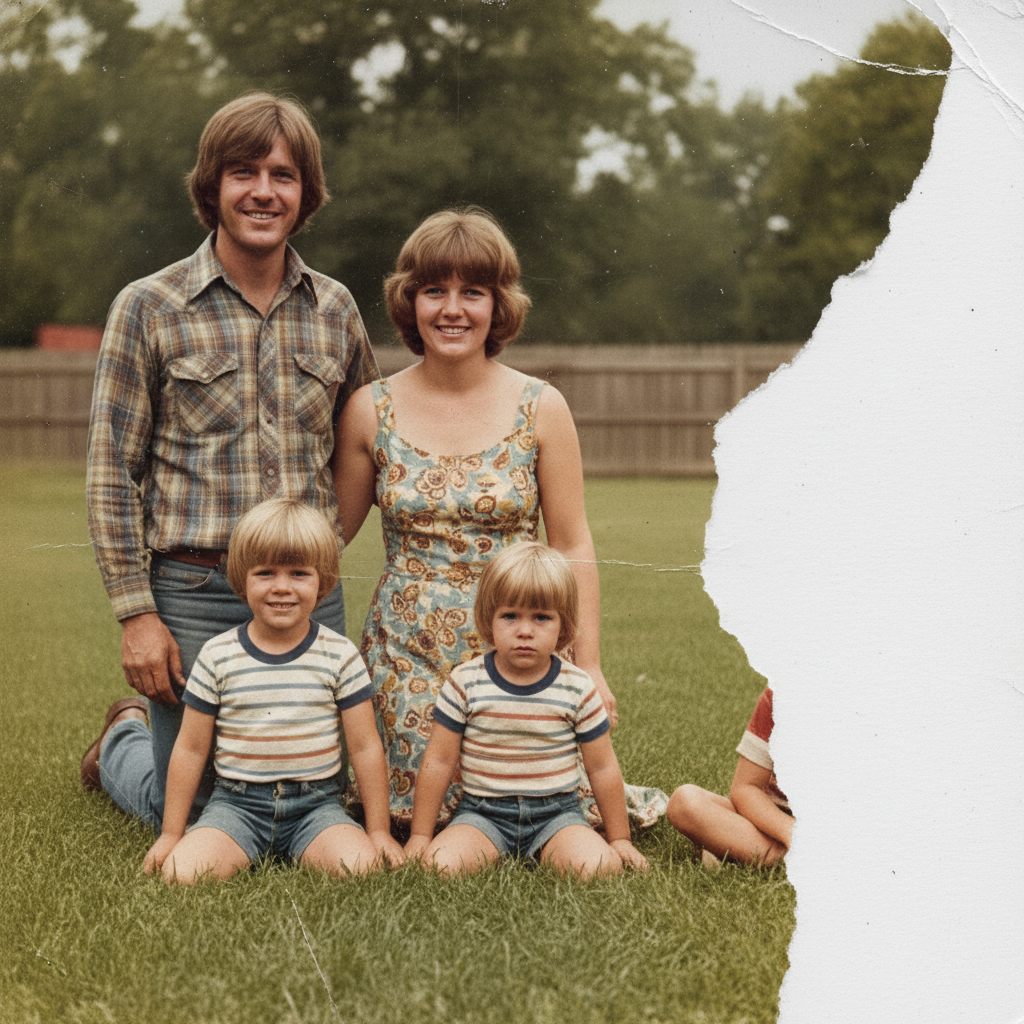
1970s snapshot with torn right edge and color fading
Before
->
Snapshot with edge reconstructed and color fading corrected
After

Torn edge snapshot — edge reconstruction

A color snapshot from the 1970s with a torn right edge removing about 10% of the image, plus general color fading.

Prompt: repair the torn right edge, reconstruct the background to match, and fix the overall color fading throughout the photo

Quick answers

Do I need to mark the damaged areas before describing what I want fixed?

No — just describe the damage and where it is: 'remove the scratch across the upper half' or 'fix the brown stain in the bottom-right corner.' The AI works from your description.

Is there a free AI old photo restorer with no signup?

Yes. EditThisPic restores old photos for free with no account or login required. Upload your scanned photo, describe the damage, and download the result. No watermark on the output.

Can the AI recover detail that was lost or never captured?

No — and it's important to be honest about this. Our AI enhances visible detail and corrects common damage patterns (fading, yellowing, scratches, stains). It cannot recover information that was never in the original image. Very blurry faces stay blurry; completely torn-away areas can only be plausibly reconstructed from surrounding context.

What types of photo damage can the AI fix?

The AI handles fading and yellowing, scratches and tears, dust spots and specks, brown water stains, low contrast and flatness, and general softness. Results vary by the severity of damage and how much original detail is visible in the scan.

Should I scan my photo or take a picture of it?

A flatbed scanner at 600 DPI or higher gives the best results — it captures detail evenly without glare. Smartphone photos work but avoid shooting at an angle or in light that creates reflections on the print surface. The better your input file, the better the restoration.

How do I restore a torn photo online for free?

Upload the scanned photo to EditThisPic and describe the tear: 'repair the torn right edge and reconstruct the background to match.' The AI reconstructs torn edges based on surrounding context. Full edge restoration works best when the torn area contains simple backgrounds rather than complex subjects.

Can I restore a black and white old photo?

Yes. Black and white photos benefit from tonal range correction (deeper blacks, brighter whites), dust spot removal, scratch repair, and sharpening. Describe the specific issues: 'remove dust spots, improve contrast from deep blacks to bright whites, sharpen fine detail.'

How much does EditThisPic cost?

You get 1 free edit per week — no account needed. After that, credit packs start at $1.99 for 3 edits. Monthly plans start at $4.99/mo for 20 edits with unused credits rolling over. All edits are full resolution with no watermark.

Ready to restore your old photos?

Free to try. No signup required.

1 free edit included·Credit packs from $4.99