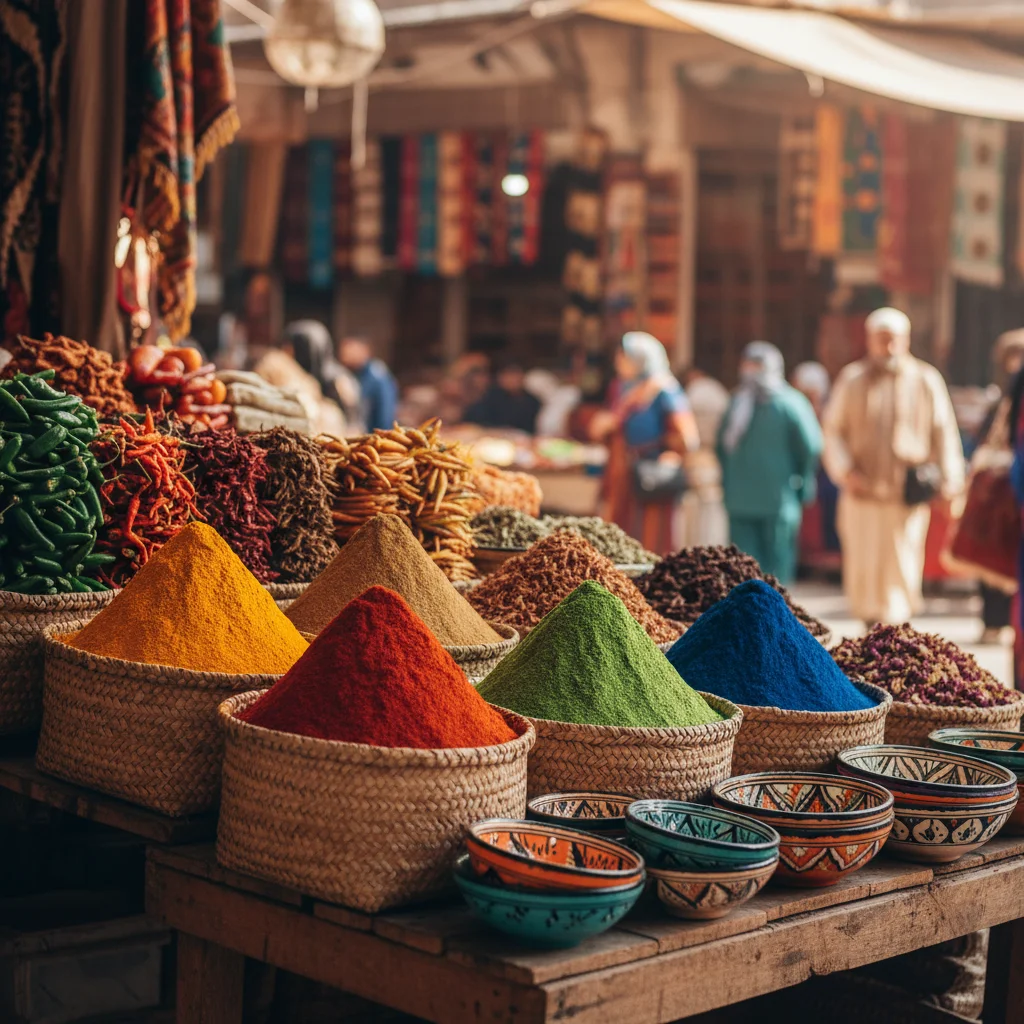
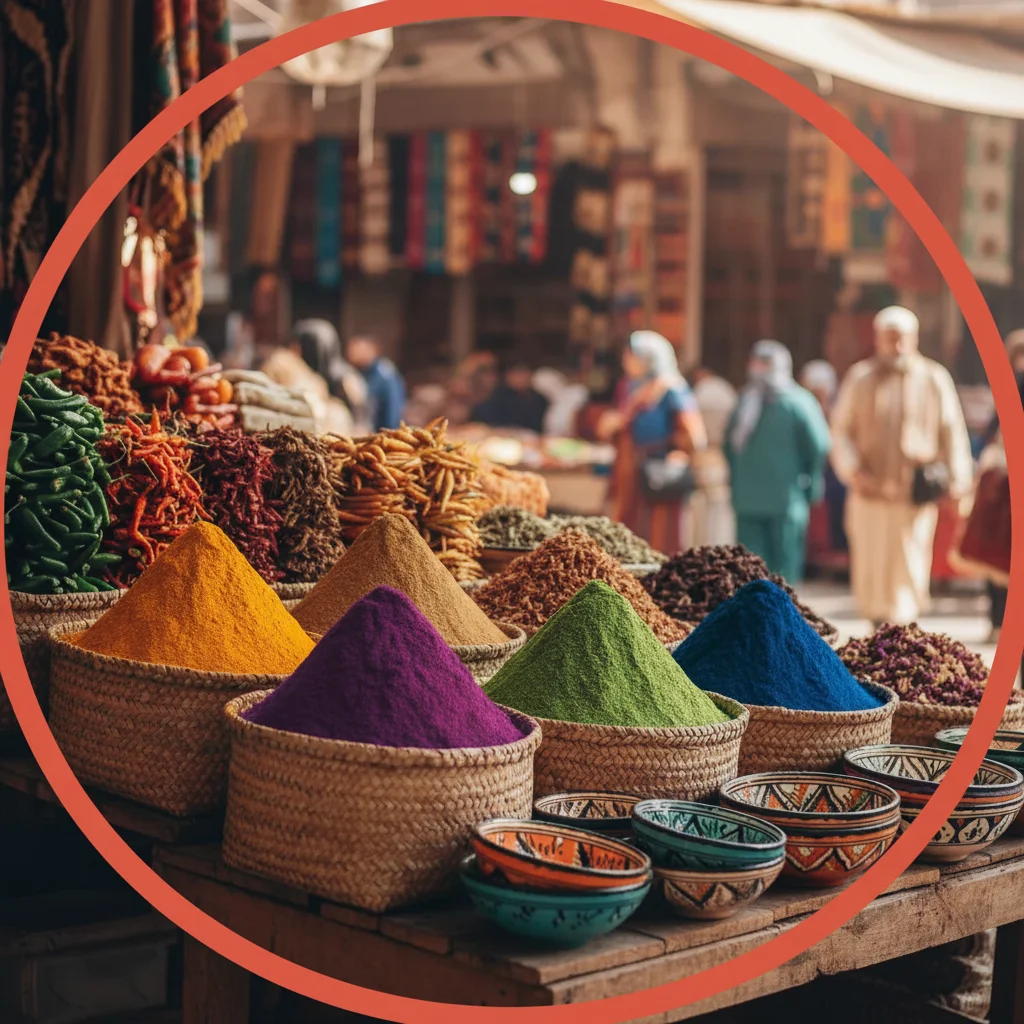
Do I need to mark the object before describing the color change?
No! Just describe which object and what color: 'change the blue shirt to red' or 'make the white walls gray'. The AI understands object descriptions. Only use markers if there are multiple similar objects and you need to specify 'this exact one', or if the first result changed the wrong item.
How do I change color without losing texture and details?
Add texture preservation to your prompt: 'change the sofa to navy blue while keeping all cushion wrinkles' or 'change shirt to green preserving fabric texture'. Keywords like 'keeping', 'preserving', 'maintaining' signal the AI to retain surface details while changing color.
Can I change multiple objects to the same color at once?
Yes. Use 'all the' in your prompt: 'change all the red chairs to blue' or 'make all the white cabinets gray'. The AI will apply the color change consistently to every matching object in the photo.
What color names work best for accurate results?
Specific color names work better than generic ones. Use 'navy blue' instead of 'blue', 'forest green' instead of 'green', 'burgundy' instead of 'red'. For exact matching, reference familiar items: 'sky blue', 'grass green', 'charcoal gray'. Add finish: 'matte black', 'glossy red', 'metallic silver'.
Is there a free color changer tool that works without signup?
Yes, EditThisPic's AI Object Color Changer is completely free to try with no account required. Upload your photo, describe the color change, and download the result with no watermark. No hidden fees or registration needed.
Is EditThisPic's AI object color changer really free?
Yes — you get 1 free edit per week, no account needed. For unlimited edits, plans start at $3.99/month.
Can I change object color on my phone?
Yes. EditThisPic works in any mobile browser — iPhone, Android, tablet. No app download needed.
What photo formats does the AI object color changer support?
JPG, PNG, WebP, and HEIC. Upload any common photo format and EditThisPic handles the rest.