Free • No signup Open Editor

Fix Faded Photo

Restore vibrant colors, fix sun damage, and revive washed-out images in seconds.

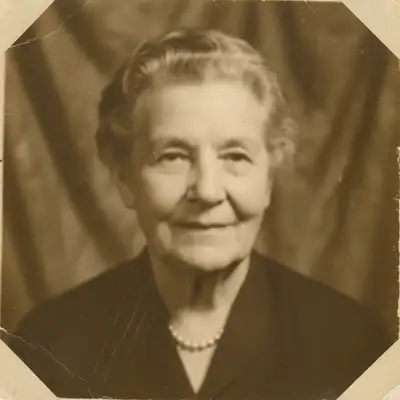
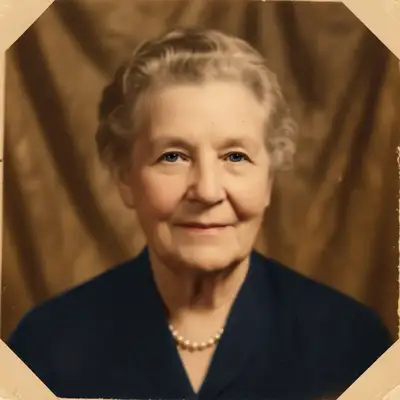
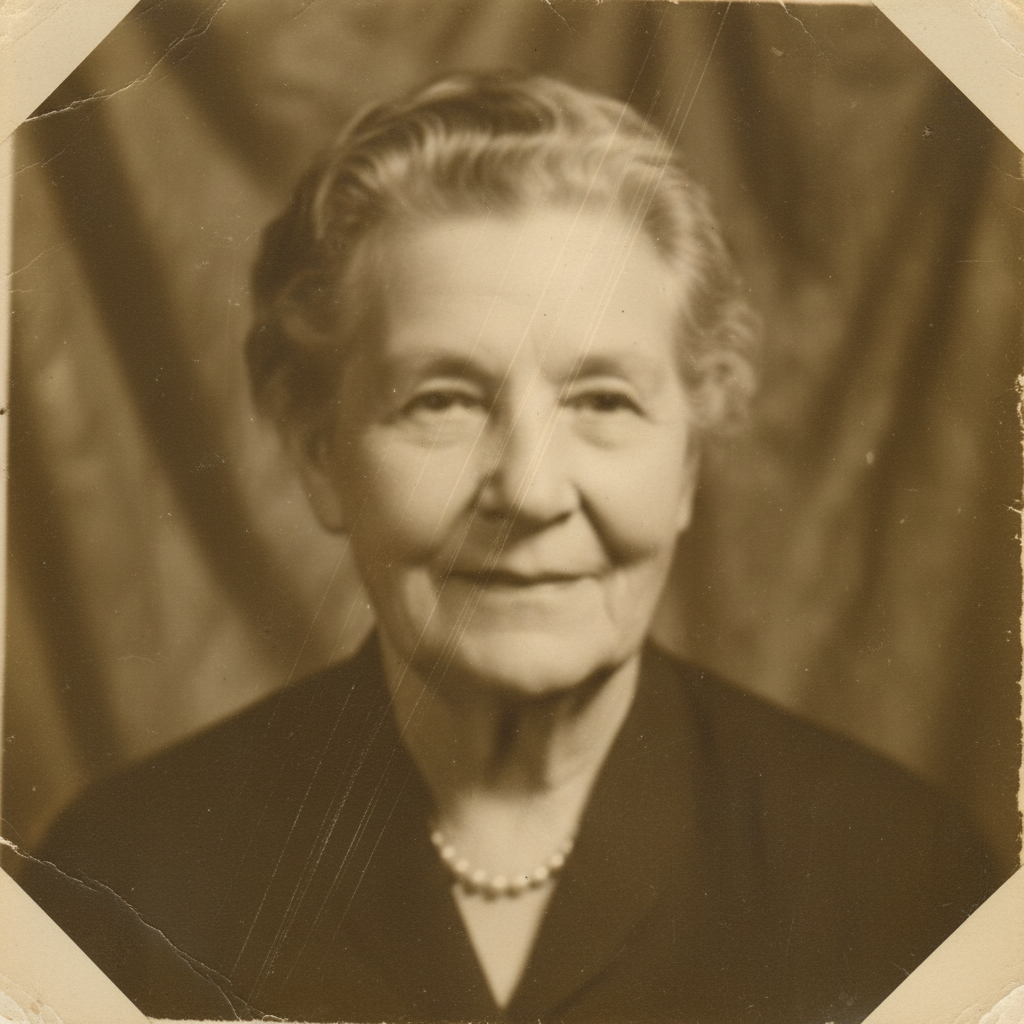
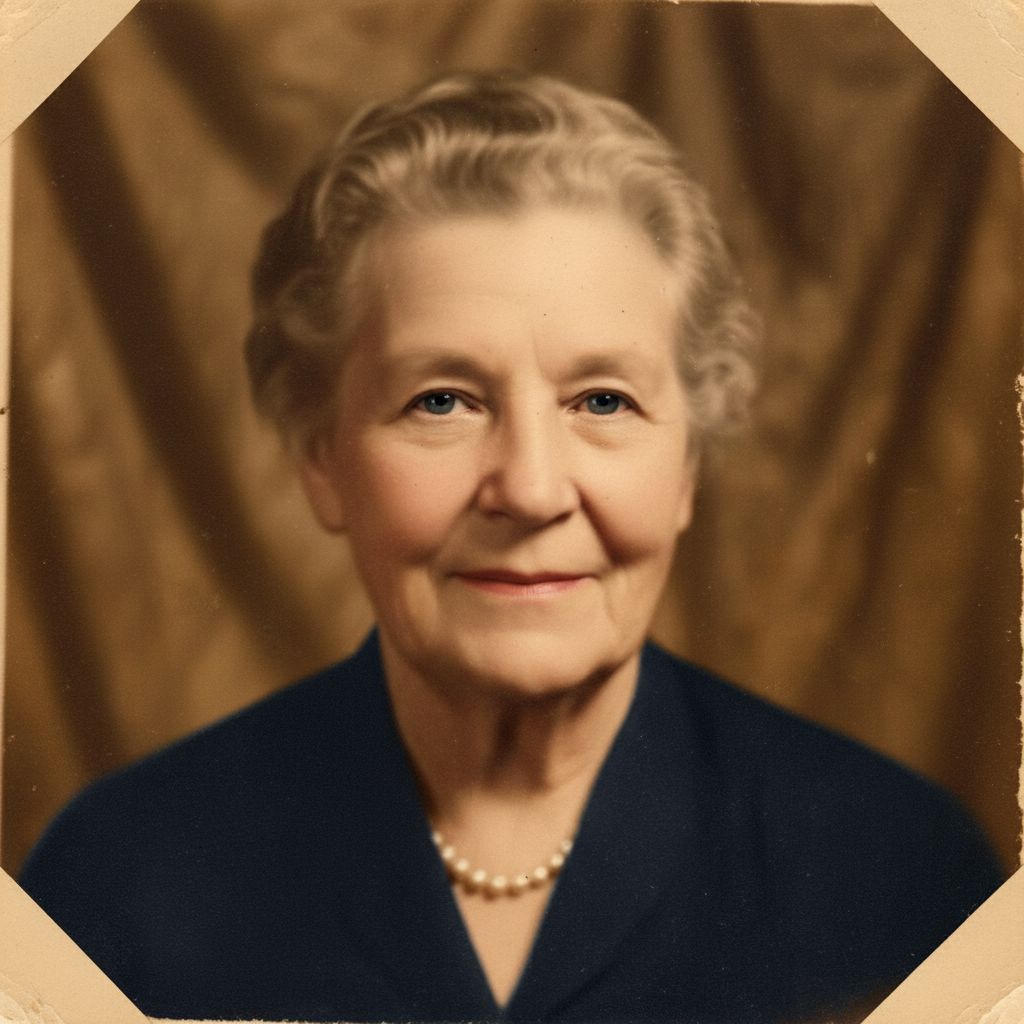
Type 'restore the faded colors, bring back the original vibrance and contrast' and EditThisPic's AI revives your image in 15-25 seconds. Works on sun-faded prints, yellowed photos, and washed-out images. No marking needed for full-image color restoration. Just describe what you want and the AI handles the rest. Free to try, no account needed.

Severely washed-out beach photo with pale colors
Before
Same photo with vibrant blue sky and natural colors restored
After

How it works

1

Upload your faded photo

Drop your image into EditThisPic. JPG, PNG, WebP up to 7MB. Works with scanned prints, old digital photos, and sun-damaged images. Higher resolution scans give better color restoration results.

⏱ Mild fading: 15-20 seconds. Severe color loss or yellowing: may need 2-3 refinements.
2

Describe the restoration you want

Type your instruction: 'restore the faded colors, bring back vibrant natural tones' or 'fix the yellowing and restore original contrast.' Be specific about what needs fixing—overall fading, color shifts, or lost contrast. No marking needed for whole-image restoration.

💡 Mention the original color if you know it: 'restore the blue sky' or 'bring back the green grass' guides the AI's color choices.

Copy one of these to get started:

General fading and color loss restore the faded colors, bring back vibrant natural tones and proper contrast throughout the image
Yellow or sepia color cast remove the yellow cast and restore true colors, fix the aging discoloration while keeping it natural
Sun-bleached outdoor photo restore the sun-faded colors, bring back the blue sky, green grass, and natural skin tones
Washed-out with low contrast restore color and contrast, bring back rich blacks, bright whites, and vivid midtones
3 more prompts
Red or magenta color shift correct the red color shift, restore balanced natural colors with proper white balance
Preserve vintage feel while restoring gently restore the faded colors while keeping a warm vintage character, enhance without making it look modern
Severely washed out portrait restore this severely faded portrait, bring back natural skin tones, eye color, and hair detail with rich contrast
3

Review the color restoration

Check skin tones for natural appearance. Verify sky, foliage, and other recognizable colors look realistic. Look for consistent color balance across the entire image without color banding or artifacts.

4

Refine specific areas if needed

If some areas restored differently than others, tap markers on those sections and regenerate. This helps when one part of the image faded more than another. Most restorations work without markers.

💡 Markers help when fading was uneven—like one corner that got more sun damage than the rest.
Try it free
"My grandfather's beach photos from the 60s were completely washed out. Now they look like they were taken in vivid color yesterday." @FamilyArchives_Dan

See it in action

Severely washed-out beach photo with pale colors
Before
Same photo with vibrant blue sky and natural colors restored
After

1970s vacation photo restored

Decades of sun exposure had washed out this beach vacation photo. One prompt brought back the vivid colors.

Prompt: restore the sun-faded colors, bring back the blue sky, blue ocean, and natural skin tones
Wedding portrait with heavy yellow color cast
Before
Wedding portrait with true white dress and natural skin tones
After

Yellowed wedding portrait corrected

This wedding portrait had developed a heavy yellow cast over the years. The AI restored true white and natural tones.

Prompt: remove the yellow cast and restore true colors, make the white dress actually white with natural skin tones
Garden photo faded to near grayscale
Before
Garden photo with vibrant greens, colorful flowers, and rich contrast
After

Garden photo with lost contrast revived

This garden photo had faded to almost gray. The restoration brought back both color and contrast.

Prompt: restore color and contrast, bring back the green foliage, colorful flowers, and rich shadows

If something looks off

Colors look oversaturated or unnatural

Why: The AI may overcorrect fading, pushing colors beyond natural levels especially with severely faded images.

Try: gently restore the faded colors with natural saturation, avoid oversaturation and keep tones realistic

💡 Adding 'natural' and 'gentle' to your prompt keeps restoration subtle and believable.

Skin tones look wrong after restoration

Why: Color casts affect skin differently than other elements. The AI may restore backgrounds correctly but miss skin nuances.

Try: restore the faded colors with special attention to natural healthy skin tones, correct any color cast on faces

💡 Skin tones are the most critical element—the human eye is very sensitive to unnatural skin colors.

AI changed the wrong area or something I didn't want changed

Why: The AI couldn't determine exactly which area you meant from description alone. This happens with ambiguous requests.

Try: Tap a marker on the specific faded area you want restored, then regenerate with the same prompt

💡 Markers tell the AI 'I mean THIS one specifically.' Use them when description alone is ambiguous.

Some areas restored but others still faded

Why: Uneven fading across the image means some areas need more aggressive restoration than others.

Try: Tap markers on the still-faded areas and use: restore these specific areas to match the rest of the image

💡 For uneven fading, do a general restoration first, then target stubborn areas with markers.

Image looks noisy after color restoration

Why: Boosting faded colors can amplify noise that was hidden in the original low-contrast image.

Try: restore the faded colors while reducing noise, keep the image smooth and clean

💡 Combining color restoration with noise reduction gives cleaner results on old photos.

Quick answers

Do I need to mark the faded areas before describing?

No! For most faded photos, just describe what you want: 'restore the faded colors' or 'fix the yellowing.' The AI applies color correction across the entire image. Only use markers when fading is uneven and you need different areas restored to different degrees.

Can the AI restore the original colors exactly?

The AI infers what colors should be based on context—skin, sky, grass, and other recognizable elements. For natural subjects, restoration is usually very accurate. For unique colors (like a specific dress shade), the AI makes an educated guess based on what's left of the original information.

Why do old photos fade?

Photo dyes break down over time from light exposure, heat, humidity, and chemical reactions. Different colors fade at different rates—reds often fade faster than blues, which is why many old photos have a cyan or blue cast. The AI understands these patterns.

Should I restore color or leave vintage character?

You can have both! Use prompts like 'gently restore while keeping vintage warmth' to maintain some of the aged character while bringing back lost detail. The AI can enhance without making photos look hyper-modern.

What if my photo is black and white but I want color?

That's colorization, not faded color restoration. EditThisPic can do that too—use a prompt like 'colorize this black and white photo with natural realistic colors' for that different task.

Ready to restore your faded photo?

Free to try. No signup required.

Try it free