Fix Overexposed Photo
Recover blown highlights and restore washed-out details in seconds.
Type 'fix the overexposure, recover the blown highlights and restore natural tones' and EditThisPic's AI brings back lost detail in 15-25 seconds. Works on bright skies, washed-out faces, and harsh flash photos. The AI can often recover detail that appears completely white. No marking needed—just describe what needs fixing. Free to try, no account needed.
How it works
Upload your overexposed photo
Drop your image into EditThisPic. JPG, PNG, WebP up to 7MB. RAW files or high-bit-depth images work better for recovery since they contain more hidden detail in the highlights.
Describe the fix you want
Type your instruction: 'fix the overexposure, recover the blown-out sky and restore natural skin tones' or 'correct the harsh flash exposure and balance the lighting.' Be specific about what areas are overexposed—sky, faces, or the whole image. No marking needed.
Copy one of these to get started:
fix the overexposure throughout the image, recover lost highlights and restore natural balanced tones
recover the blown-out sky, bring back the blue color and cloud detail while keeping the subject properly exposed
fix the harsh flash exposure on the faces, reduce the bright spots and restore natural skin tones with proper shadows
balance the exposure, brighten the backlit subject while toning down the bright background
3 more prompts
fix the overexposed window, recover the outdoor view while keeping the indoor exposure natural
correct the exposure fooled by bright snow/sand, recover detail in faces and shadows without losing the bright environment
remove the bright reflections and hot spots, create even lighting across the product surface
Review the exposure correction
Check previously blown areas for recovered detail. Look for natural sky gradients, visible facial features, and consistent exposure across the image. Verify the fix didn't over-darken properly exposed areas.
Refine specific areas if needed
If some areas are fixed but others still overexposed, tap markers on those specific spots and regenerate. This helps when different parts of the image need different amounts of correction.
"My beach photos were completely blown out from the bright sun. Now I can actually see faces and the ocean. Game changer for vacation shots." @TravelSnapper_Kim
See it in action
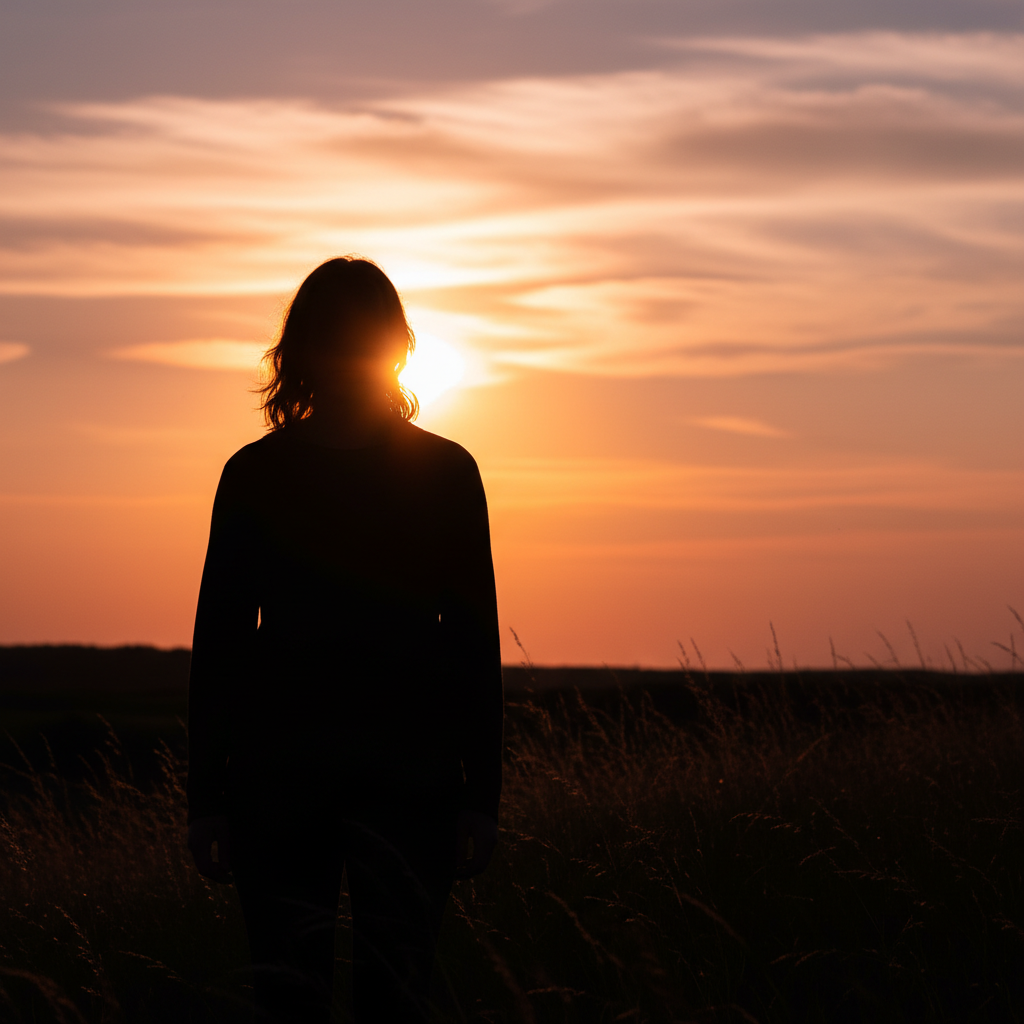
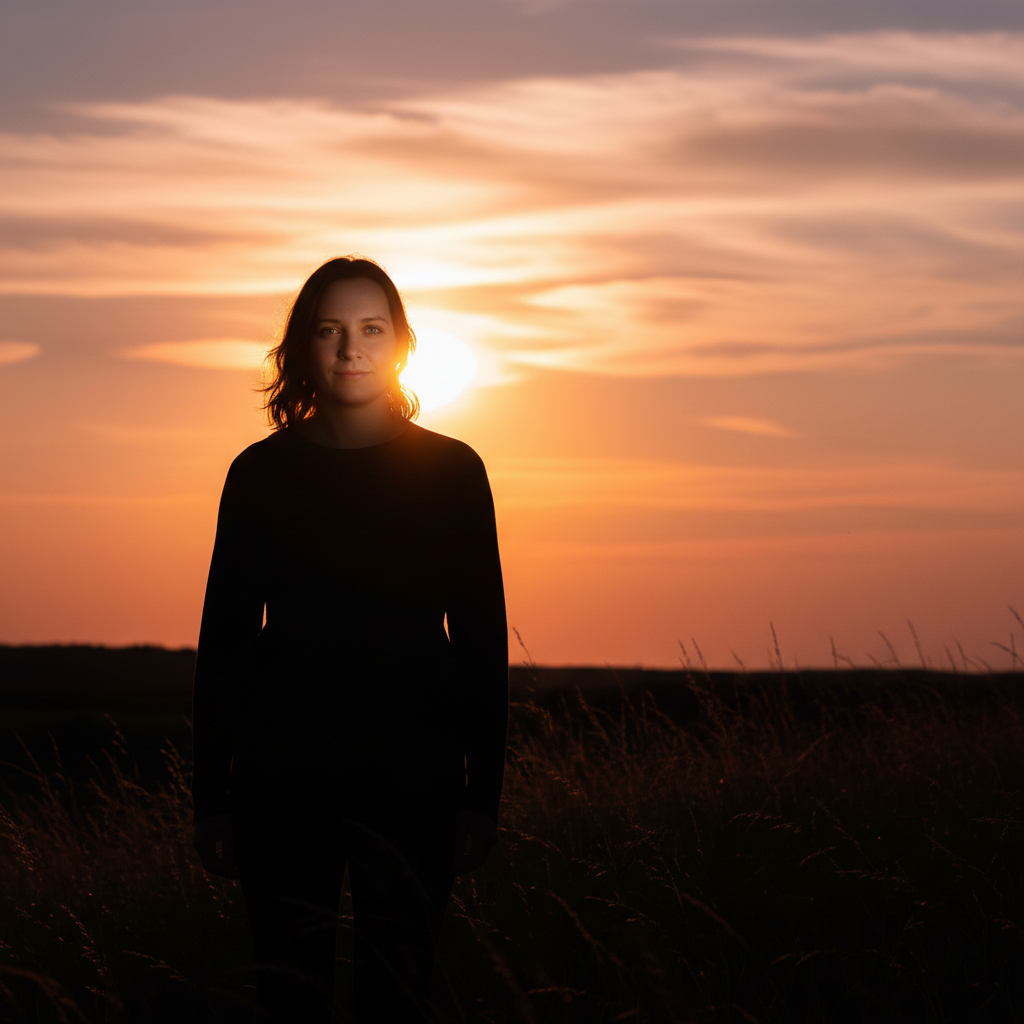
Beach vacation photo rescued
Bright sun had blown out the sky and washed out faces. The AI recovered everything while maintaining the sunny feel.
fix the overexposure, recover the blown-out sky and restore natural skin tones on the faces
Flash photo balanced
Direct flash had created harsh bright spots on faces. The AI softened the exposure while keeping the lighting natural.
fix the harsh flash exposure on the faces, reduce the bright spots and restore natural skin tones
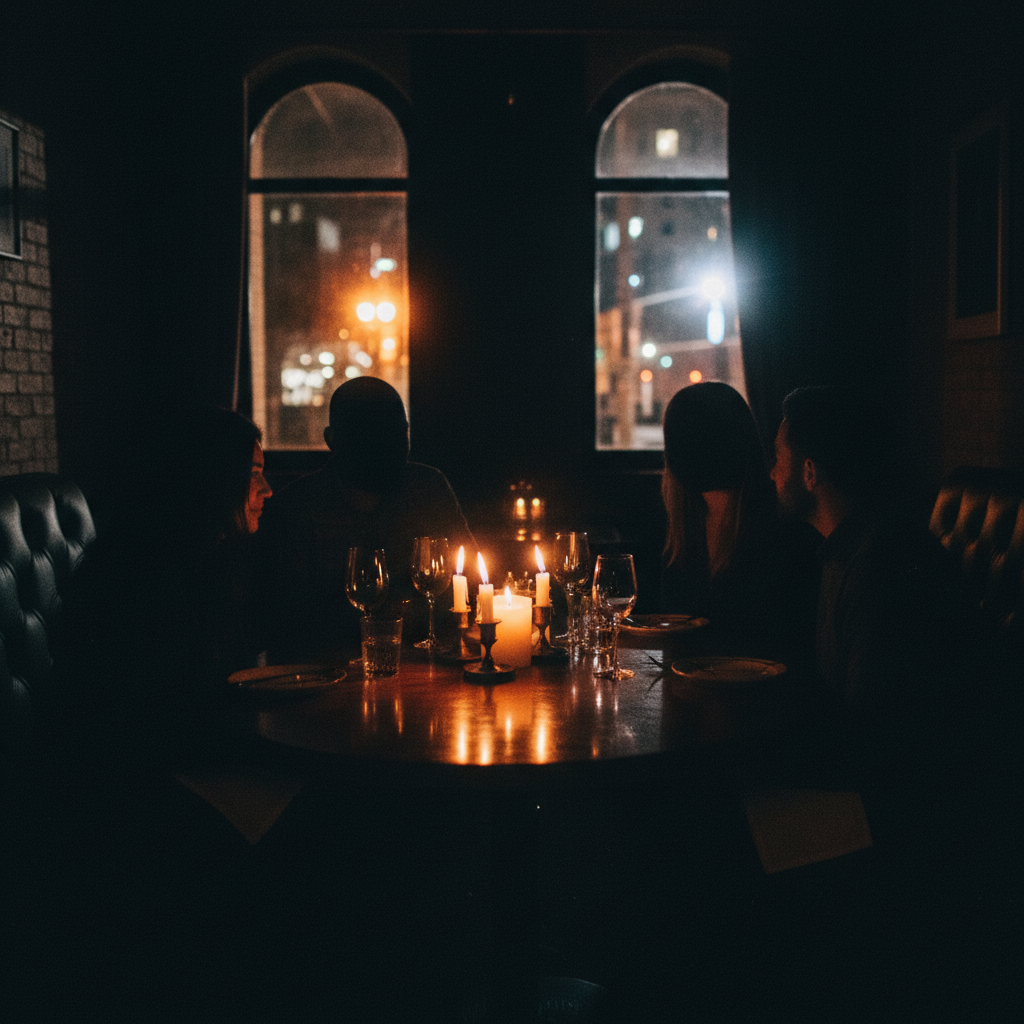
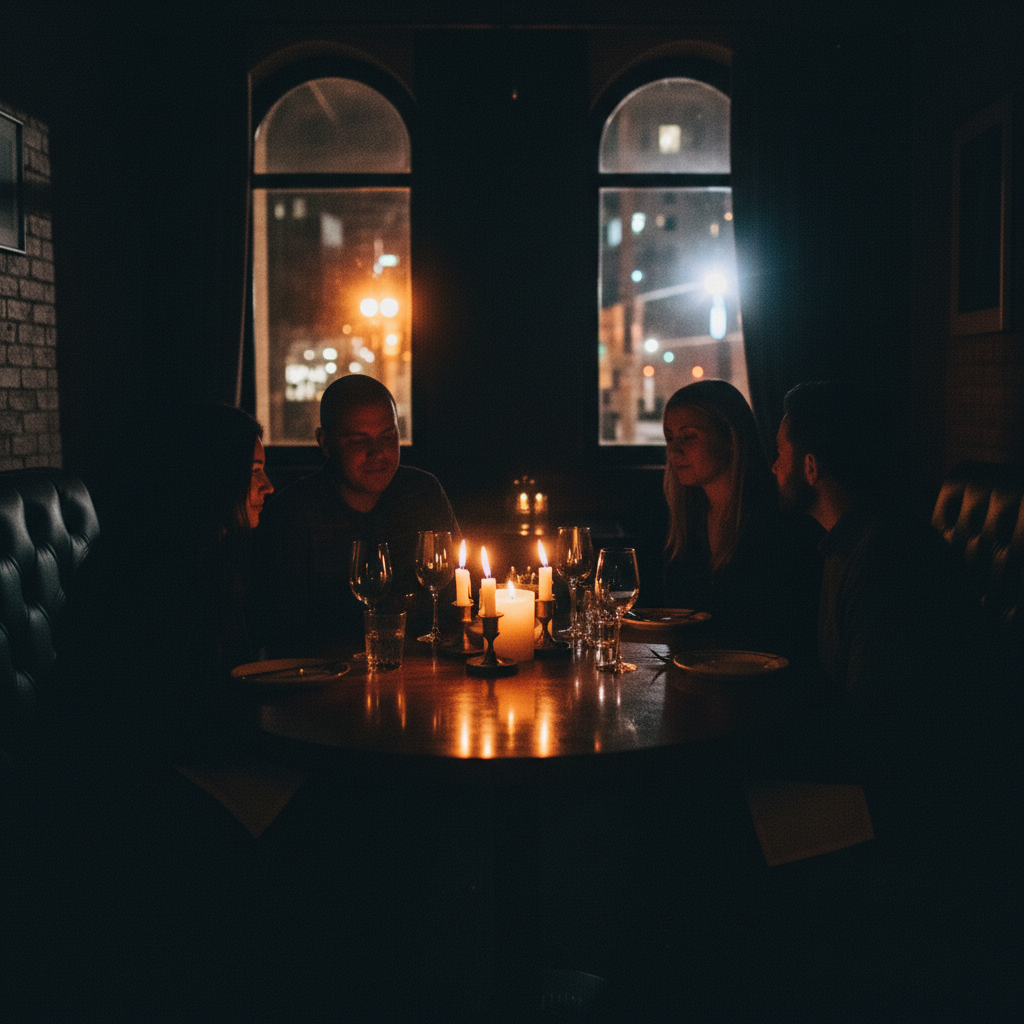
Window exposure corrected
Interior shot with a bright window had the outdoor view completely blown out. The AI recovered the view.
fix the overexposed window, recover the outdoor view while keeping the indoor lighting natural
If something looks off
Image becomes too dark overall
Why: The AI may overcorrect overexposure, bringing down the entire image instead of just the blown areas.
gently recover the overexposed highlights while maintaining overall brightness, only fix the blown areas
💡 'Only fix the blown areas' tells the AI to leave properly exposed regions alone.
Colors look unnatural after fixing
Why: Recovered highlights sometimes have incorrect color information, especially in severely blown areas.
fix the overexposure and ensure natural, consistent colors in the recovered areas
💡 Mentioning 'consistent colors' helps the AI match recovered areas to the rest of the image.
AI changed the wrong area or something I didn't want changed
Why: The AI couldn't determine exactly which area you meant from description alone. This happens with ambiguous requests.
Tap a marker on the specific overexposed area you want fixed, then regenerate with the same prompt
💡 Markers tell the AI 'I mean THIS one specifically.' Use them when description alone is ambiguous.
Some blown areas recovered but others still white
Why: Different areas may have different amounts of hidden detail, or the AI prioritized certain regions.
Tap markers on the still-overexposed areas and use: recover these specific blown highlights
💡 Severely clipped areas may have no recoverable information—some detail loss may be permanent.
Recovered sky looks banded or unnatural
Why: When highlight information is severely lost, the AI must infer colors, which can create smooth gradients that look artificial.
recover the sky with natural gradation and realistic cloud texture, avoid banding artifacts
💡 Adding 'realistic texture' helps the AI create more natural-looking sky recovery.
Quick answers
Do I need to mark the overexposed areas before describing?
No! For most exposure fixes, just describe what you want: 'fix the blown-out sky' or 'recover the overexposed highlights.' The AI can identify which areas are too bright. Only use markers when you need different corrections for different areas, or when the AI fixed some spots but missed others.
Can AI really recover detail from completely white areas?
Often yes, especially from camera JPEGs and high-bit-depth files. What appears pure white often contains hidden detail the AI can extract. Severely clipped highlights in heavily compressed images have less recoverable information. Results vary—try it and see.
Why are some overexposed areas unrecoverable?
When sensor pixels are completely saturated (clipped), the original information is permanently lost. The AI can make educated guesses about what should be there, but it's reconstructing rather than recovering. JPEGs lose more than RAW files.
Should I shoot RAW to get better recovery?
Yes, if your camera supports it. RAW files contain much more highlight information than JPEGs, giving the AI more to work with. But even JPEGs often have more recoverable detail than you'd expect.
Can I fix underexposure the same way?
Yes! Just describe the opposite: 'brighten the underexposed areas' or 'recover shadow detail.' The same description-first approach works for dark images too.
Ready to fix your overexposed photo?
Free to try. No signup required.