Free • No signup Open Editor

Make Photo HD

Transform low-quality photos into crisp HD images with one prompt.

Type 'enhance this photo to HD quality with sharp details' and EditThisPic's AI upscales your image in 15-30 seconds. No selection tools or marking required. Just describe the quality you want. Works on blurry smartphone shots, compressed web images, and old digital photos. Free to try, no account needed.

Pixelated family photo with visible compression artifacts and blurry faces
Before
Same family photo enhanced to HD with sharp facial features and clear details
After

How it works

1

Upload your photo

Drop your low-resolution image into EditThisPic. JPG, PNG, and WebP formats are all supported up to 7MB. The AI works best with images that have recognizable content, even if they appear pixelated or blurry.

⏱ Simple photos: 15-30 seconds. Highly compressed or very small images: may need 2-3 refinements for best results.
2

Describe the quality you want

Type your instruction: 'make this photo HD quality' or 'enhance to high resolution with sharp details.' Be specific about what matters most - facial clarity, texture detail, or overall sharpness. No marking needed - the AI enhances the entire image based on your description.

💡 Add specific quality targets like 'crisp facial features' or 'sharp text' if those elements matter most in your photo.

Copy one of these to get started:

General HD enhancement enhance this photo to HD quality with sharp details and improved clarity
Portrait or selfie clarity make this portrait HD with crisp facial features and natural skin texture
Compressed web image remove compression artifacts and enhance to high resolution
Old digital camera photo enhance this older photo to modern HD quality with improved sharpness and color
3 more prompts
Screenshot or screen capture sharpen this screenshot to HD with crisp text and clear interface elements
Landscape or scenery enhance this landscape photo to HD with sharp foliage and detailed textures
Product photo clarity make this product image HD quality with sharp edges and accurate detail
3

Generate and review

Click generate and wait 15-30 seconds. Zoom to 100% to check sharpness on important areas like faces, text, or fine textures. Compare against the original to verify the improvement.

4

Refine specific areas if needed

If certain areas need more enhancement, tap markers on those spots and regenerate with a focused prompt like 'sharpen the face more.' This is optional - most HD conversions work without any markers.

💡 Markers are for precision refinement when one area needs extra attention. Try the full-image enhancement first.
Try it free
"Saved a blurry vacation photo I thought was ruined. Looks like it was taken with a better camera now." @travel_memories

See it in action

Pixelated family photo with visible compression artifacts and blurry faces
Before
Same family photo enhanced to HD with sharp facial features and clear details
After

Pixelated smartphone photo restored

An old smartphone photo with visible pixelation and blur enhanced to crisp HD quality.

Prompt: enhance this photo to HD quality with sharp details and improved clarity
Portrait with severe JPEG compression showing blocky artifacts and color banding
Before
Same portrait restored to HD with smooth gradients and clean edges
After

Heavily compressed web image fixed

A JPEG downloaded from a website with severe compression artifacts restored to clean HD.

Prompt: remove compression artifacts and enhance to high resolution with natural details
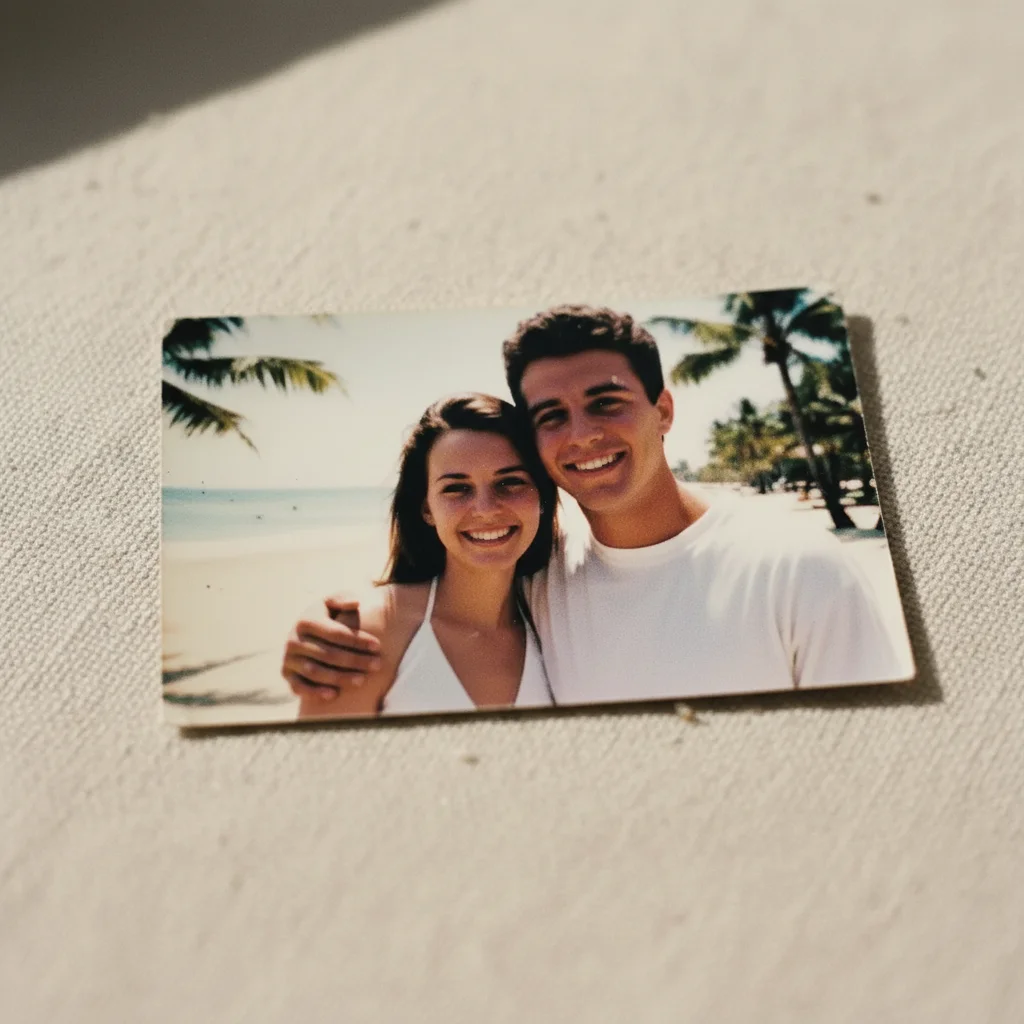
Low resolution early 2000s digital camera photo with dull colors and no detail
Before
Same beach photo enhanced to HD with vibrant colors and sharp palm tree details
After

Early digital camera photo enhanced

A photo from an early 2000s digital camera with low resolution brought up to modern HD standards.

Prompt: enhance this older photo to modern HD quality with improved sharpness and vibrant color

If something looks off

Photo still looks pixelated after enhancement

Why: The original image may be too small or too heavily compressed for a single pass to fully restore.

Try: enhance to HD quality with maximum sharpness and detail reconstruction

💡 Very small images (under 300px) may need multiple enhancement passes. Generate once, download, then enhance again.

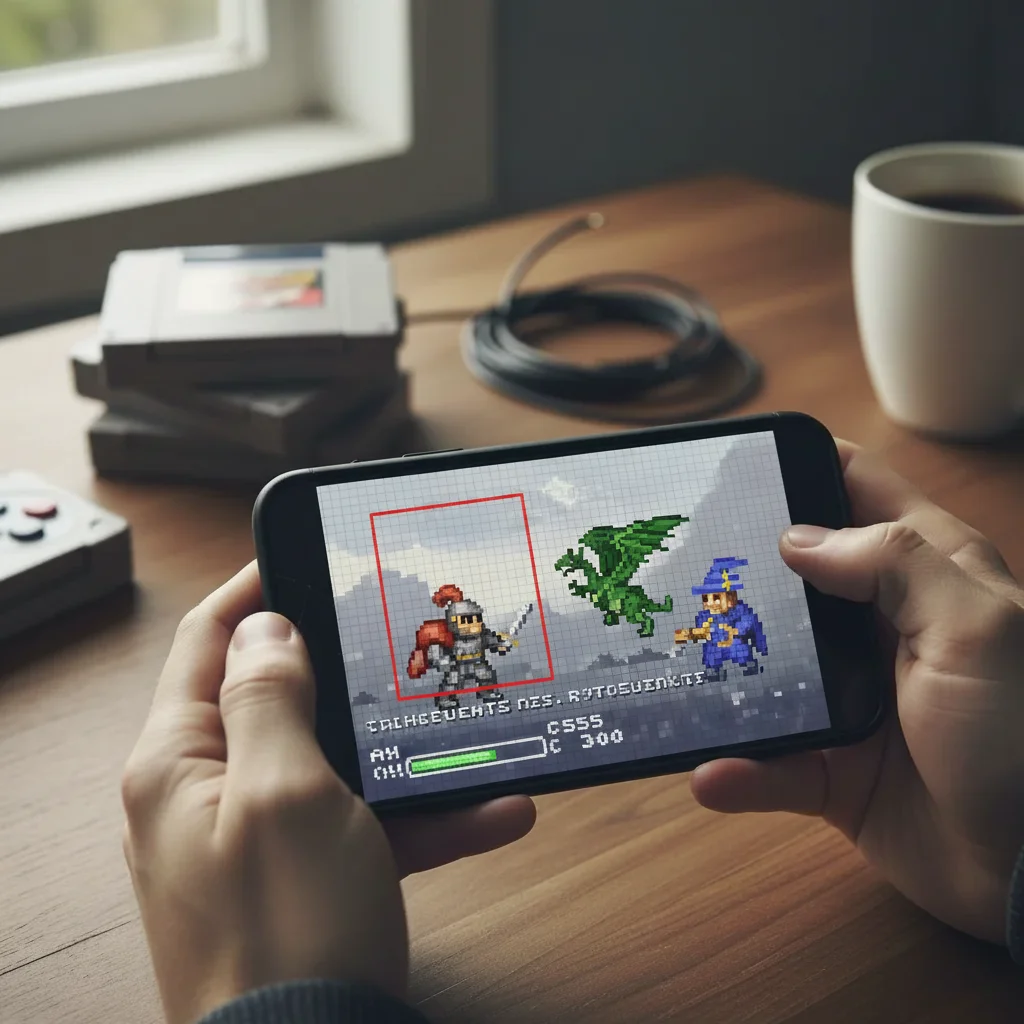
AI changed wrong area or added unwanted changes

Why: The AI couldn't determine exactly which area you meant from description alone. This happens with ambiguous requests.

Try: Tap a marker on the specific area you want to change, then regenerate with the same prompt

💡 Markers tell the AI 'I mean THIS one specifically.' Use them when description alone is ambiguous.

Faces look artificial or plastic after enhancement

Why: The AI may have over-smoothed skin texture while enhancing resolution.

Try: enhance to HD while preserving natural skin texture and pores

💡 Adding 'natural' or 'realistic' to your prompt prevents the over-processed look.

Text in the image is still blurry

Why: Text requires very specific reconstruction and may not enhance as well as natural imagery.

Try: sharpen the text to be crisp and legible at high resolution

💡 Text-heavy images work best when you specifically mention making text readable.

Colors look oversaturated after enhancement

Why: Color enhancement was applied too aggressively along with the resolution increase.

Try: enhance to HD with natural, accurate colors without oversaturation

💡 Specify 'natural colors' or 'accurate colors' to keep the color palette realistic.

Quick answers

Do I need to mark areas before making my photo HD?

No! Just describe what you want: 'make this photo HD' or 'enhance to high resolution.' The AI understands and enhances the entire image. Only use markers when you need precision - like if one face needs extra sharpening while the rest looks good.

How small of an image can be enhanced to HD?

EditThisPic can enhance images as small as 100x100 pixels, but results improve with larger sources. Images under 300 pixels may need multiple enhancement passes. For best results, start with at least 500 pixels on the shortest side.

Will making a photo HD fix motion blur?

HD enhancement works best on pixelation and compression artifacts. Motion blur is a different issue - try prompts like 'sharpen and remove motion blur' for those cases, though results vary depending on blur severity.

Can I make a screenshot HD quality?

Yes! Screenshots often have compression artifacts that HD enhancement can remove. Use a prompt like 'sharpen this screenshot to HD with crisp text' for best results on UI elements and text.

How is this different from just resizing an image?

Simple resizing just makes pixels bigger, which looks blocky. AI HD enhancement actually reconstructs detail, adding sharpness and texture that wasn't visible in the original. It's like the difference between zooming in and using a better camera.

Ready to make your photo HD?

Free to try. No signup required.

Try it free