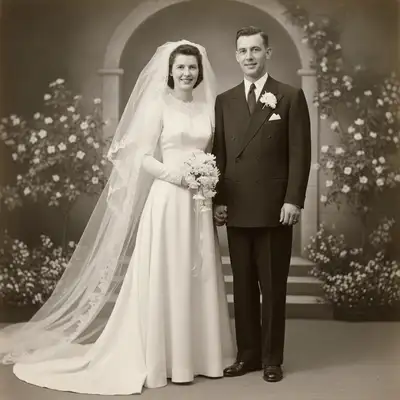
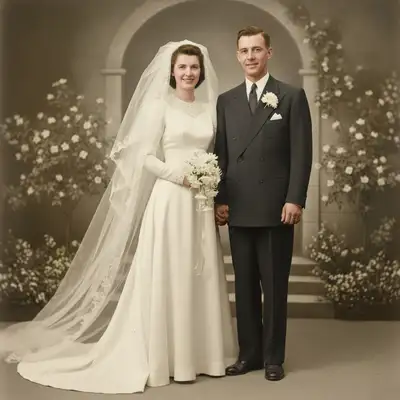
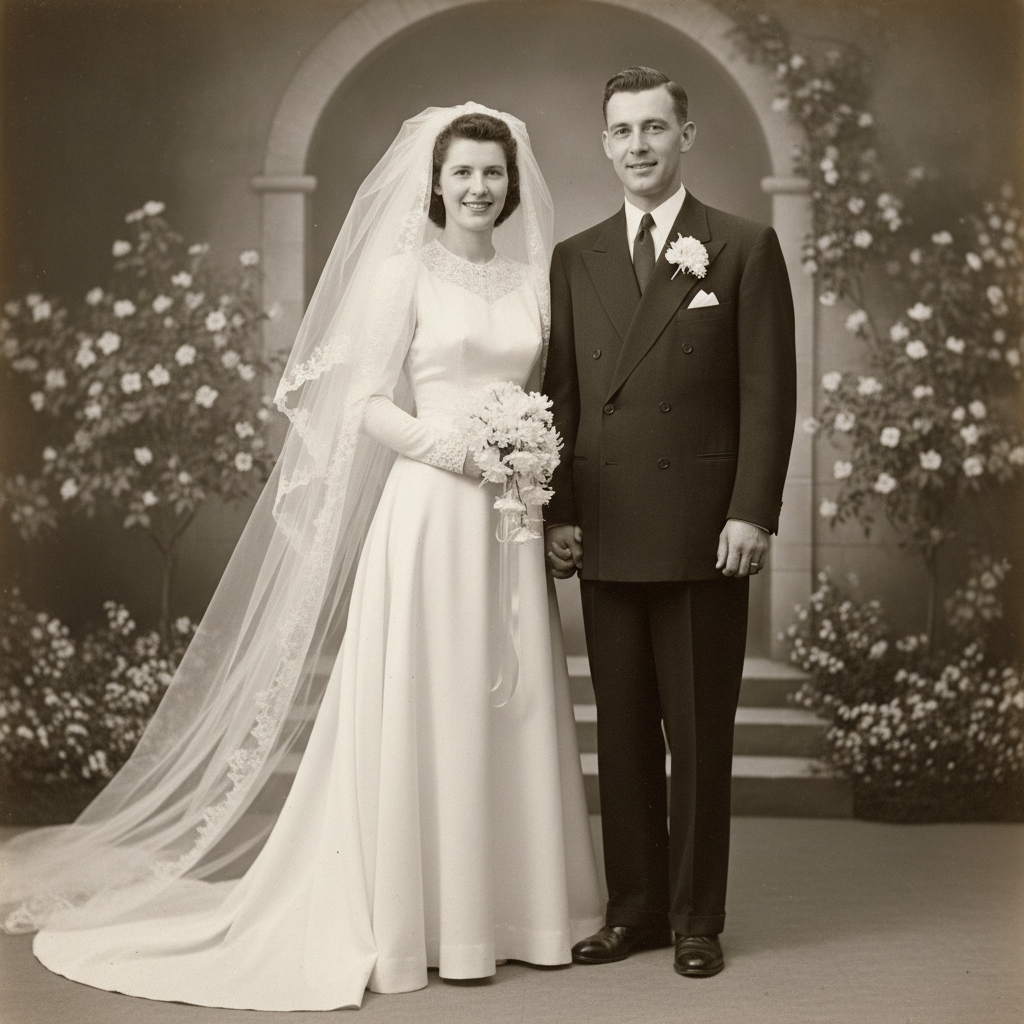
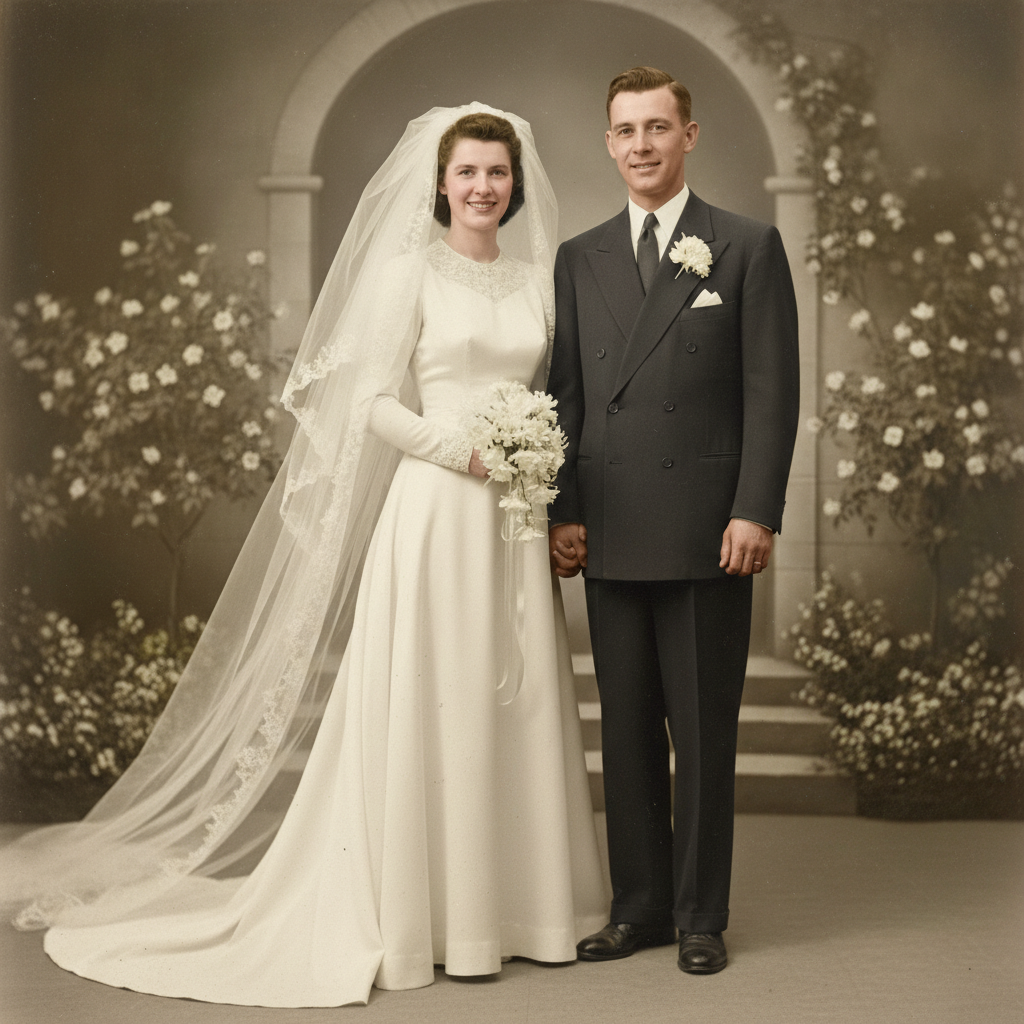
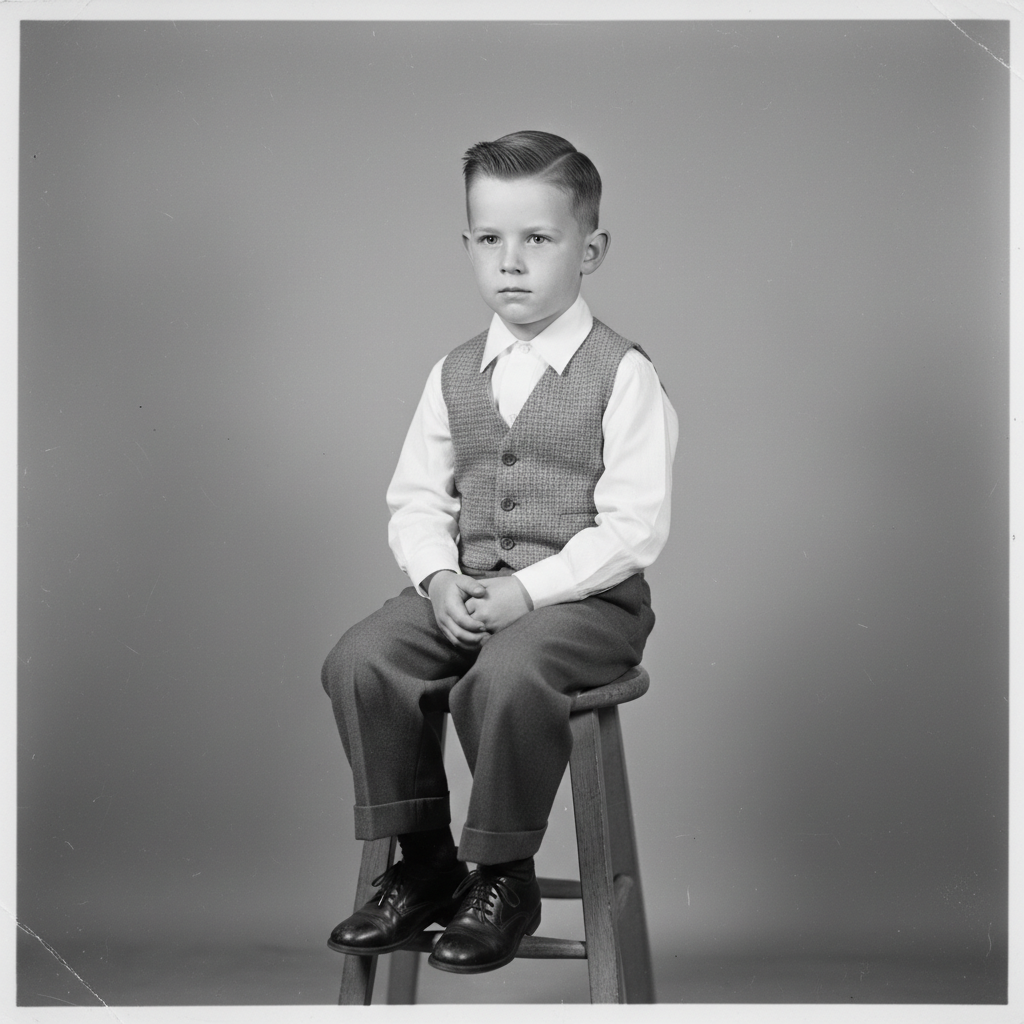
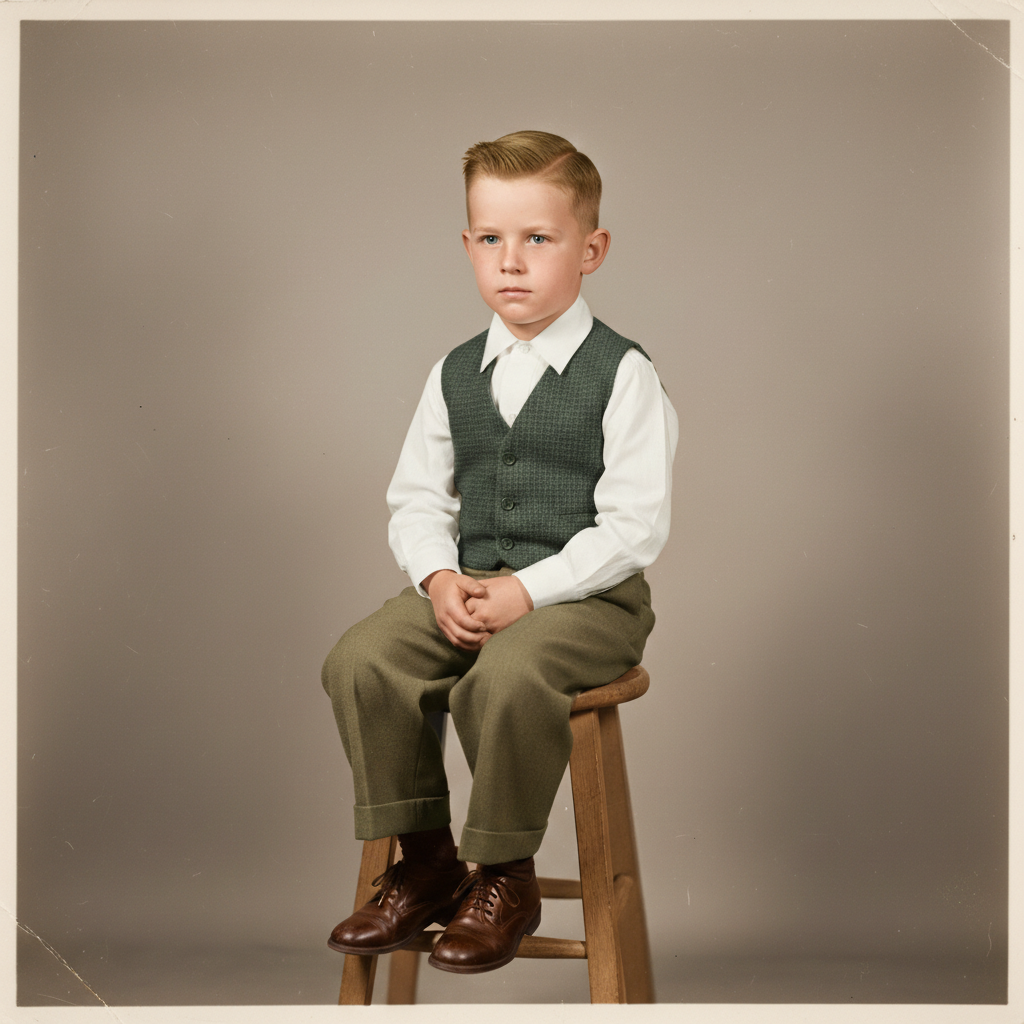
Colorize Black and White Photo
Type what you want. 'Add natural colors' brings old photos to life instantly.
Type 'colorize this photo with natural realistic colors' and EditThisPic's AI analyzes the image to add historically accurate hues in 20-40 seconds. No marking areas, no selecting regions. The AI understands skin tones, fabrics, and outdoor scenes automatically. For specific colors, just describe them: 'blue dress, brown hair.' Free to try, no account needed.
How it works
Upload your photo
Drop your black and white image into EditThisPic. JPG, PNG, and WebP up to 7MB work well. Higher resolution scans preserve detail that helps the AI make better color decisions, especially for faces and fabric textures.
Describe what you want
Type your instruction: 'colorize this photo with natural realistic colors' or 'add color making the dress blue and the background warm autumn tones.' The AI understands context—it knows grass should be green, skies blue, and skin tones natural. No marking needed.
Copy one of these to get started:
colorize this photo with natural realistic colors, accurate skin tones, and era-appropriate hues
add natural colors to this family portrait, blue eyes on the children, brown hair on the mother, warm wooden furniture tones
colorize this outdoor photo with natural green grass, blue sky with soft clouds, and warm sunlight on the subjects
add elegant natural colors, ivory wedding dress, dark suits for the men, soft natural makeup tones on faces
3 more prompts
colorize with historically accurate colors, olive drab military uniform, brown leather accessories, natural skin tones
add realistic colors to this street scene, red brick buildings, vintage car colors typical of the 1950s, natural sky and pavement
colorize this photo with gentle natural colors, warm and lifelike skin tones, soft background colors that don't distract from the subject
Generate and review
Tap generate and examine the colorized result. Check skin tones for natural variation, look at fabric colors for consistency, and verify that backgrounds have appropriate coloring. The AI makes educated guesses based on the era and context.
Refine specific areas if needed
If a color isn't quite right—maybe the AI made a shirt green when you know it was blue—tap a marker on that area and regenerate with the correction. This precision step is optional for most colorizations.
"I colorized my grandma's 1940s wedding photo and she cried when she saw it. The AI somehow knew her dress was ivory, not pure white." @VintageMemoriesKate
See it in action
1950s family portrait restoration
A treasured family photo from 1952 found in grandmother's album. One prompt brought natural colors to three generations.
colorize this family portrait with natural realistic colors, warm skin tones, era-appropriate clothing colors from the 1950s
Vintage street scene brought to life
A 1960s downtown street photograph. The AI accurately colored vintage cars, brick storefronts, and pedestrian clothing.
add natural colors to this 1960s street scene, period-accurate car colors, red brick buildings, blue sky, realistic pavement and clothing
WWII military photo colorized
A soldier's portrait from 1944. Historically accurate uniform colors and natural skin tones honor the memory.
colorize with historically accurate colors, olive drab WWII US Army uniform, brown leather belt, natural warm skin tones, soft background
If something looks off
AI changed the wrong area or applied unexpected colors
Why: The AI made assumptions about colors that don't match your knowledge of the original. Without guidance, it guesses based on context clues.
Tap a marker on the specific area and regenerate with 'make this [correct color]' added to your prompt
💡 Markers tell the AI 'focus here.' Use them when you know a specific color the AI got wrong.
Skin tones look unnatural or have a color cast
Why: The original photo may have uneven exposure or the AI struggled with the lighting. Damaged photos often produce inconsistent skin coloring.
colorize with natural warm skin tones, even coloring across all faces, no green or blue color cast
💡 If one face looks off, tap a marker on it and add 'natural skin tone matching the others' to your prompt.
Colors look too saturated or artificial
Why: Modern AI training can push toward vivid colors. Vintage photos often had more muted tones from period dyes and film stock.
colorize with muted era-appropriate colors, gentle saturation typical of 1950s photography, not overly vivid
💡 Adding the decade helps: '1940s color palette' produces different results than modern tones.
Background and foreground colors don't match
Why: The AI colorized different areas independently without considering the overall scene lighting and color harmony.
colorize with consistent color temperature throughout, warm afternoon light affecting both subject and background equally
💡 Describing the lighting scenario helps the AI apply a unified color grade across the entire image.
Fine details like eyes or jewelry lost their definition
Why: Colorization can sometimes blur fine details, especially if the original scan wasn't high resolution.
colorize preserving all fine detail, sharp eyes with natural color, clear definition on small elements
💡 Start with the highest resolution scan you can get. More pixels give the AI more to work with.
Clothing colors look historically inaccurate
Why: Without guidance, the AI guesses based on grayscale values. A medium gray could be blue, green, or brown.
Tap markers on specific clothing items and add details like 'navy blue suit, white shirt, red tie' to your prompt
💡 If you have any family knowledge about what someone wore, include it. Even partial info helps.
Quick answers
Do I need to mark areas before colorizing?
No! Just describe what you want: 'colorize with natural colors' or 'add realistic color to this portrait.' The AI understands faces, clothing, skies, and grass without you selecting them. Only use markers when you need to correct a specific color the AI got wrong—tap that area and regenerate with the correction.
How does the AI know what colors things should be?
The AI analyzes grayscale values, recognizes objects like skin, foliage, and sky, and uses context clues from millions of historical images. It makes educated guesses—grass is green, sky is blue, skin has natural tones. For specifics like eye color or dress color, include them in your prompt: 'blue eyes, red dress.'
Can I colorize damaged or faded photos?
Yes, but results vary with damage severity. The AI handles light fading and minor scratches well. For heavily damaged photos, consider restoring the damage first, then colorizing. Stains or missing areas may colorize unevenly. Try 'colorize while preserving visible detail, natural colors' and refine problem areas with markers if needed.
Will the colors be historically accurate?
The AI aims for era-appropriate colors, but it's making educated guesses unless you provide specifics. For better accuracy, include the decade and any known details: 'colorize this 1940s photo, she wore a green dress.' Military uniforms, flags, and well-documented items tend to be more accurate. Family-specific details need your input.
Can I adjust colors after the initial colorization?
Absolutely. If the AI made the shirt blue but you know it was brown, tap a marker on the shirt and regenerate with 'make the marked shirt brown' added to your prompt. You can refine individual elements while keeping the rest of the colorization intact. Most people get good results on the first try, but refinement is always available.
Ready to colorize your memories?
Free to try. No signup required.