Free • No signup Open Editor

Remove Blemishes from Photo

Clear up skin imperfections while keeping your natural look intact.

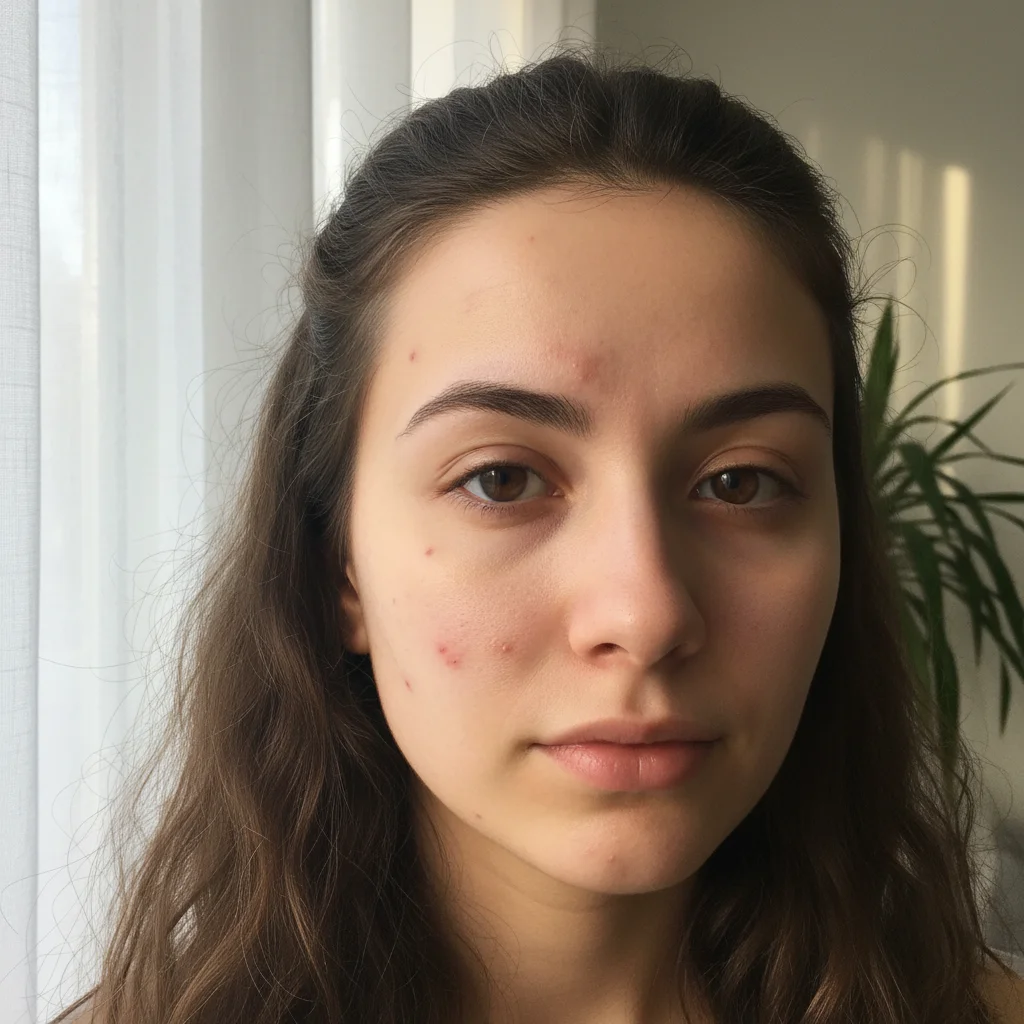
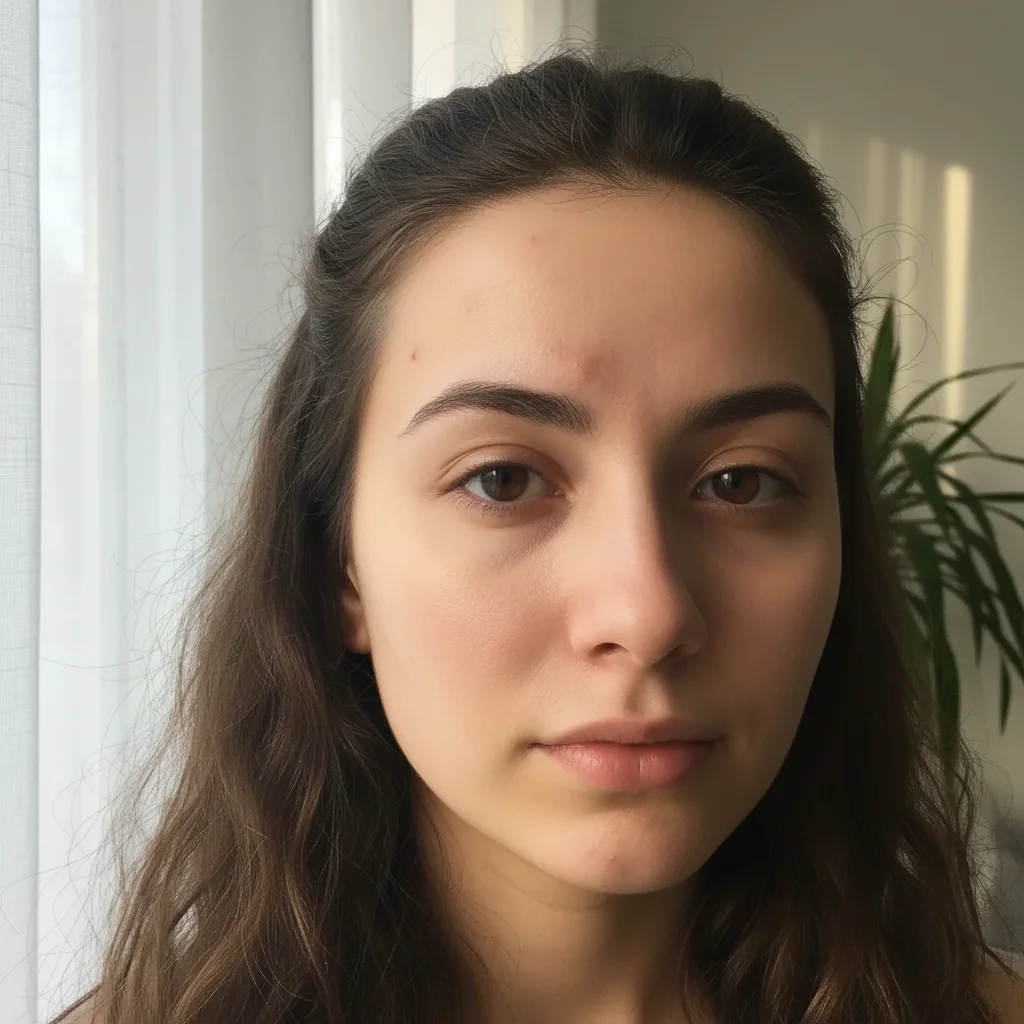
Type 'remove the blemishes on my face' or 'clear up the spots on my forehead and cheeks' and EditThisPic's AI removes them in 15-30 seconds while preserving natural skin texture. No plastic, airbrushed look. Works on portraits, selfies, and professional headshots. Free to try, no account needed.

Professional headshot with visible blemishes on forehead
Before
Clean professional headshot with natural-looking skin
After

How it works

1

Upload your photo

Drop your image into EditThisPic. JPG, PNG, WebP up to 7MB. Portraits with good lighting work best for blemish removal.

⏱ Simple blemishes: 15-30 seconds. Multiple spots across face: may need 2-3 refinements.
2

Describe what to remove

Type your instruction: 'remove the blemishes on my face' or 'clear up the spots on my forehead and chin.' Be specific about location for targeted removal. No marking needed for general blemish removal.

💡 Add 'keep natural skin texture' to prevent over-smoothing and maintain realistic results

Copy one of these to get started:

General face cleanup remove the blemishes on my face and keep natural skin texture
Specific area targeting clear up the spots on my forehead and chin, blend naturally with surrounding skin
Professional headshot remove skin blemishes for a professional headshot, maintain realistic appearance
Subtle redness reduction reduce the redness and blemishes on my cheeks, keep freckles intact
3 more prompts
Single spot removal remove this blemish and match the surrounding skin tone perfectly
Wedding photo touchup clear up any blemishes on the face for this special occasion photo, natural finish
Multiple blemish types remove the acne spots and dark marks on my face, preserve pores and natural texture
3

Review the result

Check that blemishes are gone but skin still looks natural. Zoom in to verify texture is preserved and there are no obvious patches or color mismatches.

4

Refine with markers if needed

If some spots remain or you want to target specific blemishes, tap markers on those areas and regenerate. This is optional for most blemish removal tasks.

💡 Markers are perfect for targeting individual spots the AI missed on the first pass.
Try it free
"Finally got my headshot looking professional without that fake retouched look. The blemishes are gone but my skin still looks real." @sarah_marketing

See it in action

Professional headshot with visible blemishes on forehead
Before
Clean professional headshot with natural-looking skin
After

Forehead blemishes cleared for LinkedIn

Visible spots on forehead before an important headshot. AI cleared them while keeping the professional, natural look.

Prompt: remove the blemishes on my forehead, keep natural skin texture
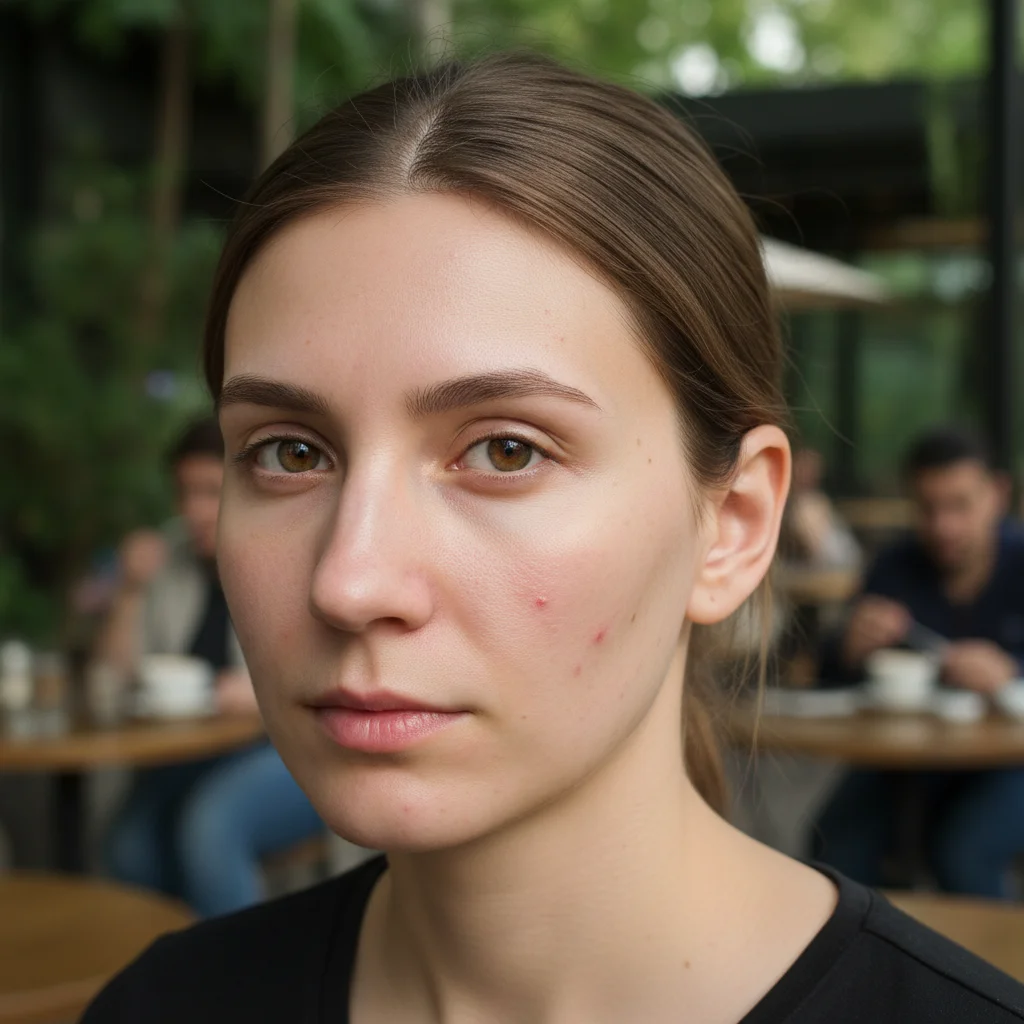
Outdoor selfie with visible spots on cheeks
Before
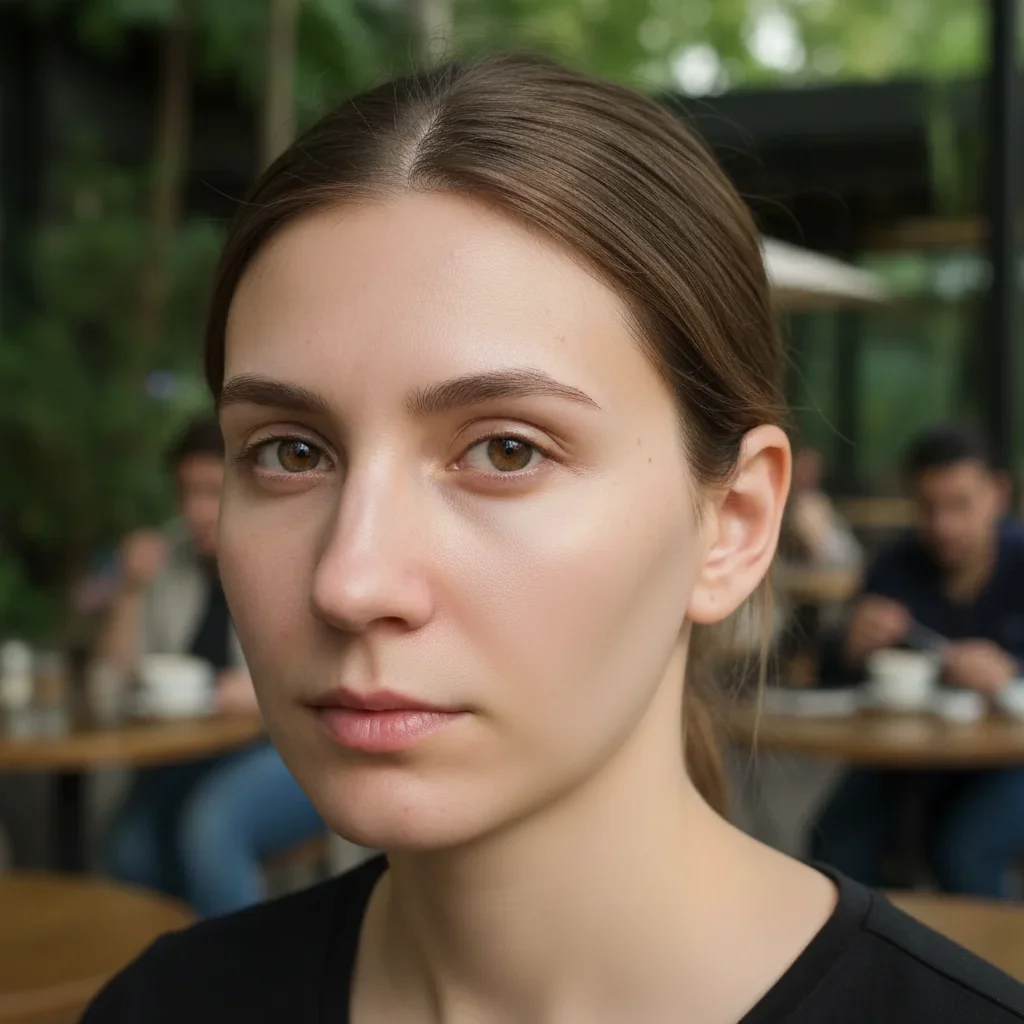
Clean selfie with smooth, natural-looking cheeks
After

Cheek spots removed for dating profile

A few noticeable spots on cheeks ruining a great selfie. Quick cleanup made it profile-ready.

Prompt: clear up the spots on my cheeks and blend naturally with surrounding skin
Event photo with blemishes on chin and jawline
Before
Clean event photo with smooth chin area
After

Chin breakout fixed for event photos

Unexpected breakout before a family event. AI removed the blemishes without making the skin look fake.

Prompt: remove the blemishes on my chin and jawline, maintain realistic skin appearance

If something looks off

Skin looks too smooth or plastic after removal

Why: The AI over-smoothed the area, removing natural skin texture along with the blemishes.

Try: redo with more natural skin texture preserved, keep pores visible

💡 Always include 'natural texture' or 'preserve pores' in your initial prompt for best results.

Some blemishes still visible after editing

Why: The AI didn't detect all spots, especially subtle or small ones that blend with skin tone.

Try: Tap markers on remaining spots and say 'remove these remaining blemishes'

💡 Markers are the most reliable way to target specific spots the AI missed.

Corrected area has different color than surrounding skin

Why: The fill color doesn't perfectly match the surrounding skin tone or lighting.

Try: blend the edited areas to match surrounding skin tone and lighting

💡 A second pass usually fixes color matching issues automatically.

AI changed wrong area or removed freckles I wanted to keep

Why: The AI couldn't distinguish between blemishes and natural skin features from description alone.

Try: Tap markers only on the specific blemishes you want removed, then regenerate

💡 Markers tell the AI exactly which spots to remove. Use them when you have freckles or moles you want to preserve.

Quick answers

Do I need to mark the blemishes before describing?

No! Just describe what you want: 'remove the blemishes on my face' or 'clear up the spots on my forehead.' The AI understands where blemishes typically appear. Only use markers when you need precision, like removing specific spots while keeping freckles, or targeting blemishes the AI missed on the first try.

Will it make my skin look fake or over-edited?

Not if you include 'natural texture' in your prompt. The AI preserves pores and skin texture by default, but explicitly asking for 'natural' or 'realistic' results ensures you won't get that plastic, airbrushed look.

Can I remove blemishes but keep my freckles?

Yes! Use markers to tap only the specific blemishes you want removed. The AI will leave unmarked areas untouched. Or specify in your prompt: 'remove blemishes but keep my freckles intact.'

Does it work on acne scars and dark spots?

It works best on raised blemishes and spots with distinct color differences. Shallow scars and discoloration can be reduced but may need multiple passes. Deep textural scarring is harder to fully remove.

How many blemishes can I remove at once?

There's no limit. A single prompt like 'remove all blemishes on my face' handles multiple spots at once. For heavily affected areas, you might need 2-3 refinement passes for perfect results.

Ready to clear up your photos?

Free to try. No signup required.

Try it free