Free • No signup Open Editor

Remove Scar from Photo

Erase scars while keeping your skin looking completely natural.

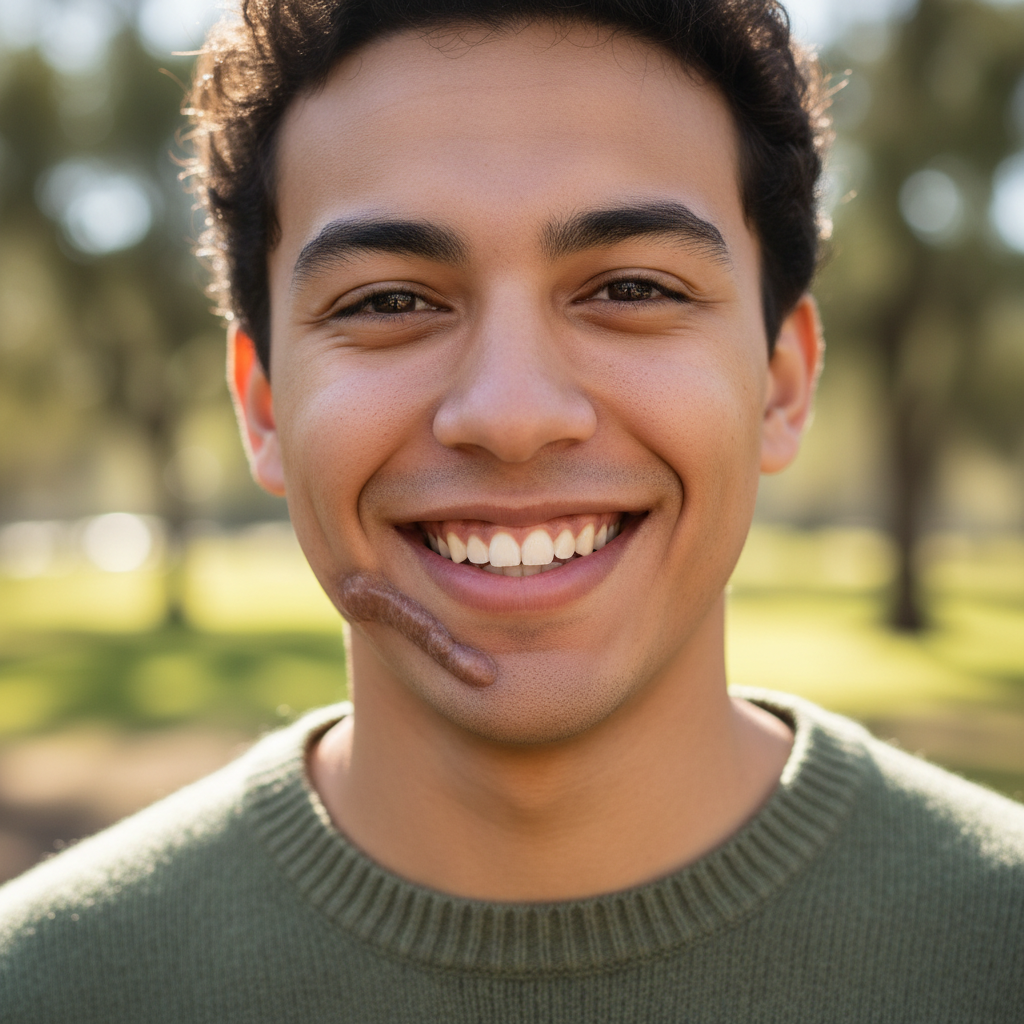
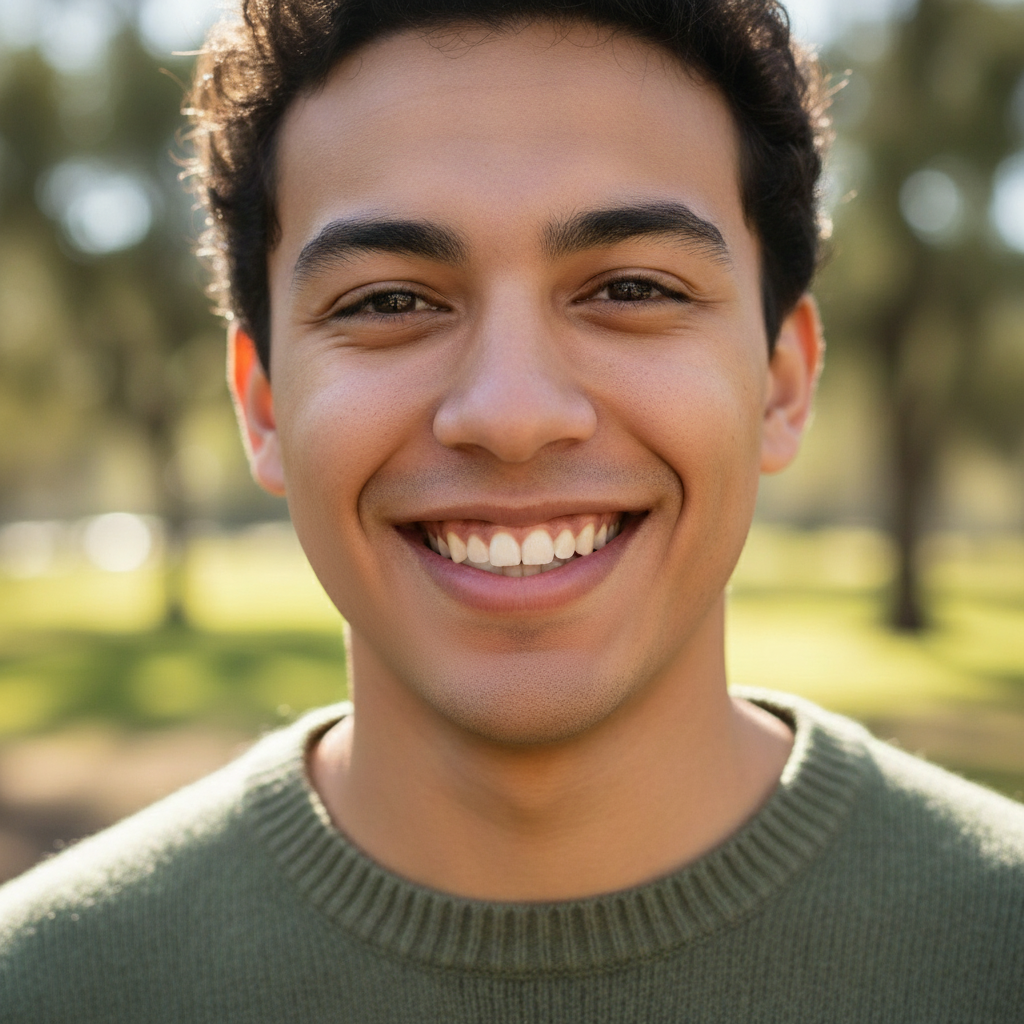
Type 'remove the scar on my face and blend with surrounding skin' and EditThisPic's AI smooths it away in 20-45 seconds while preserving natural skin texture. Works on raised keloid scars, flat surgical marks, and old injury scars. The AI reconstructs realistic skin patterns so the edit is undetectable. Free to try, no account needed.

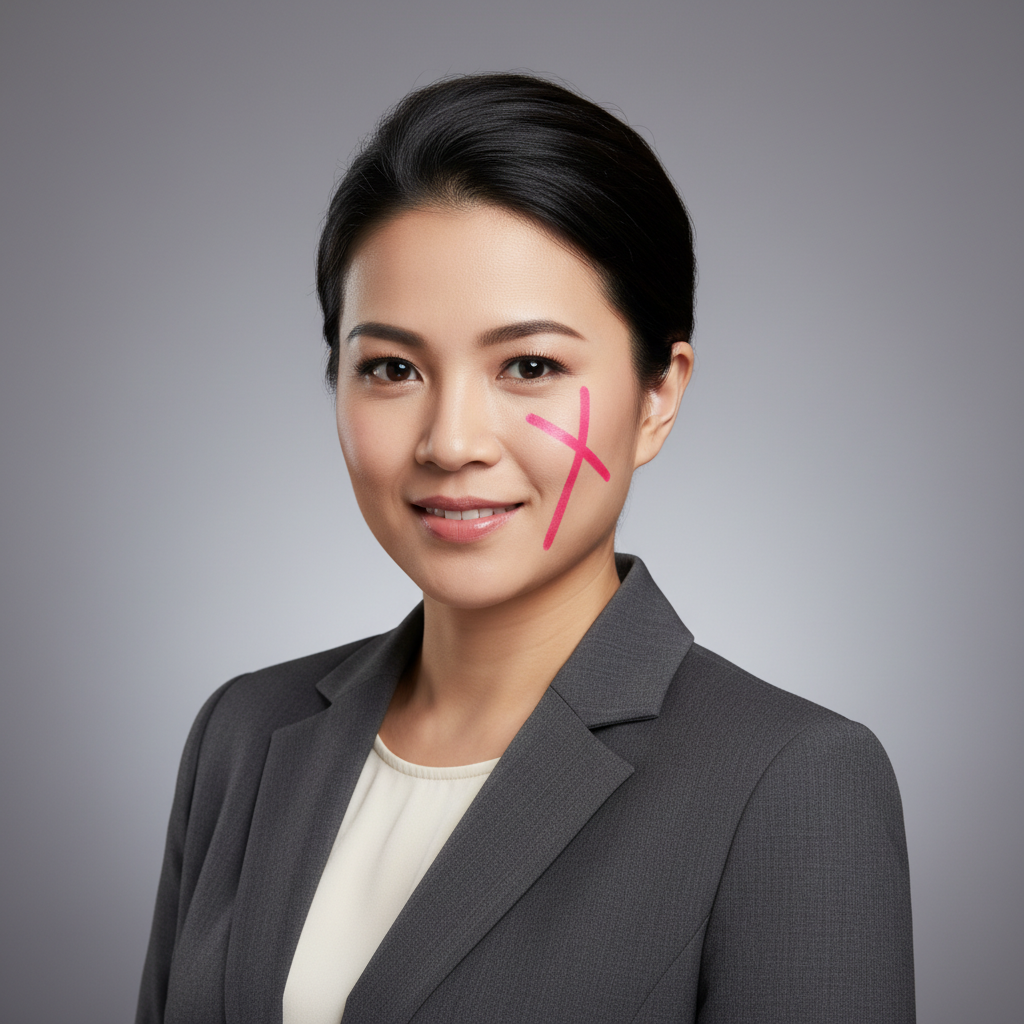
Professional headshot with visible scar on cheek
Before
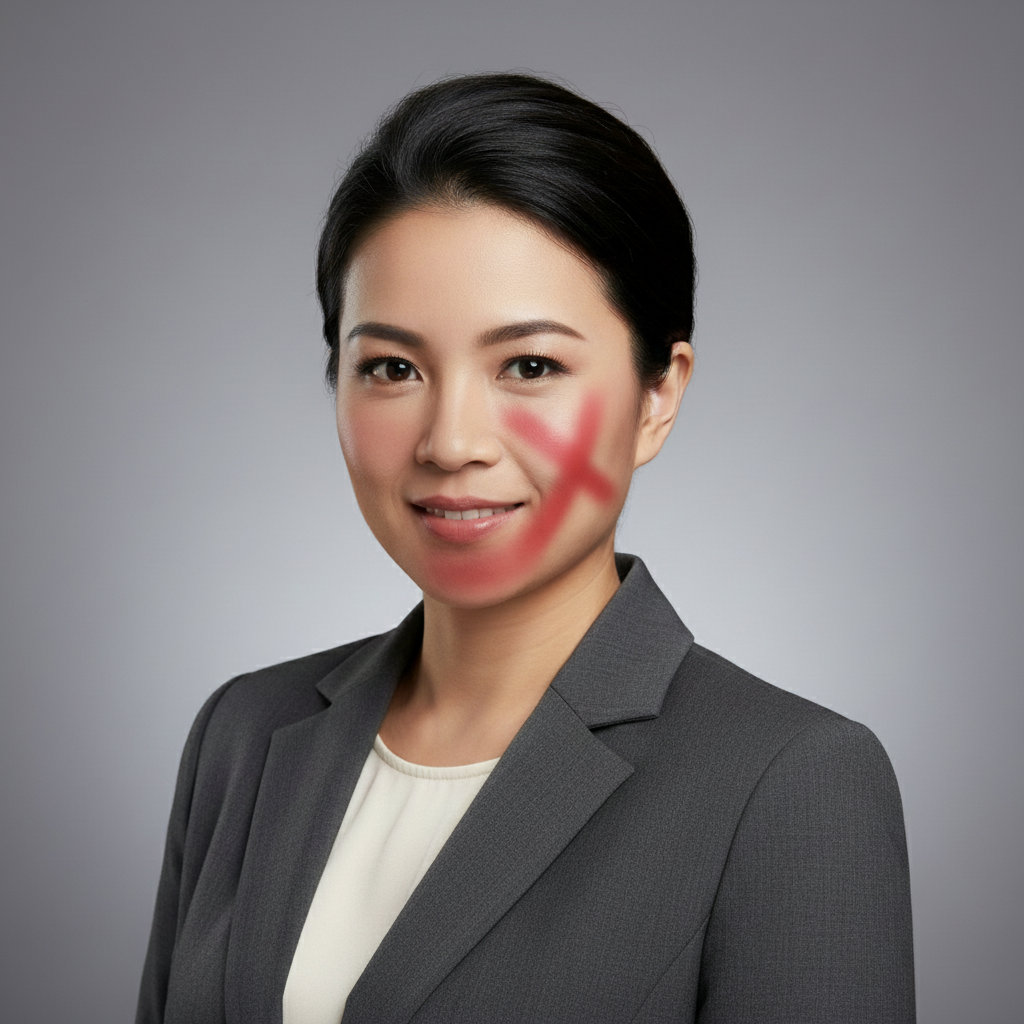
Clean professional headshot with smooth, natural skin
After

How it works

1

Upload your photo

Drop your image into EditThisPic. JPG, PNG, WebP up to 7MB. Clear, well-lit photos work best for scar removal since the AI needs to see surrounding skin texture to blend realistically.

⏱ Small or faded scars: 20-30 seconds. Larger keloid scars or multiple scars: may need 2-3 refinement passes.
2

Describe the scar to remove

Type your instruction: 'remove the scar on my cheek and blend with surrounding skin' or 'smooth out the surgical scar on my forehead.' Be specific about location. The AI understands what scars look like and how to replace them with natural skin. No marking needed for most visible scars.

💡 Add 'preserve natural skin texture' to prevent over-smoothing, especially for scars on textured areas like the chin or forehead

Copy one of these to get started:

Facial scar on cheek or forehead remove the scar on my face and blend smoothly with surrounding skin texture
Surgical scar that's still visible remove the surgical scar and replace with natural skin that matches the area
Old injury scar with discoloration remove the old scar and its discoloration, match the skin tone perfectly
Raised keloid scar smooth out the raised scar tissue and replace with flat, natural-looking skin
3 more prompts
Acne scarring (multiple small scars) reduce the acne scarring on my cheeks while keeping natural pore texture visible
Specific spot with marker remove this scar completely and reconstruct the skin to match surroundings
Professional headshot cleanup remove visible scars for a professional headshot, maintain realistic skin appearance
3

Review the result

Check that the scar is gone and the replacement skin matches the surrounding area. Zoom in to verify there are no color mismatches, unnatural smoothness, or visible edges. The best results are undetectable even at close inspection.

4

Refine with markers if needed

If part of the scar remains or the blend isn't perfect, tap markers on the problem area and regenerate. For long scars, you may need to address different sections. Markers are optional but help for precision work on stubborn spots.

💡 For long scars, work in sections if the first pass doesn't get everything. Tap markers on remaining visible portions.
Try it free
"Had a noticeable scar from surgery that always showed in photos. Now my headshots look clean and professional without any trace of it." @mike_consultant

See it in action

Professional headshot with visible scar on cheek
Before
Clean professional headshot with smooth, natural skin
After

Cheek scar removed for professional headshot

A visible scar from an old injury was distracting in professional photos. AI replaced it with seamless natural skin.

Prompt: remove the scar on my cheek and blend smoothly with surrounding skin texture
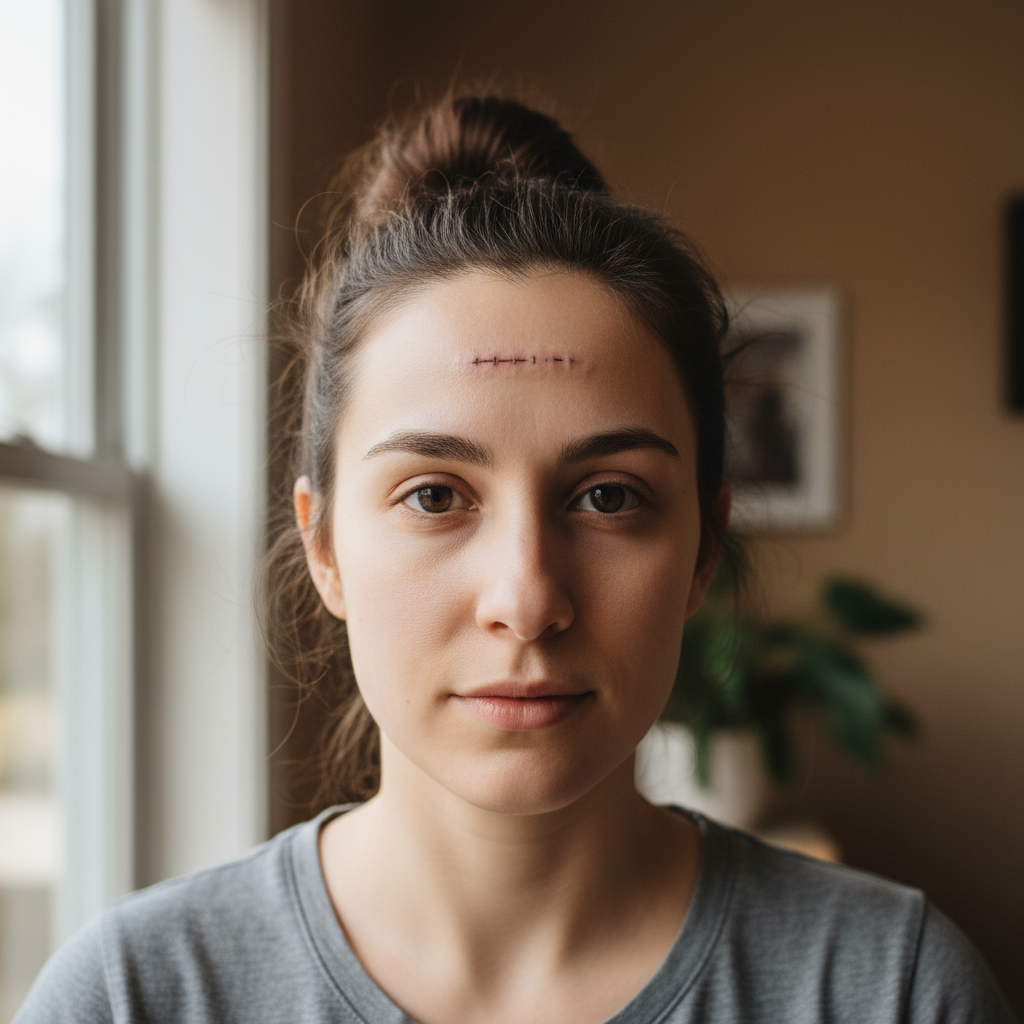
Portrait showing surgical scar on forehead
Before
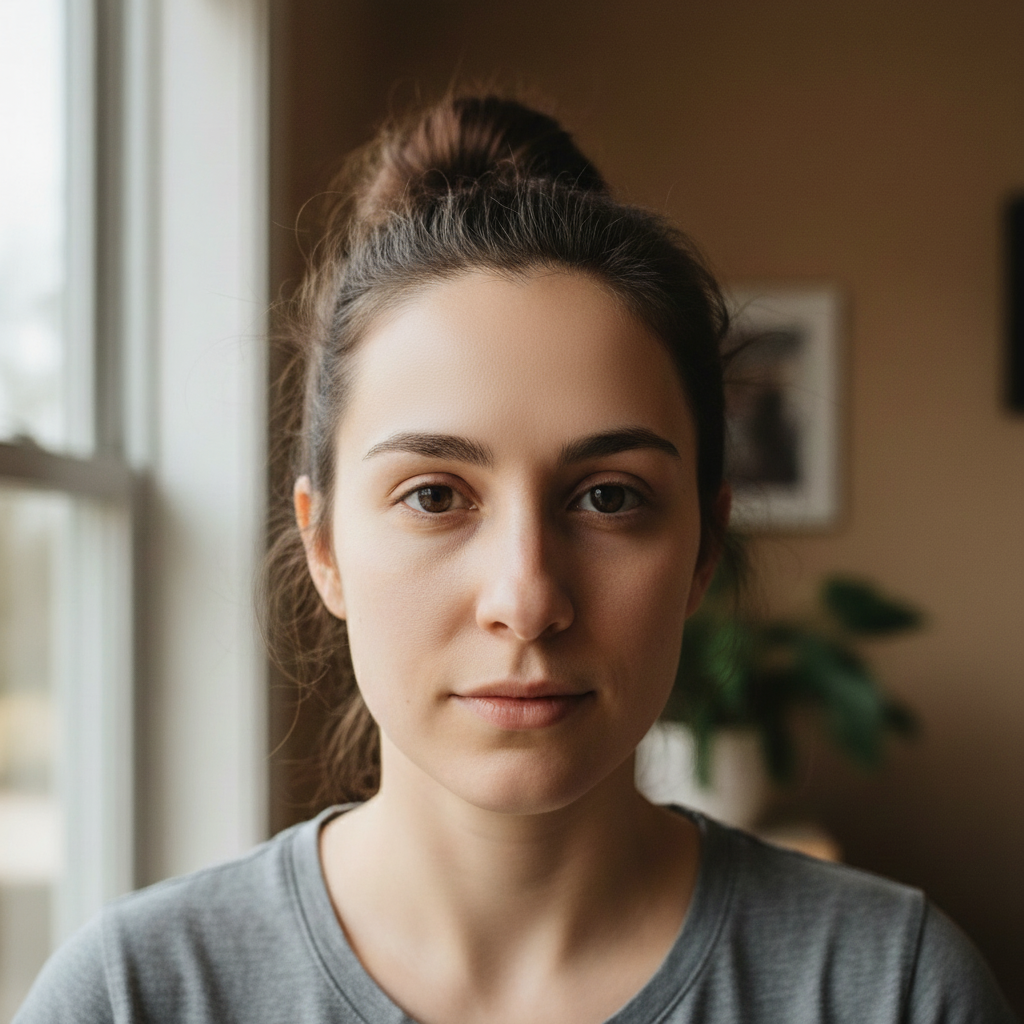
Clean portrait with no visible scarring on forehead
After

Forehead surgical scar erased

A surgical scar from a procedure was visible at the hairline. Quick prompt made it disappear completely.

Prompt: remove the surgical scar on my forehead and replace with natural skin that matches the area
Portrait with raised scar visible on chin
Before
Portrait with smooth, natural chin area
After

Chin scar from accident smoothed away

An old accident left a noticeable scar on the chin. AI blended it perfectly with surrounding skin texture.

Prompt: smooth out the raised scar tissue on my chin and replace with flat, natural-looking skin

If something looks off

Scar area looks too smooth compared to surrounding skin

Why: The AI over-smoothed the replacement area, removing natural skin texture along with the scar.

Try: redo with visible pore texture preserved, match the skin grain of surrounding area

💡 Always mention 'natural texture' or 'preserve pores' for scar removal on textured areas like cheeks or forehead.

Color mismatch where the scar was

Why: The AI filled with slightly different skin tone, creating a visible patch.

Try: blend the edited area to perfectly match surrounding skin tone and lighting

💡 A second pass with 'match skin tone perfectly' usually fixes color issues automatically.

Part of the scar is still visible

Why: Long scars or scars with uneven edges may not fully remove in one pass.

Try: Tap markers on remaining scar tissue and say 'remove this remaining scar tissue completely'

💡 For long scars, work in sections. Mark just the remaining visible portion for a targeted fix.

AI changed wrong area or affected skin I wanted to keep

Why: The AI couldn't determine exactly which mark you meant from description alone.

Try: Tap a marker directly on the scar you want removed, then regenerate with the same prompt

💡 Markers tell the AI 'I mean THIS scar specifically.' Essential when you have multiple scars but only want to remove certain ones.

Edges of the edit are visible

Why: The blend between edited and original areas isn't seamless, leaving a visible boundary.

Try: blend the edges more naturally, feather the transition between edited and original skin

💡 Mention 'seamless blend' or 'feathered edges' to get smoother transitions.

Quick answers

Do I need to mark the scar before describing what I want?

No! Just describe the scar and its location: 'remove the scar on my cheek' or 'smooth out the surgical scar on my forehead.' The AI recognizes scars and understands where to work. Only use markers when you need precision, like removing one scar while keeping another, or targeting a stubborn section that didn't remove on the first try.

Will the result look natural or obviously edited?

The AI reconstructs realistic skin texture where the scar was, matching pores, grain, and tone to surrounding skin. When done right, the edit is undetectable. Include 'natural texture' in your prompt to ensure the best blend, and zoom in to verify before downloading.

Does it work on keloid or raised scars?

Yes. Use 'smooth out the raised scar' or 'replace raised tissue with flat skin' to help the AI understand the 3D nature of keloid scars. These may need 2-3 passes for perfect results since the AI needs to both flatten and retexture the area.

Can I remove a scar but keep nearby moles or freckles?

Yes! Tap a marker directly on the scar to tell the AI exactly where to work. Unmarked areas stay untouched. You can also specify in your prompt: 'remove the scar but keep the mole next to it.'

What about scars on the body, not face?

Same approach works. Describe the location: 'remove the scar on my arm' or 'smooth out the surgical scar on my abdomen.' Body skin often has different texture than facial skin, so the AI will match appropriately. Works great for bikini photos, sleeveless shots, and similar situations.

Ready to remove that scar from your photo?

Free to try. No signup required.

Try it free