Free β€’ No signup Remove Bruise Β· Free

AI Bruise Remover

Remove bruises naturally from photos - just describe where the bruise is

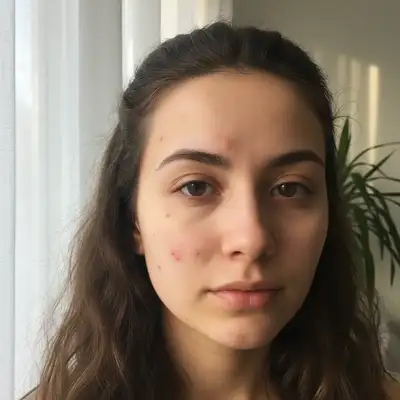
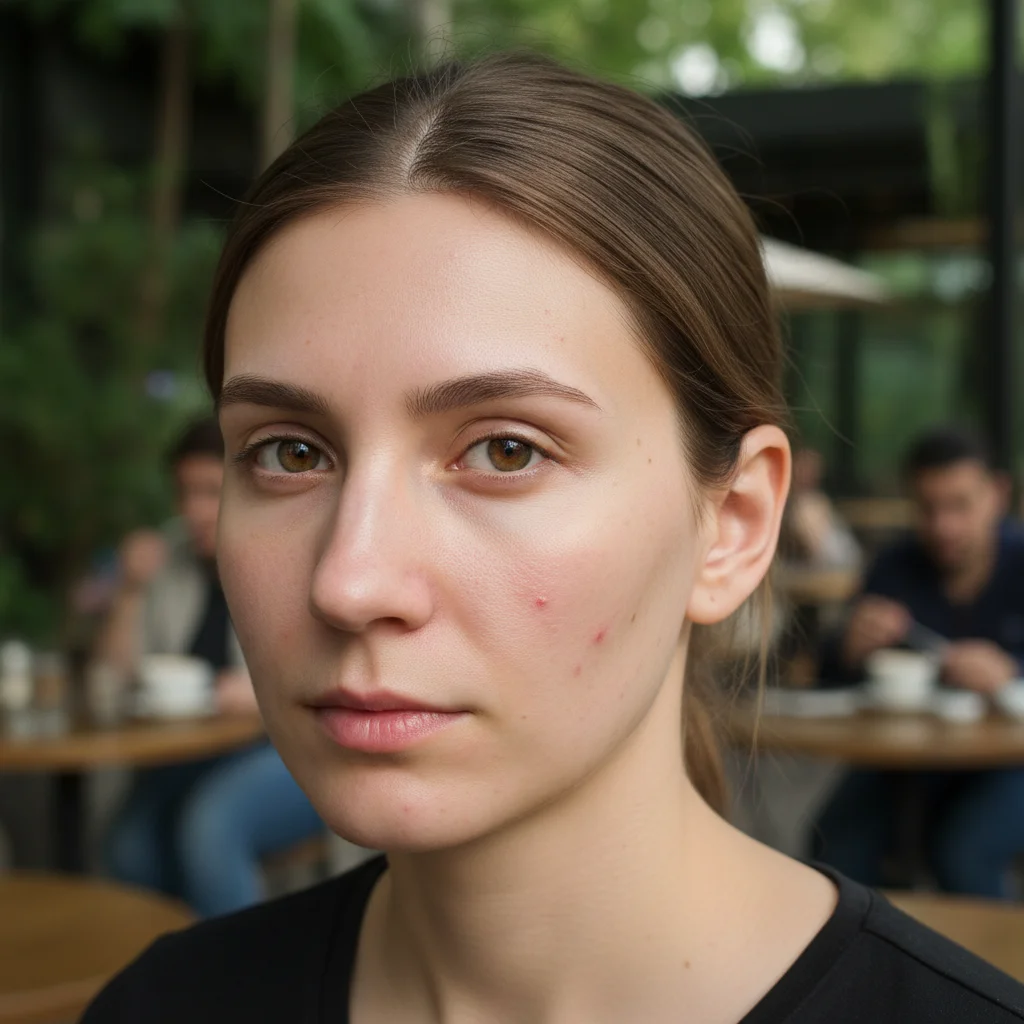
Face portrait showing purple bruise on left cheek
Before
β†’
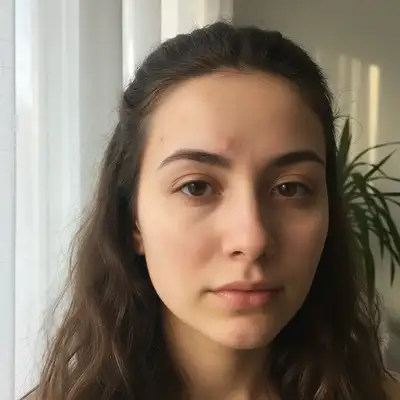
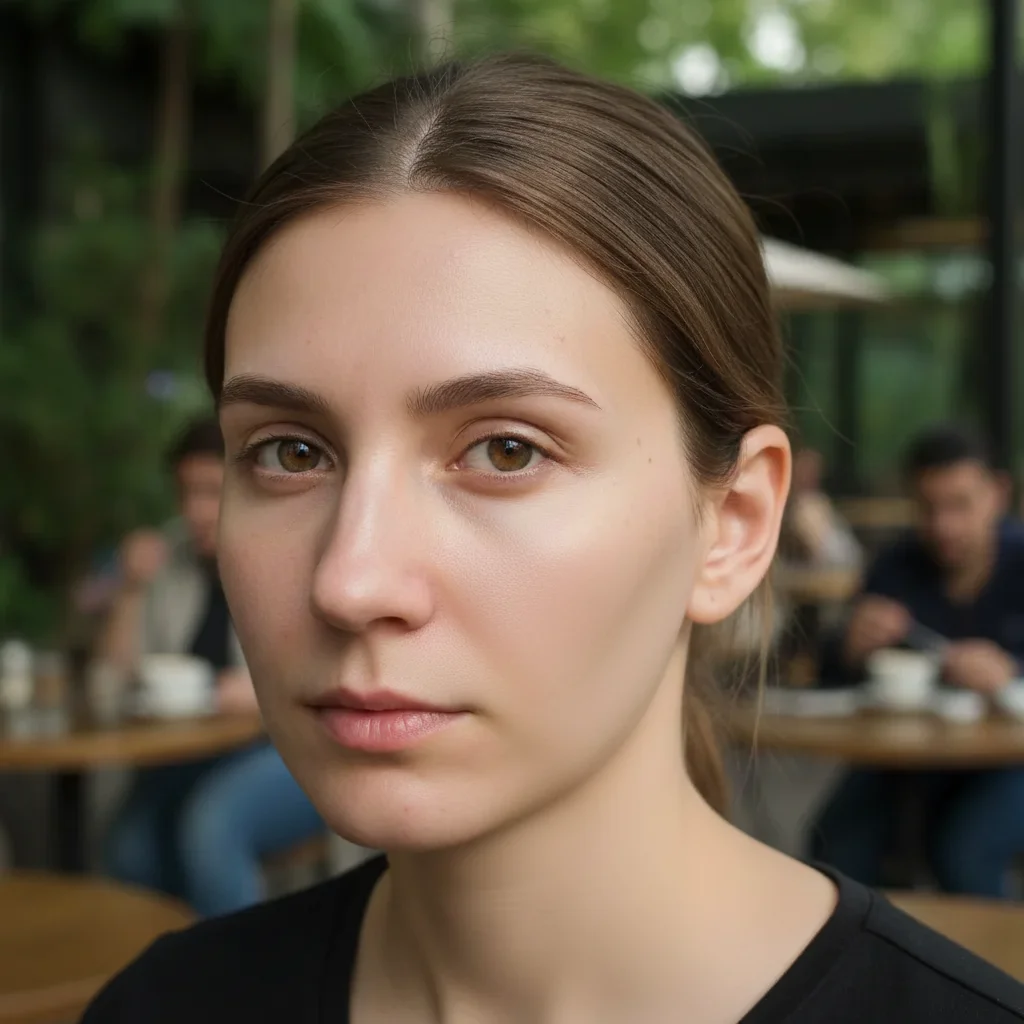
Same portrait with bruise removed and natural skin restored
After

Remove Bruises from Photo

Upload photo to remove bruise

Free β€’ Results in 30 seconds β€’ No signup

Release to upload

FreeNo signupNo watermark
Popular use cases:
  • wedding photo bruise
  • professional headshot fix
  • dating profile photo
  • sports injury photo
  • accident recovery photo
  • family portrait fix
  • medical procedure bruising

Cost
Free No signup required
Time
Instant results in 15-30 seconds
Works on
Any device - browser, phone, tablet, desktop
Powered by
AI-powered photo editing
Scenario Prompt Time
Facial bruise Remove the bruise on my left cheek and restore natural skin tone 15s
Black eye Remove the black eye bruising and dark discoloration around my right eye 18s
Arm/leg bruise Remove the purple bruise on my left forearm and match the surrounding skin tone 14s
Multiple bruises Remove all the bruises on my arms and legs and restore natural skin appearance 22s

How it works

  1. Upload your photo

    Choose a photo showing the bruise you want to remove. Clear lighting helps the AI distinguish the bruise discoloration from natural skin tone. Works with any body part: face, arms, legs, hands.

    Expect: Upload takes 2-3 seconds. Works with JPG, PNG, HEIC up to 10MB. Better lighting = better skin tone matching.
  2. Describe the bruise location

    This is the key step. Tell the AI where the bruise is: 'remove the bruise on my left cheek', 'fix the bruising on my forearm', or 'get rid of the black eye'. The AI understands body parts, sides (left/right), and bruise descriptions (black eye, purple bruise, yellow healing bruise).

    Tip: Specify the exact location if you have multiple bruises: 'the bruise near my temple' vs 'the bruise on my jaw'. The AI can remove multiple bruises in one edit too.

    Copy one of these to get started:

    Facial bruise (most common) Remove the bruise on my left cheek and restore natural skin tone
    Black eye Remove the black eye bruising and dark discoloration around my right eye
    Arm or leg bruise Remove the purple bruise on my left forearm and match the surrounding skin tone
    Multiple bruises Remove all the bruises on my arms and legs and restore natural skin appearance
    3 more prompts
    Healing bruise (yellow/green stage) Remove the yellowish healing bruise on my shin and blend with healthy skin
    Bruise near other features Remove the bruise on my neck without affecting the nearby mole or natural skin marks
    Large bruised area Remove the large bruised area covering my upper arm and shoulder, restoring even skin tone throughout
  3. Review the result

    Check that the bruise is completely gone and the skin looks natural. The AI should match your surrounding skin tone, preserve skin texture (pores, fine lines), and maintain natural lighting and shadows. Look for smooth blending at the bruise edges.

  4. Refine with a marker if needed

    If the bruise wasn't completely removed or the AI affected nearby areas, tap a marker directly on the bruise center, then regenerate. This tells the AI exactly which discolored area to target.

    Tip: Markers are especially helpful for bruises near other features (bruise next to a mole) or overlapping bruised areas.
Try it free ↓

Remove Bruises from Photo

Upload photo to remove bruise

Free β€’ Results in 30 seconds β€’ No signup

Release to upload

Free β€’ No signup

"Had a black eye right before my wedding photos. This tool saved me! The AI removed it perfectly and matched my skin tone exactly. You can't even tell." @BrideSavedByAI

See it in action

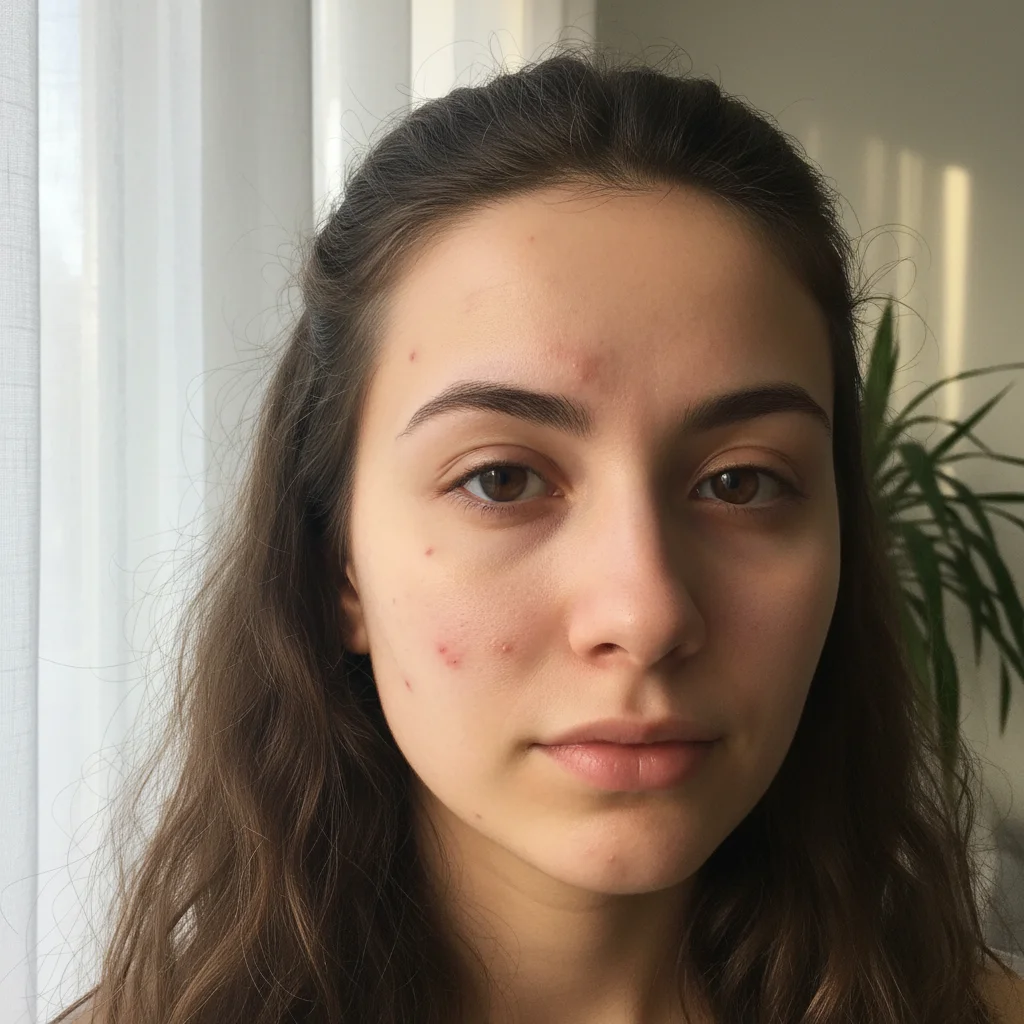
Face portrait showing purple bruise on left cheek
Before
->
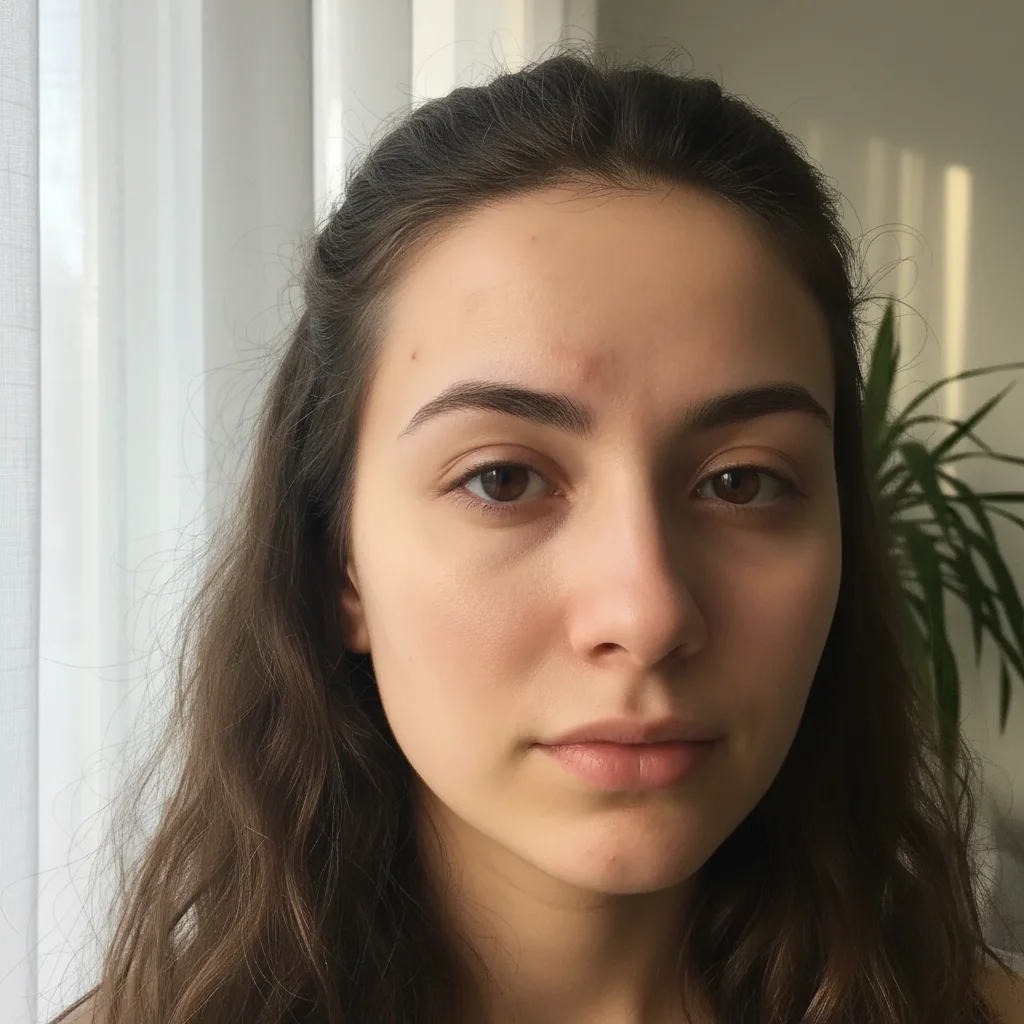
Same portrait with bruise removed and natural skin restored
After

Facial cheekbone bruise removal

Purple bruise on left cheek completely removed with perfect skin tone matching and texture preservation

Prompt: Remove the bruise on my left cheek and restore natural skin tone
Portrait with black eye bruising on right side
Before
->
Same face with eye bruising removed, natural appearance restored
After

Black eye bruising elimination

Periorbital dark bruising around right eye removed while maintaining natural eye socket shadows

Prompt: Remove the black eye bruising and dark discoloration around my right eye
Forearm with large purple bruise visible
Before
->
Same forearm with bruise removed and even skin tone
After

Forearm bruise removal

Large purple bruise on forearm eliminated with seamless skin tone blending across the affected area

Prompt: Remove the purple bruise on my left forearm and match the surrounding skin tone

Detailed Guides by Scenario

πŸ“·

Professional Photography

Remove unwanted bruise from professional photo shoots, client deliverables, and stock photography to achieve clean, polished results.

Common Scenarios

  • Client portrait sessions where the bruise appeared unexpectedly in frame
  • Stock photography that needs the bruise removed for broader commercial appeal
  • Product photography with distracting bruise in the background

Best Practices

  • Zoom in and place a marker directly on the bruise for the most accurate removal
  • Run a second pass if any faint outlines or shadows remain after the first edit
  • Describe the desired background fill β€” e.g., 'replace the bruise with clean wall' for predictable results
πŸ“·

Real Estate & Property Listings

Clean up property photos by removing bruise that distract buyers and lower perceived home value.

Common Scenarios

  • Listing photos where the bruise clutters the frame and makes rooms look smaller
  • Exterior shots with bruise that hurt curb appeal
  • Open house photos that need the bruise removed before uploading to MLS

Best Practices

  • Shoot the space first, then edit β€” AI removal works better than awkward staging workarounds
  • After removing the bruise, check that floor lines and wall edges still look straight
  • Process all listing photos in one session so lighting and style stay consistent
πŸ“·

Personal & Social Media

Fix personal photos by removing bruise before sharing on social media, printing, or gifting.

Common Scenarios

  • Vacation photos where the bruise appeared in an otherwise perfect shot
  • Family photos with bruise that distract from the people in the frame
  • Profile pictures and dating app photos that need the bruise cleaned out

Best Practices

  • Save the original photo first β€” edit a copy so you can always go back
  • For group photos, mark the bruise carefully to avoid affecting nearby people
  • If the first result isn't perfect, try rewording your prompt with more detail about the background

If something looks off

AI changed the wrong area or something I didn't want changed

Why: The AI couldn't pinpoint exactly which discolored area was the bruise vs natural skin variation or shadows.

Try: Tap a marker directly on the center of the bruise, then regenerate with the same prompt

Tip: Markers tell the AI 'THIS discolored spot is the bruise.' Essential when bruises are near natural shadows or skin features.

Skin tone doesn't match after bruise removal

Why: The AI didn't accurately sample the surrounding healthy skin tone, creating a lighter or darker patch.

Try: Try: 'Remove the bruise and perfectly match the surrounding healthy skin tone and texture'

Tip: Adding 'match surrounding skin' explicitly helps the AI prioritize color blending.

The area looks blurry or skin texture is lost

Why: The AI over-smoothed when removing the bruise, losing natural pores and skin detail.

Try: Specify: 'Remove the bruise while preserving natural skin texture, pores, and detail'

Tip: Mentioning 'texture' and 'detail' prevents the AI from creating an unnaturally smooth patch.

Only part of the bruise was removed

Why: Large or irregularly shaped bruises might not have been fully recognized by the AI from description alone.

Try: Be more comprehensive: 'Remove the entire bruised area on my [location], including all discoloration'

Tip: Words like 'entire', 'complete', or 'all discoloration' ensure full coverage.

Natural shadows or features were removed along with the bruise

Why: The AI interpreted natural facial shadows or skin features as part of the bruise.

Try: Add: 'Remove only the bruise while keeping natural shadows and skin features intact'

Tip: Explicitly mentioning what to preserve helps constrain the edit to just the bruise.

Quick answers

Do I need to mark the bruise before removing it?

No! Just describe where the bruise is in natural language. The AI understands prompts like 'remove the bruise on my left cheek' or 'fix the black eye' without any marking. Markers are optional and only needed if the bruise is in a complex area or near other features.

Is this bruise removal tool really free?

Yes, completely free with unlimited use. No account required, no watermark on your edited photos. Remove bruises from as many photos as you need without paying anything.

Will the skin look natural after bruise removal?

The AI is designed to match your surrounding skin tone, preserve natural texture including pores and fine lines, and maintain realistic lighting and shadows. When done well, the bruise removal is undetectable. Results depend on photo quality and lighting.

Can I remove old bruises that are yellow or green?

Yes! The AI recognizes bruises at all healing stages - fresh purple/black bruises, mid-stage green bruises, and healing yellow bruises. Just describe the color if it helps: 'remove the yellowish healing bruise on my leg'.

Can I remove multiple bruises from one photo?

Absolutely. Use prompts like 'remove all the bruises on my arms' or 'fix all the bruising on my face and neck'. The AI can handle multiple bruises in different locations in a single edit. For very specific control, you can also remove them one at a time.

Is EditThisPic's AI bruise remover really free?

Yes β€” you get 1 free edit per week, no account needed. For unlimited edits, plans start at $3.99/month.

Can I remove bruise on my phone?

Yes. EditThisPic works in any mobile browser β€” iPhone, Android, tablet. No app download needed.

What photo formats does the AI bruise remover support?

JPG, PNG, WebP, and HEIC. Upload any common photo format and EditThisPic handles the rest.

Ready to remove bruises from your photos?

Free tool. No signup. Natural results in seconds.