Free • No signup Open Editor

Remove Tattoo from Photo

Remove tattoos from photos and restore natural-looking skin in seconds.

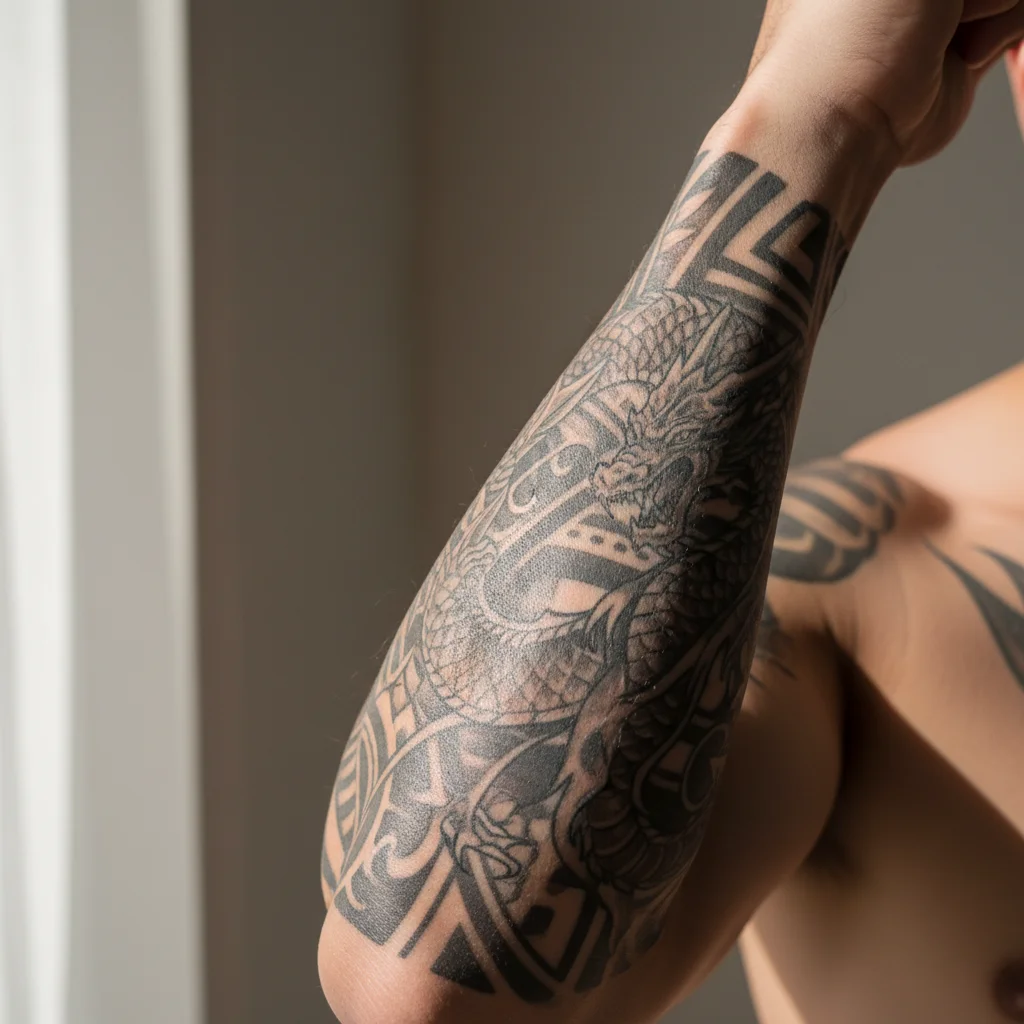
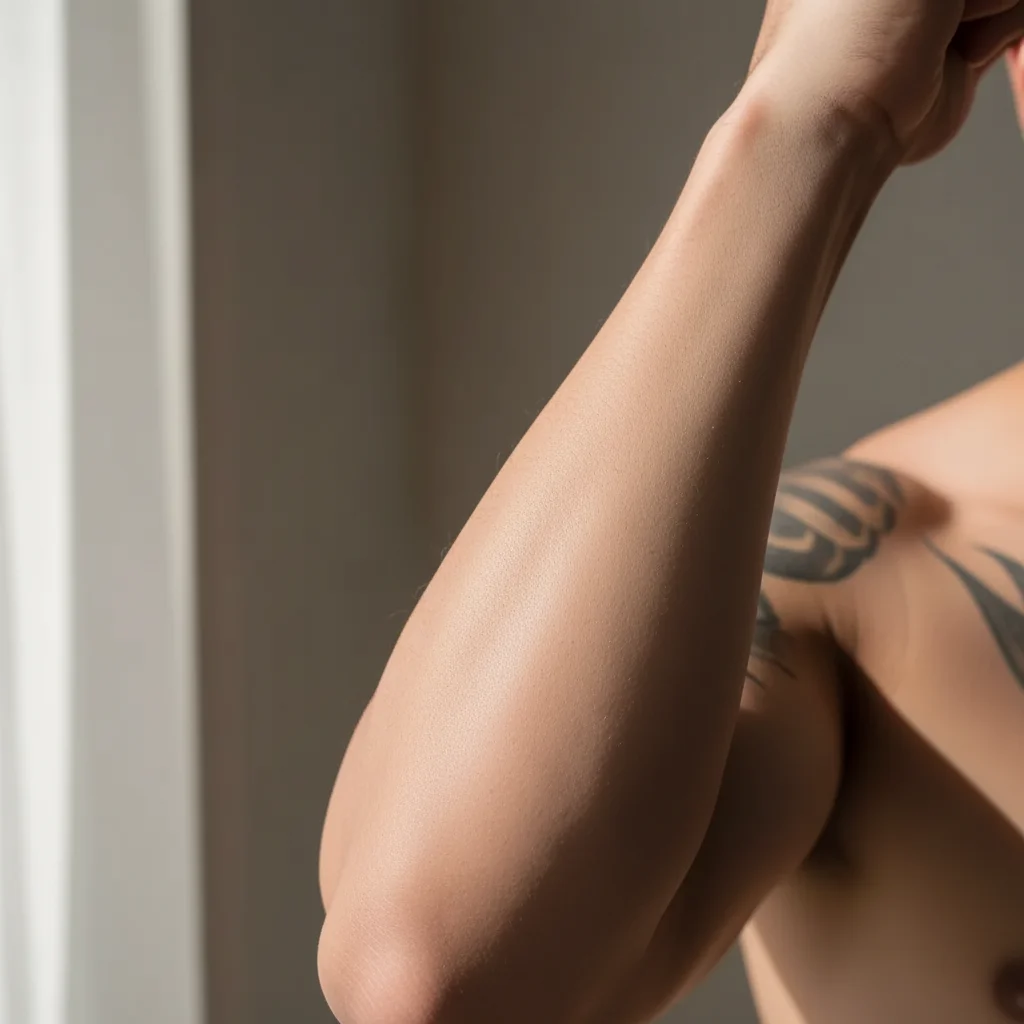
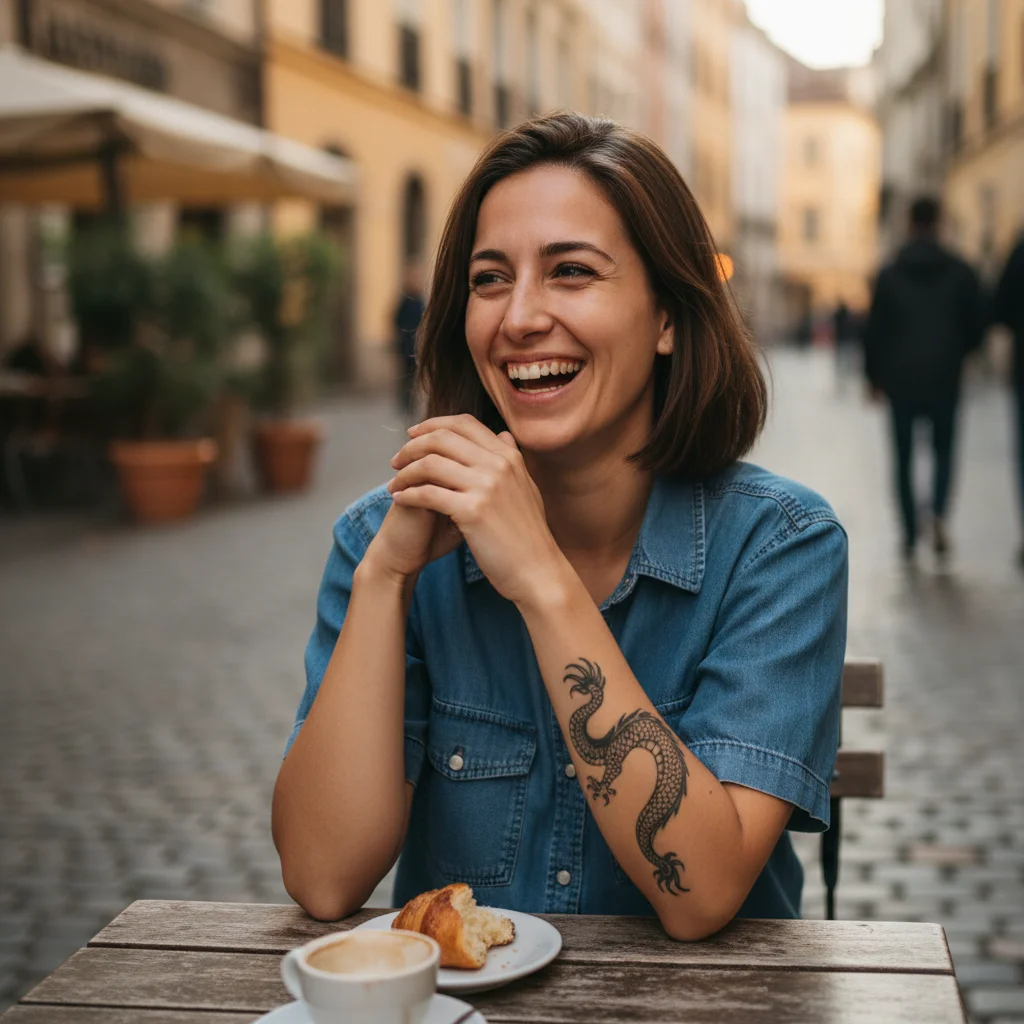
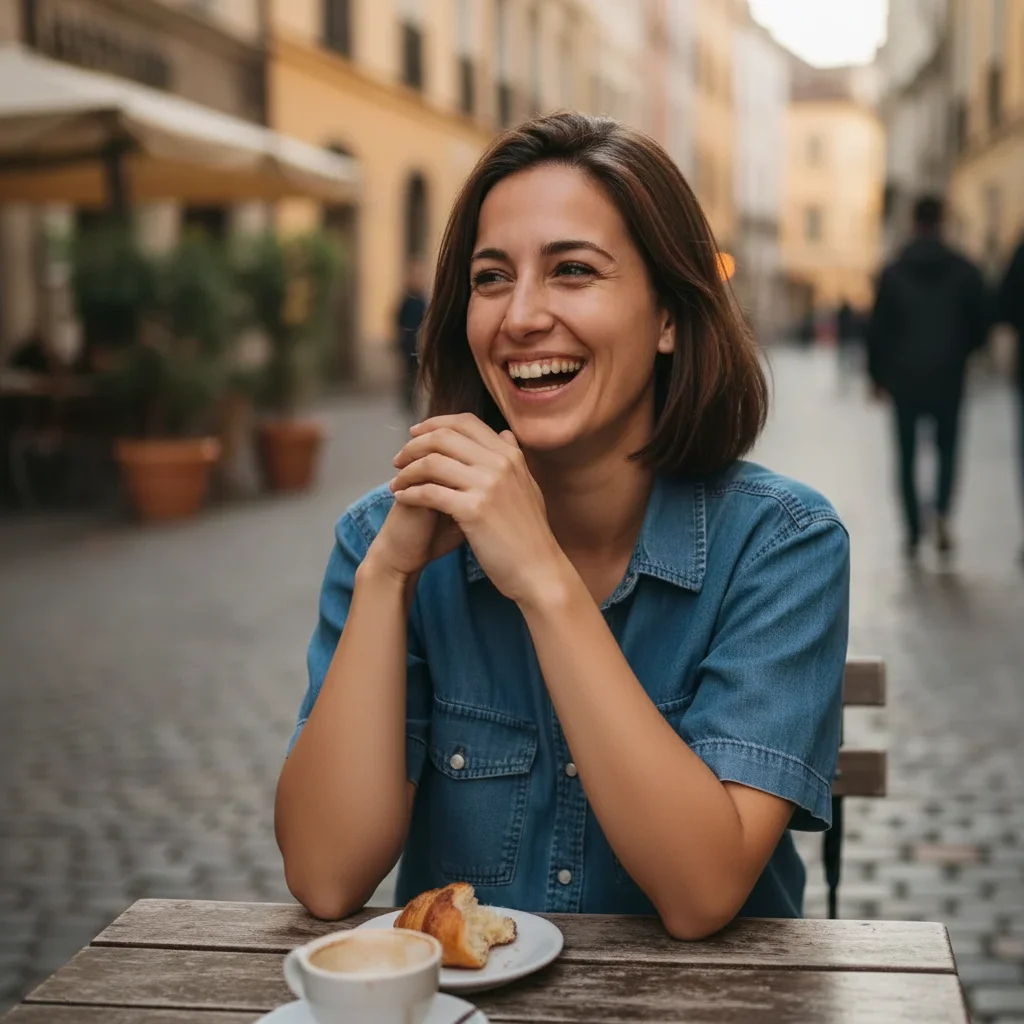
Type 'remove the tattoo and restore natural skin' and EditThisPic's AI erases tattoos in 20-40 seconds. Works on arm, leg, back, and face tattoos of any size or color. The AI reconstructs realistic skin texture including tone matching and natural variations. No selection tools or tracing required. Free to try, no account needed.

Man in suit with visible black tribal forearm tattoo
Before
Same portrait with tattoo removed and natural skin restored
After

How it works

1

Upload your photo

Drop your image into EditThisPic. JPG, PNG, WebP up to 7MB. Works with portraits, full body shots, or close-ups showing the tattoo clearly.

⏱ Small tattoos on clear skin: 20-30 seconds. Large sleeves or complex designs: may need 2-3 refinements for seamless results.
2

Describe what you want removed

Type your instruction: 'remove the tattoo and restore natural skin' or 'erase the arm tattoo and match the skin tone.' Be specific about location if there are multiple tattoos. No marking needed - the AI recognizes tattoos automatically.

💡 Mention 'match the surrounding skin tone' for tattoos that span different skin areas like inner and outer arm.

Copy one of these to get started:

Single arm or leg tattoo remove the tattoo and restore natural skin with matching tone and texture
Full sleeve tattoo remove the entire tattoo sleeve and restore the arm to natural skin, matching the hand and shoulder skin tones
Small wrist or ankle tattoo erase the small tattoo on the wrist and blend the skin naturally with the surrounding area
Back or shoulder tattoo remove the back tattoo and restore the skin with natural contours and muscle definition
3 more prompts
Face or neck tattoo remove the face tattoo and restore natural skin that matches the facial complexion exactly
Multiple tattoos on same limb remove all the tattoos on the arm and restore natural skin throughout
Specific tattoo among several remove only the rose tattoo on the upper arm, keep the other tattoos visible
3

Generate and review

Check that the tattoo is fully removed and the skin looks natural. Zoom in to verify skin texture, tone matching, and that no ink shadows remain.

4

Refine with markers if needed

If tattoo edges remain or skin tone needs adjustment, tap markers on those areas and regenerate. This is optional for most tattoo removals.

💡 For large tattoos, you may need to process in sections for best quality.
Try it free
"Needed family photos without my sleeve showing for a conservative event. Just typed remove the arm tattoo and it looked completely natural. Even my mom was fooled." @jenna_creates

See it in action

Man in suit with visible black tribal forearm tattoo
Before
Same portrait with tattoo removed and natural skin restored
After

Forearm tattoo removed for formal photo

Visible forearm tattoo needed to be removed for a professional headshot. Natural skin restored.

Prompt: remove the tattoo and restore natural skin with matching tone and texture
Wedding ring photo with small heart tattoo on wrist
Before
Clean wedding ring photo with wrist tattoo removed
After

Wedding photo wrist tattoo removed

Small wrist tattoo was visible in ring exchange photos. Cleanly removed for album.

Prompt: erase the small tattoo on the wrist and blend the skin naturally
Man with colorful full arm sleeve tattoo
Before
Same photo with tattoo sleeve completely removed and natural skin
After

Full sleeve removed for family portrait

Full arm sleeve needed removal for conservative family gathering photos. Complete restoration.

Prompt: remove the entire tattoo sleeve and restore the arm to natural skin matching the hand skin tone

If something looks off

Skin tone doesn't match surrounding areas

Why: The AI reconstructed skin that's slightly different from the natural adjacent skin.

Try: adjust the skin tone in the tattoo area to exactly match the surrounding natural skin

💡 Reference a specific area: 'match the skin tone to the upper arm above the removed tattoo.'

Tattoo outline or shadow still visible

Why: Dark ink sometimes leaves a faint residue that needs additional processing.

Try: remove the remaining tattoo shadow and completely restore clean skin

💡 Zoom in and mark the specific shadow areas for targeted removal.

Skin texture looks too smooth or plastic

Why: The AI over-smoothed when reconstructing the skin surface.

Try: add natural skin texture including pores and subtle variations to the restored area

💡 Ask for 'realistic skin with natural imperfections' for more authentic results.

AI removed the wrong tattoo

Why: Multiple tattoos present and the AI couldn't determine which one you meant.

Try: Tap markers on the specific tattoo you want removed, then regenerate with the same prompt

💡 Describe by position and subject: 'remove only the butterfly on the shoulder.'

Large tattoo removal looks patchy

Why: Very large tattoos may have inconsistent reconstruction across the whole area.

Try: even out the skin tone and texture across the entire restored area

💡 For sleeves, process the upper and lower sections separately for better results.

Quick answers

Do I need to mark the tattoo before describing what to remove?

No! Just describe what you want: 'remove the tattoo and restore natural skin.' The AI recognizes tattoos automatically. Only use markers when you need to specify which tattoo to remove among several, or to fix remaining edges after the first attempt.

Will the skin look natural after removal?

Yes. The AI reconstructs realistic skin texture including pores, tone variations, and natural imperfections. For best results, mention 'natural skin texture' in your prompt. Large tattoos may need refinement passes for perfect tone matching.

Can it remove colored tattoos or just black ink?

Both. The AI handles black, colored, and multi-color tattoos. Bright colors like red or blue are actually easier for the AI to distinguish and remove completely.

What about very large tattoos like full sleeves?

Full sleeves work but may need 2-3 passes. Start with 'remove the entire sleeve' and then refine any areas where the tone doesn't match. Reference adjacent skin areas for accurate matching.

Can I remove just one tattoo and keep others?

Yes. Be specific: 'remove only the rose tattoo on the upper arm, keep the wrist tattoo visible.' Describe by subject, position, or color to target specific tattoos.

Ready to remove tattoos from your photos?

Free to try. No signup required.

Try it free