Free • No signup Open Editor

Remove Trash from Photo

Clean up litter, garbage, and debris from any photo without tedious cloning.

Type 'remove the trash and debris and restore the clean ground' and EditThisPic's AI cleans up litter in 15-30 seconds. Works on beaches, streets, parks, real estate exteriors, and event venues. The AI reconstructs the natural ground, grass, sand, or pavement where trash was. No manual selection of each piece required. Free to try, no account needed.

Beach with scattered plastic bottles and wrappers on sand
Before
Clean beach with all litter removed and pristine sand
After

How it works

1

Upload your photo

Drop your image into EditThisPic. JPG, PNG, WebP up to 7MB. Works with outdoor scenes, real estate photos, event venues, or any image with visible litter or debris.

⏱ Scattered litter on simple backgrounds: 15-25 seconds. Heavy debris on complex surfaces: may need 2-3 refinements.
2

Describe what to clean up

Type your instruction: 'remove the trash and debris and restore the clean ground' or 'clean up all the litter on the beach.' Be general for all trash or specific for particular items. No marking needed - the AI recognizes common trash items.

💡 Mention the surface type for better reconstruction: 'restore the grass' or 'show clean sand.'

Copy one of these to get started:

General cleanup of outdoor area remove all the trash and litter and restore the natural ground surface
Beach or waterfront cleanup remove the debris and litter from the beach and restore clean sand
Real estate exterior clean up the yard by removing any trash, debris, and clutter from the lawn and driveway
Street or sidewalk scene remove the litter from the sidewalk and street and restore clean pavement
2 more prompts
Event venue or park remove all the garbage and cups left on the grass and restore the clean lawn
Specific trash item only remove only the plastic bag on the left side of the frame, keep everything else
3

Generate and review

Check that all visible trash is removed and the ground looks natural. Zoom in to verify surface textures blend properly and no debris shadows remain.

4

Refine with markers if needed

If some litter remains or the AI removed something that wasn't trash, tap markers on those areas and regenerate. This is optional for most cleanup jobs.

💡 Small scattered items may need a second pass - mark any remaining pieces for targeted removal.
Try it free
"Real estate photographer here. Every exterior shot has random litter in the yard. Now I just type remove the trash and the property looks pristine in seconds." @propertyshots_dan

See it in action

Beach with scattered plastic bottles and wrappers on sand
Before
Clean beach with all litter removed and pristine sand
After

Beach cleaned for tourism photo

Popular beach had scattered litter. Cleaned up for a pristine destination shot.

Prompt: remove all the debris and litter from the beach and restore clean sand
House front yard with fast food bag and paper litter
Before
Clean front yard with all debris removed
After

Property exterior cleaned for listing

Real estate listing had random yard debris. Made it look move-in ready.

Prompt: clean up the yard by removing the trash and debris from the lawn
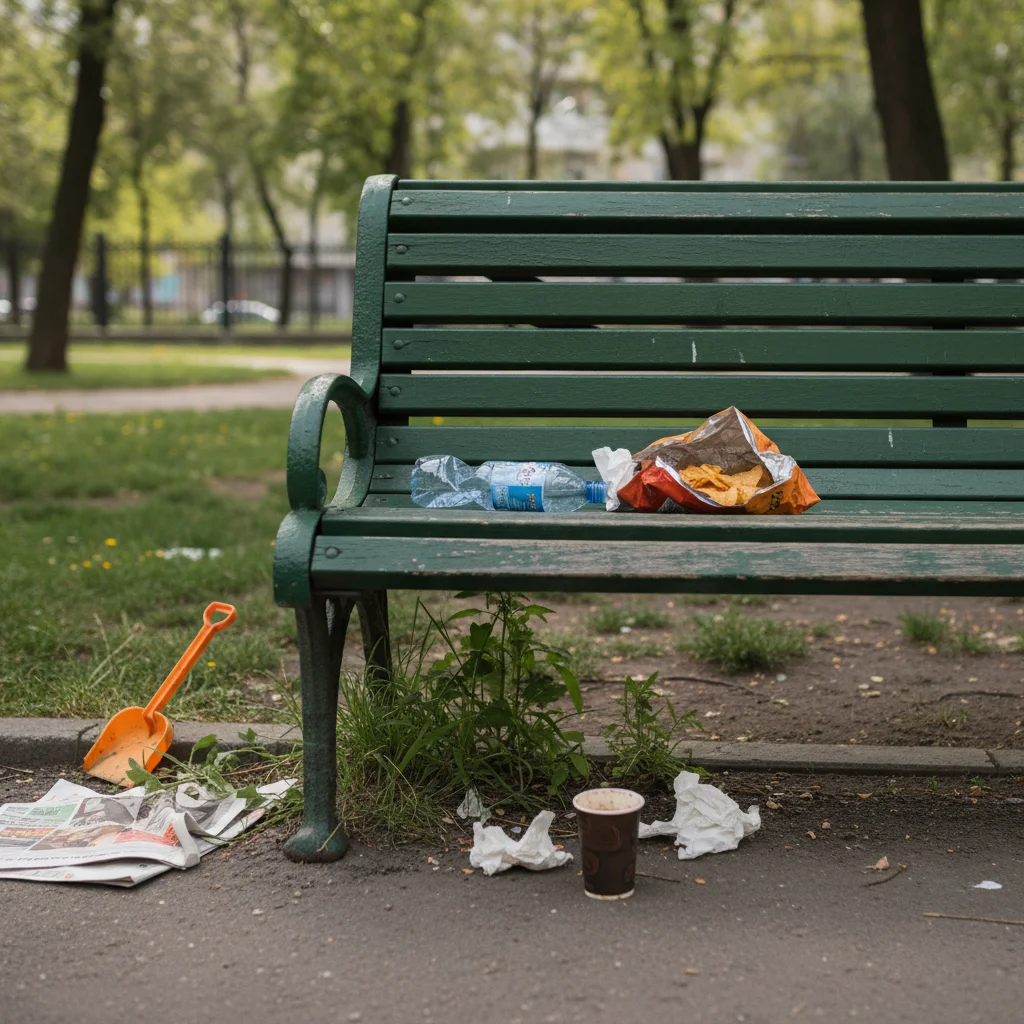
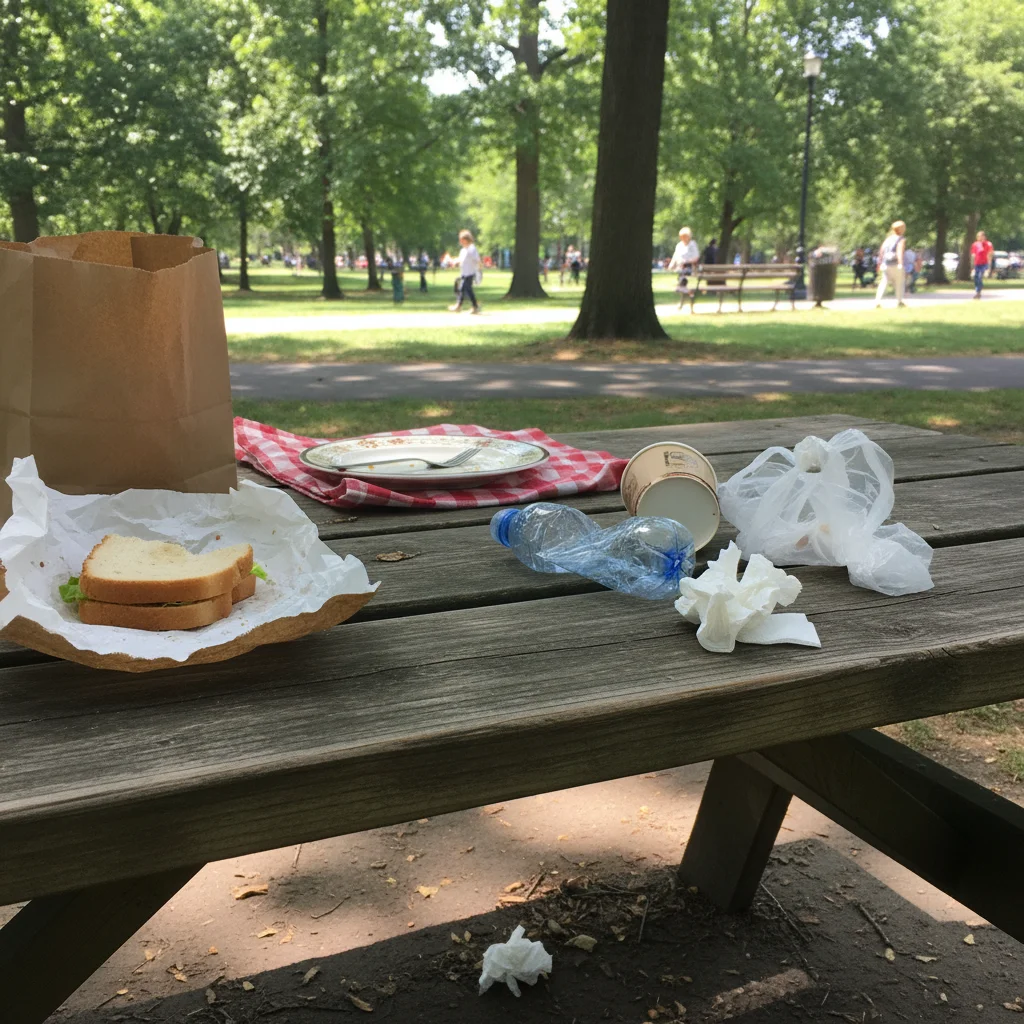
Park pathway with coffee cups and wrappers on grass
Before
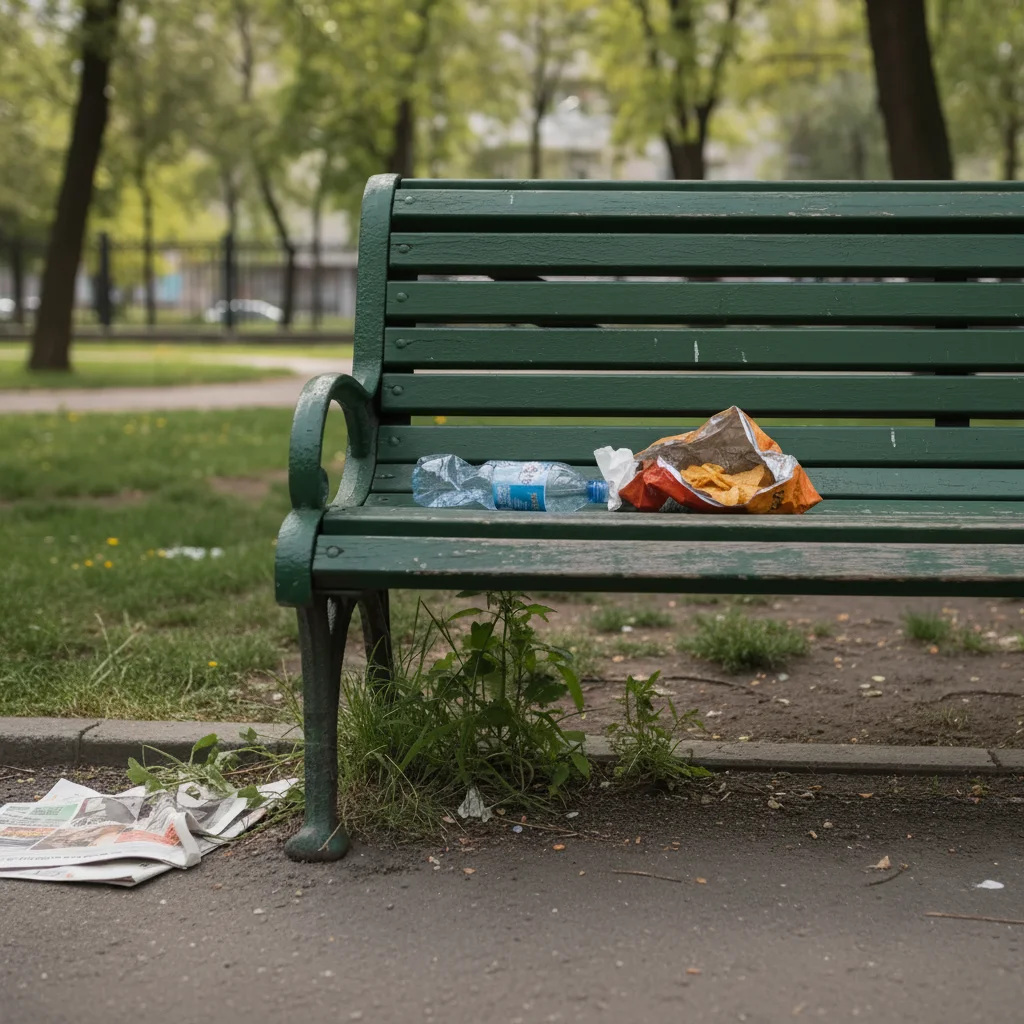
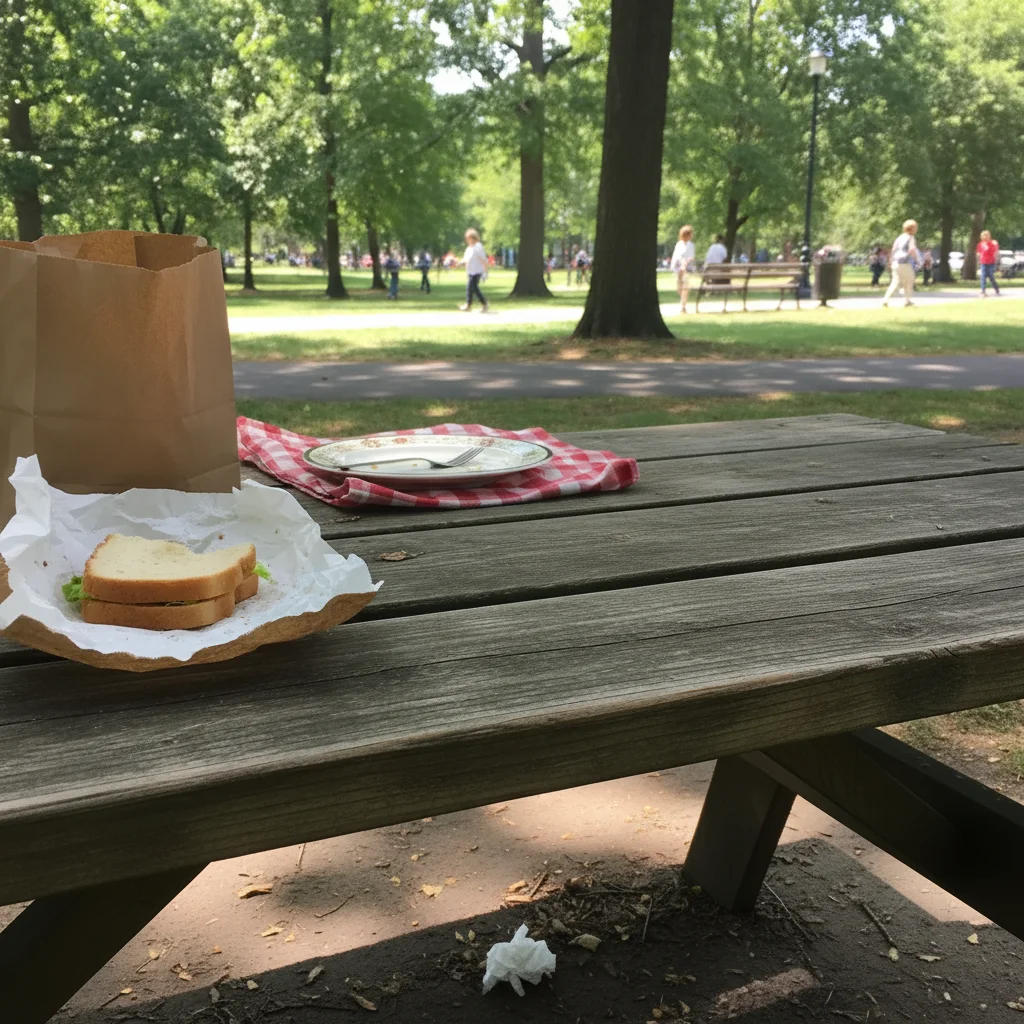
Clean park scene with litter removed and grass restored
After

Park scene cleaned for nature photo

Beautiful park view had scattered cups and wrappers. Restored to natural beauty.

Prompt: remove all the garbage and restore the clean grass and pathway

If something looks off

Some small pieces of litter still remain

Why: Tiny items or those matching the background color may be missed on first pass.

Try: Tap markers on the remaining small pieces of trash, then regenerate with 'remove these pieces of litter'

💡 Zoom in and systematically mark each remaining item.

Ground texture doesn't match after removal

Why: The AI reconstructed a different texture than the surrounding area.

Try: blend the restored ground area to match the surrounding [grass/sand/pavement] texture

💡 Name the specific surface type for better texture matching.

AI removed something that wasn't trash

Why: The AI misidentified a natural element or wanted object as debris.

Try: restore the [item name] that was accidentally removed

💡 Be specific in original prompt: 'remove litter but keep the lawn ornaments.'

Shadows from trash still visible

Why: Object was removed but its cast shadow wasn't fully addressed.

Try: remove the remaining shadows where the trash was and blend with surrounding ground

💡 Include 'and their shadows' in your original removal request.

AI changed wrong area or cleaned up more than intended

Why: The AI interpreted the cleanup area too broadly.

Try: Tap markers only on the specific trash items you want removed, then regenerate

💡 Markers constrain the cleanup to exactly the areas you indicate.

Quick answers

Do I need to mark each piece of trash before describing what to remove?

No! Just describe what you want: 'remove all the trash and debris.' The AI recognizes common litter like bottles, cans, bags, and wrappers. Only use markers when specific items remain after the first pass, or to protect items you don't want removed.

What types of trash can it remove?

The AI handles bottles, cans, bags, wrappers, cups, papers, and general debris. It works best on items that clearly contrast with the background. Very small or camouflaged items may need markers for targeted removal.

Will it work on complex ground surfaces?

Yes. The AI can reconstruct grass, sand, gravel, pavement, and even patterned surfaces like brick or tile. Mention the surface type in your prompt for best results.

Can I clean up just part of the photo?

Absolutely. Specify the area: 'remove trash on the left side only' or 'clean up only the beach in the foreground.' The AI will limit cleanup to the described region.

What about trash cans or bins that should stay?

Mention them in your prompt: 'remove the litter but keep the trash cans.' The AI understands that bins are containers, not trash themselves, but being explicit helps.

Ready to clean up your photos?

Free to try. No signup required.

Try it free