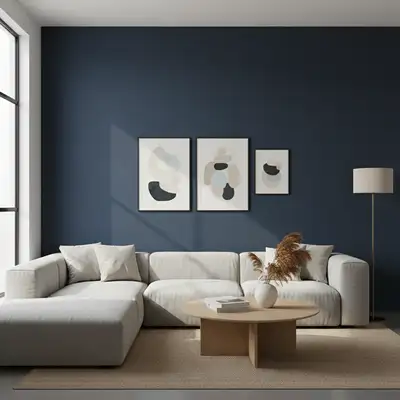
Free β€’ No signup Change Wall Β· Free

AI Wall Replacer

Just describe the new wall color or texture. The AI preserves room lighting and details.
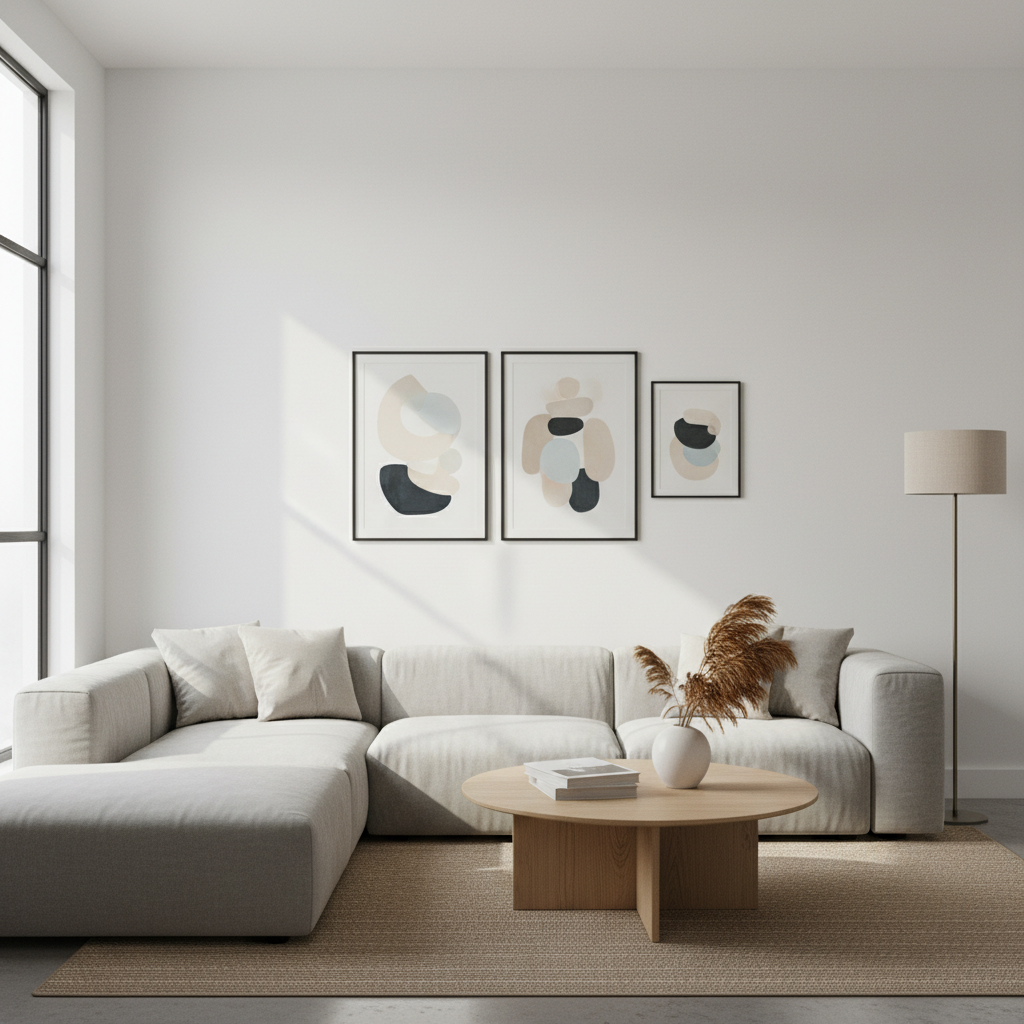
Living room with plain white wall
Before
β†’
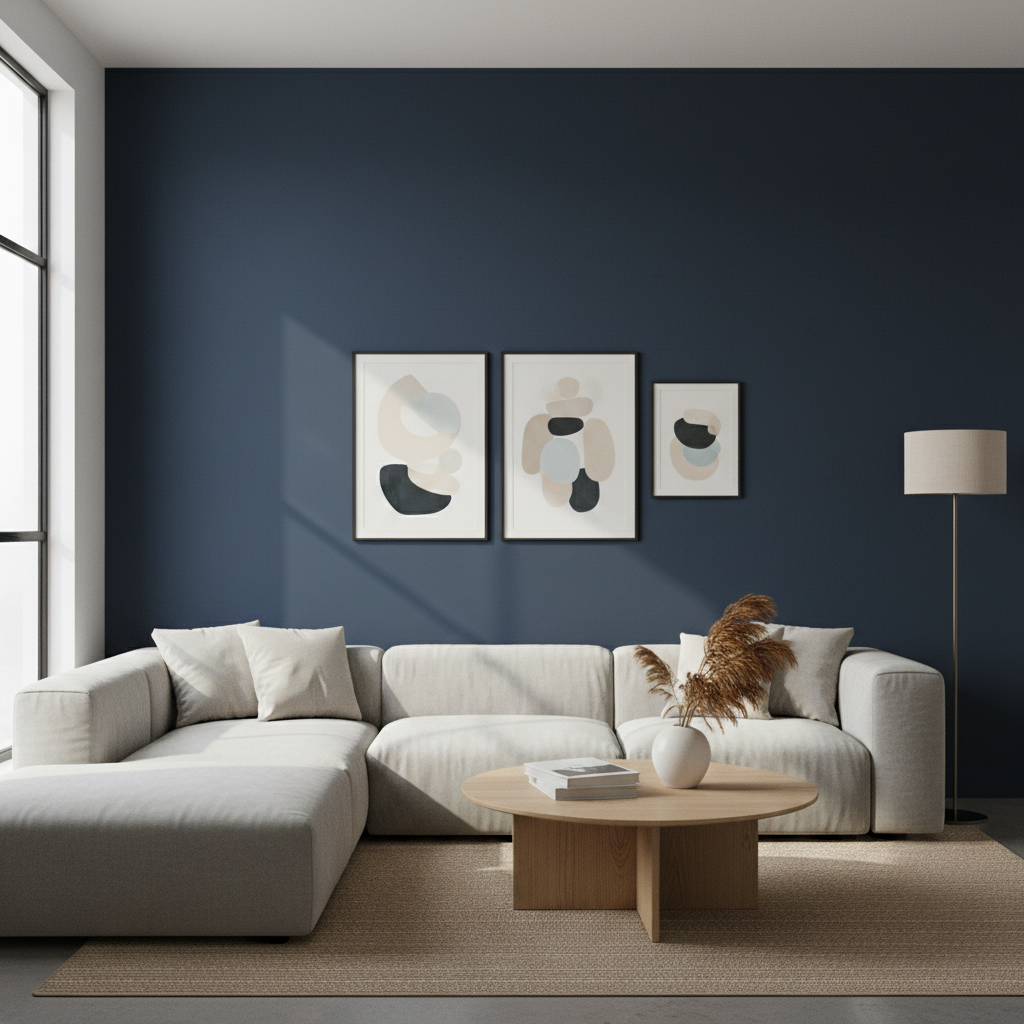
Same living room with deep navy blue wall
After

AI Wall Replacer

Upload photo to replace wall

Free β€’ Results in 30 seconds β€’ No signup

Release to upload

FreeNo signupNo watermark
Popular use cases:
  • Paint color testing
  • Wallpaper visualization
  • Accent wall preview
  • Interior design mockups
  • Home renovation planning
  • Real estate staging

Cost
Free No signup required
Time
Instant results in 15-30 seconds
Works on
Any device - browser, phone, tablet, desktop
Powered by
AI-powered photo editing
Scenario Prompt Time
Paint color replace wall with deep navy blue in matte finish 25s
Accent wall change only the back wall to forest green 30s
Texture change wall to exposed white brick texture 35s

How it works

  1. Upload your interior photo

    Upload a well-lit interior or exterior photo. Straight-on angles with minimal lens distortion help the AI produce natural wall results. JPG, PNG, WebP up to 7MB.

    Expect: Simple color changes: 20-30 seconds. Adding textures or patterns: 30-40 seconds with possible refinement.
  2. Describe the new wall

    Type your instruction: 'replace the wall with a deep navy blue paint in matte finish' or 'change the wall to white shiplap texture.' Be specific about color, finish, or pattern. Include paint brand color names if you have specific ones in mind.

    Tip: Mention the finish (matte, satin, glossy) and any texture details. 'Warm taupe with eggshell finish' is more specific than just 'tan wall.'

    Copy one of these to get started:

    New paint color replace the wall with a deep navy blue paint in matte finish, preserve the room lighting and shadows
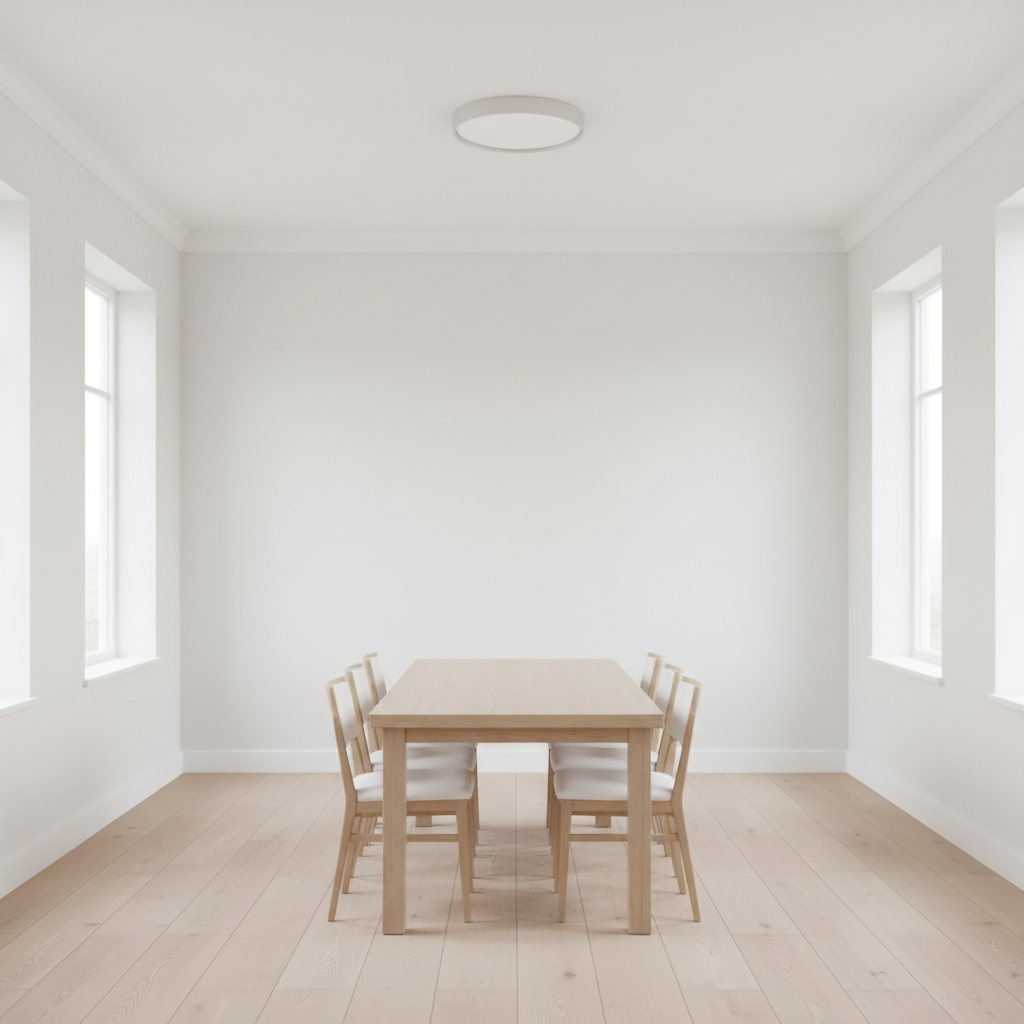
    Accent wall change only the back wall to forest green, keep all other walls the same color
    Add wallpaper pattern replace the wall with a subtle geometric gray and white wallpaper pattern
    Brick or stone texture change the wall to exposed white brick texture, keep the rustic industrial look
    3 more prompts
    Wood paneling replace the wall with natural oak wood paneling in a vertical shiplap pattern
    Two-tone walls change the bottom half of the wall to dark gray and keep the top half white with a chair rail dividing them
    Warm neutral tone replace the white wall with a warm greige color in satin finish, maintain natural light reflections
  3. Generate and review

    Check that the new wall color looks natural under the room's lighting. Verify that shadows from furniture and artwork remain realistic. The color should appear consistent across the entire wall area.

  4. Refine with markers if needed

    If the AI changed areas you wanted to keep (like trim, artwork, or doors), tap markers on those items and regenerate asking to 'preserve the white trim and artwork.' Use markers to specify exactly which wall to change in rooms with multiple walls visible.

    Tip: Markers help when you want to change only one wall for an accent wall effect.
Try it free ↓

AI Wall Replacer

Upload photo to replace wall

Free β€’ Results in 30 seconds β€’ No signup

Release to upload

Free β€’ No signup

"Tested 5 different paint colors on my living room photo before buying. Saved me from a $200 mistake." @HomeOwner_Sarah

See it in action

Living room with plain white wall
Before
->
Same living room with deep navy blue wall
After

Living room paint color test

Homeowner tested navy blue before painting. The AI maintained realistic shadows and light response.

Prompt: replace the wall with a deep navy blue paint in matte finish, preserve the room lighting and shadows
Dining room with all white walls
Before
->
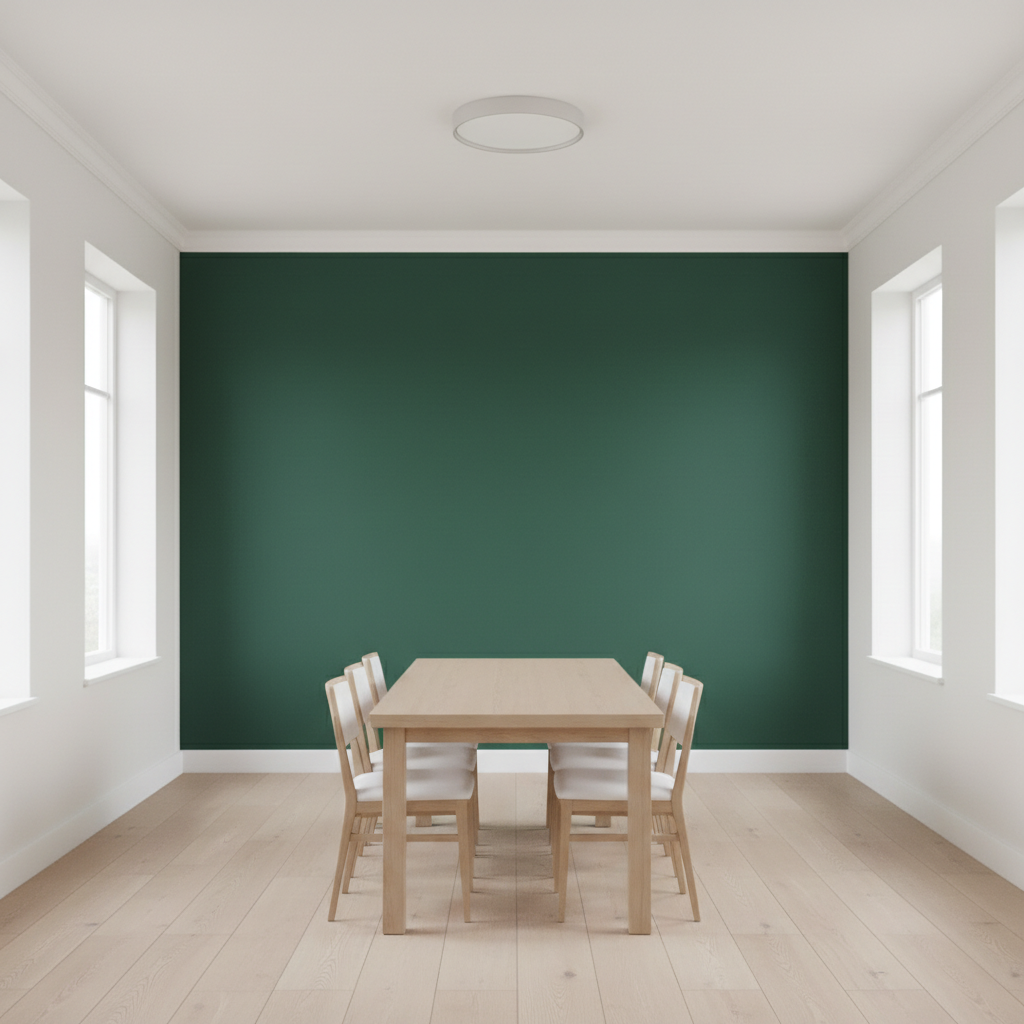
Same dining room with forest green accent wall
After

Accent wall visualization

Designer showed client how a green accent wall would transform the dining room.
Prompt: change only the back wall to forest green, keep all other walls the same color
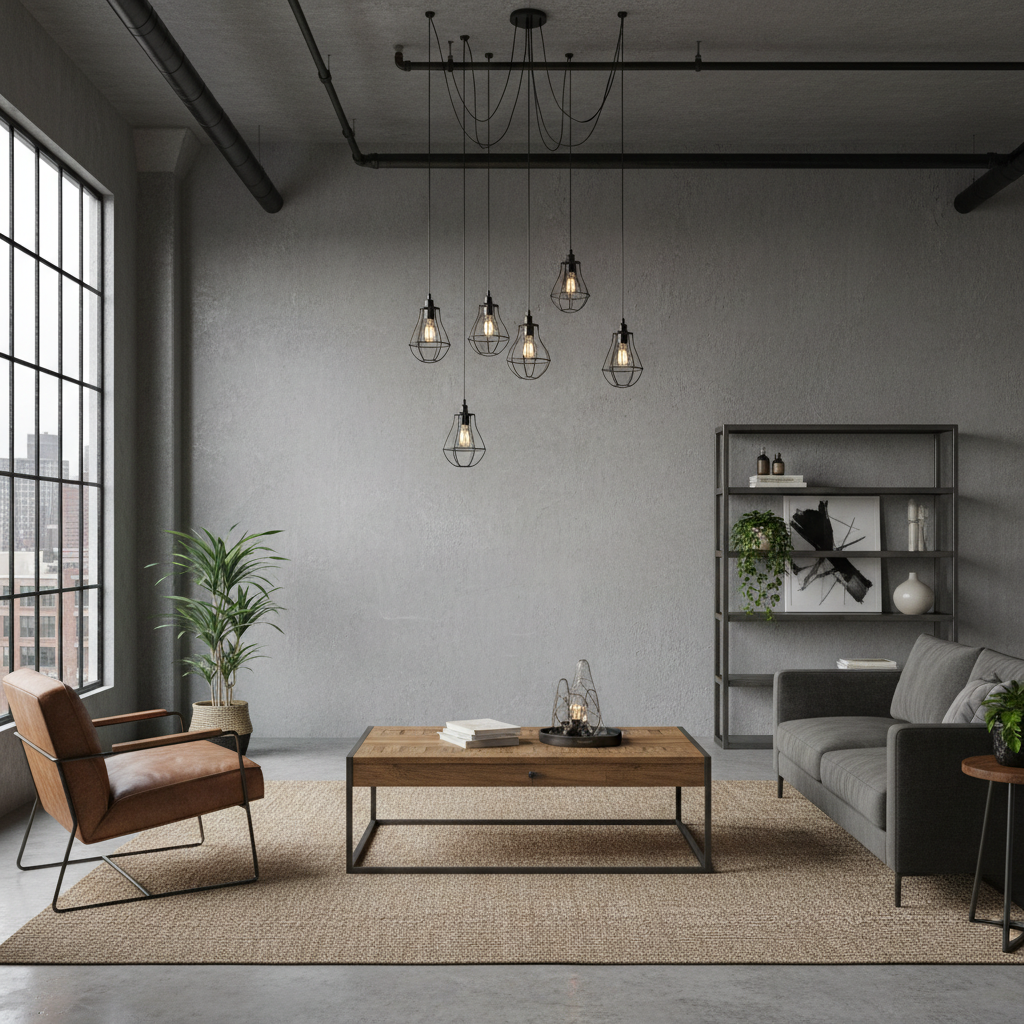
Loft room with plain gray wall
Before
->
Same loft with exposed white brick wall
After

Brick texture addition

Loft apartment visualization showing exposed brick look without actual construction.

Prompt: change the wall to exposed white brick texture, keep the rustic industrial look

Detailed Guides by Scenario

πŸ“·

Creative Compositing

Swap and replace wall in photos to create imaginative composites, mashups, and artistic transformations.

Common Scenarios

  • Replacing wall with something completely different for a surreal effect
  • Swapping wall to create a humorous or viral-worthy photo edit
  • Compositing multiple elements by replacing wall with custom alternatives

Best Practices

  • Be specific about what should replace wall β€” include color, style, and position details
  • The AI matches lighting automatically, but mentioning 'match the scene lighting' improves realism
  • For multiple replacements, do them one at a time for the cleanest results
πŸ“·

Professional & Commercial

Replace wall in commercial photos for marketing, product shots, and client presentations without reshooting.

Common Scenarios

  • Replacing wall in a product photo to show a different variant or model
  • Swapping wall in a marketing image for a different campaign or audience segment
  • Updating legacy photos by replacing outdated wall with current versions

Best Practices

  • Use reference images when the replacement needs to match a specific look exactly
  • Verify that lighting, shadows, and proportions look natural after the swap
  • For product photography, describe materials and colors precisely when replacing wall
πŸ“·

Personal Photo Editing

Fix or improve personal photos by replacing wall with something better β€” save the shot without retaking it.

Common Scenarios

  • Replacing a dull or overcast sky (as wall) with a dramatic sunset or blue sky
  • Swapping out wall in a photo to fix a mistake or improve composition
  • Replacing wall in an old photo to update or refresh the image

Best Practices

  • Save the original first β€” keep the unedited version in case you want to try different replacements
  • If the replacement doesn't match the first time, describe the desired look in more detail
  • Natural-looking replacements work best when the new element matches the photo's lighting and perspective

If something looks off

AI changed the wrong area or something I didn't want changed

Why: Multiple walls or surfaces made it unclear which wall to change.

Try: Tap a marker on the specific wall you want to change, then regenerate with the same prompt

Tip: Markers are essential for accent walls when multiple walls are visible in the frame.

Artwork or trim was changed along with the wall

Why: The AI included elements that should have been preserved.

Try: change the wall color to [color], preserve all artwork, trim, doors, and fixtures exactly as they are

Tip: List specific items to preserve: 'keep the white trim, artwork, and door frame unchanged.'

Color looks different than expected

Why: Colors appear differently under various lighting conditions - the AI interprets this.

Try: change the wall to [specific color name] maintaining natural shadows and how light affects paint color

Tip: Use specific color descriptions: 'Benjamin Moore Hale Navy' or 'cool-toned sage green' for better accuracy.

Texture pattern is too busy or wrong scale

Why: Pattern scale wasn't specified, so the AI guessed.

Try: replace wall with [texture] in a subtle/large-scale pattern that fits the room proportions

Tip: Specify pattern scale: 'large-scale herringbone' vs 'small geometric tile pattern.'

Shadows look flat or unnatural

Why: The AI didn't properly account for how the new color affects shadows.

Try: change wall color to [color] and recalculate realistic shadows from furniture and decor

Tip: 'Realistic shadows' tells the AI to regenerate shadow interactions with the new color.

Quick answers

Do I need to select the wall before changing it?

No. Just describe the wall change you want: 'change the wall to navy blue.' The AI identifies the wall automatically. Use markers only when there are multiple walls and you want to change a specific one.

How do I change wall color in a photo for free?

Upload your interior photo to EditThisPic and type 'replace the wall with [color] paint.' Include finish details for accuracy. The AI changes it in 20-35 seconds. Free, no login, no watermarks.

Is there a free paint color visualizer that doesn't need an account?

Yes. EditThisPic changes wall colors without signup. Upload, describe the color you want to test, download. No watermarks. Works in your browser.

Can I test specific paint brand colors?

Yes. Include the color name in your prompt: 'change the wall to Benjamin Moore Simply White' or 'Sherwin-Williams Agreeable Gray.' The AI recognizes many popular paint colors.

Can I add wallpaper patterns, not just paint?

Yes. Describe the wallpaper: 'replace the wall with floral wallpaper in blue and white' or 'add a geometric gray pattern.' The AI can apply textures, patterns, and wallpaper designs.

Is EditThisPic's AI wall replacer really free?

Yes β€” you get 1 free edit per week, no account needed. For unlimited edits, plans start at $3.99/month.

Can I replace wall on my phone?

Yes. EditThisPic works in any mobile browser β€” iPhone, Android, tablet. No app download needed.

What photo formats does the AI wall replacer support?

JPG, PNG, WebP, and HEIC. Upload any common photo format and EditThisPic handles the rest.

Ready to replace your photos?

Free to try. No signup required.