Free β€’ No signup Add Fence Β· Free

Add Fence to Photo with AI

Visualize wood, vinyl, or chain-link fencing in your yard photo with AI instantly.

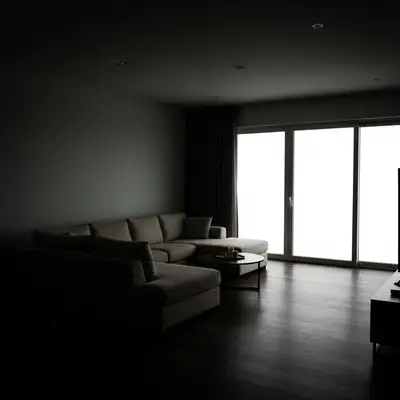
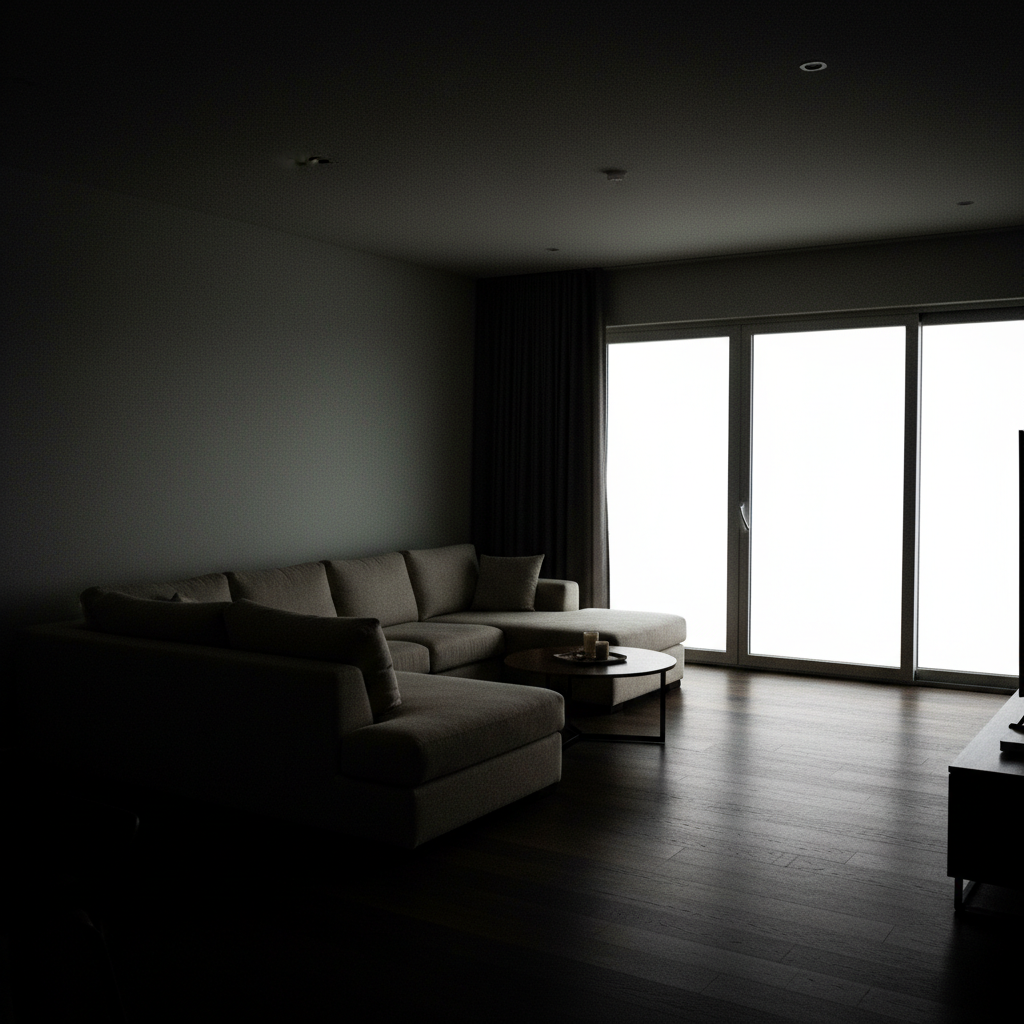
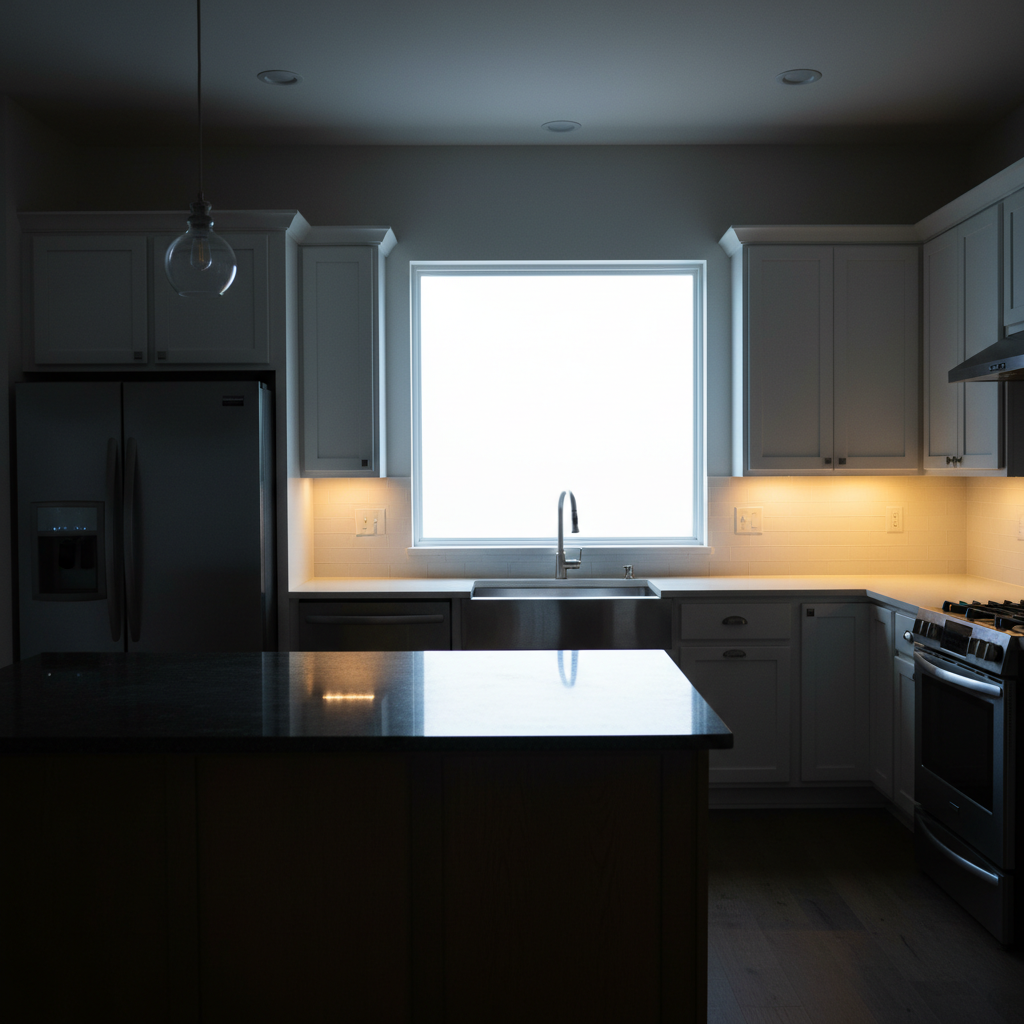
Original photo before Add Fence to Photo with AI
Before
β†’
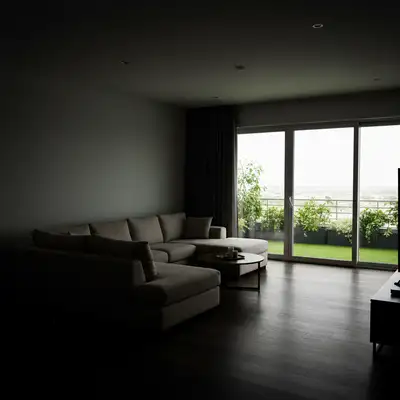
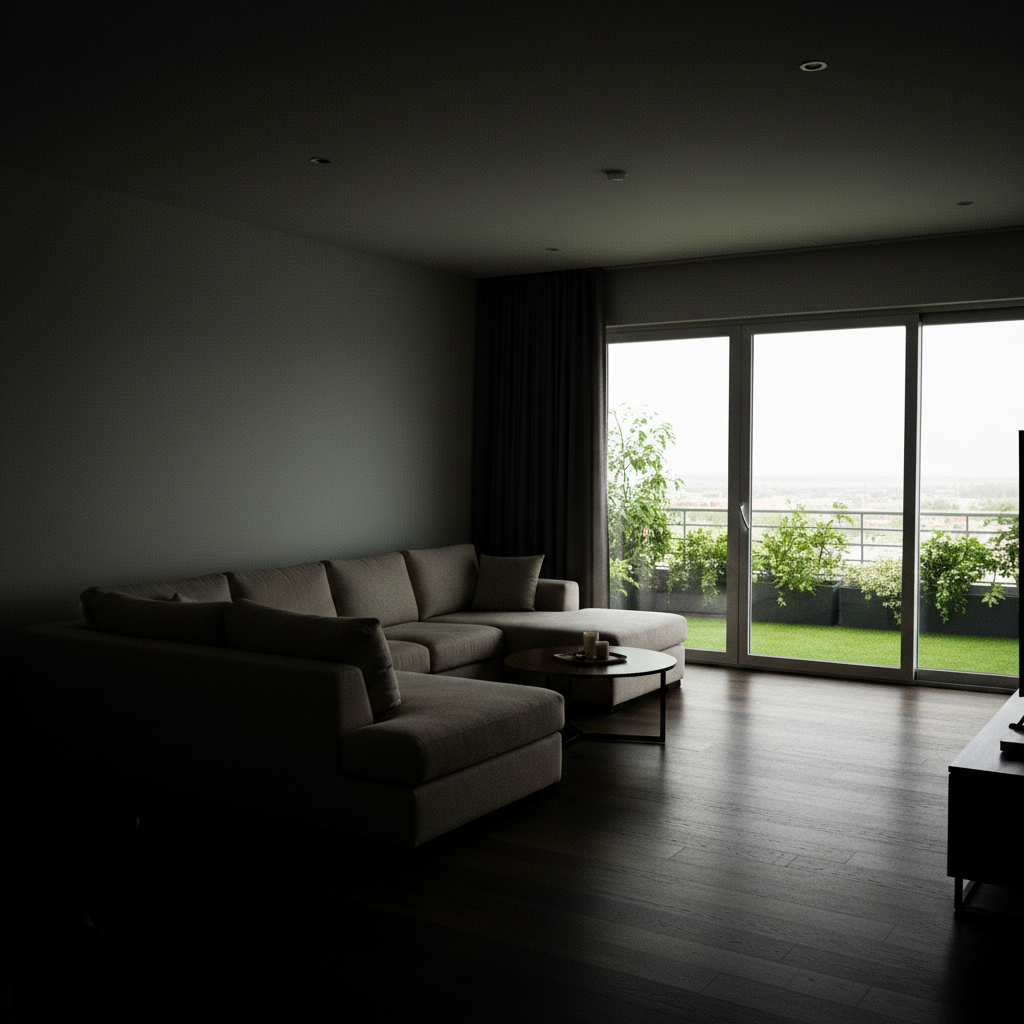
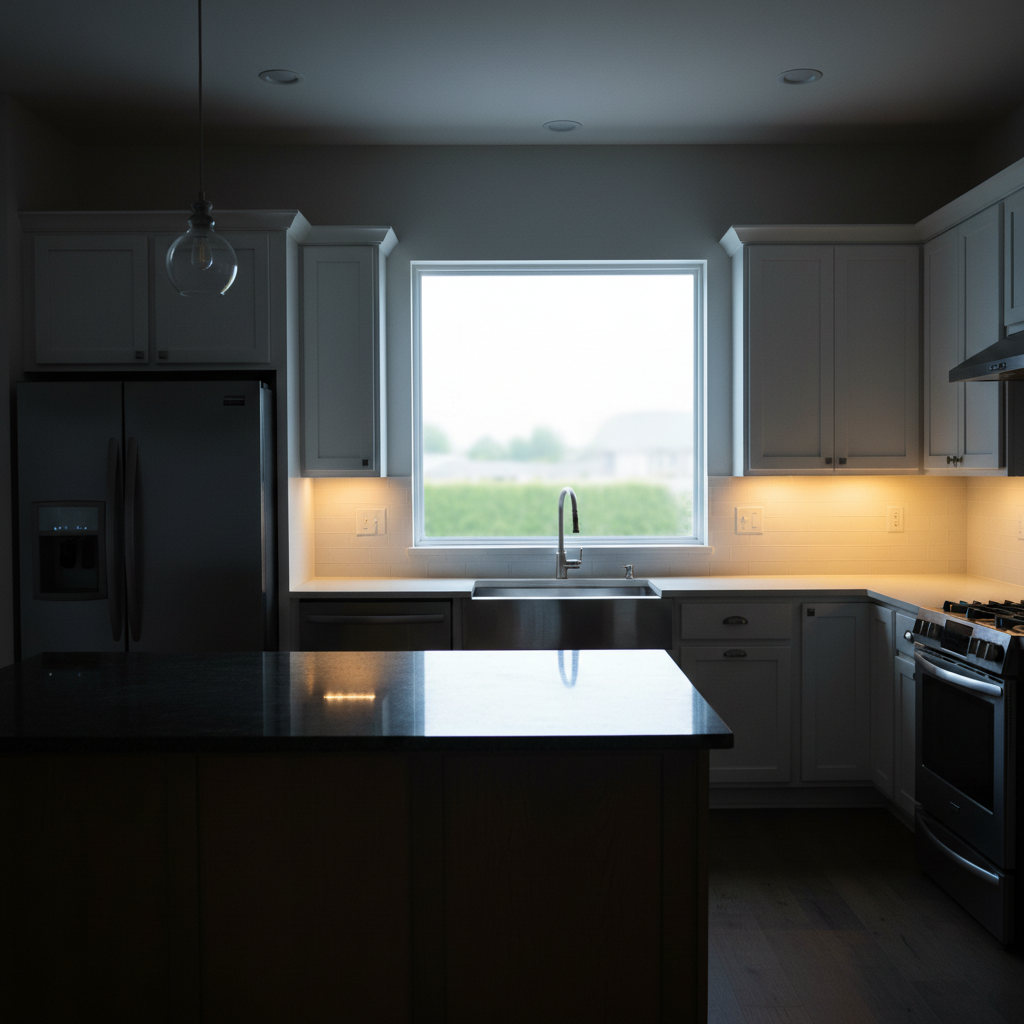
Result after Add Fence to Photo with AI using EditThisPic
After

AI Fence Adder

Upload photo to add fence

Free β€’ Results in 30 seconds β€’ No signup

Release to upload

FreeNo signupNo watermark

Cost
Free No signup required
Time
Instant results in 15-30 seconds
Works on
Any device - browser, phone, tablet, desktop
Powered by
AI-powered photo editing

How it works

  1. Upload Your Property Photo

    Upload a photo of your yard, garden, or property line where you want to add fencing. Clear photos showing the ground and boundary areas work best. The AI will add realistic fencing with proper perspective and shadows.

    Expect: Simple add: 20-30 seconds. Complex add: 30-45 seconds and may need refinements.
  2. Describe Your Fence

    Tell the AI what fence you want: type (privacy, picket, chain-link, vinyl, iron), height, color or material, and location. For example, 'add a 6-foot tall cedar privacy fence along the back property line' or 'add white picket fence across the front yard.' Be specific about placement and style.

    Copy one of these to get started:

    Add a 6-foot tall cedar privacy Add a 6-foot tall cedar privacy fence along the back property line
    Add white vinyl picket fence 4 Add white vinyl picket fence 4 feet tall across the front yard
    Add black aluminum fence 5 feet Add black aluminum fence 5 feet tall along the left side of the yard
    Add chain-link fence 6 feet tall Add chain-link fence 6 feet tall separating the backyard from the driveway
    3 more prompts
    Add horizontal wood slat privacy fence Add horizontal wood slat privacy fence 6 feet tall in natural cedar stain along the right property boundary
    Add decorative wrought iron fence 4 Add decorative wrought iron fence 4 feet tall with spear tops around the front garden bed
    Add white vinyl privacy fence 6 Add white vinyl privacy fence 6 feet tall with lattice top section along the back and side yard
  3. Review Fence Placement

    Check that the fence follows the line you intended and looks realistic in your photo. The AI adds proper shadows, perspective, and integration with existing landscaping. Refine your description if you need to adjust height, position, or style.

  4. Download Your Visualization

    Save your fence visualization in high resolution for planning, contractor estimates, or HOA approval. No watermark. Compare different fence styles by generating multiple versions with different descriptions.

Try it free ↓

AI Fence Adder

Upload photo to add fence

Free β€’ Results in 30 seconds β€’ No signup

Release to upload

Free β€’ No signup

"Worked perfectly on my first try. Way easier than Photoshop." via Trustpilot

See it in action

Original photo before Add Fence to Photo with AI
Before
->
Result after Add Fence to Photo with AI using EditThisPic
After

6-foot cedar privacy fence along back boundary

6-foot cedar privacy fence along back boundary

Prompt: 6-foot cedar privacy fence along back boundary
Original photo before Add Fence to Photo with AI
Before
->
Result after Add Fence to Photo with AI using EditThisPic
After

White picket fence 4 feet tall across front property line

White picket fence 4 feet tall across front property line

Prompt: White picket fence 4 feet tall across front property line
Original photo before Add Fence to Photo with AI
Before
->
Result after Add Fence to Photo with AI using EditThisPic
After

Black aluminum decorative fence separating yards

Black aluminum decorative fence separating yards

Prompt: Black aluminum decorative fence separating yards

Detailed Guides by Scenario

πŸ“·

Home & Interior Design

Preview how fence would look in a room or space before committing to a purchase or renovation.

Common Scenarios

  • Visualizing fence in a living room, bedroom, or office before buying
  • Creating client mockups that show fence in their actual space
  • Comparing different placements of fence in renovation plans

Best Practices

  • Upload a well-lit, straight-on photo of the room for the most realistic result
  • Specify the size and position β€” e.g., 'add a large fence on the left wall'
  • Match the room's lighting in your prompt: 'warm lighting' for evening shots, 'natural daylight' for window-lit rooms
πŸ“·

Creative & Social Content

Use fence to create eye-catching content for social media, digital art, or personal projects.

Common Scenarios

  • Adding fence to photos for unique social media posts that stand out in feeds
  • Creating fantasy or composite images that incorporate fence for art projects
  • Making holiday or themed content by placing fence in seasonal photos

Best Practices

  • Be specific about the style β€” 'realistic fence' vs. 'illustrated fence' gives very different results
  • Use reference images when you want the AI to match a particular look
  • For social content, try unusual placements that create a surreal or humorous effect
πŸ“·

Professional & Marketing Use

Incorporate fence into marketing materials, presentations, and product catalogs without expensive photo shoots.

Common Scenarios

  • Adding fence to product mockups and marketing banners
  • Creating presentation slides that show fence in context
  • Building a catalog of variations that feature fence in different settings

Best Practices

  • Use high-resolution source images β€” marketing materials demand sharp details
  • Keep brand guidelines in mind: specify colors and style that match when adding fence
  • Generate multiple versions and A/B test which placement performs best in ads

If something looks off

AI changed the wrong area or something I didn't want changed

Why: The AI couldn't determine exactly which area you meant from description alone.

Try: Tap a marker on the specific area you want to change, then regenerate with the same prompt

Tip: Markers tell the AI 'I mean THIS one specifically.' Use them when description alone is ambiguous.

Quick answers

Do I need to mark where the fence should go?

No, you never mark or outline anything. Just describe the fence location using landmarks in your photo. For example, 'add a fence along the back edge of the lawn' or 'add a fence on the left side between my yard and the neighbor's driveway.' The AI understands spatial descriptions and places the fence accordingly.

What fence types can I visualize?

You can add privacy fences (board-on-board, stockade, horizontal slat), picket fences (spaced or solid), chain-link (with or without privacy slats), vinyl fences, aluminum or wrought iron decorative fences, split-rail fences, and modern horizontal plank fences. Specify style, height, material, and color for accurate results.

How do I specify fence height accurately?

State the height in feet: '4-foot fence' for shorter front yard fences, '6-foot fence' for standard privacy fencing, or '8-foot fence' for tall privacy. You can reference nearby objects: 'fence as tall as the garage door' or 'fence reaching the bottom of the windows.' Standard residential heights are 4, 6, or 8 feet.

Can I add gates in the fence?

Yes, include gates in your description: 'add a 6-foot cedar privacy fence along the back with a double gate on the right side' or 'add white picket fence across front yard with gate aligned to the walkway.' Specify gate location, width, and whether it's single or double.

Will this work for HOA or contractor quotes?

The visualizations are great for planning and communicating your vision to contractors or HOA boards. However, actual fence installation requires professional measurement of property lines, checking local setback requirements, and calling 811 before digging. Use these visuals as a starting point for contractor consultations.

Is EditThisPic's AI fence adder really free?

Yes β€” you get 1 free edit per week, no account needed. For unlimited edits, plans start at $3.99/month.

Can I add fence on my phone?

Yes. EditThisPic works in any mobile browser β€” iPhone, Android, tablet. No app download needed.

What photo formats does the AI fence adder support?

JPG, PNG, WebP, and HEIC. Upload any common photo format and EditThisPic handles the rest.

Ready to start editing?

Free to try. No signup required.