Free β€’ No signup Add Decorative photo frame Β· Free

AI Photo Frame Adder

Add vintage, modern, or ornate decorative frames to any photo with AI in seconds.

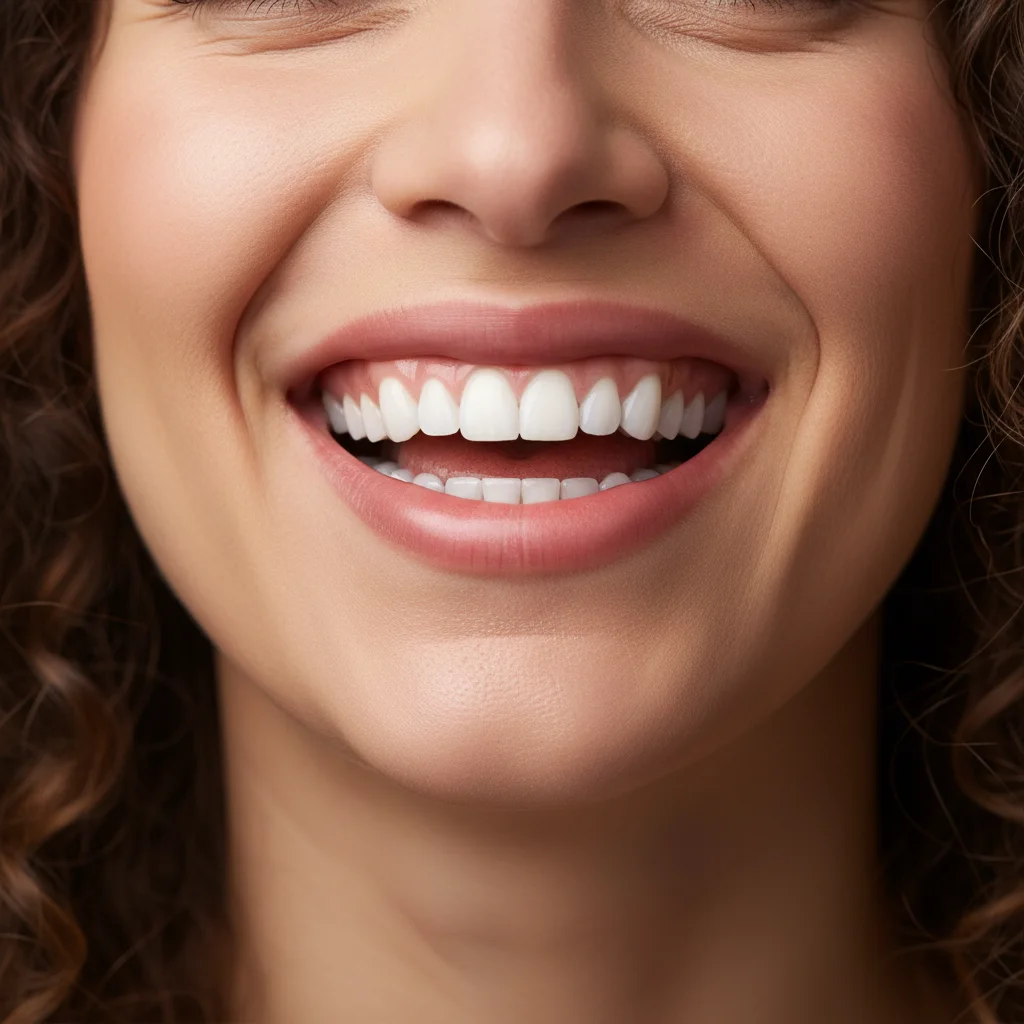
Original photo before AI Photo Frame Adder
Before
β†’
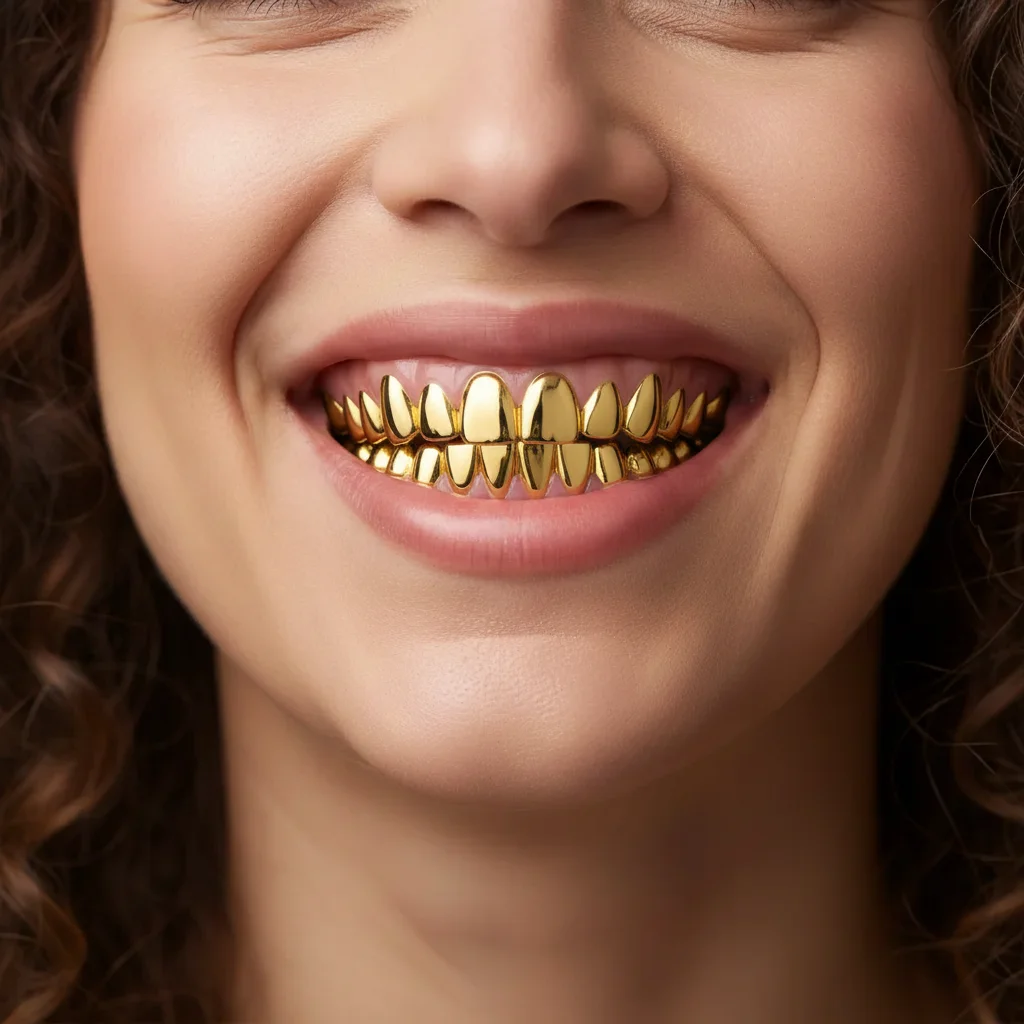
Result after AI Photo Frame Adder with EditThisPic
After

Free AI Photo Frame Adder

Upload photo to add decorative photo frame

Free β€’ Results in 30 seconds β€’ No signup

Release to upload

FreeNo signupNo watermark
Popular use cases:
  • add frame to photo
  • photo frame maker
  • picture frame generator
  • add border to photo
  • decorative frame tool
  • photo frame editor
  • custom frame creator
  • online frame maker
  • add artistic frame
  • photo border tool

Cost
Free No signup required
Time
Instant results in 15-30 seconds
Works on
Any device - browser, phone, tablet, desktop
Powered by
AI-powered photo editing
Scenario Prompt Time
15-30s
15-30s
15-30s
15-30s
15-30s

How it works

  1. Upload your photo

    Choose any photo you want to frame - portraits, landscapes, artwork, or any image. Works with photos of any size or orientation.

    Expect: Upload takes 20-30 seconds depending on file size and connection speed.
  2. Describe the frame style you want

    Tell the AI what kind of frame or border to add - elegant, modern, vintage, ornate, simple, artistic, or any specific style. Specify colors, thickness, materials, or decorative elements. The AI generates and applies the frame automatically around your entire image.

    Tip: Be specific about style and color: 'Add an elegant gold ornate frame' or 'Add a simple white modern border' produces better results than just 'add frame'.

    Copy one of these to get started:

    Classic art gallery style Add an elegant gold ornate frame like a classical painting
    Clean modern gallery look Add a simple white border with thin black lines
    Cozy farmhouse style Add a rustic wooden frame with natural wood texture
    Retro elegant look Add a vintage ornate frame with antique brass finish
    4 more prompts
    Nostalgic instant photo look Add a polaroid-style frame with white borders and shadow
    Professional gallery presentation Add a minimalist black frame with matting around the photo
    Luxurious classical style Add an ornate baroque-style silver frame with detailed scrollwork
    Vintage cinema aesthetic Add a film strip frame that makes it look like analog photography
  3. Review the result

    Check that the frame style, color, thickness, and overall look match your vision. Make sure it complements rather than overwhelms your photo. If needed, refine your description and regenerate.

  4. Download Your Framed Photo

    Save your beautifully framed photo. No watermark, ready for printing, display, social media, or any use.

Try it free ↓

Free AI Photo Frame Adder

Upload photo to add decorative photo frame

Free β€’ Results in 30 seconds β€’ No signup

Release to upload

Free β€’ No signup

"I use this for all my product photos now. Game changer." via Trustpilot

See it in action

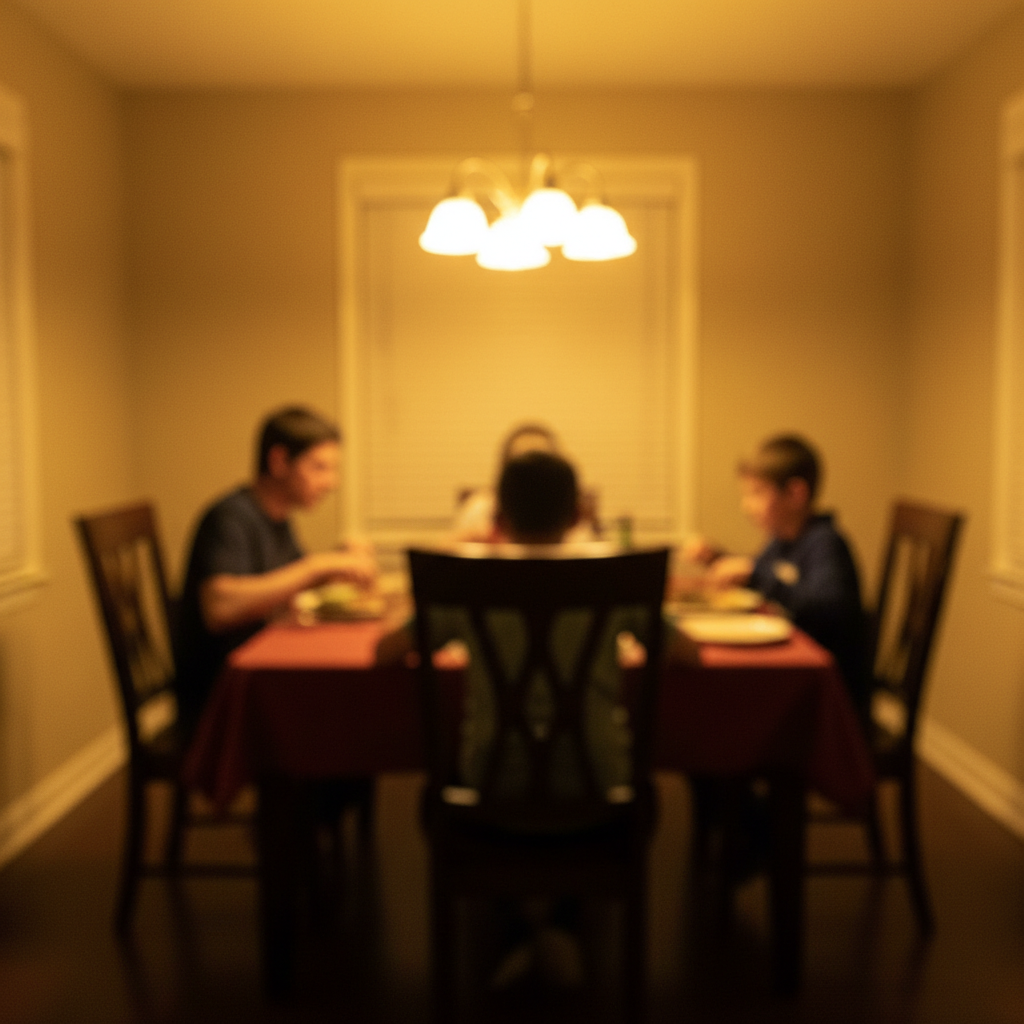
Original photo before AI Photo Frame Adder
Before
->
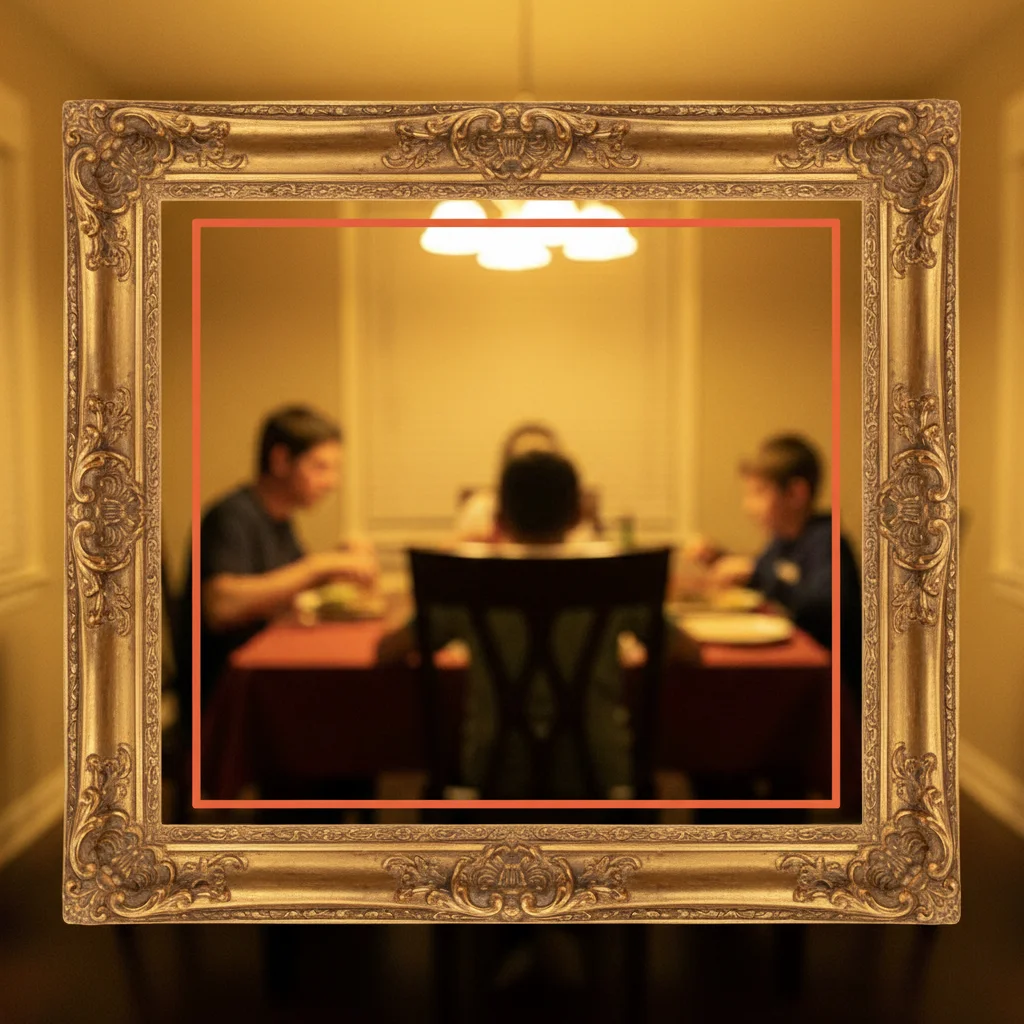
Result after AI Photo Frame Adder with EditThisPic
After

Gold ornate frame added

Gold ornate frame added

Prompt: Add an elegant gold ornate frame like a classical painting
Original photo before AI Photo Frame Adder
Before
->
Result after AI Photo Frame Adder with EditThisPic
After

Rustic wooden frame

Rustic wooden frame

Prompt: Add a rustic wooden frame with natural wood texture

Detailed Guides by Scenario

πŸ“·

Home & Interior Design

Preview how decorative photo frame would look in a room or space before committing to a purchase or renovation.

Common Scenarios

  • Visualizing decorative photo frame in a living room, bedroom, or office before buying
  • Creating client mockups that show decorative photo frame in their actual space
  • Comparing different placements of decorative photo frame in renovation plans

Best Practices

  • Upload a well-lit, straight-on photo of the room for the most realistic result
  • Specify the size and position β€” e.g., 'add a large decorative photo frame on the left wall'
  • Match the room's lighting in your prompt: 'warm lighting' for evening shots, 'natural daylight' for window-lit rooms
πŸ“·

Creative & Social Content

Use decorative photo frame to create eye-catching content for social media, digital art, or personal projects.

Common Scenarios

  • Adding decorative photo frame to photos for unique social media posts that stand out in feeds
  • Creating fantasy or composite images that incorporate decorative photo frame for art projects
  • Making holiday or themed content by placing decorative photo frame in seasonal photos

Best Practices

  • Be specific about the style β€” 'realistic decorative photo frame' vs. 'illustrated decorative photo frame' gives very different results
  • Use reference images when you want the AI to match a particular look
  • For social content, try unusual placements that create a surreal or humorous effect
πŸ“·

Professional & Marketing Use

Incorporate decorative photo frame into marketing materials, presentations, and product catalogs without expensive photo shoots.

Common Scenarios

  • Adding decorative photo frame to product mockups and marketing banners
  • Creating presentation slides that show decorative photo frame in context
  • Building a catalog of variations that feature decorative photo frame in different settings

Best Practices

  • Use high-resolution source images β€” marketing materials demand sharp details
  • Keep brand guidelines in mind: specify colors and style that match when adding decorative photo frame
  • Generate multiple versions and A/B test which placement performs best in ads

If something looks off

AI changed the wrong area or something I didn't want changed

Why: The AI couldn't determine exactly which area you meant from description alone.

Try: Tap a marker on the specific area you want to change, then regenerate with the same prompt

Tip: Markers tell the AI 'I mean THIS one specifically.' Use them when description alone is ambiguous.

Frame looks too thick or too thin

Why: The AI's default frame width didn't match your preference.

Try: Add size descriptors: 'Add a thin elegant gold frame' or 'Add a wide thick wooden border'

Tip: Use words like 'thin', 'thick', 'wide', 'narrow', 'subtle' to control frame dimensions.

Frame style doesn't match what I envisioned

Why: Generic terms like 'nice frame' can be interpreted many different ways.

Try: Be very specific: reference real frame styles like 'baroque', 'art deco', 'minimalist', 'polaroid', 'vintage photo'

Tip: Reference specific historical or design styles for clearer results: baroque, Victorian, mid-century modern, industrial.

Frame color clashes with the photo

Why: The AI chose a default color that doesn't complement your image's palette.

Try: Specify colors that complement your photo: 'Add a [color] frame that matches the photo's tones'

Tip: Look at dominant colors in your photo and choose frame colors that either match or provide pleasing contrast.

Frame looks artificial or poorly integrated

Why: The frame doesn't have proper shadows, depth, or texture for realistic appearance.

Try: Add 'realistic' or '3D with shadows' to your description for better integration

Tip: Mentioning texture (wood grain, metal finish) and lighting effects (shadows, highlights) improves realism.

Photo got cropped unexpectedly when frame was added

Why: Some frame styles may adjust the image composition.

Try: Specify 'Add a frame around the outside without cropping the image' in your prompt

Tip: If preserving the entire image matters, explicitly state to keep all content visible.

Quick answers

Do I need to specify where the frame goes?

No! Frames are automatically applied around the entire photo's outer edge. Just describe the frame style you want - the AI handles placement and sizing to create a proper border around your complete image.

Is this tool free with no watermark?

Yes, completely free with no watermark. No account creation or payment required. Upload, add frames, and download as many photos as you want for any personal or commercial use.

What frame styles can I create?

Any style you can describe - elegant gold ornate frames, simple modern borders, rustic wooden frames, vintage styles, polaroid frames, film strip edges, minimalist lines, baroque ornate, or custom artistic borders. The AI interprets your description to generate matching frames.

Can I control frame thickness and color?

Yes! Include thickness (thin, thick, wide, narrow) and color (gold, white, black, silver, natural wood, etc.) in your description. The AI adjusts frame dimensions and colors based on your specifications.

Will the frame work for both portrait and landscape photos?

Absolutely! The AI automatically adapts frame proportions to match your photo's orientation and aspect ratio, whether portrait, landscape, or square. The frame scales appropriately for any image shape.

Can I use framed photos for printing?

Yes! The framed photos are high quality and suitable for printing at any size. Use them for wall art, photo books, greeting cards, or any printed material. No usage restrictions, no watermark.

Is EditThisPic's AI decorative photo frame adder really free?

Yes β€” you get 1 free edit per week, no account needed. For unlimited edits, plans start at $3.99/month.

Can I add decorative photo frame on my phone?

Yes. EditThisPic works in any mobile browser β€” iPhone, Android, tablet. No app download needed.

Ready to add a beautiful frame?

Free to try. No signup required.