Free • No signup Add Tie · Free

AI Tie Adder - Add Ties to Photos

Add any tie to photos instantly—just describe the style, no marking needed
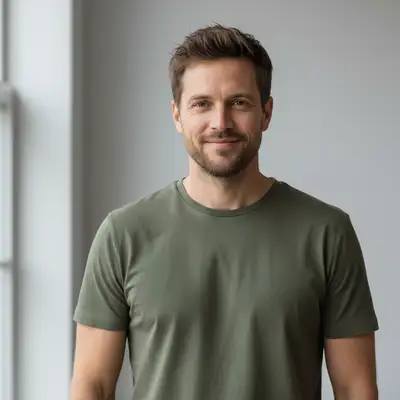
Professional headshot in white shirt without tie
Before
Same headshot with naturally added navy striped necktie
After

AI Tie Adder

Drop your photo here

or click to browse

Release to upload

Free • No signup

Advertisement
Popular use cases:
  • professional headshot editing
  • formal photo enhancement
  • business portrait upgrade
  • LinkedIn profile photo
  • job interview photo

Cost
Free No signup required
Time
Instant results in 15-30 seconds
Works on
Any device - browser, phone, tablet, desktop
Powered by
AI-powered photo editing
Scenario Prompt Time
Business necktie Add a navy blue striped necktie with a Windsor knot, hanging straight 6s
Black bow tie Put a black bow tie on the person, tied neatly at the collar, formal style 6s
Silk tie Add a burgundy silk tie with a subtle sheen, four-in-hand knot 7s

How it works

  1. Upload your photo

    Choose any photo where you're wearing a collared shirt or formal attire. Works best with portraits, professional headshots, or photos where the chest and collar area is clearly visible. The AI handles different collar styles, shirt colors, and lighting conditions automatically.

    Expect: Simple uploads: 2-3 seconds. Large files or slow connections: 5-8 seconds.
  2. Describe what you want

    Type the tie style you want in plain English—'add a navy blue striped necktie,' 'put a black bow tie on the person,' or 'add a burgundy silk tie with a Windsor knot.' Be specific about color, pattern, and tie type. The AI automatically positions the tie correctly, matches the collar, and adds natural draping.

    Tip: Mention the knot style (Windsor, four-in-hand, bow) and pattern (striped, solid, paisley) for precise results.

    Copy one of these to get started:

    Classic business necktie Add a navy blue striped necktie with a Windsor knot, hanging straight down the shirt
    Black bow tie Put a black bow tie on the person, tied neatly at the collar, formal style
    Burgundy silk tie Add a burgundy silk tie with a subtle sheen, four-in-hand knot, elegant drape
    Patterned business tie Add a gray tie with diagonal silver stripes, Windsor knot, professional business style
    3 more prompts
    Skinny modern tie Add a black skinny tie with a small four-in-hand knot, modern minimalist style
    Colorful bow tie Add a burgundy velvet bow tie with a slightly asymmetric tie, creative formal style
    Textured knit tie Add a charcoal gray knit tie with a flat-bottom edge, casual-formal style
  3. Review the result

    Check that the tie looks natural—proper knot size, correct drape down the shirt, matching collar placement, and appropriate color match with the shirt. Make sure the tie length and width look realistic for your body proportions. If the style or placement isn't right, adjust your prompt and regenerate.

  4. Refine with markers if needed

    If the AI placed the tie incorrectly or you want to adjust the exact knot position or drape, tap a marker on the collar area where the knot should sit. This tells the AI exactly where to place the tie when you regenerate.

    Tip: Markers are helpful when the collar is partially obscured or when you want a specific tie length.
Try it free

AI Tie Adder

Drop your photo here

or click to browse

Release to upload

Free • No signup

"Needed a formal headshot for LinkedIn but didn't have a tie. Added one in seconds and it looks completely natural." @CareerBoost_Alex

See it in action

Professional headshot in white shirt without tie
Before
->
Same headshot with naturally added navy striped necktie
After

Professional Business Necktie

Corporate headshot enhanced with a classic navy striped tie for a polished appearance.

Prompt: Add a navy blue striped necktie with a Windsor knot, hanging straight down the shirt
Formal tuxedo photo without bow tie
Before
->
Same formal photo with neatly added black bow tie
After

Formal Bow Tie Addition

Event photo upgraded to black-tie formal with a classic bow tie.
Prompt: Put a black bow tie on the person, tied neatly at the collar, formal style
Portrait in blue shirt and gray blazer without tie
Before
->
Same portrait with elegantly added burgundy silk tie
After

Elegant Silk Tie

Portrait enhanced with a rich burgundy silk tie for a sophisticated look.

Prompt: Add a burgundy silk tie with a subtle sheen, four-in-hand knot, elegant drape
Advertisement

If something looks off

AI changed the wrong area or something I didn't want changed

Why: The AI couldn't determine the exact collar position or tie placement from description alone.

Try: Tap a marker on the collar area where the tie knot should sit, then regenerate

Tip: Markers tell the AI 'place the tie knot HERE' when collar visibility is limited.

The tie looks too wide or too narrow for the collar

Why: The AI estimated the wrong tie width based on collar size or shirt style.

Try: Specify the tie width—'standard width tie,' 'skinny tie,' or 'wide tie' in your prompt

Tip: Slim-fit shirts pair with skinny ties; classic-fit shirts work with standard width.

The tie color or pattern doesn't match what I requested

Why: The prompt may have been too vague or lacked specific pattern details.

Try: Be more specific—'navy blue tie with thin white diagonal stripes' instead of just 'blue striped tie'

Tip: Include both base color and pattern description for accuracy.

The tie knot looks too big or too small

Why: The AI defaulted to a standard knot size that may not match your preference.

Try: Specify the knot type—'Windsor knot' for larger formal knots or 'four-in-hand' for smaller casual knots

Tip: Windsor knots are fuller and more formal; four-in-hand knots are slimmer and casual.

The tie doesn't drape naturally or looks stiff

Why: The AI may need guidance on how the tie should hang down the shirt.

Try: Add 'with natural drape and fabric folds' or 'hanging straight with slight fabric texture'

Tip: Mention fabric type (silk, knit, cotton) for realistic material draping.

Quick answers

Do I need to mark where the tie should go?

No! Just describe the tie you want—'add a navy blue necktie'—and the AI automatically detects your collar and positions the tie correctly. Markers are only needed if the collar is partially obscured or you want precise knot positioning.

How do I add ties to photos for free?

Upload your photo to EditThisPic, type a description like 'add a navy blue striped necktie with a Windsor knot,' and click generate. The AI processes it in 5-10 seconds. No signup, no watermark, completely free.

What types of ties can the AI add?

The AI can add any tie style—neckties (standard, skinny, wide), bow ties (black-tie, colored, patterned), and various knot styles (Windsor, four-in-hand, half-Windsor). Just describe the specific type, color, and pattern you want.

Will the tie match my shirt color and collar style?

Yes. The AI automatically analyzes your shirt collar and adjusts the tie to fit properly. It also matches the lighting and shadows for a natural look. You can mention specific color coordination in your prompt for best results.

Can I add a tie to a photo without a jacket or blazer?

Yes. The AI can add ties to photos where you're wearing just a dress shirt. The tie will hang naturally down the front of the shirt. For the most realistic results, make sure your collar is clearly visible.

Ready to Add Ties to Your Photos?

Free to try. No signup required. No watermark.

Try it free