Free • No signup Slim Face · Free

AI Face Slimmer

Describe the slimming you want and AI reshapes your face naturally. No marking needed.
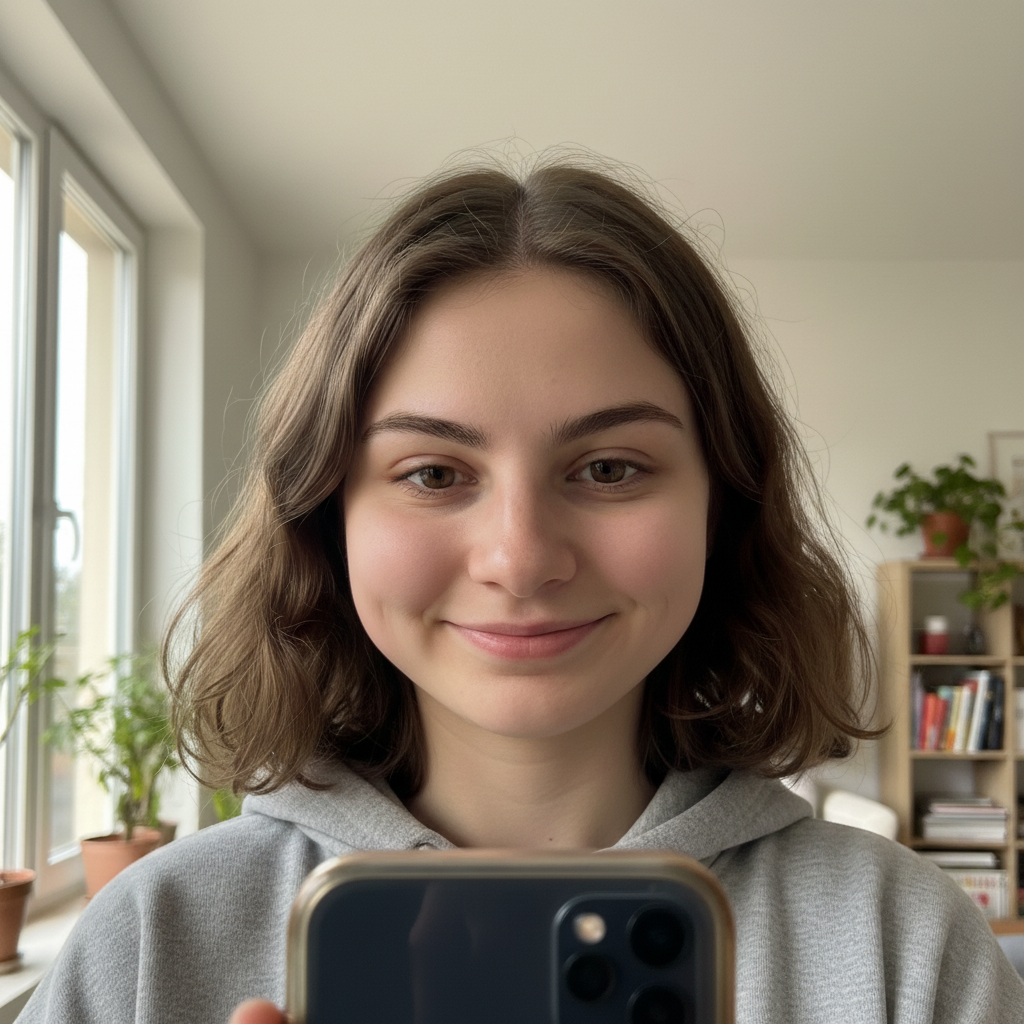
Woman with round, wide face shape
Before
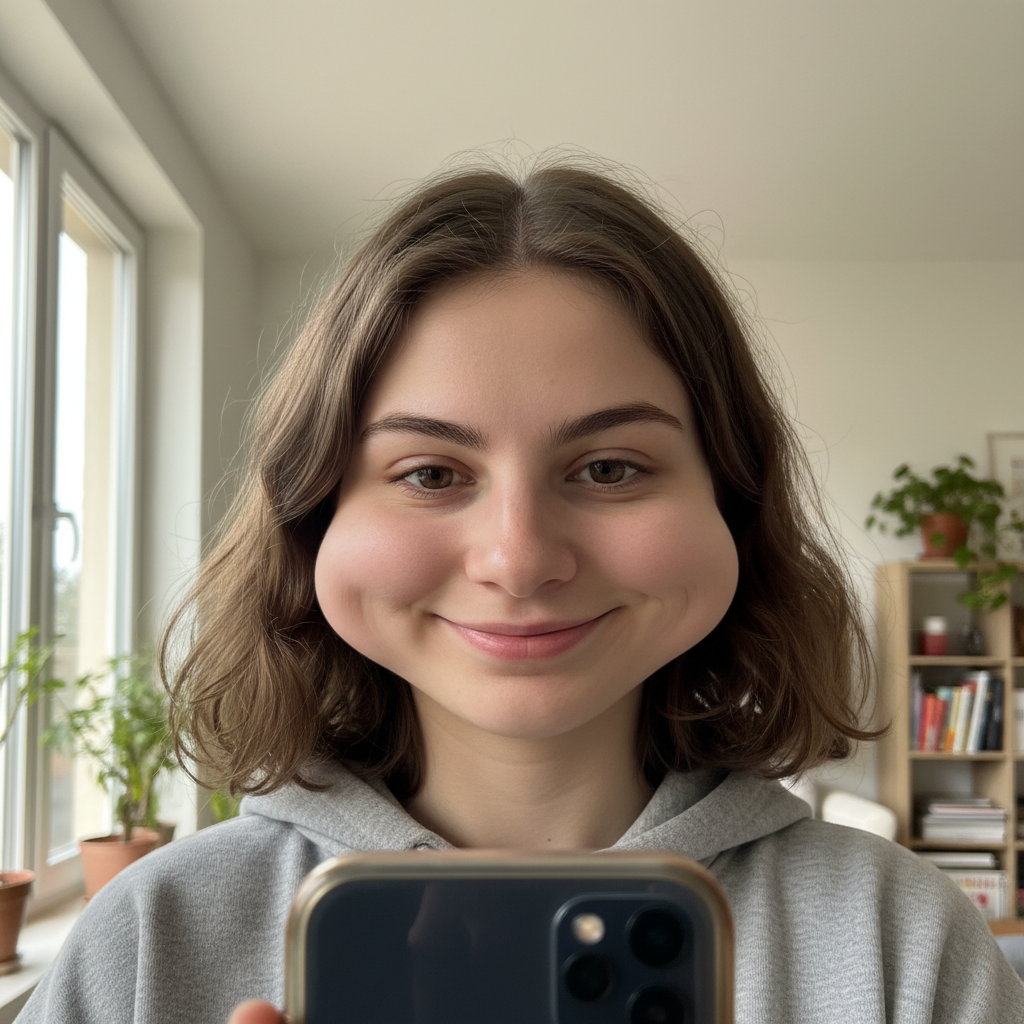
Same woman with subtly slimmed, more contoured face
After

AI Face Slimmer

Drop your photo here

or click to browse

Release to upload

Free • No signup

Advertisement
Popular use cases:
  • face slimming
  • face contouring photo
  • slim face in selfie
  • jawline definition
  • cheek reduction
  • face reshaping
  • double chin removal
  • portrait face editing

Cost
Free No signup required
Time
Instant results in 15-30 seconds
Works on
Any device - browser, phone, tablet, desktop
Powered by
AI-powered photo editing
Scenario Prompt Time
Subtle slimming slim the face slightly, keep it natural 30s
Jawline focus define the jawline for a sharper look 35s
Full face contouring slim cheeks, define jaw, reduce double chin 45s

How it works

  1. Upload your photo

    Drop your image into EditThisPic. JPG, PNG, WebP up to 7MB. Front-facing portraits with clear lighting show face slimming best. Both close-up and standard headshots work well.

    Expect: Subtle face slimming: 30-40 seconds. Significant reshaping with jawline work: 40-55 seconds and may need refinements.
  2. Describe the slimming you want

    Type what you want: 'slim the face slightly' or 'reduce the width of the face and add more jawline definition.' Be specific about areas—cheeks, jawline, chin, or overall width. No marking needed—the AI understands facial structure and proportions.

    Tip: Use 'slightly' for the most natural results. The best face slimming is when nobody can tell it was edited—small changes make the biggest difference.

    Copy one of these to get started:

    Subtle overall face slimming slim the face slightly for a more defined and contoured look while keeping it natural and proportional

    Reduce cheek width reduce the width of the cheeks to create a slimmer, more sculpted face shape
    Define the jawline slim the lower face and define the jawline for a sharper, more angular appearance
    Reduce double chin appearance slim the face and reduce the appearance of a double chin, create a cleaner jawline-to-neck transition
    3 more prompts
    Slim for group photo slim my face slightly in this group photo to look more like how I appear in person
    V-shape face contour contour the face to a V-shape - slimmer cheeks tapering down to a defined pointed chin
    Symmetrical slimming slim both sides of the face equally for a symmetrical, balanced slimmer appearance
  3. Review the result

    Check that the slimming looks natural and proportional. Zoom in to verify that ears, hair, and background haven't been distorted. Compare with the original to ensure the change is subtle enough to be believable.

  4. Refine with markers if needed

    If one side needs more slimming or the jawline needs further definition, tap a marker on that area and regenerate. Most face slimming works well on the first try without markers.

    Tip: Markers are for precision refinement only. Try without them first—you usually won't need them.
Try it free

AI Face Slimmer

Drop your photo here

or click to browse

Release to upload

Free • No signup

"I always felt my face looked rounder in photos than in person. This tool lets me slim it just enough to match how I actually look. The results are subtle and completely believable." @RealLook_Carlos

See it in action

Woman with round, wide face shape
Before
->
Same woman with subtly slimmed, more contoured face
After

Round face subtly contoured

A naturally round face slimmed for a more defined, contoured appearance in a headshot.

Prompt: slim the face slightly for a more defined and contoured look while keeping it natural and proportional

Man with soft jawline and fuller lower face
Before
->
Same man with defined jawline and slimmer face
After

Jawline defined for professional photo

A soft jawline enhanced with definition for a more structured professional appearance.

Prompt: slim the lower face and define the jawline for a sharper, more angular appearance
Advertisement

If something looks off

AI changed the wrong area or something I didn't want changed

Why: The AI slimmed features you wanted to keep, like ears, hair, or background objects near the face edge.

Try: Tap markers on only the face area you want slimmed, then regenerate: slim only the face, keep hair, ears, and background exactly the same

Tip: Markers tell the AI 'I mean THIS area specifically.' Use them when description alone is ambiguous.

Face looks distorted or warped after slimming

Why: The change was too dramatic for the original proportions, creating visible stretching or compression artifacts.

Try: slim the face very subtly - just a slight reduction in width, keep all proportions natural and undistorted

Tip: Smaller adjustments avoid warping. If you need more slimming, do two subtle edits rather than one dramatic one.

Background is warped near the face edges

Why: The slimming algorithm pushed surrounding pixels, causing visible distortion in the background adjacent to the face.

Try: slim the face while keeping the background completely undistorted and natural, no warping around the edges

Tip: 'Background undistorted' tells the AI to handle edge transitions cleanly without affecting surroundings.

Face slimming is uneven—one side looks different

Why: Different lighting or angles caused the AI to apply more slimming to one side than the other.

Try: slim both sides of the face equally and symmetrically, match the slimming amount on left and right

Tip: Specifying 'symmetrically' addresses the uneven application that happens with angled lighting.

Hair or ears look distorted after face slimming

Why: The slimming extended beyond the face boundary and pulled nearby hair or ears inward.

Try: slim only the face shape itself, preserve the exact original position and shape of hair and ears

Tip: 'Preserve exact original hair and ears' creates strict boundaries for where slimming is applied.

Quick answers

Do I need to mark the face before describing the slimming I want?

No! Just describe what you want: 'slim the face slightly' or 'define the jawline.' The AI understands facial structure and applies slimming proportionally. Only use markers if the slimming accidentally affected hair or background areas and you need to constrain the edit.

How do I slim a face in a photo without it looking edited?

Keep changes small by using 'slightly' or 'subtly' in your prompt. The most convincing face slimming removes just enough width to look like a more flattering angle rather than an obvious edit. If you need more change, do two rounds of subtle slimming rather than one dramatic one.

Is there a free AI face slimmer that doesn't require login?

Yes, EditThisPic is free to try with no account needed. Upload your photo, describe the face slimming you want, and download the result. No watermarks on outputs. Works for subtle contouring to significant reshaping without any signup.

What's the best free tool for slimming a face in photos?

EditThisPic offers free AI face slimming with no signup required. Unlike apps where you drag sliders or control points, just describe what you want. It handles cheek reduction, jawline definition, and overall face contouring with natural results in seconds.

Ready to slim your face in photos?

Free to try. No signup required.

Try it free