Free • No signup Convert Low poly art · Free

AI Low Poly Art Maker

Turn any photo into geometric low poly art with one simple description.

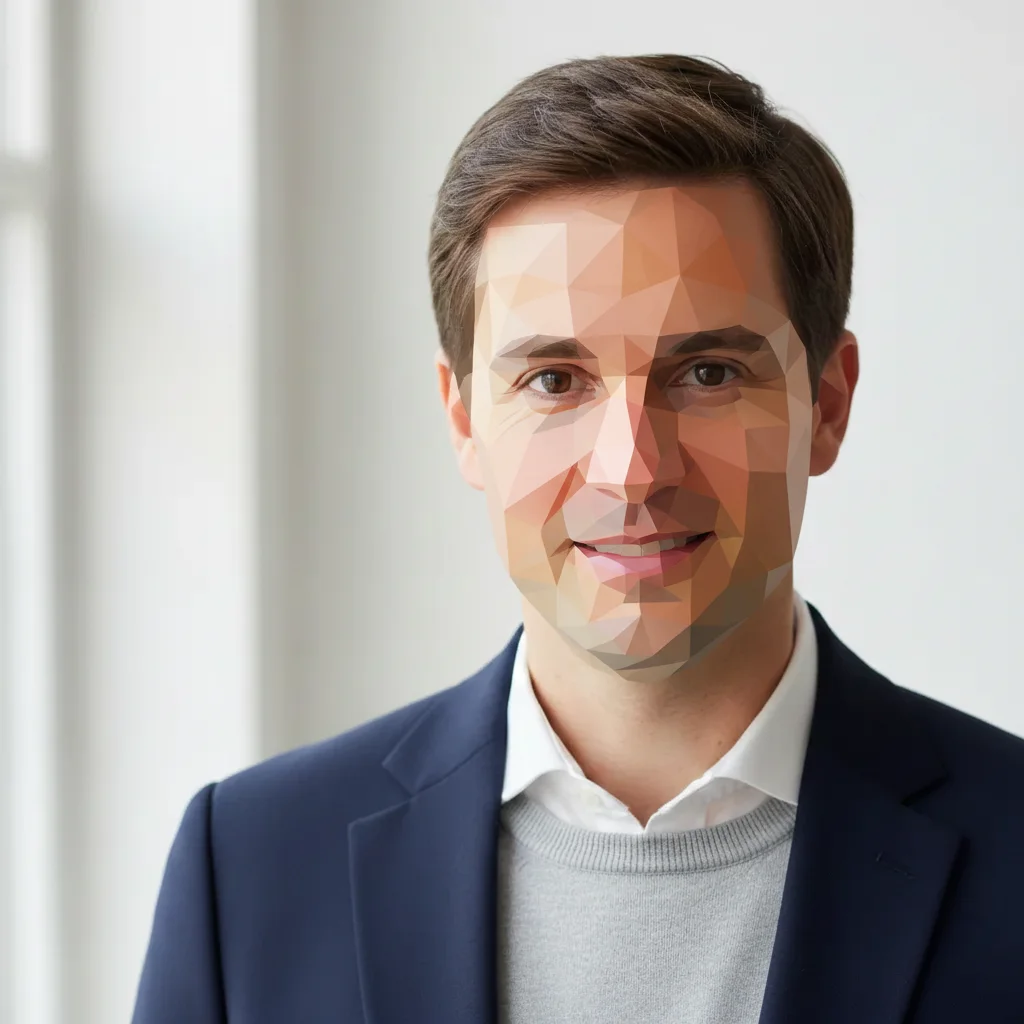
Original professional headshot before low poly conversion
Before
Headshot converted to colorful geometric low poly art
After

AI Low Poly Art Maker

Drop your photo here

or click to browse

Release to upload

Free • No signup

Advertisement
Popular use cases:
  • graphic design projects
  • social media posts
  • poster design
  • digital art
  • profile pictures
  • portfolio pieces
  • album covers
  • game art inspiration

Cost
Free No signup required
Time
Instant results in 15-30 seconds
Works on
Any device - browser, phone, tablet, desktop
Powered by
AI-powered photo editing
Scenario Prompt Time
Classic low poly portrait convert this portrait to low poly art style with colorful geometric triangles and visible facets 25s
Bold geometric landscape transform this landscape into low poly art with large chunky triangles and vibrant colors 25s
Detailed low poly convert to low poly style with fine detailed polygons that preserve image details 30s
High contrast geometric transform into angular low poly art with high contrast colors and sharp geometric edges 30s

How it works

  1. Upload your photo

    Drop your image into EditThisPic. JPG, PNG, WebP up to 7MB. Works best with photos that have clear subjects and good contrast. Portraits, landscapes, and objects all work well.

    Expect: Simple conversions: 20-30 seconds. Complex scenes with many details: 30-40 seconds for optimal polygon distribution.
  2. Describe the low poly style you want

    Type your instruction: 'convert to low poly art with colorful geometric triangles' or 'transform into angular low poly style with visible facets.' Be specific about polygon density (fine vs chunky) and color treatment. No marking needed—the AI understands 'low poly style' and applies it to the entire image.

    Tip: Specify polygon size for control: 'large chunky triangles' creates bold geometric shapes, 'fine detailed polygons' preserves more image detail.

    Copy one of these to get started:

    Classic low poly portrait convert this portrait to low poly art style with colorful geometric triangles and visible facets
    Landscape with bold geometry transform this landscape into low poly art with large chunky triangles and vibrant colors
    Detailed low poly with fine polygons convert to low poly style with fine detailed polygons that preserve image details
    High contrast geometric art transform into angular low poly art with high contrast colors and sharp geometric edges
    3 more prompts
    Dual-style low poly convert to low poly art keeping the subject detailed with fine polygons and heavy geometric triangles in the background
    Minimalist geometric style transform into minimalist low poly art with very large triangles and simplified color palette
    3D-style low poly convert to low poly 3D style with visible polygon edges and gradient shading on each facet
  3. Generate and review

    The AI analyzes your photo's structure, creates geometric triangulation, and applies the low poly aesthetic. Check the polygon distribution and color accuracy at full size. Verify edges are crisp and the geometric pattern is visible.

  4. Refine polygon density if needed

    If the polygon count is too high or too low, regenerate with adjusted instructions: 'use larger triangles for simpler look' or 'use finer polygons to preserve detail.' This is optional—most conversions work on the first try.

    Tip: For artistic effect, try 'emphasize geometry in the background' or 'keep subject more detailed, heavy low poly on background.'
Try it free

AI Low Poly Art Maker

Drop your photo here

or click to browse

Release to upload

Free • No signup

"Finally a tool that makes low poly art without hours of manual work. Just typed what I wanted and it nailed it." @designerfriend

See it in action

Original professional headshot before low poly conversion
Before
->
Headshot converted to colorful geometric low poly art
After

Portrait to Geometric Art

Transformed a headshot into colorful low poly art with visible triangular facets while preserving facial structure.

Prompt: convert this portrait to low poly art style with colorful geometric triangles and visible facets
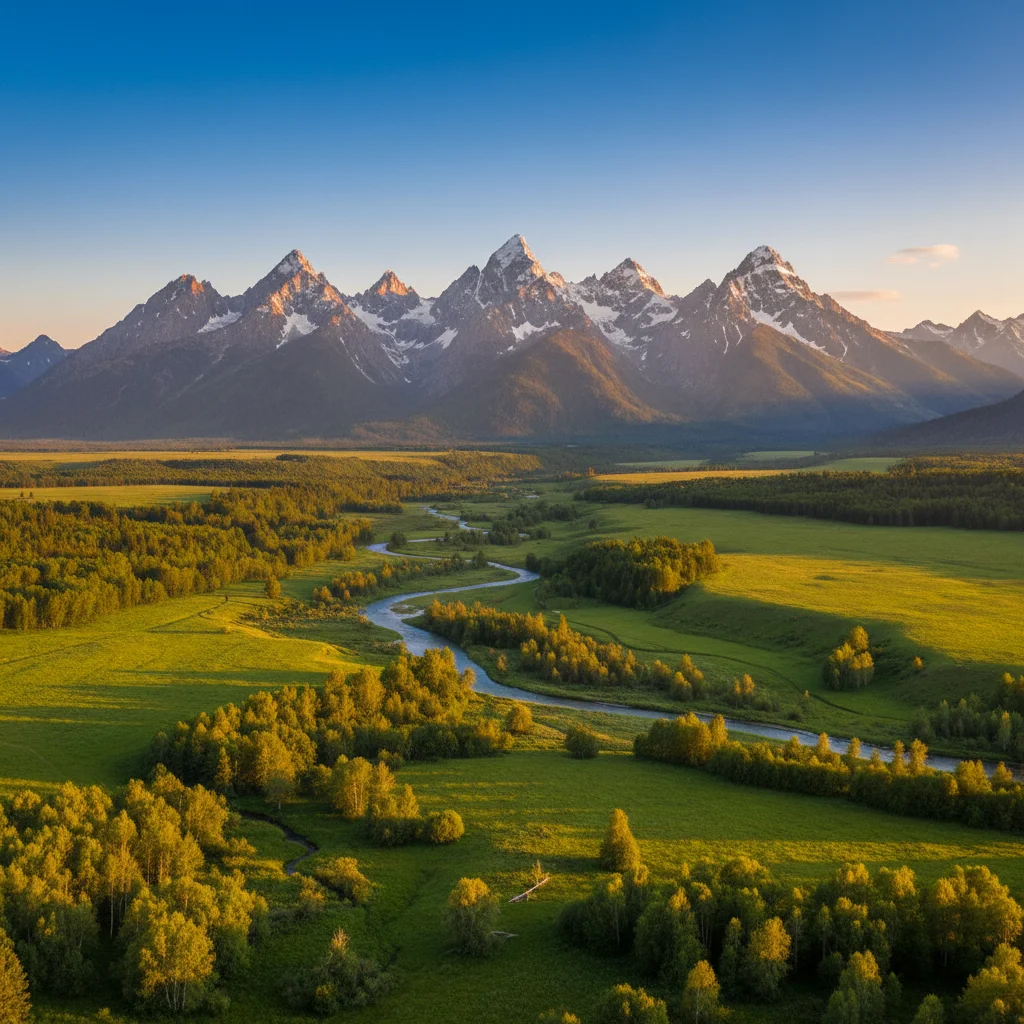
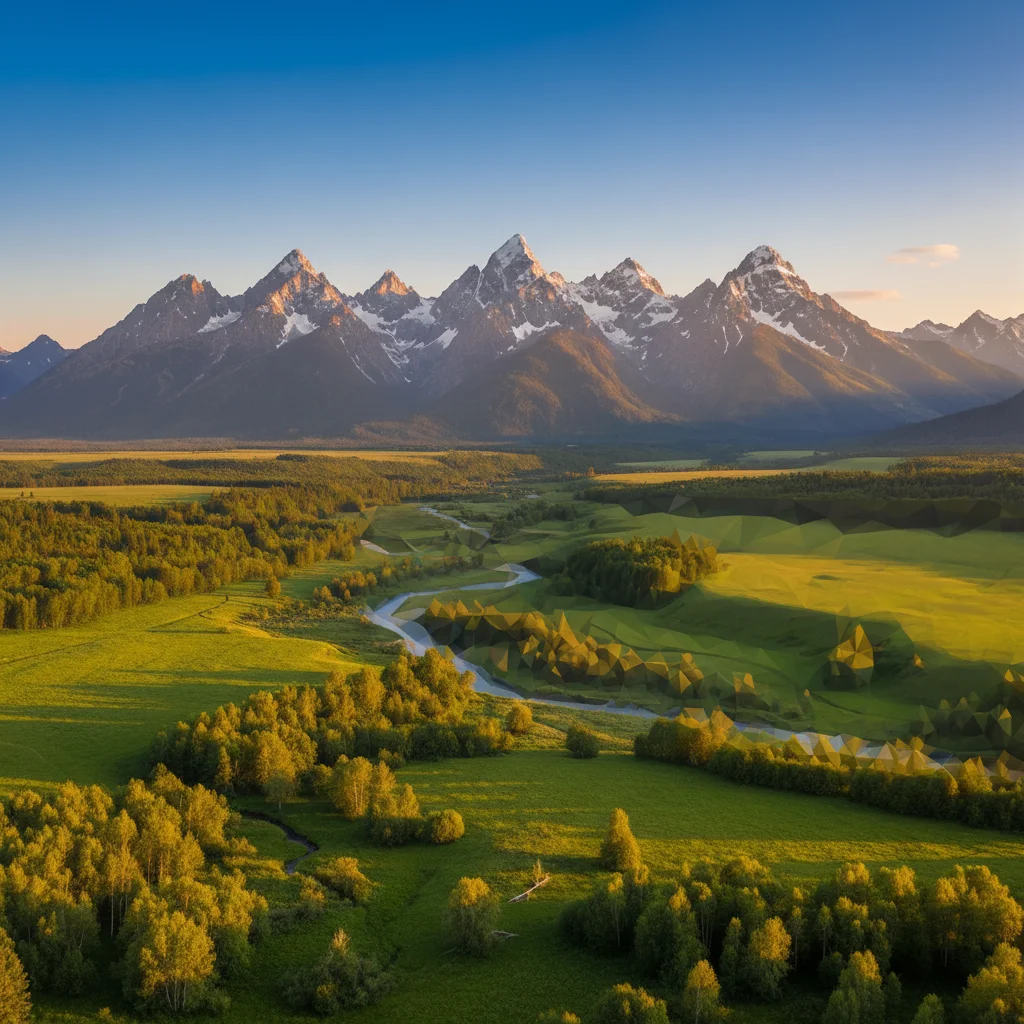
Mountain landscape before low poly conversion
Before
->
Landscape transformed into bold geometric low poly art
After

Landscape with Bold Triangles

Converted a mountain landscape into bold low poly art with large chunky triangles creating a modern poster aesthetic.

Prompt: transform this landscape into low poly art with large chunky triangles and vibrant colors
Urban cityscape before low poly conversion
Before
->
City scene converted to detailed geometric low poly art
After

Urban Scene with Fine Detail

Created detailed low poly art from a city photo using fine polygons that preserve architectural details while adding geometric style.

Prompt: convert to low poly style with fine detailed polygons that preserve image details
Advertisement

If something looks off

AI changed the wrong area or entire image looks wrong

Why: Low poly conversion applies to the entire image by default. If you want different polygon densities in different areas, you need to specify this in your prompt.

Try: Try: 'convert to low poly art keeping the subject detailed with fine polygons and heavy geometric triangles in the background' to create artistic focus.

Tip: Markers aren't useful for style conversions like low poly. Instead, describe the distribution in your prompt: 'more geometric in background, preserve detail in subject.'

Polygons are too large and image looks overly simplified

Why: The AI interpreted 'low poly' as very chunky triangles, losing too much detail from the original photo.

Try: Regenerate with: 'convert to low poly art with medium-sized triangles that balance geometry with image detail' or specify 'fine detailed polygons.'

Tip: Polygon size dramatically affects the result. 'Fine' polygons keep detail, 'chunky' or 'large' creates bold abstract art.

Polygons are too small and geometric effect isn't visible

Why: Too many small polygons make the result look like a slightly abstracted photo rather than distinct low poly art.

Try: Request larger geometry: 'transform into low poly art with large visible triangles and bold facets' to make the geometric style prominent.

Tip: Low poly art should be obviously geometric. If triangles aren't immediately visible, they're too small.

Colors look washed out or don't match original

Why: The polygon fill algorithm averaged colors across large areas, reducing saturation or shifting tones.

Try: Try: 'convert to low poly art with vibrant colors and high saturation in each triangle' to boost color intensity.

Tip: Specify color treatment: 'vibrant colors', 'high contrast', or 'preserve original color tones' guides the AI's color fill.

Edges between polygons look blurry or anti-aliased

Why: The rendering smoothed polygon edges instead of keeping them sharp, reducing the crisp geometric aesthetic.

Try: Request: 'convert to low poly art with sharp crisp edges between triangles and no anti-aliasing' for clean geometric boundaries.

Tip: Sharp edges are essential for low poly art. If edges look soft, explicitly ask for 'sharp geometric edges' or 'visible polygon boundaries.'

Important facial features got distorted in portrait

Why: Large polygons across facial features can merge details like eyes or mouth, creating unintended distortion.

Try: Use finer polygons for portraits: 'convert portrait to low poly art with fine triangles on the face to preserve features' maintains recognizability.

Tip: Portraits need finer polygon density than landscapes. Always specify 'preserve facial features' or 'fine detail on face' for portrait low poly art.

Quick answers

Do I need to mark areas before converting to low poly art?

No! Just describe the style you want: 'convert to low poly art with colorful triangles' or 'transform into geometric low poly style.' The AI applies the effect to the entire image. Markers don't help with style conversions—use your prompt to specify polygon density and color treatment instead.

How do I control how geometric or detailed the result looks?

Specify polygon size in your prompt. 'Large chunky triangles' creates bold abstract art. 'Fine detailed polygons' preserves more original image detail. 'Medium-sized triangles' balances geometry and recognizability. You can also request different densities for different areas: 'heavy geometry in background, fine detail on subject.'

What's the best type of photo for low poly conversion?

Photos with clear subjects and good contrast work best. Portraits with simple backgrounds, landscapes with distinct elements, and objects with defined shapes all convert well. Busy photos with lots of small details may need finer polygons to remain recognizable. Good lighting helps the AI create better color distribution across polygons.

Can I create 3D-looking low poly art like game models?

Yes. Request 'convert to low poly 3D style with visible polygon edges and gradient shading on each facet.' This creates depth and mimics 3D rendering. Adding 'with light source from upper left' or similar lighting direction enhances the 3D effect. The result looks like a 3D model render rather than flat geometric art.

Is there a free low poly art maker that doesn't need software installation?

Yes. EditThisPic is a free browser-based low poly art maker with no signup or installation required. Just upload your photo, describe the low poly style you want, and download the result. Unlike desktop software that requires manual polygon creation, our AI handles the triangulation automatically. First conversion is free with no account needed.

Ready to create low poly art from your photos?

Free to try. No signup required.

Try it free