Free • No signup Edit Photos for TikTok · Free

AI TikTok Photo Editor

Describe the vibe you want and AI makes your photo TikTok-ready. No apps needed.
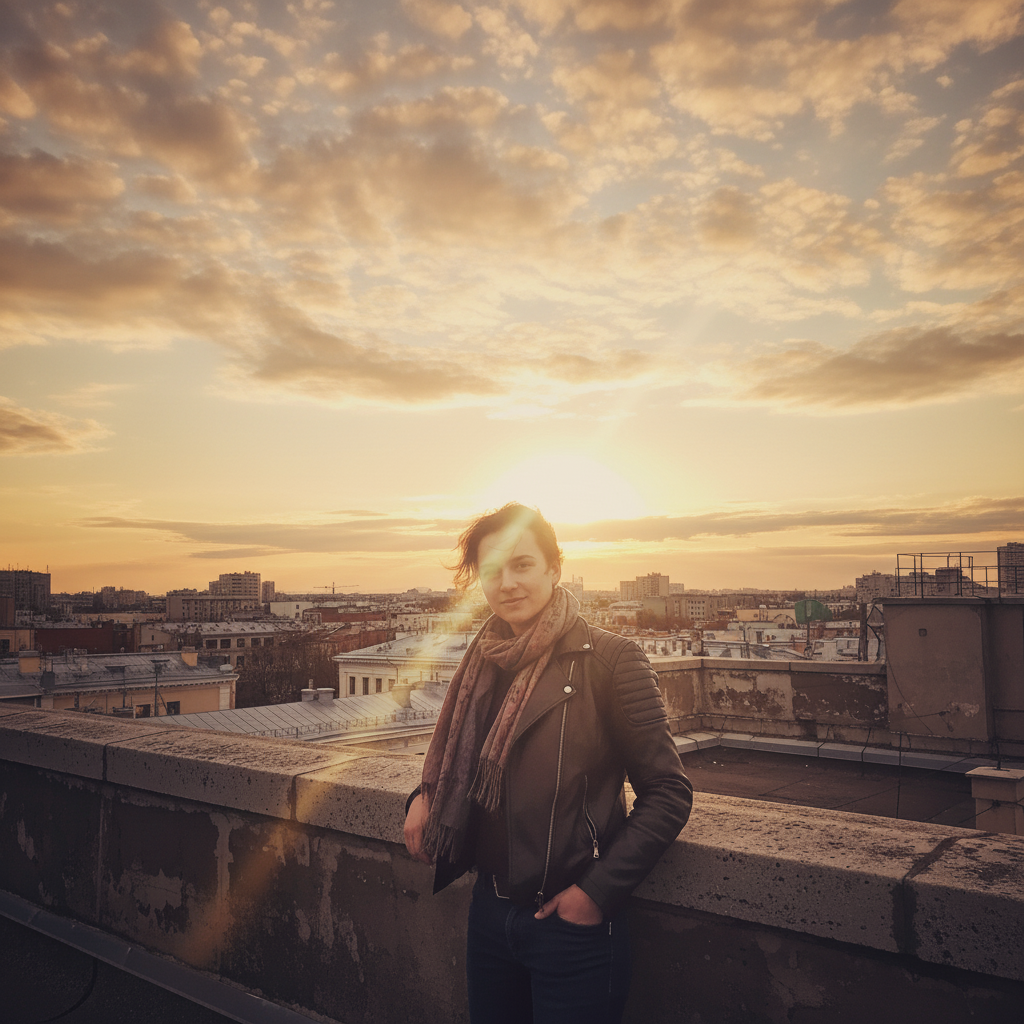
Plain selfie with flat colors and poor lighting
Before
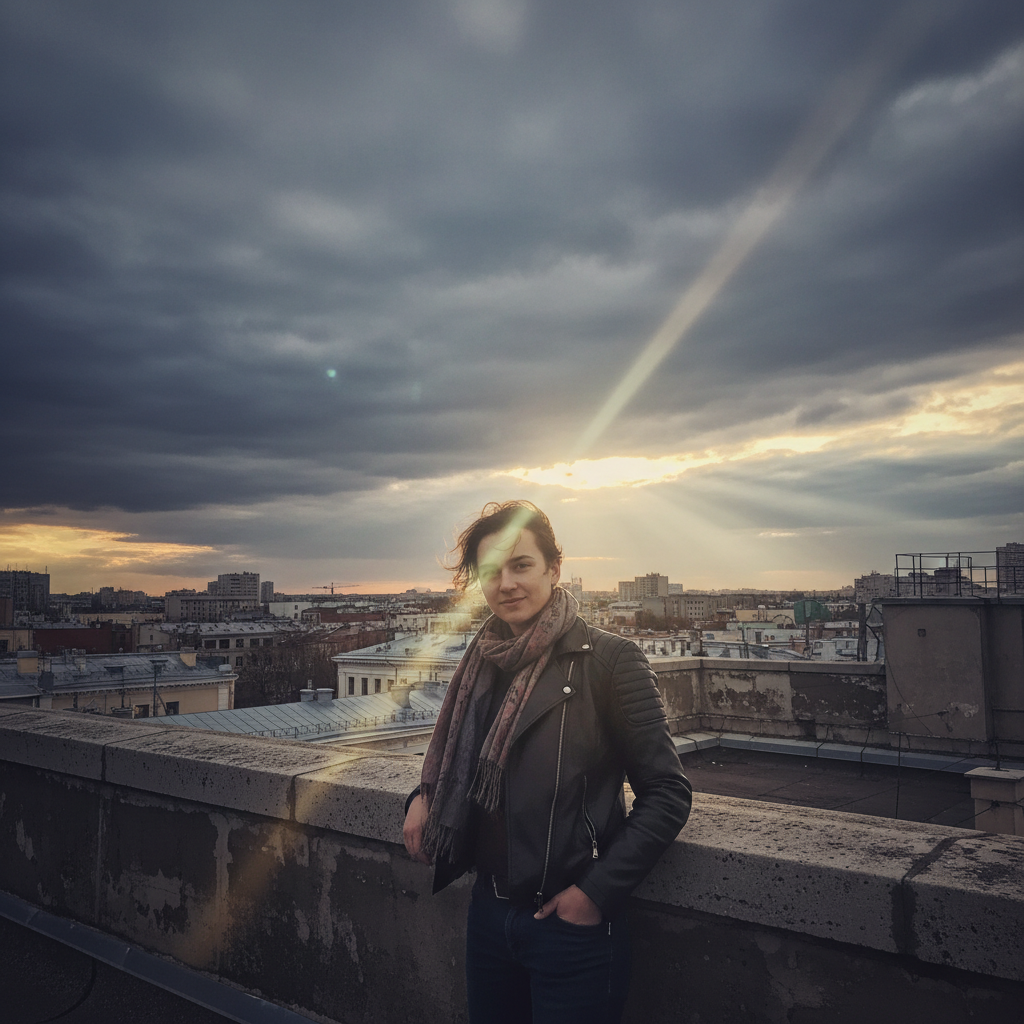
Same selfie with bold vibrant TikTok-ready colors and high contrast
After

AI TikTok Photo Editor

Drop your photo here

or click to browse

Release to upload

Free • No signup

Advertisement
Popular use cases:
  • TikTok photo editing
  • TikTok photo carousel
  • TikTok video cover
  • TikTok content creation
  • social media photo editing
  • TikTok aesthetic
  • photo slideshow editing
  • TikTok creator tools

Cost
Free No signup required
Time
Instant results in 15-30 seconds
Works on
Any device - browser, phone, tablet, desktop
Powered by
AI-powered photo editing
Scenario Prompt Time
Quick color boost make this pop with bold vibrant colors for TikTok 20s
Trending aesthetic add soft dreamy glow with warm pastel tones 35s
Cinematic style dark moody tones with cinematic color grading 40s

How it works

  1. Upload your photo

    Drop your image into EditThisPic. JPG, PNG, WebP up to 7MB. Vertical photos work best for TikTok. Clear, well-lit shots give the most striking transformations.

    Expect: Quick color boosts: 20-30 seconds. Full style transformations: 35-50 seconds and may need refinements.
  2. Describe the TikTok look you want

    Type your instruction: 'make this photo bold and vibrant with high contrast for TikTok' or 'give this a soft dreamy glow with pastel tones.' Be specific about the energy and mood. No marking needed—the AI understands style descriptions naturally.

    Tip: TikTok rewards bold visuals. Use words like 'punchy', 'vibrant', 'high contrast', or 'neon glow' for scroll-stopping results.

    Copy one of these to get started:

    Bold scroll-stopping look make this photo pop with bold vibrant colors, high contrast, and sharp details for TikTok
    Soft aesthetic glow give this photo a soft dreamy glow with warm pastel tones and gentle light leak effect for TikTok
    Dark moody edit for storytelling transform this photo with dark moody tones, deep shadows, and cinematic color grading for TikTok
    Clean bright product showcase brighten this product photo with clean white tones, crisp shadows, and vivid product colors for TikTok
    3 more prompts
    Retro Y2K aesthetic add a retro Y2K aesthetic to this photo with pink and purple tint, slight blur edges, and sparkle effect for TikTok
    High energy sports or action shot enhance this action photo with intense contrast, sharpened motion details, and dynamic color boost for TikTok
    Before/after transformation cover make the left half of this photo look plain and unedited, and the right half vibrant and polished for a TikTok before-after
  3. Review the result

    Check that the photo grabs attention even at thumbnail size. TikTok photos need to stand out in a fast-scrolling feed. Look for strong colors, clear subjects, and eye-catching contrast.

  4. Refine with markers if needed

    If specific areas like the subject's face or the background need different treatment, tap markers on those spots and regenerate. Most TikTok edits work on the first try without markers.

    Tip: Markers are for precision refinement only. Try without them first—you usually won't need them.
Try it free

AI TikTok Photo Editor

Drop your photo here

or click to browse

Release to upload

Free • No signup

"My TikTok photo carousels used to get buried. Started using this to punch up the colors and add that eye-catching look. Views went from hundreds to thousands overnight." @TikTok_CreatorAlex

See it in action

Plain selfie with flat colors and poor lighting
Before
->
Same selfie with bold vibrant TikTok-ready colors and high contrast
After

Flat selfie to bold TikTok cover

A plain selfie transformed into a vibrant, scroll-stopping TikTok photo with punchy colors and sharp contrast.

Prompt: make this photo pop with bold vibrant colors, high contrast, and sharp details for TikTok
Dark underexposed food photo with muted colors
Before
->
Same food photo brightened with vivid appetizing colors
After

Ordinary food shot to TikTok-worthy

A bland food photo made vibrant and appetizing for a TikTok food review with enhanced colors and sharpness.

Prompt: brighten this product photo with clean white tones, crisp shadows, and vivid product colors for TikTok
Advertisement

If something looks off

AI changed the wrong area or something I didn't want changed

Why: The AI couldn't determine exactly which area you meant from description alone. This happens when you want selective edits on specific parts of the photo.

Try: Tap a marker on the specific area you want to change, then regenerate with the same prompt

Tip: Markers tell the AI 'I mean THIS area specifically.' Use them when description alone is ambiguous.

Colors look garish or oversaturated

Why: TikTok-style prompts push the AI toward maximum vibrancy, which can overshoot on already colorful photos.

Try: enhance colors moderately with natural vibrance, keep skin tones realistic while making the photo pop for TikTok

Tip: 'Moderately' and 'natural vibrance' dial back the intensity without losing the TikTok energy.

Photo lost detail and looks blurry after style change

Why: Some style effects like glow or blur can soften important details, especially at lower resolutions.

Try: apply the [style] effect but keep the subject sharp and detailed, only soften the background

Tip: Adding 'keep the subject sharp' preserves important details while still applying the creative effect.

Edit looks good on desktop but not on phone screen

Why: Phone screens display colors differently, and small screens amplify contrast. Effects visible on desktop may look excessive on mobile.

Try: apply a subtle version of [the effect] with moderate contrast and slightly reduced saturation

Tip: Preview at actual TikTok size (phone-width) before finalizing. Subtle usually wins on small screens.

Result doesn't match the trending TikTok aesthetic I wanted

Why: Vague trend references produce inconsistent results. The AI needs specific visual details, not just trend names.

Try: Be more specific about the visual: 'warm pink and orange tint, soft focus edges, slightly overexposed highlights' instead of just 'trending aesthetic'

Tip: Break down any trend into its visual components: color, contrast, focus, and lighting direction.

Quick answers

Do I need to mark areas before describing the edit I want?

No! Just describe the look you want: 'make this bold and vibrant for TikTok' or 'add a soft dreamy glow.' The AI applies the style across the entire image intelligently. Only use markers if you want different treatments for different parts—like keeping the subject sharp while blurring the background.

How do I make my photos look good for TikTok without editing apps?

Upload your photo to EditThisPic and describe the look in plain words. Say 'bold vibrant colors with high contrast' or 'soft pastel aesthetic with glow.' The AI handles color grading, contrast, and effects automatically. No app to download, no filters to scroll through. Works in your browser for free.

Is there a free TikTok photo editor that doesn't require login?

Yes, EditThisPic is free to try with no account needed. Upload your photo, describe the TikTok aesthetic you want, and download the result. No watermarks on outputs. Perfect for photo carousels, video covers, and profile pictures.

What's the best free tool for making TikTok photo slideshows look professional?

EditThisPic lets you describe any visual style in plain language. Unlike filter apps with limited presets, you can match any trending aesthetic by describing it. Each photo gets individually optimized rather than having the same filter slapped on every image.

Ready to edit your photos for TikTok?

Free to try. No signup required.

Try it free