Free • No signup Fix Closed eyes photo · Free

Only good photo but eyes closed?

Your best shot has closed eyes? AI can open them naturally—no retakes needed.
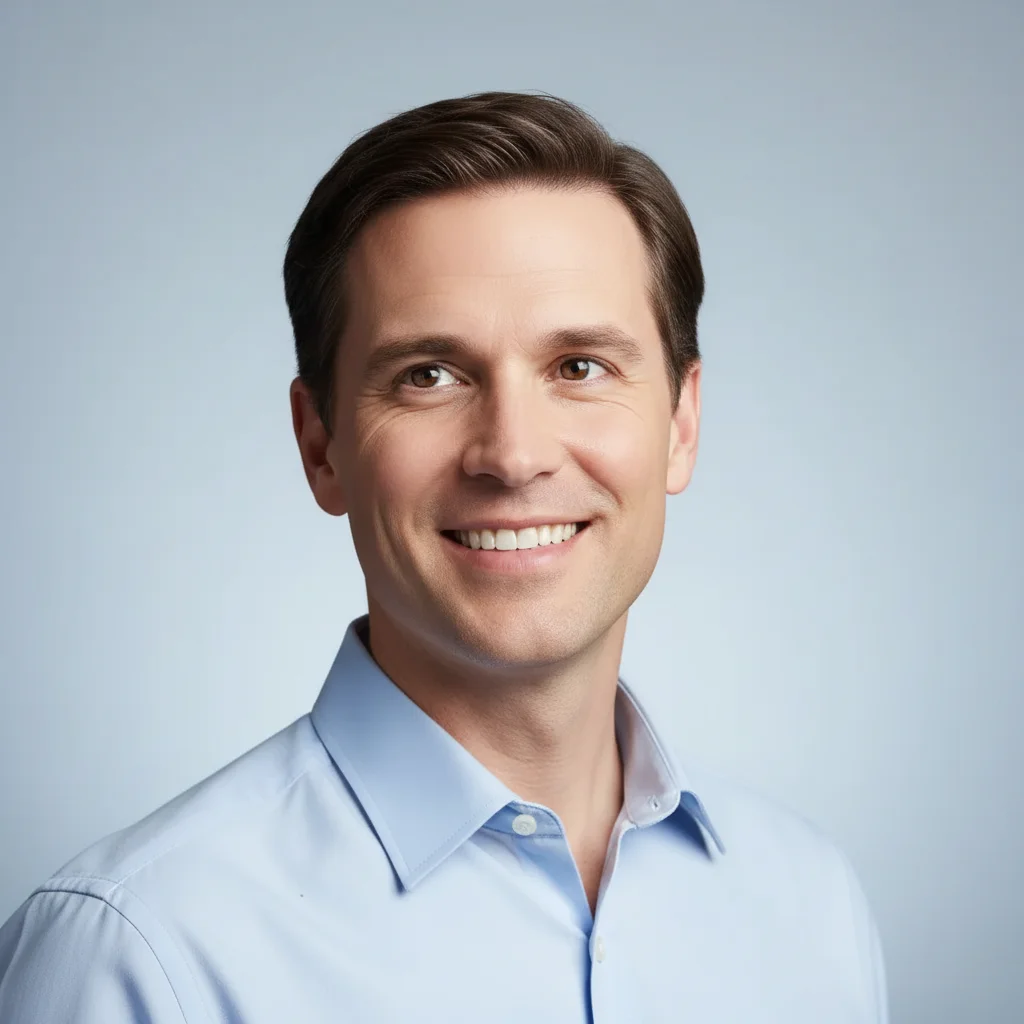
Professional headshot with eyes completely closed
Before
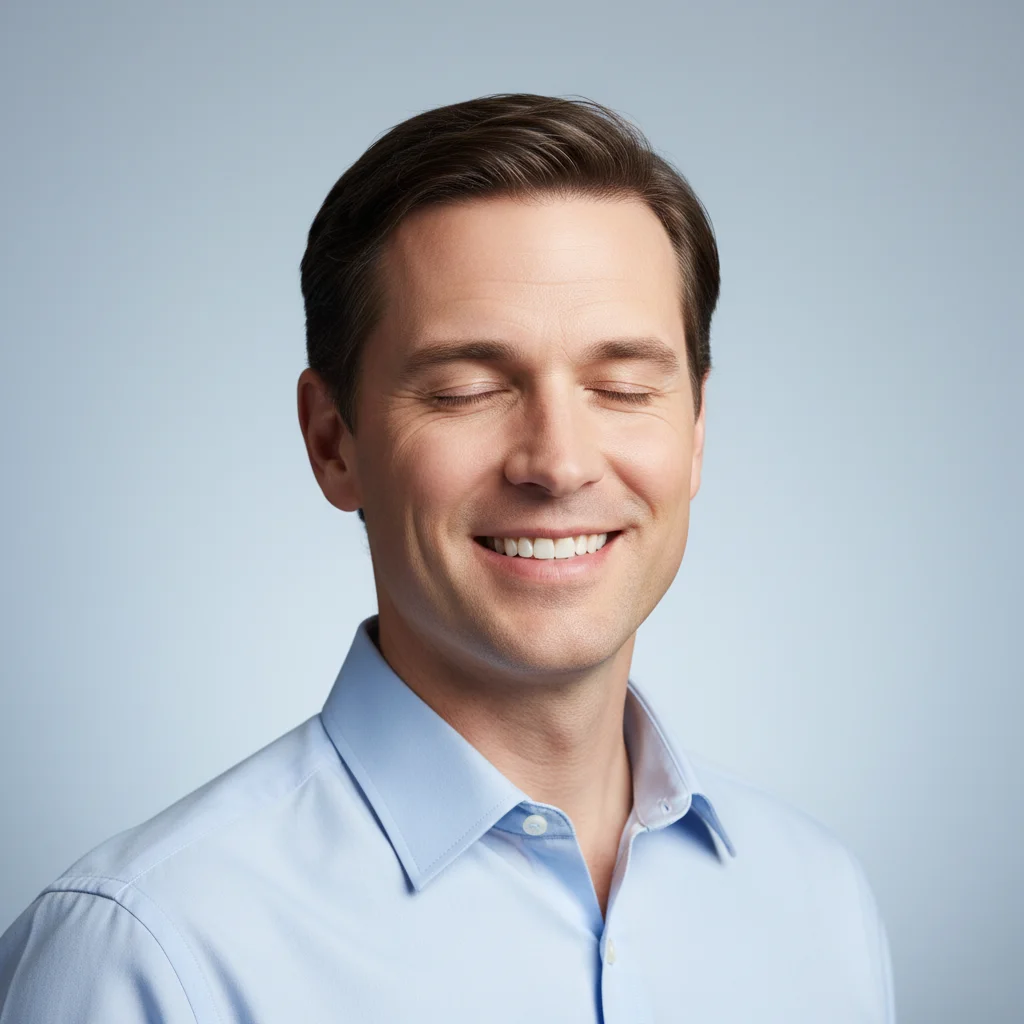
Same headshot with eyes naturally opened, professional gaze
After

Only Good Photo But Eyes Closed? Open Them | EditThisPic

Drop your photo here

or click to browse

Release to upload

Free • No signup

Advertisement
Popular use cases:
  • Fix closed eyes in photo
  • Open eyes in headshot
  • LinkedIn profile photo
  • Resume headshot
  • Dating app photo fix
  • Professional photo rescue
  • Event photography fix

Cost
Free No signup required
Time
Instant results in 15-30 seconds
Works on
Any device - browser, phone, tablet, desktop
Powered by
AI-powered photo editing
Scenario Prompt Time
Professional headshot open eyes with professional, confident gaze 25s
Casual portrait open eyes with natural, relaxed expression 20s
Group photo (one person) open the eyes of person in center, keep others same 30s
Half-closed/squinting fully open eyes and fix squint 25s

How it works

  1. Upload your photo

    Drop your image into EditThisPic. JPG, PNG, WebP up to 7MB. Works on any photo where eyes are closed—headshots, portraits, selfies, group photos, event shots.

    Expect: Simple headshots: 20-30 seconds. Multiple people or challenging lighting: 40-60 seconds.
  2. Describe what you want

    Type 'open the closed eyes' or 'make eyes open and natural.' The AI identifies the closed eyes, reconstructs realistic open eyes matching your face shape, lighting, and angle. No marking needed—the AI understands 'eyes' means the closed ones.

    Tip: For more control, specify 'open eyes with natural expression' or 'open eyes looking at camera' to guide the style.

    Copy one of these to get started:

    Only headshot but I blinked open the closed eyes and make them look natural
    Professional photo for LinkedIn or resume open eyes with a professional, confident gaze looking at camera
    Casual photo where I just happened to blink open eyes with a natural, relaxed expression
    Dating app photo where I look good except eyes open eyes and make them bright and engaging
    3 more prompts
    Group photo where only I have eyes closed open the eyes of the person in the center/left/right, keep everyone else unchanged
    Eyes half-closed or squinting fully open the eyes and fix the squint
    Eyes closed plus need other fixes open eyes and improve overall lighting and sharpness
  3. Review the result

    Check that eyes look natural and realistic—proper eye shape, natural gaze direction, consistent lighting and color. Zoom in to verify pupils, reflections, and eyelid details look convincing.

  4. Refine if needed (optional)

    If eyes look slightly off or gaze direction isn't right, try 'adjust eyes to look more natural' or 'fix eye gaze to look at camera.' For group photos where multiple people have eyes closed, tap markers on each face and regenerate.

    Tip: If the AI opened the wrong person's eyes or missed someone, tap a marker on their face and say 'open this person's eyes.'
Try it free

Only Good Photo But Eyes Closed? Open Them | EditThisPic

Drop your photo here

or click to browse

Release to upload

Free • No signup

"Only decent headshot from my event and I blinked. This saved me from having to schedule another photoshoot. Eyes look completely natural." @LinkedInReady

See it in action

Professional headshot with eyes completely closed
Before
->
Same headshot with eyes naturally opened, professional gaze
After

LinkedIn headshot with eyes closed

Professional headshot taken at a networking event. Only good photo from the day but eyes were closed. AI opened them naturally with a confident professional gaze.
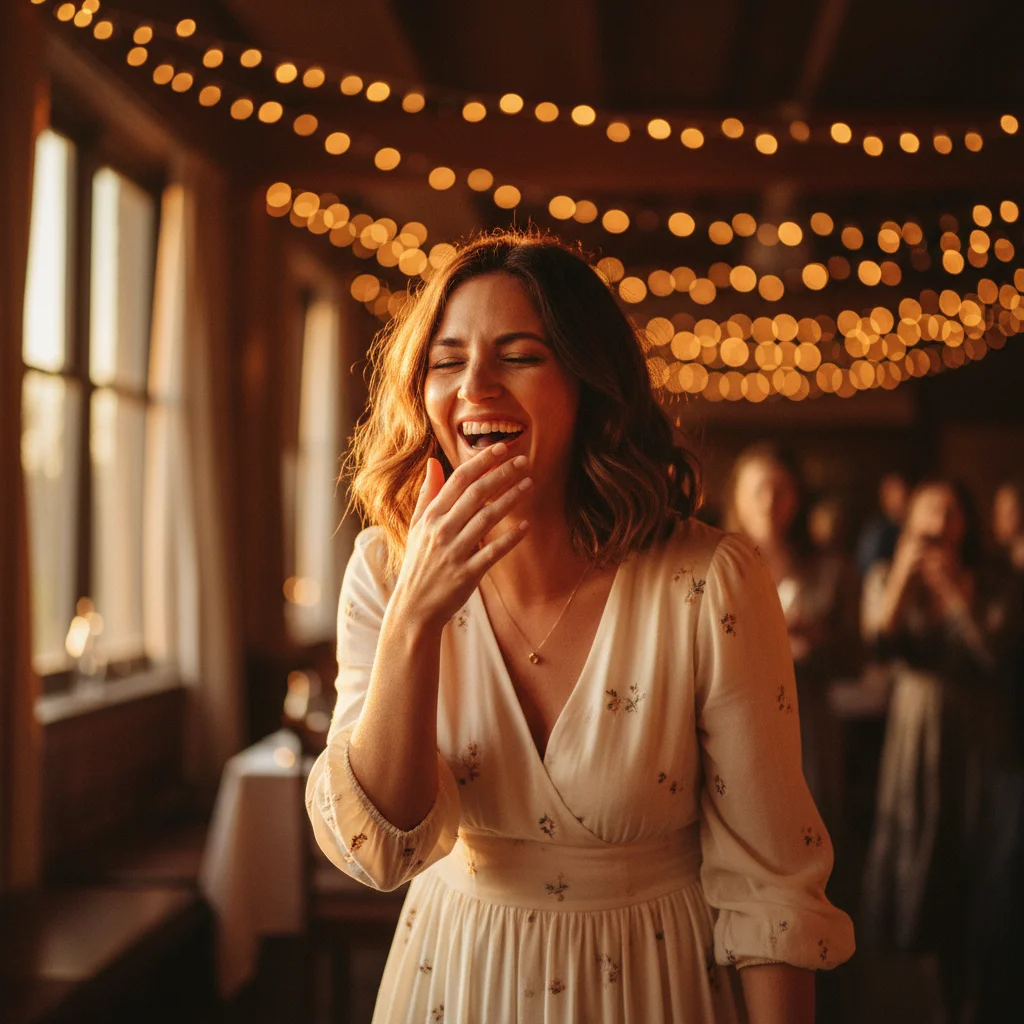
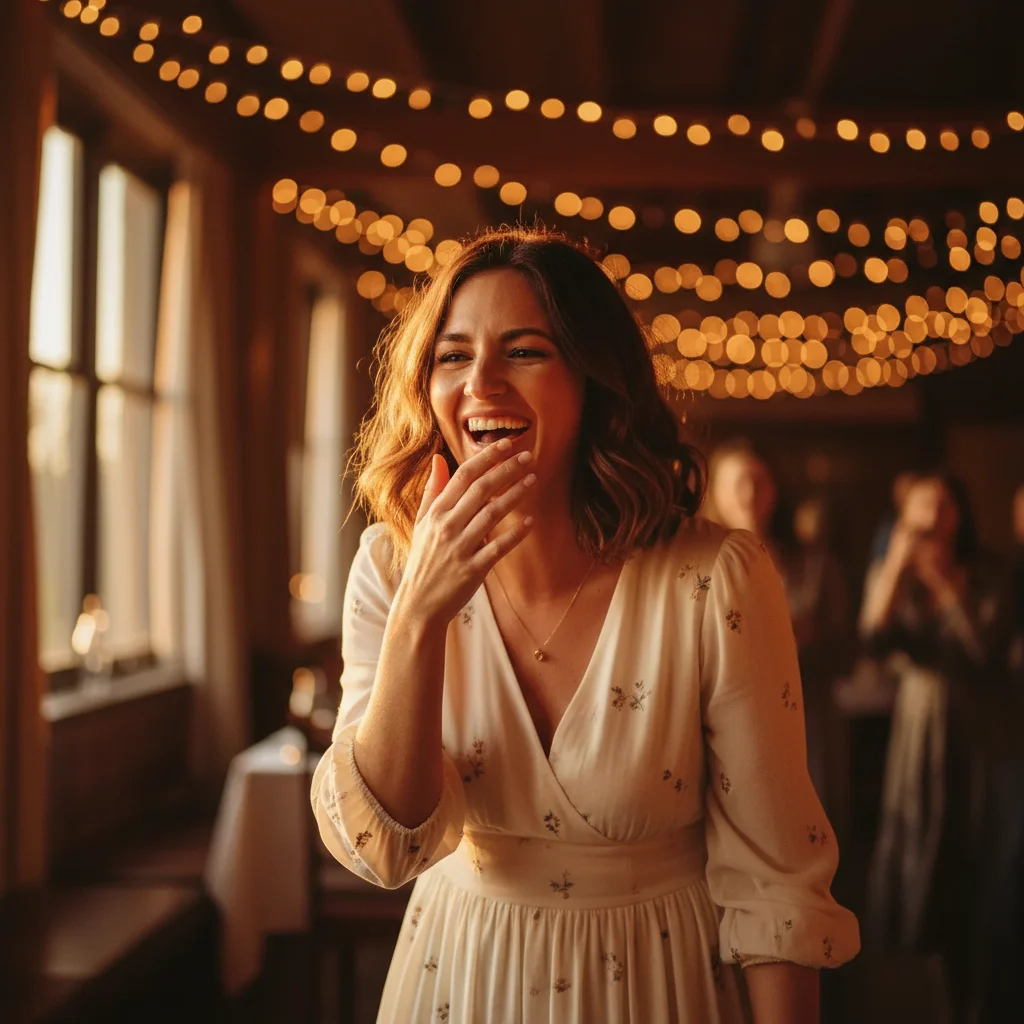
Prompt: open the closed eyes and make them look natural
Candid celebration photo with eyes closed from laughing
Before
->
Same photo with eyes naturally opened, maintaining joyful expression
After

Event photo with perfect lighting but blinked

Candid photo at a celebration with great composition and lighting. Only problem was closed eyes from blinking. One prompt fixed it while keeping the natural candid feel.

Prompt: open eyes with a natural, relaxed expression
Advertisement

If something looks off

Eyes look unnatural, robotic, or don't match my face

Why: The AI struggled to accurately reconstruct eye shape, color, or style for your specific face. This can happen with unusual lighting, angles, or if the source photo quality is low.

Try: open eyes more naturally, match my eye shape and color exactly as they appear in other parts of the photo

Tip: Try Smart mode (4 credits) for more realistic eye reconstruction, especially for challenging angles or lighting.

Eyes are looking in the wrong direction

Why: The AI chose a gaze direction that doesn't match the pose or context of the photo.

Try: open eyes and make them look directly at camera, natural forward gaze

Tip: Be explicit about gaze direction: 'looking at camera,' 'looking slightly left,' or 'looking straight ahead.'

AI didn't open anyone's eyes at all

Why: The photo may have multiple faces or the AI couldn't identify which person's eyes you meant. Or eyes may be partially open already.

Try: tap a marker on the face with closed eyes, then type 'open this person's eyes'

Tip: When descriptions fail, markers pinpoint exactly which face to work on. Essential for group photos.

Eye color or reflections look wrong

Why: The AI guessed at details like pupil reflections or iris color without enough visible reference in the original photo.

Try: adjust eye color to match [specify color like brown/blue/green], fix lighting reflections in pupils

Tip: If you have another photo showing your eye color, reference it: 'use [color] eyes like I actually have.'

One eye looks good but the other looks off

Why: Asymmetric angles or lighting can cause the AI to reconstruct one eye better than the other.

Try: fix the left/right eye to match the natural appearance of the other eye

Tip: Tap a marker specifically on the problematic eye to target just that one for refinement.

Quick answers

Do I need to mark my eyes before asking to open them?

No. Just type 'open the closed eyes' or 'make eyes open' and the AI finds and opens them automatically. Markers are only needed in group photos when you want to specify which person's eyes to open, or if the AI doesn't recognize the closed eyes on the first try.

Will the opened eyes look realistic and natural?

Yes, when done well. The AI reconstructs eye shape, color, gaze direction, and lighting to match your face and the photo's context. Results work best on clear, well-lit headshots. For challenging angles or low-light photos, you may need refinement or Smart mode for better realism.

Can this work on photos where multiple people have eyes closed?

Yes. You can say 'open all closed eyes in this photo' to fix everyone at once, or tap markers on each face individually and say 'open this person's eyes' for more control. Processing each person separately usually gives better results in group shots.

What if my eyes were only half-closed or squinting, not fully shut?

The AI can still help. Try 'fully open the eyes and fix squint' or 'open eyes wider and more naturally.' This works for mid-blink shots, half-closed eyes, or uncomfortable squinting from bright sun.

Will this work for professional headshots for LinkedIn or resumes?

Yes. Use 'open eyes with professional, confident gaze looking at camera' to get a business-appropriate result. The key is ensuring eyes look natural, alert, and engaged—perfect for professional contexts where you need to look your best.

Ready to fix your best photo?

Free to try. No signup required.

Try it free