Free โ€ข No signup Fix Photo for company newsletter ยท Free

Fix Photo for Company Newsletter

Marketing approved your photo for the newsletter - but that background has to go.
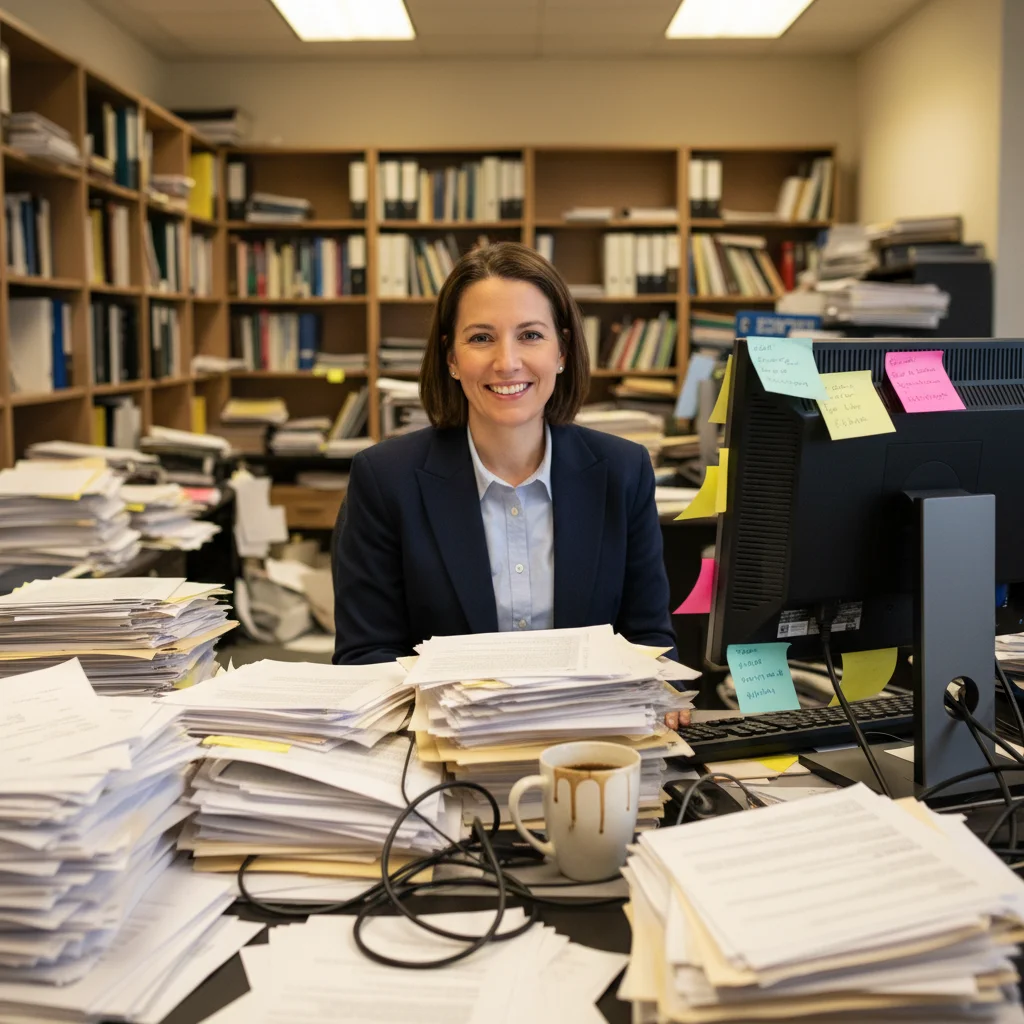
Employee at messy desk with papers, cables, and clutter visible
Before
โ†’
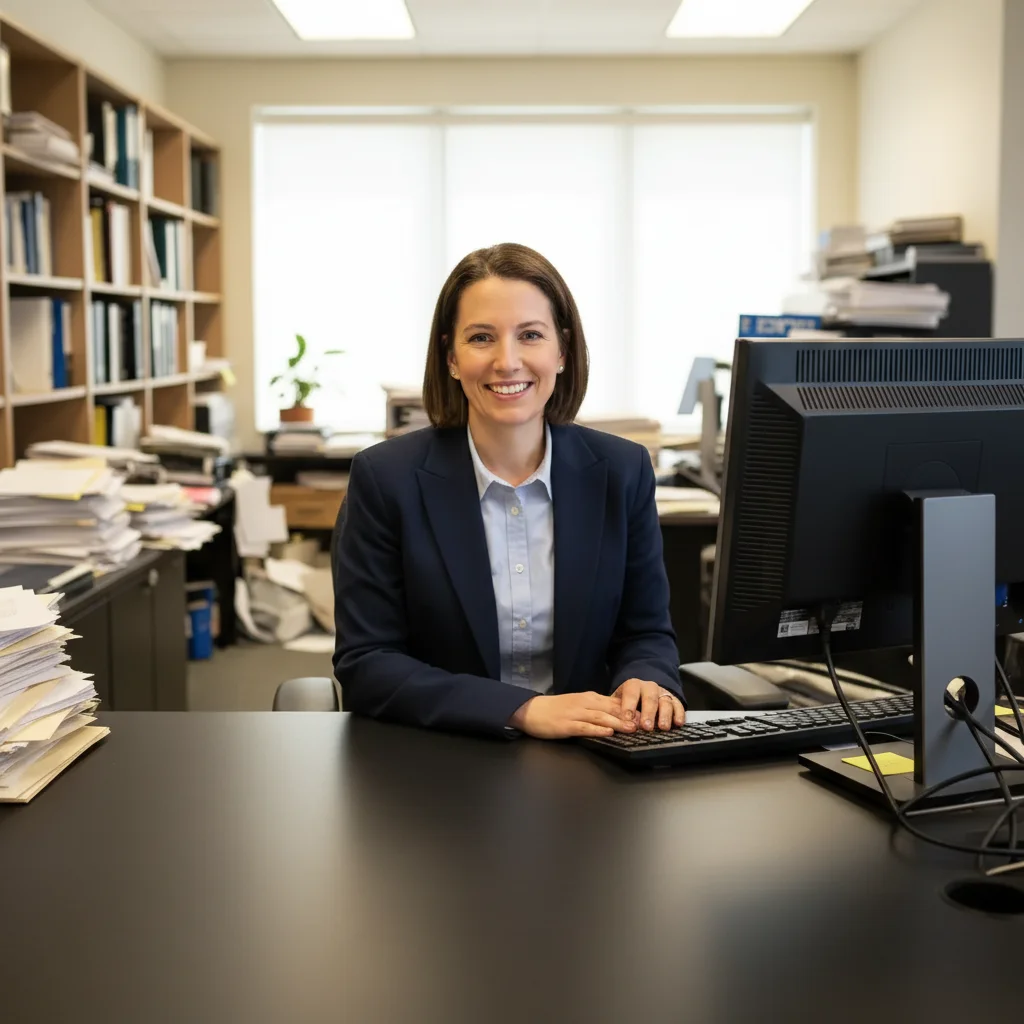
Clean professional photo with organized desk and neutral office background
After

Fix Photo for Company Newsletter

Drop your photo here

or click to browse

Release to upload

Free โ€ข No signup

Advertisement
Popular use cases:
  • company newsletter photo
  • employee spotlight photo
  • internal communications photo
  • corporate newsletter image
  • team announcement photo
  • office newsletter picture
  • employee feature photo
  • company publication photo

Cost
Free No signup required
Time
Instant results in 15-30 seconds
Works on
Any device - browser, phone, tablet, desktop
Powered by
AI-powered photo editing
Scenario Prompt Time
Remove desk clutter remove papers, cables, coffee cups from desk 25s
Replace background replace background with clean office 30s
Remove person remove person on far right, fill with background 30s
Full cleanup remove clutter, replace background, enhance lighting 35s

How it works

  1. Upload your photo

    Drop the photo that's going in the newsletter into EditThisPic. Any format works - JPG, PNG, WebP up to 7MB. The photo marketing sent back for cleanup or the one you just took.

    Expect: Simple background fixes: 20-30 seconds. Removing multiple distractions: may need one refinement.
  2. Describe what needs fixing

    Type what needs to change: 'replace messy background with clean office setting' or 'remove the coffee cup and papers from the desk.' Be specific about what stays and what goes. The AI understands office elements without marking.

    Tip: Combine multiple fixes: 'remove clutter, enhance lighting, replace background with neutral gray'

    Copy one of these to get started:

    Clean up desk background remove all clutter from desk - papers, coffee cups, cables - and replace background with clean professional office setting
    Replace casual background replace home/casual background with professional neutral office environment, keep me and my outfit exactly as is
    Remove photobombers or colleagues remove the person in the background on the left, fill with the office wall
    Fix harsh lighting enhance lighting to look professional and even, reduce harsh shadows, keep natural appearance
    3 more prompts
    Remove confidential information blur out the text on the whiteboard behind me, make it completely unreadable
    Clean up team photo remove the person on the far right, extend the background to fill the gap naturally
    Full professional polish replace background with clean office, enhance lighting, remove desk clutter, keep my face and clothing natural
  3. Review for publication standards

    Check at full zoom that nothing important was removed. Verify the background looks professional and appropriate for your company newsletter. Ensure lighting is even and the photo looks polished but not over-edited.

  4. Refine with markers if needed

    If the AI removed something important or missed a distraction, tap markers on those specific areas and regenerate. Most newsletter fixes work without markers - but they're there if you need precision.

    Tip: Markers help when you have multiple similar objects and need to specify which one to remove.
Advertisement
Try it free โ†“

Fix Photo for Company Newsletter

Drop your photo here

or click to browse

Release to upload

Free โ€ข No signup

"My desk photo for the employee spotlight had stacks of papers and a messy background. Cleaned it up in 20 seconds. Marketing loved it and the newsletter went out on time." @NewsletterReady

See it in action

Employee at messy desk with papers, cables, and clutter visible
Before
->
Clean professional photo with organized desk and neutral office background
After

Employee spotlight - messy desk cleaned

Desk photo for employee feature had stacks of papers and cables everywhere. One prompt removed all clutter while keeping the professional setting.

Prompt: remove all papers, cables, and desk clutter, replace background with clean professional office, enhance lighting naturally

Four colleagues standing in office, person in yellow on the right edge
Before
->
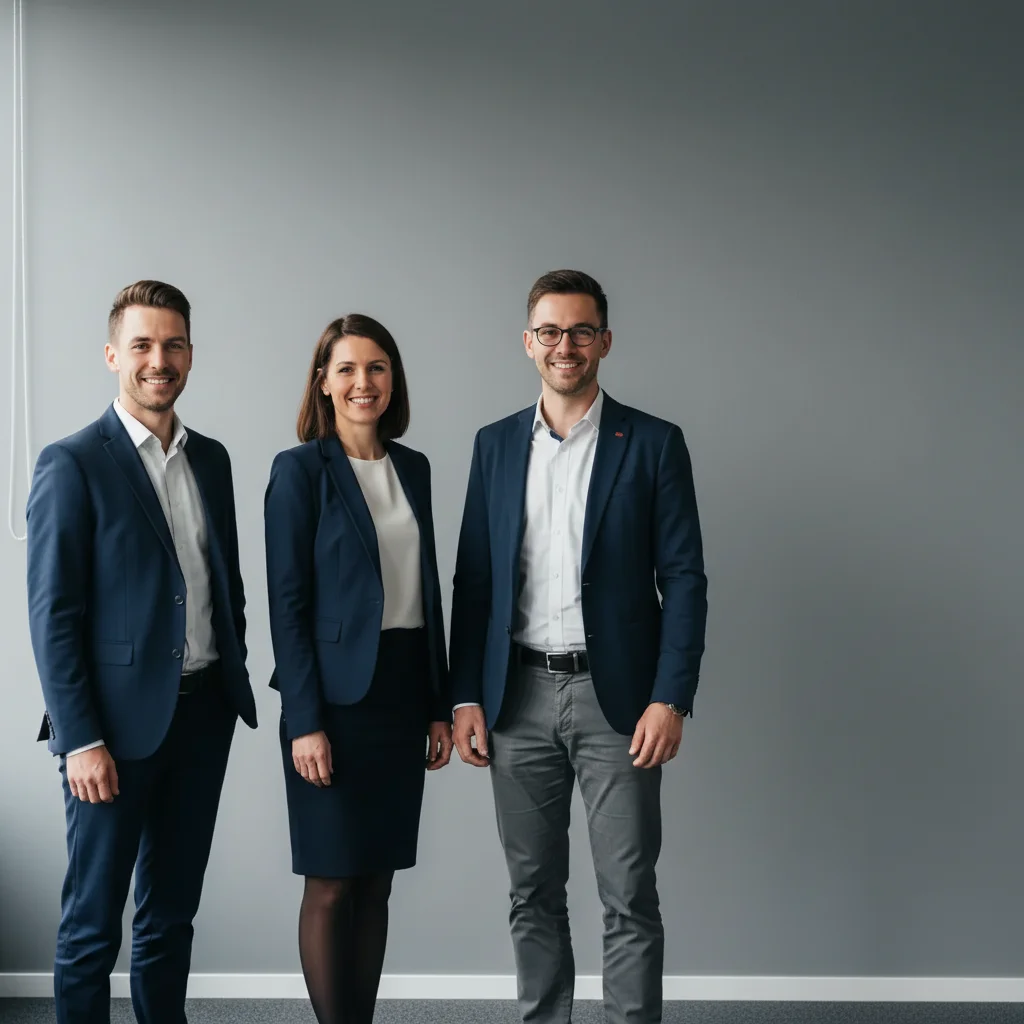
Three colleagues with right person removed, natural office background extended
After

Team announcement - colleague removed

Marketing needed just three people in the team photo, but four were in frame. Removed the person on the edge and extended the background naturally.

Prompt: remove the person on the far right, extend the office background naturally to fill the space

If something looks off

AI removed something important from the desk

Why: The prompt said 'remove clutter' but the AI interpreted your important items as clutter too.

Try: remove papers and cables only, keep the laptop and phone exactly as is

Tip: List specific items to remove rather than 'all clutter' if you have important objects.

Background looks obviously fake or pasted

Why: The AI didn't blend the edges properly between you and the new background.

Try: Tap markers on the edge seams, then: blend edges naturally with background, seamless transition

Tip: Try background blur instead of replacement - often looks more natural.

Person removal left a weird gap or blur

Why: Complex backgrounds behind people are hard to reconstruct perfectly.

Try: Tap marker on the gap area, then: fill this area naturally matching the surrounding office wall texture

Tip: People at edges of frame (not center) are much easier to remove cleanly.

Lighting looks unnatural after enhancement

Why: Strong lighting enhancement can create artificial-looking results.

Try: enhance lighting subtly, keep natural office lighting appearance, don't over-brighten

Tip: Use 'subtle' and 'natural' in lighting prompts to avoid over-processing.

AI changed the wrong area or something unexpected

Why: The AI couldn't determine exactly which area you meant from description alone.

Try: Tap a marker on the specific area you want changed, then regenerate with the same prompt

Tip: Markers tell the AI 'I mean THIS one specifically.' Use them when description alone is ambiguous.

Text on whiteboard still partially visible

Why: Blur level wasn't strong enough to make text completely unreadable.

Try: blur the whiteboard heavily, make all text completely illegible and unreadable

Tip: 'Heavily' and 'completely illegible' ensures confidential information is protected.

Quick answers

Do I need to mark the background or clutter before describing what to remove?

No! Just describe what needs fixing: 'remove the papers and coffee cup' or 'replace background with clean office.' The AI understands office elements and common distractions. Only use markers if you need to specify exactly which item among several similar ones, or if edges need refinement after your first attempt.

How do I fix a photo for company newsletter quickly before the publication deadline?

Upload your photo and describe what needs changing in one prompt. Most newsletter fixes take 20-30 seconds. Combine multiple edits to save time: 'remove desk clutter, replace background with clean office, enhance lighting.' The AI handles all changes at once.

Can I remove confidential information from whiteboards or screens in the background?

Yes. Use 'blur the whiteboard text completely, make it illegible' rather than removal. Blurring preserves the office context while protecting confidential information. For screens, try 'replace the screen content with generic gray display' for a natural look.

What if someone else took the photo and I can't retake it?

That's exactly what EditThisPic is for. Marketing teams often receive photos from employees or colleagues that need cleanup before publication. Fix backgrounds, remove distractions, adjust lighting - all without needing to coordinate a reshoot.

Will the edited photo look obviously altered?

Not if you keep edits professional and subtle. Removing desk clutter and replacing backgrounds looks natural when done right. Avoid heavy-handed changes. Newsletter photos should look polished but authentic - recipients shouldn't be able to tell it was edited.

Is EditThisPic's AI photo for company newsletter fixer really free?

Yes โ€” you get 1 free edit per week, no account needed. For unlimited edits, plans start at $3.99/month.

Can I fix photo for company newsletter on my phone?

Yes. EditThisPic works in any mobile browser โ€” iPhone, Android, tablet. No app download needed.

What photo formats does the AI photo for company newsletter fixer support?

JPG, PNG, WebP, and HEIC. Upload any common photo format and EditThisPic handles the rest.

Ready to fix your newsletter photo?

Free to try. No signup required.

Try it free โ†’