Free • No signup Change Window view · Free

Replace Window View in Photo

Transform unappealing window views into inviting outdoor scenes in seconds.
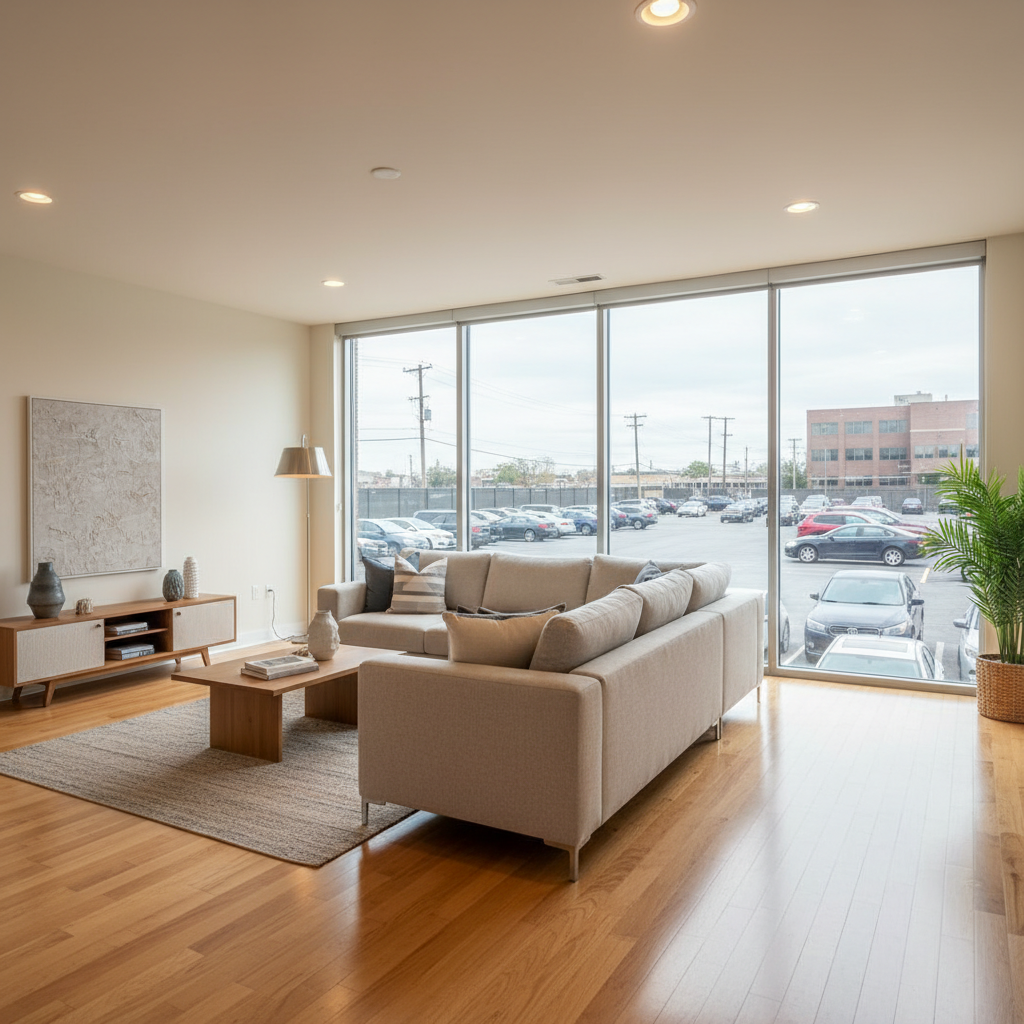
Living room with large window showing parking lot view
Before
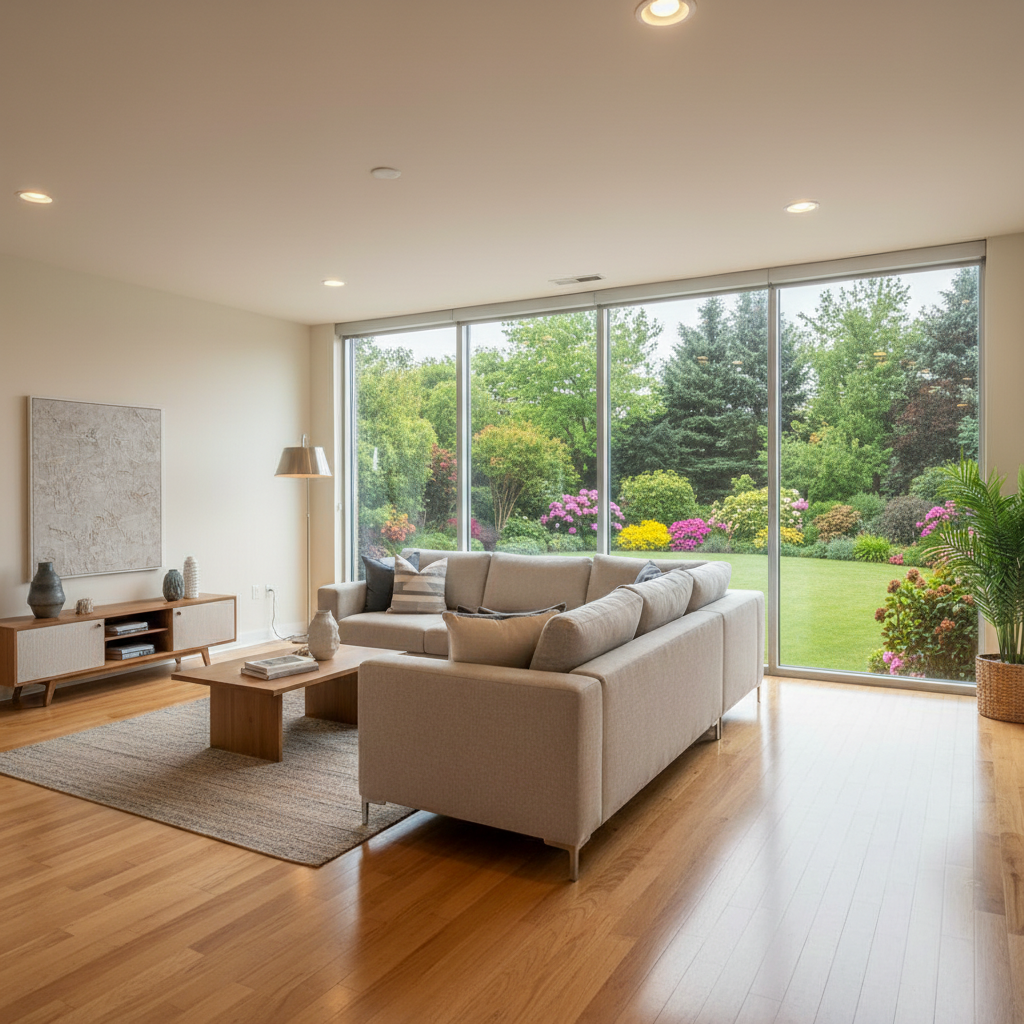
Same living room with window now showing pleasant garden view
After

Replace Window View in Photo

Drop your photo here

or click to browse

Release to upload

Free • No signup

Advertisement
Popular use cases:
  • real estate photography
  • property listing photos
  • interior design visualization
  • virtual staging
  • window view enhancement
  • listing photo improvement
  • real estate marketing

Cost
Free No signup required
Time
Instant results in 15-30 seconds
Works on
Any device - browser, phone, tablet, desktop
Powered by
AI-powered photo editing
Scenario Prompt Time
Parking lot to garden replace window view with lush garden and trees 35s
Brick wall to sky change window view to trees and blue sky 30s
Construction to scenery replace view with peaceful residential greenery 40s

How it works

  1. Upload your interior photo

    Drop your room photo with the window visible into EditThisPic. Best results come from straight-on shots where the window is clearly visible. JPG, PNG, WebP up to 7MB. Works best when the existing view is clearly defined within the window frame.

    Expect: Simple window view replacement: 30-40 seconds. Multiple windows or complex lighting: may need 2-3 refinements to match room ambiance.
  2. Describe the new view

    Type your instruction: 'replace window view with lush garden and trees' or 'change view outside window to city skyline at sunset.' Be specific about the type of scene you want visible through the window. Include lighting details if important: 'bright sunny garden' or 'overcast mountain view.' No window selection needed—the AI understands what 'window view' means.

    Tip: Match the lighting quality: if your room has soft indoor lighting, specify 'overcast garden' or 'gentle daylight' rather than harsh midday sun.

    Copy one of these to get started:

    Parking lot to garden view replace window view with lush green garden with trees and bushes, natural daylight
    Brick wall to greenery change view outside window from brick wall to green trees and foliage with blue sky visible
    Urban to city skyline replace window view with modern city skyline at golden hour with soft warm lighting
    Construction to mountain view change window view to distant mountains with forest in foreground, overcast natural light
    4 more prompts
    Dull to bright sunny view replace dark window view with bright sunny garden scene with blue sky and greenery, increase window brightness
    Overcast to blue sky change gray overcast view outside window to bright blue sky with white clouds and trees
    Generic to water view replace window view with ocean or lake water with distant horizon, soft daylight
    Multiple windows same scene replace all window views with consistent park scenery with trees and walking paths, natural lighting
  3. Generate and review

    Check that the new view looks natural through the window glass, matches the room's lighting conditions, and maintains proper perspective. Verify window frames, mullions, and any reflections remain intact. The view should look plausible for the room's location and lighting.

  4. Refine edges and lighting if needed

    If the view doesn't blend naturally with window glass, or if lighting feels mismatched, tap markers on the window area and regenerate with adjusted descriptions. This is optional—most view replacements work without markers. Useful for refining how the new view interacts with window reflections or curtains.

    Tip: For multiple windows showing the same view, describe the scene once and the AI will apply it consistently across all visible windows.
Try it free

Replace Window View in Photo

Drop your photo here

or click to browse

Release to upload

Free • No signup

"Saved a listing with amazing interiors but terrible views. Replaced three parking lot windows with gardens. Disclosed it clearly - buyers loved seeing the potential." @RealEstateJen

See it in action

Living room with large window showing parking lot view
Before
->
Same living room with window now showing pleasant garden view
After

Living room parking lot to garden

Real estate listing with beautiful interiors but a parking lot view. Replaced with garden scenery to help buyers visualize the space's potential.

Prompt: replace window view with lush green garden with trees and flowering bushes, natural daylight
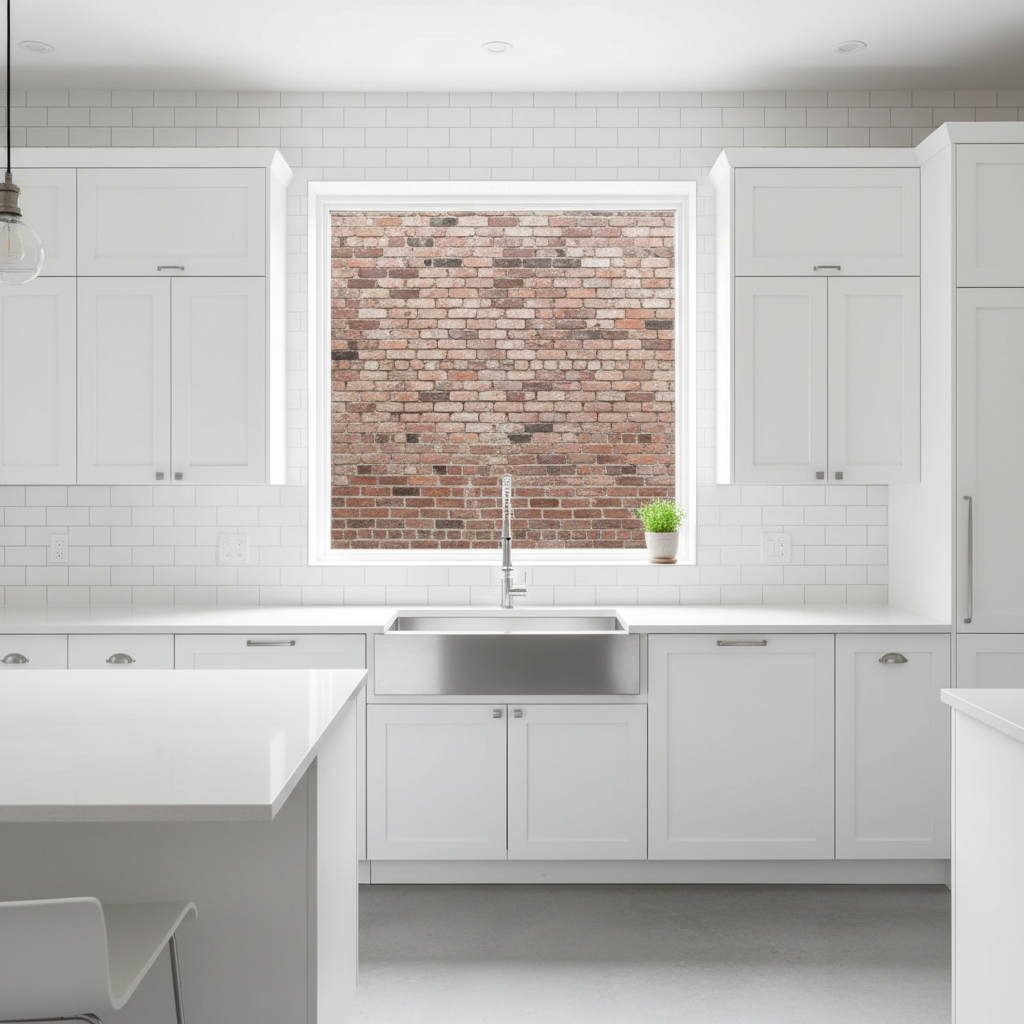
Kitchen window showing red brick wall view
Before
->
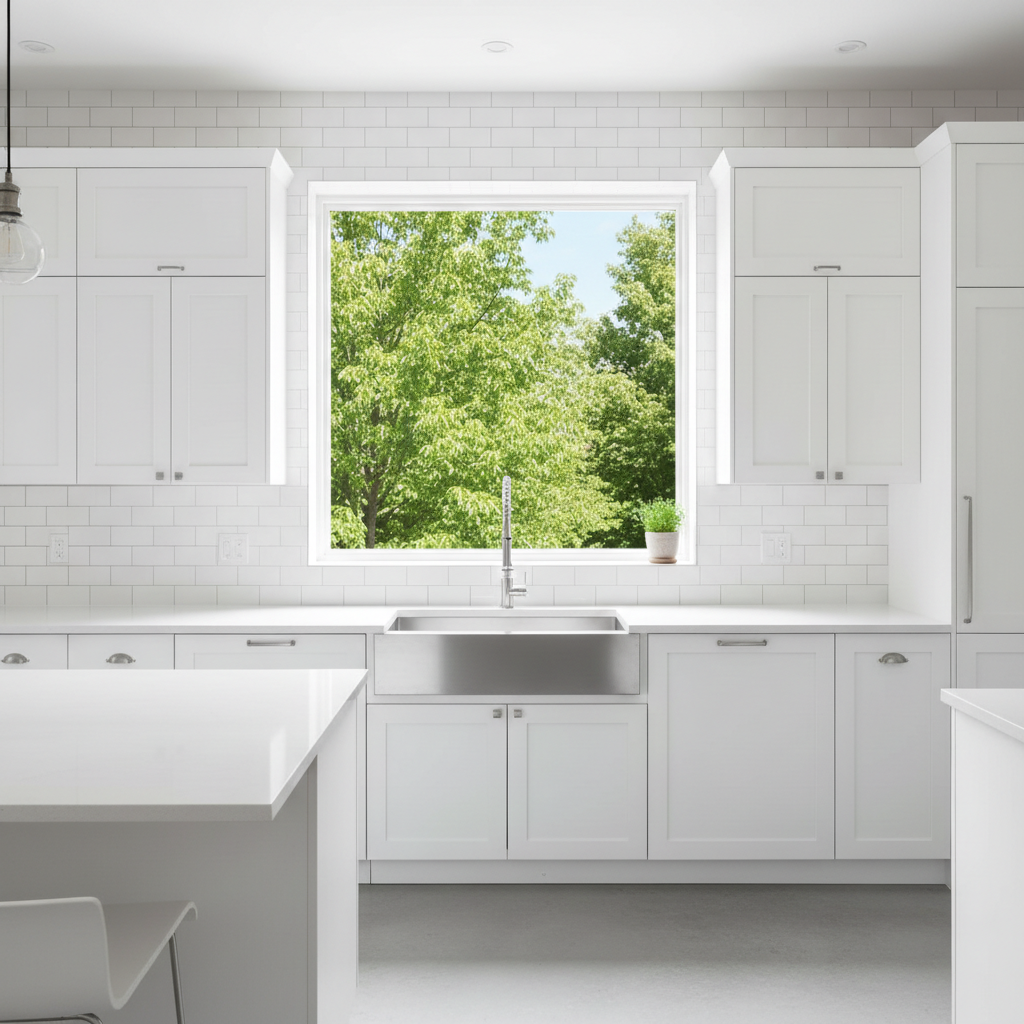
Kitchen window now showing trees and blue sky
After

Kitchen brick wall to greenery

Bright modern kitchen with window facing neighbor's brick wall. Transformed to show trees and sky for more appealing listing photos.

Prompt: change view outside window from brick wall to green trees with blue sky visible, natural daylight
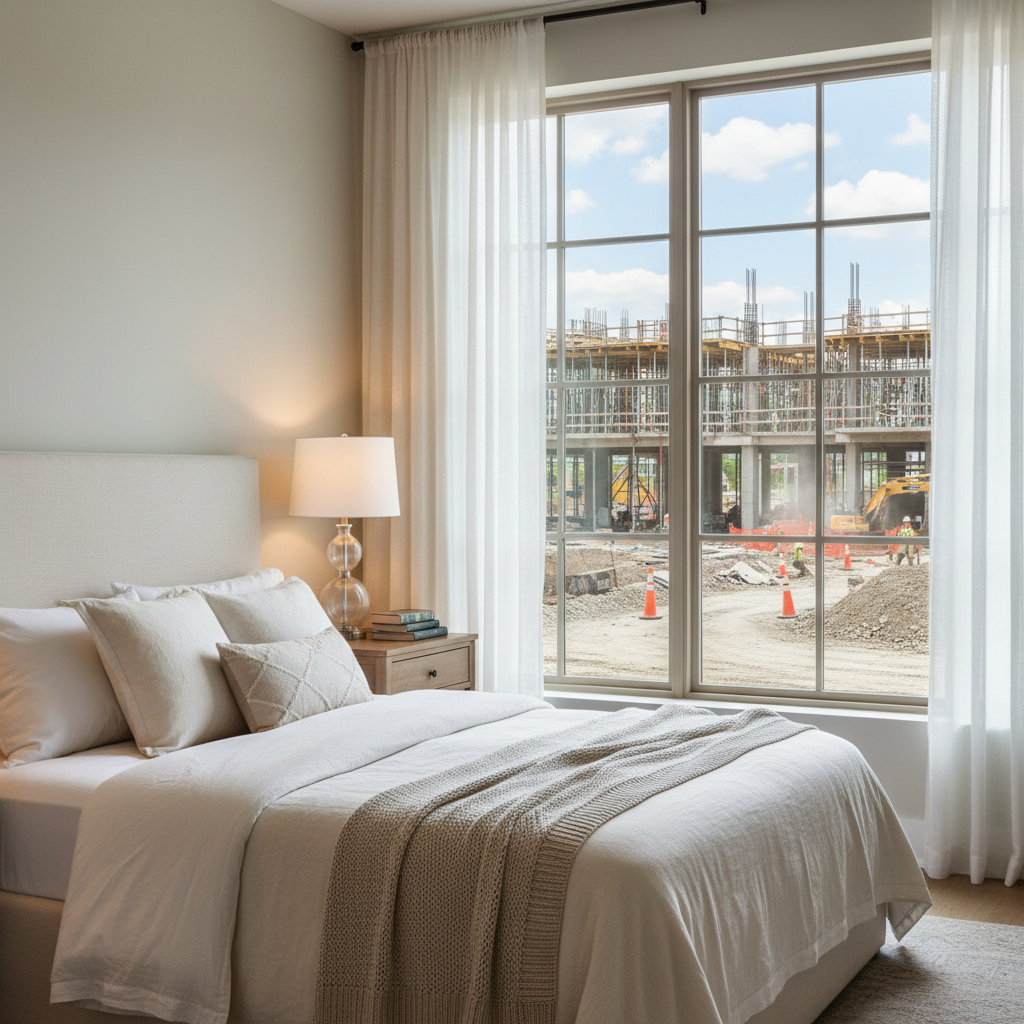
Bedroom with window showing construction site view
Before
->
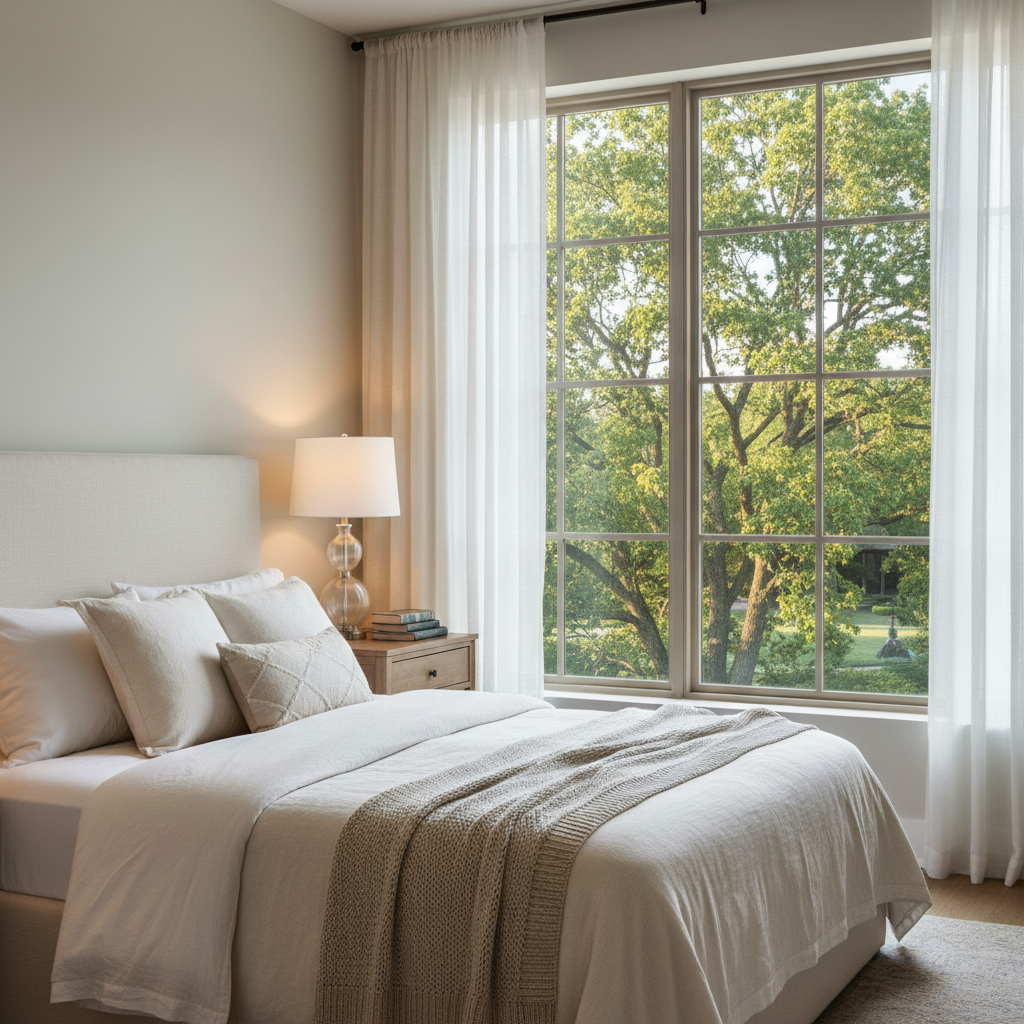
Bedroom with window showing peaceful residential greenery
After

Bedroom construction to peaceful scenery

Master bedroom during neighborhood construction phase. Replaced temporary construction view with the peaceful scenery buyers will eventually enjoy.

Prompt: replace window view with peaceful residential trees and greenery, soft morning light
Advertisement

If something looks off

New view doesn't match the room's lighting

Why: The AI replaced the view but didn't adjust for the lighting direction or quality visible in your interior. Bright sunny views in softly-lit rooms look mismatched.

Try: replace window view with [scene] matching soft overcast interior lighting, gentle daylight

Tip: Look at how light falls on your furniture—if it's soft and diffused, request overcast or cloudy views rather than bright sun

Window reflections or glass texture disappeared

Why: The AI replaced the entire window area instead of just the view through the glass, removing natural reflections or window character.

Try: change only the outdoor view visible through window glass, preserve window reflections and frame

Tip: Mention 'through the glass' or 'preserve window' to keep the window's physical characteristics intact

Perspective of the view looks unrealistic

Why: The new view's horizon line or vanishing point doesn't match the camera angle and floor level of your interior shot.

Try: replace window view with [scene] matching the room's perspective, appropriate for [floor level]

Tip: Ground floor windows should show street-level views; upper floors can have elevated views with lower horizons

Multiple windows show different views

Why: The AI treated each window independently instead of creating a cohesive scene across all visible windows.

Try: replace all visible window views with consistent [scene] across the entire room

Tip: Use 'all windows' or 'consistent view' to ensure multiple windows show the same outdoor scene

AI changed the wrong area or something I didn't want changed

Why: The AI couldn't determine exactly which window you meant if multiple windows or glass surfaces are visible, or it misinterpreted 'view.'

Try: Tap a marker on the specific window you want to change, then regenerate with the same prompt

Tip: Markers tell the AI 'I mean THIS window specifically.' Use them when you have multiple windows or glass doors in frame.

View looks artificial or obviously fake

Why: The scene complexity or lighting is too perfect compared to the rest of the photo, or includes elements that don't match the implied location.

Try: replace window view with realistic [scene] matching the neighborhood character, natural imperfections

Tip: Request 'realistic' or 'natural' views rather than idealized perfect scenes—some imperfection sells authenticity

Quick answers

Do I need to mask or select the window before describing the view change?

No! Just describe what you want: 'replace window view with garden scenery' or 'change view outside window to city skyline.' The AI understands what 'window view' means and identifies the glass areas automatically. Only use markers if you have multiple windows and need to specify which one, or for edge refinement after your first attempt.

Is it ethical to change window views in real estate listings?

You must disclose virtual enhancements to buyers. Window view changes are ethically acceptable when disclosed as 'virtually enhanced' or 'representative view.' Use this to show potential (like replacing temporary construction) or enhance appeal, never to deceive. Many jurisdictions require disclosure of virtual staging and enhancements. When in doubt, over-disclose.

How realistic can AI-generated window views be?

Very realistic for general scenes like gardens, trees, sky, and distant landscapes. Works best when the new view matches your room's lighting quality and perspective. Less convincing for specific recognizable landmarks or when lighting dramatically mismatches. Simple, naturalistic views (trees, sky, generic cityscape) look more authentic than complex or iconic scenes.

Will the new view match my interior lighting?

The AI attempts to match lighting but may need guidance. If your room has soft, diffused interior light, specify 'overcast garden' or 'soft daylight.' For bright rooms, you can request 'sunny view.' Check that shadows and light direction in the room are compatible with the new view's implied sun position.

Can I replace views in multiple windows at once?

Yes. Describe the view change with 'all windows' or 'consistent view across windows' and the AI will apply the same scene to all visible windows. This creates a cohesive, believable result rather than different views through adjacent windows.

What types of window views work best as replacements?

Gardens, trees, blue sky, and generic greenery work best—they're universally appealing and forgiving of small imperfections. Distant mountains or city skylines work well for upper floors. Water views are premium but require careful perspective. Avoid highly specific or recognizable landmarks that buyers could verify don't exist at that location.

Ready to enhance your window views?

Free to try. No signup required.

Try it free