Create Facebook Cover Photo from Photo
Turn any photo into a professional Facebook cover that looks great on desktop and mobile.
Drop your photo here
or click to browse
Release to upload
Free • No signup
"My business page cover always looked cropped weird on phones. EditThisPic extended my photo properly - now my logo and text are visible on both desktop and mobile. Took 30 seconds." @SmallBizOwner
Built for Facebook Page Owners
Your Facebook cover is prime real estate for your personal or business brand. It's one of the first things visitors see. But Facebook's unusual dimensions (820x312 desktop, different mobile crop) make it tricky to get right. EditThisPic converts any photo to the perfect cover format - extending backgrounds where needed and positioning your subject to work on all devices.
Tools for Facebook Covers
Extend Background
Expand photos to fit Facebook's wide format
Add Text
Add business name or tagline to cover
Blur Background
Focus attention on your main subject
Step-by-Step Guide
-
Upload your photo
Drop any photo into EditThisPic. Team photos, product shots, landscapes, or personal photos all work. Any starting dimension - portrait, square, or landscape.
Simple resize: 20 seconds. Background extension: 30-40 seconds. -
Describe your Facebook cover needs
Type 'resize to Facebook cover 820x312' or 'extend background to create wide Facebook banner.' Specify if important content should avoid the left side (where profile picture overlaps on desktop).
Keep important content in the center and right - the profile picture covers part of the left side on desktop views. -
Check desktop and mobile safe areas
Facebook crops covers differently on desktop vs mobile. Verify your key content (text, faces, logos) stays visible in the center safe zone that displays on both.
-
Refine and download
If positioning needs adjustment, use markers on specific areas and regenerate. Download your 820x312 cover ready for Facebook upload.
Upload at 820x312 minimum, but 1640x624 gives sharper results on retina displays.
Copy-Paste Prompts for Facebook Covers
resize to Facebook cover 820x312, extend background left and right to create wide banner, keep subject centered in the middle third
'Middle third' keeps content visible on both desktop and mobile
convert to Facebook cover dimensions, extend background with clean professional look, leave space on right for call-to-action button area
Facebook's CTA button appears on the right - leave that area uncluttered
resize landscape photo to exact 820x312 Facebook cover format, crop and position to keep the best parts of the scene
Landscape photos may just need smart cropping rather than extension
resize group photo to Facebook cover format, extend background on sides, ensure all faces remain fully visible and not cropped
Always specify 'all faces visible' when people are in the shot
Show 4 more prompts
convert product photo to Facebook cover 820x312, extend clean background, position product in center-right to avoid profile picture overlap
Profile picture overlaps left side - shift important content center-right
resize to Facebook cover dimensions, create space on right side for event details text, extend background matching existing style
Event covers need text space - plan for date/time/venue information
convert portrait to Facebook cover format, position subject in right third, extend background left with professional gradient
Personal brands often work best with subject on right, leaving left for name/title
resize storefront photo to Facebook cover 820x312, extend sky above and ground below to fit wide format, keep building centered
Location covers help customers recognize your business
| Edit Type | Prompt | Time | |
|---|---|---|---|
| Portrait to cover | extend sides for 820x312 Facebook cover |
30s | Try This → |
| Business page cover | cover with CTA button space on right |
30s | Try This → |
| Team photo cover | cover keeping all faces visible |
35s | Try This → |
| High-res cover | retina 1640x624 Facebook cover |
25s | Try This → |
Real Examples
Square logo photo to business cover
A square brand photo needed to become a wide Facebook cover with room for the business name and tagline.
extend background left and right to convert this square photo to Facebook cover 820x312, create clean professional space on both sides, keep logo centered

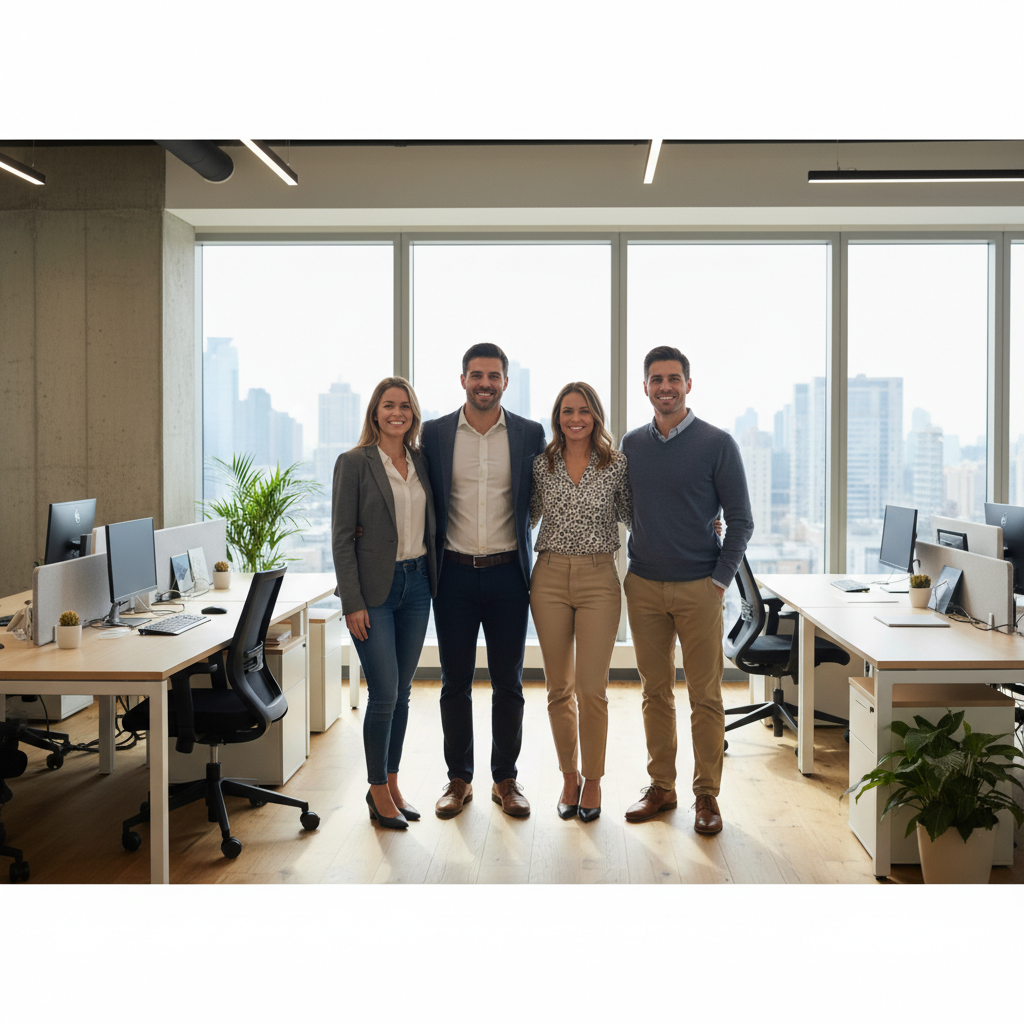
Portrait team photo to page cover
A vertical team photo needed wide formatting while keeping all faces visible.
convert this portrait team photo to Facebook cover 820x312, extend office background on both sides, keep all team members fully visible in center
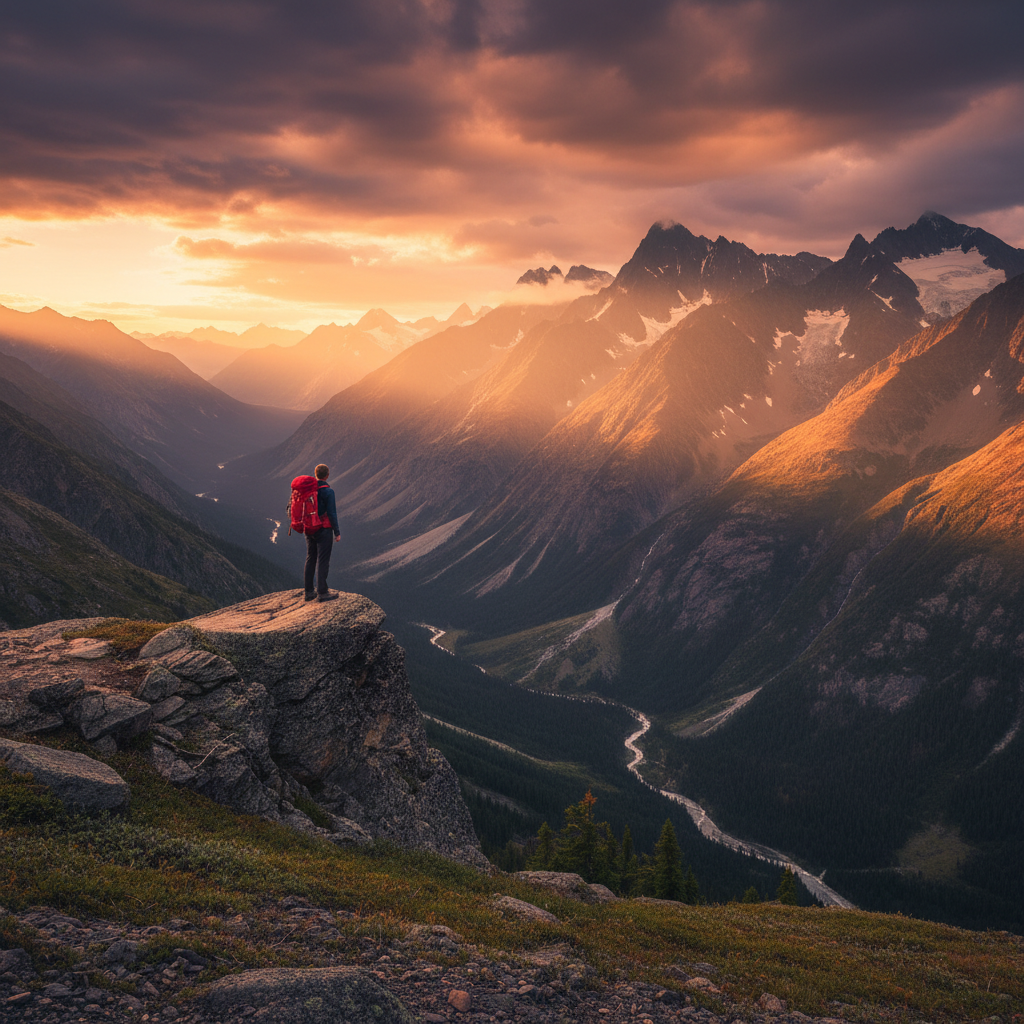
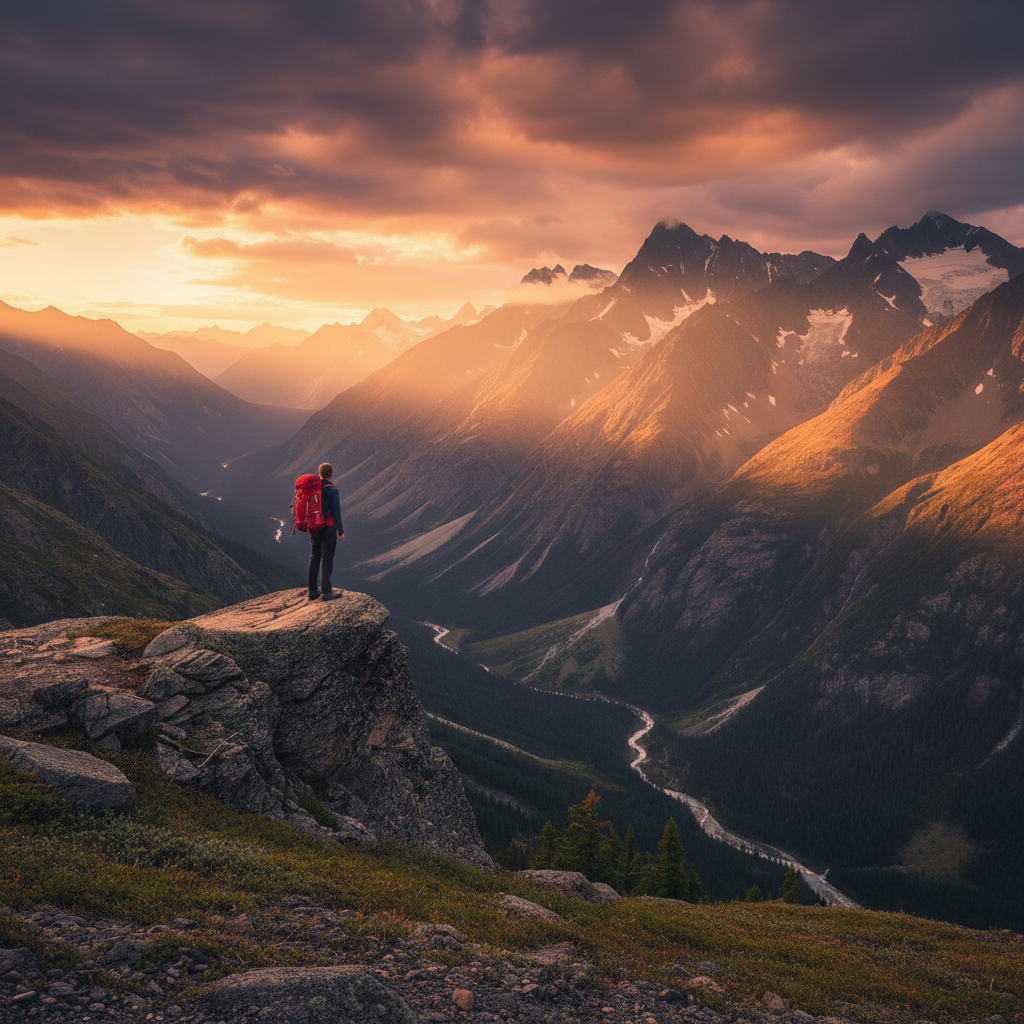
Landscape travel photo to personal cover
A slightly-too-tall landscape photo needed cropping and positioning for a personal profile cover.
resize this landscape photo to exact Facebook cover dimensions 820x312, keep the mountain peak and person both visible, crop the bottom slightly
When Things Go Wrong
Important content gets hidden by profile picture
Why: Your subject is positioned too far left where the profile picture overlaps on desktop.
resize to Facebook cover, position main subject in center-right area, leave left 20% clear for profile picture overlap
Test your cover by viewing your page logged out - that shows the true profile picture overlap.
Cover looks different on mobile than desktop
Why: Facebook crops covers differently on mobile - a center strip is used.
resize to Facebook cover with key content in the CENTER HORIZONTAL STRIP, avoid placing important elements at top or bottom edges
The mobile-safe zone is roughly the middle 60% of the cover height.
Extended background doesn't match original style
Why: Complex or unique backgrounds are harder to extend seamlessly.
Tap markers on the artificial-looking areas, then: regenerate extended background to match the exact style, texture, and lighting of the original
Simple or gradient backgrounds extend most naturally.
AI changed the wrong area or something I didn't want changed
Why: The AI couldn't determine exactly which area you meant from description alone.
Tap a marker on the specific area you want to change, then regenerate with the same prompt
Markers tell the AI 'I mean THIS one specifically.' Use them when description alone is ambiguous.
Cover looks blurry after upload
Why: Original resolution was too low, or Facebook compressed the image.
Facebook accepts up to 1640x624 - larger source files stay sharper after upload.
Frequently Asked Questions
What size should a Facebook cover photo be?
Facebook cover photos display at 820x312 pixels on desktop and 640x360 on mobile. For best quality, upload at 1640x624 (double resolution). EditThisPic outputs at these dimensions when you specify Facebook cover format.
Do I need to mark or select anything before resizing?
No. Just describe what you want: 'resize to Facebook cover 820x312' or 'extend background for Facebook banner.' The AI understands these instructions. Only use markers if you need to refine specific areas after the first result.
How do I make a Facebook cover from a portrait photo?
Upload your portrait photo and type 'extend background left and right to create Facebook cover 820x312, keep subject in center.' The AI will add matching background content to reach the wide format.
Is there a free Facebook cover maker without login?
Yes. EditThisPic converts any photo to Facebook cover dimensions free without requiring an account. Upload your photo, describe the cover you need, and download. No watermarks.
Why does my cover look cropped differently on mobile?
Facebook displays a narrower vertical crop on mobile devices. Keep important content (faces, text, logos) in the center of your cover to ensure visibility on both desktop and mobile.
How do I avoid the profile picture overlap?
The profile picture overlaps the left side of covers on desktop. Position your main subject in the center or right portion of the cover. Type 'keep important content in center-right, avoid left 20%' in your prompt.
Ready to create your Facebook cover?
Free to try. No signup required. No watermarks.
Create Cover