Create Multi-Angle Amazon Product Photo Galleries
Last updated
Build a complete 7-image Amazon gallery that converts. Main shot, angles, close-ups, lifestyle, and infographic images -- all optimized with AI.
Drop your photo here
"replace background with pure white RGB 255,255,255, no shadows, product fills 85% of frame, professional product photography"
Release to upload
Why 7 Images Outsell 1 Image on Amazon
Amazon's algorithm and customers reward complete galleries. Each image slot has a specific purpose: building trust, showing detail, demonstrating size, and creating desire. EditThisPic helps you optimize each image for its specific purpose, from pure white main shots to enhanced lifestyle images.
Tools for Multi-Angle Product Photography
Remove Background
Create pure white main image (slot 1)
Enhance Photo
Improve quality of all angle shots for slots 2-7
Change Background
Create lifestyle context images for slots 5-6
Enhance Colors
Ensure color consistency across all 7 images
Build Your 7-Image Amazon Gallery
-
Plan your 7-image strategy
Before editing, plan what each slot will show: Slot 1: Pure white main image. Slots 2-3: Different angles (back, side, top). Slot 4: Detail close-up (texture, label, feature). Slots 5-6: Lifestyle/in-use context. Slot 7: Size chart or comparison infographic.
Planning takes 5 minutes. Processing all 7 images takes 15-30 minutes total. -
Create your main image (Slot 1)
Upload your best front-facing product photo. Type 'replace background with pure white RGB 255,255,255, no shadows, professional product photography.' This creates your compliant main listing image.
The main image gets 80% of first impressions. Invest time getting this one perfect before moving to secondary slots. -
Process angle and detail shots (Slots 2-4)
Upload your angle photos. For each, use 'replace background with pure white, preserve product detail from this angle.' For the close-up detail shot, use 'enhance macro detail, sharpen texture and feature close-up.'
Angle shots can have white backgrounds (consistent) or light neutral backgrounds (variety). Close-ups benefit from slight background blur for focus. -
Create lifestyle and infographic images (Slots 5-7)
For lifestyle images: use your original photos and 'enhance lighting and colors, professional lifestyle photography.' For infographics: create comparison or size charts in any design tool, then use EditThisPic to enhance and polish them.
Lifestyle images should show the product in use or in context. They answer the question: What does this product look like in my life?
Multi-Angle Gallery Prompts
replace background with pure white RGB 255,255,255, no shadows, product fills 85% of frame, professional product photography
Main image requirements are strict: pure white, no text, no props, product only.
replace background with pure white, preserve product detail from this angle, maintain consistent lighting with front view
Angle shots should match the main image's lighting quality for a cohesive gallery.
enhance macro detail and texture, sharpen all fine details, professional close-up product photography
Close-ups build trust. Show material quality, stitching, labels, or unique features.
enhance this lifestyle photo, improve lighting and colors, professional lifestyle product photography
Lifestyle images show the product in real-world use. Enhance your existing in-context photos.
Show 4 more prompts
place this product in a modern, well-lit room setting, soft natural lighting, aspirational lifestyle context
If you don't have lifestyle photos, the AI can create context by changing the background.
enhance this in-use photo, improve lighting and composition, make product the clear focal point
In-use photos show functionality. Make sure the product is clearly visible as the hero.
enhance this size comparison image, sharpen all text and dimension lines, professional infographic quality
Size/comparison infographics should have crisp text and clear visual hierarchy.
match product colors to reference, ensure consistent color tone, professional color accuracy
Products should look the same color in every image. Inconsistency creates doubt.
| Edit Type | Prompt | Time | |
|---|---|---|---|
| Slot 1: Main image | pure white RGB 255,255,255, no shadows |
15s | Try This → |
| Slots 2-3: Angles | white background, consistent lighting |
15s each | Try This → |
| Slot 4: Detail close-up | enhance macro detail and texture |
15s | Try This → |
| Slots 5-7: Lifestyle/info | enhance lighting and colors, professional quality |
20s each | Try This → |
Multi-Angle Gallery Examples


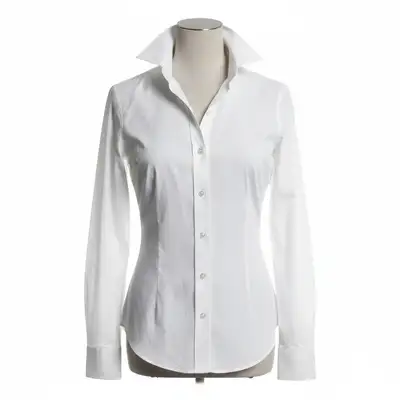
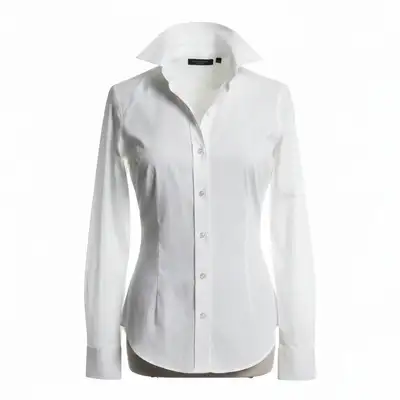
Slot 1: Professional main image
Front-facing product photo upgraded to professional main listing quality with pure white background.
replace background with pure white RGB 255,255,255, professional product photography
Slot 4: Detail close-up enhanced
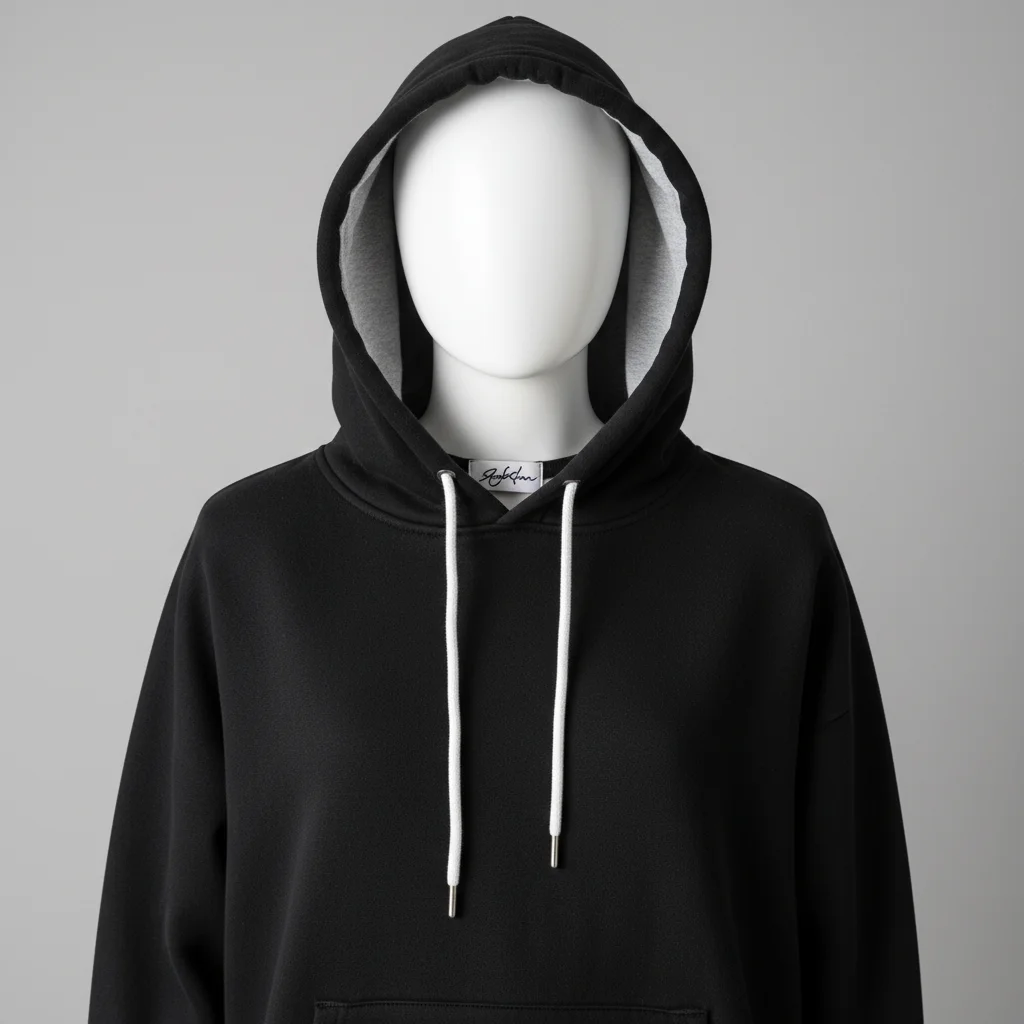
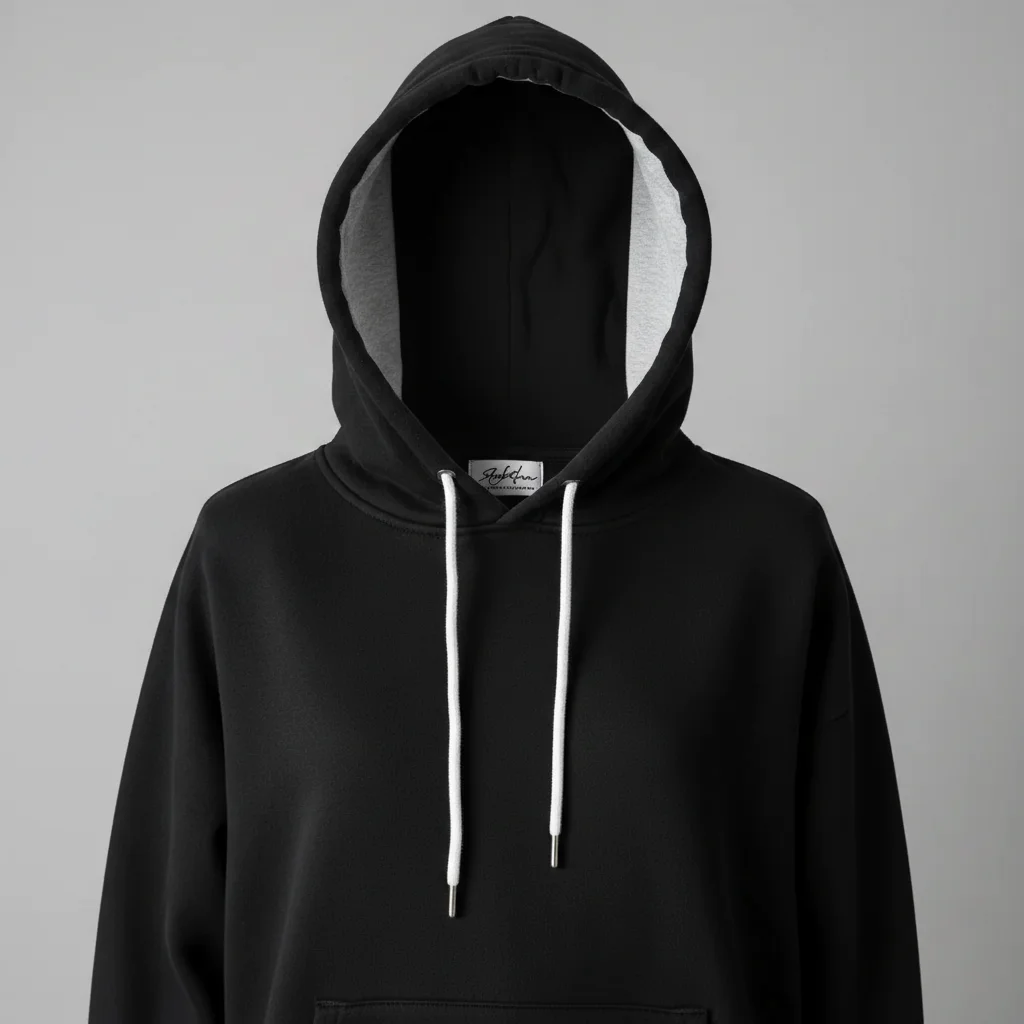
Close-up of product texture and stitching. Enhancement brought out material quality that builds buyer confidence.
enhance macro detail and texture, sharpen all fine details, professional close-up
Slot 5: Lifestyle image enhanced
In-context product photo with lighting and color enhancement for a lifestyle secondary image.
Multi-Angle Gallery Troubleshooting
Product color looks different across gallery images
Why: Different lighting and angles can cause the same product to appear different colors in each photo.
match product color to be consistent, correct any warm or cool color cast, accurate colors matching other gallery images
Photograph all angles in the same lighting session to minimize color variation.
Main image and angle shots look like different products
Why: Inconsistent editing styles between images creates a disconnected gallery.
Use the same prompt template for all white-background images to ensure visual consistency.
Don't have 7 different photos to fill all slots
Why: Taking 7 distinct photos per product requires planning.
Minimum viable gallery: 1 front, 1 back, 1 detail close-up, 1 lifestyle, 1 infographic. That is 5 slots with high impact.
Lifestyle images look fake or over-edited
Why: Heavy editing or AI-generated backgrounds can look unrealistic.
enhance lighting and colors naturally, subtle professional improvement, no over-processing
Real lifestyle photos that are enhanced look better than entirely AI-generated lifestyle scenes.
Multi-Angle Gallery FAQ
Do I really need 7 images for every Amazon listing?
Not every listing needs exactly 7, but more images almost always means higher conversion. At minimum, use 5 images: main (white), back angle, detail close-up, lifestyle, and size reference. If you can fill all 7 slots, do it.
What should each image slot show?
Optimal strategy: Slot 1 - Pure white main shot. Slot 2 - Back/side angle. Slot 3 - Other angle or packaging. Slot 4 - Detail close-up of key feature. Slot 5 - Lifestyle/in-context. Slot 6 - In-use or comparison. Slot 7 - Size chart or feature infographic.
Can I use text or infographics on secondary images?
Yes. Text, infographics, comparison charts, and size references are all allowed on images 2-7. Only image 1 (main) must be text-free. Use secondary slots to communicate benefits, dimensions, and features.
How do I keep colors consistent across all 7 images?
Photograph all angles in the same lighting session. When editing, use consistent enhancement settings. If colors drift, do a final pass on each image: 'match product color to be accurate and consistent.' Compare all images side by side before uploading.
Should secondary images also have white backgrounds?
Not necessarily. White backgrounds are required for image 1 only. Secondary images can use any background. A mix of white-background angles, lifestyle shots, and infographics creates the most effective gallery.
How long does it take to create all 7 images?
With EditThisPic, plan about 30-45 minutes per product for a complete 7-image gallery: 5 minutes for the main image, 10 minutes for 3 angle/detail shots, and 10-15 minutes for lifestyle and infographic images.
Is EditThisPic's AI create multi-angle amazon product photo galleries really free?
Yes — you get 1 free edit per week, no account needed. Plans start at $4.99/month for 15 edits.
Can I amazon multi angle product on my phone?
Yes. EditThisPic works in any mobile browser — iPhone, Android, tablet. No app download needed.
Popular use cases
Build your 7-image Amazon gallery now.
Free to try. No signup. Complete gallery in 30 minutes.
Start GalleryTrusted by 15,000+ users