Free โ€ข No signup Try on Blush application ยท Free

AI Blush Try On

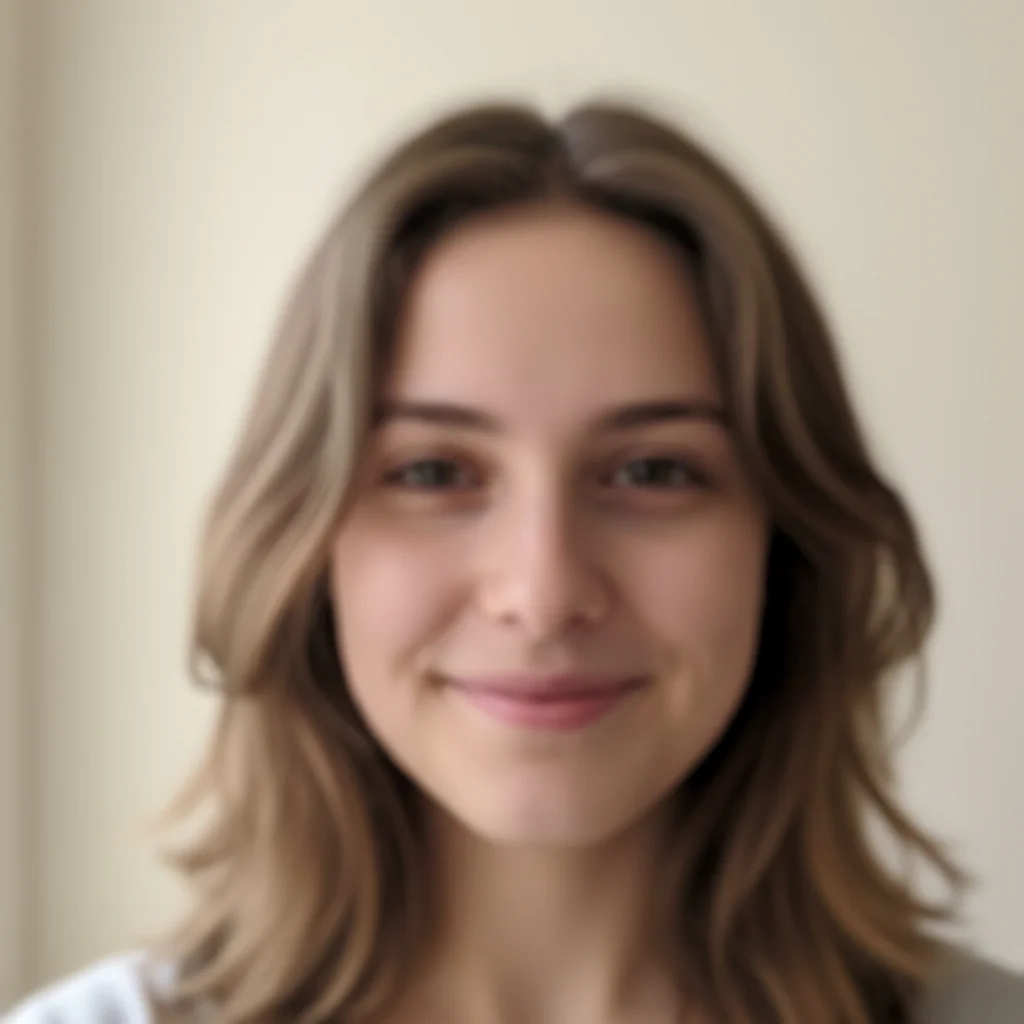
Before
Before
โ†’
After
After

Free AI Blush Try On

Drop your photo here

or click to browse

Release to upload

Free โ€ข No signup

Advertisement
Popular use cases:
  • blush try on virtual
  • test blush colors
  • blush shade finder
  • virtual blush application
  • try blush before buying
  • blush placement tester
  • blush color for skin tone
  • cream blush vs powder blush

Cost
Free No signup required
Time
Instant results in 15-30 seconds
Works on
Any device - browser, phone, tablet, desktop
Powered by
AI-powered photo editing
Scenario Prompt Time
15-30s
15-30s
15-30s
15-30s

How it works

  1. Upload your photo

    Choose a photo showing your face clearly. Front-facing or slight angle photos work best for blush application. The AI will detect your cheeks and apply the blush shade you request with natural placement.

    Expect: Simple blush application: 20-30 seconds. Complex placement or multiple shades: 30-40 seconds and may need adjustment.
  2. Describe the blush you want

    Type the blush color and intensity you want to try. Specify the shade (rosy pink, coral, berry, peach, mauve), intensity (subtle, natural, bold), and optionally the placement style (apples of cheeks, swept upward, draping). The AI applies it naturally with proper blending.

    Tip: Include both color AND intensity for best results: 'subtle peachy coral blush' vs 'bold berry blush' creates very different looks. Mention finish too: matte, dewy, or shimmery.

    Copy one of these to get started:

    try on Add subtle rosy pink blush on the apples of my cheeks, natural and soft
    try on Apply peachy coral blush swept upward toward temples for a lifted look
    try on Give me soft mauve blush with subtle shimmer on cheekbones
    try on Add warm terracotta blush in a draping technique from cheeks to temples
    4 more prompts
    try on Apply bold berry blush on apples of cheeks for a fresh, vibrant look
    try on Give me natural peach blush blended softly on cheekbones, matte finish
    try on Add dewy rose gold blush on upper cheekbones with luminous finish
    try on Apply soft pink cream blush with natural flush on apples and slightly blended toward hairline
  3. Review the result

    Check that the blush color, placement, and intensity match what you wanted. Make sure it looks natural and complements your skin tone. If adjustments needed, describe changes like 'soften the blush' or 'make it more peachy and less pink'.

  4. Download Your Look

    Save your photo with the blush applied in high resolution. No watermark, perfect for testing shades before purchasing or as makeup reference.

Try it free โ†“

Free AI Blush Try On

Drop your photo here

or click to browse

Release to upload

Free โ€ข No signup

See it in action

Before
Before
->
After
After

Natural Everyday Blush

Add subtle peachy pink blush on the apples of cheeks, soft and natural for everyday wear

Prompt:
Before
Before
->
After
After

Lifted Coral Blush

Apply coral blush swept upward from apples of cheeks toward temples for a lifted, youthful appearance

Prompt:
Before
Before
->
After
After

Bold Berry Statement

Give me bold berry blush on apples of cheeks with high pigment for a vibrant, editorial look

Prompt:
Advertisement

If something looks off

AI changed the wrong area or something I didn't want changed

Why: The AI couldn't determine exactly which area you meant from description alone.

Try: Tap a marker on the specific area you want to change, then regenerate with the same prompt

Tip: Markers tell the AI 'I mean THIS one specifically.' Use them when description alone is ambiguous.

Blush looks too intense or clownish

Why: Without intensity descriptors, some colors apply at full pigment which may be too bold.

Try: Use softening words: 'soften the blush to a natural flush' or start over with 'subtle' or 'soft' in your original prompt

Tip: Always specify intensity: 'subtle', 'soft', 'natural flush', 'hint of' for everyday looks. Use 'bold' or 'vibrant' only for dramatic styles.

Blush placement doesn't flatter my face shape

Why: Standard apple-of-cheeks placement doesn't suit all face shapes.

Try: Specify placement for your face shape: 'sweep blush higher on cheekbones' (round face) or 'apply blush more centrally' (long face)

Tip: Round faces: sweep upward/outward. Long faces: apply horizontally across apples. Heart-shaped: focus on apples only.

Blush color doesn't complement my skin tone

Why: Not all blush shades work with every undertone (cool, warm, neutral).

Try: Try a different shade: peachy/coral for warm undertones, pink/berry for cool undertones, rose/mauve for neutral

Tip: Warm skin: peach, coral, terracotta. Cool skin: pink, berry, plum. Neutral skin: rose, mauve - almost anything works.

Blush looks patchy or unblended

Why: Application needs explicit blending instructions for seamless results.

Try: Add 'well blended' or 'softly blended with no harsh edges' to your prompt and regenerate

Tip: For cream blush effects, mention 'blended like cream blush' or 'seamless and diffused'. For powder, 'softly buffed out'.

Only one cheek has blush or cheeks look asymmetrical

Why: Photo angle or lighting may cause the AI to see one cheek more clearly.

Try: Use 'apply identical blush to both cheeks symmetrically' and ensure your photo shows both cheeks clearly

Tip: Front-facing photos with even lighting on both sides of your face give the most symmetrical blush application.

Quick answers

Do I need to mark my cheeks before describing the blush I want?

No! Just describe the blush color, intensity, and optionally placement. The AI automatically detects your cheeks and applies blush naturally. Only use markers if you want very specific placement that differs from standard cheek application.

Can I try multiple blush shades on the same photo?

Yes! After seeing one shade, describe a different color and the AI will replace the previous blush. Try rosy pink, then coral, then berry - compare as many shades as you want. Each new generation replaces the previous application.

What blush colors and finishes can I try?

You can try any blush shade: rosy pink, coral, peach, berry, plum, mauve, terracotta, apricot, and more. Specify finish too: matte, dewy/luminous, shimmery, or satin. The AI understands both color and finish descriptors for realistic application.

How do I know which blush color will suit my skin tone?

General guide: Warm undertones look great in peach, coral, terracotta. Cool undertones suit pink, berry, plum. Neutral undertones can wear most shades, especially rose and mauve. But try any color you're curious about - that's what this tool is for! Experiment freely.

Can I test blush placement techniques like draping?

Yes! You can try different placement styles. Standard: 'on apples of cheeks'. Lifted: 'swept upward toward temples'. Draping: 'from cheeks along cheekbones to temples'. Sunburnt: 'across nose bridge and cheeks'. Just describe the technique you want to test.

Will cream blush and powder blush look different?

The AI can simulate both finishes. Mention 'cream blush' for dewy, seamless finish or 'powder blush' for more matte, diffused look. You can also specify 'luminous' (cream-like) or 'matte' (powder-like) as finish descriptors for similar effects.

How do I create a natural flush vs a bold statement blush?

Use intensity descriptors: 'subtle', 'soft', 'natural flush', 'hint of color' for natural looks. Use 'bold', 'vibrant', 'high pigment', 'intense' for statement blush. The same color (like coral) looks completely different at subtle vs bold intensity.

Ready to try different blush shades?

Free to try. No signup required.

Try it free โ†’