Free • No signup Add Lipstick · Free

AI Lipstick Try On

Describe the lipstick shade you want and AI applies it perfectly. No marking needed.

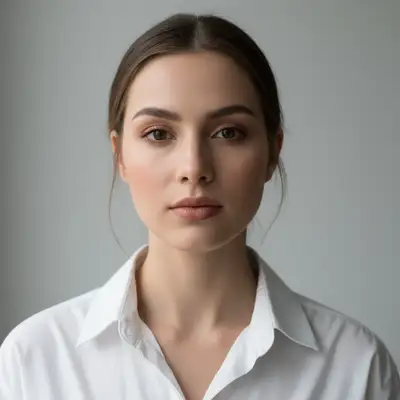
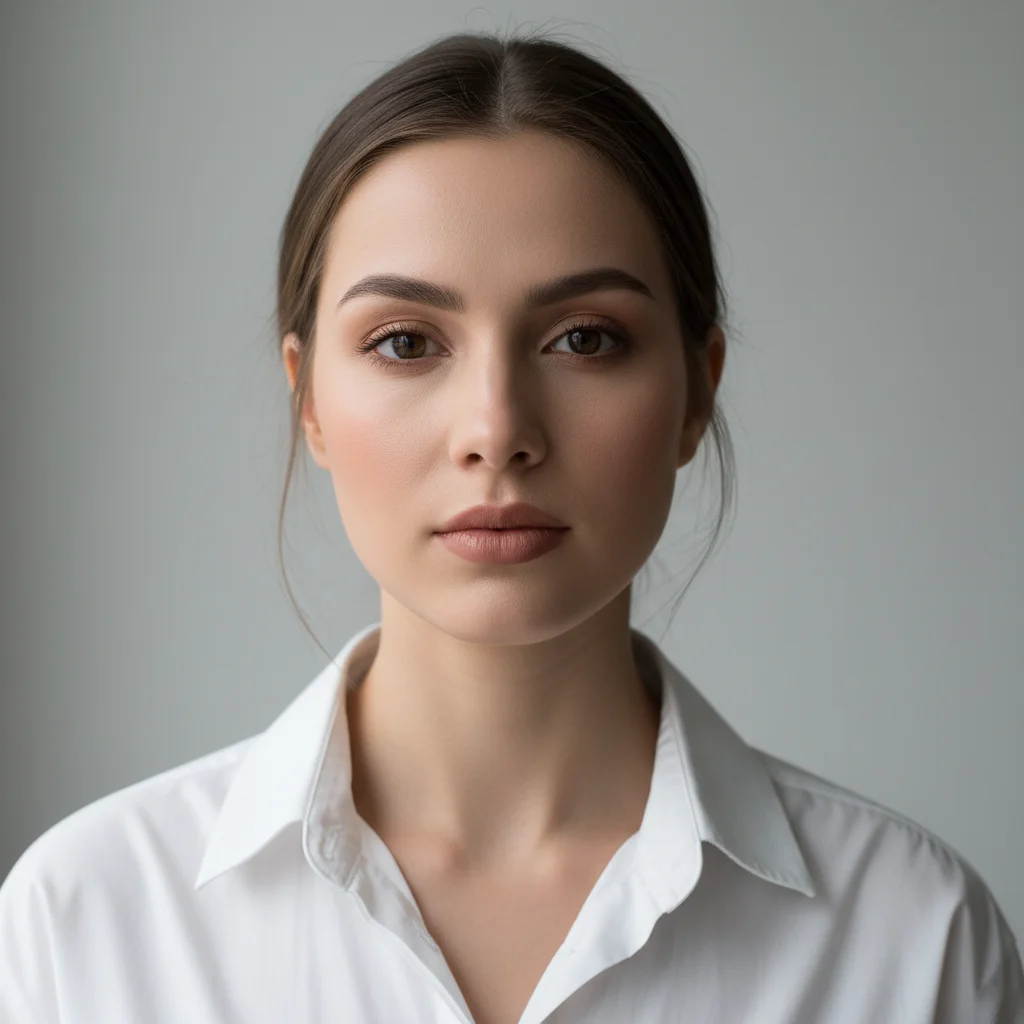
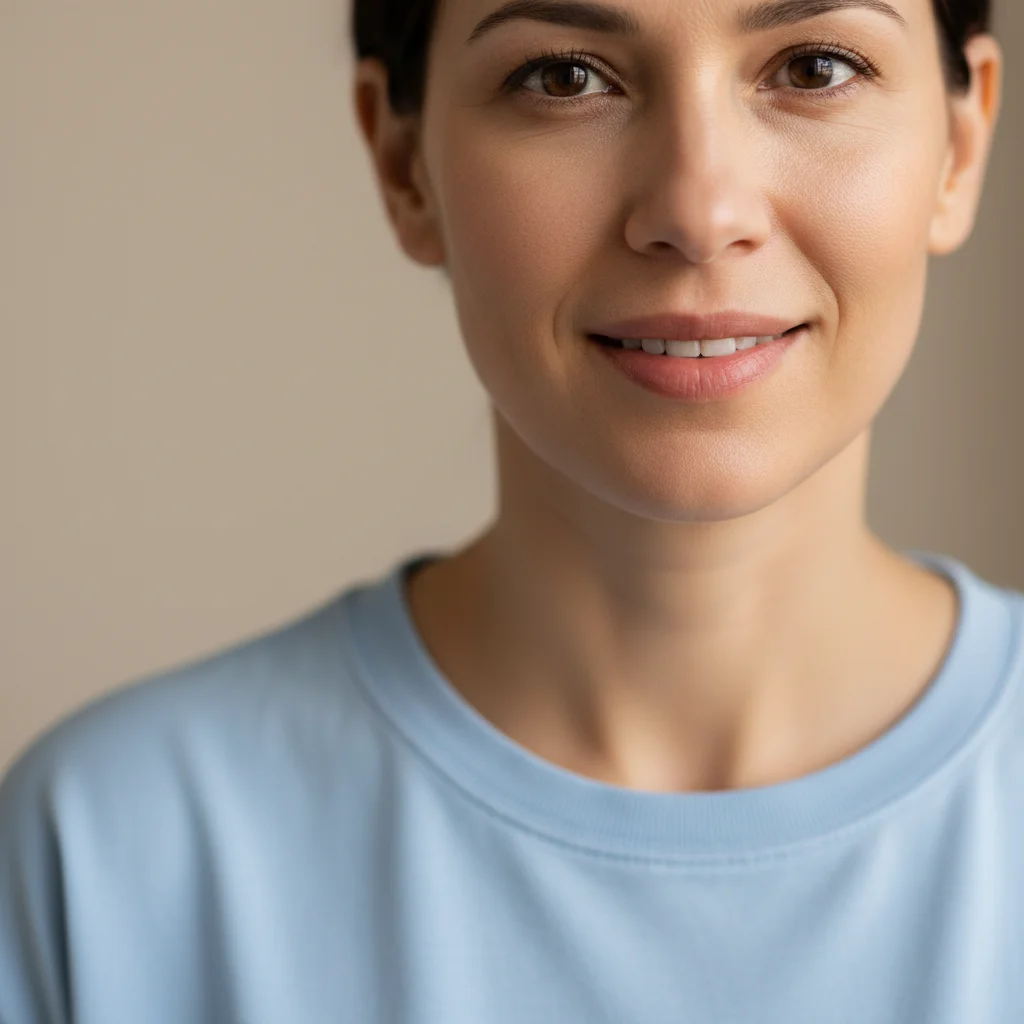
Woman with natural lips in white shirt
Before
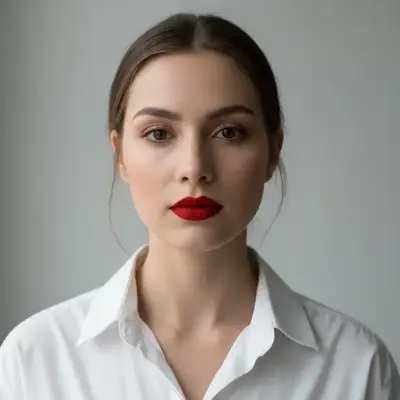
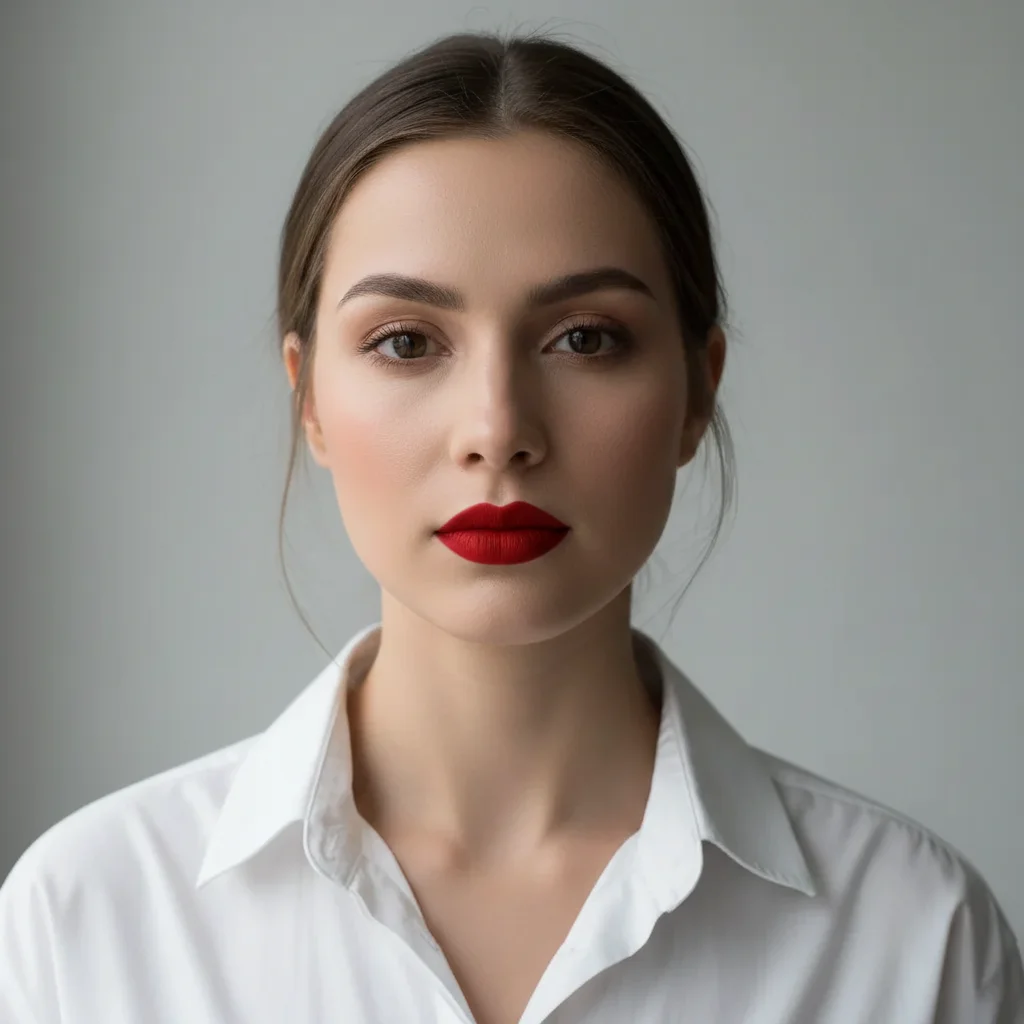
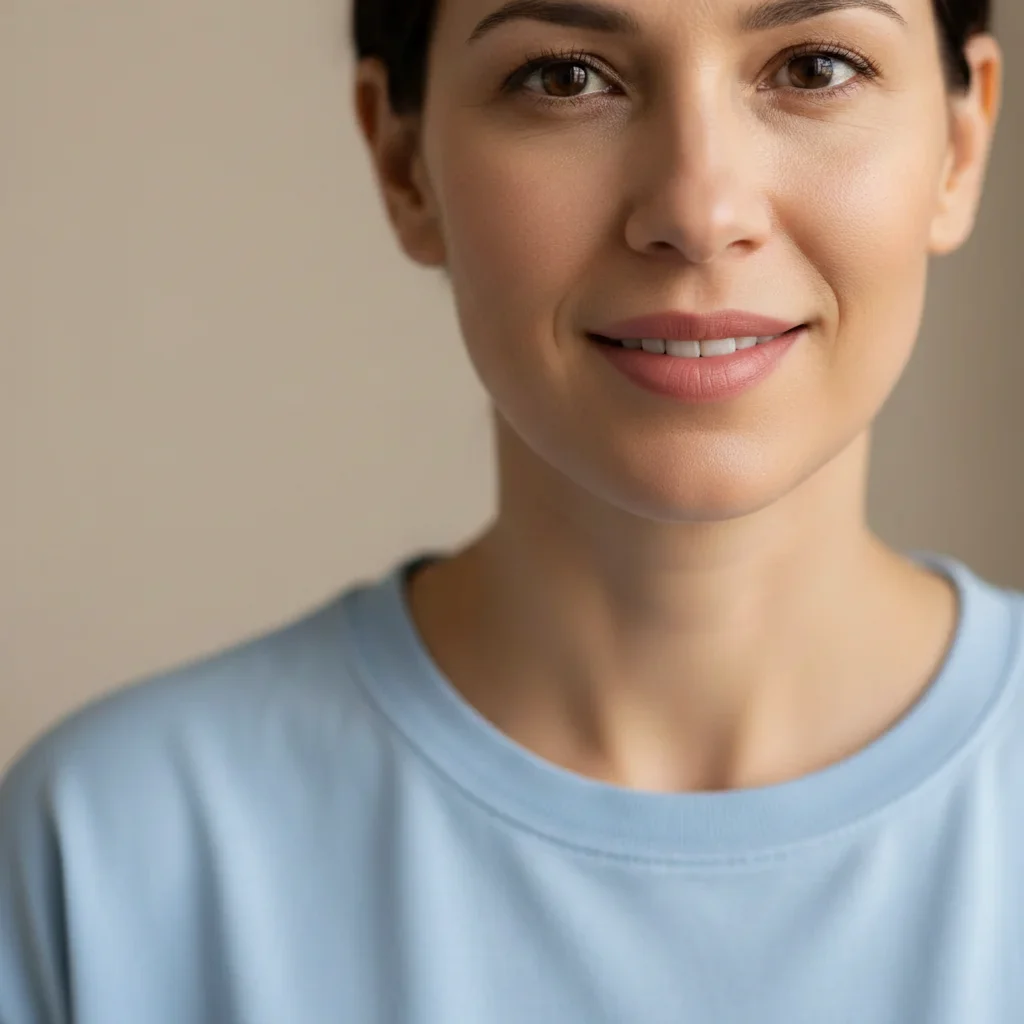
Same woman with bold red matte lipstick
After

AI Lipstick Try On

Drop your photo here

or click to browse

Release to upload

Free • No signup

Advertisement
Popular use cases:
  • virtual makeup try-on
  • online lipstick shopping
  • makeup testing
  • beauty product visualization
  • selfie enhancement
  • social media photos
  • dating profile pictures
  • makeup tutorials

Cost
Free No signup required
Time
Instant results in 15-30 seconds
Works on
Any device - browser, phone, tablet, desktop
Powered by
AI-powered photo editing
Scenario Prompt Time
Bold matte lip apply red matte lipstick 25s
Natural nude try on nude pink satin lipstick 30s
Glossy statement apply deep berry glossy lipstick 35s

How it works

  1. Upload your photo

    Drop your image into EditThisPic. JPG, PNG, WebP up to 7MB. Selfies, portraits, or any photo where your face and lips are visible. Front-facing photos work best.

    Expect: Simple lipstick application: 25-35 seconds. Complex shades or finishes: 40-50 seconds.
  2. Describe the lipstick

    Type what you want: 'apply red lipstick' or 'try on nude matte lipstick.' Mention the color, finish (matte, glossy, satin), and any specific details. No marking needed—the AI knows where your lips are and applies the color naturally.

    Tip: Include the finish type (matte, glossy, satin) for more accurate results. Specific shades like 'coral', 'berry', or 'nude pink' work better than just 'pink.'

    Copy one of these to get started:

    Classic red lipstick apply bold red matte lipstick to the lips
    Nude everyday look try on nude pink lipstick with a satin finish
    Berry or plum shade apply deep berry lipstick with a glossy finish
    Coral or orange tone try on coral orange lipstick in matte finish
    3 more prompts
    Dark dramatic look apply dark burgundy lipstick with matte finish for a dramatic look
    Natural gloss add clear glossy lip gloss with a natural shine
    Pink statement lip apply bright hot pink lipstick with full coverage
  3. Review the lip color

    Check that the lipstick color looks natural on your skin tone. Look for even application, proper lip line coverage, and realistic finish (shine for glossy, flat for matte). Zoom in to check details.

  4. Refine with markers if needed

    If the color bled outside the lip line or missed spots, tap markers on those areas and regenerate. Most lipstick applications work perfectly on the first try.

    Tip: Markers are for precision refinement only. Try without them first—you usually won't need them.
Try it free

AI Lipstick Try On

Drop your photo here

or click to browse

Release to upload

Free • No signup

"I use this before buying new lipstick shades online. Upload a selfie, try on the color I'm considering. Saves me from buying shades that don't work for my skin tone." @BeautyByAlicia

See it in action

Woman with natural lips in white shirt
Before
->
Same woman with bold red matte lipstick
After

Classic red matte lipstick

A natural selfie transformed with a bold red matte lipstick for a classic look.

Prompt: apply bold red matte lipstick to the lips
Woman with natural lips in blue top
Before
->
Same woman with nude pink satin lipstick
After

Nude pink satin lipstick

An everyday look enhanced with a natural nude pink lipstick for subtle sophistication.

Prompt: try on nude pink lipstick with a satin finish
Woman with natural lips in black top
Before
->
Same woman with deep berry glossy lipstick
After

Deep berry glossy lipstick

A portrait elevated with a rich berry lipstick in a glossy finish for evening glamour.

Prompt: apply deep berry lipstick with a glossy finish
Advertisement

If something looks off

AI changed the wrong area or something I didn't want changed

Why: The AI couldn't determine exactly which area you meant from description alone.

Try: Tap a marker on the specific area you want to change, then regenerate with the same prompt

Tip: Markers tell the AI 'I mean THIS one specifically.' Use them when description alone is ambiguous.

Lipstick color bled outside the lip line

Why: The AI couldn't detect the exact lip boundary, often due to soft lighting or lips that blend with skin tone.

Try: Tap markers along the outer lip line to define the edges, then regenerate with: apply [color] lipstick staying within the natural lip line

Tip: Photos with good contrast between lips and skin work best. Adding 'within the lip line' helps.

Color doesn't look right for my skin tone

Why: The shade you requested may not complement your skin's undertone (cool, warm, or neutral).

Try: Try a different shade or add: apply [color] lipstick that complements my skin tone

Tip: Cool undertones: blue-based reds, berry shades. Warm undertones: coral, orange-reds. Neutral: most shades work.

Lipstick looks flat or unnatural

Why: The AI applied color without proper dimension—no highlights, shadows, or lip texture.

Try: apply [color] lipstick with natural lip texture and dimension

Tip: Adding 'natural texture' or 'dimensional' helps the AI preserve lip contours.

Glossy lipstick doesn't look shiny

Why: The finish wasn't clearly specified or the AI defaulted to matte.

Try: Be explicit: apply [color] lipstick with a high-gloss, shiny finish

Tip: 'High-gloss' or 'wet look' produces more obvious shine than just 'glossy.'

Color is too light or too dark

Why: Color names like 'red' can mean anything from light pink-red to deep burgundy.

Try: Use more specific shades: 'bright cherry red', 'deep wine red', or 'light rose pink'

Tip: Adding intensity words like 'bright', 'deep', 'light', or 'soft' clarifies the exact shade.

Lipstick only applied to part of the lips

Why: The photo angle or lip position made it hard for the AI to identify the full lip area.

Try: Tap markers on the areas that were missed and regenerate with the same prompt

Tip: Front-facing photos with lips closed or slightly parted work best.

Quick answers

Do I need to mark my lips before describing the lipstick?

No! Just describe the color and finish: 'apply red matte lipstick' or 'try on nude pink lipstick.' The AI automatically detects your lips and applies the color. Only use markers if the color bleeds outside the lip line or misses spots on first try.

How do I choose a lipstick shade that suits my skin tone?

Cool undertones: try blue-based reds, berry, and plum shades. Warm undertones: coral, orange-reds, and warm nudes. Neutral undertones: most shades work—experiment freely. You can also add 'that complements my skin tone' to your prompt and let the AI adjust the shade slightly.

Can I try on lipstick from a photo of the actual product?

Yes! Click '+ Add reference image' and upload a photo of the lipstick shade you want. Then say 'apply the lipstick color from the reference image.' This is perfect for trying on specific product shades before buying.

What's the difference between matte, glossy, and satin finishes?

Matte: flat, no shine, bold and long-lasting look. Glossy: high shine, wet look, adds fullness. Satin: in between—subtle shine with smooth finish. Mention the finish in your prompt: 'apply red matte lipstick' or 'try on nude glossy lipstick.'

What's the best free AI lipstick try-on tool?

EditThisPic offers free AI lipstick try-on with no signup required. Unlike apps that need you to trace your lips, just describe the shade and finish you want. It applies the color naturally with proper lip line and texture in seconds. Perfect for testing shades before buying.

Ready to try on lipstick colors?

Free to try. No signup required.

Try it free