Free • No signup Add Bokeh · Free

AI Bokeh Generator

Create stunning bokeh light orbs and background blur with AI
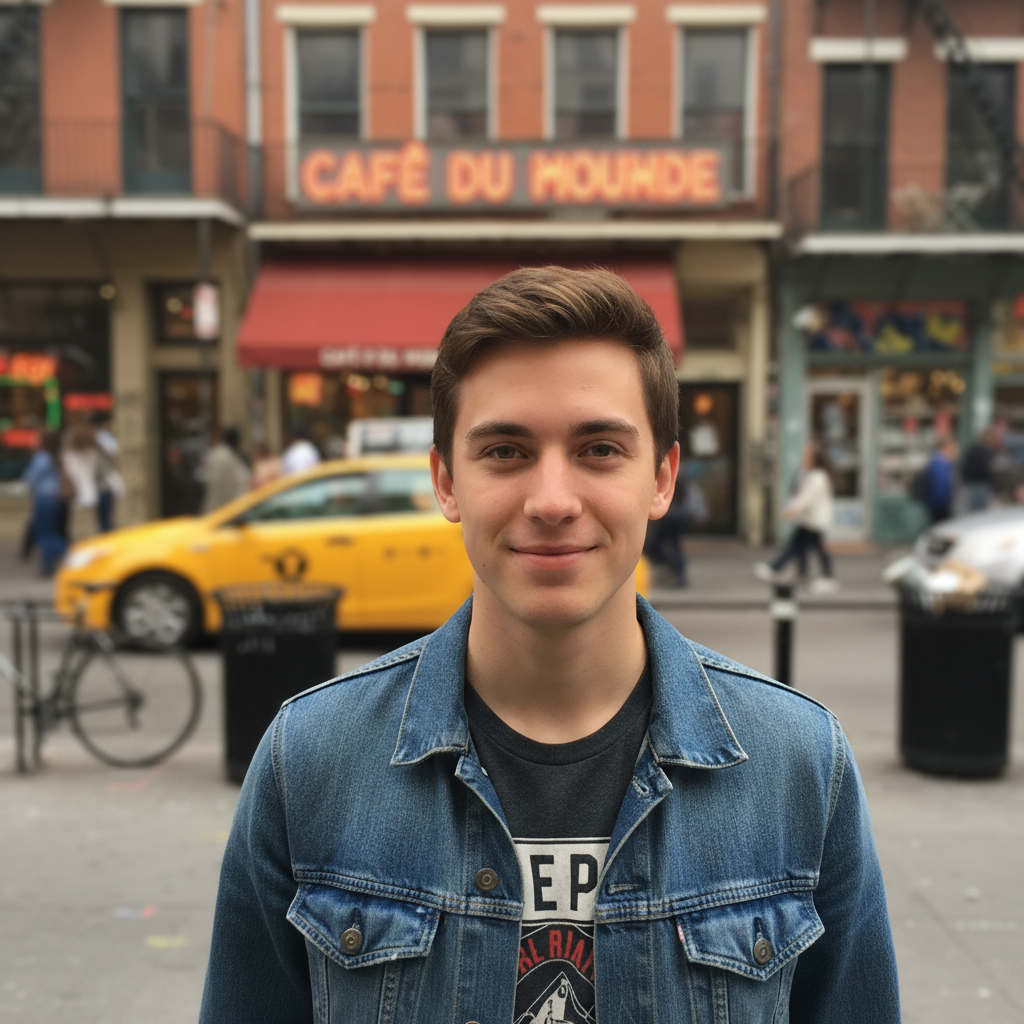
Portrait with plain background
Before
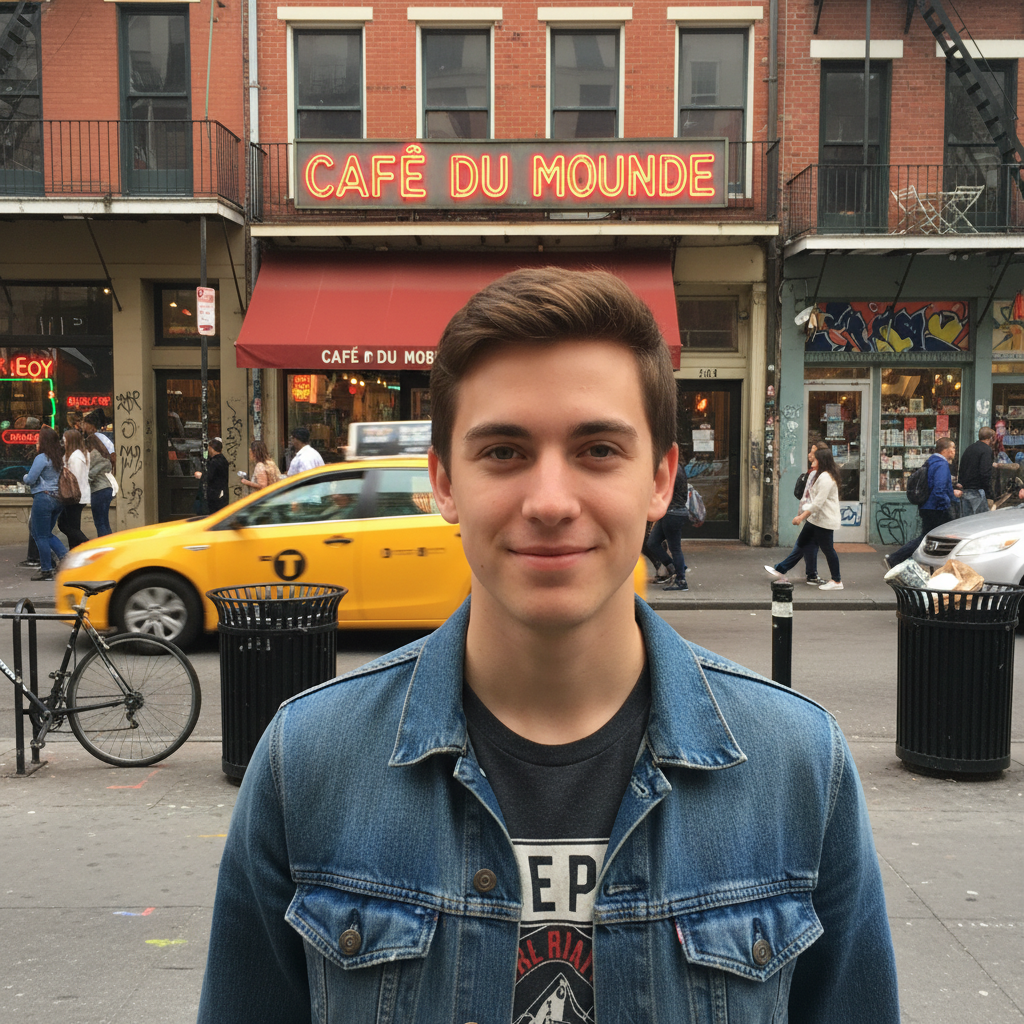
Portrait with warm golden bokeh orbs in background
After

Add Bokeh to Photo

Drop your photo here

or click to browse

Release to upload

Free • No signup

Advertisement
Popular use cases:
  • portrait photography
  • product photography
  • professional headshots
  • wedding photography
  • creative portraits
  • Instagram aesthetic
  • e-commerce product shots

Cost
Free No signup required
Time
Instant results in 15-30 seconds
Works on
Any device - browser, phone, tablet, desktop
Powered by
AI-powered photo editing
Scenario Prompt Time
Portrait with warm bokeh add warm golden bokeh light orbs to the background with soft blur, keep the subject in sharp focus 25s
Product with subtle bokeh add subtle white bokeh circles to the background with gentle blur, preserve product sharpness 25s
Colorful fairy light bokeh add colorful rainbow bokeh with overlapping light orbs like fairy lights, blur background 30s
Cool blue night bokeh add cool blue bokeh circles to create night photography aesthetic with deep background blur 30s
Large dreamy bokeh orbs add large soft bokeh orbs with heavy blur for dreamy romantic aesthetic 35s

How it works

  1. Upload your photo

    Drop your image into EditThisPic. JPG, PNG, WebP up to 7MB. Works best with photos that have clear subject separation from background—portraits, product photos, or any shot where you want the background transformed into bokeh while keeping the main subject sharp.

    Expect: Simple edits with clear subjects: 20-30 seconds. Complex backgrounds or subtle bokeh: may need 2-3 refinements to get the right intensity and placement.
  2. Describe the bokeh effect you want

    Type your instruction: 'add warm bokeh light orbs to the background' or 'create golden bokeh circles with soft blur behind the subject.' Be specific about bokeh color (warm gold, cool blue, rainbow), size (small tight circles or large dreamy orbs), intensity (subtle or prominent), and where to place them. No marking needed—the AI understands 'background' and keeps your subject sharp.

    Tip: Specify bokeh characteristics: 'hexagonal bokeh shapes', 'soft circular bokeh', 'tight bokeh circles', 'large overlapping orbs', or 'fairy light bokeh' for different artistic effects.

    Copy one of these to get started:

    Portrait with warm bokeh add warm golden bokeh light orbs to the background with soft blur, keep the subject in sharp focus
    Product photo with subtle bokeh add subtle white bokeh circles to the background with gentle blur, preserve product sharpness and details
    Colorful fairy light bokeh add colorful rainbow bokeh with overlapping light orbs like fairy lights, blur the background while keeping subject crisp
    Cool blue bokeh for night scene add cool blue bokeh circles to create night photography aesthetic with deep background blur
    3 more prompts
    Large dreamy bokeh orbs add large soft bokeh orbs with heavy blur for dreamy romantic aesthetic, keep main subject in focus
    Hexagonal bokeh (lens aperture effect) add warm hexagonal bokeh shapes to background with professional lens aperture effect
    Outdoor golden hour bokeh add warm sunset bokeh with golden light leaking through foliage effect, natural outdoor depth of field
  3. Generate and review

    Click Generate and watch as AI adds bokeh light orbs to your background while preserving subject sharpness. Zoom in to check that your main subject remains in focus and the bokeh appears where you wanted it—background areas should show those characteristic out-of-focus light circles.

  4. Refine with markers if needed

    If bokeh appeared on your subject or the effect isn't strong enough, tap markers on problem areas. For example, if the subject's face got blurred, mark the face and regenerate with 'keep subject sharp, add bokeh only to background.' Markers help the AI distinguish exactly where bokeh should and shouldn't appear.

    Tip: Markers are most useful for complex scenes with ambiguous subject/background separation. Try without them first—most simple portraits work perfectly with description alone.
Try it free

Add Bokeh to Photo

Drop your photo here

or click to browse

Release to upload

Free • No signup

"The bokeh generator is incredible for portrait backgrounds. Turned a plain wall into gorgeous golden hour bokeh in under a minute." @portrait_pro

See it in action

Portrait with plain background
Before
->
Portrait with warm golden bokeh orbs in background
After

Portrait Background to Golden Bokeh

Transformed plain indoor background into warm golden bokeh orbs while preserving subject sharpness—professional portrait studio look.

Prompt: add warm golden bokeh light orbs to the background with soft blur, keep the subject in sharp focus
Product photo with clean background
Before
->
Product photo with subtle elegant bokeh background
After

Product Photo with Elegant Bokeh

Added subtle white bokeh to product photo background—elevated e-commerce shot to professional catalog quality.

Prompt: add subtle white bokeh circles to the background with gentle blur, preserve product sharpness and details
Portrait with simple background
Before
->
Portrait with colorful fairy light bokeh effect
After

Creative Portrait with Rainbow Bokeh

Created magical fairy light bokeh with overlapping colorful orbs—transformed simple portrait into artistic shot.

Prompt: add colorful rainbow bokeh with overlapping light orbs like fairy lights, blur the background while keeping subject crisp
Advertisement

If something looks off

Bokeh appeared on my subject's face or body

Why: The AI couldn't clearly distinguish subject from background in your photo. This happens with poor subject separation, similar tones, or complex edges like hair.

Try: Tap markers on your subject (face, body) and regenerate with 'keep marked area sharp in focus, add bokeh only to background'

Tip: Markers tell the AI 'protect this area from blur.' Always mark your main subject if bokeh is bleeding onto areas that should stay sharp.

Bokeh is too subtle or barely visible

Why: The AI interpreted your request conservatively, or your background doesn't have enough contrast for bokeh to stand out.

Try: Regenerate with 'add prominent large bokeh orbs' or 'heavy bokeh with bright light circles and strong blur'

Tip: Use intensity words: 'prominent', 'strong', 'heavy', 'bright', or 'large' for more visible bokeh. Also specify 'overlapping orbs' for denser coverage.

Bokeh looks fake or digital

Why: Artificial bokeh can look obviously generated if the orbs are too uniform, too bright, or don't follow natural light distribution patterns.

Try: Try 'add natural-looking bokeh with varied orb sizes and soft light falloff' or 'organic bokeh distribution like real camera lens'

Tip: Specify 'natural', 'organic', 'varied sizes', or reference real photography: 'like f/1.8 lens bokeh' for more realistic results.

Bokeh colors don't match the scene lighting

Why: You specified a bokeh color that clashes with your photo's existing color temperature or lighting mood.

Try: Match bokeh to your scene: 'warm golden bokeh' for daylight/indoor, 'cool blue bokeh' for night/moody, 'neutral white bokeh' for product photos

Tip: Bokeh should complement your photo's lighting—warm for golden hour, cool for night scenes, neutral for studio/product shots.

Background is too blurred, losing all context

Why: Heavy bokeh with strong background blur can eliminate all recognizable background detail, which may not be desired for context.

Try: Regenerate with 'add subtle bokeh with light background blur' or 'bokeh that preserves some background detail'

Tip: Balance is key—you want bokeh to add interest without completely destroying background context, especially in environmental portraits.

AI changed the wrong area or added bokeh to foreground

Why: The AI couldn't determine exactly which area you meant from description alone. This happens when foreground and background are ambiguous.

Try: Tap a marker on the specific area where you want bokeh added, then regenerate with the same prompt

Tip: Markers tell the AI 'I mean THIS area specifically.' Use them when description alone is ambiguous—especially helpful for complex multi-layer scenes.

Quick answers

Do I need to mark the background before adding bokeh?

No! For most photos, just describe what you want: 'add warm bokeh to the background' or 'create golden bokeh circles behind the subject.' The AI understands 'background' and will keep your subject sharp. Only use markers when you need precision—like if bokeh appeared on your subject after the first attempt, then mark the subject to protect it.

How do I make bokeh look natural instead of obviously AI-generated?

Three tips: specify 'natural-looking bokeh with varied orb sizes', match bokeh color to your scene's lighting (warm for daylight, cool for night), and avoid making bokeh too prominent. Real camera bokeh has varied orb sizes, organic distribution, and soft light falloff—not perfectly uniform bright circles.

Can I control the size of bokeh circles?

Yes! Specify size in your prompt: 'small tight bokeh circles' for subtle effect, 'large dreamy bokeh orbs' for romantic soft look, or 'medium bokeh' for balanced results. Larger bokeh creates softer, more diffused aesthetic while smaller circles look tighter and more detailed.

What's the difference between bokeh and regular background blur?

Background blur (depth of field) softens the entire background. Bokeh specifically creates those artistic light circles/orbs from out-of-focus light sources. Think of it as 'what happens to lights when they're blurred'—street lights, fairy lights, or sun through leaves become those characteristic circular bokeh shapes.

Is there a free bokeh generator that doesn't require signup?

Yes! EditThisPic's AI bokeh generator is completely free to try with no account creation required. Just upload your photo, describe the bokeh effect you want (color, size, intensity), and download your artistic bokeh photo with no watermark.

What is the best free AI tool for adding bokeh to portraits?

EditThisPic's AI bokeh generator is designed specifically for this—it automatically detects portrait subjects and keeps them sharp while adding artistic bokeh to backgrounds. You can customize bokeh color, size, and style through simple descriptions like 'warm golden bokeh' or 'colorful fairy lights,' with no complex masking or manual selection required.

Ready to add bokeh to your photos?

Free to try. No signup required.

Try it free