Free • No signup Add Sun flare · Free

AI Sun Flare Adder

Add beautiful sun flare and golden light with just a description.
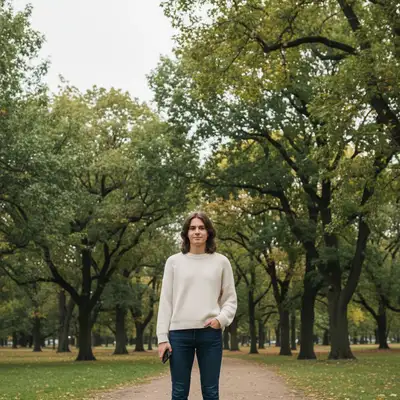
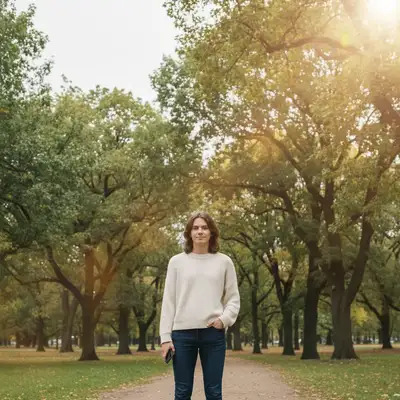
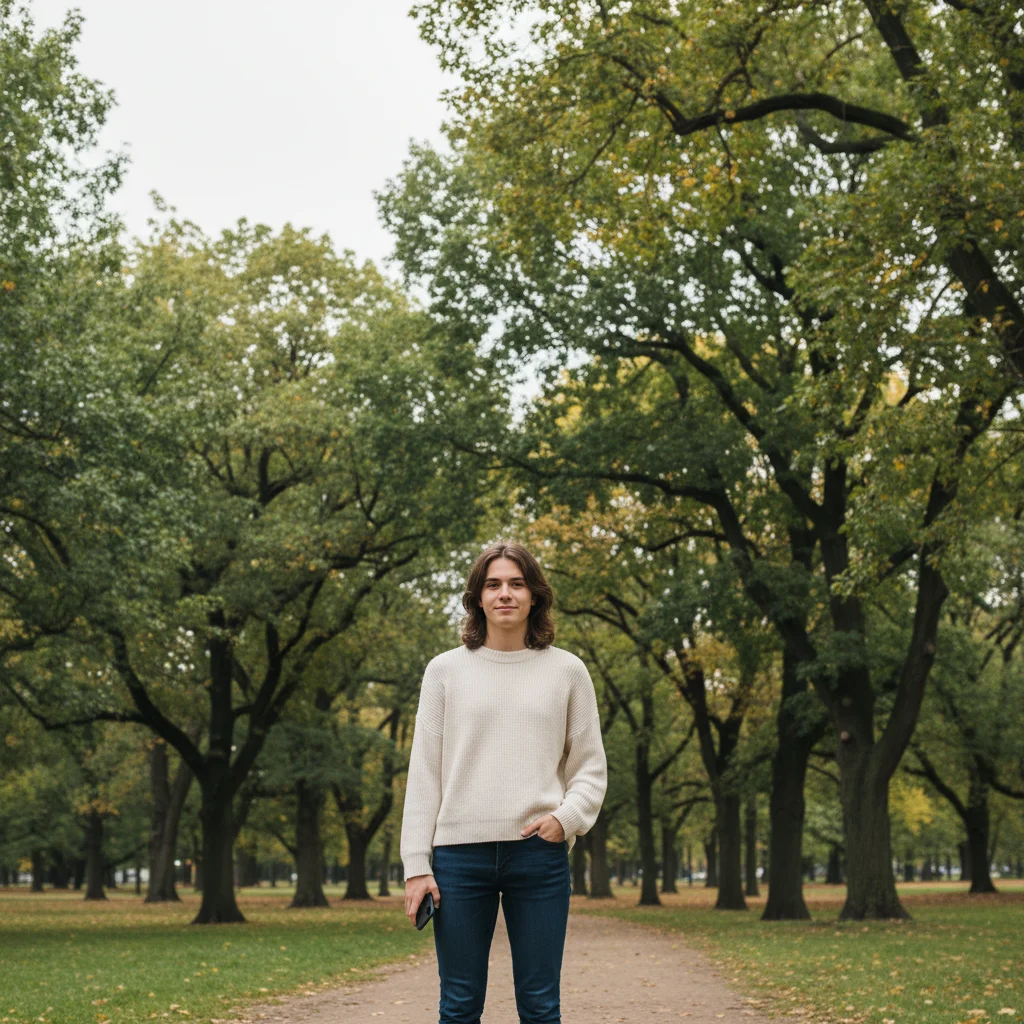
Portrait without sun flare in overcast light
Before
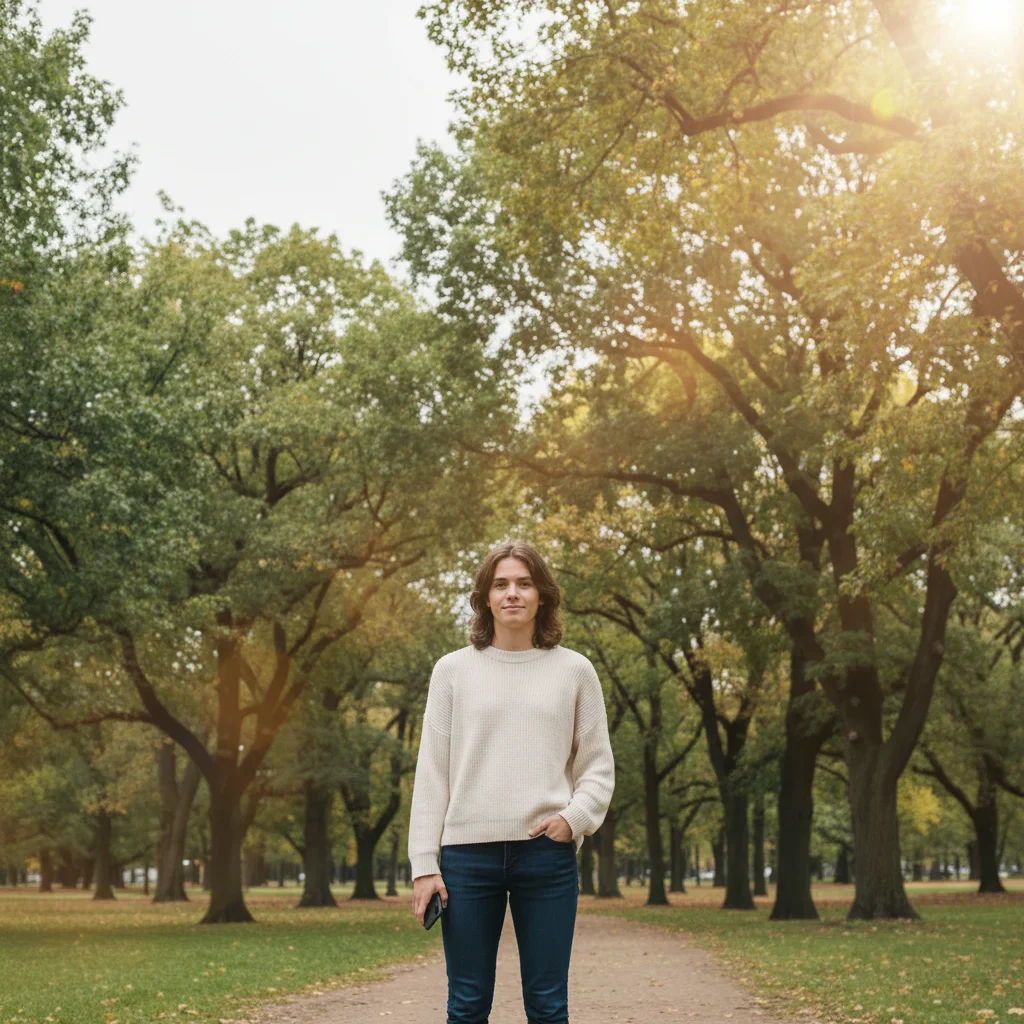
Portrait with warm golden sun flare creating backlight
After

Add Sun Flare to Photos

Upload photo to add sun flare

Free • Results in 30 seconds • No signup

Release to upload

FreeNo signupNo watermark
Popular use cases:
  • portrait photography
  • golden hour effect
  • outdoor photography
  • landscape enhancement
  • wedding photography
  • social media photos
  • professional headshots
  • backlight effects

Cost
Free No signup required
Time
Instant results in 15-30 seconds
Works on
Any device - browser, phone, tablet, desktop
Powered by
AI-powered photo editing
Scenario Prompt Time
Golden hour glow add warm sun flare from the upper right with soft golden rays and gentle lens glow 15s
Subtle backlight add soft sun glow behind the subject with subtle warm backlight and gentle halo 10s
Dramatic rays add bright sun flare in top left corner with dramatic radiating rays and intense golden light 15s
Natural lens flare add realistic lens flare from the upper edge with natural optical artifacts and warm glow 15s

How it works

  1. Upload your photo

    Upload a clear photo showing the area you want to edit. Good lighting and sharp focus help the AI deliver better sun flare results. JPG, PNG, WebP up to 7MB.

    Expect: Simple sun flare effects: 10-20 seconds. Complex ray patterns with multiple light sources: may need 1-2 refinements.
  2. Describe the sun flare you want

    Type your instruction: 'add warm sun flare from the upper right with soft golden rays' or 'add bright lens flare in the top left corner with natural glow.' Be specific about position (upper left, top right, corner), warmth (golden, warm, bright white), and style (soft glow, lens flare, sun rays). No marking needed—the AI understands light placement.

    Tip: Include intensity: 'with subtle glow' for gentle warmth or 'with intense rays' for dramatic effect

    Copy one of these to get started:

    Warm golden hour glow add warm sun flare from the upper right with soft golden rays and gentle lens glow
    Subtle backlight effect add soft sun glow behind the subject with subtle warm backlight and gentle halo
    Dramatic sun rays add bright sun flare in top left corner with dramatic radiating rays and intense golden light
    Natural lens flare add realistic lens flare from the upper edge with natural optical artifacts and warm glow
    2 more prompts
    Sunset flare with orange warmth add sunset sun flare with deep orange-gold color and soft atmospheric glow
    Bright white sunburst add bright white sun flare with starburst pattern and clean crisp rays
  3. Generate and review the effect

    Click Generate and watch as AI adds realistic sun flare with proper glow, warmth, and ray patterns. Check the flare position and intensity at full zoom.

  4. Adjust position or intensity if needed

    If you want the flare repositioned or less intense, regenerate with adjusted instructions like 'move sun flare to top left' or 'reduce flare intensity by half.' This is optional—most sun flares work without markers.

    Tip: Markers are for precision, not required. Try without them first.
Try it free

Add Sun Flare to Photos

Upload photo to add sun flare

Free • Results in 30 seconds • No signup

Release to upload

Free • No signup

"Added sun flare to my portrait and it instantly looks like golden hour magic!" @photo_lover

See it in action

Portrait without sun flare in overcast light
Before
->
Portrait with warm golden sun flare creating backlight
After

Portrait with golden backlight

Added warm sun flare behind subject creating beautiful golden hour backlight and professional portrait glow.

Prompt: add warm sun flare from the upper right with soft golden rays and gentle lens glow
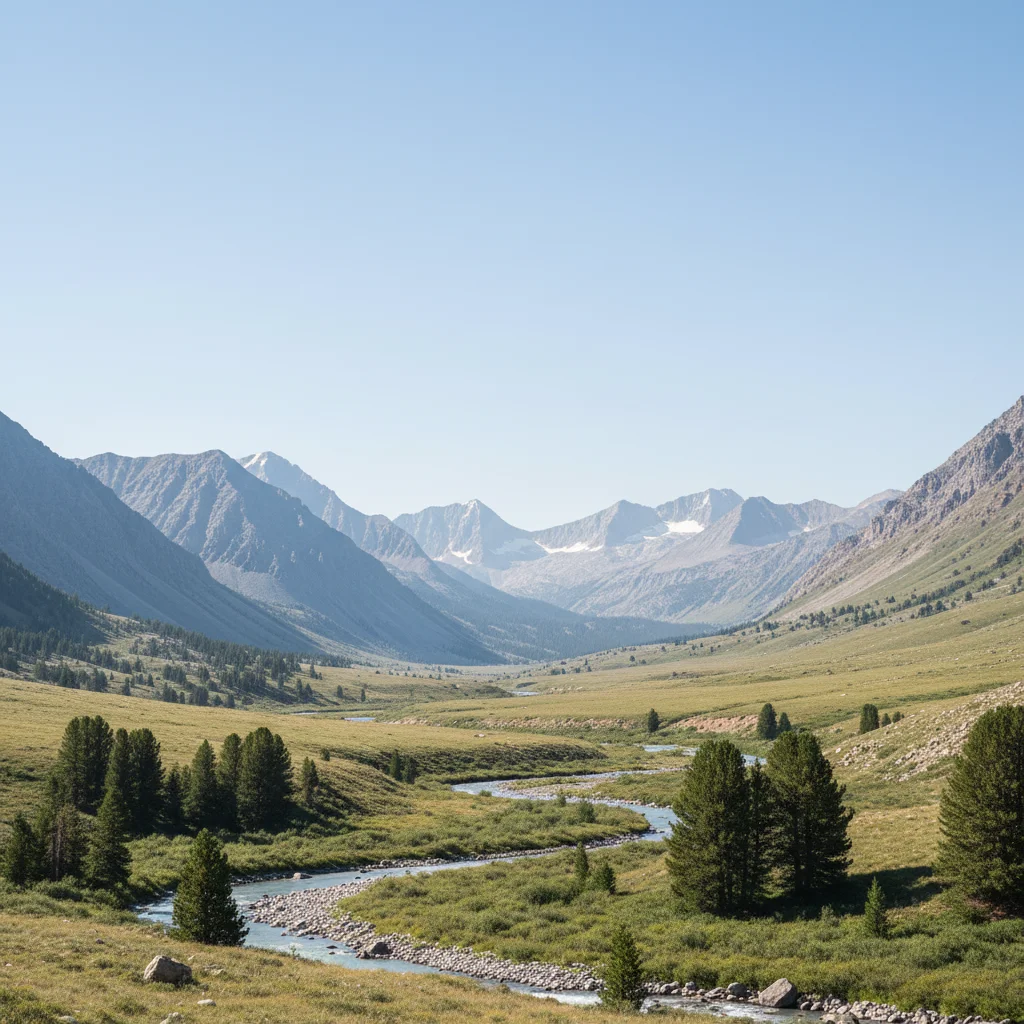
Mountain landscape without sun flare
Before
->
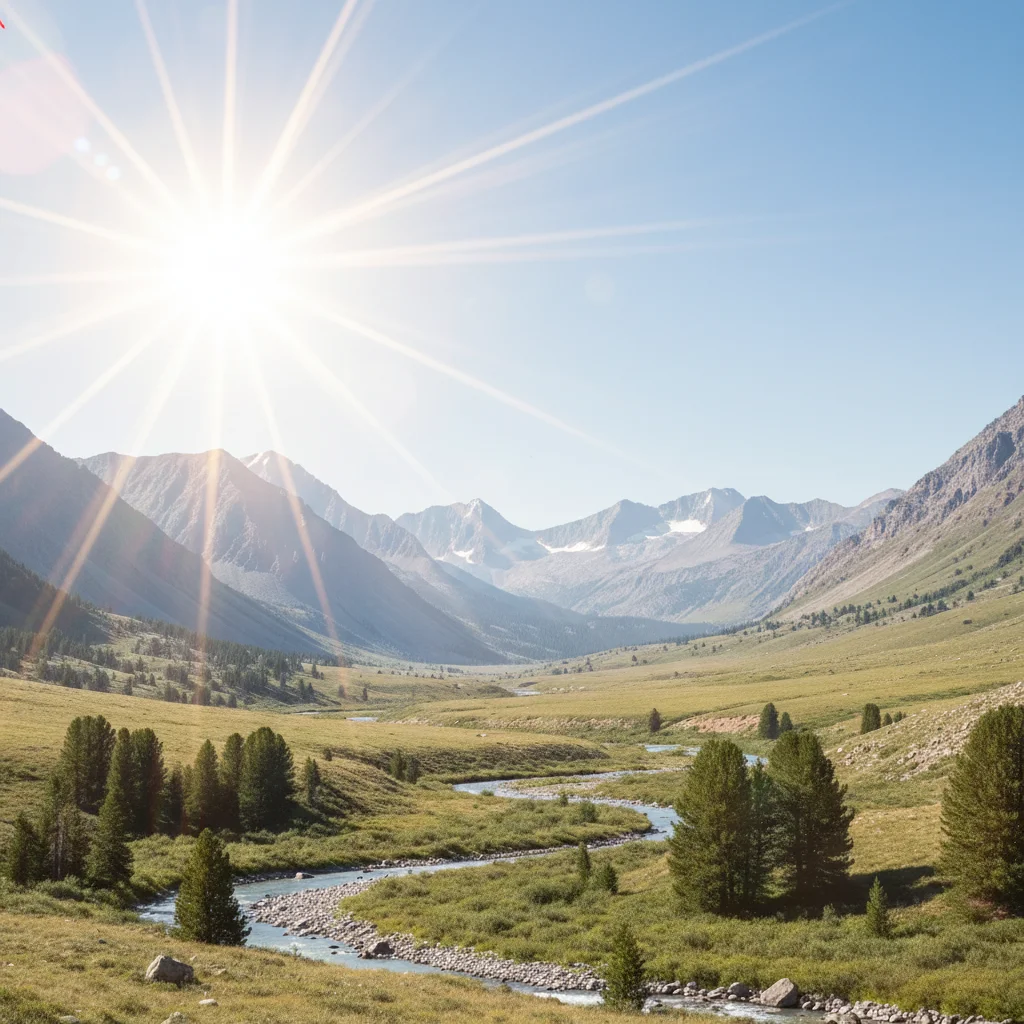
Mountain landscape with dramatic sun rays and golden glow
After

Landscape with dramatic rays

Added intense sun rays to mountain landscape creating dramatic atmospheric lighting effect.

Prompt: add bright sun flare in top left corner with dramatic radiating rays and intense golden light

Detailed Guides by Scenario

📷

Home & Interior Design

Preview how sun flare would look in a room or space before committing to a purchase or renovation.

Common Scenarios

  • Visualizing sun flare in a living room, bedroom, or office before buying
  • Creating client mockups that show sun flare in their actual space
  • Comparing different placements of sun flare in renovation plans

Best Practices

  • Upload a well-lit, straight-on photo of the room for the most realistic result
  • Specify the size and position — e.g., 'add a large sun flare on the left wall'
  • Match the room's lighting in your prompt: 'warm lighting' for evening shots, 'natural daylight' for window-lit rooms
📷

Creative & Social Content

Use sun flare to create eye-catching content for social media, digital art, or personal projects.

Common Scenarios

  • Adding sun flare to photos for unique social media posts that stand out in feeds
  • Creating fantasy or composite images that incorporate sun flare for art projects
  • Making holiday or themed content by placing sun flare in seasonal photos

Best Practices

  • Be specific about the style — 'realistic sun flare' vs. 'illustrated sun flare' gives very different results
  • Use reference images when you want the AI to match a particular look
  • For social content, try unusual placements that create a surreal or humorous effect
📷

Professional & Marketing Use

Incorporate sun flare into marketing materials, presentations, and product catalogs without expensive photo shoots.

Common Scenarios

  • Adding sun flare to product mockups and marketing banners
  • Creating presentation slides that show sun flare in context
  • Building a catalog of variations that feature sun flare in different settings

Best Practices

  • Use high-resolution source images — marketing materials demand sharp details
  • Keep brand guidelines in mind: specify colors and style that match when adding sun flare
  • Generate multiple versions and A/B test which placement performs best in ads

If something looks off

Sun flare appears in wrong position

Why: The prompt didn't specify clear directional placement for the light source.

Try: Specify exact position: 'add sun flare from the upper right corner' or 'add sun glow in the top left area behind the trees'

Tip: Use compass directions (upper left, top right, bottom right) for precise placement

Flare looks too intense or washed out

Why: The AI used maximum intensity without guidance on subtle vs. dramatic effect.

Try: adjust sun flare to [subtle/moderate/intense] with [soft/medium/strong] rays and glow

Tip: Use 'subtle' or 'soft' for gentle warmth, 'intense' or 'dramatic' for strong effects

Color temperature doesn't match the scene

Why: The flare color wasn't specified to complement the existing photo lighting.

Try: add [warm golden/orange sunset/cool white/bright yellow] sun flare to match [golden hour/midday/morning] lighting

Tip: Golden warmth for sunrise/sunset, bright white for midday, orange for dramatic sunset

No rays visible, just a glow blob

Why: The prompt didn't request ray patterns or light beams from the flare.

Try: add sun flare with visible radiating rays spreading outward from the light source

Tip: Include 'with rays' or 'with light beams' to get ray patterns, not just glow

AI changed the wrong area or added flare where it shouldn't be

Why: The AI couldn't determine exactly which area you meant from description alone. This happens with ambiguous requests.

Try: Tap a marker at the spot where you want the sun flare to originate, then regenerate with the same prompt

Tip: Markers tell the AI 'I mean THIS spot specifically.' Use them when description alone is ambiguous

Quick answers

Do I need to mark where the sun flare should appear?

No! Just describe the position: 'add sun flare from the upper right' or 'add sun glow in the top left corner.' The AI understands directional placement. Only use markers when you need to specify an exact pixel location after your first attempt.

How do I add sun flare to photos for free?

Upload your photo to EditThisPic and type 'add warm sun flare from the upper right with soft golden rays.' The AI will generate realistic sun flare effects with natural glow, rays, and warmth in 10-20 seconds. It's completely free to try with no account required.

Can I control the warmth and color of the sun flare?

Yes. Specify color: 'warm golden sun flare' for golden hour warmth, 'bright white sun flare' for crisp daylight, or 'orange sunset flare' for dramatic sunset tones. The AI adjusts color temperature to match your description.

What's the difference between sun flare and lens flare?

Sun flare is the general warm glow and rays from sun, while lens flare specifically includes optical artifacts like hexagons, streaks, and rainbow patterns from camera lens elements. Use 'lens flare with optical artifacts' for the camera lens effect.

Is EditThisPic's AI sun flare adder really free?

Yes — you get 1 free edit per week, no account needed. For unlimited edits, plans start at $3.99/month.

Can I add sun flare on my phone?

Yes. EditThisPic works in any mobile browser — iPhone, Android, tablet. No app download needed.

What photo formats does the AI sun flare adder support?

JPG, PNG, WebP, and HEIC. Upload any common photo format and EditThisPic handles the rest.

How long does it take to add sun flare?

Usually 15-30 seconds. Upload your photo, describe what you want, and the AI delivers the result.

Ready to add sun flare to your photos?

Free to try. No signup required.