Free โ€ข No signup Apply Golden hour filter ยท Free

AI Golden Hour Filter

Transform any photo into magic hour warmth with AI-powered golden hour lighting

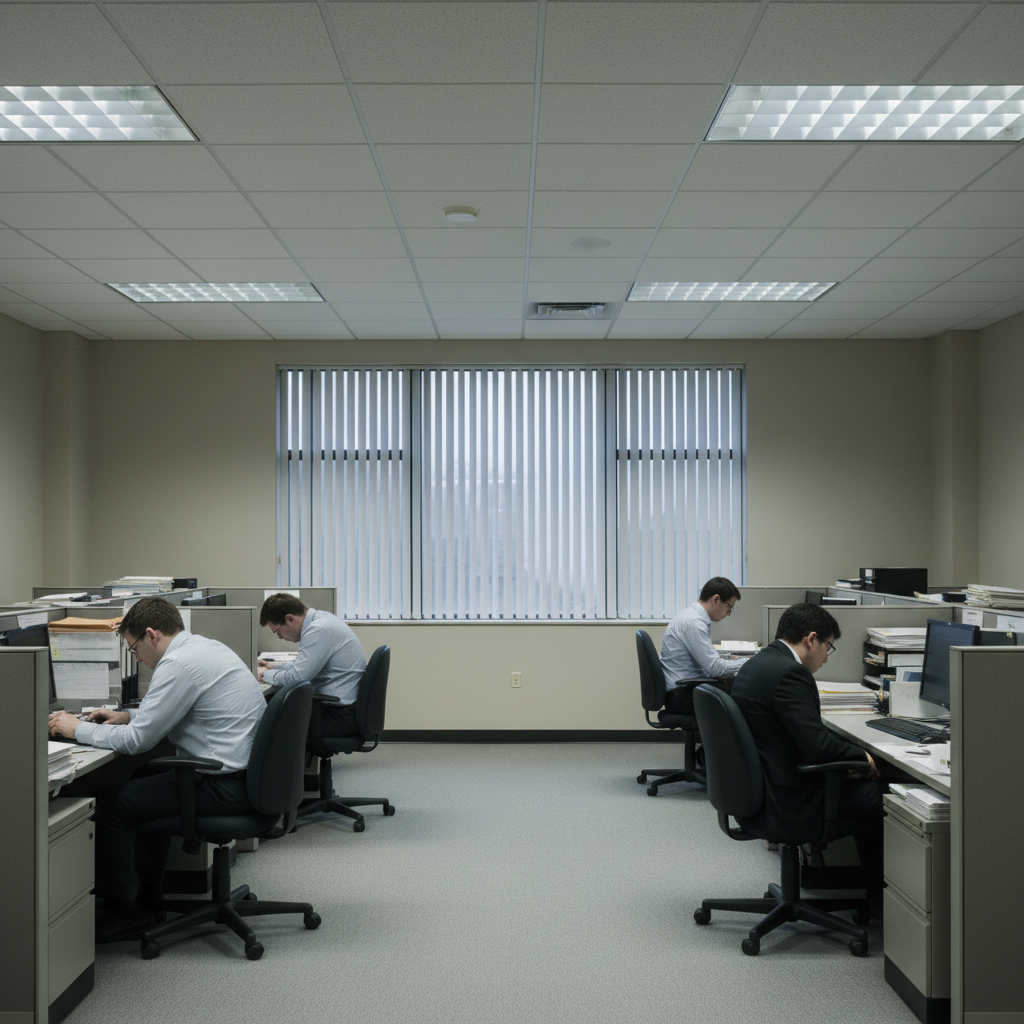
Harsh midday portrait with hard shadows
Before
โ†’
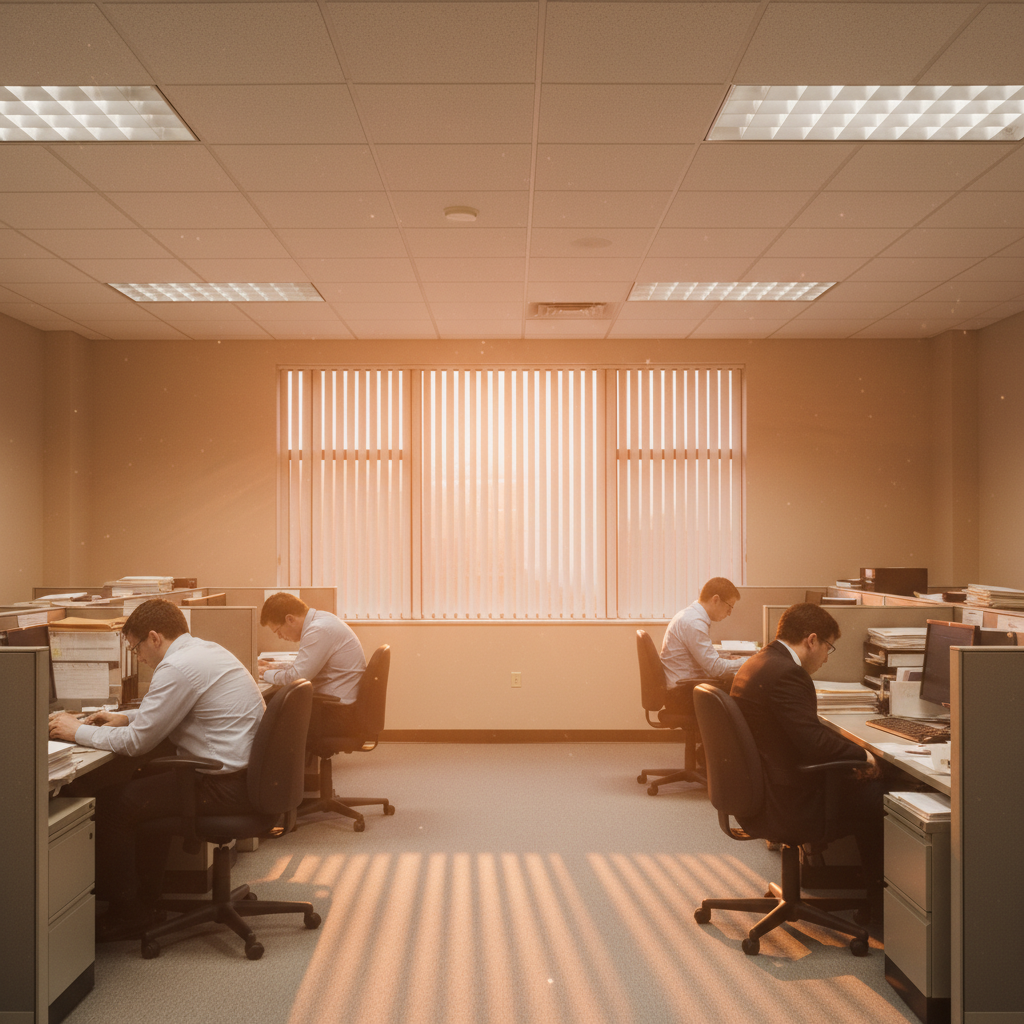
Same portrait with warm golden hour glow and soft shadows
After

AI Golden Hour Filter

Drop your photo here

or click to browse

Release to upload

Free โ€ข No signup

Advertisement
Popular use cases:
  • portrait photography golden hour
  • golden hour filter app
  • sunset lighting effect
  • magic hour photo editor
  • warm photo filter
  • golden hour preset
  • sunrise lighting effect
  • golden hour photography
  • warm glow filter
  • golden hour simulation

Cost
Free No signup required
Time
Instant results in 15-30 seconds
Works on
Any device - browser, phone, tablet, desktop
Powered by
AI-powered photo editing
Scenario Prompt Time
Subtle golden hour Apply subtle golden hour warmth with gentle shadows 15s
Dramatic sunset Add warm sunset golden hour glow from behind with rim lighting 15s
Natural sunrise Apply soft sunrise golden hour lighting with gentle warm glow 15s

How it works

  1. Upload your photo

    Choose any photo - works best with outdoor portraits, landscapes, or architecture. Photos taken during harsh midday light transform dramatically.

    Expect: AI processes images up to 4096x4096px. Larger photos are automatically optimized.
  2. Describe the golden hour effect

    Specify the warmth level, shadow softness, and time of day. Use phrases like 'warm sunset glow', 'soft golden light from the left', or 'magic hour with long shadows'.

    Tip: Include direction of light (from left, from right, behind subject) for more realistic results.

    Copy one of these to get started:

    Basic golden hour glow Apply warm golden hour lighting with soft shadows and warm tones throughout the entire photo
    Sunset portrait Add warm sunset golden hour glow from behind the subject with rim lighting and orange-pink tones in the sky
    Sunrise golden hour Apply soft sunrise golden hour lighting from the left with gentle warm glow and cool shadows
    Landscape golden hour Transform to golden hour landscape with warm horizontal light, long shadows, and golden tones on all surfaces
    3 more prompts
    Architecture golden hour Add golden hour lighting to the building with warm light on the facade and soft shadows emphasizing texture
    Enhanced magic hour Create intense golden hour effect with rich orange-gold tones, dramatic soft shadows, and warm glow on the subject's skin
    Subtle golden hour Apply subtle golden hour warmth with gentle shadows and slightly warm tones keeping the photo natural-looking
  3. Generate and review

    AI analyzes your photo and applies golden hour lighting with warm tones, soft shadows, and natural glow. Preview the result in 15 seconds.

  4. Refine with markers if needed

    If the lighting isn't quite right on specific areas, tap markers to guide where the golden glow should be strongest or softest.

    Tip: Use markers to emphasize golden light on faces or specific subjects while keeping backgrounds naturally lit.
Try it free โ†“

AI Golden Hour Filter

Drop your photo here

or click to browse

Release to upload

Free โ€ข No signup

"This made my boring noon photos look like they were shot during golden hour. The warmth and shadows look completely natural." @portraitpro

See it in action

Harsh midday portrait with hard shadows
Before
->
Same portrait with warm golden hour glow and soft shadows
After

Portrait transformation

Harsh midday portrait transformed to warm golden hour with soft shadows

Prompt: Apply warm golden hour lighting with soft shadows and warm tones throughout the entire photo
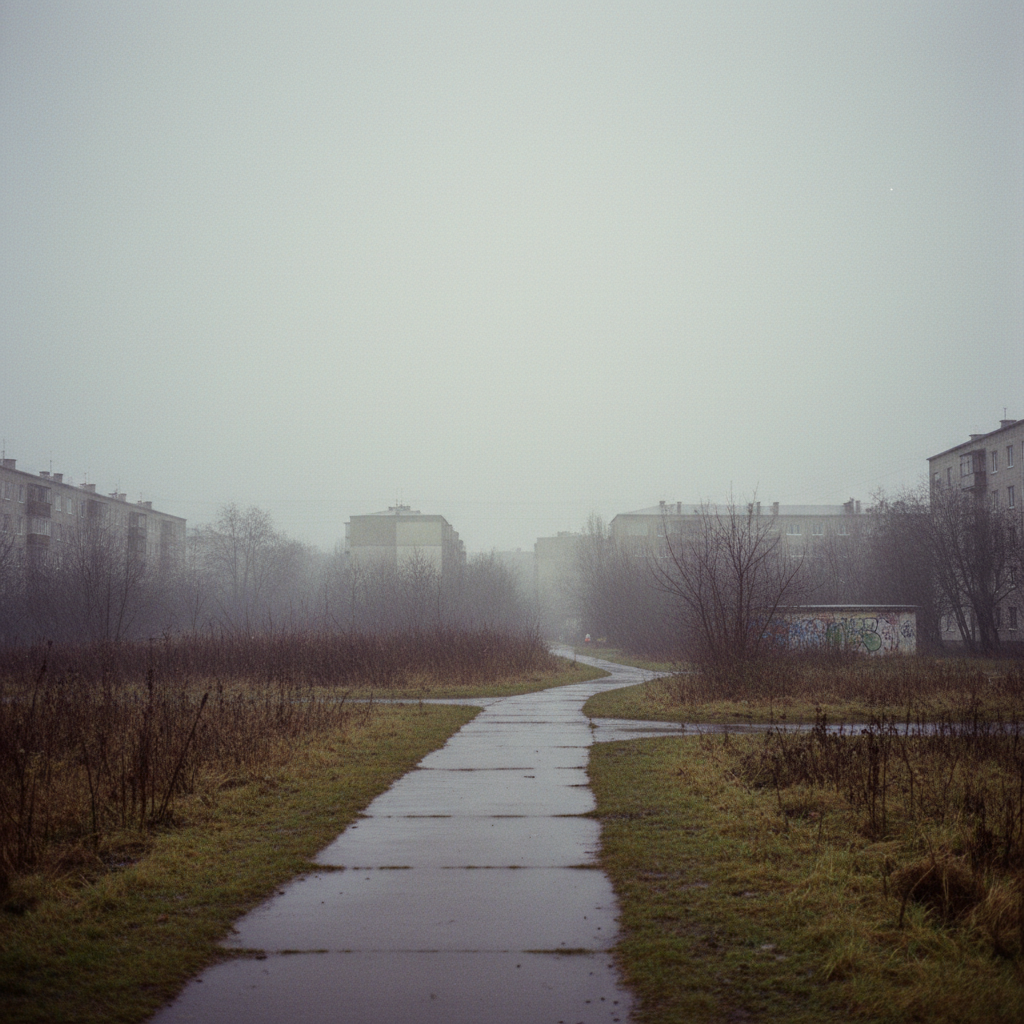
Midday mountain landscape with flat lighting
Before
->
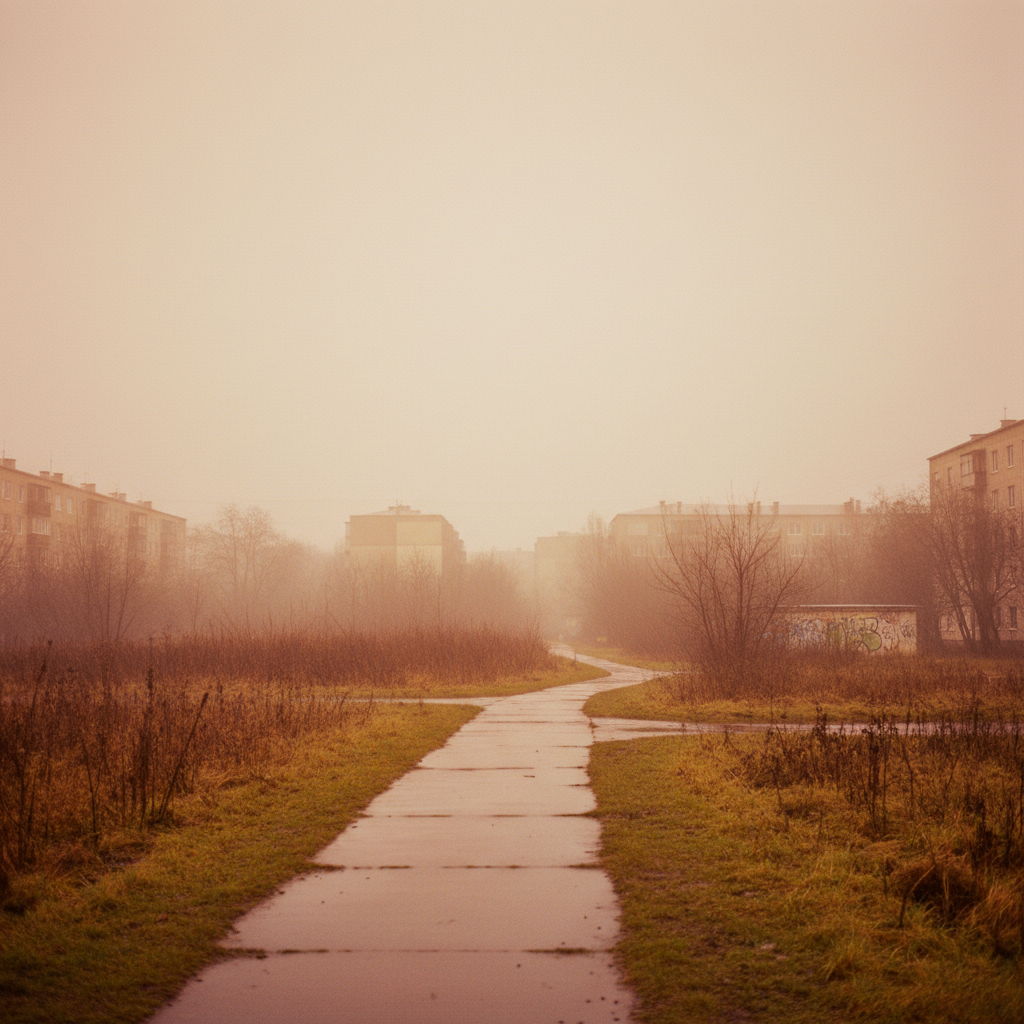
Same landscape with golden hour warm tones and long shadows
After

Landscape sunset effect

Daytime landscape converted to golden hour with dramatic warm lighting

Prompt: Transform to golden hour landscape with warm horizontal light, long shadows, and golden tones on all surfaces
Modern building in flat overcast lighting
Before
->
Same building with warm golden hour glow on facade
After

Architecture golden glow

Modern building facade transformed with warm golden hour lighting emphasizing texture

Prompt: Add golden hour lighting to the building with warm light on the facade and soft shadows emphasizing texture
Advertisement

If something looks off

The golden hour effect looks too orange or fake

Why: The AI applied too much saturation or warmth based on the prompt wording.

Try: Apply subtle golden hour warmth with gentle shadows and slightly warm tones keeping the photo natural-looking
Shadows are too dark or harsh

Why: The AI interpreted 'shadows' as strong contrast rather than the soft shadows characteristic of golden hour.

Try: Add golden hour lighting with warm glow and very soft gentle shadows that barely darken the scene
Only part of the photo has the golden hour effect

Why: The prompt may have specified a location without indicating the effect should be global.

Try: Apply warm golden hour lighting with soft shadows and warm tones throughout the entire photo uniformly
The lighting direction looks wrong

Why: AI couldn't determine light direction from your description or chose a direction that conflicts with existing shadows.

Try: Add warm golden hour glow from [specify: left/right/behind/front] matching the existing shadow direction in the photo
AI changed colors but didn't add the golden glow

Why: The prompt emphasized tones over lighting quality.

Try: Create golden hour atmosphere with warm glowing light, soft diffused illumination, and gentle orange-gold tones on all surfaces

Quick answers

Do I need to specify the time of day?

No, but it helps! Golden hour typically means the hour after sunrise or before sunset. If you want specific tones, mention 'sunset' (warmer, more orange) or 'sunrise' (cooler, more golden-pink). Just saying 'golden hour' works great for most photos.

Will this work on indoor photos?

Yes, but results vary. The AI can add golden hour warmth to indoor photos, especially those near windows. However, the effect is most dramatic on outdoor photos or indoor photos with natural light. For pure indoor shots, try specifying 'warm window light' instead of 'golden hour'.

Can I control how intense the effect is?

Absolutely. Use words like 'subtle', 'gentle', 'natural-looking' for mild effects, or 'intense', 'dramatic', 'rich' for stronger golden hour looks. The AI adjusts warmth and glow based on these descriptors.

Why do some photos look better than others with this filter?

Photos with existing natural light, outdoor settings, or visible sky transform most dramatically. Harsh midday photos see the biggest improvement. Photos already taken during golden hour can be enhanced but show less dramatic change. Indoor photos with no natural light may look less realistic.

Can I add golden hour to just the background or just the subject?

Yes! Use markers to isolate areas. For background only: describe 'golden hour on the background', tap markers on the background area. For subject only: describe 'warm golden glow on the person', tap markers on the subject. The AI will focus the effect there.

Ready to add golden hour magic?

Free to try. No signup required.

Try it free โ†’