Free • No signup Recover Blown highlights · Free

AI Highlight Recovery

Just describe the blown areas and AI recovers lost detail.
Landscape with completely white blown-out sky
Before
Landscape with recovered blue sky and cloud detail
After

Recover Blown Highlights in Photos

Drop your photo here

or click to browse

Release to upload

Free • No signup

Advertisement
Popular use cases:
  • landscape photography
  • outdoor portraits
  • interior photography
  • product photography
  • real estate photos
  • window recovery
  • sky restoration

Cost
Free No signup required
Time
Instant results in 15-30 seconds
Works on
Any device - browser, phone, tablet, desktop
Powered by
AI-powered photo editing
Scenario Prompt Time
Recover blown sky recover blown highlights in the sky and restore blue color with cloud detail 15s
Fix overexposed window restore detail in the bright overexposed window, recover what's outside 20s
Reduce bright reflections reduce blown highlights in reflections and restore texture 15s
Recover face highlights recover blown highlights on the face and restore natural skin tone 15s
Global highlight recovery recover blown highlights throughout the entire image 20s

How it works

  1. Upload your overexposed photo

    Drop your image with blown highlights into EditThisPic. Works with JPG, PNG, WebP up to 7MB. The tool handles washed-out skies, bright windows, overexposed faces, or any area that's too bright and lost detail.

    Expect: Moderate overexposure: 15-20 seconds. Severely blown areas may need 2 attempts to fully recover texture and color.
  2. Describe what you want

    Type your instruction: 'recover blown highlights in the sky and restore blue color and cloud detail' or 'restore detail in the bright overexposed window.' Be specific about which areas are blown—sky, reflections, windows, skin. No marking needed—the AI identifies overexposed regions.

    Tip: Mention what should be visible: 'restore cloud detail and blue sky color' tells the AI what you expect to see.

    Copy one of these to get started:

    Recover blown-out sky recover blown highlights in the sky and restore blue color with visible cloud detail
    Fix overexposed window in interior shot restore detail in the bright overexposed window, recover what's visible outside
    Recover detail in bright reflections reduce blown highlights in reflections and restore texture and detail
    Fix overexposed face or skin recover blown highlights on the face and restore natural skin tone and texture
    3 more prompts
    Restore sunset detail recover blown highlights in the sunset sky, restore gradient and cloud detail without losing the bright glow
    Fix blown light sources reduce blown highlights around light sources while preserving natural glow
    Recover all blown areas throughout photo recover blown highlights throughout the entire image, restore detail in all overexposed bright areas
  3. Generate and review

    AI analyzes overexposed areas and intelligently reconstructs lost detail. Zoom to 100% to verify cloud texture, window detail, or whatever was blown is now visible. Check that recovered areas blend naturally with properly exposed parts.

  4. Refine with markers if needed

    If some bright areas still look washed out or the recovery isn't strong enough, tap markers on those specific spots and regenerate. This is optional—most highlight recovery works on the first attempt.

    Tip: Markers help when only specific bright patches need more recovery. Try without them first.
Try it free

Recover Blown Highlights in Photos

Drop your photo here

or click to browse

Release to upload

Free • No signup

"Recovered a completely white sky and brought back all the clouds. Incredible what the AI can reconstruct." @landscape_photographer

See it in action

Landscape with completely white blown-out sky
Before
->
Landscape with recovered blue sky and cloud detail
After

Washed-Out Sky Recovered

Landscape photo with completely blown white sky. AI reconstructed blue sky with visible cloud texture.

Prompt: recover blown highlights in the sky and restore blue color with visible cloud detail

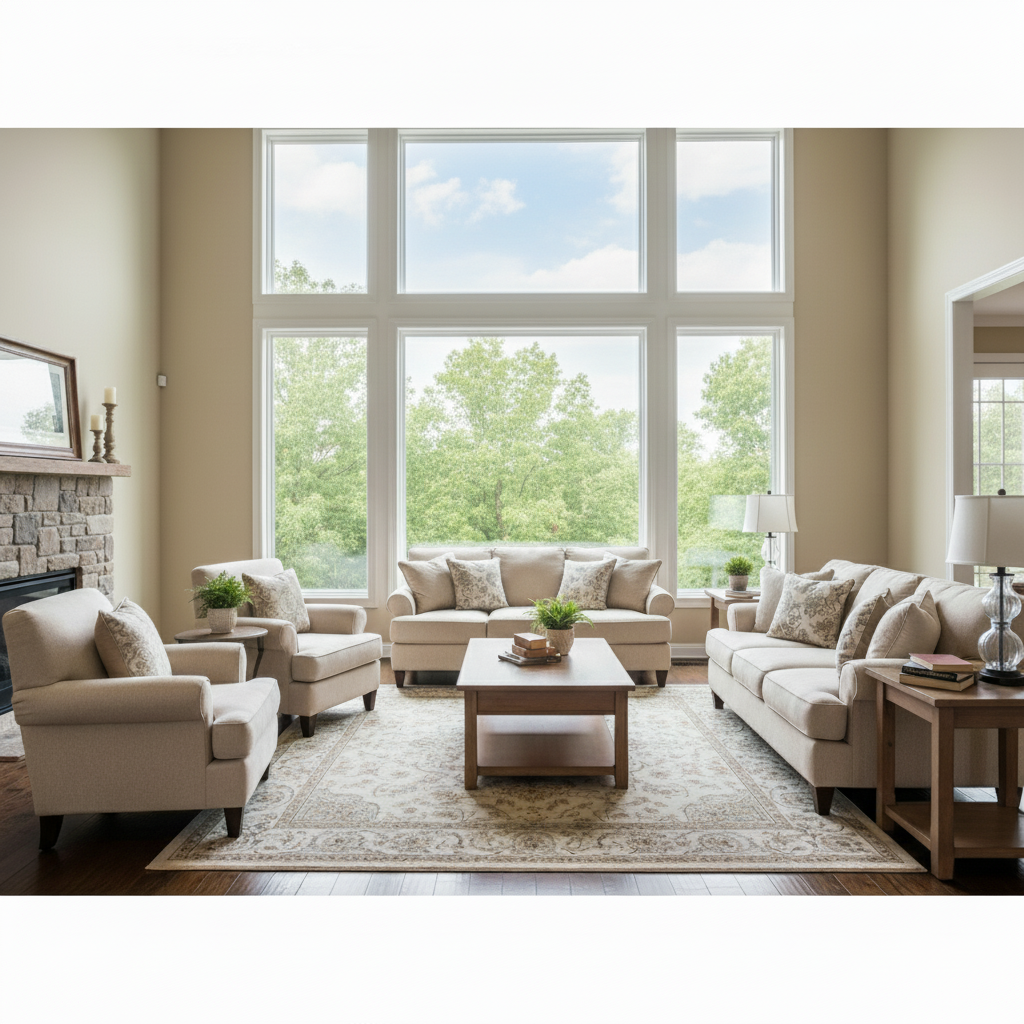
Interior photo with blown-out white window
Before
->
Interior photo with window detail recovered showing outside view
After

Overexposed Window Detail Restored

Interior room photo where bright window was pure white. Recovery revealed the outside view through the window.

Prompt: restore detail in the bright overexposed window, recover what's visible outside
Product photo with blown reflection on screen
Before
->
Product photo with reduced reflection showing surface detail
After

Bright Reflection Detail Recovered

Product photo with harsh blown reflection on glossy surface. AI reduced the blow-out while maintaining the shiny appearance.

Prompt: reduce blown highlights in reflections and restore texture and detail
Advertisement

If something looks off

AI changed the wrong area or something I didn't want changed

Why: The AI couldn't determine exactly which blown areas you meant from description alone. Multiple overexposed regions can cause ambiguity.

Try: Tap a marker on the specific blown highlight area you want to recover, then regenerate with the same prompt

Tip: Markers tell the AI 'recover THIS blown area specifically.' Use them when multiple bright regions exist.

Recovered area looks gray or unnatural

Why: Severely blown highlights have no color information. The AI must guess what color should be there.

Try: Try: 'recover highlights and restore natural [color] tone' to guide the AI, or accept that pure white areas can't perfectly reconstruct color
Some blown areas still completely white

Why: Completely clipped highlights (pure 255 white with zero detail) have no recoverable information. The AI can only work with what's captured.

Try: If the area is 100% white with zero variation, no tool can recover it—the data doesn't exist. The AI works best on partially blown areas.
Sky looks fake or painted after recovery

Why: The AI had to heavily reconstruct missing detail. Extreme reconstruction can look artificial.

Try: Try: 'gently recover sky highlights with subtle natural cloud texture' for more realistic results
Recovery made the image too dark

Why: The AI reduced overall brightness while recovering highlights. This can darken the entire image.

Try: Try: 'recover blown highlights while keeping overall image brightness' or adjust exposure separately after recovery

Quick answers

Do I need to mark the blown areas before describing?

No! Just describe what's blown: 'recover blown highlights in the sky' or 'restore detail in bright window.' The AI identifies overexposed regions automatically. Only use markers when you need to target specific bright spots that didn't recover on the first attempt.

How do I recover blown highlights in a photo for free?

Upload your overexposed image to EditThisPic and type 'recover blown highlights in the sky' or whatever area is too bright. The AI analyzes the blown regions and intelligently reconstructs lost detail and color. Free to use, no account needed, no watermark on results.

Can this fix completely white blown-out areas?

It depends. If the area is 100% pure white (clipped at 255 with zero variation), no information exists to recover. But if there's any tonal variation—even slight—the AI can work with it. Partially blown areas recover much better than completely destroyed highlights.

Will recovered highlights look natural?

For moderately overexposed areas, yes—the AI reconstructs detail convincingly. Severely blown areas (pure white) require the AI to guess what should be there, which can look less natural. Best results come from photos with some remaining highlight detail.

What's the difference between this and exposure adjustment?

Exposure adjustment globally darkens the image. Highlight recovery specifically targets blown bright areas and reconstructs lost detail while leaving properly exposed areas unchanged. Use this when only certain parts are too bright.

Ready to recover blown highlights?

Free to try. No signup required.

Try it free