Free • No signup Adjust Exposure · Free

AI Exposure Adjuster

Just describe the exposure fix you need and AI handles it.

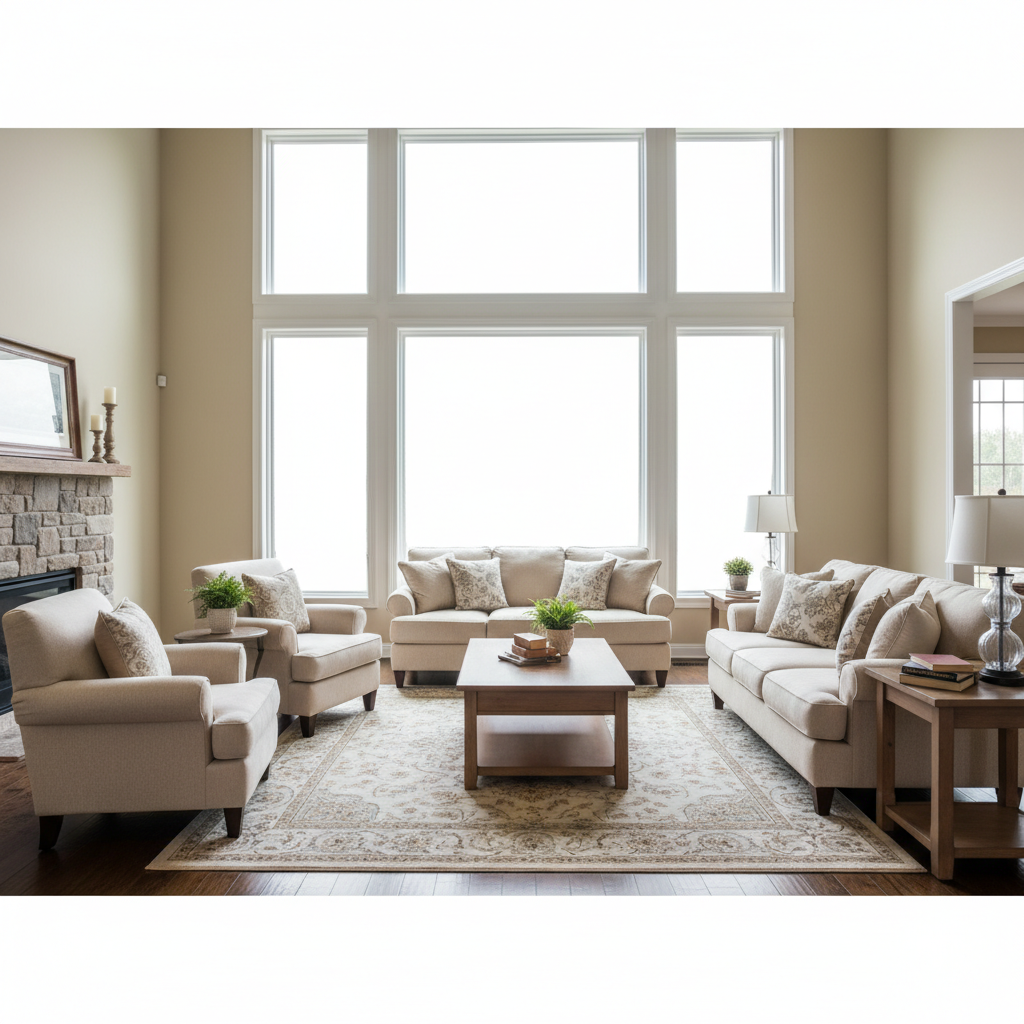
Dark underexposed indoor photo
Before
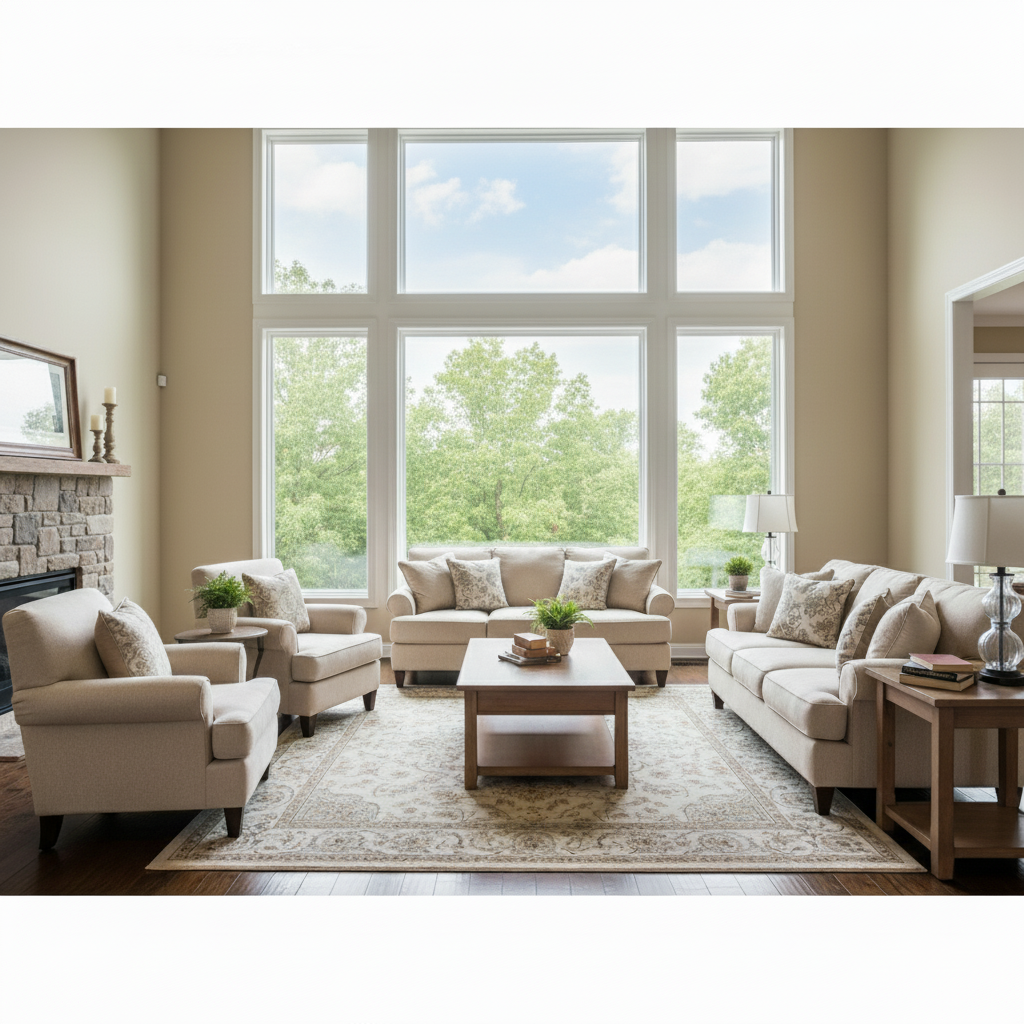
Properly exposed bright indoor photo
After

Adjust Photo Exposure

Drop your photo here

or click to browse

Release to upload

Free • No signup

Advertisement
Popular use cases:
  • dark photos
  • underexposed photos
  • overexposed photos
  • backlit photos
  • indoor photography
  • landscape photography
  • portrait fixes

Cost
Free No signup required
Time
Instant results in 15-30 seconds
Works on
Any device - browser, phone, tablet, desktop
Powered by
AI-powered photo editing
Scenario Prompt Time
Brighten dark photo brighten this underexposed photo and restore detail in the shadows 10s
Fix overexposed photo reduce overexposure and recover detail in the blown highlights 10s
Balance mixed lighting adjust exposure to balance bright and dark areas evenly 15s
Brighten shadows only brighten the dark shadow areas while keeping the bright areas unchanged 10s

How it works

  1. Upload your photo

    Drop your dark or overexposed image into EditThisPic. Works with JPG, PNG, WebP up to 7MB. The tool handles any exposure issue—underexposed shadows, blown highlights, or uneven lighting.

    Expect: Simple exposure fixes: 10-15 seconds. Complex mixed lighting: may need one refinement to balance all areas perfectly.
  2. Describe what you want

    Type your instruction: 'brighten this dark photo' or 'reduce exposure and restore blown highlights.' Be specific if only certain areas need work—'brighten shadows but keep sky' or 'even out exposure across the whole image.' No marking needed—the AI understands exposure.

    Tip: Mention if you want global adjustment ('brighten overall') or targeted ('brighten shadows only').

    Copy one of these to get started:

    Fix underexposed dark photo brighten this underexposed photo and restore detail in the shadows
    Fix overexposed bright photo reduce overexposure and recover detail in the blown highlights
    Balance mixed lighting adjust exposure to balance bright and dark areas evenly throughout the image
    Brighten shadows without affecting highlights brighten the dark shadow areas while keeping the bright areas unchanged
    2 more prompts
    Darken overexposed sky reduce exposure in the sky to restore blue color and cloud detail
    Even out backlit photo adjust exposure to fix this backlit photo, brighten the dark subject while balancing the bright background
  3. Generate and review

    AI analyzes your image and adjusts exposure intelligently. Check that dark areas are visible and bright areas aren't blown out. Zoom to verify detail is preserved in both shadows and highlights.

Try it free

Adjust Photo Exposure

Drop your photo here

or click to browse

Release to upload

Free • No signup

"Saved a completely dark photo in one try. The AI brought back all the detail perfectly." @photo_enthusiast

See it in action

Dark underexposed indoor photo
Before
->
Properly exposed bright indoor photo
After

Dark Indoor Photo Brightened

Underexposed indoor photo taken in low light. One prompt brought the exposure to perfect brightness while preserving natural color.

Prompt: brighten this underexposed photo and restore detail in the shadows
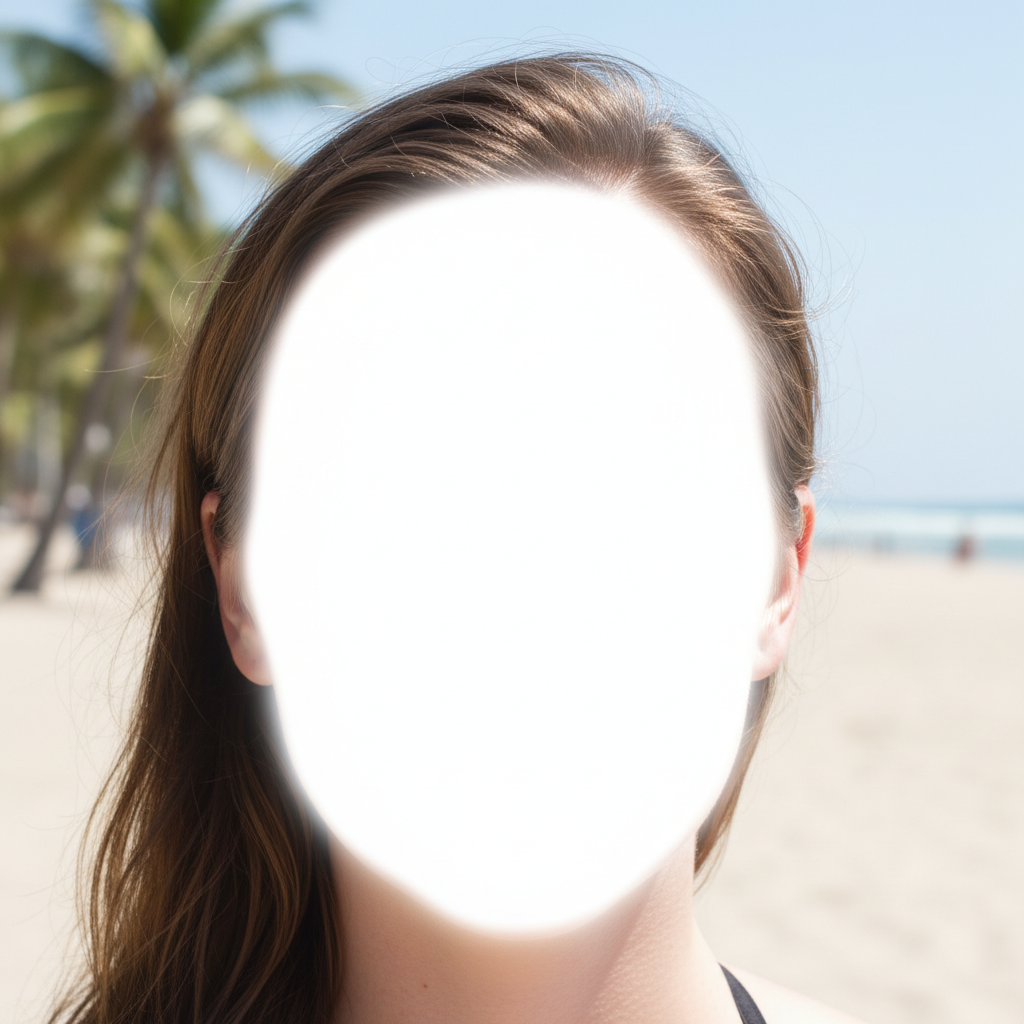
Overexposed beach photo with blown highlights
Before
->
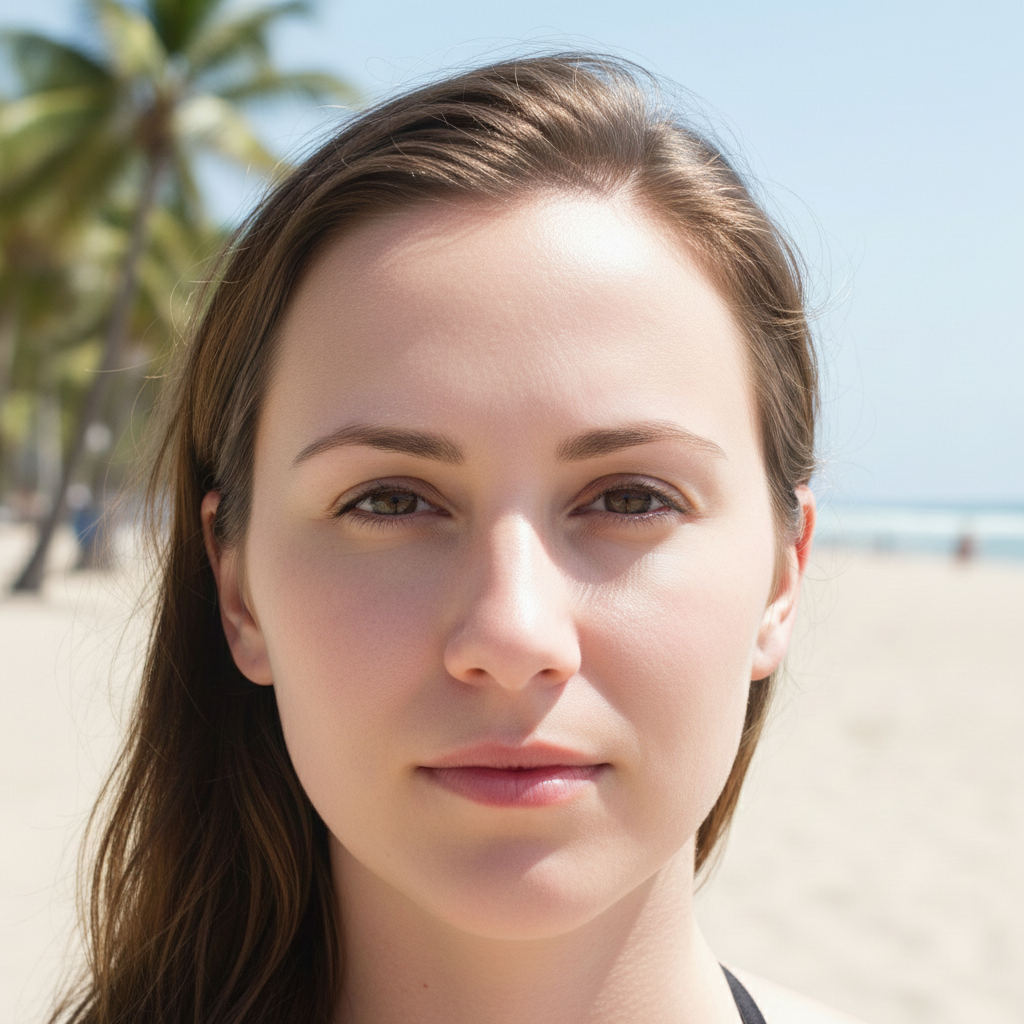
Balanced beach photo with recovered detail
After

Overexposed Beach Photo Fixed

Beach photo with blown-out bright sky and sand. AI recovered detail and balanced exposure across the scene.

Prompt: reduce overexposure and recover detail in the blown highlights
Advertisement

If something looks off

AI changed the wrong area or something I didn't want changed

Why: The AI couldn't determine exactly which areas you wanted adjusted from description alone. This happens with mixed lighting.

Try: Tap a marker on the specific area that needs exposure adjustment, then regenerate with the same prompt

Tip: Markers tell the AI 'adjust THIS area specifically.' Use them when you want targeted exposure changes.

Photo looks too bright or too dark after adjustment

Why: The AI may have overcorrected. Exposure preference is subjective.

Try: Try: 'adjust exposure slightly brighter' or 'reduce brightness a bit' to fine-tune
Colors look washed out or unnatural

Why: Aggressive exposure adjustment can shift colors or reduce saturation.

Try: regenerate with: 'adjust exposure while preserving natural color saturation'
Detail lost in very bright or very dark areas

Why: Completely blown highlights or crushed shadows can't be fully recovered—the information wasn't captured.

Try: The AI can only work with detail that exists. Pure white or pure black areas have no recoverable information.

Quick answers

Do I need to mark areas before describing the exposure fix?

No! Just describe what you want: 'brighten this dark photo' or 'reduce overexposure.' The AI analyzes exposure automatically. Only use markers when you need to adjust specific regions differently—like brightening a subject while keeping the background unchanged.

How do I fix a dark or underexposed photo for free?

Upload your dark image to EditThisPic and type 'brighten this underexposed photo and restore detail.' The AI intelligently lifts exposure while preserving natural color and preventing blown highlights. Free to use, no account needed, no watermark.

Can this fix both overexposed and underexposed areas in one photo?

Yes, the AI can balance mixed lighting. Use: 'adjust exposure to balance bright and dark areas evenly.' It intelligently brightens shadows while reducing highlights to create even exposure across the image.

Will this work on photos that are almost completely black?

If the photo is extremely underexposed, the AI can brighten it, but detail that was never captured can't be restored. Photos with some visible detail—even if very dark—work best. Pure black areas have no recoverable information.

Ready to adjust your photo's exposure?

Free to try. No signup required.

Try it free