Free โ€ข No signup Add Product shadow ยท Free

AI Product Shadow Generator

Add realistic shadows to product photos with AI - from subtle drop shadows to natural ground shadows
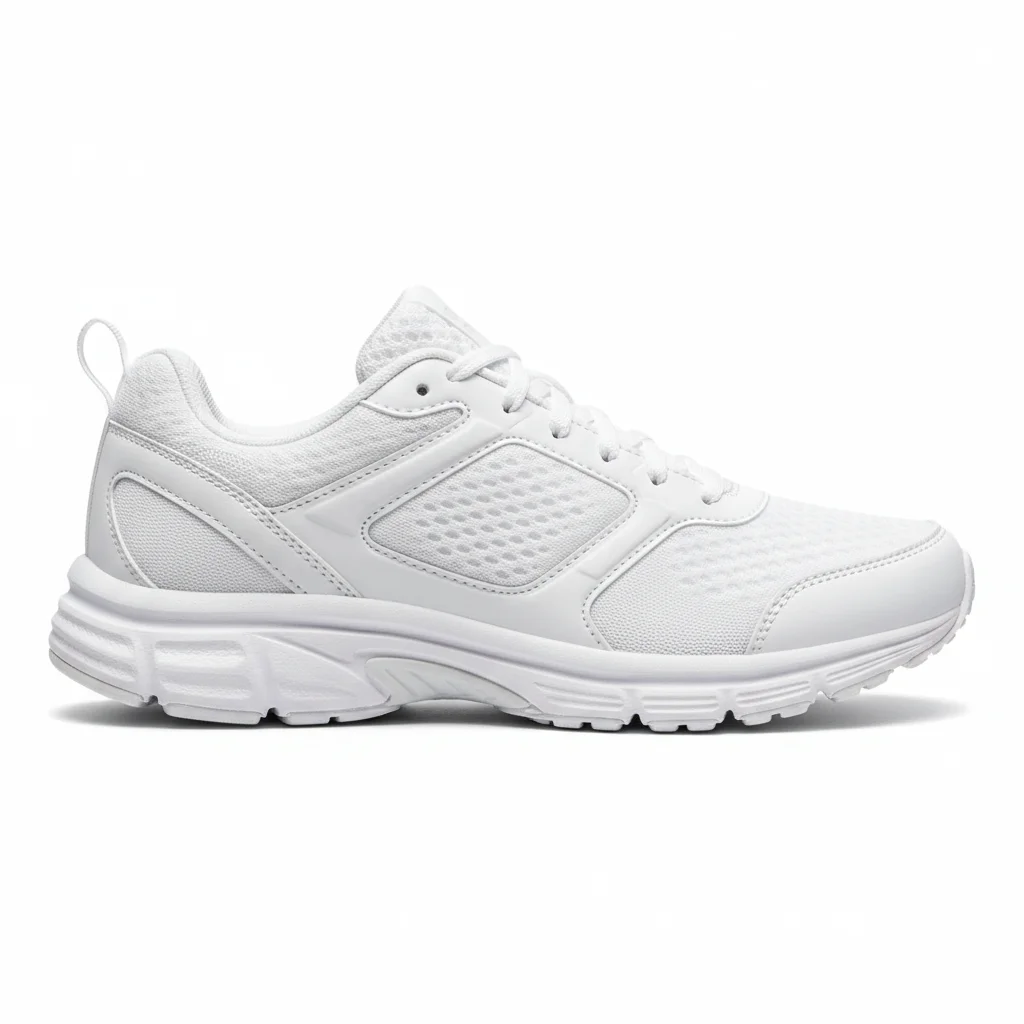
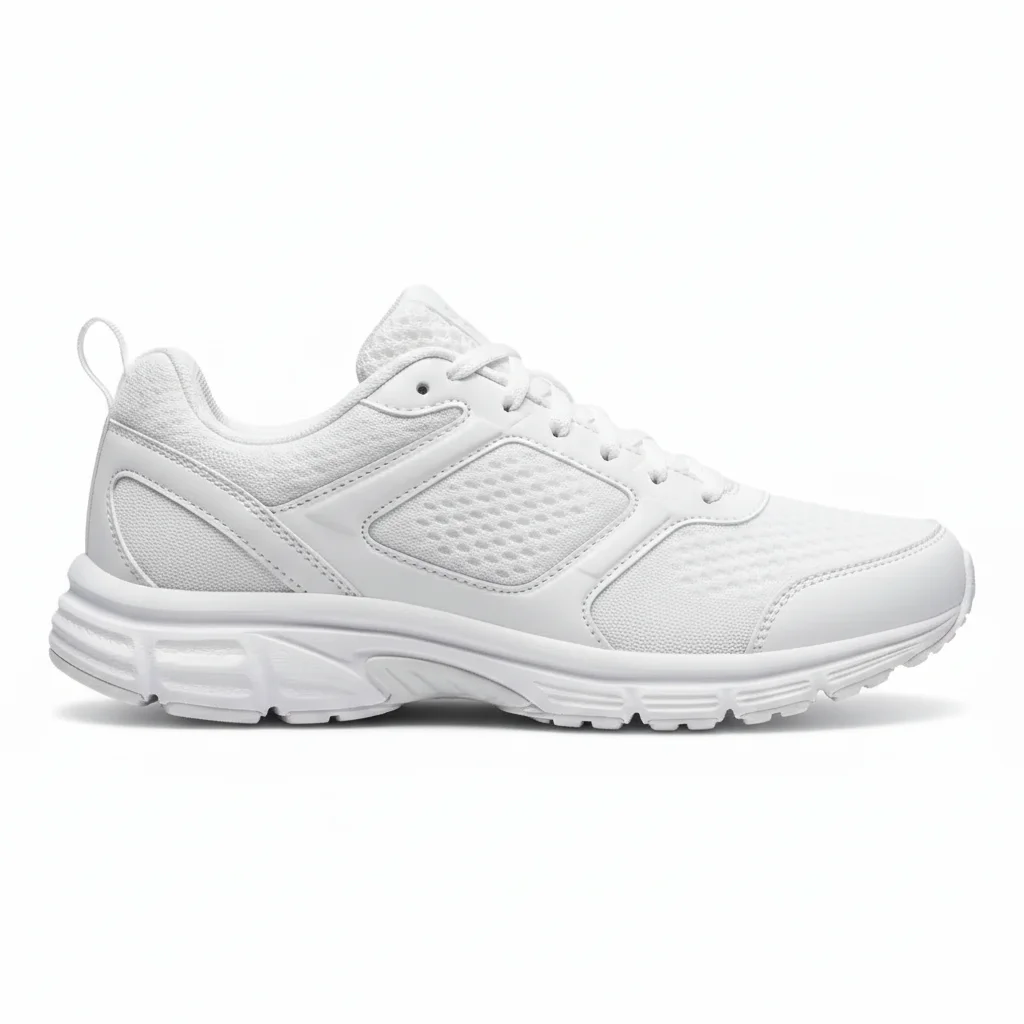
White sneaker cutout without shadow on white background
Before
โ†’
Same sneaker with soft professional drop shadow underneath
After

AI Product Shadow Generator

Drop your photo here

or click to browse

Release to upload

Free โ€ข No signup

Advertisement
Popular use cases:
  • product shadow generator
  • add shadow to product photo
  • drop shadow for ecommerce
  • realistic product shadow
  • product photography shadow
  • add ground shadow to product
  • ecommerce shadow tool
  • product shadow maker
  • natural product shadow
  • white background product shadow

Cost
Free No signup required
Time
Instant results in 15-30 seconds
Works on
Any device - browser, phone, tablet, desktop
Powered by
AI-powered photo editing
Scenario Prompt Time
Soft drop shadow Add soft drop shadow underneath with subtle blur and natural opacity 15s
Directional ground shadow Add natural ground shadow extending to the right with soft edges 15s
Tight contact shadow Add tight contact shadow directly underneath darker at edges 15s

How it works

  1. Upload your product photo

    Start with any product photo - works best with cutouts, items on white backgrounds, or products that need grounding. Products with removed backgrounds benefit most from shadow addition.

    Expect: AI processes images up to 4096x4096px. Works on any background color but most common for white background products.
  2. Describe the shadow you want

    Specify shadow type (drop shadow, ground shadow, contact shadow), direction (underneath, to the right, from left), and softness (soft, sharp, subtle, dramatic). Use phrases like 'soft drop shadow underneath', 'natural ground shadow to the right', or 'subtle contact shadow directly below'.

    Tip: Include shadow direction based on your existing lighting. If light comes from top-left, shadow should be bottom-right.

    Copy one of these to get started:

    Basic drop shadow Add a soft drop shadow underneath the product with subtle blur and natural opacity
    Natural ground shadow Add a natural ground shadow extending to the right as if lit from the left with soft edges and realistic fade
    Contact shadow (tight) Add a tight contact shadow directly underneath the product that's darker at the edges and fades quickly
    Long directional shadow Create a long shadow extending to the bottom-right as if lit by low-angle sunlight with gradual softening at the far end
    3 more prompts
    Reflection shadow Add a subtle reflection shadow underneath as if the product is sitting on a glossy reflective surface with slight blur
    Perspective shadow Create a shadow that follows the product's perspective extending behind and to the right with natural depth
    Minimal floating shadow Add a very subtle soft shadow far underneath the product as if it's floating slightly above the surface
  3. Generate and review

    AI analyzes your product's shape and position, generates realistic shadow with appropriate softness, direction, and opacity. Preview the grounded result in 15 seconds.

  4. Refine with markers if needed

    If the shadow needs adjustment in specific areas (too dark here, extend there, soften this edge), tap markers to guide AI's shadow refinement.

    Tip: Mark where shadow should be darkest (contact points) vs where it should fade out for most natural results.
Try it free โ†“

AI Product Shadow Generator

Drop your photo here

or click to browse

Release to upload

Free โ€ข No signup

"Finally, my product cutouts don't look like they're floating in space. The shadows make them look real and professional." @ecommerceseller

See it in action

White sneaker cutout without shadow on white background
Before
->
Same sneaker with soft professional drop shadow underneath
After

Soft drop shadow on product

White sneaker cutout transformed with professional soft drop shadow

Prompt: Add a soft drop shadow underneath the product with subtle blur and natural opacity
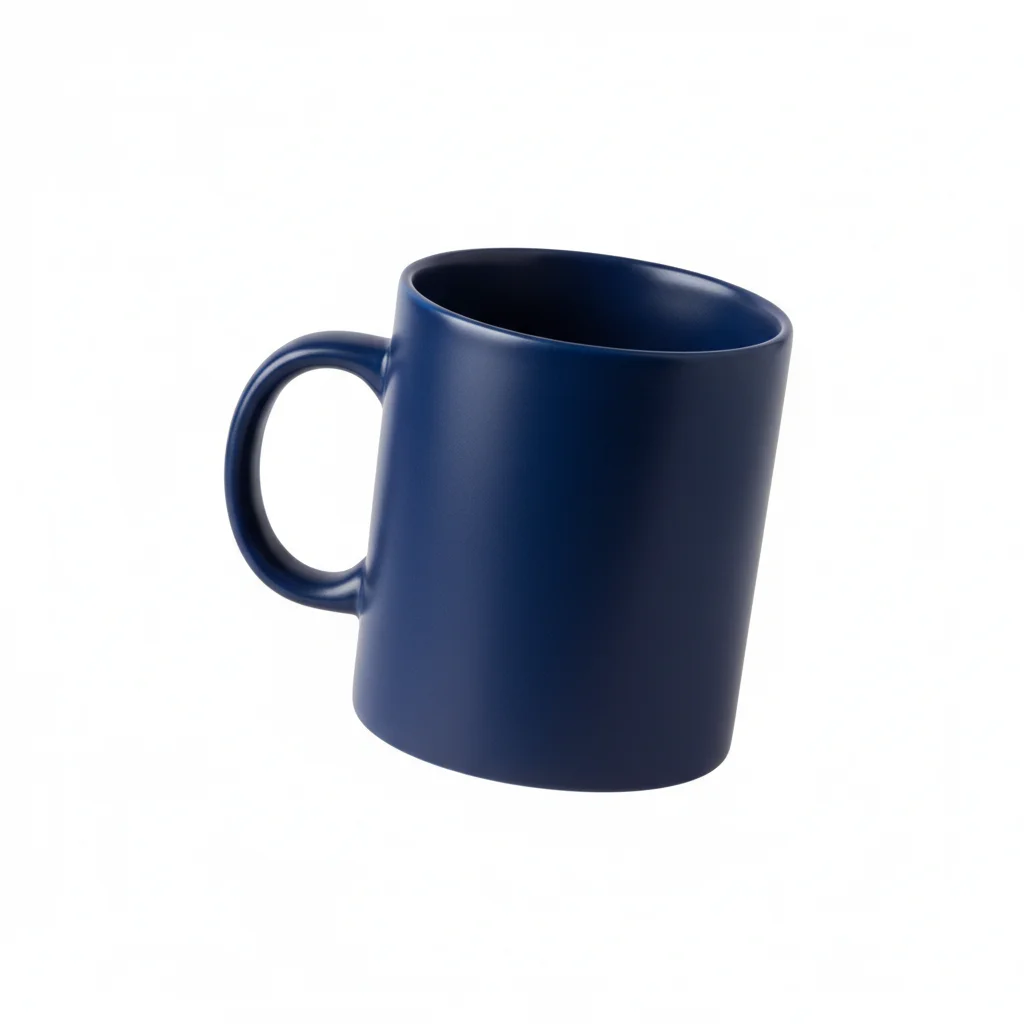
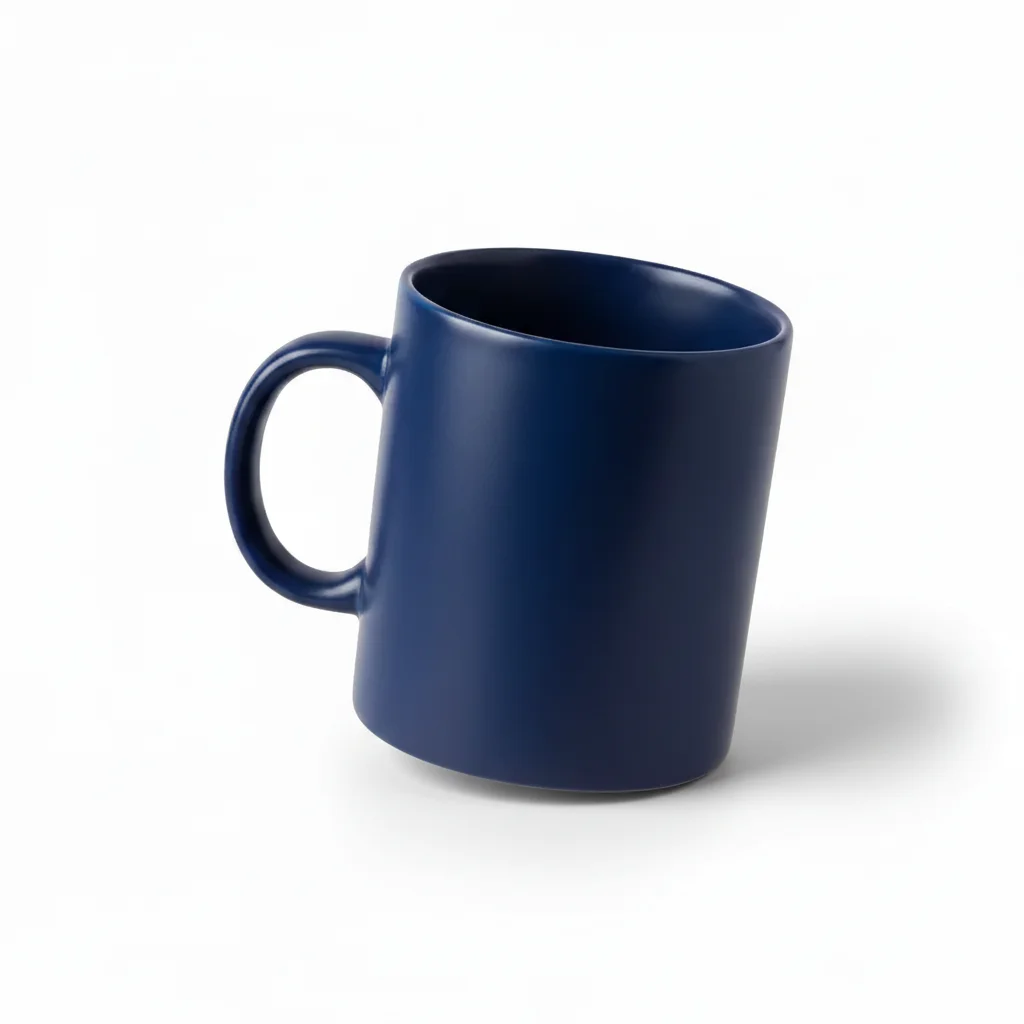
Navy coffee mug without shadow
Before
->
Same mug with natural ground shadow extending to the right
After

Natural ground shadow with direction

Coffee mug with realistic shadow suggesting overhead lighting from the left

Prompt: Add a natural ground shadow extending to the right as if lit from the left with soft edges and realistic fade
Perfume bottle floating without shadow
Before
->
Same bottle with tight contact shadow creating grounded premium look
After

Contact shadow for grounded look

Perfume bottle with tight contact shadow creating premium grounded appearance

Prompt: Add a tight contact shadow directly underneath the product that's darker at the edges and fades quickly
Advertisement

If something looks off

Shadow is too dark or too prominent

Why: AI created shadow with too much opacity based on prompt wording.

Try: Add a very subtle soft shadow underneath with low opacity that barely grounds the product
Shadow is in the wrong direction

Why: Prompt didn't specify direction or AI interpreted it differently.

Try: Add shadow extending specifically to the [specify exact direction: bottom-right/left/straight down] from the product base
Shadow looks fake or has hard edges

Why: Shadow wasn't blurred enough or has unrealistic sharpness.

Try: Create a naturally soft-edged shadow with gradual blur that gets softer as it extends away from the product
Shadow doesn't match the product's shape or position

Why: AI didn't correctly identify product base or contact points.

Try: Add shadow that follows the exact shape of the product base where it would touch the ground with accurate proportions

Tip: Use markers to indicate exact product base or contact points where shadow should be darkest.

No shadow appeared or shadow is barely visible

Why: Prompt was too vague or suggested too subtle an effect.

Try: Add a clearly visible soft drop shadow underneath the product with medium opacity and noticeable presence

Quick answers

What's the difference between drop shadow and ground shadow?

Drop shadow is a soft shadow directly underneath the product, centered and usually symmetrical - it suggests ambient lighting. Ground shadow is directional, extending to one side based on light source position - it suggests specific lighting direction. Drop shadows are simpler and work for most e-commerce. Ground shadows are more realistic and dimensional.

Do I need to specify shadow direction?

Not for basic drop shadows (they're centered underneath). For ground shadows, yes - specify which direction shadow should extend (to the right, behind and left, etc.). If your product has existing highlights or lighting, match shadow direction to the opposite side from where light appears to come from.

Can I add shadows to products that already have some shadow?

Yes, but be specific. Use prompts like 'add additional shadow to the right' or 'enhance the existing shadow to be darker and more visible'. The AI will augment existing shadows rather than create conflicting new ones.

Will this work on colored backgrounds or only white?

Works on any background color! Shadows adapt to background. On white backgrounds, shadows are typically gray/black. On colored backgrounds, shadows are darker versions of that color. Specify if needed: 'add shadow that blends naturally with the blue background'.

How do I make shadows look more natural and less artificial?

Three keys to natural shadows: (1) Softness - use 'soft edges', 'gradual blur', or 'natural fade' in prompts, (2) Opacity - use 'subtle' or 'low opacity' rather than dark/strong, (3) Direction - match any existing lighting in your photo. Natural shadows are rarely perfectly centered or symmetrical.

Ready to add professional shadows?

Free to try. No signup required.

Try it free โ†’