Free โ€ข No signup Edit Photos using text prompts ยท Free

AI Prompt Photo Editor

Describe any photo change in plain English and AI makes it happen in seconds.

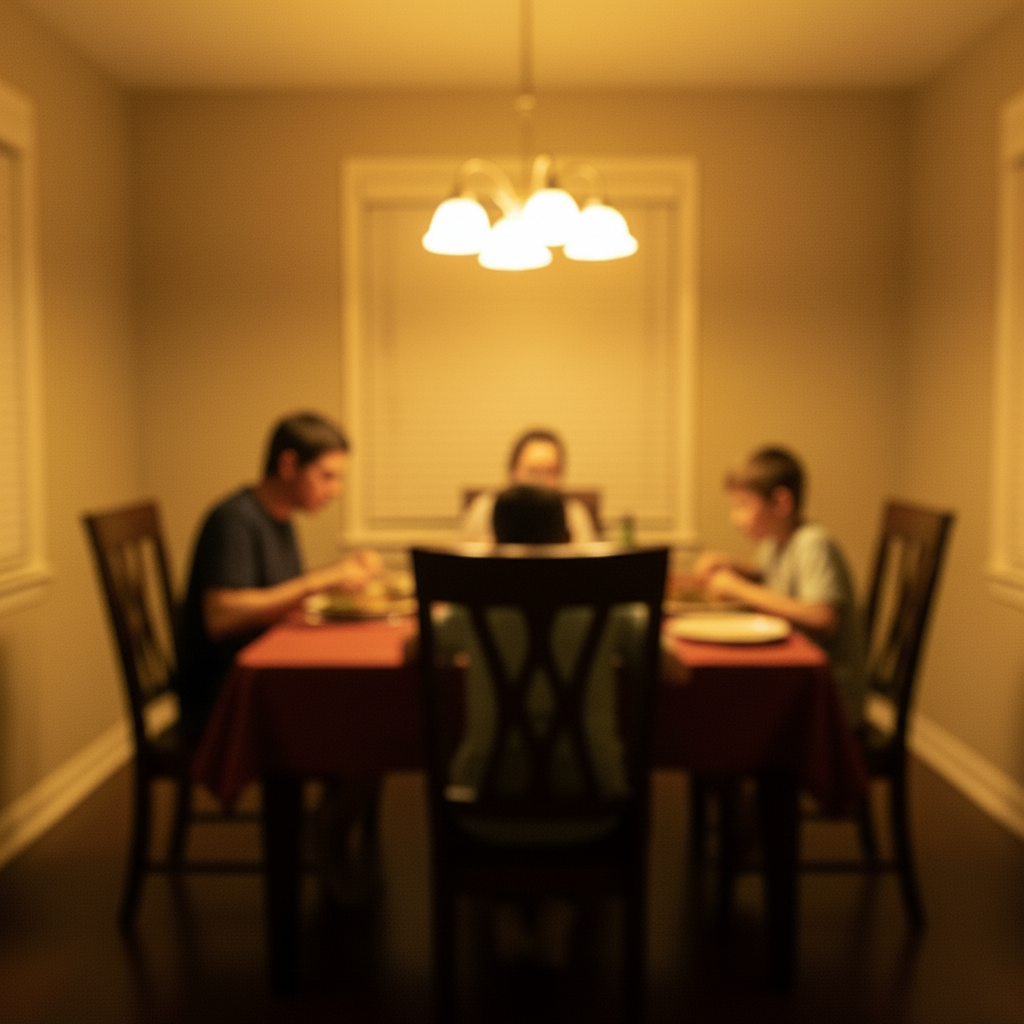
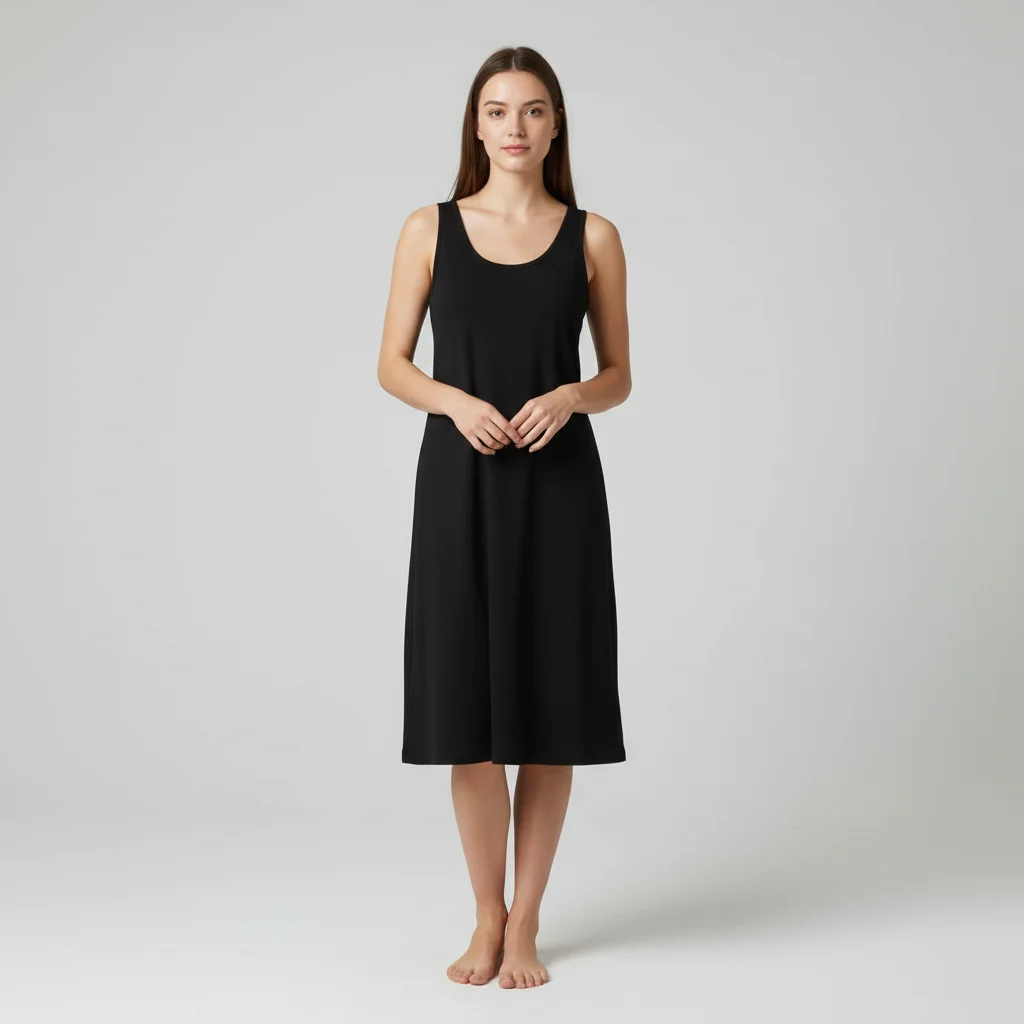
Before
Before
โ†’
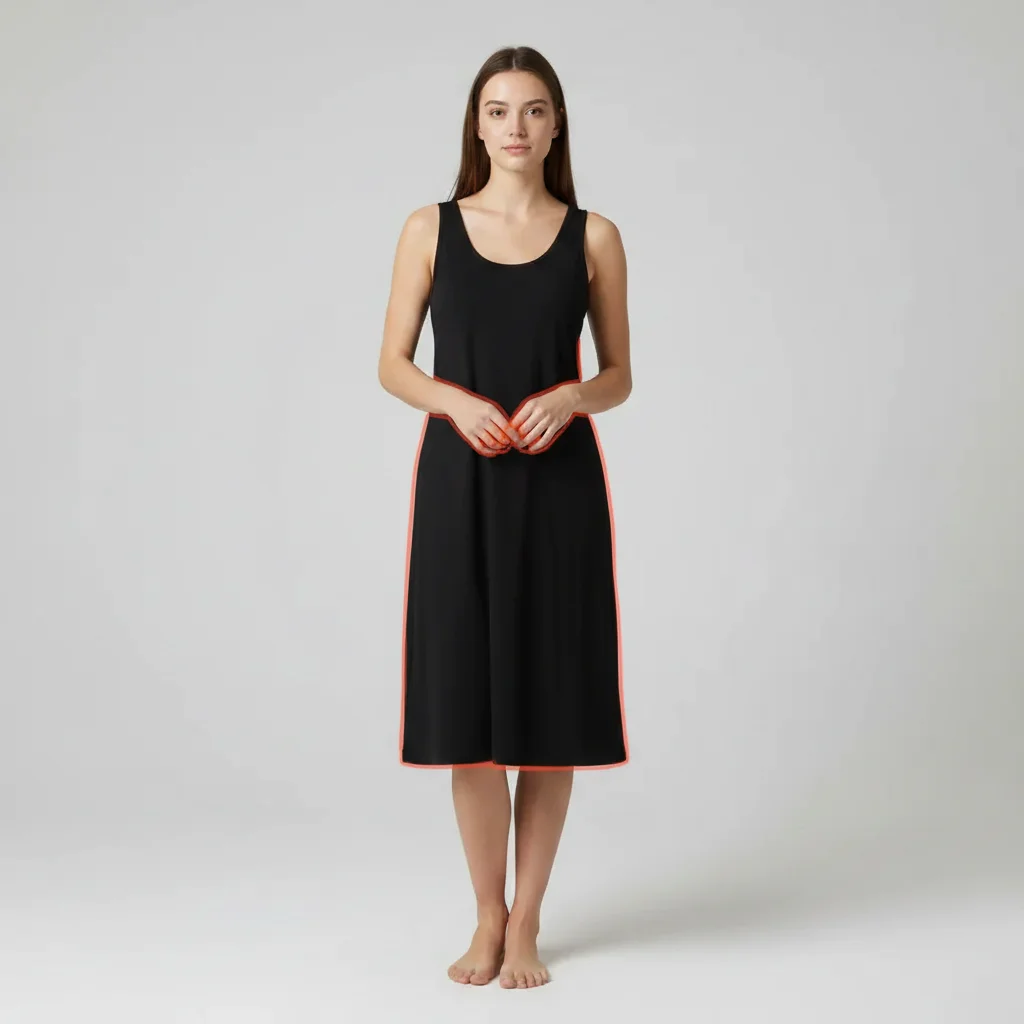
After
After

Free AI Prompt Photo Editor

Drop your photo here

or click to browse

Release to upload

Free โ€ข No signup

Advertisement
Popular use cases:
  • text prompt photo editing
  • ai photo editing with prompts
  • natural language photo editor
  • describe photo changes
  • conversational photo editing
  • prompt-based image editor
  • chatgpt style photo editor
  • apple intelligence alternative
  • free prompt photo editing

Cost
Free No signup required
Time
Instant results in 15-30 seconds
Works on
Any device - browser, phone, tablet, desktop
Powered by
AI-powered photo editing
Scenario Prompt Time
15-30s
15-30s
15-30s
15-30s
15-30s

How it works

  1. Upload Your Photo

    Drag and drop your image or click to browse. Works with JPG, PNG, HEIC, and WebP formats. Your photo stays private and processes in real-time.

    Expect: Upload completes in 2-5 seconds for typical photos.
  2. Type What You Want to Change

    Describe your edit in plain English. Be specific about what to change and how. Examples: 'change the wall color to sage green', 'make the lighting warmer and softer', 'remove the car in the background'.

    Tip: More specific prompts get better results. Instead of 'make it better', try 'brighten the subject and blur the background slightly'.

    Copy one of these to get started:

    Clean up tourist photos Remove all people from the background
    Improve photo mood Make the lighting warmer and more golden hour
    Enhance landscapes Change the sky to dramatic sunset colors
    Portrait enhancement Blur the background to focus on the subject
    8 more prompts
    Interior visualization Change the wall color to navy blue and add modern artwork
    Clean landscape photos Remove the power lines and make the sky more vibrant blue
    Weather enhancement Replace the gray cloudy sky with clear blue sky and soft clouds
    Professional photo prep Make the subject's outfit more formal - change to business attire
    Artistic photo transformation Change the time of day to evening with warm street lights
    Clean product photos Remove all text and logos from the image
    Social media celebration post edit photos using text prompts for an Instagram or Facebook post โ€” festive, colorful, and eye-catching. Keep the people in the photo as the focus with the themed elements framing them
    Product photography Change the background to solid white studio background
  3. Review the AI Result

    AI processes your prompt and shows the edited photo. Use the before/after slider to compare. If you want adjustments, refine your prompt and regenerate.

    Expect: Most edits complete in 30-45 seconds. Complex changes may take up to 60 seconds.
  4. Download Your Edited Photo

    Download the final result in full resolution. No watermark, no compression. The original quality is preserved with your AI edits applied.

Advertisement
Try it free โ†“

Free AI Prompt Photo Editor

Drop your photo here

or click to browse

Release to upload

Free โ€ข No signup

"I couldn't believe how good the result was. Took 30 seconds." via Product Hunt

See it in action

Before
Before
->
After
After

Tourist Photo Cleanup

Clean landmark photo with no people, preserving the architecture and original composition

Prompt: Remove all people from the background
Before
Before
->
After
After

Lighting Transformation

Warm, golden hour lighting with soft orange and amber tones throughout the scene

Prompt: Make the lighting golden hour with warm sunset tones

Detailed Guides by Scenario

๐Ÿ“ท

Professional Use

Apply 'AI Prompt Photo Editor' to images for professional projects โ€” websites, marketing materials, client deliverables, and presentations.

Common Scenarios

  • Using 'AI Prompt Photo Editor' for client work or commercial photography
  • Applying 'AI Prompt Photo Editor' to product or marketing images for a business
  • Batch-processing multiple images with 'AI Prompt Photo Editor' for a project deadline

Best Practices

  • Use the highest resolution source image available for professional-quality results
  • Be specific in your prompt about the exact 'AI Prompt Photo Editor' effect you need
  • For consistency across multiple images, reuse the same prompt template
๐Ÿ“ท

Creative & Social Media

Use 'AI Prompt Photo Editor' creatively for social media content, personal projects, and artistic expression.

Common Scenarios

  • Applying 'AI Prompt Photo Editor' to a photo for a unique social media post
  • Using 'AI Prompt Photo Editor' to create artistic variations of a favorite image
  • Experimenting with 'AI Prompt Photo Editor' for a creative project or portfolio piece

Best Practices

  • Experiment freely โ€” AI editing lets you try bold ideas with no risk to the original
  • For social content, pair the visual effect with a caption that references the transformation
  • Try the effect on different types of photos to find what looks most striking
๐Ÿ“ท

Personal Photos & Memories

Apply 'AI Prompt Photo Editor' to personal photos to fix issues, enhance quality, or create something special from everyday images.

Common Scenarios

  • Using 'AI Prompt Photo Editor' on family photos to improve or personalize them
  • Applying 'AI Prompt Photo Editor' to vacation or event photos before printing or sharing
  • Trying 'AI Prompt Photo Editor' on a selfie or portrait for profile or personal use

Best Practices

  • Always work on a copy โ€” keep the original safe in case you want to try a different approach
  • Natural-looking results are almost always better than dramatic over-processing
  • If it doesn't look right the first time, rephrase your prompt with more specific details

If something looks off

AI changed the wrong area or something I didn't want changed

Why: The AI couldn't determine exactly which area you meant from description alone.

Try: Tap a marker on the specific area you want to change, then regenerate with the same prompt

Tip: Markers tell the AI 'I mean THIS one specifically.' Use them when description alone is ambiguous.

The edit looks unrealistic or artificial

Why: Your prompt might be too extreme or conflict with the photo's lighting and perspective.

Try: Try a more subtle version: 'slightly warmer lighting' instead of 'golden sunset', or 'blur background gently' instead of 'completely blur background'

Tip: Gradual changes look more natural. Start subtle, then increase if needed.

AI didn't understand my prompt

Why: Vague or overly creative language can confuse the AI.

Try: Use clear, literal descriptions: 'change shirt to blue' instead of 'make outfit cooler toned', or 'remove car' instead of 'clean up the scene'

Tip: Think like you're giving instructions to someone who takes everything literally.

The result is close but not exactly what I wanted

Why: First attempts rarely nail every detail. Iterative refinement is normal.

Try: Build on what worked: 'keep the background change but make the lighting softer' or 'same edit but preserve the original colors'

Tip: EditThisPic remembers your previous edit. Reference what worked and adjust what didn't.

Changes look patchy or inconsistent

Why: Complex prompts with multiple requests can split the AI's attention.

Try: Break into separate edits: first 'remove the background objects', then in a new edit 'adjust the lighting to be warmer'

Tip: One clear change per prompt usually produces cleaner results than multiple changes at once.

Quick answers

Do I need to use special AI prompt syntax or keywords?

No! Just describe what you want in normal English. EditThisPic uses natural language processing, so 'make the sky blue' works just as well as any technical prompt format. Be specific and clear, but don't worry about special syntax.

How is this different from ChatGPT or Apple Intelligence photo editing?

EditThisPic is purpose-built for photo editing with no signup required and no limits on edits. ChatGPT requires Plus subscription and has monthly limits. Apple Intelligence only works on iPhone 15 Pro and newer. EditThisPic works on any device with a browser, completely free.

Can I edit photos without describing changes?

No, prompt-based editing requires a text description. If you prefer visual tools, try our traditional editing tools like object remover or background changer. But prompts are often faster once you get the hang of them.

Are there limits on how complex my prompts can be?

You can write prompts up to 500 characters, which is plenty for detailed edits. For best results, focus on 1-3 specific changes per prompt rather than trying to change everything at once. Complex prompts work better when broken into steps.

Will my photos be used to train AI?

No. Your uploaded photos are processed for your edit only and automatically deleted within 24 hours. We don't use your images for AI training or any other purpose. Your photos stay private.

Can I use prompts in other languages?

Currently EditThisPic works best with English prompts. Other languages may work but results are less reliable. We're working on multilingual support for future updates.

Is EditThisPic's AI photos using text prompts editor really free?

Yes โ€” you get 1 free edit per week, no account needed. For unlimited edits, plans start at $3.99/month.

Can I edit photos using text prompts on my phone?

Yes. EditThisPic works in any mobile browser โ€” iPhone, Android, tablet. No app download needed.
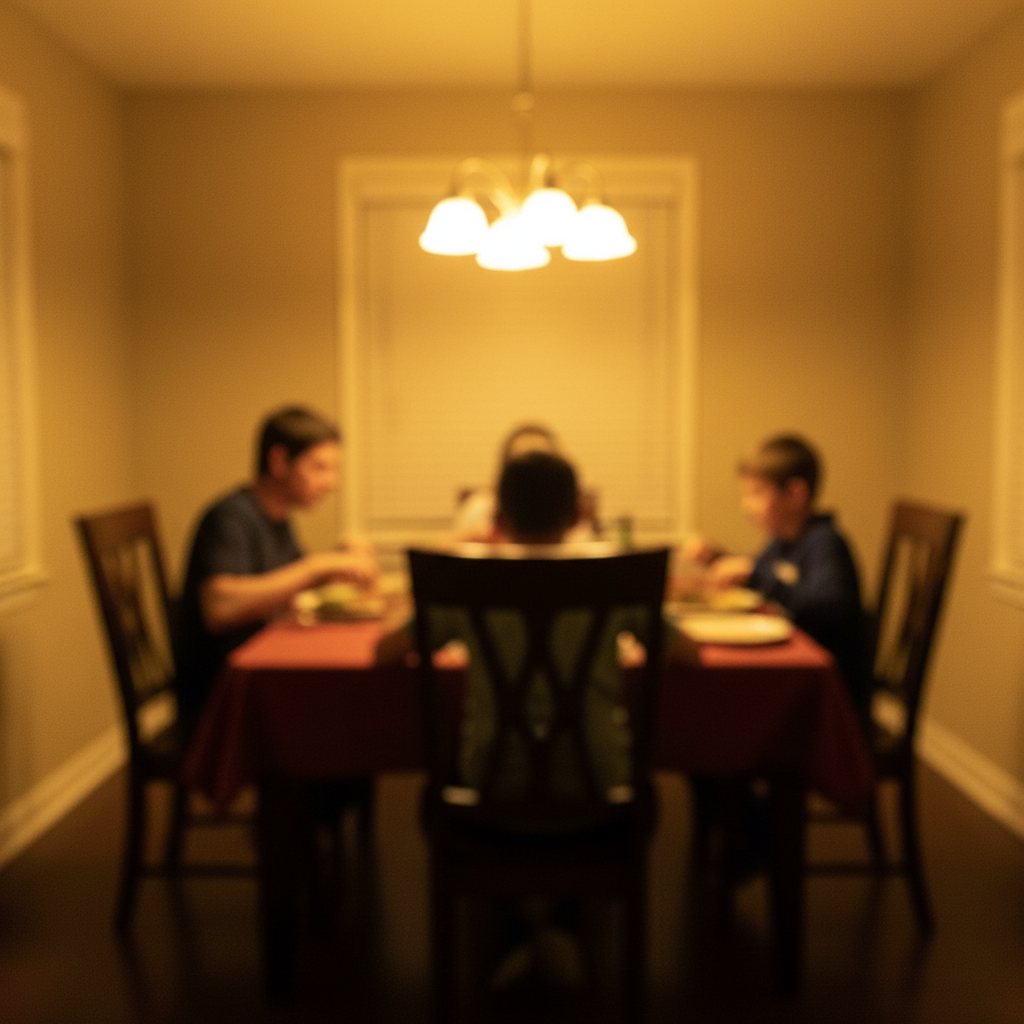
Try Prompt-Based Photo Editing Now

Free to try. No signup required.

Try it free โ†’