Free • No signup Remove Photobomber · Free

AI Photobomber Remover

Just describe which person to remove and AI handles the rest.
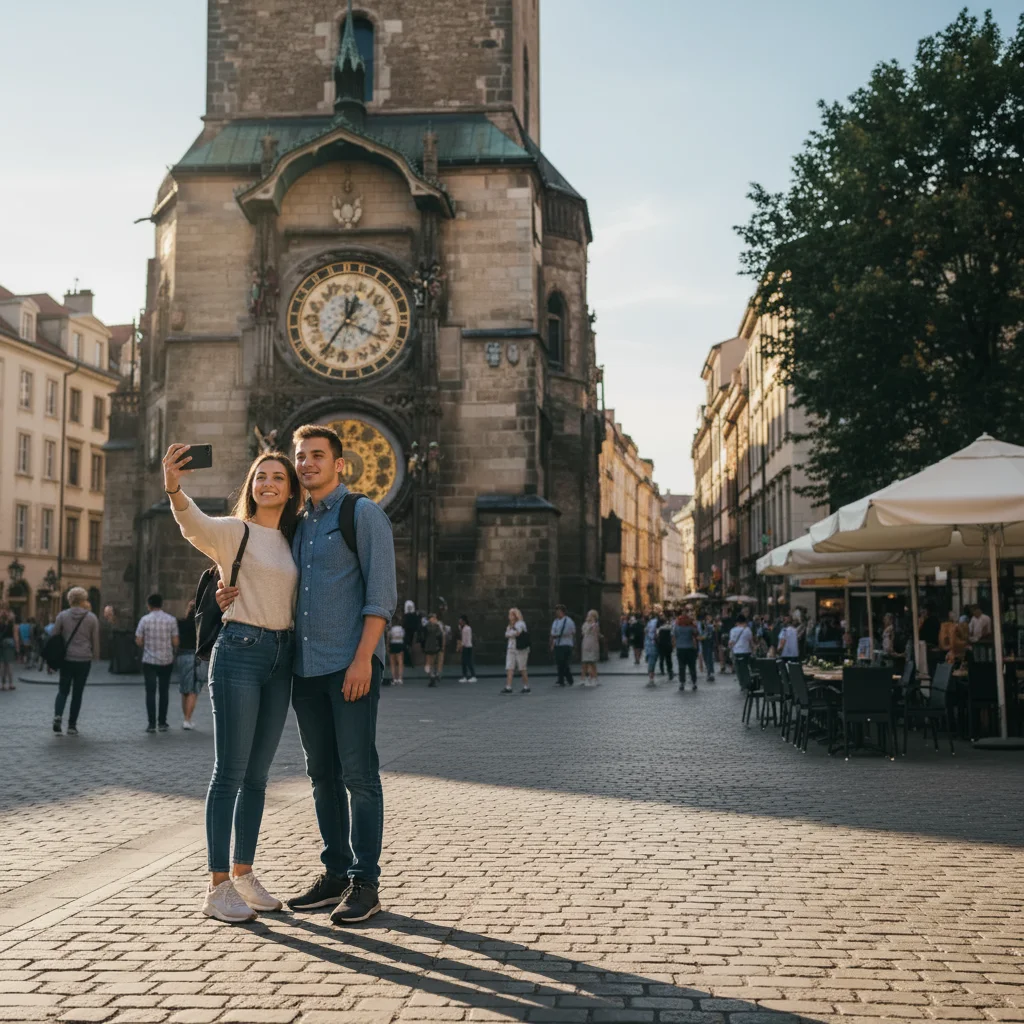
Eiffel Tower photo with stranger in red jacket on the right edge
Before
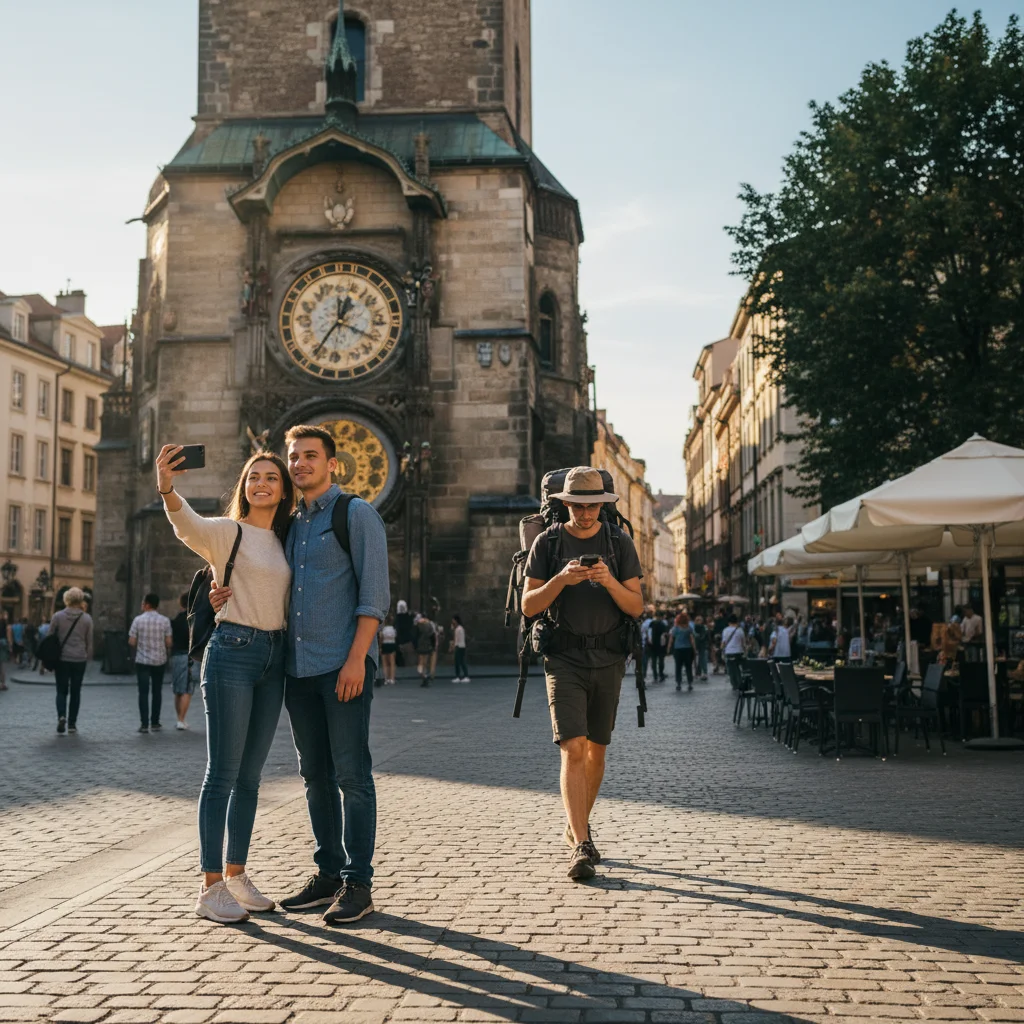
Clean Eiffel Tower photo with photobomber removed and background extended
After

AI Photobomber Remover

Drop your photo here

or click to browse

Release to upload

Free • No signup

Advertisement
Popular use cases:
  • travel photos
  • wedding photography
  • family photos
  • landmark photos
  • vacation pictures
  • group shots

Cost
Free No signup required
Time
Instant results in 15-30 seconds
Works on
Any device - browser, phone, tablet, desktop
Powered by
AI-powered photo editing
Scenario Prompt Time
Person at edge remove the person at the far left edge and extend the scenery 15s
Background walker remove the person in the background walking through the frame 20s
Multiple people remove the stranger in the yellow shirt standing behind the group 25s

How it works

  1. Upload your photo

    Drop your image into EditThisPic. JPG, PNG, WebP up to 7MB. Works best with photos where the photobomber is clearly visible and separated from your main subject.

    Expect: Simple removals (person at edge): 15-20 seconds. Complex scenes (overlapping people, busy backgrounds): may need 2-3 refinements.
  2. Describe what you want

    Type your instruction: 'remove the person on the right' or 'remove the stranger behind us.' Be specific about which person if there are multiple people. No marking needed—the AI understands directional references like 'left,' 'right,' 'background.'

    Tip: Use color or clothing to specify: 'remove the person in the red jacket' works better than 'remove that person' when there are multiple photobombers.

    Copy one of these to get started:

    Random tourist in landmark photo remove the person on the right and fill with the background
    Stranger walking through your shot remove the person in the background walking through the frame
    Photobomber at edge of frame remove the person at the far left edge and extend the scenery
    Multiple photobombers remove the stranger in the yellow shirt standing behind the group
    3 more prompts
    Person partially visible at edge remove the partial person visible on the right side of the frame
    Photobomber with complex background remove the person in front of the fountain and fill with fountain details
    Group photo with unwanted person remove the person standing at the end of the line on the right
  3. Generate and review

    Click Generate and the AI removes the photobomber while filling the area with matching background. Check edges at full zoom to ensure the fill looks natural and there are no remnants.

  4. Refine with markers if needed

    If you have multiple similar people and the AI removed the wrong one, tap a marker on the specific person you want removed and regenerate. This is optional—most edits work without markers.

    Tip: Markers are for specifying which of several similar people to remove. Try description alone first.
Try it free

AI Photobomber Remover

Drop your photo here

or click to browse

Release to upload

Free • No signup

"Removed a random tourist from my wedding photo. Just typed what I wanted and it worked perfectly." @happybride

See it in action

Eiffel Tower photo with stranger in red jacket on the right edge
Before
->
Clean Eiffel Tower photo with photobomber removed and background extended
After

Tourist Removed from Landmark Photo

Random tourist walked into the shot at a famous monument. One prompt removed them cleanly while preserving the architecture.
Prompt: remove the person on the right and fill with the monument background
Wedding photo with stranger in yellow shirt in background
Before
->
Clean wedding photo with photobomber removed and hedge extended
After

Wedding Photo Photobomber Removed

Stranger walked into the background during an outdoor wedding photo. AI removed them and filled with garden scenery.
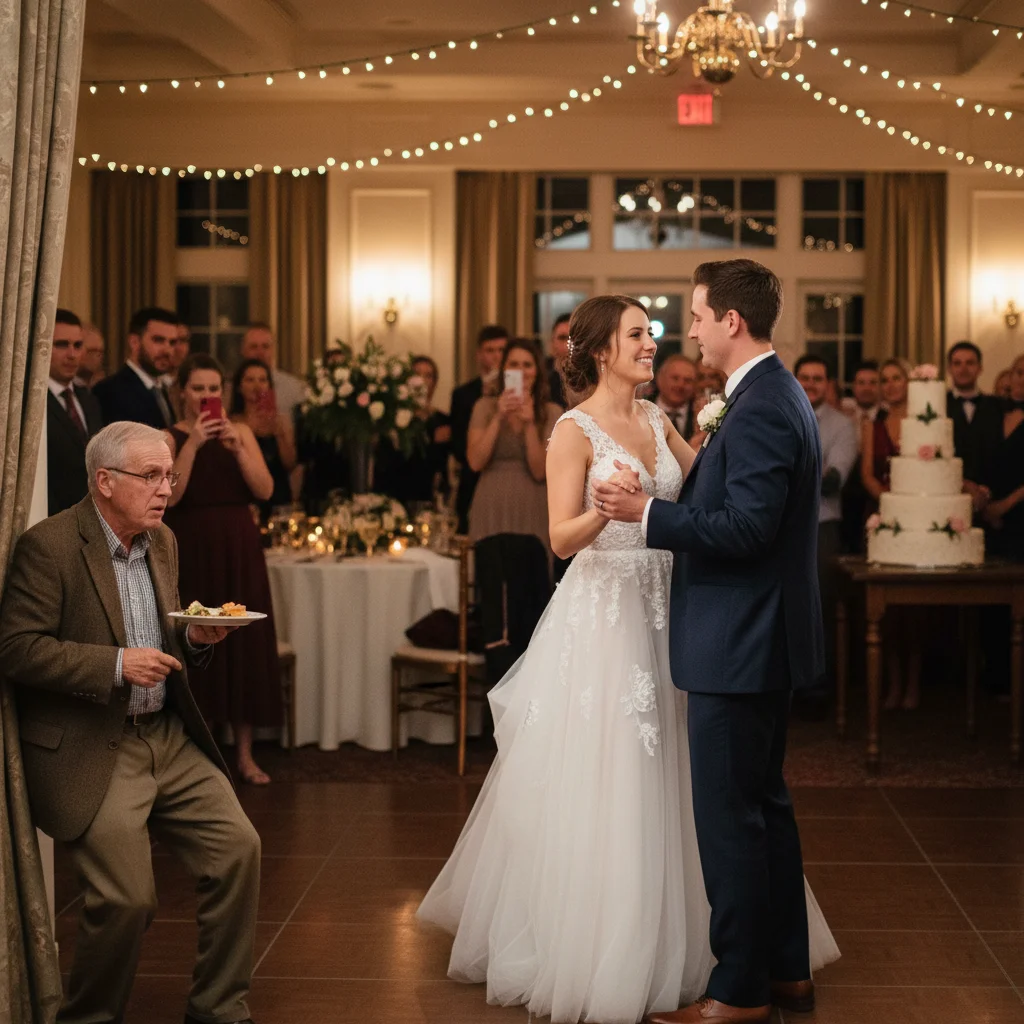
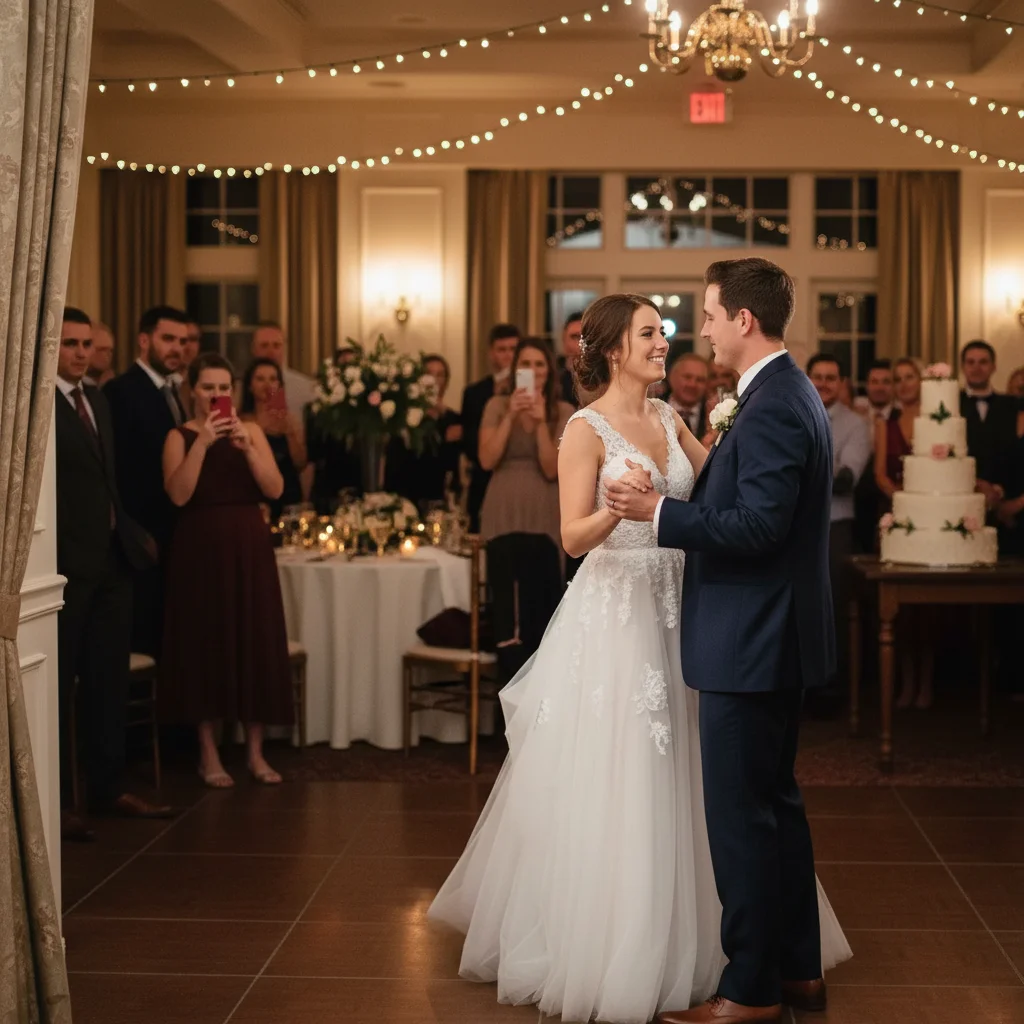
Prompt: remove the person in the background walking through the frame
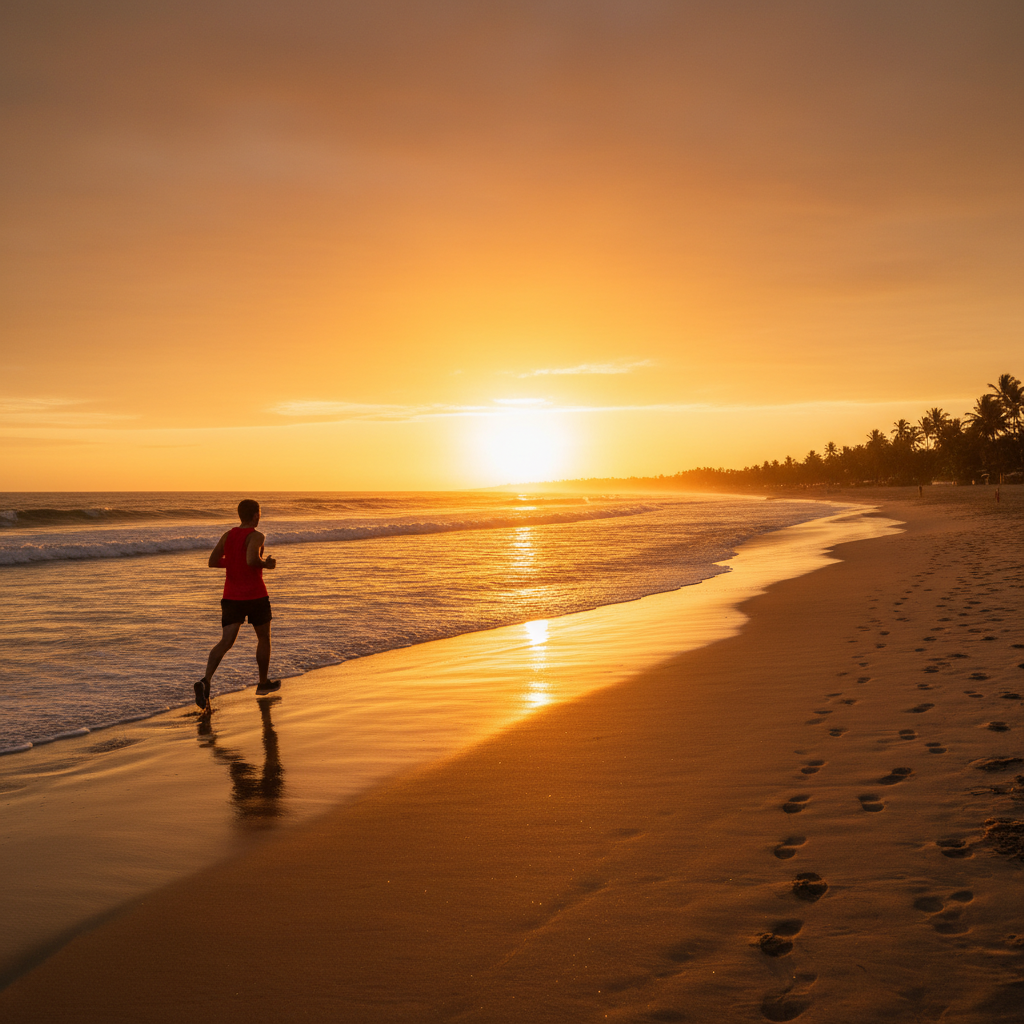
Beach family photo with stranger in orange swimsuit at left edge
Before
->
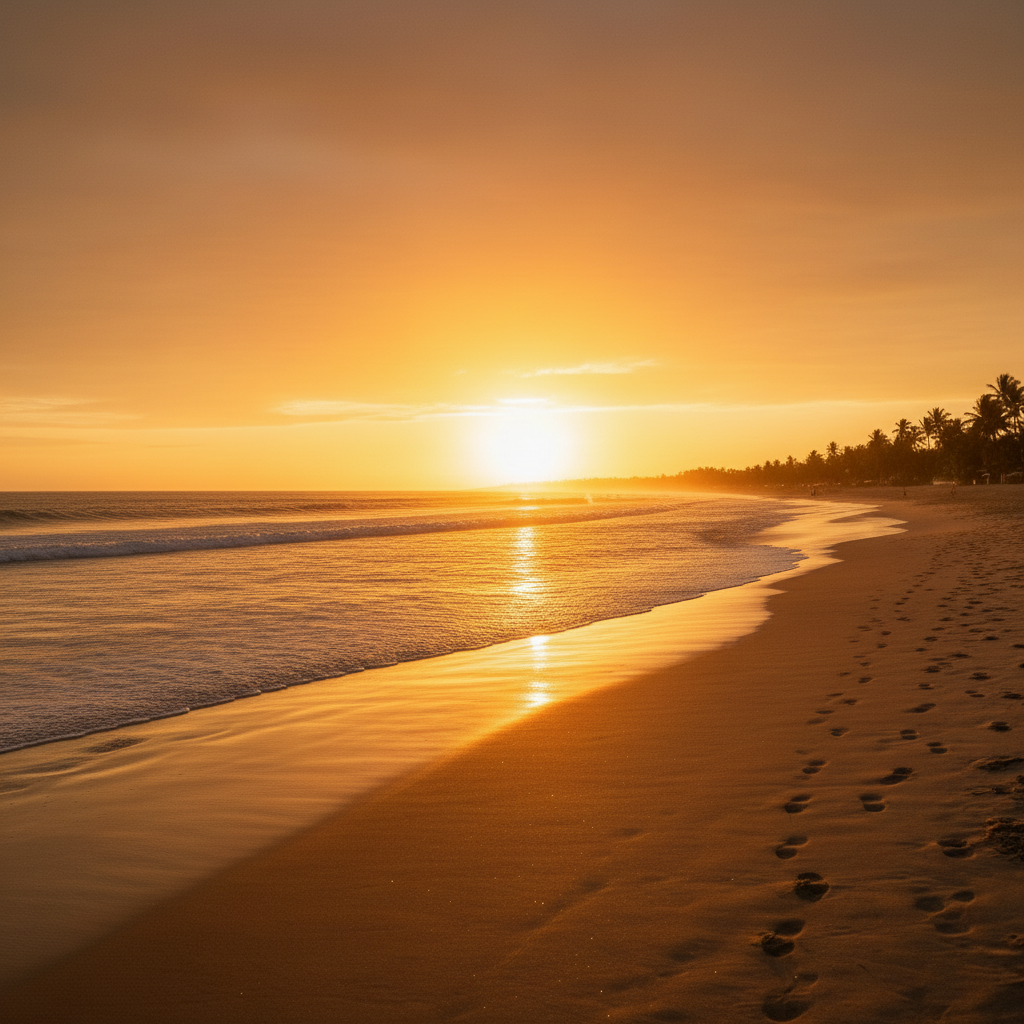
Clean family beach photo with photobomber removed and beach extended
After

Beach Photo with Stranger at Edge

Person at the edge of a family beach photo. AI removed them and extended the ocean and sand naturally.

Prompt: remove the person at the far left edge and extend the beach scenery
Advertisement

If something looks off

AI removed the wrong person or someone I wanted to keep

Why: The AI couldn't determine exactly which person you meant from description alone. This happens when multiple people look similar or the directional reference was ambiguous.

Try: Tap a marker directly on the specific person you want removed, then regenerate with a simple prompt like 'remove this person'

Tip: Markers tell the AI 'I mean THIS person specifically.' Use them when you have multiple similar people in the frame.

Background fill looks blurry or doesn't match

Why: The AI didn't have enough visible background texture to reconstruct accurately. This happens when the photobomber covers a large or complex area.

Try: Try 'remove the person and fill with [specific background detail]' like 'fill with ocean waves' or 'fill with brick wall texture'

Tip: Being specific about what should replace them helps the AI choose the right fill pattern.

Person's shadow or reflection remains visible

Why: The AI focused on removing the person but didn't recognize the shadow or reflection as part of what to remove.

Try: Use a second edit: 'remove the shadow on the ground' or add to your original prompt: 'remove the person and their shadow'

Tip: For complex removals, mention all elements: 'remove the person, their shadow, and their reflection.'

Edges around the removal area look unnatural

Why: The AI's background fill blended poorly with surrounding textures, often due to lighting differences or complex patterns.

Try: Regenerate and add 'blend edges naturally' to your prompt, or use markers to specify problem edge areas for refinement

Tip: Photos with simple, consistent backgrounds (sky, grass, walls) remove more cleanly than busy or textured backgrounds.

Only part of the person was removed

Why: The AI interpreted your instruction as referring to only the visible part of the person, or the person was partially obscured.

Try: Try 'completely remove the entire person including any parts behind objects' or mark the entire person area with multiple markers

Tip: If someone is partially hidden, the AI may only remove the visible part. Be explicit about removing all of them.

AI says it can't find the person to remove

Why: Your description was too vague or the person isn't clearly separated from the background or other people.

Try: Use more specific details: clothing color, position, or what they're doing. Or place a marker directly on them.

Tip: The more specific you are, the better: 'remove the woman in the blue dress on the left' beats 'remove that person.'

Quick answers

Do I need to mark the photobomber before describing?

No! Just describe which person to remove: 'remove the person on the right' or 'remove the stranger in the red jacket.' The AI understands directional references and descriptions. Only use markers when you have multiple similar people and need to specify exactly which one.

How do I remove a photobomber from a photo for free?

Upload your photo to EditThisPic, type 'remove the person on the [left/right/background]' and the AI removes them in 15-30 seconds. Free to use with no signup or watermark. Works on travel photos, group shots, and landmarks.

Can it remove multiple photobombers at once?

Yes, but it's more reliable to remove them one at a time. Start with the easiest one (clearest separation, simplest background), download that result, then remove the next person from the cleaned image. This gives you more control over the results.

What if the photobomber is standing right next to my subject?

If they're overlapping or very close, use a marker to tap on the photobomber. This tells the AI exactly who to remove. The AI will try to reconstruct the obscured parts of your subject, but results are best when people are clearly separated.

Will it remove the person's shadow and reflection too?

Not automatically. If you need the shadow or reflection removed, include it in your prompt: 'remove the person and their shadow' or do a second edit specifically for the shadow: 'remove the shadow on the ground.'

Ready to remove photobombers from your photos?

Free to try. No signup required.

Try it free