AI Photo Editor for Grailed Product Photos
Make your designer pieces look worth what you're asking.
Drop your photo here
or click to browse
Release to upload
Free • No signup
"Listed a Helmut Lang archive jacket for 3 weeks with no bites. Cleaned up the background and enhanced the fabric texture - sold within 2 days at asking price. Buyers could finally see the quality." @ArchiveSeller92
Built for Designer Resellers
Grailed buyers pay premium prices for designer pieces, but they need to see what they're buying. That Issey Miyake pleat, that Number (N)ine distressing, that Undercover graphic - the details that justify your price. EditThisPic lets you show construction quality and fabric detail that phone photos usually miss.
Tools for Grailed Listings
Replace Background
Clean white or neutral backgrounds that let the garment speak
Enhance Photo
Bring out fabric texture, stitching, and construction details
Fix Lighting
Even lighting that shows true colors and texture
Remove Background
Transparent cutout for clean floating product shots
Sharpen Photo
Crisp label and tag detail shots
Step-by-Step Guide
-
Upload your product photo
Drop your Grailed listing photo into EditThisPic. Works with flat lays, hanging shots, and worn photos. JPG, PNG, WebP up to 7MB.
Background replacement: 25-30 seconds. Detail enhancement: 15-20 seconds. -
Describe the look you want
Type your instruction: 'replace background with clean white' or 'enhance fabric texture and show material quality.' Be specific about what matters - fabric detail, color accuracy, label clarity. No marking needed.
For dark designer pieces, add 'show texture in the black fabric' to avoid losing detail. -
Review for accuracy
Zoom in on fabric texture, check that colors look accurate, verify label text is readable. Grailed buyers will scrutinize - make sure the photo represents the actual item.
-
Refine specific areas if needed
If edges need cleanup around complex shapes like frayed hems or distressed areas, tap markers on those spots and regenerate. This is optional - most edits work without markers.
For items with intentional distressing, specify 'preserve distressed details' in your prompt.
Copy-Paste Prompts for Grailed Photos
replace background with clean white studio backdrop, keep the garment's natural drape and shadows
White backgrounds are Grailed standard - they let the piece speak for itself
enhance fabric texture and detail, show the material quality and weave, keep colors accurate
Buyers pay for quality - let them see the construction
sharpen the label text for clarity, fix lighting to reduce glare, make all text readable
Clear labels prove authenticity - buyers check these first
enhance detail in dark fabric, show texture and stitching while maintaining true black color
Black-on-black details often disappear in photos - this brings them back
Show 4 more prompts
replace background with neutral gray studio surface, keep natural garment folds and drape
Gray backgrounds work well for lighter-colored pieces
correct the yellow lighting to neutral white, show true fabric color
Indoor photos often skew warm - buyers need to see accurate colors
enhance photo quality while preserving vintage patina and natural wear, clean background only
'Preserve natural wear' prevents the AI from 'fixing' desirable aging
sharpen hardware detail, show zipper quality and metal finish, enhance clarity
Hardware quality separates designer from fast fashion - show it off
| Edit Type | Prompt | Time | |
|---|---|---|---|
| White background | replace background with clean white studio backdrop |
25s | Try This → |
| Fabric detail | enhance fabric texture and detail, show material quality |
20s | Try This → |
| Label shot | sharpen label text, fix glare, make all text readable |
15s | Try This → |
| Dark garment | enhance detail in dark fabric, maintain true black |
20s | Try This → |
Real Examples
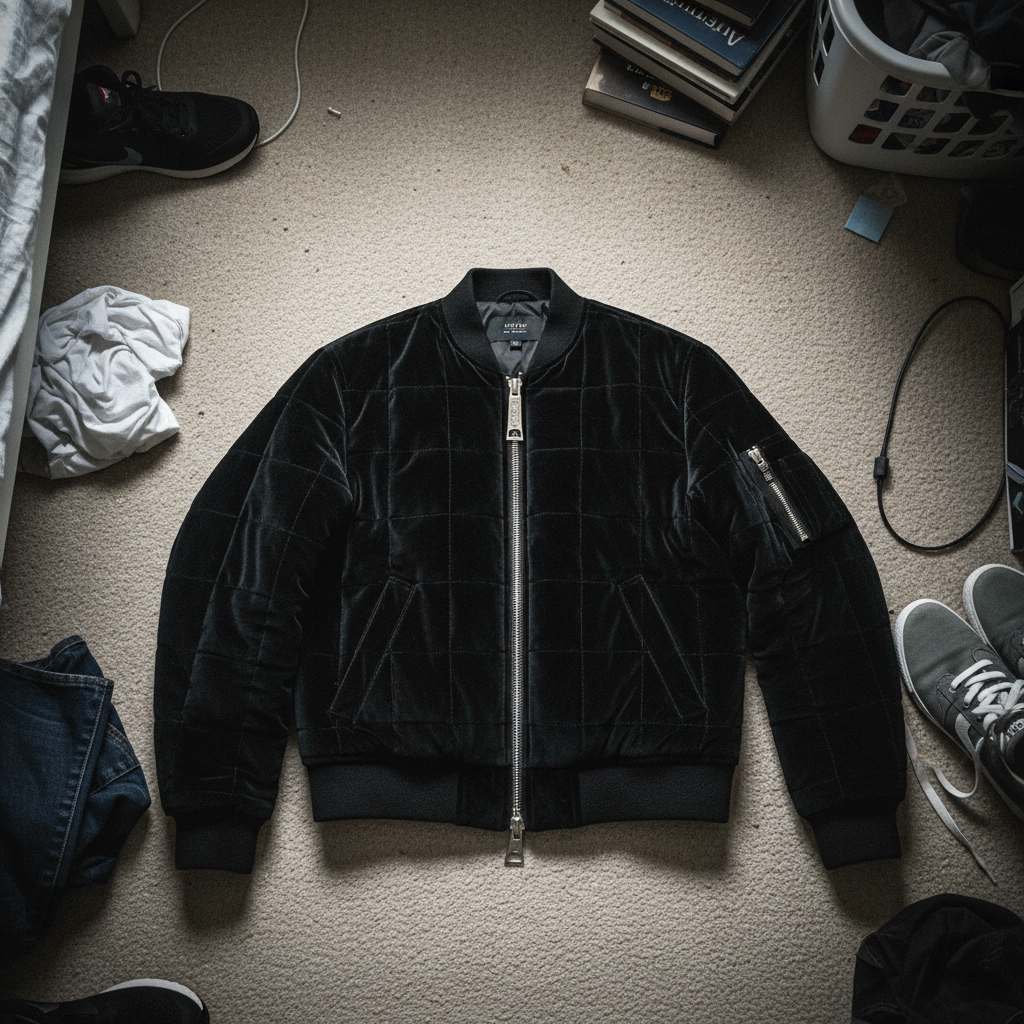
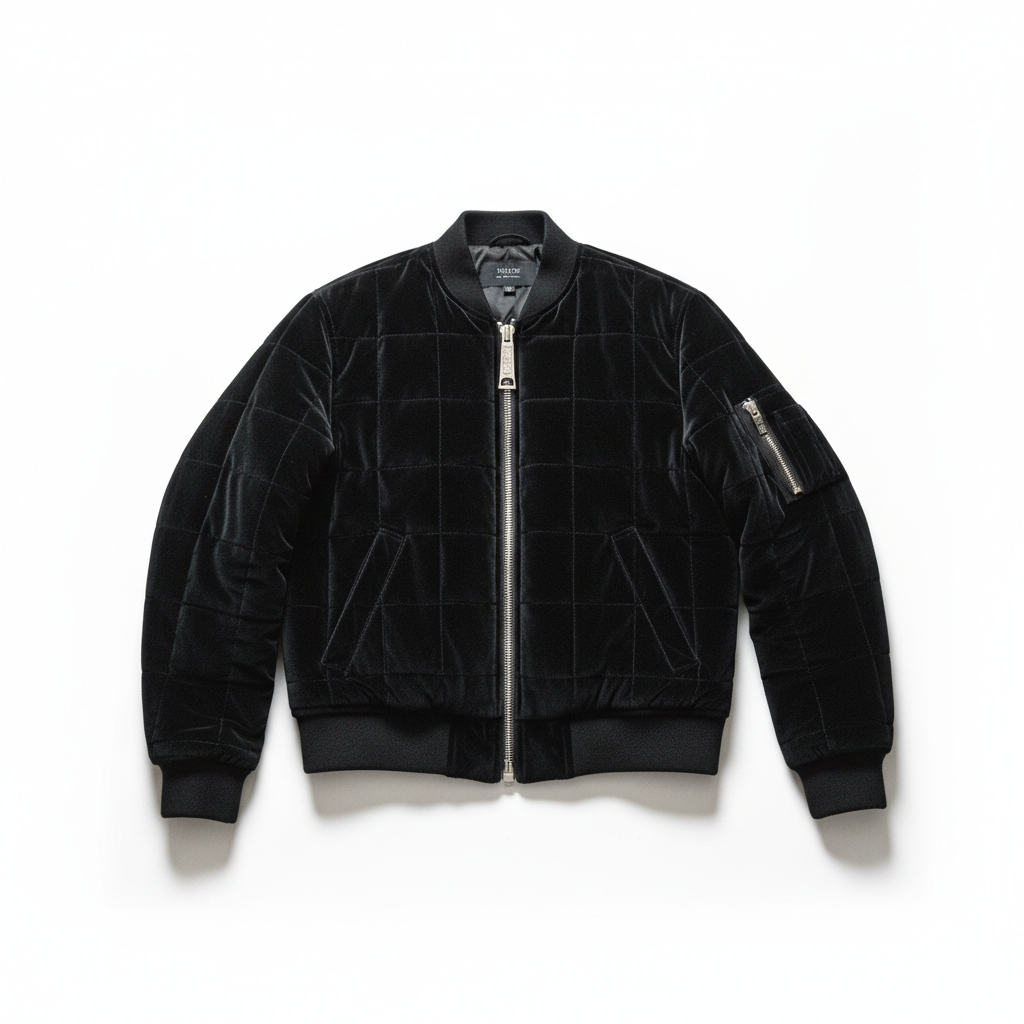
Archive jacket from bedroom to gallery
Designer pieces deserve better than floor photos. Clean up the background and let the construction speak.
replace background with clean white studio backdrop, enhance fabric texture to show material quality
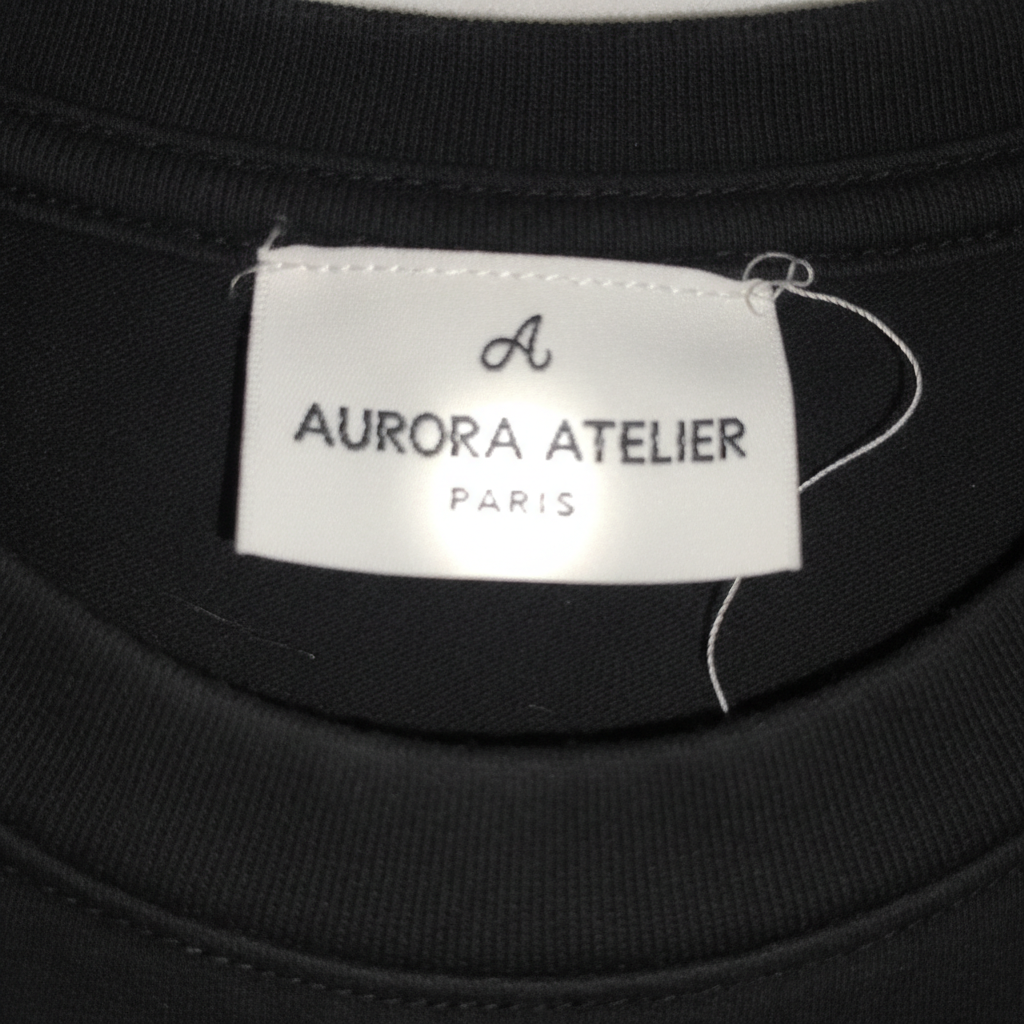
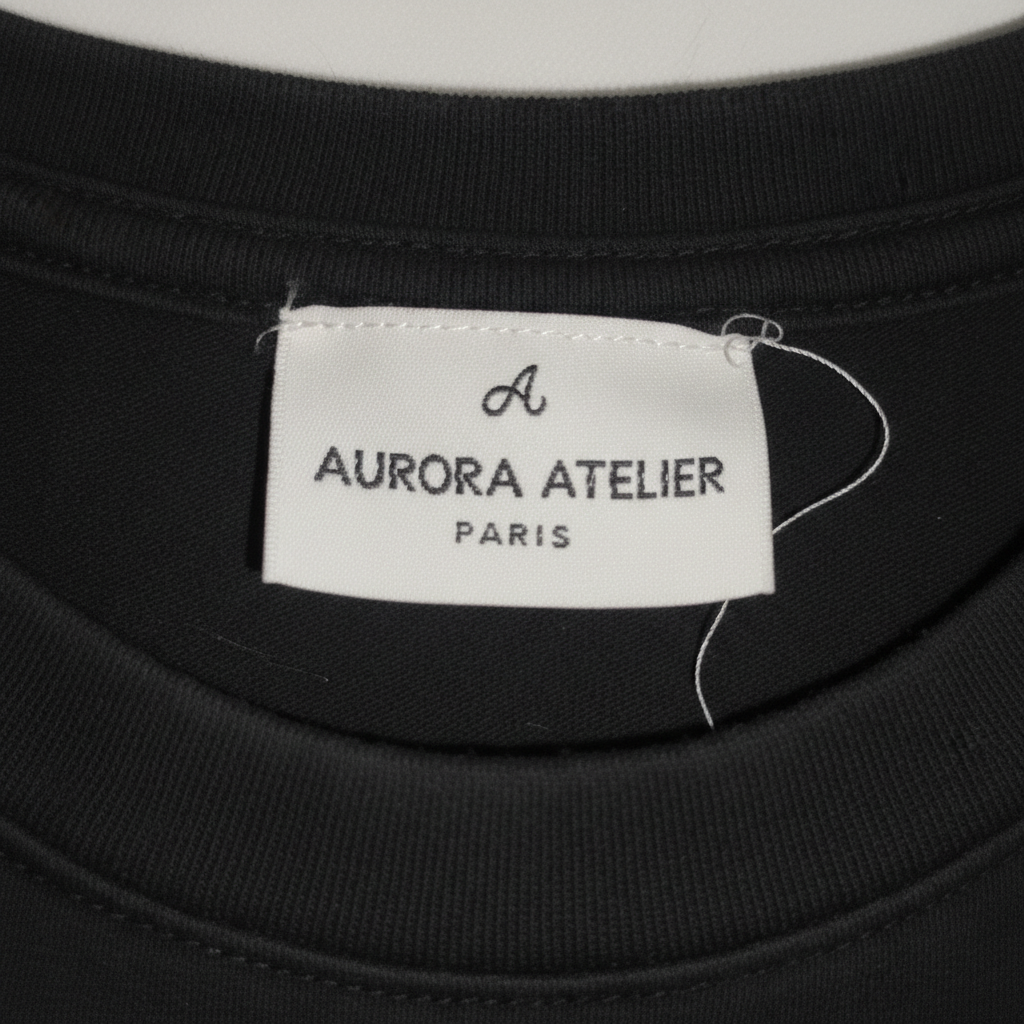
Designer label authentication shot
Buyers check labels first. Make sure yours is crystal clear.
sharpen the label text for complete clarity, fix the glare on the fabric label, make every letter readable
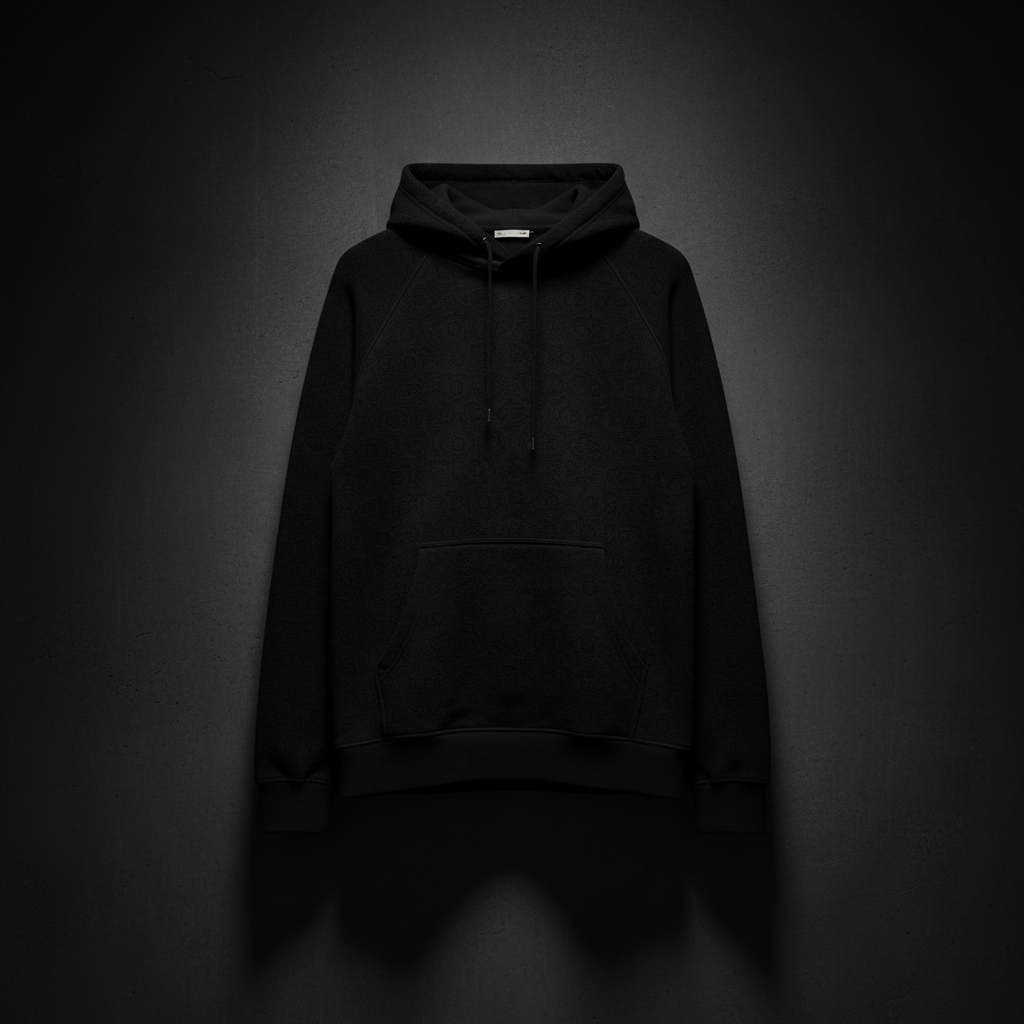
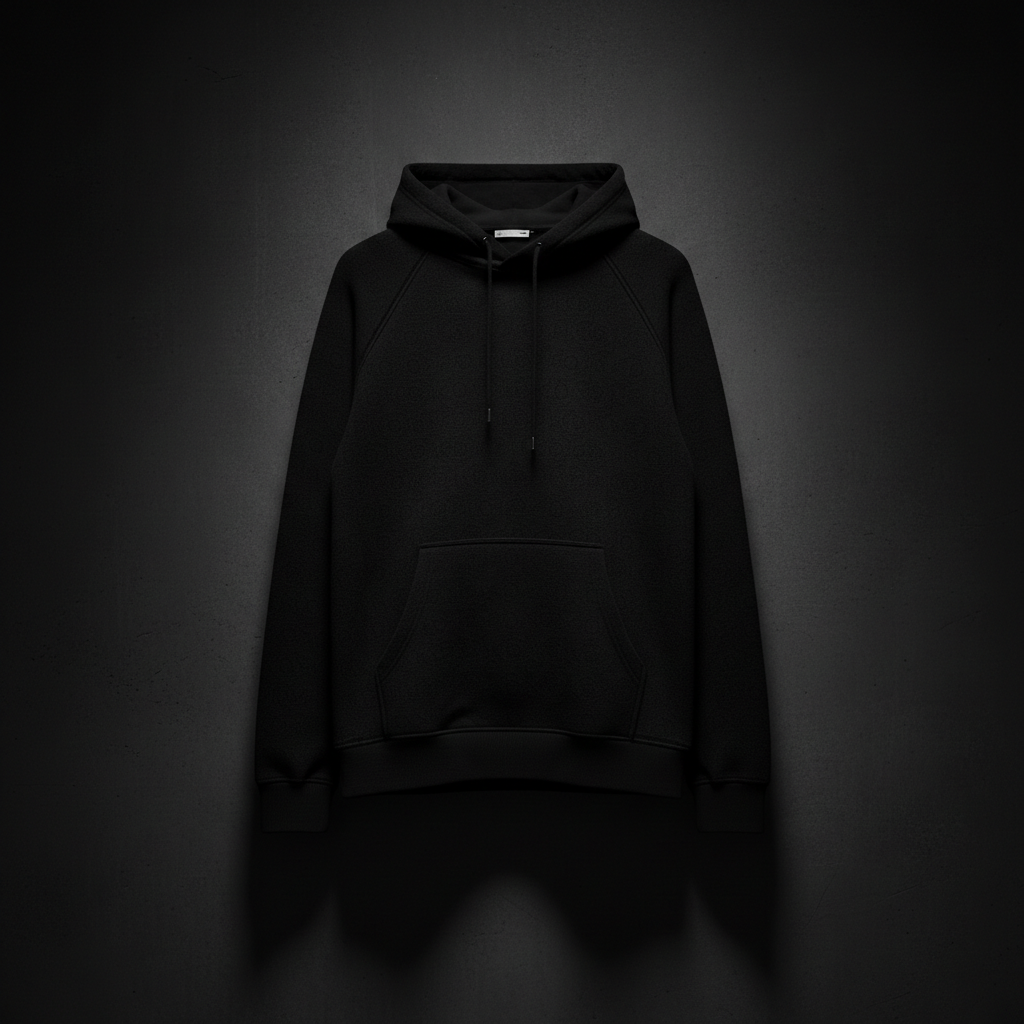
Black-on-black detail rescue
Dark pieces lose their detail in phone photos. Bring back the texture that justifies the price.
enhance detail in the black fabric, show the texture and stitching clearly while keeping true black color
When Things Go Wrong
Fabric texture looks artificial or over-sharpened
Why: Heavy enhancement can make natural fabric look plasticky or digital.
'Subtly' and 'natural' prevent the AI from overdoing texture enhancement.
Black garments have lost detail or look gray
Why: The AI tried to show detail by lightening the black.
Specify 'true black' to prevent the AI from lifting shadows too much.
Intentional distressing or vintage wear got 'fixed'
Why: The AI interpreted wear as damage and tried to repair it.
clean background only, preserve all intentional distressing and vintage patina exactly
Be explicit about what's intentional. 'Preserve distressing' tells the AI it's a feature.
Background removal left halo around complex textures
Why: Fuzzy fabrics, frayed edges, and loose threads are hard to separate cleanly.
For very textured edges, try a slight blur on the background instead of pure white.
Colors look different from the actual garment
Why: The AI adjusted colors based on perceived lighting, changing the true hue.
correct lighting to neutral white, maintain exact original fabric color without shifting hue
If color accuracy is critical, mention the actual color: 'maintain the navy blue tone.'
AI changed the wrong area
Why: Description was ambiguous about which area you wanted changed.
Tap a marker on the specific area you want to change, then regenerate with the same prompt
Markers tell the AI 'I mean THIS one specifically.' Use them when description alone is ambiguous.
Frequently Asked Questions
Do I need to mark the background before replacing it?
No. Just type 'replace background with clean white' and the AI handles it. The AI knows what 'background' means. Only use markers if you need to refine specific edge areas after the first attempt.
How do I show fabric quality in my photos?
Type 'enhance fabric texture and detail, show material quality.' This brings out the weave, stitching, and construction that separate designer from fast fashion. For dark pieces, add 'show texture in the black fabric' to prevent detail loss.
Will buyers think my photos are too edited or misleading?
Professional-looking photos aren't misleading - they accurately represent the item. The goal is showing what buyers would see in person: true colors, real texture, actual construction quality. Avoid over-enhancement that makes fabric look artificial. Your listing should look professional, not manipulated.
How do I photograph black garments that lose all detail?
After taking your photo, use the prompt 'enhance detail in dark fabric, show texture and stitching while maintaining true black color.' This brings out the dimensional qualities that make expensive black pieces special without making them look gray.
What's the best background for Grailed listings?
Clean white is the Grailed standard - it looks professional and lets the garment speak. For light-colored items, neutral gray works well. Avoid busy patterns or lifestyle backgrounds that distract from the piece itself.
How do I handle vintage pieces with intentional wear?
Specify 'preserve vintage patina' or 'preserve intentional distressing' in your prompt. This tells the AI that the wear is a feature, not damage. You can clean the background while keeping all character in the garment itself.
Ready to sell that archive piece?
Free to try. No signup required. No watermarks.
Edit Your Photos