Free • No signup Open Editor

Remove Wrinkles from Photo

Reduce wrinkles and fine lines while keeping skin looking natural and realistic.

Type 'reduce the wrinkles while keeping natural skin texture' and EditThisPic's AI smooths lines in 15-30 seconds. Works on forehead lines, crow's feet, smile lines, and neck wrinkles. The AI softens age lines while preserving pores and skin character so results look real, not plastic. No airbrushing skills required. Free to try, no account needed.

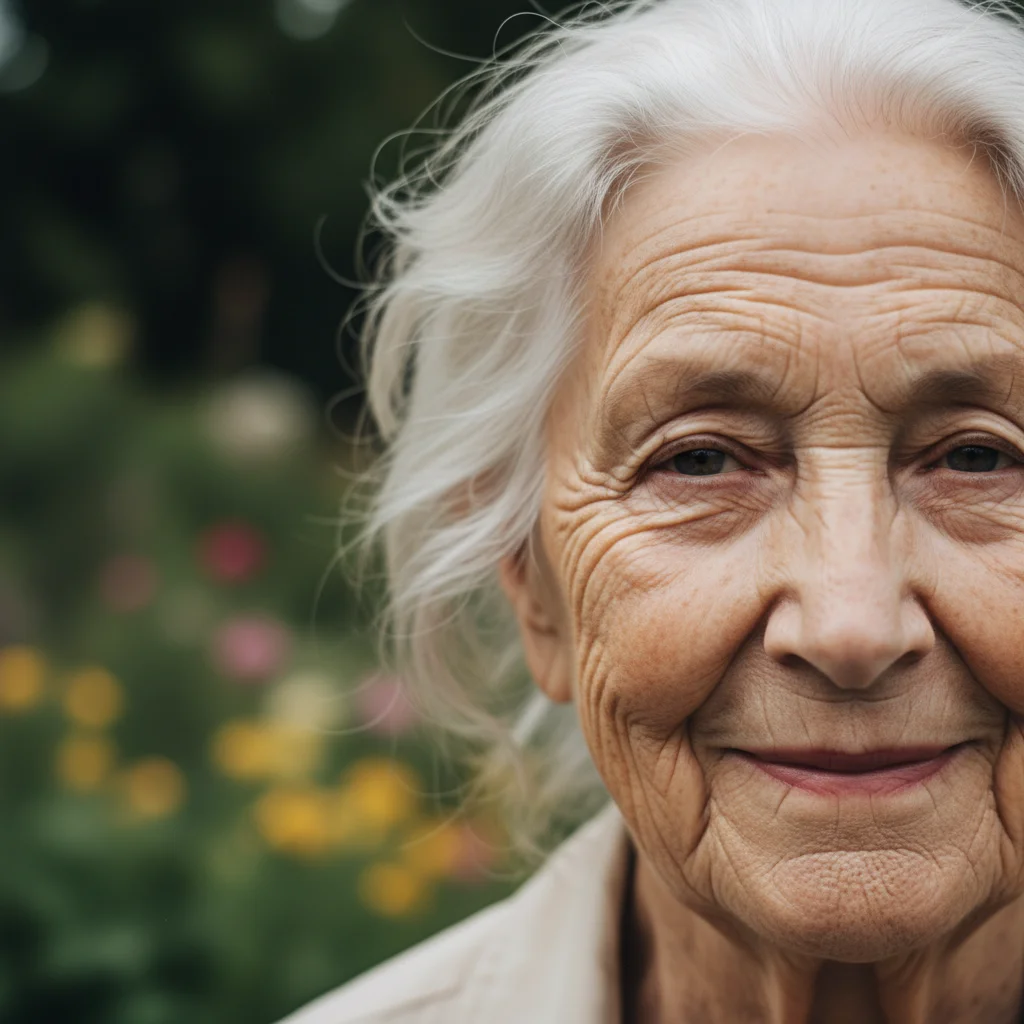
Executive headshot with visible forehead wrinkles and crow's feet
Before
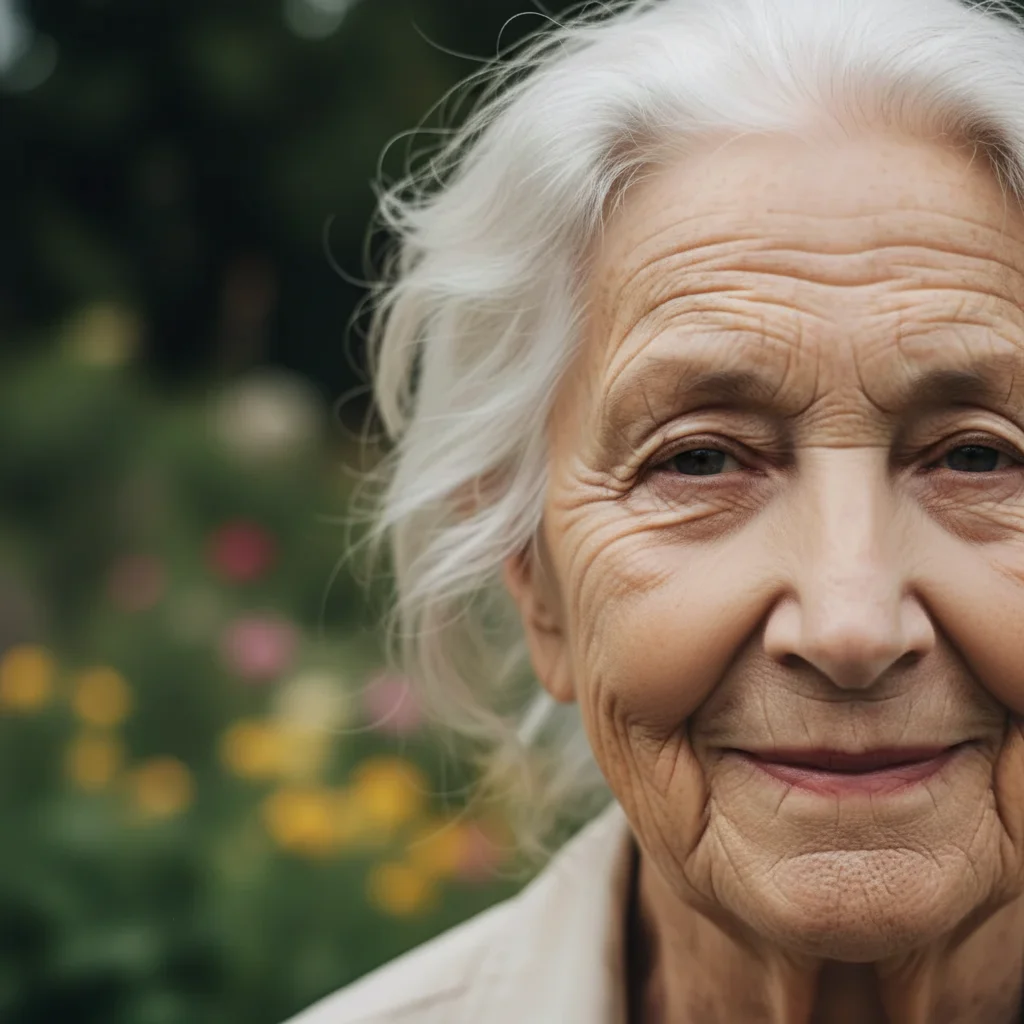
Same headshot with wrinkles softened but natural skin texture preserved
After

How it works

1

Upload your photo

Drop your image into EditThisPic. JPG, PNG, WebP up to 7MB. Works with headshots, portraits, selfies, or any photo where you want to reduce visible wrinkles and fine lines.

⏱ Light wrinkle reduction: 15-20 seconds. Significant smoothing while maintaining texture: may need 2-3 refinements for natural results.
2

Describe the smoothing you want

Type your instruction: 'reduce the wrinkles while keeping natural skin texture' or 'soften the forehead lines and crow's feet naturally.' Be specific about intensity - 'subtle' for light touch, 'significant' for more smoothing. No marking needed - the AI recognizes wrinkle patterns.

💡 Always include 'natural texture' or 'realistic skin' to prevent over-smoothing that looks artificial.

Copy one of these to get started:

Natural wrinkle reduction reduce the wrinkles and fine lines while keeping natural skin texture and pores visible
Forehead lines specifically soften the horizontal forehead lines while keeping the rest of the face natural
Crow's feet around eyes reduce the crow's feet wrinkles around the eyes while preserving natural eye crinkles when smiling
Subtle professional touch-up subtly reduce the most prominent wrinkles for a refreshed but authentic appearance
3 more prompts
Nasolabial folds (smile lines) soften the deep lines from nose to mouth while keeping some natural depth for dimension
Neck and jawline wrinkles smooth the neck wrinkles and lines while maintaining realistic skin texture
More significant reduction significantly reduce wrinkles across the face while still keeping realistic skin with some texture
3

Generate and review

Check that wrinkles are reduced but the face still looks natural. Zoom in to verify skin texture is preserved - you should still see pores and subtle variations. The goal is refreshed, not retouched.

4

Refine with markers if needed

If certain areas need more or less smoothing, tap markers on those specific wrinkles and regenerate. This helps target deep lines that need extra attention while preserving expression lines you want to keep.

💡 Some people prefer keeping smile lines for warmth - mark areas to preserve if the AI smoothed too much.
Try it free
"Used this for my LinkedIn headshot. It softened my forehead lines just enough to look refreshed but still like me. Not that weird over-smoothed plastic look." @careercoach_linda

See it in action

Executive headshot with visible forehead wrinkles and crow's feet
Before
Same headshot with wrinkles softened but natural skin texture preserved
After

Professional headshot refreshed

Executive headshot softened forehead lines while maintaining professional authenticity.

Prompt: reduce the wrinkles and fine lines while keeping natural skin texture visible
Smiling portrait with visible crow's feet wrinkles around eyes
Before
Portrait with crow's feet softened while smile appears natural
After

Portrait with crow's feet softened

Portrait reduced eye area wrinkles while keeping genuine smile expression.

Prompt: soften the crow's feet wrinkles around the eyes while preserving the natural smile
Professional headshot with visible forehead lines and smile lines
Before
Polished professional photo with wrinkles subtly reduced
After

LinkedIn photo polished

Profile photo smoothed for professional networking while maintaining authentic appearance.

Prompt: subtly reduce the most prominent wrinkles for a refreshed but authentic appearance

If something looks off

Skin looks too smooth or plastic

Why: The AI over-smoothed and removed natural skin texture along with wrinkles.

Try: restore natural skin texture and pores while keeping the wrinkles reduced

💡 Always include 'natural texture' or 'keep pores visible' in your original prompt.

Face lost dimension and looks flat

Why: Too much smoothing removed the shadows and contours that give faces depth.

Try: restore natural facial contours and dimension while keeping wrinkles softened

💡 Ask for 'subtle' reduction to preserve the natural shadows that create dimension.

Expression lines I wanted to keep were removed

Why: The AI removed all wrinkle-like lines including desirable expression lines.

Try: restore the smile lines around the mouth while keeping forehead wrinkles reduced

💡 Specify which lines to keep: 'reduce forehead lines but preserve smile crinkles.'

Some deep wrinkles still very visible

Why: Very deep lines may need targeted attention beyond general smoothing.

Try: Tap markers on the remaining deep lines, then regenerate with 'further smooth these specific wrinkles'

💡 Deep-set lines often need a second pass with marker-targeted refinement.

AI changed the wrong area or smoothed more than intended

Why: The AI interpreted the smoothing area too broadly.

Try: Tap markers only on the specific wrinkles to address, then regenerate with the same prompt

💡 Markers constrain the AI to exactly the areas you indicate for precise control.

Quick answers

Do I need to mark the wrinkles before describing what to smooth?

No! Just describe what you want: 'reduce wrinkles while keeping natural skin texture.' The AI recognizes wrinkle patterns automatically. Only use markers when you want to target specific wrinkles for extra smoothing, or to protect expression lines you want to preserve from being smoothed.

How do I avoid the over-smoothed plastic look?

Always include 'natural texture' or 'keep pores visible' in your prompt. Use words like 'subtle', 'soften', or 'reduce' rather than 'remove' or 'eliminate'. The goal is refreshed skin, not retouched skin. Start conservative and smooth more if needed.

Can I control how much smoothing is applied?

Yes. Use intensity words in your prompt: 'subtly reduce' for minimal touch-up, 'moderately smooth' for balanced reduction, or 'significantly reduce' for more aggressive smoothing. You can always run a second pass for additional smoothing.

Will it work on deep wrinkles and fine lines equally?

Both respond well, but deep wrinkles may need more attention. Fine lines often smooth completely in one pass. Deep-set lines like nasolabial folds may need targeted marker refinement. Ask to 'soften' rather than 'remove' deep lines for natural results.

Can I keep some wrinkles that add character?

Absolutely. Specify which to keep: 'reduce forehead wrinkles but preserve the smile lines' or 'soften crow's feet but keep the character lines around the mouth.' Many people prefer keeping some lines that contribute to warmth and expression.

Ready to soften those wrinkles naturally?

Free to try. No signup required.

Try it free