Free • No signup Add Snow · Free

Add Snow to Photo

Transform any photo into a winter scene. Just describe the snow effect you want.
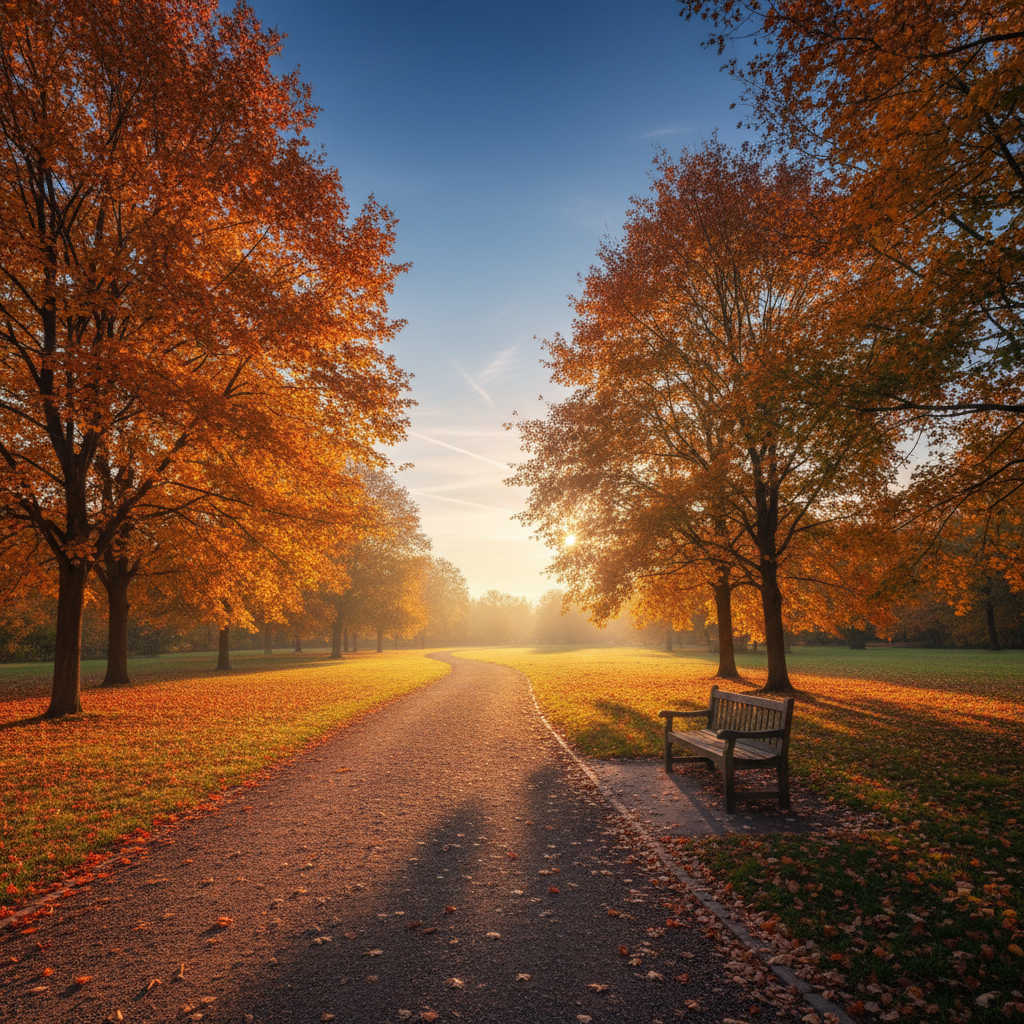
Park path in autumn with colorful fall leaves on trees
Before
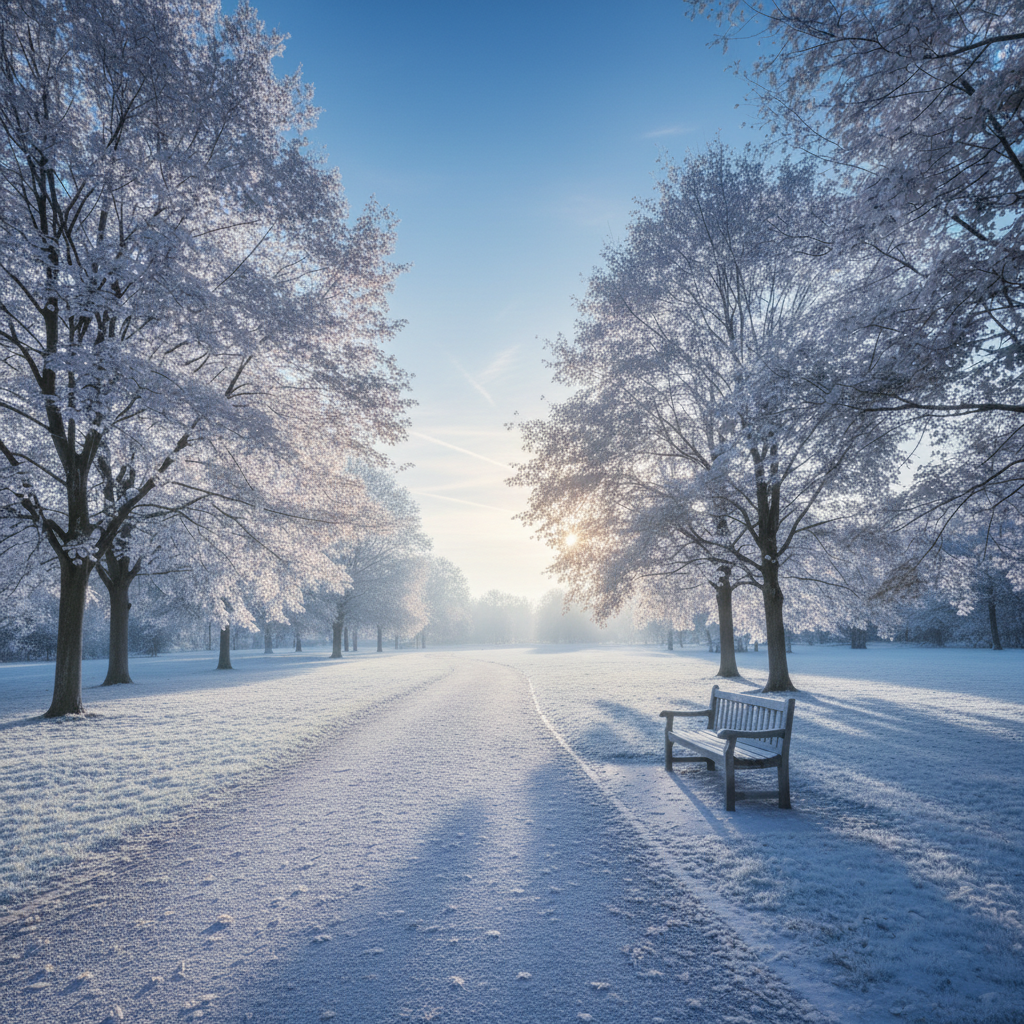
Same park path transformed into snowy winter scene with frost-covered trees
After

Add Snow to Photo Free (2026)

Drop your photo here

or click to browse

Release to upload

Free • No signup

Advertisement
Popular use cases:
  • Holiday cards
  • Christmas photos
  • Winter wedding photos
  • Seasonal social media
  • Winter portraits
  • Real estate seasonal

Cost
Free No signup required
Time
Instant results in 15-30 seconds
Works on
Any device - browser, phone, tablet, desktop
Powered by
AI-powered photo editing
Scenario Prompt Time
Gentle falling snow add falling snow to the scene, gentle snowflakes drifting down 20s
Winter landscape transform into snowy winter landscape with ground snow 30s
Portrait with snow add romantic falling snow, keep face clear 25s

How it works

  1. Upload your photo

    Drop your image into EditThisPic. JPG, PNG, and WebP up to 7MB work perfectly. Outdoor scenes, portraits, and landscapes all work great for snow effects.

    Expect: Simple snow overlay: 20-30 seconds. Complex winter transformations with ground snow: may need 2-3 refinements.
  2. Describe the snow effect you want

    Type your instruction: 'add falling snow to the scene' or 'transform this into a snowy winter landscape.' Be specific about the type of snow—falling flakes, fresh powder on the ground, frost on surfaces, or a full blizzard. No marking required.

    Tip: Specify snow intensity: 'gentle snowfall,' 'heavy snow,' or 'light flurries' for different moods. Add 'keep subject visible' for portraits.

    Copy one of these to get started:

    Add falling snowflakes to any outdoor scene add falling snow to the scene, gentle snowflakes drifting down with realistic depth and motion blur
    Transform landscape into snowy winter scene transform this into a snowy winter landscape with fresh powder covering the ground and frost on the trees
    Create winter wonderland atmosphere make this a winter wonderland scene with magical falling snow, frosted branches, and soft winter lighting
    Add frost and ice to surfaces add frost and ice crystals to the windows and surfaces, make it look like a cold winter morning
    4 more prompts
    Heavy snowstorm or blizzard effect add heavy snowfall like a blizzard, thick snow in the air with reduced visibility and dramatic winter storm atmosphere
    Light snow flurries for subtle effect add light snow flurries to the scene, sparse gentle snowflakes for a subtle winter touch
    Portrait with romantic snowfall add romantic falling snow around the subject, soft bokeh snowflakes in foreground and background, keep the face clear and visible
    Snow accumulation on specific objects add fresh snow piled on the rooftops, car, and tree branches, realistic snow accumulation after a winter storm
  3. Generate and review

    Tap generate and check the result. Look at how the snow interacts with the scene—does it layer naturally on surfaces? Is the falling snow at the right density? Zoom in to verify the effect looks realistic.

  4. Refine with markers if needed

    If snow covers something that should stay clear (like a face) or if you want more snow in specific areas, tap markers on those spots and regenerate with adjusted instructions.

    Tip: Markers help when you want snow to accumulate only on certain surfaces, like rooftops or tree branches.
Try it free

Add Snow to Photo Free (2026)

Drop your photo here

or click to browse

Release to upload

Free • No signup

"Turned my fall engagement photos into magical winter shots for our holiday cards. The snow looks completely real!" @WinterBrideEmily

See it in action

Park path in autumn with colorful fall leaves on trees
Before
->
Same park path transformed into snowy winter scene with frost-covered trees
After

Autumn scene transformed to winter

A fall photo with colorful leaves became a magical winter scene. One prompt added snow to the ground and trees while keeping the natural lighting.

Prompt: transform this into a snowy winter landscape with fresh powder covering the ground and frost on the trees
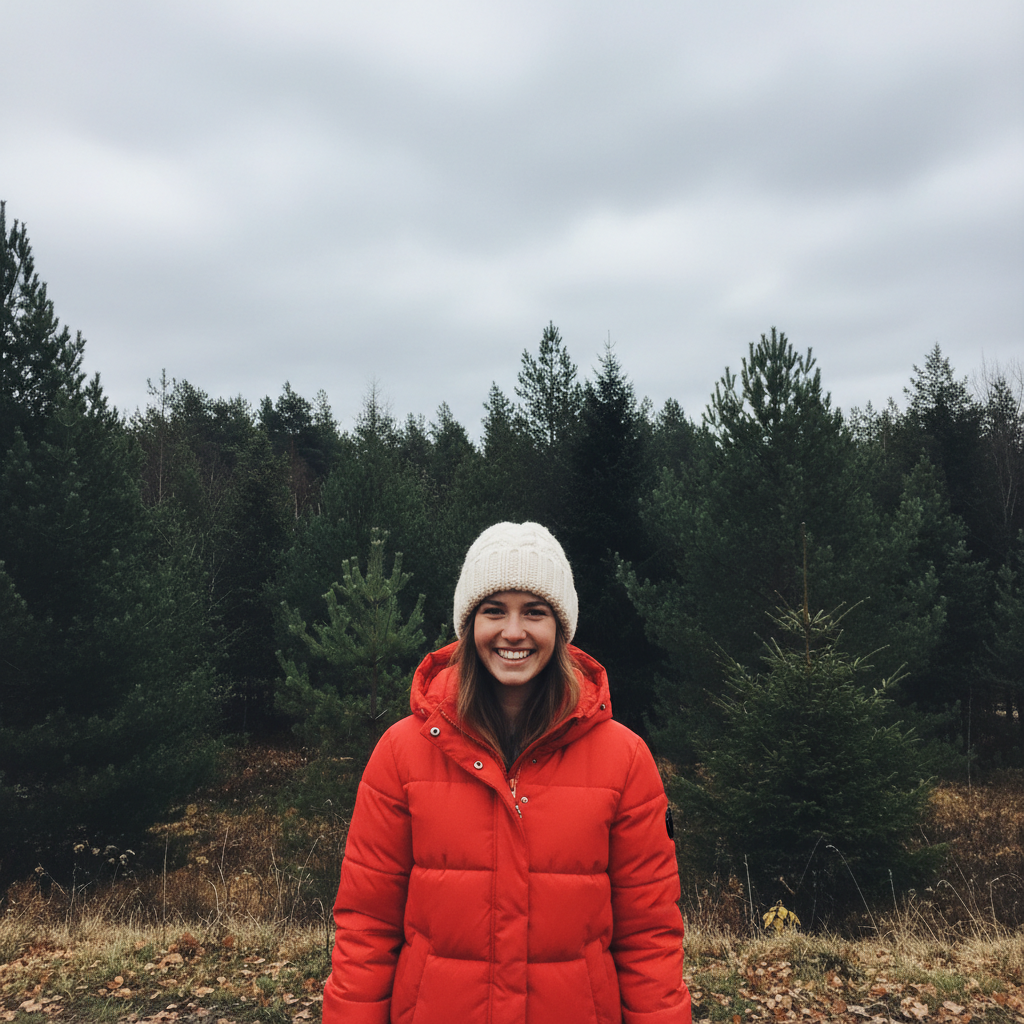
Woman in red coat standing outdoors without snow
Before
->
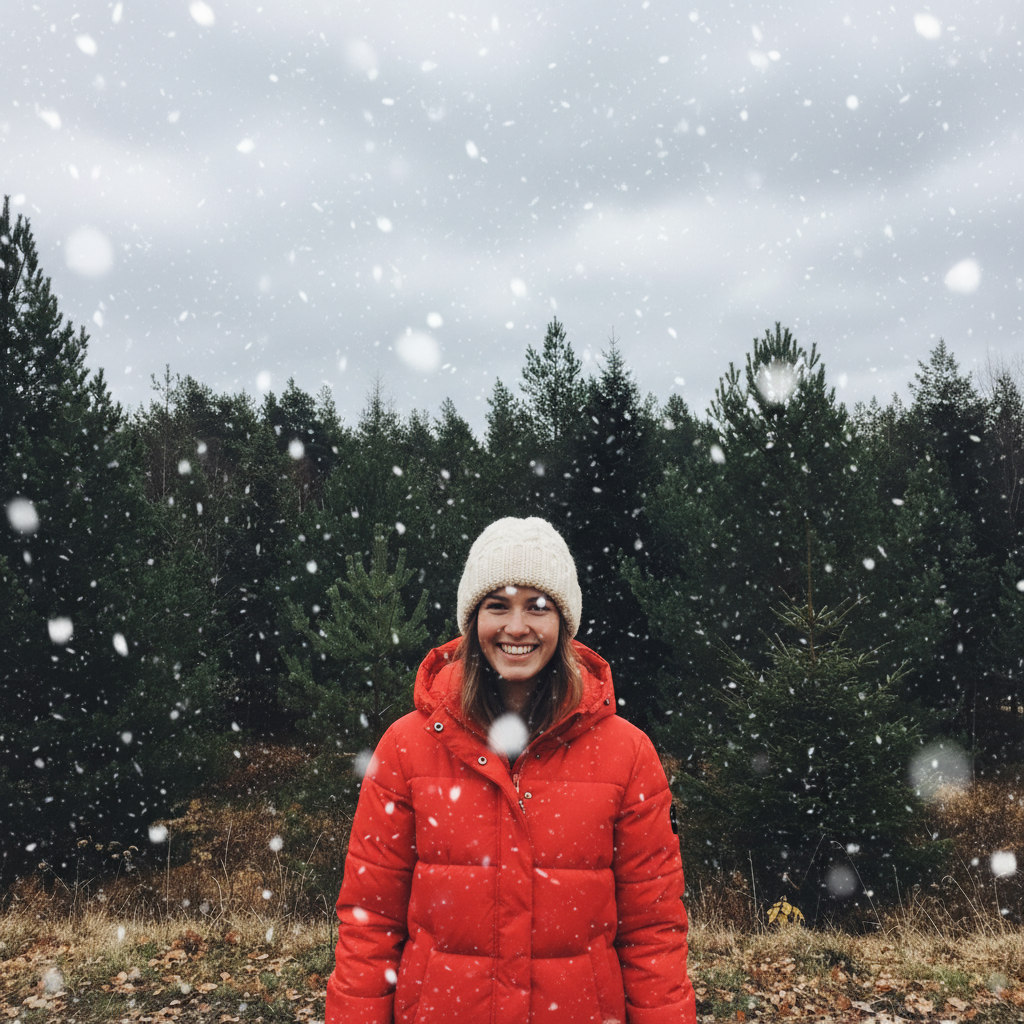
Same portrait with beautiful falling snowflakes surrounding her
After

Portrait with magical snowfall

Outdoor portrait taken on a cloudy day turned into a romantic winter moment with falling snow that frames the subject perfectly.

Prompt: add romantic falling snow around the subject, soft bokeh snowflakes in foreground and background, keep the face clear and visible
City street on overcast day without snow
Before
->
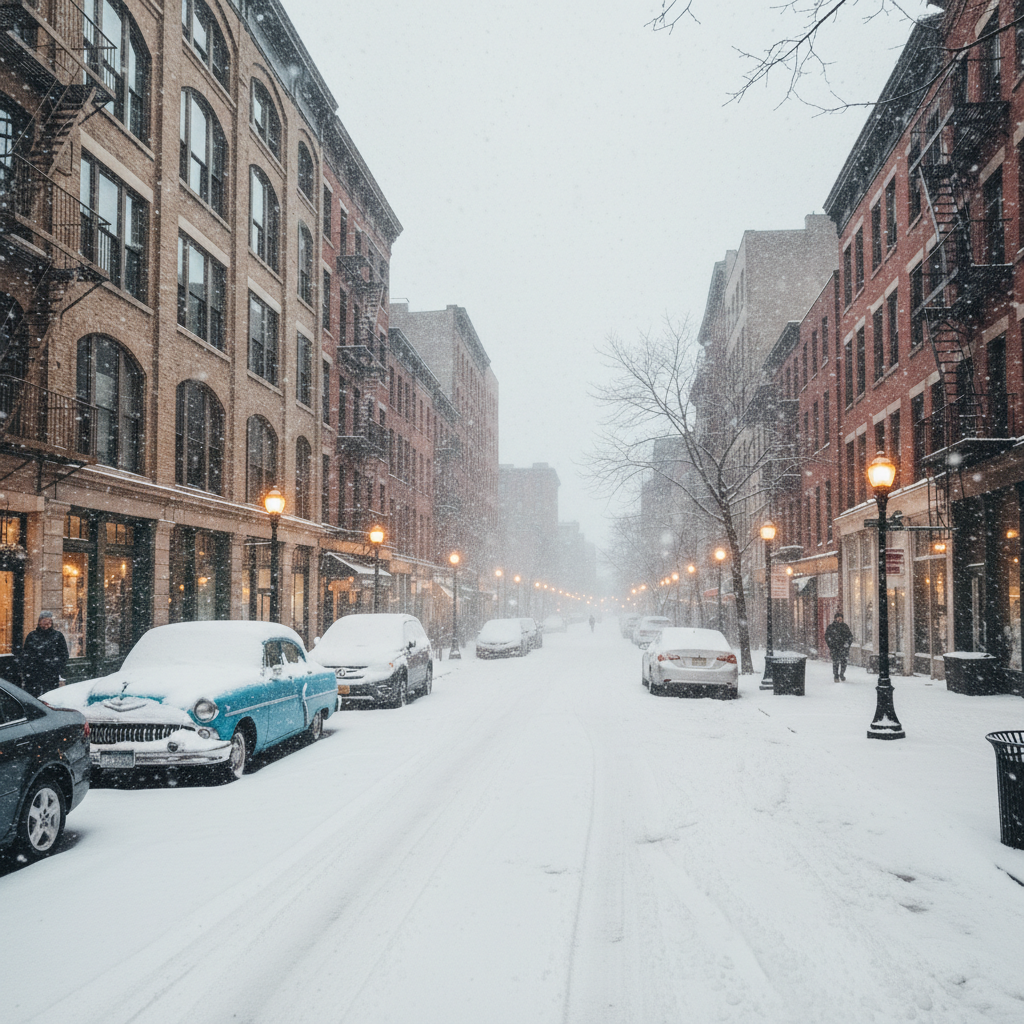
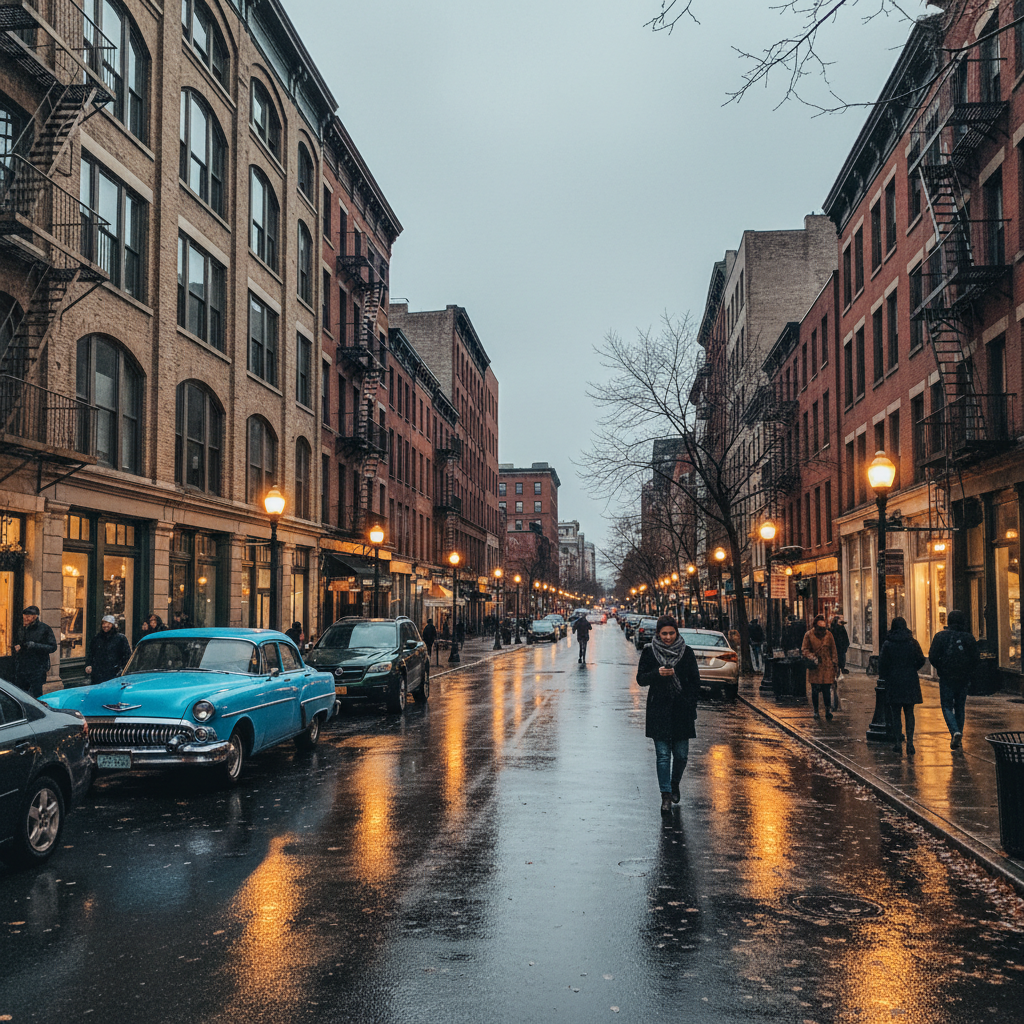
Same city street transformed with heavy snowfall and winter storm atmosphere
After

City street with winter storm

Urban street scene gained dramatic atmosphere with heavy snowfall. The AI added snow accumulation on cars and buildings realistically.

Prompt: add heavy snowfall like a blizzard, thick snow in the air with reduced visibility and dramatic winter storm atmosphere
Advertisement

If something looks off

AI changed the wrong area or something I didn't want changed

Why: The AI couldn't determine exactly which area you meant from description alone. This happens with ambiguous requests.

Try: Tap a marker on the specific area you want to change, then regenerate with the same prompt

Tip: Markers tell the AI 'I mean THIS one specifically.' Use them when description alone is ambiguous.

Snow covers the subject's face or important details

Why: The AI applied snow uniformly across the image without recognizing which elements should stay clear.

Try: add falling snow to the scene but keep the subject's face and body completely clear and visible

Tip: Always add 'keep face clear' or 'keep subject visible' when adding snow to portraits.

Snow looks flat or unrealistic, like a filter overlay

Why: The AI didn't account for depth in the scene, making all snowflakes appear the same size and focus.

Try: add falling snow with realistic depth, some snowflakes close and blurred, others small and distant, natural variation in size

Tip: Mentioning 'depth' and 'variation' helps the AI create that authentic layered snowfall look.

Snow doesn't match the lighting in the photo

Why: The original photo has warm or bright lighting that conflicts with the cold winter atmosphere.

Try: add falling snow and adjust the lighting to cool winter tones, make the overall scene feel cold and wintery

Tip: Add 'winter lighting' or 'cool tones' to make the snow effect feel natural with the scene.

Ground snow looks patchy or incomplete

Why: The AI only added snow to some surfaces, missing areas that should also be covered.

Try: add complete snow coverage on the ground, paths, and all horizontal surfaces with consistent depth

Tip: Specify 'all horizontal surfaces' and 'consistent' for uniform ground snow.

Snow effect is too subtle or barely visible

Why: The AI interpreted your request conservatively, especially if the original scene was bright.

Try: add heavy visible snowfall with large snowflakes clearly visible against the scene, dramatic winter snow effect

Tip: Use 'heavy,' 'visible,' and 'dramatic' to increase snow intensity significantly.

Quick answers

Do I need to mark where I want snow before describing?

No! Just describe what you want: 'add falling snow to the scene' or 'make this a winter landscape.' The AI understands how snow naturally falls and accumulates. Only use markers if you want snow on specific objects only, or if snow is covering something that should stay clear.

How do I add snow to a photo for free without an account?

Upload your photo to EditThisPic and type 'add snow to the scene.' That's it—no login required. You get one free edit per week, and there's no watermark on your download. The AI handles all the complex work of making snow look realistic.

What's the best free AI tool for adding snow effects to photos?

EditThisPic handles snow effects with natural language—just describe what you want. Unlike filter apps that overlay the same snow pattern on everything, the AI understands depth and lighting to create realistic snowfall. No Photoshop skills needed, no templates to configure.

Can I add snow to a summer photo?

Yes! The AI can transform any season into winter. For best results with summer photos, ask for 'winter lighting' along with the snow to adjust the warm tones. A prompt like 'transform this into a snowy winter scene with cool lighting' handles the full seasonal shift.

How do I make falling snow without covering my face?

Add 'keep face clear' or 'keep subject visible' to your prompt. For example: 'add falling snow around me with bokeh snowflakes, keep my face completely visible.' The AI will frame you with snow rather than covering your features.

Ready to add snow to your photo?

Free to try. No signup required.

Try it free