AI Snow Adder
← Browse all add & replace toolsLast updated
Transform any photo into a winter scene. Just describe the snow effect you want.
Upload photo to add snow
"transform this into a snowy winter landscape with fresh powder covering the ground and frost on the trees"
Free to try · no sign-up · never used for AI training
Release to upload
<30stypical edit
1 freeedit weekly
Photo on your phone?
Scan to open this editor there — free edit works on your phone too.
How it works
See it in action
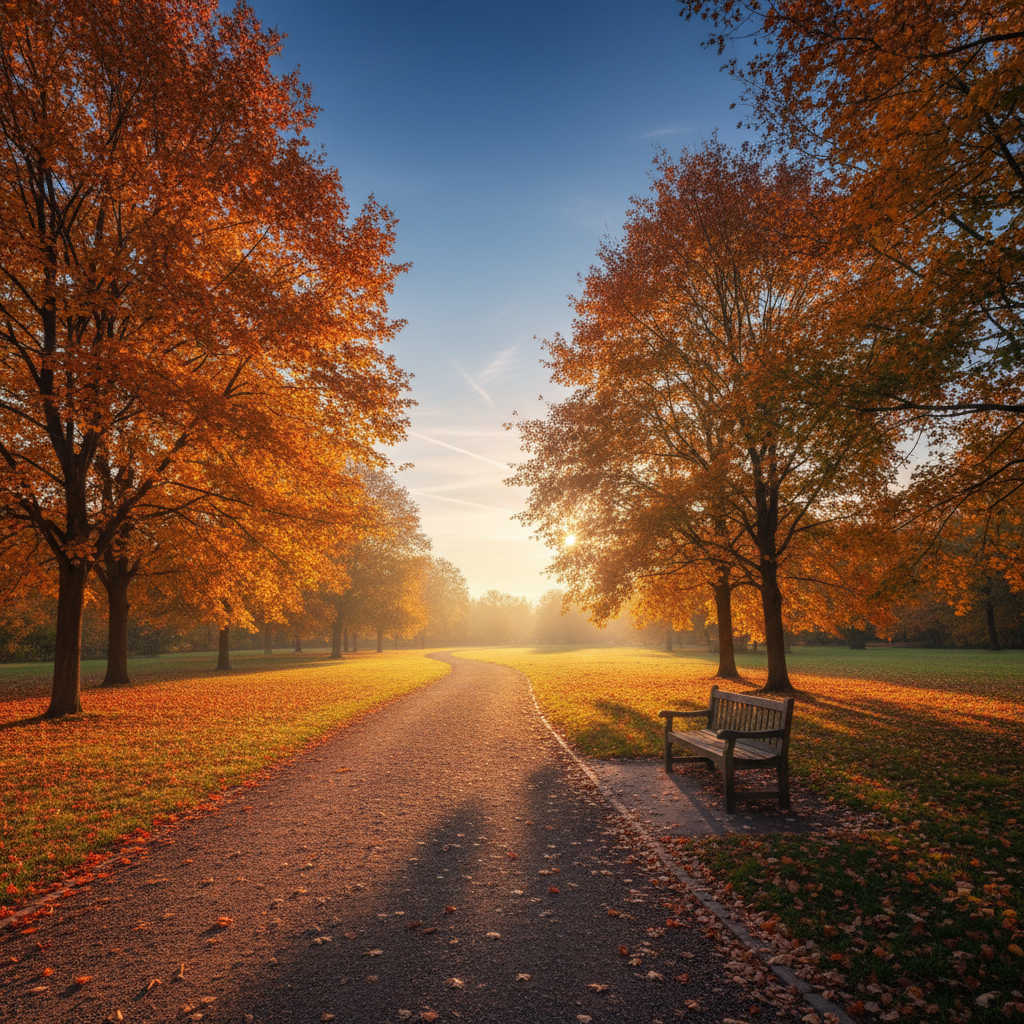
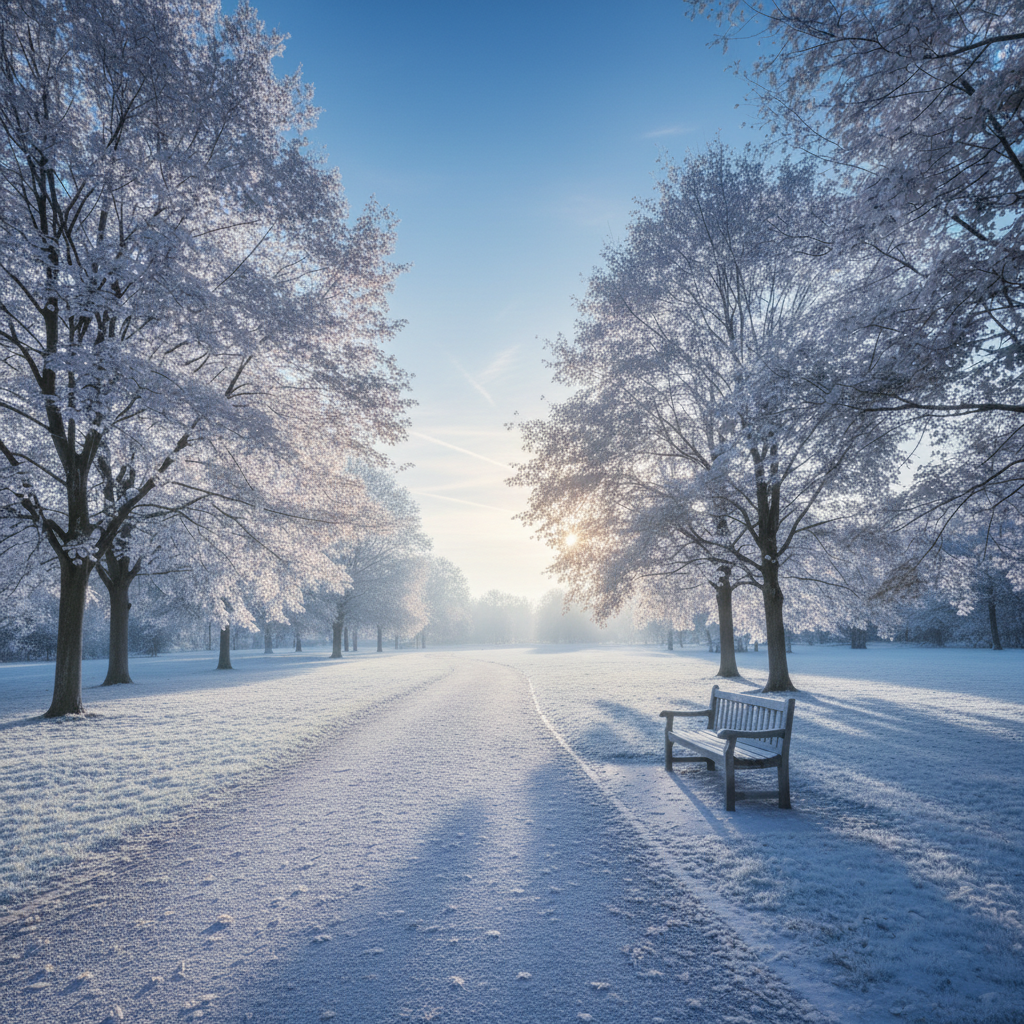
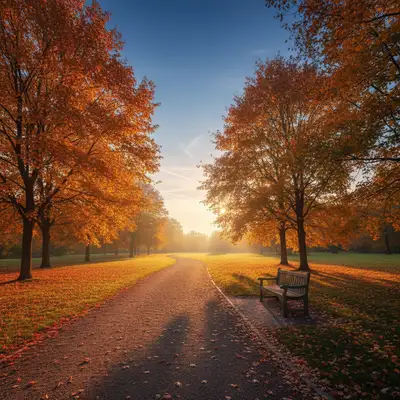
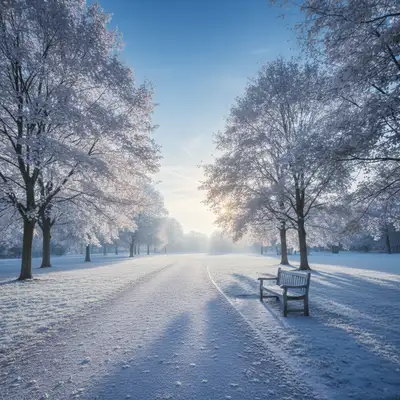
Autumn scene transformed to winter
A fall photo with colorful leaves became a magical winter scene. One prompt added snow to the ground and trees while keeping the natural lighting.
Prompt:
transform this into a snowy winter landscape with fresh powder covering the ground and frost on the trees
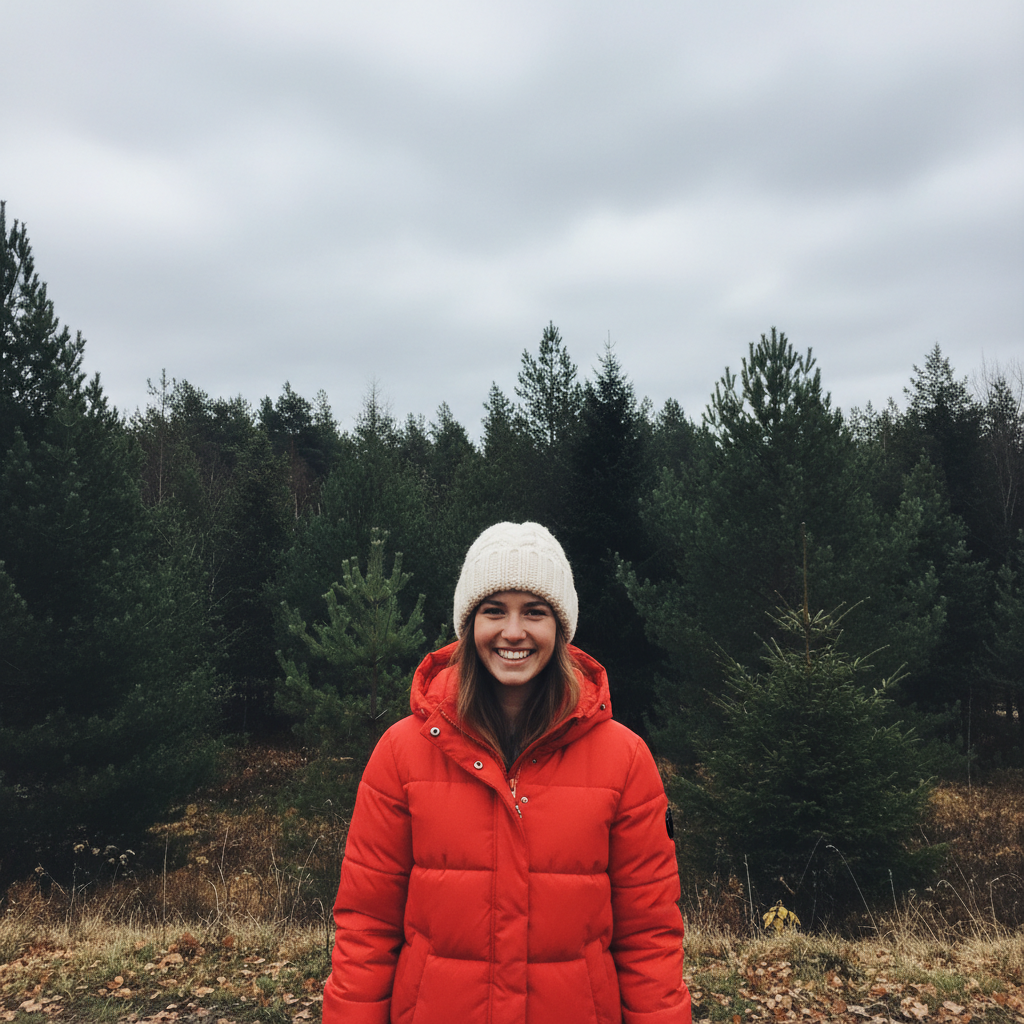
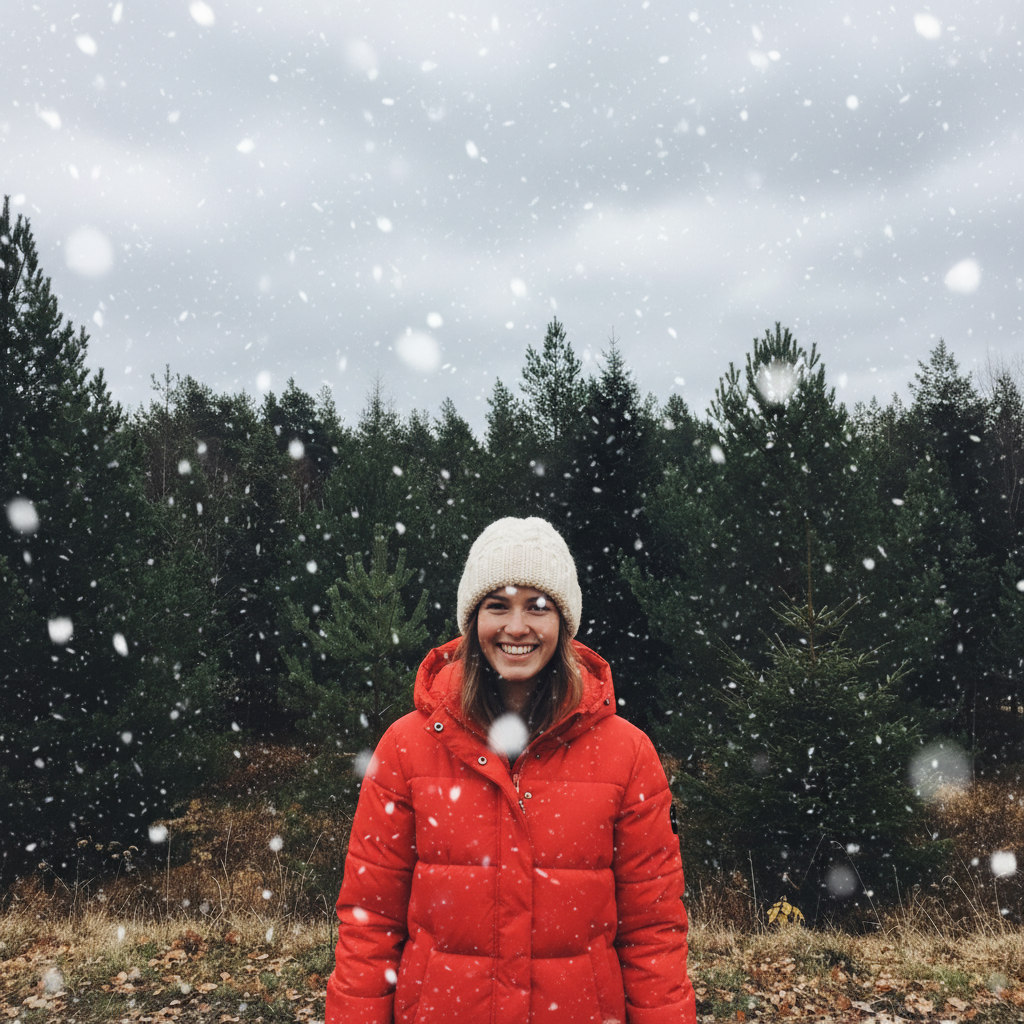
Portrait with magical snowfall
Outdoor portrait taken on a cloudy day turned into a romantic winter moment with falling snow that frames the subject perfectly.
Prompt:
add romantic falling snow around the subject, soft bokeh snowflakes in foreground and background, keep the face clear and visible
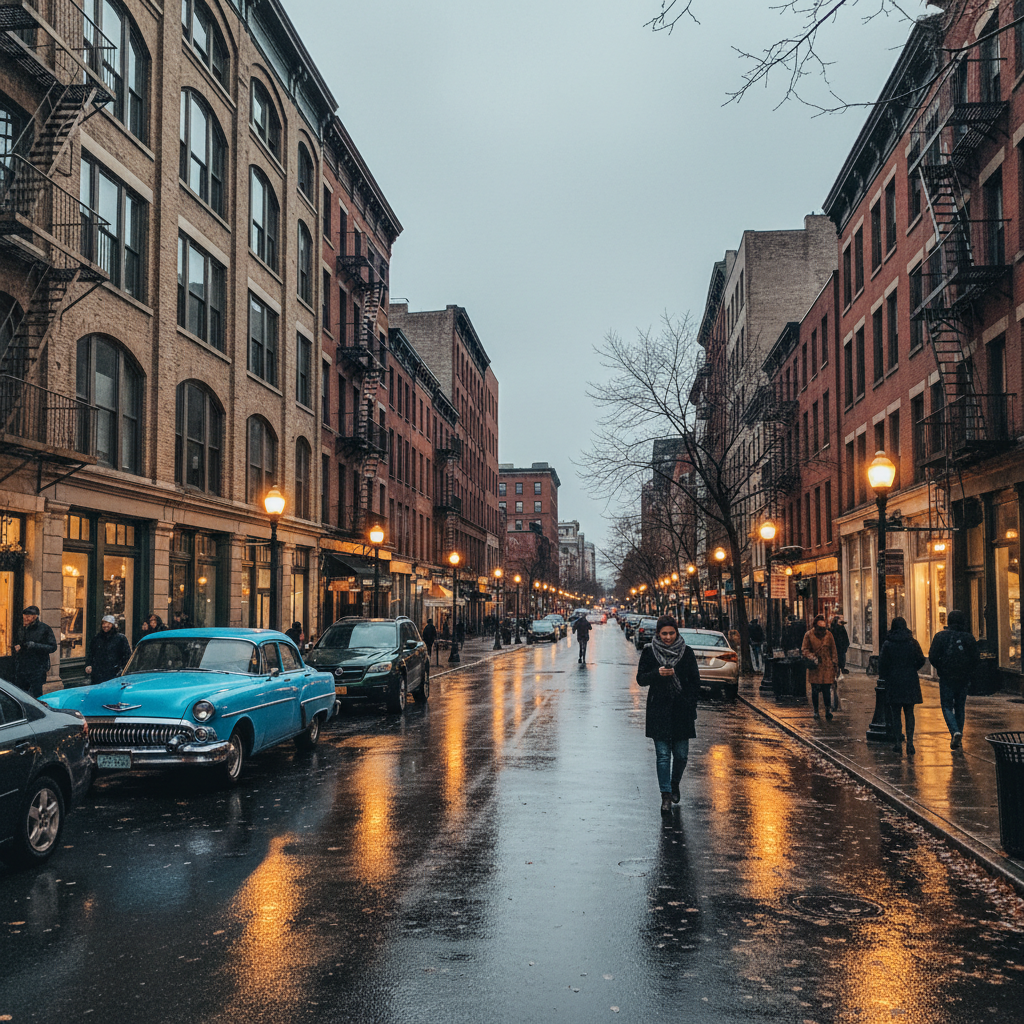
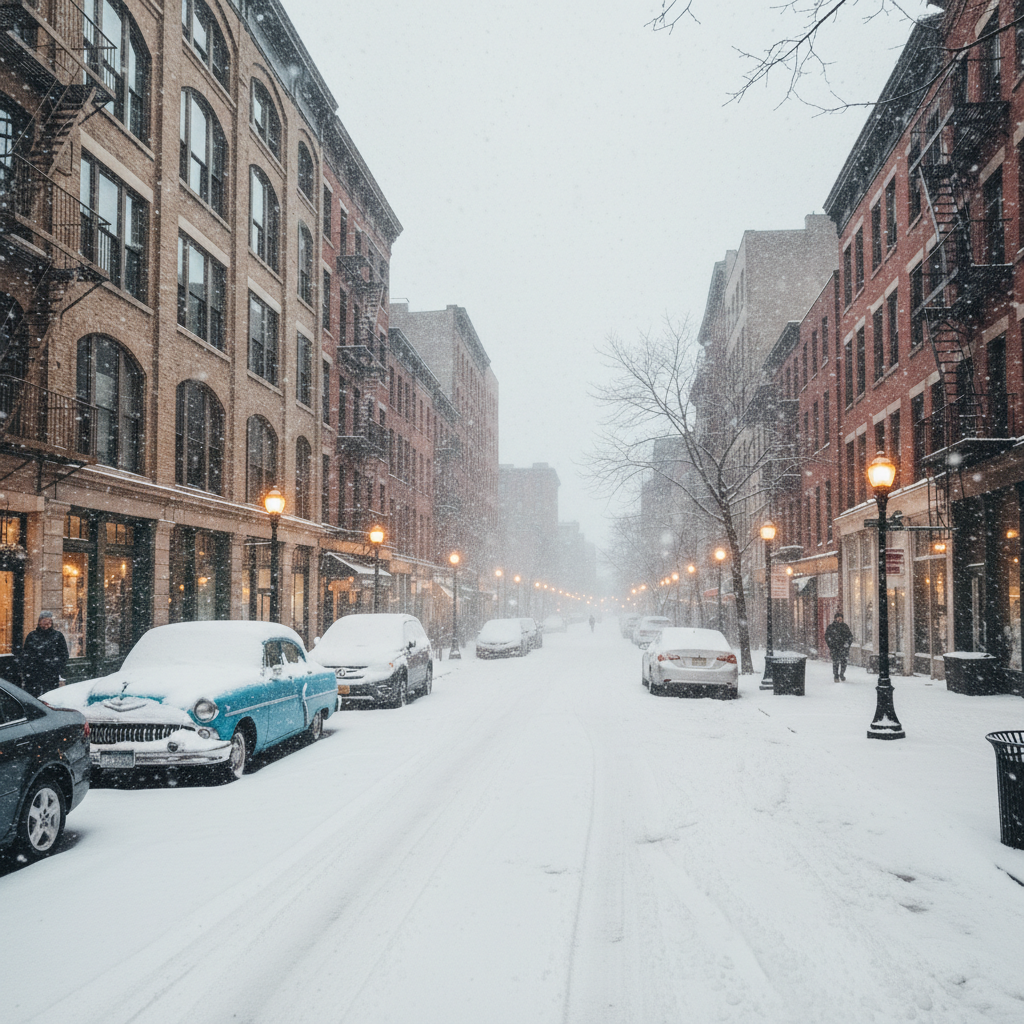
City street with winter storm
Urban street scene gained dramatic atmosphere with heavy snowfall. The AI added snow accumulation on cars and buildings realistically.
Prompt:
add heavy snowfall like a blizzard, thick snow in the air with reduced visibility and dramatic winter storm atmosphere
Quick answers
Popular use cases
Ready to add snow to your photo?
Free to try. No signup required.