Free • No signup Remove Lens flare · Free

AI Lens Flare Remover

Just describe the flare you want gone. AI handles the rest without marking.
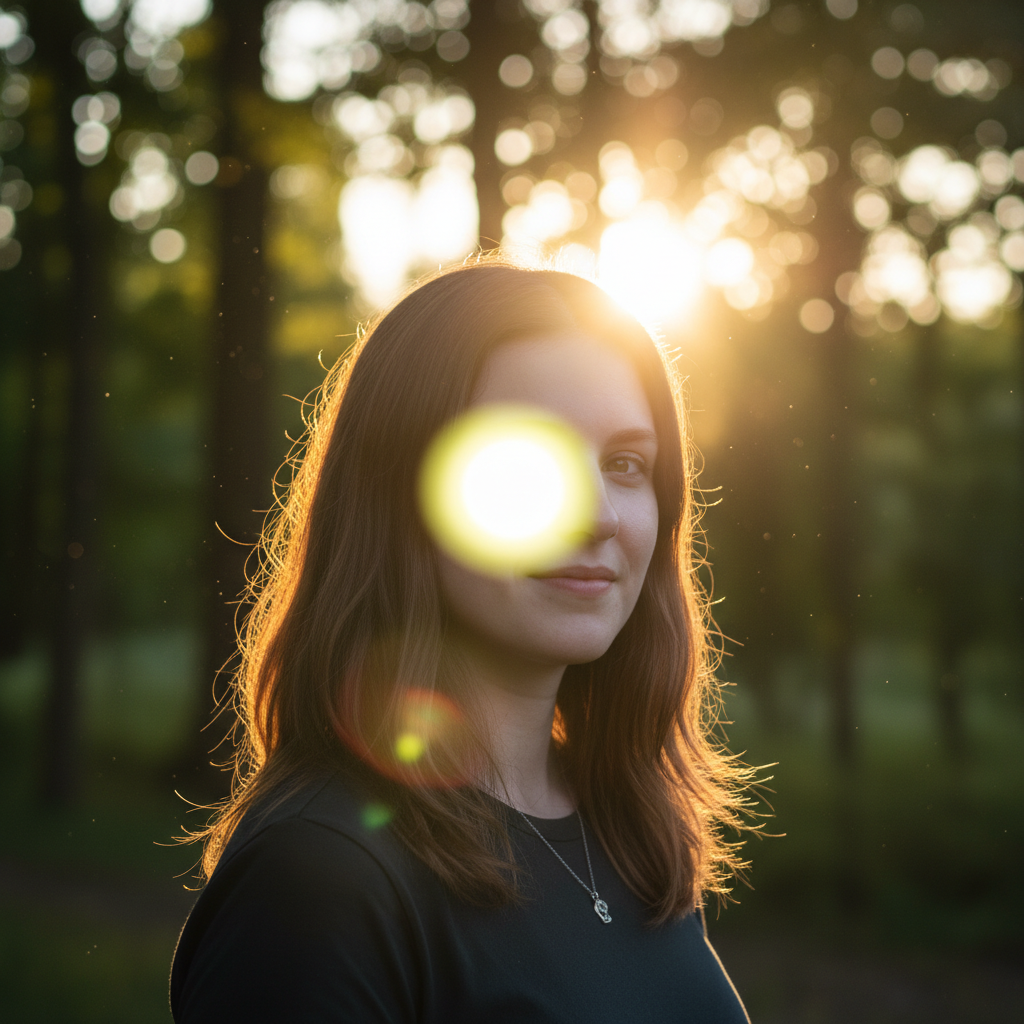
Beach portrait with hexagonal lens flare across face
Before
Clean beach portrait with flare removed and face detail restored
After

Remove Lens Flare from Photo

Drop your photo here

or click to browse

Release to upload

Free • No signup

Advertisement
Popular use cases:
  • outdoor photography
  • sunset photos
  • wedding photography
  • sports photography
  • travel photos
  • beach portraits
  • event photography

Cost
Free No signup required
Time
Instant results in 15-30 seconds
Works on
Any device - browser, phone, tablet, desktop
Powered by
AI-powered photo editing
Scenario Prompt Time
Basic lens flare remove the lens flare and restore clear image detail 15s
Multiple sun spots remove all the bright sun spots and hexagonal flare patterns from the entire image 20s
Face-crossing flare remove the lens flare crossing the subject's face and restore natural skin tones and detail 25s
Sunset with flare remove the unwanted lens flare while preserving the natural sunset glow and warm tones 30s

How it works

  1. Upload your photo

    Drop your image into EditThisPic. JPG, PNG, WebP up to 7MB. Works on any photo with unwanted lens flare, sun spots, or light artifacts. The AI can detect both subtle hazing and bright hexagonal flare patterns.

    Expect: Simple flare spots: 15-30 seconds. Complex multi-spot flares or hazing: may need 2-3 refinements.
  2. Describe what you want

    Type your instruction: 'remove the lens flare and restore clear image detail' or 'remove the bright sun spots from the top left corner.' Be specific about the location if there are multiple light sources. No marking needed—the AI identifies bright artifacts and light hazing automatically.

    Tip: Mention specific locations like 'upper right corner' or 'across the subject's face' when flare affects important areas.

    Copy one of these to get started:

    Basic lens flare removal remove the lens flare and restore clear image detail
    Multiple sun spots remove all the bright sun spots and hexagonal flare patterns from the entire image
    Flare across subject's face remove the lens flare crossing the subject's face and restore natural skin tones and detail
    Corner sun flare remove the bright sun flare from the top right corner and restore the clear sky
    3 more prompts
    Green/purple flare artifacts remove the colored lens flare artifacts and restore natural color balance throughout the image
    Hazy wash from backlight remove the hazy lens flare wash and increase contrast to restore clear image detail
    Sunset photo flare remove the unwanted lens flare while preserving the natural sunset glow and warm tones
  3. Generate and review

    Click Generate and watch the AI analyze the light patterns. It identifies lens flare artifacts, removes them, and reconstructs the image detail underneath. Check at full zoom to verify colors and contrast match the rest of the photo.

  4. Refine with markers if needed

    If any flare artifacts remain or if the AI removed natural light you wanted to keep, tap markers on those specific spots and regenerate. This is optional—most lens flare removals work without markers.

    Tip: Markers help when distinguishing between wanted reflections (water, glass) and unwanted lens flare in the same area.
Try it free

Remove Lens Flare from Photo

Drop your photo here

or click to browse

Release to upload

Free • No signup

"Had a perfect sunset shot ruined by lens flare. One prompt fixed it completely. Can't even tell it was there." @photorescue

See it in action

Beach portrait with hexagonal lens flare across face
Before
->
Clean beach portrait with flare removed and face detail restored
After

Beach portrait lens flare removal

Removed bright hexagonal lens flare crossing the subject's face in a backlit beach photo. The AI restored skin detail and natural colors.

Prompt: remove the lens flare crossing the subject's face and restore natural skin tones and detail
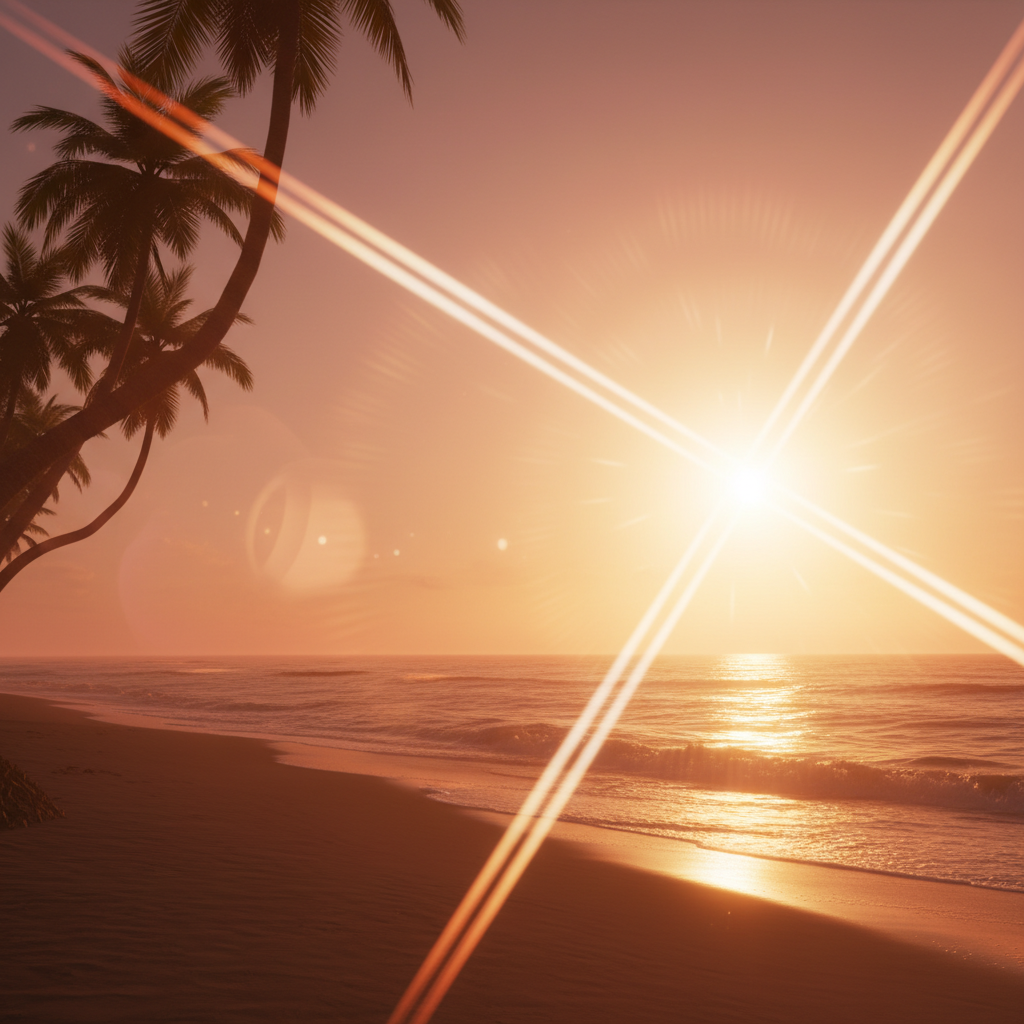
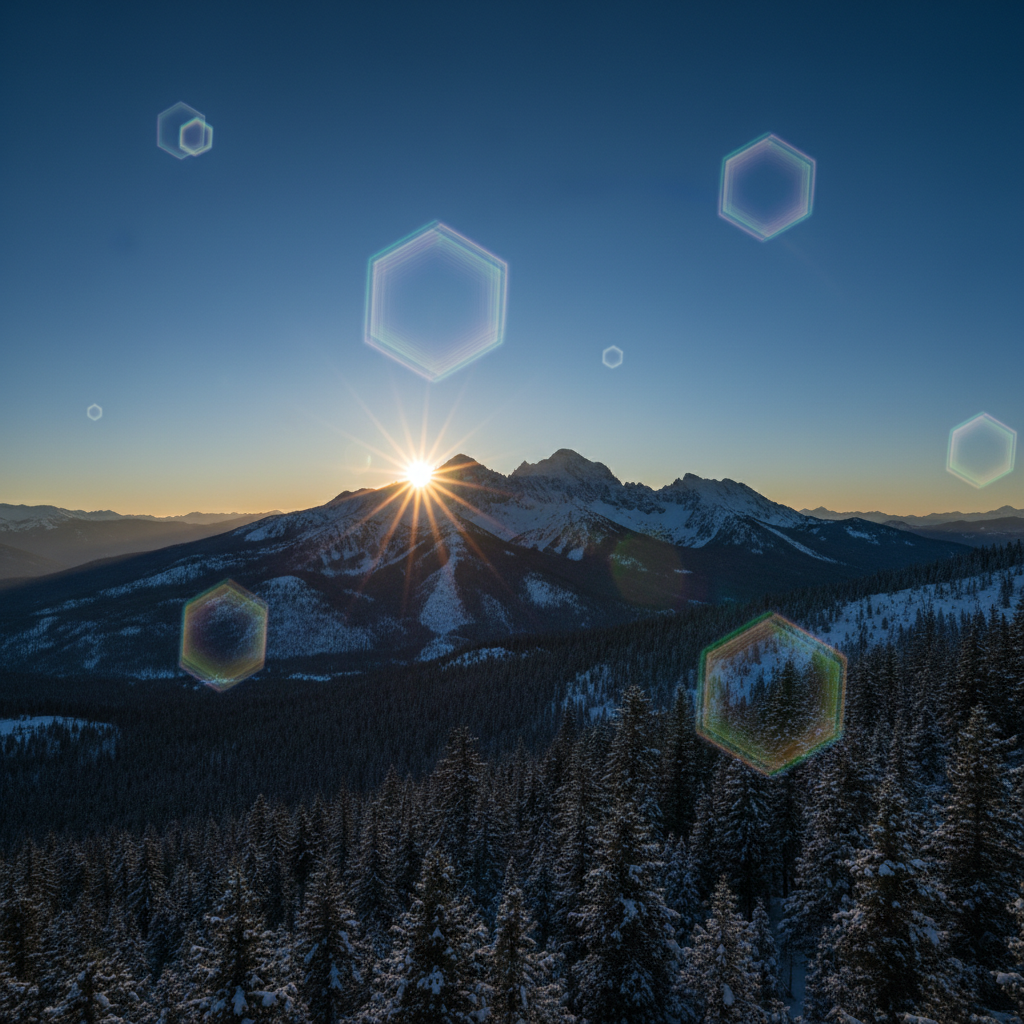
Sunset landscape with multiple colored lens flare spots
Before
->
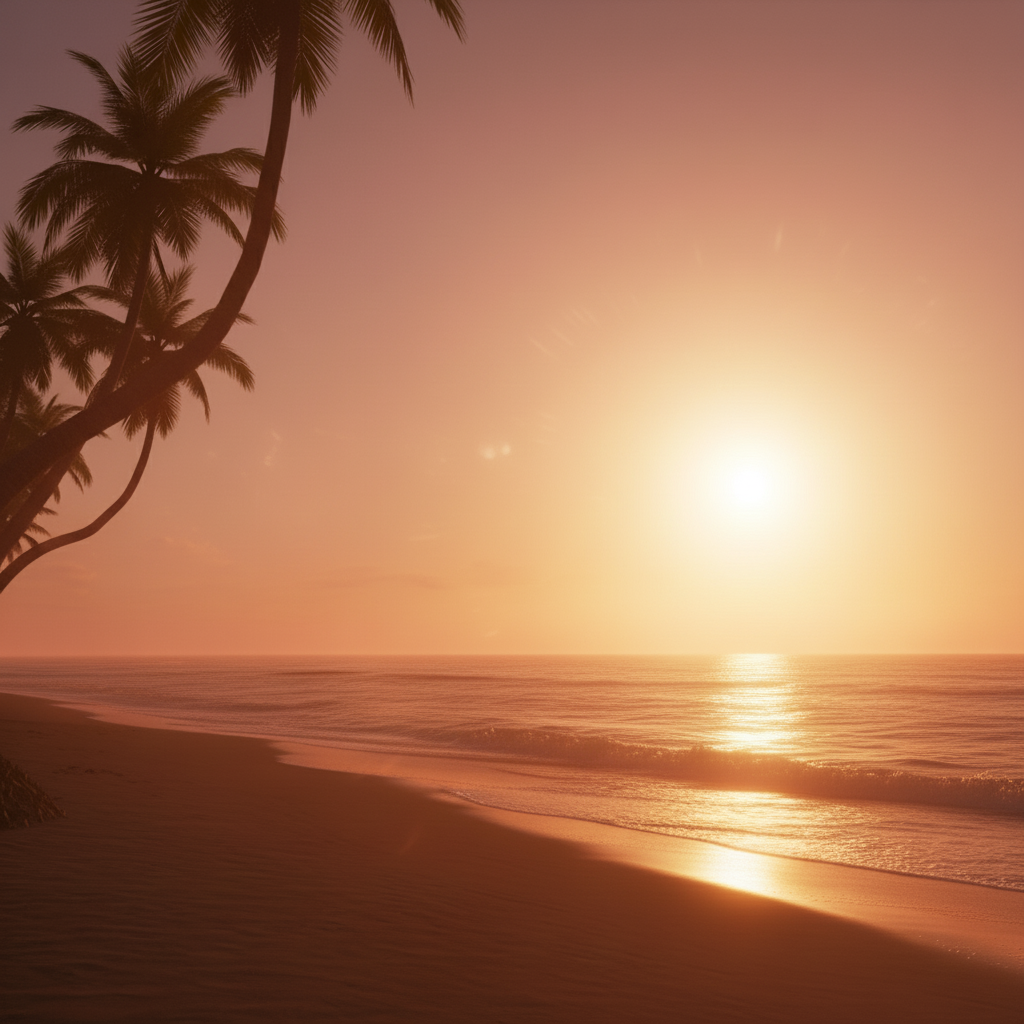
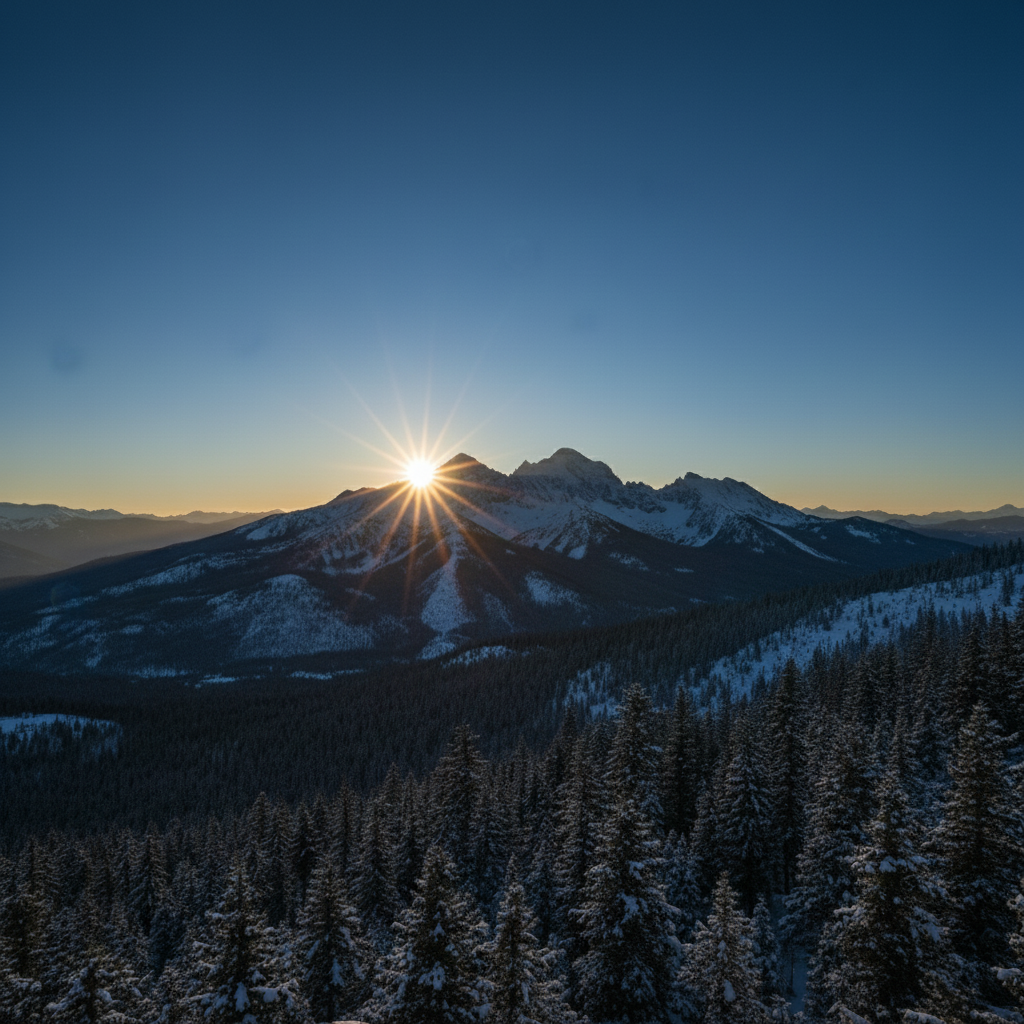
Clean sunset landscape with natural glow preserved
After

Landscape sunset flare cleanup

Removed multiple sun spots from a mountain sunset photo while preserving the warm glow. Natural contrast restored throughout the image.

Prompt: remove the unwanted lens flare while preserving the natural sunset glow and warm tones
Sports action shot with bright sun flare in corner
Before
->
Clean sports shot with flare removed and clear sky
After

Sports action shot flare removal

Removed corner sun flare from an outdoor sports photo. One prompt cleaned the bright spot without affecting the action.

Prompt: remove the bright sun flare from the top right corner and restore the clear sky
Advertisement

If something looks off

AI changed the wrong area or removed natural light

Why: The AI couldn't distinguish between unwanted flare and intentional light effects like reflections, highlights, or natural sun glow. This happens when the photo contains both.

Try: Tap markers on ONLY the unwanted flare spots, then regenerate with: 'remove only the marked lens flare artifacts'

Tip: Markers tell the AI 'I mean THIS light specifically.' Essential when preserving natural reflections or sun position.

Dark patches remain where flare was

Why: The AI removed the flare but couldn't accurately reconstruct the detail underneath because the flare completely obscured that area. Common with very bright, overexposed flare.

Try: Try: 'remove the lens flare and fill with natural detail matching the surrounding area'

Tip: Specifying 'fill with natural detail matching' guides the AI to infer and reconstruct based on context.

Some flare artifacts still visible after removal

Why: Complex flare patterns with multiple colors and diffuse hazing may need multiple passes. The AI prioritizes natural results over aggressive removal in one pass.

Try: Run a second generation with: 'remove all remaining lens flare spots and hazy wash completely'

Tip: For photos with 5+ flare spots or heavy hazing, two passes often work better than one aggressive removal.

Colors look wrong where flare was removed

Why: The lens flare had color tints (green, purple, orange) that the AI removed, revealing the need for color correction in that area.

Try: Regenerate with: 'remove the lens flare and correct the color balance to match the rest of the photo'

Tip: Explicitly mentioning 'color balance' helps the AI blend the corrected area more naturally.

Image lost contrast after flare removal

Why: The AI reduced overall brightness to eliminate flare hazing but went too far. This happens with diffuse flare that affects large areas.

Try: Try: 'remove only the bright lens flare spots while maintaining overall image contrast and brightness'

Tip: Adding 'maintaining contrast' tells the AI not to darken the entire image, just the flare artifacts.

Flare removal created soft or blurry areas

Why: The AI had to reconstruct significant image detail under the flare, and the surrounding area didn't provide enough texture information.

Try: Use markers at the blurry edges and: 'sharpen and restore detail in the marked areas'

Tip: This is common with flare over complex textures like foliage or fabric. May need manual touch-up in these cases.

Quick answers

Do I need to mark the lens flare before describing?

No! Just describe what you want: 'remove the lens flare' or 'remove the bright sun spots.' The AI identifies bright light artifacts and unusual color casts automatically. Only use markers when you need precision—like distinguishing between wanted reflections and unwanted flare in the same area, or refining edges after your first attempt.

How do I remove lens flare from a photo for free?

Upload your photo to EditThisPic and type 'remove the lens flare and restore clear image detail.' The AI detects bright spots, hexagonal patterns, and hazy wash, then reconstructs the image underneath in 15-30 seconds. Free to try with no signup, no watermark, and no credit card required.

Is there a free lens flare remover that doesn't need an account?

Yes. EditThisPic removes lens flare without requiring login or signup. Just upload your photo, describe the unwanted light artifacts, and download the cleaned result. No email, no account, completely free for your first edit.

What's the best AI tool for removing sun flare from photos?

EditThisPic uses Google's Gemini AI which understands photography artifacts and light behavior. Unlike Photoshop's clone stamp that requires manual selection, you just describe the problem: 'remove the lens flare.' The AI detects bright spots, color artifacts, and hazy wash automatically, then reconstructs natural image detail. Works on landscapes, portraits, outdoor events, and backlit scenes.

Can I remove lens flare while keeping natural sun glow?

Yes, specify what to preserve in your prompt: 'remove the unwanted lens flare while preserving the natural sunset glow.' The AI distinguishes between artificial flare artifacts (hexagons, green/purple spots) and natural lighting effects. Check the result—if it removed too much, mark the areas to keep and regenerate.

Does it work on all types of lens flare?

It works best on distinct flare artifacts: bright hexagonal spots, circular sun reflections, colored orbs, and visible hazy wash. Very subtle diffuse hazing across large areas may need multiple passes. Green and purple chromatic flare removes cleanly. If flare completely overexposes an area to pure white, detail reconstruction may be limited.

Ready to remove lens flare?

Free to try. No signup required.

Try it free