Free • No signup Fix Rejected passport photo · Free

Fix Rejected Passport Photo

Got rejected? Fix background color, shadows, glare, or size issues in seconds.
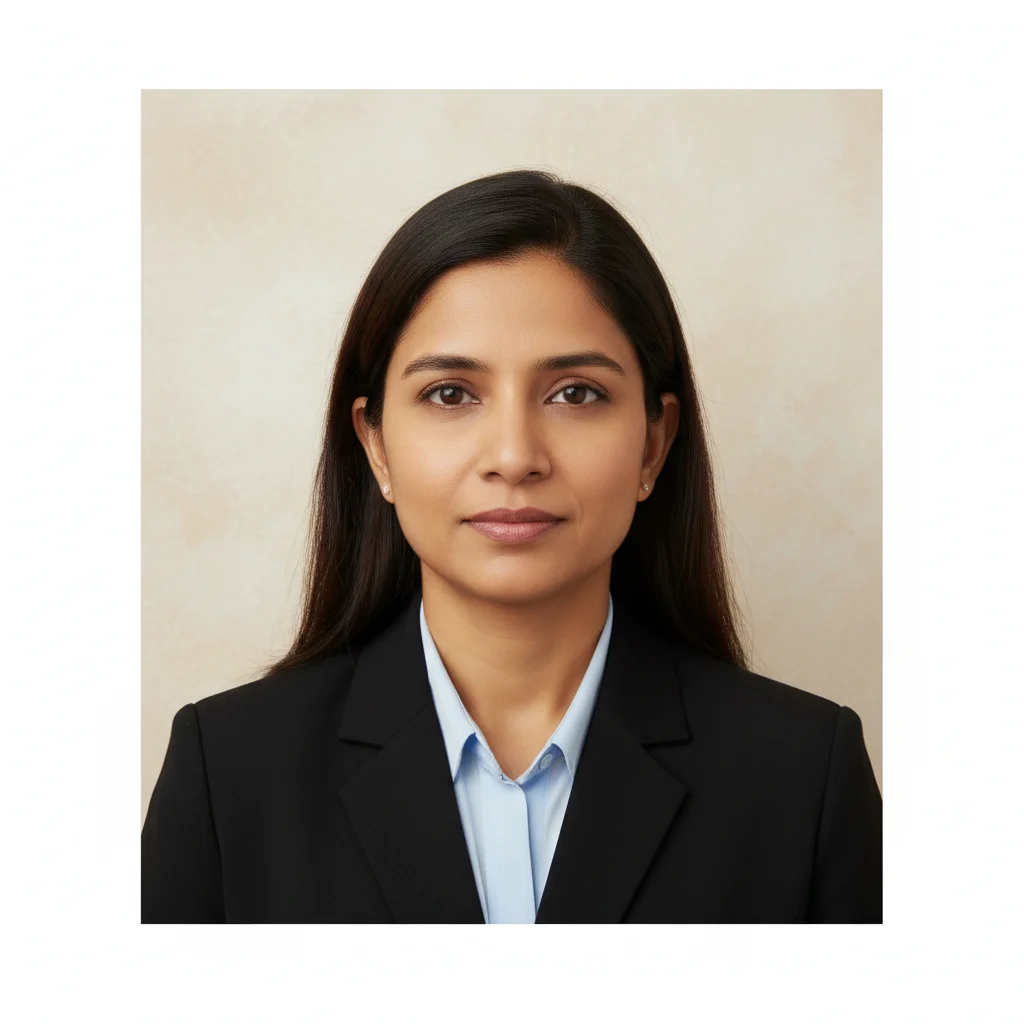
Passport photo with beige background that doesn't meet requirements
Before
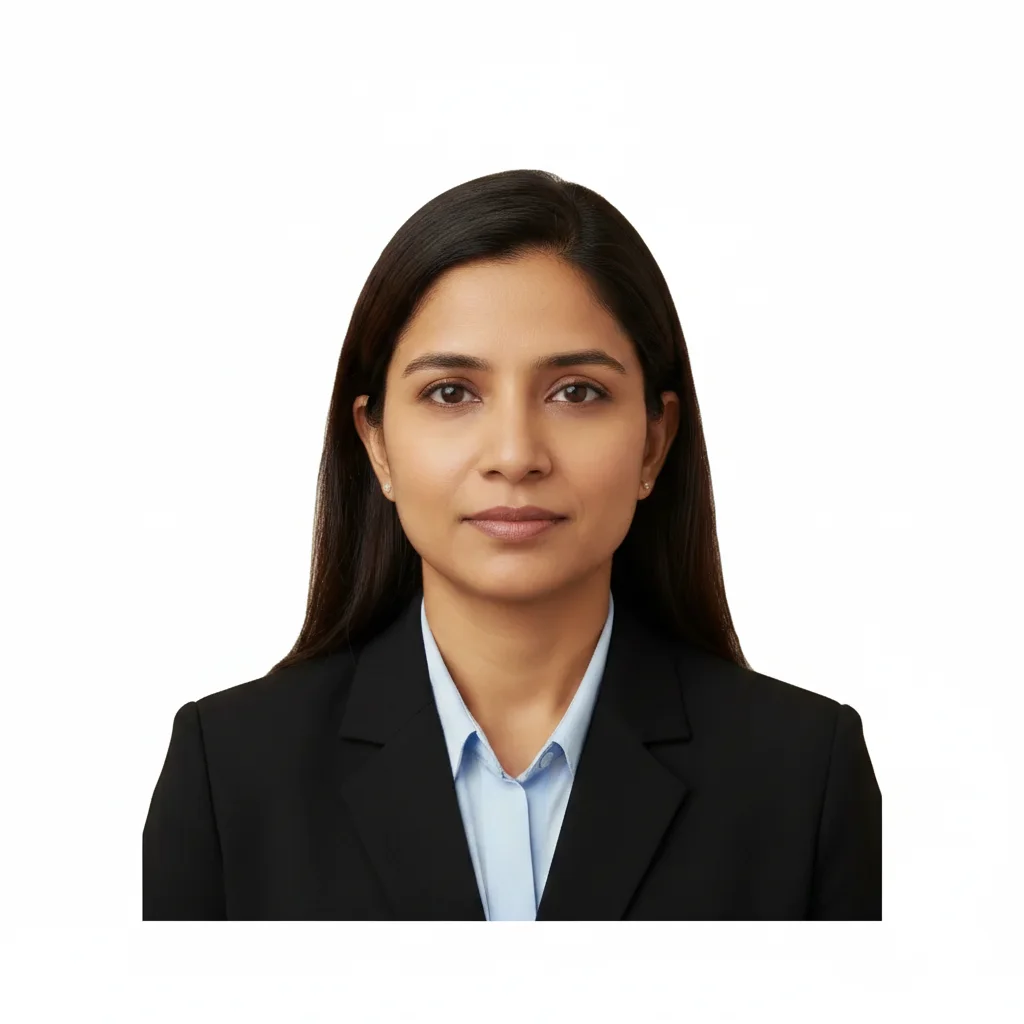
Same photo with compliant pure white background
After

Fix Rejected Passport Photo

Drop your photo here

or click to browse

Release to upload

Free • No signup

Advertisement
Popular use cases:
  • passport application
  • visa photo requirements
  • State Department rejection
  • passport renewal
  • travel document photo
  • official ID photo
  • passport photo compliance
  • photo booth alternative

Cost
Free No signup required
Time
Instant results in 15-30 seconds
Works on
Any device - browser, phone, tablet, desktop
Powered by
AI-powered photo editing
Scenario Prompt Time
Wrong background color change background to pure white, completely even 25s
Shadow on face remove the shadow on my face for passport photo 30s
Glasses glare remove glasses glare, keep frames visible 30s
Background shadow remove shadow behind head on background 25s

How it works

  1. Upload your rejected passport photo

    Drop the photo that got rejected into EditThisPic. JPG, PNG, WebP up to 7MB. If you took it yourself, use the original high-resolution version, not a screenshot or compressed copy. The AI needs good quality to fix compliance issues.

    Expect: Single fix (background only): 20-30 seconds. Multiple issues (background + shadow + glare): may need 2-3 separate edits over 1-2 minutes.
  2. Describe the specific rejection reason

    Type exactly what needs fixing based on your rejection notice: 'change background to pure white, completely even' or 'remove the shadow on my face for passport photo' or 'remove glasses glare from photo, keep glasses visible.' Be specific about what the rejection letter said. The AI handles passport requirements automatically.

    Tip: Use exact terms from your rejection notice. If it says 'uneven background,' specify 'change background to pure white, completely even with no variations.'

    Copy one of these to get started:

    Background color rejected (most common) change background to pure white, completely even with no shadows or variations, meet passport photo requirements
    Shadow on face remove the shadow on my face for passport photo, even lighting across entire face, no dark areas
    Glasses glare remove glasses glare from photo for passport, keep glasses frames visible, clear view of eyes
    Background too dark or gray change background to bright pure white, no gray tones at all, completely uniform for passport requirements
    4 more prompts
    Shadow behind head on background remove the shadow behind my head on the background, make background pure white with no darkness, meet passport photo standards
    Head tilt or position issue straighten my head to face directly forward, perfectly centered and level for passport photo requirements
    Red eye from flash remove red eye and fix any flash issues, natural eye color, meet passport photo requirements
    Photo too dark overall brighten the entire photo to meet passport requirements, well-lit face with clear features, pure white background
  3. Review against passport requirements

    Check at full zoom for State Department compliance: background must be pure white with no shadows or patterns, face must have no shadows, glasses should have no glare, head should be straight and centered. Compare closely to official requirements. Most rejections happen because of subtle issues that are hard to see at thumbnail size.

    Tip: The most common re-rejection is 'background not white enough.' Zoom in to verify absolutely no gray tones or gradients.
  4. Fix additional issues if needed

    If you had multiple rejection reasons, fix them one at a time. First fix the background, then remove shadows, then fix glare. This gives you more control than trying to fix everything at once. Download between fixes so you have a working version at each step.

    Tip: Tackle the most common rejection reason first (background color). If that passes, move to the next issue.
Try it free

Fix Rejected Passport Photo

Drop your photo here

or click to browse

Release to upload

Free • No signup

"My passport photo got rejected twice for background color. This fixed it in one try and I avoided another $15 at CVS." @TravelPlannerJess

See it in action

Passport photo with beige background that doesn't meet requirements
Before
->
Same photo with compliant pure white background
After

Beige background changed to white

Passport photo rejected because background wasn't pure white. One prompt fixed the compliance issue.

Prompt: change background to pure white, completely even with no shadows or variations, meet passport photo requirements
Passport photo with shadow across face
Before
->
Same photo with shadow removed and even lighting
After

Face shadow removed

Shadow on the left side of face caused rejection. Prompt removed shadow while keeping natural features.

Prompt: remove the shadow on my face for passport photo, even lighting across entire face, no dark areas
Passport photo with glasses glare obscuring eyes
Before
->
Same photo with glare removed and eyes clearly visible
After

Glasses glare corrected

Reflection from flash on glasses obscured eyes. Fixed while keeping glasses frames visible per requirements.

Prompt: remove glasses glare from photo for passport, keep glasses frames visible, clear view of eyes
Passport photo with shadow visible on background behind head
Before
->
Same photo with uniform white background and no shadow
After

Background shadow removed

Shadow behind head on the wall caused background rejection. Prompt created the required uniform white background.

Prompt: remove the shadow behind my head on the background, make background pure white with no darkness, meet passport photo standards
Advertisement

If something looks off

Background looks white but still gets rejected

Why: Passport requirements are extremely strict. Even slight off-white tones (cream, ivory, light gray) will fail. The background must be RGB 255,255,255 pure white with no variations.

Try: change background to RGB pure white 255,255,255, absolutely no cream or gray tones, perfectly uniform

Tip: Download and zoom to 400%. If you see ANY gray or beige pixels in the background, it will likely be rejected again.

Fixed shadow but face looks flat or unnatural

Why: Removing shadows can eliminate facial dimension if the AI over-processes. Natural facial contours need subtle shading.

Try: remove harsh shadows from face while preserving natural facial contours and dimension, soft even lighting

Tip: Ask for 'natural facial contours' to keep some depth while removing obvious shadow problems.

Glasses glare removed but glasses look wrong

Why: The AI may have altered the glasses frames or made lenses look opaque when removing glare.

Try: remove only the bright glare reflections from glasses lenses, keep glasses frames and lenses natural and realistic

Tip: Check that you can still clearly see your eyes through the lenses and frames look natural.

Multiple rejection issues need fixing

Why: Trying to fix background, shadows, and glare in one prompt can confuse the AI or create conflicts.

Try: Fix them separately: 1) Background first, 2) Face shadows second, 3) Glare last. Download between each fix.

Tip: Sequential fixes give you more control. If step 2 fails, you still have the step 1 success to work from.

Background changed but now edge of hair looks wrong

Why: AI background replacement can create artifacts around fine details like hair strands or fuzzy edges.

Try: change background to pure white while preserving natural hair edges and fine details

Tip: If hair edges look artificial, tap markers along the hairline before regenerating to guide the AI.

Photo meets requirements but file size is wrong

Why: Passport applications have specific file size requirements (often under 240KB). EditThisPic outputs may be larger.

Try: Not an AI fix—after downloading, use a free image compressor like TinyPNG or Squoosh to reduce file size without losing quality

Tip: Always check the specific file size requirement for your passport application before submitting.

Quick answers

Do I need to mark areas before describing the fix?

No! For most passport photo fixes, just describe what was rejected: 'change background to pure white' or 'remove shadow on face.' The AI understands passport requirements. Only use markers if edges need refinement after the first attempt, or if you're fixing a very specific small area like one spot of glare.

What are the most common passport photo rejection reasons?

Background color (not pure white), shadows on face or background, glasses glare obscuring eyes, head position not straight, photo too dark, red eye from flash, and incorrect dimensions. EditThisPic can fix all of these except major head angle issues, which require retaking the photo.

How do I know if my fixed photo will pass this time?

Check these critical requirements at full zoom: (1) Background is absolutely pure white with zero gray or cream tones, (2) No shadows anywhere on face or background, (3) Eyes fully visible with no glare if wearing glasses, (4) Face evenly lit with no dark areas, (5) Head straight and centered. If all five pass, your photo meets the most common rejection criteria.

Can I fix multiple rejection issues at once?

It's better to fix them one at a time. Start with background (most common rejection), then face shadows, then glare. This gives you checkpoints and more control. If one fix doesn't work perfectly, you can adjust just that step without redoing everything.

Will this work for passport photos from different countries?

Yes. Most countries have similar passport photo requirements: white or light-colored background, no shadows, clear face, no glare. The AI fixes work regardless of which country's passport you're applying for. However, check your specific country's size and dimension requirements separately.

My photo was rejected for 'wrong dimensions.' Can this fix it?

Dimension issues require cropping or resizing, which this tool doesn't specialize in. However, you can describe: 'crop to passport photo dimensions with head centered' and the AI may help. For precise dimension compliance, use a dedicated passport photo cropping tool after fixing other issues here.

Ready to fix your rejected passport photo?

Free to try. No signup required.

Try it free