Free โ€ข No signup Fix Photo in presentation ยท Free

Fix Photo Being Used in Presentation

Someone's using your photo in their presentation. Fix it before it goes on screen.
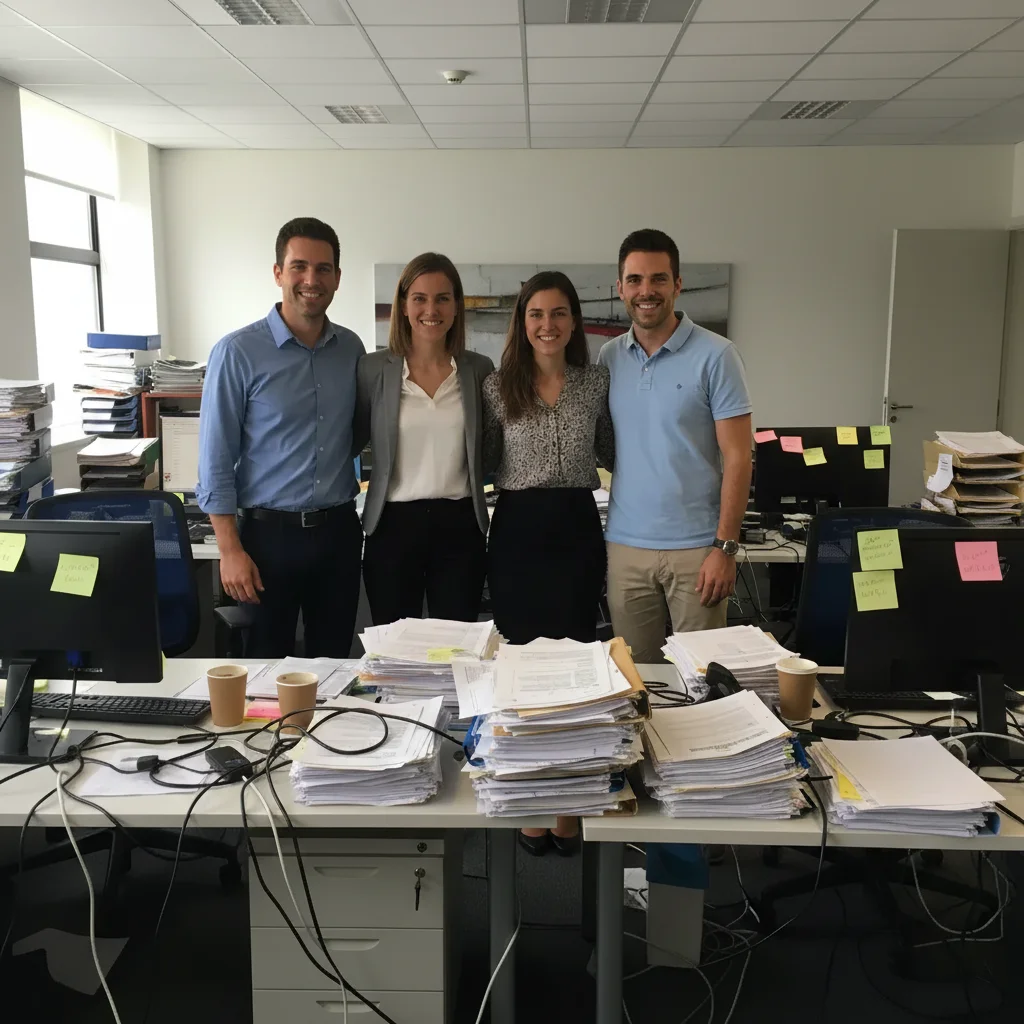
Team photo with messy office background showing clutter and cables
Before
โ†’
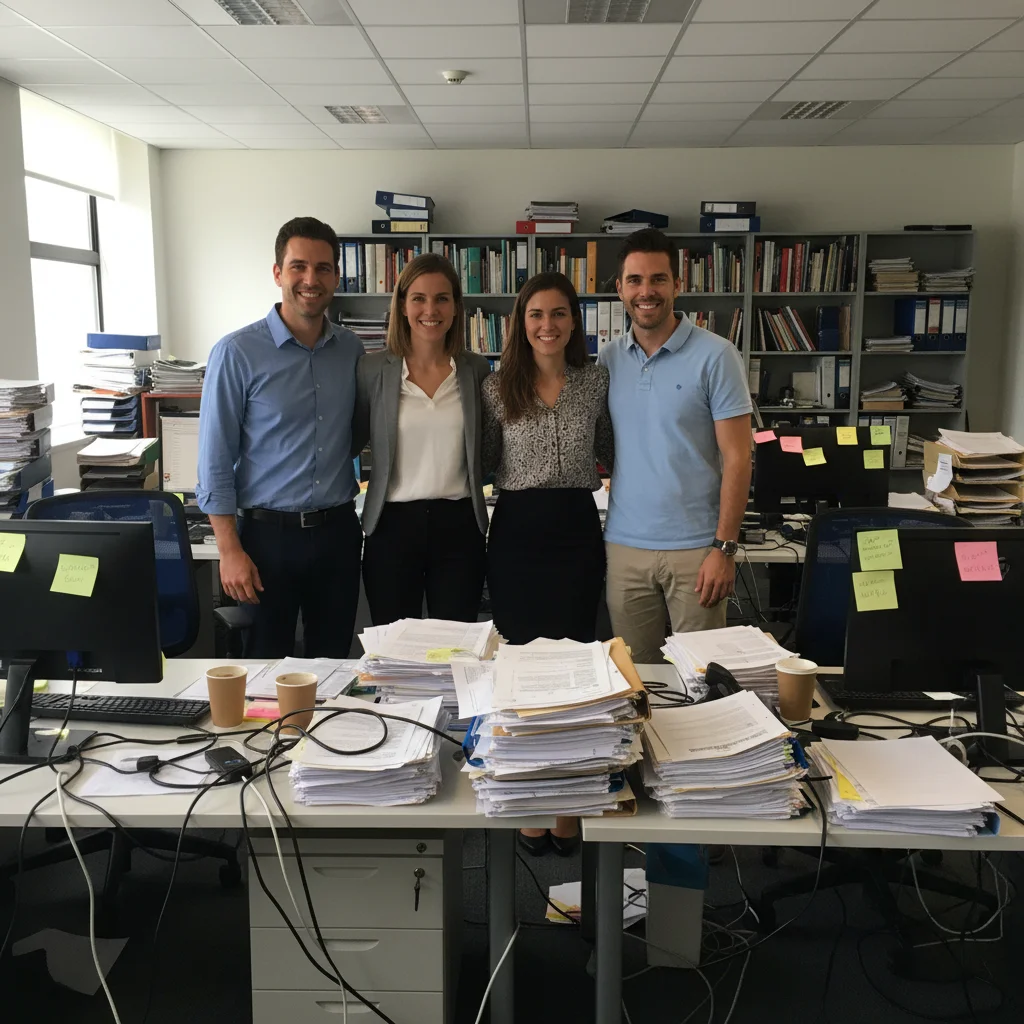
Clean team photo with professional neutral background for presentation
After

Fix Photo Being Used in Presentation

Drop your photo here

or click to browse

Release to upload

Free โ€ข No signup

Advertisement
Popular use cases:
  • presentation photo fix
  • slide photo cleanup
  • PowerPoint photo editor
  • presentation image optimization
  • conference presentation photo
  • business presentation image
  • slide deck photo
  • keynote photo editor

Cost
Free No signup required
Time
Instant results in 15-30 seconds
Works on
Any device - browser, phone, tablet, desktop
Powered by
AI-powered photo editing
Scenario Prompt Time
Clean background replace with solid light gray for slides 20s
Remove clutter remove desk clutter, keep subject clear 25s
Enhance visibility increase contrast for projector, brighten 25s
Product isolation remove background, pure white for product 20s

How it works

  1. Upload the presentation photo

    Drop the photo that's going into the presentation into EditThisPic. Could be a team photo, product shot, headshot, or any image someone's using in their slides. JPG, PNG, WebP up to 7MB.

    Expect: Simple background fixes: 20-25 seconds. Removing multiple distractions or people: may need one refinement.
  2. Describe what needs fixing

    Type what the presentation needs: 'replace messy background with solid color' or 'remove the clutter from the desk, keep the product clear.' Presentation photos need clean, distraction-free backgrounds. No marking required - the AI understands context.

    Tip: Think about visibility on a big screen: 'enhance contrast for projection, remove background distractions'

    Copy one of these to get started:

    Clean background for slides replace busy background with solid light gray, clean and professional for presentation slides
    Remove office clutter remove all desk clutter, cables, papers, and distractions, keep the subject sharp and clear
    Enhance for projector visibility increase contrast significantly, enhance colors for projector visibility, make subject stand out
    Remove people from group photo remove the person on the right, fill with background, keep the remaining team members sharp
    3 more prompts
    Product photo cleanup remove all background elements, keep only the product, solid white background for slide
    Team photo professional polish replace casual background with professional neutral backdrop, enhance lighting for even appearance
    Fix low quality screenshot enhance image quality and sharpness, increase resolution appearance, clean up compression artifacts
  3. Check at presentation scale

    Zoom out and imagine this on a large screen or projector. Are backgrounds clean? Is the subject clearly visible? Do colors have enough contrast? Presentation photos should be simple and high-impact.

  4. Refine with markers if needed

    If the AI missed a distraction or removed something important, tap markers on those specific areas and regenerate. Most presentation fixes work without markers - they're optional for precision.

    Tip: Test the photo in your actual slide deck to verify it looks good against your template colors.
Advertisement
Try it free โ†“

Fix Photo Being Used in Presentation

Drop your photo here

or click to browse

Release to upload

Free โ€ข No signup

"Colleague grabbed my team photo for her conference presentation but it had messy backgrounds and cluttered desks. Fixed it in 30 seconds before her talk. She said it looked way more professional on the big screen." @PresentationSaved

See it in action

Team photo with messy office background showing clutter and cables
Before
->
Clean team photo with professional neutral background for presentation
After

Team photo for quarterly review presentation

Manager needed the team photo for slides but the office background was messy with visible clutter. Cleaned it up so the focus stayed on the team.

Prompt: remove all office clutter, cables, papers from background, replace with clean neutral office setting, keep team sharp

Product photo with warehouse background and industrial setting visible
Before
->
Clean product photo with pure white background for sales presentation
After

Product photo for sales presentation

Sales team was using a product photo with the warehouse visible in the background. Needed clean white background for professional slides.

Prompt: remove warehouse background completely, create pure white solid background, keep product sharp and well-lit

If something looks off

Subject looks too dark against the new background

Why: Light backgrounds can make subjects appear darker by contrast, especially on projectors.

Try: brighten the subject while keeping background as is, increase overall exposure, optimize for projector display

Tip: Test in your actual presentation software on a projector if possible before finalizing.

AI removed something important from the background

Why: The prompt said 'remove clutter' but the AI interpreted important context as clutter too.

Try: remove only papers and cables, keep the office furniture and context elements

Tip: Be specific about what to remove rather than 'all clutter' if context matters.

Colors look washed out after enhancement

Why: Over-enhancement can desaturate colors or create artificial appearance.

Try: restore natural color saturation, keep colors vibrant but realistic for presentation

Tip: 'Vibrant but realistic' maintains professional appearance without looking fake.

Background replacement has visible seams or edges

Why: The AI didn't blend edges perfectly between subject and new background.

Try: Tap markers on seam areas, then: blend edges seamlessly, no visible transition between subject and background

Tip: Presentations are viewed from a distance - small imperfections often don't show on screen.

AI changed the wrong area or something unexpected

Why: The AI couldn't determine exactly which area you meant from description alone.

Try: Tap a marker on the specific area you want changed, then regenerate with the same prompt

Tip: Markers tell the AI 'I mean THIS one specifically.' Use them when description alone is ambiguous.

Photo still looks unprofessional for executive presentation

Why: Some photos need multiple refinements to reach presentation quality.

Try: Start fresh with comprehensive edits: 'clean background, enhance contrast, professional lighting, remove all distractions'

Tip: Combine all needed changes in one prompt for consistent results.

Quick answers

Do I need to mark areas before describing what to remove for presentations?

No! Just describe what needs fixing: 'remove background clutter' or 'replace with solid color.' The AI understands presentation contexts like office backgrounds, desk clutter, and distracting elements. Only use markers if you need to specify exactly which item among several similar ones, or if edges need refinement.

How do I fix a photo for presentation use quickly?

Upload the photo and describe what presentations need: 'replace background with light gray, enhance contrast for projector visibility.' Most presentation fixes take 20-30 seconds. Think about how it will look on a large screen - clean backgrounds, high contrast, no distractions.

What makes a good presentation photo?

Clean, simple backgrounds with no distractions. High contrast so subjects are visible on projectors. Clear focus on what matters. Appropriate for professional context. Photos should support your message, not compete with it. Avoid busy backgrounds, low contrast, or cluttered compositions.

Can I fix someone else's photo they're using in their presentation?

Yes, that's a common use case. Colleagues often grab photos for presentations without time to optimize them. You can clean backgrounds, remove distractions, enhance visibility - all the fixes that make photos look professional on slides.

Should I use white or gray backgrounds for presentation photos?

It depends on your presentation template. Light gray works well with most templates and doesn't create harsh white glare on projectors. Pure white works for product isolation. Match your presentation's color scheme - if you have a dark template, lighter backgrounds provide contrast.

Is EditThisPic's AI photo in presentation fixer really free?

Yes โ€” you get 1 free edit per week, no account needed. For unlimited edits, plans start at $3.99/month.

What photo formats does the AI photo in presentation fixer support?

JPG, PNG, WebP, and HEIC. Upload any common photo format and EditThisPic handles the rest.

How long does it take to fix photo in presentation?

Usually 15-30 seconds. Upload your photo, describe what you want, and the AI delivers the result.

Ready to fix your presentation photo?

Free to try. No signup required.

Try it free โ†’