AI Photo Editor for StockX Product Photos
Professional sneaker photos that pass StockX standards, no lightbox required.
Drop your photo here
or click to browse
Release to upload
Free • No signup
"Was using my phone on a bedsheet. Now my listings look like they came from a pro studio. Sold 3 pairs in the first week after upgrading my photos." @SneakerFlipLA
Built for Sneaker Resellers and Streetwear Sellers
StockX buyers judge authenticity partly by photo quality. Professional-looking photos build trust and help your listings sell faster. EditThisPic gives you studio-quality white backgrounds without the $200+ lightbox setup or hours learning Photoshop.
Tools for StockX Product Photos
Remove Background
Create clean cutouts for pure white StockX backgrounds
Replace Background
Swap messy backgrounds for clean white product shots
Enhance Lighting
Even out shadows and make colors pop authentically
Remove Shadows
Eliminate harsh shadows that make products look worn
Fix Colors
Correct color casts so shoes look true to life
Step-by-Step Guide
-
Photograph your item
Use natural light near a window or bright room. Photograph against any neutral surface. Include multiple angles: side profile, top-down, heel, sole, and any authentication tags or labels.
Simple background swap: 20-25 seconds. Full cleanup with lighting: 30-40 seconds.Natural daylight from a window is better than flash. Overcast days give the most even lighting. -
Upload and describe your edit
Drop your photo into EditThisPic. Type what you need: 'replace background with pure white, clean product shot' or 'remove background and fix lighting for StockX listing.'
Combine multiple fixes in one prompt: 'white background, fix shadows, enhance colors to match true product' -
Review for StockX compliance
Check that the background is pure white without gray patches. Verify colors look accurate to the actual product. Ensure no artifacts around laces, mesh, or complex textures. The photo should look like it came from an official product page.
-
Refine edges if needed
If laces or mesh areas have rough edges, tap markers on those spots and ask to 'clean up the edges around laces, maintain white background.' Download and repeat for all product angles.
Process all your listing photos in batch - consistency across angles builds buyer confidence.
Copy-Paste Prompts for StockX Photos
replace background with pure white, professional product photography, clean and bright
Works for sneakers, streetwear, watches, and accessories
replace background with seamless white, keep subtle shadow under shoe for depth, product catalog style
The subtle shadow prevents the shoe from looking like it's floating
fix the yellow color cast to neutral white balance, replace background with pure white, make colors accurate
Indoor lighting often makes white shoes look yellow - this fixes it
replace background with white, smooth out wrinkles slightly, enhance colors to look vibrant but natural
Minor wrinkle smoothing is fine but don't overdo it - buyers want to see the real item
Show 4 more prompts
replace background with clean white, enhance the watch face clarity, remove reflections from glass
Watch crystals often catch reflections - removing them shows the dial clearly
replace background with pure white, enhance detail visibility on sole, keep wear marks visible for authenticity
Don't hide wear - StockX buyers want honest condition photos
enhance sharpness and clarity, fix lighting to read text clearly, subtle white background
Authentication tags should be clearly readable - sharpening helps
replace background with pure white, maintain spacing between items, even lighting across all products
Good for showing box contents or complete sets
| Edit Type | Prompt | Time | |
|---|---|---|---|
| White background | replace background with pure white |
20s | Try This → |
| With shadow | white background, keep subtle shadow |
25s | Try This → |
| Fix colors | fix yellow cast, white background |
25s | Try This → |
| Full cleanup | white background, fix lighting, accurate colors |
35s | Try This → |
Real Examples
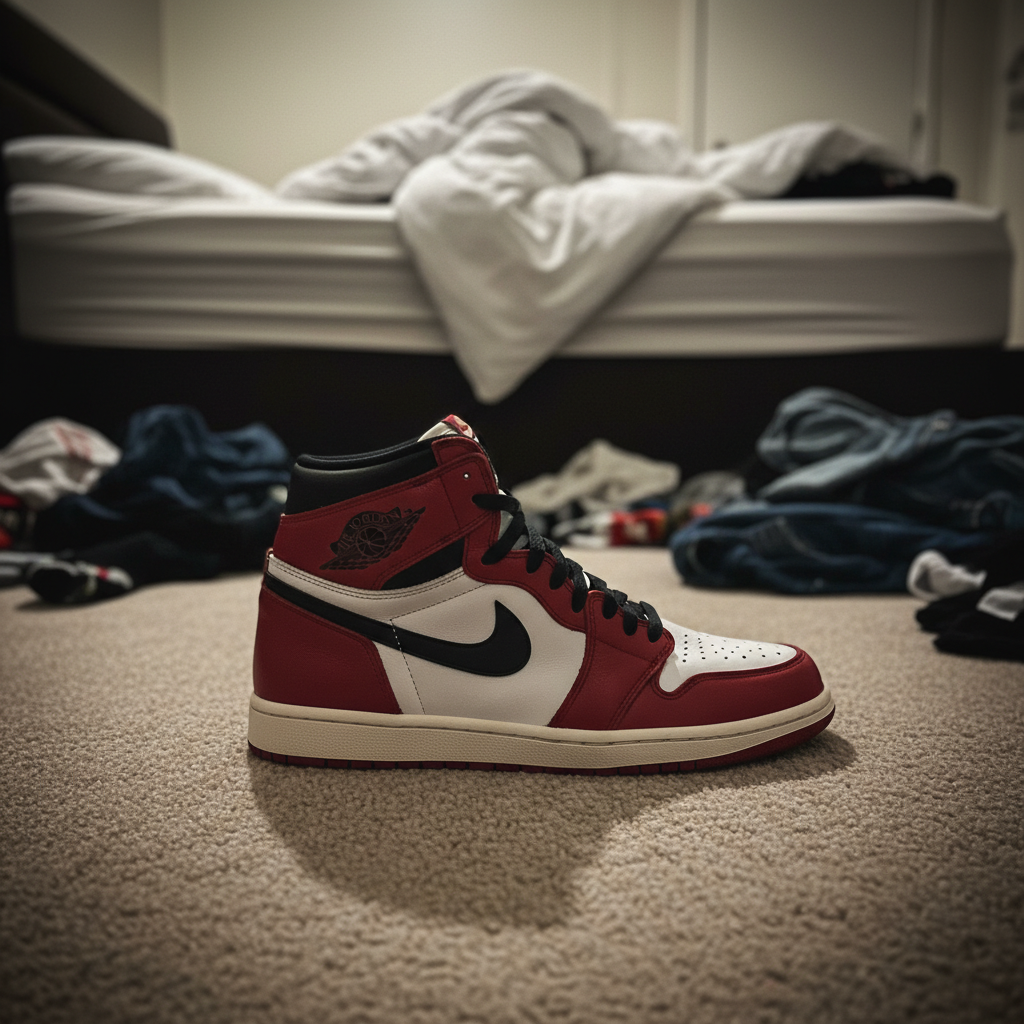
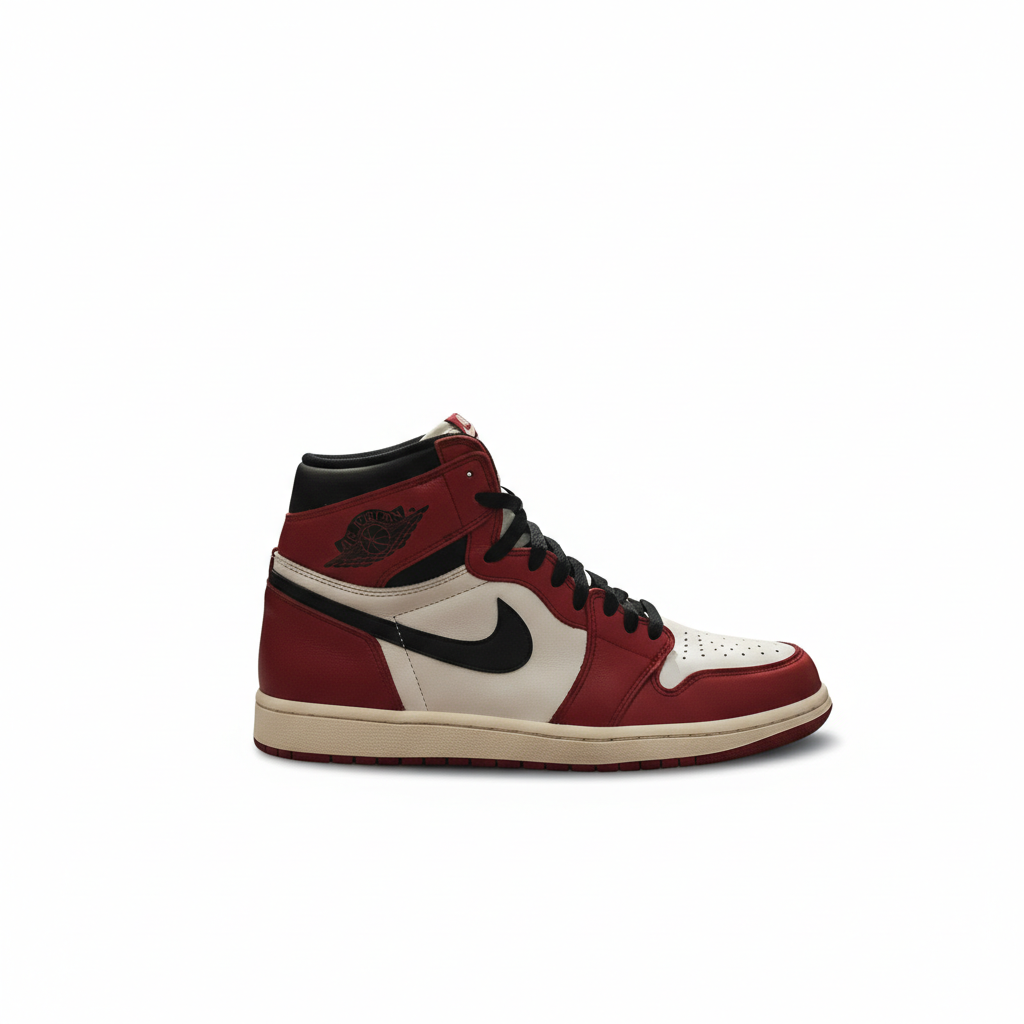
Bedroom carpet to StockX ready
The classic reseller problem: great sneakers, terrible photo location. Carpet texture and clutter gone in one edit.
replace background with pure white, professional product shot, keep subtle shadow under shoe
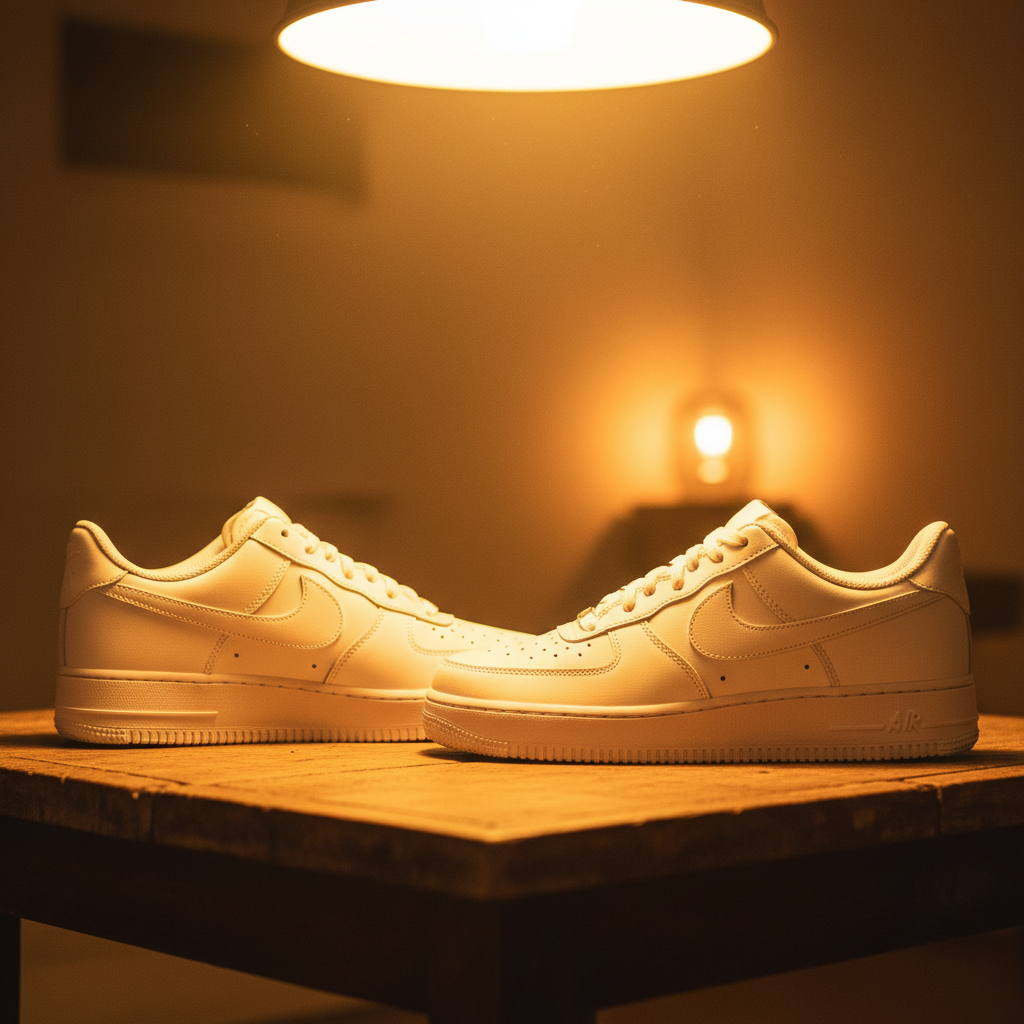
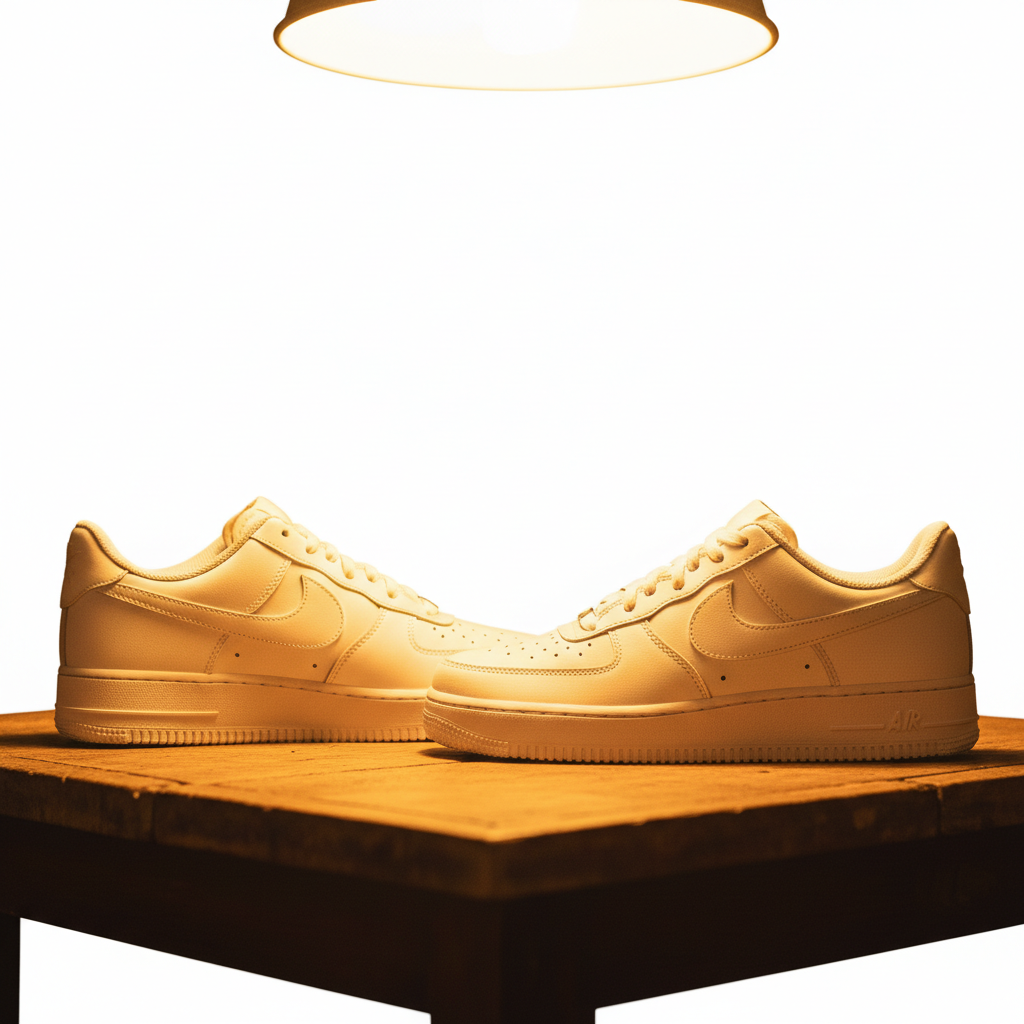
Yellow lighting color correction
Indoor tungsten lights made these white shoes look cream-colored. Fixed the color cast and background in one go.
fix yellow color cast to neutral, replace background with pure white, accurate shoe colors
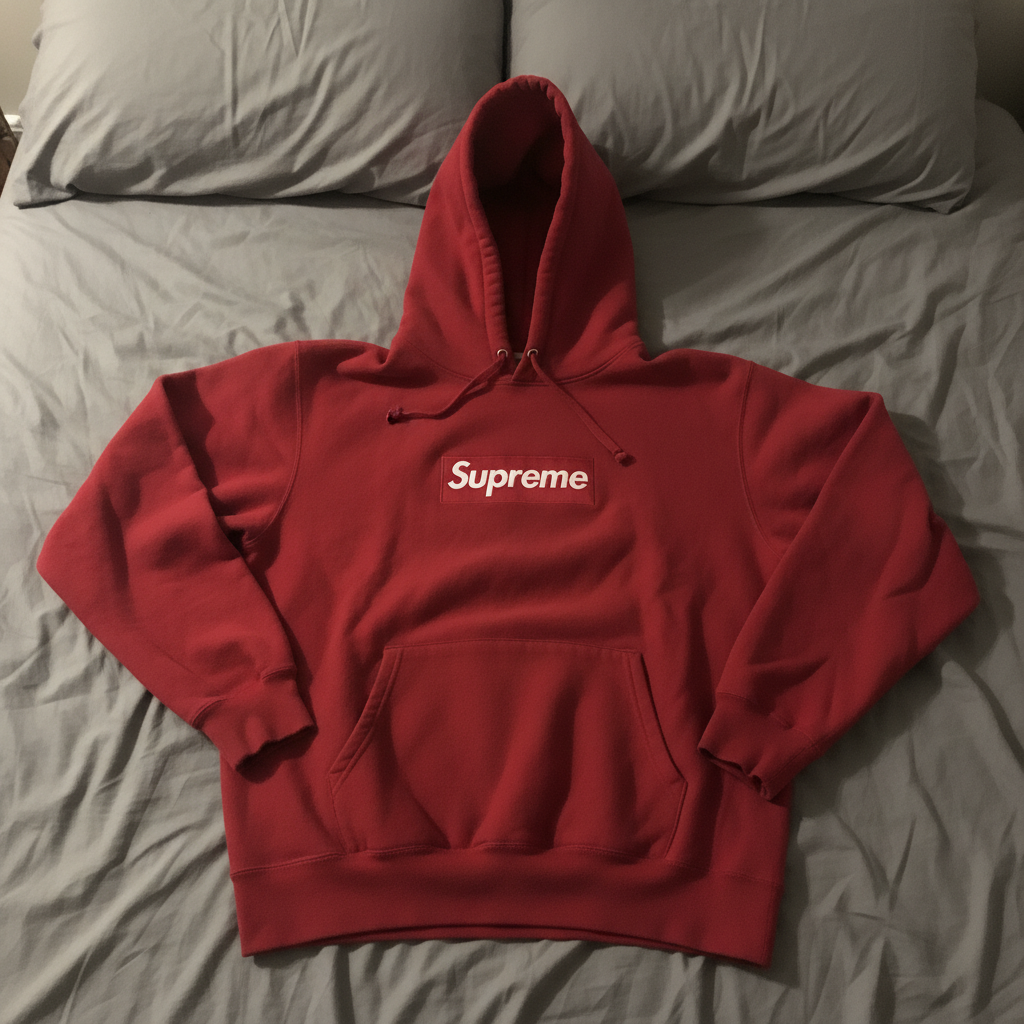

Streetwear hoodie flat lay
Supreme hoodie on a bed looked amateur. Professional flat lay styling with wrinkles smoothed.
replace background with pure white, smooth wrinkles slightly, enhance the red color to be vibrant and accurate
When Things Go Wrong
Background isn't pure white, has gray patches
Why: Shadows or uneven lighting in the original created areas the AI interpreted as part of the product.
make entire background pure white #FFFFFF, remove all gray areas, keep product unchanged
Photograph with the product lifted slightly off the surface to reduce shadow transfer.
Laces or mesh have jagged edges
Why: Fine details like laces and mesh textures are challenging to separate cleanly from backgrounds.
Tap markers on the lace/mesh areas, then: clean up edges around laces, smooth transition to white background
Photographing against a contrasting color (dark shoes on light, light shoes on dark) gives cleaner edges.
Colors don't match the real product
Why: The original photo's white balance was off, and the AI maintained that cast.
correct color to true [describe the color], neutral white balance, accurate product representation
Include the actual color in your prompt: 'true University Blue' or 'accurate Bred colorway'
Product looks too edited or fake
Why: Over-enhancement can make products look artificial, which hurts buyer trust.
Less is more for resale. Buyers want to see the real item, not a heavily processed image.
AI changed the wrong area
Why: The AI couldn't determine exactly which area you meant from description alone.
Tap a marker on the specific area you want to change, then regenerate with the same prompt
Markers tell the AI 'I mean THIS one specifically.' Use them when description alone is ambiguous.
Frequently Asked Questions
Do I need to mark the background before replacing it?
No. Just type 'replace background with white' and EditThisPic handles it automatically. The AI knows what 'background' means. Only use markers if you need to fix specific edges after the first result.
Will StockX accept photos edited this way?
Yes. StockX cares about accurate representation of the product's condition. Background replacement and lighting fixes are standard practice. Don't edit out flaws, damage, or wear - those need to be visible for accurate grading.
How do I get consistent backgrounds across all my listing photos?
Use the same prompt for all images: 'replace background with pure white, professional product shot.' Process multiple angles in sequence. The AI produces consistent results when given consistent instructions.
Is there a free product photo editor that doesn't require an account?
Yes. EditThisPic is free to try with no signup required. You get one free edit per week. For high-volume sellers processing many listings, credit packs are available.
What's the best way to photograph sneakers for this to work well?
Natural daylight near a window gives the best starting point. Photograph against any solid color that contrasts with the shoe. Include side profile, top-down, heel, sole, and tag shots. Higher resolution source photos give cleaner results.
Can I use this for other resale platforms like GOAT, eBay, or Grailed?
Absolutely. Clean white backgrounds are the standard across all resale platforms. The same edits work for GOAT, eBay, Grailed, Depop, Mercari, and Facebook Marketplace listings.
Ready to upgrade your StockX listings?
Free to try. No signup required. No watermarks.
Edit Your Product Photo